
How to Fix Apache Port 80 Error in VICIdial (2026 Guide)
Vicidial Software Solutions

Apache Port 80 Error in VICIdial? Causes and Complete Fix Guide (2026)

How to Fix Apache Port 80 Error in VICIdial (2026 Guide)

Key Takeaways

  • The VICIdial Apache Port 80 Error occurs when another service, most commonly Nginx, an existing Apache instance, or a monitoring agent, has already bound to port 80 before Apache starts.
  • Running lsof -i:80 or ss -tlnp | grep :80 instantly reveals which process is the culprit.
  • Stopping or reconfiguring the conflicting service, then restarting Apache, resolves the issue in most cases without touching VICIdial’s core configuration.
  • Multi-server VICIdial deployments and environments using active VICIdial API integration are especially vulnerable because additional services are often co-installed.
  • Preventive measures, firewall rules, startup service ordering, and port-reservation documentation, eliminate recurring conflicts.

The VICIdial Apache Port 80 Error stops Apache from starting because the TCP port it needs,  port 80, is already claimed by another running process. VICIdial’s entire web-based interface, its administrative panel, and the endpoints relied upon by its API layer all depend on Apache (httpd) binding successfully to port 80 at startup. 

When that binding fails, operators lose access to agent screens, supervisors cannot reach the management interface, and any external system using a VICIdial external API connection gets a refused connection instead of a response.

This error surfaces most often during server reboots, OS upgrades, or when a second service is installed on the same machine without checking existing port assignments. The symptom is deceptively simple, Apache refuses to start, but the root cause requires a targeted diagnostic process to identify correctly.

Why Port 80 Matters to VICIdial’s Web Interface and API Layer

VICIdial runs on a LAMP stack. Apache is not just a convenience for the web interface; it is the transport layer for every browser-based and programmatic interaction with the system.

The Web Interface Dependency

Agent login pages, inbound and outbound campaign dashboards, real-time reporting, and supervisor monitoring screens are all served through Apache on port 80. When Apache is down, none of these functions are reachable, the contact center effectively goes dark from a management perspective.

The API Layer Dependency

VICIdial exposes two primary programmatic interfaces, both routed through Apache:

The standard VICIdial API accessed via HTTP requests to http://[server]/vicidial/non_agent_api.php, handles inbound lead injection, campaign control, agent status queries, and disposition updates.

Non-agent VICIdial API used by third-party CRMs, ticketing platforms, and workforce management tools that need to push or pull data without an active agent session.

Any VICIdial REST API integration or VICIdial automation API workflow built by your team will fail silently or throw connection errors the moment port 80 is unavailable. This is why fixing a port conflict is not merely a server administration task, it is a business continuity issue.

Common Services That Steal Port 80

Understanding which processes commonly conflict with Apache on VICIdial servers narrows your diagnostic time considerably.

Nginx

Nginx is the most frequent offender. Developers sometimes install Nginx as a reverse proxy or static file server on the same machine, not realising Apache is already configured to own port 80. Both services start on boot, and whichever launches first wins the port.

A Second Apache Instance

On servers that have been rebuilt, cloned, or upgraded without a clean state, it is possible to have two separate Apache installations, for example, the system-packaged apache2 alongside a manually compiled httpd, both configured for port 80.

Monitoring and Metrics Agents

Some infrastructure monitoring agents (Prometheus exporters, proprietary APM tools) and certain database management panels bind to port 80 as their default listener. These are easy to miss during initial setup.

Asterisk HTTP Interface

Because VICIdial is tightly coupled with Asterisk, some engineers enable the Asterisk built-in HTTP server (used for AMI over HTTP or ARI endpoints) without realising it can be configured to use port 80 by default.

Panel Software Residuals

cPanel, Webmin, or ISPConfig remnants from a previous server role sometimes leave services bound to port 80 even after the primary panel software has been removed.

Step-by-Step Diagnosis: Finding the Conflicting Process 

Before touching any configuration, identify exactly what is using port 80. Guessing wastes time and risks disrupting unrelated services.

Step 1 — Check the Apache Error Log First

tail -n 50 /var/log/httpd/error_log
# or on Debian/Ubuntu-based systems:
tail -n 50 /var/log/apache2/error.log

Look for a line resembling:

(98)Address already in use: AH00072: make_sock: could not bind to address 0.0.0.0:80

This confirms port 80 is occupied. Now find out by whom.

Step 2 — Identify the Process Occupying Port 80


lsof -i:80

This lists every process with an open file descriptor on port 80. The output columns you care about are COMMAND (process name), PID (process ID), and USER (which account owns it).

If lsof is not installed:

ss -tlnp | grep :80

Or using netstat (on older systems):

netstat -tlnp | grep :80

Sample output you might see:

COMMAND   PID     USER   FD   TYPE  DEVICE SIZE/OFF NODE NAME
nginx     14832   root   6u   IPv4  98431     0t0   TCP *:http (LISTEN)

This tells you immediately that Nginx is the conflict.

Step 3 — Confirm the Process Details

Once you have the PID, confirm what you are dealing with:

ps aux | grep 14832

And check whether the service is managed by systemd:

systemctl status nginx
# or
systemctl status apache2

Complete Fix Guide: Stopping the Conflict and Restoring Apache

With the conflicting process identified, you have three resolution paths depending on whether the competing service is needed.

Resolution Path A — Stop the Conflicting Service (It Is Not Needed)

If the service occupying port 80 has no ongoing purpose on this server:

# Stop the service immediately

systemctl stop nginx

# Prevent it from starting again on reboot

systemctl disable nginx

# Verify port 80 is now free

lsof -i:80

# Start Apache

systemctl start httpd

# or on Debian/Ubuntu:

systemctl start apache2

# Confirm Apache is running

systemctl status httpd

Resolution Path B — Move the Conflicting Service to a Different Port (Both Services Needed)

If Nginx (or another service) is genuinely required on the same host, redirect it to a non-conflicting port.

For Nginx, edit /etc/nginx/sites-enabled/default or the relevant server block:
server {
    listen 8080;   # Changed from 80
    server_name _;
    ...
}

Then restart Nginx and start Apache:
systemctl restart nginx
systemctl start httpd

Important: If you moved a service that was fronting a VICIdial API integration endpoint, update all client-side URLs and API base paths to reference the new port.

Resolution Path C — Move Apache to a Different Port

If the service on port 80 cannot be moved (for example, it is an external dependency you do not control), you can reconfigure Apache.

Edit /etc/httpd/conf/httpd.conf:
# Change this line:
Listen 80
# To:
Listen 8080

Also update any VirtualHost blocks referencing port 80:
<VirtualHost *:8080>

Then restart Apache and update VICIdial’s configuration to reflect the new port. Note that this approach requires updating all VICIdial API integration call strings, any non-agent API scripts, and any firewall rules that filter port 80 traffic.

Final Verification

After restarting Apache, run a full service check:

# Confirm Apache is bound to port 80

ss -tlnp | grep :80

# Test the VICIdial web interface

curl -I http://localhost/vicidial/admin.php

# Check Apache logs for clean startup

tail -n 20 /var/log/httpd/error_log

A HTTP/1.1 200 OK or 302 Found response from the curl command confirms VICIdial’s web layer is operational.

Real-World Use Case: Nginx and VICIdial REST API Integration on the Same Host 

A mid-sized outbound collections operation running roughly 120 concurrent agents was using VICIdial as their dialler platform. Their development team had built a custom lead injection pipeline using the VICIdial REST API integration endpoint (non_agent_api.php) to push fresh leads from their CRM every 15 minutes throughout the business day.

During a routine OS patch cycle, the server administrator installed Nginx to serve static documentation assets for an internal wiki. Neither the administrator nor the development team communicated about this change. Nginx was configured with its default settings, which bound it to port 80.

On the next server reboot following the patch, Nginx started first (its systemd unit had a lower After= priority than intended), claimed port 80, and Apache failed to start. The VICIdial web interface became unreachable, agent logins failed, and the CRM’s lead injection pipeline began throwing connection refused errors, silently queuing up failures that took over an hour to notice because no alerting was configured on the API integration endpoint.

The resolution took under ten minutes once the root cause was identified:

  1. lsof -i:80 immediately revealed Nginx as the port holder.
  2. Nginx was reconfigured to listen on port 8081 (the documentation wiki was internal-only and had no external routing requirements).
  3. Apache was started and bound port 80 cleanly.
  4. The lead injection pipeline resumed without any data loss because the CRM had queued the failed requests locally.

The lasting lesson: In any environment running a VICIdial external API connection that feeds business-critical data, port conflicts translate directly into dropped leads and degraded operations. Monitoring Apache’s availability, not just the server’s uptime, is a necessary operational control.

Preventing the Error from Coming Back

Fixing the conflict once is straightforward. Keeping it fixed requires a small set of deliberate practices.

Document Port Assignments

Maintain a simple port registry for the server. A text file or internal wiki page listing which service owns which port takes five minutes to create and prevents hours of troubleshooting during future maintenance windows.

Use systemd Service Ordering

Ensure Apache’s systemd unit file has explicit ordering that accounts for other services. In

/etc/systemd/system/httpd.service.d/override.conf:
[Unit]
After=network.target
Before=nginx.service

This reduces, but does not eliminate, the chance of a race condition during boot.

Configure Port-Conflict Alerts

Use a simple monitoring check (Nagios, Zabbix, or even a cron-driven curl script) that tests http://localhost/vicidial/admin.php every five minutes and alerts on any non-2xx/3xx response. For environments relying on VICIdial API workflows, extend this check to include a lightweight API health probe.

Firewall Rule Auditing

Periodically audit iptables or firewalld rules to ensure port 80 is explicitly associated with Apache and that no new service has opened the port through a different chain.

Pre-Installation Checks

Before installing any new service on a VICIdial server, run ss -tlnp and review the output. Make it a mandatory step in your server change management checklist.

Frequently Asked Questions

How do I know if the Apache Port 80 Error is causing my VICIdial web interface to
be unreachable❓

Check the Apache service status with systemctl status httpd (or apache2). If the status shows “failed” or “inactive,” and the error log contains “Address already in use” for port 80, the web interface is down due to a port conflict. Run lsof -i:80 to confirm which process is responsible before attempting any fix.

Can a VICIdial API integration still function if Apache is not on port 80❓

Yes, but every client calling the API must be updated to use the new port. The non-agent VICIdial API and all REST API integration endpoints are served by Apache, so if you move Apache to port 8080, every API call URL must be updated from http://server/vicidial/non_agent_api.php to http://server:8080/vicidial/non_agent_api.php. Firewall rules must also be adjusted accordingly.

Is it safe to kill the process occupying port 80 directly using the PID❓

It is faster to stop the service cleanly via systemctl stop [service-name] rather than killing by PID. Killing a PID directly bypasses the service manager’s shutdown hooks, may leave lock files behind, and does not prevent the service from restarting on the next boot. Use systemctl stop followed by systemctl disable if the service should not run on this host.

Why does this port conflict happen more often after a server reboot than during
normal operation❓

During normal operation, Apache is already running and holds the port, so no conflict occurs. On reboot, all services start simultaneously. Whichever service reaches its bind call first claims the port. If systemd service dependencies are not explicitly configured, the startup order is non-deterministic and Nginx or another HTTP service may occasionally beat Apache to port 80.

Does the VICIdial Apache Port 80 Error affect Asterisk telephony functionality❓

No. Asterisk’s telephony stack (SIP, DAHDI, AMI over TCP) is independent of Apache. Active calls, IVR call flows, and the Asterisk Manager Interface operate on separate ports. However, VICIdial’s agent web interface, real-time reporting, and any VICIdial external API connection dependent on HTTP will be unavailable until Apache is restored. Agents already logged in may continue working temporarily until their session expires.

Conclusion

The VICIdial Apache Port 80 Error is one of the more disruptive server-layer issues a contact center can encounter precisely because its impact is immediate and broad, taking down the web interface, blocking agent access, and severing any active VICIdial API integration in a single failure. The good news is that the diagnosis path is short and the resolution options are straightforward once you know which service is the offender.

The key steps bear repeating: use lsof -i:80 to identify the conflicting process, decide whether to stop it, relocate it to another port, or migrate Apache itself, then verify the fix with a clean Apache startup and a live curl probe against the VICIdial interface. Beyond the immediate fix, invest ten minutes in the preventive measures, port documentation, systemd ordering, and a lightweight availability check, to ensure the issue does not resurface after the next scheduled maintenance window.

If you are experiencing persistent Apache or webserver issues on your VICIdial deployment, or if you need expert guidance on configuring a stable VICIdial REST API integration for your contact center environment, the engineering team at KingAsterisk is ready to help. Contact us to discuss your setup and get hands-on support from specialists with deep deployment experience.

Written by the KingAsterisk Engineering Team, specialists in VICIdial deployment, Asterisk configuration, and contact center infrastructure with over a decade of hands-on implementation experience across global operations.

KINGASTERISK_NOTE
How to Set Up VICIdial Scripts Complete Contact Center Guid
Vicidial Software Solutions

VICIdial Script Setup Guide: Step-by-Step Contact Center Implementation

How to Set Up VICIdial Scripts Complete Contact Center Guid

Key Takeaways

  • Create a new script directly from the VICIdial Admin Panel
  • Assign scripts to specific campaigns for agent visibility
  • Standardize customer conversations across teams
  • Improve agent confidence and compliance with structured call flows
  • Verify script functionality before launching campaigns

Author: Senior Contact Center Engineer – KingAsterisk Technologies

The VICIdial Script Setup Guide below shows exactly how to create, manage, and assign scripts inside VICIdial campaigns. A properly configured script helps agents follow consistent call flows, deliver accurate information, and improve customer interactions. 

Whether you manage outbound sales campaigns, customer support operations, lead generation projects, or appointment-setting teams, this guide will walk you through every step required to successfully add a script and attach it to a campaign.

At KingAsterisk Technologies, we have implemented contact center platforms for organizations worldwide, and script configuration remains one of the most effective ways to improve agent productivity and conversation quality.

What Is a VICIdial Script?

A VICIdial script is a predefined conversation guide displayed to agents during live calls. It provides talking points, introductions, qualification questions, compliance statements, and closing remarks.

Instead of relying on memory, agents can follow structured instructions directly from their call screen. This ensures consistent communication and improves customer engagement.

Scripts are commonly used for:

  • Lead generation campaigns
  • Telemarketing operations
  • Customer support teams
  • Appointment scheduling
  • Survey campaigns
  • Collections departments
  • Technical support operations

For growing contact centers, scripts help maintain service quality while reducing agent training time.

Benefits of Using Scripts in Contact Centers

Before configuring a script, it is important to understand why scripts are widely used across professional contact center environments.

Improved Agent Consistency

Every customer receives the same professional introduction and messaging.

Faster Agent Training

New agents become productive more quickly because important information is available directly on the screen.

Better Customer Experience

Structured conversations reduce confusion and improve communication quality.

Increased Conversion Rates

Sales teams can follow proven conversation flows that encourage engagement and qualification.

Compliance Support

Required disclosures and legal statements can be included in scripts to ensure consistent delivery.

Reduced Agent Errors

Scripts minimize missed questions and incorrect information.

VICIdial Script Setup Guide: Complete Step-by-Step Process

Follow the steps below exactly as shown in the screenshots.

Step 1: Visit the Website

Open your web browser and navigate to the KingAsterisk website


On the homepage, locate the Live Demo option. This section allows users to explore the platform and access demonstration environments.

Carefully verify that the website loads successfully before proceeding.

VICIdial Script Setup Guide

Step 2: Click on Live Demo

From the homepage, click the Live Demo button.

The system will redirect you to the demonstration environment where various VICIdial themes and login options are available.


This page provides access to test environments used for evaluation and training purposes.

Step 3: Select the VICIdial Theme

Once the demo page opens, choose the theme you want to use.

For this guide, select Theme 5 or the theme currently being used within your environment.


Selecting the correct theme ensures that the screen layout matches the examples shown throughout this guide.

Step 4: Copy Login Credentials

After selecting the theme, locate the demonstration login credentials.

Copy the following information:

Username: 6666
Password: M1a2n3t4r5a6

These credentials will be required to access the administration interface.

Store the credentials temporarily so they can be pasted during login.

Step 5: Open the Admin Portal

Click the Go to Admin Portal button.

The VICIdial administration login page will open in a new browser tab or window.

This portal provides access to system administration, campaign management, user configuration, reporting, and script creation functions.

Step 6: Login to VICIdial Admin Panel

Paste the copied username and password into the login form.

Click Login.

After successful authentication, the VICIdial dashboard will appear.

The dashboard serves as the central control panel for administrators.

Step 7: Go to the Admin Section

From the left-side navigation menu, click Admin.

The Admin section contains configuration tools for:

  • Users
  • Campaigns
  • Lists
  • Scripts
  • Inbound Groups
  • System Settings

This area is where all script management functions are located.

Step 8: Open the Scripts Section

Inside the Admin interface, locate the Scripts option.

Click the Scripts menu to access existing scripts configured within the system.

The Scripts page displays all previously created scripts along with their IDs and descriptions.

From this screen administrators can:

Create new scripts
Edit existing scripts
Remove obsolete scripts
Manage script content

Step 9: Add a New Script

Click Add A New Script.

A script creation form will appear.

Enter the following values:

Script ID: KingAsterisk Testing

Script Name: KingAsterisk Testing

Script Comments: KingAsterisk Script

Script Text For Example

Hello, this is Test calling from KingAsterisk Technologies.

How are you today?

We provide advanced VICIdial and contact center solutions including predictive dialers, PBX systems, CRM integration, and custom browser-based Mobile dialers.

May I know if your business is currently using any contact center software?

If yes:

What challenges are you facing with your current system?

If no:

Would you be interested in a quick demo of a reliable, self-hosted contact center solution?

Thank you for your time.

Review the content carefully before proceeding.

Ensure the script language matches your campaign objectives and customer audience.

Step 10: Save the Script

After entering all required information, review the details one final time.

Verify:

  • Script ID
  • Comments
  • Script Text
  • Formatting

Click Save Changes.

The system will create the script and store it within the database.

A confirmation message should appear indicating successful creation.

Step 11: Go to Campaigns

Now navigate to:

Admin → Campaigns

The campaign list page will display all available campaigns configured in the system.

Locate the campaign where the newly created script should be used.

Step 12: Edit the Campaign

Select the desired campaign.

Click Edit to open campaign settings.

The campaign configuration page contains numerous options including:

  • Dial settings
  • Lead management settings
  • Recording settings
  • Agent settings
  • Script assignments

Scroll through the page until you locate the script configuration area.

Step 13: Assign the Script

Locate the Script dropdown field.

Open the dropdown menu.

Select the newly created script: KingAsterisk Script

Once selected, the campaign becomes linked to the script. Agents assigned to this campaign will automatically see the script during calls.

Step 14: Save Campaign Changes

After assigning the script, click Save Changes at the bottom of the campaign page. 
The campaign configuration will update immediately.

The script assignment is now active and available to campaign agents.

Successfully Your Script Added

Congratulations. You have successfully:

  • Created a new VICIdial script
  • Saved the script within the administration panel
  • Assigned the script to a campaign
  • Activated the script for agents
  • Verified proper script visibility

Your agents can now use the script during live conversations, ensuring consistent communication and improved customer engagement.

Real-World Contact Center Example

A technology support company operating a 50-agent outbound team struggled with inconsistent introductions and qualification questions.

After implementing campaign-specific scripts:

  • Agent onboarding time decreased significantly
  • Customer interactions became more consistent
  • Supervisors reported fewer compliance issues
  • Lead qualification accuracy improved
  • Customer experience ratings increased

The organization standardized conversations across all agents without requiring extensive retraining.

This is one reason why scripts are considered an essential component of professional contact center operations.

Best Practices for Script Management

Keep Scripts Simple

Agents should be able to read and understand the script quickly during active conversations.

Use Natural Language

Avoid robotic wording. Conversations should feel natural and professional.

Include Qualification Questions

Add questions that help agents gather useful customer information.

Update Scripts Regularly

Review scripts whenever products, services, or campaign objectives change.

Test Before Deployment

Always verify script display functionality using a test agent account before production use.

Create Separate Scripts Per Campaign

Different campaigns often require different messaging and qualification flows.

🚀 Try It Live: Live Demo of Our Solution!

Frequently Asked Questions

Yes. A single script can be assigned to multiple campaigns if the messaging and workflow requirements are the same.

Agents see the script directly on the call screen after logging into a campaign where the script has been assigned. The script appears during active call handling.

Yes. Administrators can return to the Scripts section, open the desired script, modify the content, and save the changes. Updates become available immediately.

Common causes include:

  • Script not assigned to the campaign
  • Campaign changes not saved
  • Agent logged into the wrong campaign
  • Browser cache issues
  • Incorrect script configuration

Verify all settings and perform a test call to confirm functionality.

Conclusion

This VICIdial Script Setup Guide demonstrated the complete process of creating, configuring, assigning, and verifying scripts within a campaign. Proper script management helps contact centers maintain consistent customer interactions, improve agent performance, accelerate training, and support operational quality standards.

If you need assistance with VICIdial customization, predictive dialer configuration, PBX development, CRM integration, IVR implementation, or complete contact center deployment services, the team at KingAsterisk Technologies can help. Contact us today to discuss your requirements and optimize your contact center operations.

KINGASTERISK_NOTE
VICIdial Hopper Not Loading Leads Fix Campaign Not Dialing Issues
Vicidial Software Solutions

VICIdial Hopper Not Loading Leads? How to Fix Campaign Not Dialing

VICIdial Hopper Not Loading Leads Fix Campaign Not Dialing Issues

Key Takeaways

  • A VICIdial hopper not loading leads is almost always caused by one of five root causes: inactive lists, misconfigured lead filters, local call time restrictions, a stalled hopper cron job, or incorrect dial statuses.
  • Confirming the hopper count in real time (Admin → Campaigns → Hopper Viewer) is the fastest first diagnostic step.
  • Dial status mismatches are the single most overlooked cause of an empty hopper, always cross-check your “Dial Statuses” field against actual lead statuses in the database.
  • Hopper cron failures are silent, the campaign UI will appear fully active while zero leads load.
  • Most issues resolve in under 15 minutes once the correct root cause is identified.

VICIdial hopper not loading leads is one of the most disruptive issues a contact center operations team can face, agents are logged in, the campaign shows “ACTIVE,” yet the phones stay silent and productivity drains by the minute. The hopper is VICIdial’s pre-dialing buffer: it pulls a configurable batch of leads from your lists into a queue so the predictive dialer can fire calls without waiting on database queries. When that buffer stays at zero, nothing dials.

The good news is that this failure is almost never mysterious. In every deployment our engineering team has worked on, from small 20-seat collections shops to multi-site operations running thousands of concurrent lines, an empty hopper traces back to a small set of well-defined configuration problems. This article walks through each one in plain terms, gives you a hands-on checklist, and gets your campaign dialing again fast.

Dialer Theme

Root Cause #1 — List Is Inactive or Not Assigned 

How VICIdial Uses Lists

Every lead in VICIdial belongs to a List. The hopper will only pull from lists that are:

  • Assigned to the active campaign
  • Set to Active status (not “Inactive” or “Inactive, DNC”)
  • Containing leads with a callable dial status (more on this below)

A list that is paused, archived, or accidentally set to inactive will be silently skipped by the hopper process. No warning appears in the campaign UI, the hopper count simply stays at zero.

How to Check

  1. Navigate to Admin → Lists in the VICIdial Admin panel.
  2. Search for all lists linked to your campaign by List ID or campaign name.
  3. Confirm the Active column shows Y for every list you expect to be dialed.
  4. Navigate to Admin → Campaigns → [Campaign Name] → Lists and verify the lists are actually assigned to the campaign, not just active in isolation.

Common Mistake

Teams often bulk-import a new lead file and create a new list, but forget to assign it to the campaign. The list shows thousands of leads, the database is populated, but the hopper never sees them because no campaign-to-list association exists.

Root Cause #2 — Lead Filter Configuration Errors 

What Lead Filters Do

VICIdial’s Lead Filter feature allows campaigns to restrict which leads get loaded into the hopper based on fields like state, postal code, custom fields, or any column in the vicidial_list table. Filters are written as SQL WHERE clause fragments. A poorly constructed filter, or a filter referencing a field that no longer exists, will return zero results and produce an empty hopper.

Diagnosing Filter Issues

Navigate to Admin → Lead Filters and review the filter assigned to your campaign. Pay particular attention to:

  • SQL syntax errors, even a missing quote or mismatched parenthesis will cause the entire filter to fail silently.
  • Field name mismatches, if a custom field was renamed or deleted from your list schema, any filter referencing it returns nothing.
  • State/region values, filters like state = ‘TX‘ will fail if your data was imported with lowercase or full state names.

Quick Test

Temporarily remove the lead filter from the campaign (set it to NONE) and watch the hopper count. If leads start loading immediately, your filter is the culprit. Re-examine the SQL, fix the logic, and reassign.

Root Cause #3 — Local Call Time Restrictions 

How Call Time Windows Work

VICIdial respects local call time rules per lead, calculated from the lead’s state field and the server’s timezone offset table. If a lead’s local time falls outside the campaign’s allowed calling window, the hopper will not load it, even if every other configuration is correct.

This is a particularly common cause of confusion because:

  • It is time-dependent, your campaign may dial correctly at 10 AM but produce an empty hopper at 8 AM or 8 PM.
  • State field errors compound the issue. If state values are blank or incorrect, VICIdial falls back to a default timezone, which may put all leads outside the calling window simultaneously.

How to Check

  1. In the campaign settings, review the Call Time field. Click through to the call time definition and confirm the start/end hours are appropriate.

Check your lead data, run a quick SQL count of leads grouped by state to verify states are populated and formatted correctly.

SELECT state, COUNT(*) as lead_count
FROM vicidial_list
WHERE list_id = 'YOUR_LIST_ID'
  AND status IN ('NEW', 'NI', 'NA')
GROUP BY state
ORDER BY lead_count DESC;
  1. If you operate across multiple time zones, ensure the server system clock and timezone are correctly set. An NTP drift of even a few minutes can push boundary leads out of the window.

Root Cause #4 — Hopper Cron Job Not Running 

The Cron Is the Engine

VICIdial’s hopper does not fill itself passively. A background cron job, AST_VDhopper.pl, runs at regular intervals (typically every 1–5 seconds) to query the database and push leads into the hopper table. If this process has crashed, stalled, or was never scheduled correctly, the hopper will empty out and never refill, even with a perfectly configured campaign. This is the most deceptive root cause because everything in the admin UI looks correct, the campaign is active, lists are assigned, filters are valid, but nothing dials.

How to Diagnose

SSH into your VICIdial server and check whether the hopper process is running:

ps aux | grep VDhopper

If no results appear (beyond the grep process itself), the hopper daemon is not running. You should also check the crontab:\

crontab -l -u root

Look for an entry resembling:

* * * * * /usr/share/astguiclient/AST_VDhopper.pl --debug

If the entry is missing or commented out, that is your problem.

How to Restart

/usr/share/astguiclient/AST_VDhopper.pl --debug &

logs for why the process may have died, disk space exhaustion and MySQL connection timeouts are common culprits on busy servers.

Root Cause #5 — Dial Status Not Configured Correctly 

The Most Overlooked Setting

The Dial Statuses field in campaign settings defines which lead statuses are eligible for dialing. VICIdial only loads leads whose status field in vicidial_list matches one of the values in this list. The defaults typically include NEW, NI (No Answer), NA (Not Available), and a handful of others, but if your campaign has been modified, statuses have been customized, or leads were imported with non-standard status codes, there may be a complete mismatch.

Example: A lead file imported by a third-party tool arrives with status OPEN instead of NEW. If OPEN is not in your campaign’s Dial Statuses list, every single lead in that import is invisible to the hopper.

How to Check and Fix

  1. Go to Admin → Campaigns → [Campaign] → Dial Statuses.
  2. Note which statuses are listed.
  3. Run a database query to see the actual distribution of statuses in your list:
SELECT status, COUNT(*) as count
FROM vicidial_list
WHERE list_id = 'YOUR_LIST_ID'
GROUP BY status
ORDER BY count DESC;
  1. Compare. Any status with a high count that does not appear in your Dial Statuses field is a lead pool being silently ignored.
  2. Add the missing status values to the campaign’s Dial Statuses field, or use a Reset List operation to normalize all lead statuses back to NEW if a full re-dial is appropriate.

Step-by-Step Diagnostic Checklist 

Use this checklist in order. Work through each step before moving to the next, in most cases you will isolate the problem within the first three.

  1. Check the hopper count in real time. Go to Admin → Campaigns → Hopper Viewer. If hopper count is 0 and the campaign is active, proceed.
  2. Verify list assignment and active status. Confirm all expected lists are assigned to the campaign AND show Active = Y in the Lists table.
  3. Temporarily disable lead filters. Set the campaign’s Lead Filter to NONE. Observe whether the hopper count climbs within 30–60 seconds. If yes, the filter is the issue.
  4. Check the local call time window. Confirm the campaign’s call time allows dialing in the current hour for the timezones your leads are in.
  5. Confirm the hopper cron is running. Run ps aux | grep VDhopper on the server. If it’s not running, restart it and verify the crontab entry.
  6. Audit dial statuses vs. actual lead statuses. Run the SQL query above against your active list and compare the output against your campaign’s configured Dial Statuses. Add any missing statuses.
  7. Check available lead count. After correcting statuses, verify there are actually uncalled leads remaining:
Vicidial Campaign

Real-World Use Case: Outbound Collections Campaign 

A mid-sized receivables management company running a 45-seat outbound campaign contacted us after their morning shift reported zero calls for over 90 minutes. The campaign dashboard showed Active status, agents were logged in and waiting, but the hopper sat at zero.

What we found:

The operations manager had run a bulk status reset the previous evening to re-queue all leads that had received a NI (No Answer) disposition, changing them back to NEW. The reset executed correctly. However, during the same session, a well-meaning admin had edited the campaign’s Dial Statuses field and accidentally removed NEW from the list while trying to add a custom status code.

The result: an entire list of freshly reset NEW leads, invisible to the hopper because NEW was no longer a recognized dialable status in that campaign.

Resolution time: 4 minutes. Adding NEW back to the Dial Statuses field and triggering a campaign reload had the hopper filling and agents on calls within a single cron cycle.

Lesson: Any time a bulk status reset or campaign edit occurs, immediately spot-check the hopper count within one cron interval (typically 60 seconds). Don’t wait for agents to report silence, build this check into your post-maintenance procedure.

🚀 Try It Live: Live Demo of Our Solution!

Frequently Asked Questions

Q1: Why does my VICIdial hopper show zero even though leads exist in the list❓

The most common reason is a dial status mismatch, your leads have statuses that are not included in the campaign’s Dial Statuses configuration, so the hopper query returns nothing. The second most common reason is that the list is not set to Active. Run the SQL status audit described above and cross-check against your campaign settings to pinpoint which condition applies.

Q2: How do I check if the VICIdial hopper cron job is running❓

SSH into your server and run ps aux | grep VDhopper. If the AST_VDhopper.pl process is not listed, the cron is not running. Check the crontab with crontab -l -u root and confirm the hopper entry is present and not commented out. Restart the process manually if needed and monitor the hopper count in the admin panel.

Q3: Can local call time settings block an entire campaign❓

Yes, if all of your leads share a single state or timezone and the current time falls outside the campaign’s allowed call window, the hopper will load zero leads. This is expected and correct behavior, not a bug. Verify your call time definition covers the hours you intend to operate, and confirm lead state fields are populated accurately so timezone calculation works correctly.

Q4: My lead filter was working yesterday. Why is it blocking leads today❓

Lead filters execute as SQL WHERE clauses against your lead table. If you recently modified your list schema (added, removed, or renamed columns), or if a custom field value changed format during an import, the filter may now reference a field or value that no longer exists. Test by temporarily removing the filter, if leads load, rebuild the filter SQL from scratch against your current schema.

Q5: How many leads should be in the hopper at any given time❓

The hopper size is set per campaign in the Hopper Level field (commonly 100–500 for active predictive campaigns). A healthy hopper will fluctuate around this target as leads are dialed and replaced. If the hopper consistently stays well below the configured level during active dialing hours, you may have insufficient callable leads remaining in your list, or the cron is running too slowly relative to your dial rate. Check the vicidial_list table for remaining callable leads and consider your list replenishment strategy.

Conclusion

A VICIdial hopper not loading leads is a high-urgency problem that brings an entire outbound operation to a halt, but it is reliably diagnosable and fixable when you know where to look. In the vast majority of cases, the issue is one of five root causes: an inactive or unassigned list, a broken lead filter, a local call time restriction blocking all available leads, a crashed hopper cron job, or a dial status configuration that doesn’t match the actual statuses in your lead database.

Work through the diagnostic checklist in order, use the SQL queries provided to cross-check your data, and you will resolve most hopper issues in under 15 minutes. More importantly, adopt a post-maintenance verification habit, every time a campaign is edited, a list is reset, or a filter is changed, confirm the hopper count is climbing before you walk away.

If your hopper issues are recurring, inconsistent, or tied to more complex multi-campaign or multi-server deployments, the underlying configuration may require a deeper architectural review. The KingAsterisk team has deployed and maintained VICIdial environments across industries for over a decade. 

Contact us to schedule a technical consultation, we’ll diagnose your dialer configuration and get your operation running at full capacity. 

Article authored by the KingAsterisk Senior Engineering Team, with hands-on experience deploying and maintaining VICIdial and Asterisk-based contact center infrastructure across inbound, outbound, and blended environments globally.

KINGASTERISK_NOTE
Modernize Your VICIdial Interface for Better Agent Performance
Vicidial Software Solutions

VICIdial Modern Theme: Optimize User Experience Based on Client Requirements

 Key Takeaways

  • The VICIdial Modern Theme replaces the default legacy interface with a structured, responsive agent and supervisor desktop.
  • Theme files, CSS overrides, and server-side configuration paths are fully customizable without touching core VICIdial source code.
  • Proper role-based layout separation, agent view vs. supervisor view, is essential to a clean deployment.
  • Real-world deployments at mid-size contact centers show measurable reductions in average handle time after interface improvements.
  • KingAsterisk has 14+ years of VICIdial deployment experience and provides end-to-end theme implementation services.

The VICIdial Modern Theme is a complete front-end reskin of that interface, restructuring layout, typography, color hierarchy, and control placement to create a more intuitive desktop without altering any of the core telephony or campaign logic underneath. VICIdial is an open-source contact center suite built on the Asterisk telephony framework. By default, it ships with a functional but visually dated web interface, a dense grid of form fields, status indicators, and action buttons that was designed for functionality, not usability. 

Unlike third-party overlays or proprietary wrappers, the Modern Theme works natively within VICIdial’s PHP-based interface stack. Theme files live in dedicated directories on your web server, and configuration is managed through a combination of server-side PHP parameters, CSS overrides, and VICIdial’s built-in admin panel. 

This means your telephony engineers can modify the theme without disrupting call routing, campaign settings, or recording configurations.

From a deployment standpoint, the theme affects three primary surfaces: the Agent interface (the screen agents see during live calls), the Supervisor real-time monitoring panel, and the Manager/Reports section. Each surface has distinct layout requirements and deserves separate attention during implementation.

Why the Default VICIdial Interface Needs an Upgrade

The default VICIdial interface has not changed substantially in visual design since the early 2010s. For contact centers running medium to large teams, this creates several operational problems that compound over time.

Agent Fatigue and Navigation Errors

Agents spend 6–9 hours looking at the same screen. A poorly structured interface, with small buttons, dense text, ambiguous icons, and inconsistent color coding, increases mental load. Over a shift, this contributes to misclicks, incorrect dispositions, and slower average handle time (AHT). Interface design directly affects operational metrics.

Supervisor Visibility Gaps

The default supervisor panel consolidates too much data into a single, non-hierarchical view. Supervisors scanning for agents who are in the wrong disposition state or whose calls are running long must visually parse through dozens of rows of equally-weighted data. The Modern Theme introduces visual hierarchy, using color, sizing, and layout to surface what matters first.

Brand Inconsistency

Many contact centers manage campaigns on behalf of multiple clients, each with their own brand identity. The default VICIdial interface is generic. The Modern Theme allows you to apply per-campaign color palettes, logo placement, and branded language, giving agents a visual context that matches the campaign they are working on at any given moment.

💎 See Why Experts Prefer This : Build a Web-Based Auto Dialer 

Core Components of the VICIdial Modern Theme

Understanding the structure of the theme is prerequisite to configuring it correctly. The Modern Theme is composed of the following layers:

  • CSS Theme File: Controls colors, typography, spacing, button styles, and layout grids for all interface elements.
  • PHP Template Files: Define the structural HTML rendered for the agent screen, supervisor panel, and admin sections.
  • JavaScript Modules: Handle dynamic elements: real-time status updates, timer displays, and campaign-specific UI toggles.
  • Image/Icon Assets: Replace default VICIdial icons with custom SVG or PNG assets suited to your brand.
  • Admin Configuration: Server-level settings within VICIdial’s admin panel that activate the theme and bind it to specific campaigns or user groups.

Step-by-Step: Deploying the VICIdial Modern Theme

The following process assumes you have an existing VICIdial installation on a Linux server (CentOS/Rocky Linux recommended) and SSH access with root or sudo privileges. Always back up your current installation before making interface changes.

Step 1 — Audit Your Current VICIdial Version

Before deploying any theme files, confirm your VICIdial version by checking the admin panel or the SVN revision number. The Modern Theme files must be compatible with your installed version. Theme files built for VICIdial 2.14.x behave differently on 2.12.x or older releases due to changes in the PHP template structure.

Step 2 — Back Up the Existing Interface Directory

SSH into your VICIdial web server.
Navigate to /srv/www/htdocs/agc/ (the agent interface directory) and create a dated backup:
cp -r /srv/www/htdocs/agc/ /srv/www/htdocs/agc_backup_$(date +%Y%m%d)/
Repeat for the /vicidial/ directory if you are modifying the manager or reports interface.

Step 3 — Upload Theme Files to the Server

Transfer your theme package to the server. The package should include a custom CSS file, any modified PHP templates, and an assets folder for images/icons. Place CSS overrides in: /srv/www/htdocs/agc/css/vicidial_modern_theme.css

Place modified PHP templates in the corresponding /agc/ subdirectory. Do not overwrite core VICIdial PHP files — use the theme override mechanism to layer your changes.

Step 4 — Reference the Theme CSS in the VICIdial Configuration

Open the VICIdial admin panel and navigate to Admin > System Settings. Locate the ‘Agent Screen Style Sheet’ field and enter the relative path to your new CSS file. This ensures every agent session loads the themed interface without requiring server-side PHP edits.

Step 5 — Configure Per-Campaign Theme Overrides

For multi-campaign environments where different clients require different brand treatments, navigate to each Campaign record in the admin panel. The ‘Agent Screen Style’ field at the campaign level overrides the system-wide default. Assign the appropriate client-branded CSS to each campaign.

Step 6 — Set User-Group-Level Layout Permissions

Navigate to Admin > User Groups and configure which screen elements are visible for each role: agent, team lead, supervisor, and manager. The Modern Theme introduces CSS class-based role visibility, so elements tagged for supervisor-only display are automatically hidden from agent sessions via the user group mapping.

Step 7 — Test in a Staging Environment

Before pushing to production, replicate the configuration on a staging VICIdial server. Run a full agent session, make test calls, confirm supervisor panel functionality, and verify that all disposition buttons, script panels, and transfer controls render correctly. Check across Chrome, Firefox, and Edge since VICIdial’s interface renders slightly differently across browser engines.

Step 8 — Deploy to Production and Monitor

Schedule the production switchover during a low-traffic window. After deployment, monitor the first 2–3 shifts closely. Collect agent feedback on layout clarity and check that handle time metrics are not temporarily inflated by unfamiliarity with the new layout. Most teams fully adjust within 3–5 working days.

Customizing the VICIdial Modern Theme Based on Client Requirements

Every contact center operation has different priorities, and the Modern Theme is intentionally flexible. Below are the most common customization scenarios we handle at KingAsterisk.

Custom Brand Identity per Campaign

Multi-brand BPO environments require agents to operate in the visual context of the client brand they are representing. The Modern Theme supports per-campaign color variables defined at the top of the campaign-level CSS file. Changing five CSS variables, primary color, secondary color, button color, header background, and logo URL, is sufficient for a complete brand switch between campaigns.

Compact vs. Expanded Agent Desktop Layouts

Some operations prefer a compact view where the script, customer data panel, and dialpad are all visible simultaneously without scrolling. Others prefer a tabbed layout where agents navigate between the active call, CRM fields, and script tabs. The Modern Theme supports both layouts via a CSS class toggle that can be configured per user group or per campaign in the admin panel.

Dark Mode Interface

Contact centers operating in low-light environments: late-night shifts, security operations, certain offshore BPO setups, frequently request a dark mode theme. The Modern Theme CSS ships with a prebuilt dark mode variable set. Activating it requires switching a single CSS class at the body level and replacing icon assets with light-weight equivalents.

Supervisor Panel Real-Time Data Density

Supervisors managing large teams need to see more agents per screen without sacrificing legibility. The Modern Theme allows configuration of row height, column visibility, and conditional color thresholds for the real-time panel. For example, you can configure agents whose handle time exceeds 4 minutes to appear in amber, and those exceeding 7 minutes to appear in red, giving supervisors an immediate visual alert without requiring them to read every number.

Custom Script Display Panel

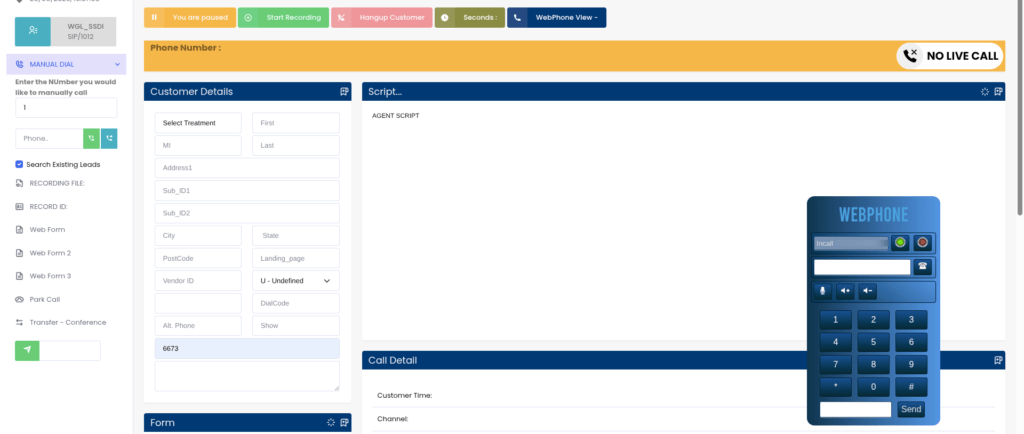
Many campaigns require agents to follow structured scripts that change based on call stage. The Modern Theme supports a dynamic script display panel that can be embedded in the agent screen and driven by disposition codes. When an agent selects a specific disposition, the script panel automatically updates to show the relevant next steps, reducing cognitive load and improving script adherence.
💻 Free Live Demo: Live Demo of Our Solution!  

Case Study: Insurance Sales Contact Center

A 120-seat outbound contact center running insurance sales campaigns across three separate client brands came to KingAsterisk with a specific problem: their agents were running three different campaigns from the same VICIdial instance, and the generic interface gave agents no visual cue about which brand context they were operating in. Agents were reading from the wrong script, using incorrect sign-offs, and occasionally delivering the wrong product pitch,  compliance violations that had real consequences in a regulated industry.

We implemented the VICIdial Modern Theme with per-campaign CSS profiles. Brand A received a navy-and-gold color palette with their logo in the header and their compliance script locked in the bottom panel, Brand B received a green-and-white treatment with a different script structure, Brand C operated in a dark mode layout suited to their offshore evening team.

Within 30 days, the operation reported a 22% reduction in script compliance errors and a measurable drop in call handling time, attributed directly to clearer screen layout and the removal of irrelevant UI elements from the agent view. Supervisors also reported faster identification of underperforming agents due to the enhanced real-time panel color thresholds.

This outcome is consistent with what we observe across similar deployments: interface clarity is not cosmetic, it is an operational lever.

Frequently Asked Questions

No. The Modern Theme only modifies front-end presentation layers: CSS, HTML templates, and JavaScript rendering. It has no interaction with VICIdial’s Asterisk dial engine, campaign dialing logic, or database operations. Call routing, recording, and IVR configurations remain completely unaffected. The theme is a pure interface change.
Yes. VICIdial’s admin panel supports campaign-level CSS overrides. You can assign a system-wide default theme and then assign campaign-specific CSS files to individual campaigns. This allows multi-client BPO environments to maintain separate brand identities per campaign without running separate VICIdial instances.

The safest approach is to use VICIdial’s dedicated override directories and the admin panel’s CSS file reference fields rather than directly editing core PHP files. Store all custom CSS and JavaScript in separate theme files. Maintain a version-controlled repository of your theme package and document which core files, if any, were modified so you can reapply changes after an SVN update.
The standard VICIdial Modern Theme is optimized for desktop browsers. Supervisor access via tablet is possible with responsive CSS additions, but the agent interface itself is not designed for mobile use due to the complexity of the control surface required during live calls. If your supervisors need tablet monitoring access, a custom responsive extension to the Modern Theme’s supervisor panel CSS can accommodate this.

 

Conclusion

Deploying the VICIdial Modern Theme is one of the highest-impact, lowest-risk improvements a contact center can make to an existing VICIdial system. The core telephony infrastructure stays intact while agents gain a cleaner, faster, and less error-prone desktop. Supervisors gain better real-time visibility. And operations running multi-client campaigns finally get the per-brand consistency that compliance and professionalism require.

The key steps are straightforward when approached systematically: audit your version, back up your installation, layer theme files using VICIdial’s native override mechanisms, configure per-campaign and per-user-group settings, and validate in staging before going live. The customization options, compact layouts, dark mode, dynamic script panels, supervisor color thresholds, give you the flexibility to match the theme precisely to how your teams operate.

At KingAsterisk, our engineers have deployed and maintained VICIdial systems across hundreds of contact center environments over 14+ years. We know where VICIdial’s interface customization capabilities are deep and where they need careful handling. If you are ready to modernize your VICIdial interface, contact the KingAsterisk team to discuss your requirements, we will scope the right implementation approach for your operation.

Ready to Modernize Your VICIdial Interface?

KingAsterisk has helped contact centers across industries deploy, customize, and maintain VICIdial systems for over 14 years. Whether you need a full VICIdial Modern Theme rollout, custom CSS branding, or end-to-end contact center software implementation, our team has the hands-on experience to get it right the first time. 

Facing VICIdial Lag Optimize Your Dialer Performance Today
Vicidial Software Solutions

VICIdial System Lag Issue? Fix Slow Dialer Performance (2026)

Key Takeaways

  • A VICIdial system lag issue is almost always traceable to one of four root causes: under-resourced servers, untuned MySQL databases, Asterisk misconfiguration, or network congestion.
  • MySQL query optimization and regular database maintenance alone can reduce dial latency by 30–60% in high-volume deployments.
  • Asterisk real-time settings and correct SIP/PJSIP channel configuration have a direct, measurable impact on slow dialer performance.
  • Monitoring tools likehtop,mysqltuner, and Asterisk’s own CLI are essential for isolating the exact source of contact center latency.
  • Proactive maintenance: log rotation, database purging, and campaign dial ratio audits, prevents lag from recurring after initial fixes.

A VICIdial system lag issue occurs when the dialer platform fails to respond to agent actions in real time, whether that’s a delayed call connection, sluggish screen-pop loading, frozen campaign controls, or a backend that visibly struggles under concurrent sessions. This article diagnoses the exact causes of slow Vicidial dialer performance and gives you a structured, engineer-tested path to fix it.

VICIdial is a powerful, open-source predictive dialing platform built on top of Asterisk. When it runs well, it is exceptional. But it is not a plug-and-play system, it requires deliberate server configuration, ongoing database maintenance, and correct telephony stack settings to sustain performance at scale. When any of those layers develops a problem, the resulting contact center latency can cripple agent productivity and erode campaign results.

The good news: virtually every performance degradation scenario I have encountered across 15 years of deployment work has a clear, fixable root cause. Let’s find yours.

Root Causes of Slow Dialer Performance

Before touching any configuration file, understand that slow dialer performance in VICIdial typically originates from one or more of these four layers:

1. Underpowered or Over-Committed Server Resources

VICIdial runs its web interface, Asterisk telephony engine, MySQL database, and campaign manager concurrently on the same server in many single-box deployments. When CPU headroom drops below 15–20%, every layer suffers simultaneously. Swap usage is a death knell, if your system is actively swapping to disk, call handling latency spikes immediately.

2. MySQL Database Bloat and Unoptimized Queries

The asterisk database that VICIdial uses accumulates enormous table sizes over time, particularly in the vicidial_log, vicidial_closer_log, and recording_log tables. Without scheduled archiving and index maintenance, query times that were once milliseconds begin taking seconds. This is the single most common cause of Asterisk performance tuning complaints I receive from contact centers that have been live for 12+ months.

3. Asterisk Misconfiguration

Incorrect settings in sip.conf or pjsip.conf, particularly around qualified timers, registration intervals, and context routing, create unnecessary signaling overhead. A system dialing 200 channels simultaneously with an aggressive qualifying interval of 60 seconds is generating thousands of OPTIONS requests per minute that consume real CPU cycles and Asterisk thread time.

4. Network and Switching Bottlenecks

Packet loss above 0.5% or jitter above 20ms on the path between VICIdial and your SIP carrier causes Asterisk to buffer, retry, and re-negotiate. This manifests as call setup delay, one-way audio stuttering, and agents observing long ring durations before answer. Many operators misattribute this to “dialer lag” when it is a network problem at the transport layer.

Important: Never attempt tuning all four layers simultaneously. Isolate, test, confirm the change, then move to the next. Stacking multiple untested changes makes root cause analysis impossible if performance worsens.

💎 See Why Experts Prefer This : Vicidial Multi User Setup 

How to Diagnose the Problem

Check Server Resource Utilization

Start with the most immediate view of system health. Run htop or top on your VICIdial server and observe CPU usage per core, memory consumption, and swap activity over a 5-minute window during peak call hours.

Key thresholds:

  • CPU: sustained above 80% across all cores, server is resource-starved
  • Memory: less than 512 MB free, risk of swap thrashing
  • Swap: any active swap usage during production hours is unacceptable for a telephony system

Assess MySQL Performance

Install and run mysqltuner.pl, this script analyzes your running MySQL instance and produces a prioritized list of configuration recommendations specific to your workload. Pay particular attention to innodb_buffer_pool_size, query_cache_size, and table-level statistics for the VICIdial core tables. Check row counts for vicidial_log, anything above 10 million rows without partitioning is a significant performance liability.

Review Asterisk CLI for Errors and Thread Saturation

Connect to the running Asterisk instance with asterisk -r and issue core show channels and core show threads. A healthy system under moderate load will show channel counts proportional to active agents. If thread count is approaching Asterisk’s compiled maximum (maxcalls parameter), call queueing and answer detection delays occur at the platform level.

Network Path Analysis

Use mtr (My Traceroute) to your SIP carrier’s edge server during a live production window. Observe packet loss percentage and worst-case jitter per hop. If you see loss at any hop inside your own network, your switch, firewall, or WAN router, that is your first priority, regardless of any software tuning you plan.

Step-by-Step: Fix VICIdial System Lag Issue

This is the practical resolution sequence I follow when engaging with a new contact center reporting a VICIdial system lag issue. Work through each step before advancing to the next.

Baseline your metrics before touching anything

Record current CPU load average, free memory, swap usage, MySQL slow query count, and a sample agent screen-pop time. You need before/after data to confirm improvement.

Archive and purge oversized MySQL tables

Export vicidial_log records older than 90 days to a separate archive table or external file. Then run OPTIMIZE TABLE vicidial_log; to reclaim fragmented space and rebuild indexes. Repeat for vicidial_closer_log, recording_log, and vicidial_dial_log.

Tune MySQL InnoDB buffer pool

Edit /etc/my.cnf and set innodb_buffer_pool_size to 60–70% of total available RAM. For a server with 16 GB RAM, this means 10–11 GB. Restart MySQL and monitor query execution times, most deployments see immediate reductions in query latency for VICIdial’s real-time reporting tables.

Adjust Asterisk SIP qualify intervals

In sip.conf (or the PJSIP equivalent), set qualifyfreq=120 rather than the default 60. For trunks where endpoint health is managed by your carrier, disable qualify entirely with qualify=no. This can reduce background Asterisk CPU consumption by 10–20% on systems with 20+ registered trunks.

Review and reduce VICIdial real-time refresh intervals

In astguiclient.conf, the variable VD_REFRESH_INTERVAL controls how frequently the agent interface polls the server. Increasing this from the default 1 second to 2–3 seconds on high-agent-count deployments reduces PHP and MySQL load without a meaningful impact on agent experience.

Audit campaign dial ratio settings

An aggressive campaign dial ratio generates more concurrent Asterisk channels than the system can handle gracefully. Review each active campaign’s dial_ratio and auto_dial_level. Temporarily reducing these during peak hours while you complete the other tuning steps prevents the problem from compounding.

Resolve any network packet loss before concluding

If your mtr analysis revealed loss, address it: replace faulty patch cables, update switch firmware, adjust QoS policies to prioritize RTP/SIP traffic, or engage your ISP if loss is occurring at their edge. Software tuning cannot compensate for a leaky network.

Reboot cleanly and re-baseline

After completing all changes, perform a scheduled maintenance reboot. Allow the system to warm up under light load for 30 minutes before re-running your baseline checks. Compare every metric from step 1. Document improvements and outstanding issues for your next maintenance window.

Real-World Use Case: 200-Seat Outbound Contact Center

Real-World Deployment Example

A financial services contact center running 200 outbound agents on a single VICIdial server (32-core, 64 GB RAM) began experiencing severe call setup delays, agents reported 4–6 second gaps between accepting a call and hearing the connected party. Screen-pop data was arriving 3–5 seconds after connection. Campaign managers also noticed the predictive dialer was underpacing against its configured dial ratio.

Our diagnosis revealed three concurrent issues. First, the vicidial_log table had grown to 38 million rows across 30 months of operation with no archiving policy in place. MySQL was spending 800–1,200ms on every real-time report query. Second, the InnoDB buffer pool was configured at the default 128 MB, a setting appropriate for a test environment, not production. 

Third, the SIP qualify interval was set to 30 seconds across 48 registered trunks, generating roughly 96 OPTIONS messages per second as constant background noise for Asterisk.

The resolution took a single 4-hour maintenance window. After archiving 28 million log records, setting the buffer pool to 40 GB, increasing qualification frequency to 120 seconds, and optimizing all four primary log tables, screen-pop latency dropped from 3–5 seconds to under 400 milliseconds. Call setup delay normalized to under 1 second. The slow dialer performance was entirely a database and Asterisk configuration problem, the hardware was never the bottleneck.

Advanced Tuning for High-Volume Deployments

Separate MySQL onto a Dedicated Server

For deployments above 150 concurrent agents, the most impactful architectural change is removing MySQL from the VICIdial/Asterisk host and placing it on a dedicated database server. 

This eliminates the resource contention between Asterisk’s real-time audio processing and MySQL’s I/O-heavy query execution. A dedicated database server with NVMe storage can reduce query latency by a further 40–60% compared to a co-located spinning disk deployment.

Enable MySQL Slow Query Log During Peak Hours

Temporarily enable the slow query log with a threshold of 1 second to capture the specific queries that are causing delays in your environment. Different deployments accumulate different reporting table sizes, so the slow queries in your system may differ from a reference installation.

# Add to /etc/my.cnf under [mysqld] slow_query_log = 1 slow_query_log_file = /var/log/mysql/slow.log long_query_time = 1 log_queries_not_using_indexes = 1

Asterisk Real-Time Performance Settings

Review /etc/asterisk/extconfig.confto ensure only the tables that VICIdial actually requires are loaded via real-time. Unnecessary real-time table lookups add database round trips to every call routing decision. Removing unused real-time mappings is a low-risk, moderate-impact optimization.

Operating System Kernel Tuning

For high-concurrency telephony servers, set the following in /etc/sysctl.conf to increase network socket performance and reduce TIME_WAIT state accumulation:

net.core.rmem_max = 16777216 net.core.wmem_max = 16777216 net.ipv4.tcp_fin_timeout = 15 net.ipv4.tcp_tw_reuse = 1 fs.file-max = 65536

Preventing VICIdial Lag from Coming Back

Fixing a VICIdial system lag issue once is straightforward. Keeping it fixed requires proactive operational discipline. These are the maintenance practices that separate well-run contact centers from those that call for emergency support every few months:

  • Scheduled log archiving: Set a monthly cron job to move VICIdial log records older than 60 days to an archive table. Keep the working tables lean.
  • Weekly OPTIMIZE TABLE runs: Schedule mysqlcheck –optimize during a low-traffic window each week to prevent index fragmentation from accumulating silently.
  • Asterisk log rotation: Verbose Asterisk logging fills disk quickly on busy systems. Configure logrotate for /var/log/asterisk/ with a 7-day retention policy.
  • Monthly capacity review: Compare current agent count and dial volume against the server resources provisioned at deployment. Contact center growth frequently outpaces the original hardware specification within 12–18 months.
  • Quarterly network path testing: Re-run mtr to your carrier edge during production hours quarterly. Network paths change, and a carrier route update can introduce new latency without any action on your part.
💻 Start Live Demo: Live Demo of Our Solution!  

Frequently Asked Questions

Enable the MySQL slow query log with a 1-second threshold during peak operating hours. After 30–60 minutes, review the log file for the most frequent offenders. In the majority of deployments, vicidial_log and vicidial_list dominate the slow query output because they grow unchecked without a maintenance policy. Row count combined with the absence of OPTIMIZE TABLE runs is the primary culprit.

Yes, indirectly but significantly. An excessively high campaign dial ratio generates more concurrent Asterisk channels than the server can sustain cleanly. This doesn’t directly slow the database, but it saturates Asterisk’s thread pool, delays answer supervision processing, and causes the dialer to appear unresponsive. Temporarily lowering dial ratios while performing other tuning steps prevents the issue from masking your improvements.

Running OPTIMIZE TABLE on large tables like vicidial_log acquires a table lock for the duration of the operation, which can stall real-time queries for several minutes. Always schedule this during a low-traffic or after-hours maintenance window. For systems that cannot tolerate downtime, consider using pt-online-schema-change from Percona Toolkit, which performs the optimization without full table locking.

For a single-server deployment supporting 50 concurrent agents with predictive dialing, a minimum of 8 physical CPU cores, 32 GB RAM, and SSD-based storage is recommended. InnoDB buffer pool should be set to at least 18–20 GB. Below these thresholds, the system will perform acceptably at low load but degrade noticeably during peak calling hours, particularly when real-time reporting is active alongside live campaigns.

Conclusion

A VICIdial system lag issue is never a mystery, it has a root cause, and that cause is always findable with the right diagnostic approach. In the vast majority of deployments, the path to resolving slow dialer performance runs through MySQL optimization, specifically oversized log tables and an undersized InnoDB buffer pool. Asterisk configuration corrections and network-layer validation complete the picture.

The key discipline is isolation: one change, one measurement, one confirmation before moving forward. Contact centers that attempt to fix everything at once typically cannot tell what worked, which means the problem returns the moment a new variable changes.

Equally important is the transition from reactive fixes to a proactive maintenance culture. Scheduled archiving, weekly table optimization, log rotation, and quarterly capacity reviews will keep your VICIdial platform performing at its best through agent growth, campaign expansion, and the inevitable accumulation of call history data.

At KingAsterisk, our engineers have resolved VICIdial performance issues across dozens of contact center environments, from single-server 20-agent setups to multi-server deployments running 500+ concurrent channels. If your dialer is still lagging after working through this guide, or if you want a professional configuration audit before problems develop, we are ready to help.

Still experiencing VICIdial lag? Let’s fix it together.

KingAsterisk has 15+ years of hands-on VICIdial and Asterisk deployment expertise. Contact our team for a free performance assessment and get your contact center running at full speed.

Contact KingAsterisk Today →

VICIdial Multi-User Setup Manage Multiple Users on One Server
Vicidial Software Solutions

VICIdial Multi User Setup: Run and Manage Multiple Users on a Single Server (2026)

Key Takeaways

  • A proper VICIdial Multi User Setup lets you run dozens of concurrent agent sessions on a single, well-tuned server without additional licensing costs.
  • Role separation: administrators, managers, agents, and quality analysts, is the foundation of a secure, auditable contact center deployment.
  • Campaign-level user assignment controls which agents see which queues, preventing configuration bleed between clients or departments.
  • Correct Linux resource limits (ulimit, file descriptor counts) and Asterisk channel settings are non-negotiable for stability under concurrent load.
  • KingAsterisk has deployed and maintained VICIdial environments for 15+ years, this guide reflects real-world production patterns, not theory.

A well-planned VICIdial multi user setup is the difference between a contact center that scales predictably and one that collapses under the weight of its own configuration debt. VICIdial, built on Asterisk and the VICIDIAL Contact Center Suite, is engineered to support concurrent agent sessions, blended inbound/outbound campaigns, and granular role-based access, all from a single physical or virtual server when configured correctly.

For contact center operators and IT managers, the core question is not whether VICIdial can handle multiple users. It can, and does so in production environments worldwide. The real question is: how do you structure that setup so it remains maintainable, secure, and performant at 10, 50, or 150 seats?

This guide answers that question precisely, drawing on patterns we have refined through 15+ years of VICIdial deployment at KingAsterisk.

Prerequisites and Server Requirements

Before configuring users, your server baseline must be solid. Running multiple concurrent agents stresses every layer of the stack, the database, the Asterisk engine, the web server, and the kernel’s own file-handling subsystem.

Minimum recommended specifications (production)

  • OS: CentOS 7 / AlmaLinux 8 (VICIdial-tested distributions)
  • RAM: 8 GB minimum for up to 30 concurrent agents; 16–32 GB for 50–120 seats
  • CPU: 4 cores minimum; 8+ cores recommended for blended campaigns
  • Storage: SSD-backed RAID for /var/spool/asterisk/monitor (call recordings) and MySQL data directory
  • Network: Dedicated NIC for SIP trunk traffic; separate interface for agent web traffic where possible
  • MySQL: 5.7 or 8.0 with InnoDB tuned for high-concurrency writes

VICIdial’s VICIDIAL Auto-Dialer (AST_VDauto_dial.pl) spawns threads proportional to active campaigns. On a multi-user setup, under-provisioned RAM is the most common cause of agent login failures under load.

Understanding User Roles in VICIdial

VICIdial’s access control model is built around user groups and user levels. Before creating individual accounts, you need to understand this hierarchy, misassigning a user level is a common source of security incidents in shared environments.

User levels explained

  • Level 1 — Agent: Can log into a campaign, handle calls, use dispositions, and access the agent screen. No administrative access.
  • Level 4 — Manager (limited): Can view reports, listen to live calls, and manage agent sessions within their assigned campaigns. Cannot modify system-wide settings.
  • Level 7 — Manager (full): Can create campaigns, IVR menus, inbound groups, and user accounts up to their own level. Commonly assigned to team leads.
  • Level 8 — Administrator: Full access including server configuration screens, carrier settings, and system-level scripts. Restrict this level aggressively.
  • Level 9 — Superadmin: Root-equivalent within the VICIdial interface. Typically one or two accounts maximum per installation.

User groups and campaign scoping

Each user belongs to a user group. User groups control which campaigns and reports are visible to that user. For multi-tenant or multi-department deployments, creating one user group per department or client is the cleanest architecture, agents in “Sales_Team_A” simply cannot see the queues or recordings belonging to “Collections_Team_B”.

Step-by-Step: Configuring Multiple Users on One Server

The following process assumes a freshly installed VICIdial instance (VICIDIAL Contact Center Suite 2.14-917a or later). If you are adding users to an existing system, skip to step 3.

Log in as Superadmin and verify server configuration

Navigate to Admin → Servers. Confirm your server record has the correct local IP, Asterisk version string, and active status. An incorrect server IP will cause agent sessions to fail silently — agents will appear logged in but receive no calls.

Create user groups before creating users

Go to Admin → User Groups and add a group for each team or department (e.g., SALES_OUTBOUND, SUPPORT_INBOUND). Set campaign access restrictions and report permissions at the group level, not per individual user. This scales cleanly as headcount grows.

Create individual user accounts

Navigate to Admin → Users → Add New User. Assign: username (alphanumeric, no spaces), full name, user group, and user level. Set a temporary password and force change on first login via the Pass Change field. For bulk provisioning, use the Admin → Bulk Account Add utility or the VICIdial API endpoint /vicidial/non_agent_api.php.

Create a phone extension for each agent seat

Go to Admin → Phones and add a phone record for each concurrent seat (not per user, seats are shared in hot-desk environments). Set the dialplan number, voicemail box, and server IP. Enable login campaign if you want agents to be auto-assigned to a campaign on extension login.

Assign phone extensions to users (or leave open for hot-desking)

In the user record, set the Phone Login field to the agent’s dedicated extension, or leave it blank to enable hot-desk login where any agent picks any available extension. For fixed-seat deployments, a one-to-one mapping between user and phone record is simpler to audit.

Configure agent options per user

Per-user overrides include: max_inbound_calls, manual_dial_filter, scheduled_callbacks permission, and closer_default_campaign. These override the user group defaults, use them sparingly to avoid configuration inconsistencies across your agent pool.

Test login with a non-admin account before go-live

Log out of the Vicidial admin account and log in as a level-1 agent. Verify you see only the assigned campaigns, that the phone registers, and that a test call routes correctly. This catches 90% of configuration errors before they affect live traffic.

Manage Multiple Users Seamlessly on a Single VICIdial Server Without Data Overlap

Running multiple users on one system sounds complex, but with VICIdial, it’s surprisingly simple. You can organize each client using dedicated user groups, assign specific agents (like 10 for Client A and 20 for Client B), and connect them to their own campaigns, inbound flows, and reports. 

Everything stays structured, clean, and fully separated. Agents only see what they are supposed to see, and users never interact with each other’s data. This setup works perfectly for BPOs and growing contact centers that want to scale without investing in multiple servers. One system, multiple cusers, zero confusion, that’s the real power of a well-configured VICIdial environment.

💡You can easily manage everything using user groups — assign 10 agents to one group and 20 to another without any overlap. This keeps each client or team fully organized, separate, and easy to control within the same system.

Assigning Users to Campaigns and Inbound Groups

In a multi-user environment, campaign-level access is the primary tool for partitioning your agent pool. VICIdial does not automatically expose all campaigns to all users, access is controlled through the user group’s campaign list.

Outbound campaigns

Navigate to Admin → Campaigns → [Campaign Name] → Allowed User Groups. Add the relevant user groups. Agents in those groups will see the campaign in their login dropdown. Agents outside those groups will not, even if they are on the same server.

Inbound groups (queues)

Inbound routing in VICIdial uses In-Groups (equivalent to queues in a standard ACD). Go to Admin → In-Groups and under the Allowed User Groups field, restrict queue visibility. An agent handling only outbound sales should never see, or accidentally log into, a technical support queue.

Blended agent configuration

For agents handling both inbound and outbound calls, enable Dial Method: INBOUND_MAN or use the Auto-Dial with inbound blend setting. Blended agents require slightly more Asterisk channel overhead, accounting for this in your server resource planning.

Server Tuning for Multi-User Concurrency

The most common production failure in a multi-user VICIdial setup is not a configuration error, it is a resource exhaustion event. When 40 agents log in simultaneously, each opening a SIP channel and a browser session, the server’s kernel and MySQL instance face significant concurrent demand.

Linux file descriptor limits

Each Asterisk channel consumes file descriptors. The default Linux limit of 1,024 per process is insufficient for any production contact center. Add the following to /etc/security/limits.conf:

asterisk soft nofile 65536
asterisk hard nofile 65536

Also set fs.file-max = 200000 in /etc/sysctl.conf and apply with sysctl -p.

Asterisk channel limits

In /etc/asterisk/asterisk.conf, set maxcalls to at least 1.5× your expected peak concurrent call count. For a 50-agent setup with blended traffic, a value of 200 provides adequate headroom.

MySQL InnoDB buffer pool

VICIdial is database-intensive, every call event, agent status change, and disposition writes to MySQL. Set innodb_buffer_pool_size to 50–70% of available RAM. On a 16 GB server, 8G is a reasonable starting point. Monitor slow query log output during peak hours and index accordingly.

Apache / web server concurrency

The VICIdial agent interface is a browser-based application served by Apache. Set MaxRequestWorkers (Apache 2.4) to accommodate your agent count plus administrative sessions. A value of 150 handles 80–100 simultaneous agent browsers without queue buildup.

Real-World Use Case: 50-Seat BPO on a Single Server

A business process outsourcing firm running three client campaigns, debt collection, appointment scheduling, and customer satisfaction surveys, approached KingAsterisk needing to consolidate from three separate VICIdial instances onto one server to reduce infrastructure overhead.

The solution used a single VICIdial server (16 GB RAM, 8-core processor, SSD storage) with the following structure:

  • Three user groups matching the three client campaigns, each with isolated report visibility.
  • 50 phone extension records configured for hot-desking, no agent was bound to a physical extension, reducing seat licensing complexity.
  • Two level-7 manager accounts per client, giving team leads the ability to pull their own reports and monitor live calls without touching each other’s campaigns.
  • One level-8 administrator at KingAsterisk with remote SSH access for server-level maintenance.

Peak concurrent call load reached 63 simultaneous channels (including auto-dialer lines). With the file descriptor tuning and InnoDB buffer settings described above, the server maintained sub-200ms agent screen refresh times throughout. Call recording storage was the only resource that required ongoing monitoring; at average call lengths, 50 agents generated approximately 80–100 GB of audio per week.

Frequently Asked Questions

There is no hard-coded user limit in VICIdial itself. Practical capacity is constrained by server hardware, specifically RAM, CPU, and MySQL throughput. A well-tuned server with 16 GB RAM and 8 cores comfortably supports 50–80 concurrent agent sessions. Beyond that, a multi-server architecture with a separate database node is recommended for production stability.


Yes. VICIdial’s user level system (levels 1 through 9) and user group framework provide granular, layered permission control. You can restrict which campaigns a user sees, which reports they can access, whether they can perform manual dials, and whether they can view other agents’ call recordings, all independently configurable per user or user group.

Yes, you can assign agents based on user groups or campaigns. For example: One group of agents can work for Client A. Another group can work for Client B. This keeps operations organized and secure.

Yes, each campaign can have its own dialer settings. For example: Client A can use predictive dialing. Client B can use manual dialing. This flexibility helps match different business needs.

You can manage multiple users  using:

  • User Groups
  • Campaigns
  • Access Permissions
  • Reports Filtering

This structure keeps everything clean and scalable.

Conclusion

A production-grade VICIdial multi user setup is not just an exercise in clicking through an admin panel, it requires a deliberate architecture: correct role hierarchy, campaign-level access scoping, phone extension strategy, and server-level resource tuning. Done right, a single server can support a full-featured contact center with dozens of concurrent agents, isolated per-department reporting, and the operational flexibility that blended inbound/outbound environments demand.

The key principles to carry forward:

  • Design your user group structure before creating individual accounts.
  • Tune Linux file descriptors and MySQL InnoDB settings before you go live, not after the first incident.
  • Use campaign-level access controls as your primary multi-tenant isolation mechanism.
  • Test every configuration change with a non-admin account before releasing to agents.

KingAsterisk has designed, deployed, and maintained VICIdial environments for contact centers across industries for over 15 years. Whether you are building a 10-seat setup from scratch or consolidating a multi-campaign operation onto a single server, our engineers have done it before.

Talk to a VICIdial expert at KingAsterisk →

Build Custom VICIdial Dashboard & WebRTC Agent Interface 2026
Vicidial Software Solutions

How to Build Custom VICIdial Admin Dashboard & WebRTC Agent Interface for Contact Centers (2026)

Building a custom VICIdial admin dashboard is one of the highest-leverage improvements a contact center can make, and yet most operations run on VICIdial’s default interface long after they’ve outgrown it. The default UI was designed for broad compatibility, not for the specific workflow of a 50-seat outbound BPO, a healthcare scheduling team, or a financial services inbound center. 

This guide covers, in practical terms, how to design and deploy a tailored admin dashboard alongside a browser-based WebRTC agent interface that modern agents actually want to use.

Whether you’re an IT manager evaluating an overhaul or a contact center director looking to justify the investment to stakeholders, this article walks you through architecture choices, must-have features, and a field-tested build process, drawn from KingAsterisk’s deployment experience across hundreds of live contact centers.

Why a Default VICIdial UI Is Not Enough in 2026

VICIdial is a powerful open-source platform: proven, scalable, and incredibly flexible at the Asterisk level. But its admin panel, built over many years of incremental updates, was never designed as a modern management interface. Supervisors often have to navigate five or six separate pages to get a coherent picture of a single campaign’s live performance. 

Agents work inside a thin PHP interface that doesn’t adapt to browsers, breaks on mobile, and offers no integration hooks for CRM widgets or scripting.

VICIdial exposes agent activity through its native API endpoint: 

GET /vicidial/non_agent_api.php?source=test&user=admin&pass=***&function=version

In 2026, contact center leaders are competing on speed and personalization. A real-time call monitoring interface that refreshes every 30 seconds is no longer acceptable when WebSocket-based dashboards can push live data at sub-second latency. Custom dashboards solve this by sitting on top of VICIdial’s database and API layer, pulling exactly the data each role needs and surfacing it in a way that actually accelerates decisions.

Industry note: According to multiple contact center technology studies, supervisors using role-specific dashboards identify and resolve agent performance issues up to 3x faster than those using generic reporting screens.

Architecture Overview: Dashboard + WebRTC Stack

💡 Custom Admin Dashboard
We develop a modern, clean, and fully customized admin dashboard tailored to your contact center’s exact needs. From live agent monitoring to campaign-level analytics, every panel is built for speed, clarity, and role-based access, so your supervisors always have the right data at a glance.

Before writing a single line of front-end code, it’s critical to get the architecture right. A custom VICIdial solution typically has three layers:

Data Layer

VICIdial MySQL/MariaDB tables, Asterisk AMI event stream, and campaign configuration tables.

AMI connects on port 5038. A basic login handshake looks like: 

Action: Login / Username: admin / Secret: yourpass

API Middleware

Node.js or Python FastAPI layer translating VICIdial DB queries into clean JSON endpoints with WebSocket push for real-time events.

Presentation Layer

React or Vue.js front end consuming API endpoints. Separate views for admin, supervisor, and agent roles, all served over HTTPS.

The middleware layer is the most critical architectural decision. Direct queries from the front end to the VICIdial database work in development but create security holes and break on every VICIdial upgrade. An API middleware insulates your custom UI from schema changes and lets you add authentication, rate limiting, and audit logging in a single place.

For the WebRTC agent interface, the stack adds a SIP-over-WebSocket gateway, typically FreeSWITCH or a Kamailio proxy, that bridges between the browser’s WebRTC stack and VICIdial’s Asterisk backend. This is the component that replaces physical desk phones and soft-phone executables.

What Your Custom VICIdial Admin Dashboard Should Include

Supervisor / Operations View

The operations view is where most of the dashboard value lives. It should surface, in real time, the metrics that answer the question supervisors ask dozens of times per shift: “What’s happening right now?”

Admin / IT View

The admin view handles VICIdial customization, campaign configuration, DID routing, carrier trunk management, and system health monitoring. Importantly, this view should be separate from the supervisor dashboard, restricted by role, and include an audit log of every configuration change so that issues can be traced quickly.

Reporting & Analytics View

Custom dashboards can pull VICIdial’s raw call log data and present it through interactive charts,  hourly call volume heatmaps, agent scorecard trends, and campaign ROI summaries, far beyond what VICIdial’s built-in reports offer. Connecting this view to an export pipeline (CSV, Google Sheets webhook, or BI tool like Metabase) gives management self-service analytics without needing a developer every time they want a new cut of data.

Building the WebRTC Agent Interface

The agent-facing side of the project is where WebRTC integration changes the operational picture most dramatically. A browser-based softphone embedded inside the agent workspace eliminates hardware maintenance, enables remote and hybrid work, and centralizes login management, all from a single URL the agent opens in Chrome or Firefox.

💡 WebRTC Agent Interface

Our WebRTC Agent Interface runs entirely in the browser, no desk phones, no extra software, no hardware costs. Agents get a clean, responsive screen with built-in softphone, call disposition controls, and CRM data side by side, so they can handle calls faster and with fewer errors.

Core Components of a WebRTC Agent UI

Embedded SIP Softphone

JsSIP or SIP.js library connected via WebSocket to a FreeSWITCH or Kamailio proxy that bridges to Asterisk.

Script & Disposition Panel

Campaign-specific call scripts, live customer data pulled from CRM, and post-call disposition codes in one view.

Status Controls

One-click pause, ready, break, and wrap-up state changes that sync instantly with VICIdial’s agent status table.

Integrated CRM Widget

Iframe or API-driven customer record display, no tab switching. Screen-pop on inbound call using ANI lookup.

Performance note: In KingAsterisk deployments, WebRTC agent interfaces reduce average handle time by 8–12% due to eliminating the screen-switching friction between a legacy softphone application and the VICIdial agent panel.

Audio Quality Considerations

WebRTC audio quality depends heavily on the network path between the browser and your SIP proxy. For contact centers with agents on standard broadband or corporate LAN, G.711 codec delivers near-PSTN quality. For geographically distributed or remote agents, enabling Opus codec with jitter buffer tuning on the FreeSWITCH side significantly reduces packet-loss artifacts. Always deploy STUN/TURN servers for NAT traversal, this is the most common cause of one-way audio in initial WebRTC deployments.

Step-by-Step: How KingAsterisk Builds Custom VICIdial Dashboards

This is the process we follow for every contact center software customization engagement,  whether the client is running 20 agents or 500.

Requirements Discovery & Role Mapping

We start with a structured workshop with stakeholders from operations, IT, and compliance. We map out exactly which data points each role: admin, supervisor, team lead, agent, needs to see, and which actions they need to trigger. This prevents scope creep and ensures the build is sized correctly from day one.

VICIdial Database & AMI Audit

We audit the client’s VICIdial version, database schema, and Asterisk Manager Interface (AMI) configuration, We identify which real-time events are available (agent status changes, call disposition events, queue events) and which data needs to be polled vs. pushed via WebSocket, We never modify core VICIdial tables, all custom data goes into separate schemas.

After “which data needs to be polled vs. pushed via WebSocket”, one line showing the key table supervisors care about most:

The two most queried tables during a live shift are vicidial_live_agents and vicidial_log — the latter alone can hold millions of rows on a busy system, making indexed queries non-negotiable.

SELECT user, status, campaign_id FROM vicidial_live_agents WHERE campaign_id = 'CAMP01';

API Middleware Development

We build a Node.js/Express or FastAPI middleware service that exposes clean, versioned REST endpoints and WebSocket channels. Authentication uses JWT tokens with role claims, the same token determines what data the front end can request. Rate limiting and query caching (Redis) keep the VICIdial database from being hammered by dashboard refresh cycles.

A decoded JWT payload for a supervisor looks like:

{ "user": "sup_01", "role": "supervisor", "campaigns": ["CAMP01","CAMP02"] }

Front-End Dashboard Build

We use React with a component library aligned to the client’s brand. Each widget (agent grid, queue depth chart, campaign scorecard) is an independent component that subscribes to its own WebSocket channel or API endpoint. This makes it easy to add or remove dashboard elements without touching unrelated code.

WebRTC SIP Integration

We deploy a FreeSWITCH instance (or configure an existing one) as the WebSocket SIP proxy, configure Kamailio for load balancing if the seat count warrants it, and integrate JsSIP into the agent UI. STUN/TURN is configured using Coturn. We run a full codec negotiation test across all agent network environments before sign-off.

JsSIP registers the agent’s browser as a SIP endpoint in one call: 

new JsSIP.UA({ sockets: [socket], uri: 'sip:agent01@pbx.yourserver.com', password: '***' })

UAT, Load Testing & Go-Live

User acceptance testing runs with a pilot group of 10–15 agents on live traffic. We instrument the middleware with logging to catch edge cases, calls that drop mid-transfer, browsers that fail STUN negotiation, dispositions that don’t write back to VICIdial. Load testing simulates peak concurrent connections (typically 120–150% of expected maximum). Go-live is a rolling cutover, never a big-bang switch.

Post-Launch Monitoring & Iteration

We set up Grafana dashboards on the middleware server and a lightweight error tracking integration (Sentry or similar). The first 30 days post-launch typically surface a handful of workflow edge cases that weren’t visible in UAT, we address these in sprint cycles without impacting live operations.

Important : Never deploy a custom VICIdial admin dashboard that reads directly from the live_sip_channels or vicidial_live_agents tables at high polling frequency without a caching layer. Unthrottled queries to these high-write tables cause measurable performance degradation on busy servers.

Real-World Use Case: BPO Outbound Campaign Overhaul

A business process outsourcing firm running three simultaneous outbound campaigns for financial services clients approached KingAsterisk with a specific pain point: their supervisors couldn’t tell which campaign was experiencing a spike in abandoned calls until the end-of-hour report fired. By that point, 40–60 minutes of degraded performance had already impacted SLA scores. 

We built a custom VICIdial admin dashboard with a campaign-level abandon-rate widget that triggers a color-coded alert within 90 seconds of the rate crossing a configurable threshold. Supervisors can drag agents between campaigns directly from the grid. In the first month post-deployment, average SLA breach incidents dropped by 68%. 

The WebRTC agent interface, deployed simultaneously, eliminated 130 desk phones and reduced IT hardware tickets by over 80%.

💡 Multi-Language Support for Agent Teams

Our interface includes built-in multi-language support, letting agents switch between English and Spanish instantly without logging out or reloading. Perfect for diverse BPO teams and contact centers managing multilingual campaigns across different regions.

Common Mistakes to Avoid

1. Building on VICIdial’s PHP UI Instead of Building Alongside It

Modifying VICIdial’s PHP files directly is the fastest path to a maintenance nightmare. Every VICIdial upgrade, and they happen regularly, overwrites your changes. Build your custom dashboard as a separate application that communicates with VICIdial via its API and database, not by editing its source files.

A reliable rule of thumb: if your change lives inside /var/www/html/vicidial/, it will be overwritten. Custom code belongs in its own app directory entirely

2. Skipping RBAC Design

Contact centers have complex permission hierarchies. A team lead should see their 15 agents, not all 300. A campaign manager should see financial metrics; agents should not. Designing RBAC as an afterthought means a complete rework of API endpoint security. Define roles and their data scopes before writing the first endpoint.

3. Underestimating WebRTC Network Requirements

WebRTC is unforgiving of network asymmetry. A contact center that runs happily on SIP desk phones at 80kbps per call may see WebRTC quality problems if the corporate firewall blocks UDP or if the TURN server is not geographically close to remote agents. Network assessment is not optional, it’s week-one work.

4. No Fallback for VICIdial Downtime

Custom dashboards that are tightly coupled to a single VICIdial server with no read replica create a single point of failure. For any deployment over 50 seats, configure a MySQL read replica for dashboard queries and ensure the middleware degrades gracefully (showing cached data with a stale-data indicator) rather than showing a blank screen when the primary DB is briefly unreachable.

Point your dashboard queries to the replica:

DB_HOST_DASHBOARD=replica.internal vs DB_HOST_VICIDIAL=primary.internal

Frequently Asked Questions

Not if it’s built correctly. The API middleware layer is the key: it abstracts your custom UI from VICIdial’s internal database schema. When VICIdial is upgraded, only the middleware needs to be reviewed and updated, the front-end dashboard code remains untouched. We always version our API endpoints so that breaking schema changes are handled gracefully.

Yes, this is one of the strongest use cases for WebRTC. Remote agents need only a browser, a headset, and a stable internet connection (minimum 1 Mbps symmetric). With a properly deployed TURN server and Opus codec, audio quality for remote agents is comparable to office-based desk phones. VPN is recommended for the API/dashboard traffic but is not required for the WebRTC media stream itself.


A skin changes the visual appearance of VICIdial’s existing PHP pages, it modifies CSS and layout but doesn’t change the underlying data architecture or add new functionality. A custom VICIdial admin dashboard is a completely separate application built on modern web technology (React, Vue.js) that surfaces VICIdial data in new ways, adds real-time features, and integrates with external systems like CRMs and reporting tools.

Yes. KingAsterisk offers maintenance contracts that cover VICIdial version compatibility updates, dashboard feature additions, bug fixes, and 24/7 technical support. Given that we built the system, support response times are significantly faster than engaging a generic VoIP consultant who needs time to understand the codebase. Support plans are scoped based on seat count and SLA requirements.

Conclusion

A custom VICIdial admin dashboard is not a luxury upgrade, for contact centers operating at scale in 2026, it’s an operational necessity. The default VICIdial interface was built to work everywhere; a custom dashboard is built to work perfectly for your specific team structure, your specific campaigns, and your specific performance metrics. 

Paired with a WebRTC agent interface, the combination eliminates hardware debt, enables remote work, and puts real-time decision-making data in front of the people who can act on it.

The key success factors are consistent across every deployment: a clean API middleware layer that insulates the UI from VICIdial internals, a role-based access design that is done upfront rather than retrofitted, proper STUN/TURN configuration for WebRTC, and a phased go-live that doesn’t gamble live operations on a big-bang cutover.

With over 15 years of Asterisk and VICIdial deployment experience, more than 900 contact centers served, and 2,000+ completed projects, KingAsterisk has the engineering depth to build, deploy, and support custom VICIdial solutions that go into production and stay there, reliably.

Ready to Build Your Custom VICIdial Dashboard?

Share your current setup and operational requirements with KingAsterisk’s engineering team. We’ll provide a no-obligation scoping assessment and a realistic timeline, usually within 48 hours.

Talk to a VICIdial Engineer → 

No sales pressure. Just honest technical guidance from a team that has deployed this hundreds of times.

Fix Asterisk Conference Call Failures Ultimate 2026 Guide
Vicidial Software Solutions

Why Conference Calls Fail in Asterisk? Troubleshooting Guide (2026)

Asterisk conference calls failure is one of the most disruptive problems a contact center can face, it brings agent collaboration to a halt, degrades customer experience, and can silently affect dozens of calls before anyone raises a ticket. Whether your team is running supervisor barge-ins, three-way customer calls, or multi-site training bridges, a broken Asterisk system is not just an inconvenience; it is a direct hit to your operational KPIs. 

This guide breaks down every known failure mode, from codec-level audio corruption to module misconfiguration, and gives you the exact commands, configuration fixes, and architectural decisions needed to resolve them. No generic advice; just what actually works in production Asterisk environments.

Understanding Asterisk Conference Architecture

Before diagnosing failures, you need to understand how Asterisk handles multi-party audio. When a conference call is initiated, Asterisk creates a mixing bridge, a software construct that takes audio from each participant, mixes it, and redistributes the combined stream minus each caller’s own voice.

There are two primary conference modules in the Asterisk ecosystem:

ConfBridge (app_confbridge.so)

The modern, DTMF-driven, SIP-friendly module introduced in Asterisk 10 and the default from Asterisk 11 onward. Supports HD audio, video conferencing, and flexible participant roles.

MeetMe (app_meetme.so)

The legacy DAHDI-dependent module. Still found in older deployments and some VICIdial configurations.

Most Asterisk conference calls failure events in 2026 trace back to one of these two modules being either absent, incorrectly loaded, or misconfigured for the network environment in use.

🔥 Optimize Your Flow: Vicidial Agents Complete Fix Guide

The 7 Most Common Causes of Conference Call Failure

1. Codec Mismatch and Transcoding Overload

This is the number-one silent killer of conference call quality. When participants join a conference using different codecs, say, one leg using G.711u and another using G.729, Asterisk must transcode in real time. 

On a high-traffic contact center server handling hundreds of simultaneous calls, transcoding overhead can spike CPU usage to 90%+, causing audio to drop, distort, or cut out entirely without generating a hard error in the logs.

Symptoms:

  • One or more participants hear garbled audio
  • Audio drops after 30–60 seconds
  • top or htop shows sustained high CPU during conference sessions

Fix: Force a single codec across all SIP peers and the conference bridge:

; In sip.conf

[general]

disallow=all

allow=ulaw
; In confbridge.conf

[default_bridge]

type=bridge

mixing_interval=20

For contact centers using a predictive dialer alongside conference features, ensuring codec consistency between dialer legs and bridge legs is especially critical.

2. Misconfigured ConfBridge or MeetMe Modules

If app_confbridge.so or app_meetme.so is not loaded, any dial plan extension that calls ConfBridge() or MeetMe() will silently fail or generate a “No such application” error.

Check module status:

asterisk -rx "module show like confbridge"

asterisk -rx "module show like meetme"

If the module is absent, load it:

asterisk -rx "module load app_confbridge.so"

For MeetMe specifically, the dahdi_dummy kernel module must be running even if no physical DAHDI hardware is present, otherwise MeetMe will refuse to start.

modprobe dahdi_dummy

Add it to /etc/modules or your system’s module-load configuration for persistence across reboots.

3. NAT and RTP Port Problems

In contact centers where Asterisk sits behind a NAT firewall, which is the majority of deployments, RTP audio streams frequently fail to reach the bridge correctly. Participants join (signaling succeeds), but one or more legs have no audio, or audio is one-directional.

Check your sip.conf NAT settings:

[general]

nat=force_rport,comedia

externip=YOUR.PUBLIC.IP

localnet=192.168.1.0/255.255.255.0

RTP port range must be open in your firewall:

# Verify RTP ports in rtp.conf

rtpstart=10000

rtpend=20000

Ensure UDP ports 10000–20000 (or your configured range) are open both inbound and outbound on your firewall. A common mistake is opening them inbound only, which breaks the return path for remote participants.

4. Insufficient Server Resources

Multi-party audio mixing is CPU-intensive. A server running 50 concurrent conference participants while also handling IVR processing, CDR writes, and AGI scripts will run into resource contention.

Monitor in real time:

asterisk -rx "core show calls"

asterisk -rx "confbridge list"

5. Timing Source Errors

This failure mode is specific to MeetMe but also affects ConfBridge on systems with missing kernel timing modules. Asterisk requires a precise timing source to mix audio correctly. Without it, conference audio becomes choppy, out-of-sync, or fails to start.

Verify timing:

asterisk -rx "core show timing

You should see timerfd or DAHDI listed as active. If timing shows “None,” install the timerfd module:

asterisk -rx "module load res_timing_timerfd.so"

Add noload => res_timing_pthread.so to modules.conf to prevent the lower-priority pthread timer from taking precedence.

6. SIP Signaling Failures

Sometimes conference calls fail not because of the bridge itself, but because the SIP INVITE that places a participant into the conference is rejected, times out, or is answered with an unexpected response code.

Enable SIP debug during a test call:

asterisk -rx "sip set debug on"

7. Network Jitter and Packet Loss

Even a perfectly configured Asterisk server will produce degraded conference audio if the underlying network has jitter above 30ms or packet loss above 1%. In multi-site contact center deployments, this is often the root cause when the Asterisk config looks correct but audio quality remains poor.

Diagnose with:

ping -c 100 <SIP_PROVIDER_IP>

mtr <SIP_PROVIDER_IP>

Look for packet loss percentages and round-trip time variance. For contact centers running VoIP across WAN links, implementing QoS (DSCP EF marking for RTP traffic) is a non-negotiable fix.

Verdict: Unless you are maintaining a legacy system that depends on DAHDI hardware or an older VICIdial version specifically requiring MeetMe, migrate to ConfBridge. It is more stable, more feature-rich, and receives active development attention.

For contact centers building on VICIdial solutions, confirm which conference module your VICIdial version is calling before making changes.

Step-by-Step Asterisk Conference Troubleshooting Process

Follow this sequence every time you encounter an Asterisk conference call failure — it moves from fastest to diagnose toward the deepest root cause.

Check Asterisk is running and modules are loaded

systemctl status asterisk

asterisk -rx "module show like confbridge"
  1. Review the full log for errors at the time of failure
tail -f /var/log/asterisk/full | grep -i "conf\|error\|warning"
  1. Verify the dial plan extension for the conference room
asterisk -rx "dialplan show 8000@conferences"
  1.  Confirm ConfBridge(8000) is being reached and no condition is bypassing it.
  2. Test with a two-party direct call first Rule out a network-wide audio issue by testing a direct SIP call between two extensions. If that works but the conference fails, the problem is bridge-specific.

Check active conference rooms

asterisk -rx "confbridge list"

asterisk -rx "confbridge list participants 8000"
  1. Enable verbose logging and reproduce the issue
asterisk -rvvvvv
  1.  Watch the real-time output as a test participant joins the conference room.

Inspect RTP stream health

asterisk -rx "rtp set debug on"
  1.  Look for Sent RTP packet and Received RTP packet entries. Missing receive entries confirm an audio path problem, not a bridge problem.

Check codec negotiation in SIP

asterisk -rx "sip show channel <channel-name>"
  1.  Verify Codecs and Codec Order match your expected configuration.

Verify timing source is active

asterisk -rx "core show timing"
  1. Check system resources during the conference
top -bn1 | grep asterisk
free -m
  1.  If Asterisk is consuming 80%+ CPU, resource scaling or codec optimization is needed before any other fix will hold.

Real-World Use Case: 50-Agent Contact Center Outage

A regional insurance contact center running Asterisk 18 with 50 agents experienced intermittent conference bridge failures during peak hours, specifically during supervisor barge-in sessions and three-way customer calls initiated through their IVR system.

Symptoms reported:

  • Supervisors could join the conference (signaling worked), but agents could not hear them
  • Issue occurred only when server call volume exceeded 180 concurrent calls
  • Audio would restore spontaneously after 45–90 seconds

Root cause identified: The server was transcoding between G.729 (used by the SIP trunk) and G.711u (used internally) for every call. At 180+ concurrent calls, transcoding consumed all available CPU cycles, causing the ConfBridge mixing thread to starve for processing time. The “restoration” happened as calls naturally dropped off.

Resolution applied:

  • Negotiated G.711u directly with the SIP provider, eliminating all transcoding
  • Added disallow=all / allow=ulaw to both sip.conf and the ConfBridge profile
  • Upgraded from 4 vCPUs to 8 vCPUs to handle future growth

Result: Zero conference failures over the following 90-day monitoring period, with peak concurrent calls reaching 240.

Frequently Asked Questions

At minimum: UDP/TCP 5060 for SIP signaling, UDP 10000–20000 for RTP audio, and TCP 80/443 for the web interface. If using secure SIP, also open TCP 5061. Keep port 3306 (MySQL) blocked from external access entirely — it is internal-only and a common attack vector.

Obtain the full IP range from your carrier’s documentation or NOC team, then run: ‘iptables -A INPUT -s <CARRIER_IP_RANGE> -j ACCEPT’ for each block. Save rules with ‘service iptables save’ (CentOS) or ‘iptables-save > /etc/iptables/rules.v4’ (Ubuntu). Always test with a live call immediately after applying.

Yes, absolutely. Cloud security groups operate at the hypervisor/network level, before traffic even reaches your VM’s iptables. You must configure both layers independently. A common mistake is correctly setting iptables but leaving the cloud security group at its default deny-all policy. Both must permit SIP and RTP traffic.

Run ‘tcpdump -i any udp port 5060’ on the server during a failed agent registration. If you see the REGISTER packet arrive but no 200 OK returns to the agent, the firewall’s return path is blocked. For audio issues, run ‘tcpdump -i any udp portrange 10000-20000’ during a live call,  zero packets confirms RTP is being blocked.

Conclusion

Asterisk conference calls failure is always diagnosable, it is never random, even when it appears to be. The failure chain almost always runs through one of seven root causes: codec mismatches, unloaded or misconfigured modules, NAT/RTP path problems, resource exhaustion, timing source errors, SIP signaling rejections, or underlying network instability. 

The step-by-step troubleshooting process in this guide gives you a structured path from fast surface-level checks to deep configuration inspection, so you can isolate the cause without wasting hours on trial-and-error.

For contact center operators, the stakes are higher than a typical IT issue, every minute a conference bridge is broken translates to degraded supervisor oversight, failed customer escalations, and agent frustration. Getting the foundational architecture right (ConfBridge over MeetMe, single codec policy, proper NAT handling, and right-sized hardware) eliminates the vast majority of recurring failures before they happen.

KingAsterisk has spent 14+ years and 2,000+ projects deploying, configuring, and troubleshooting Asterisk-based contact center infrastructure across 900+ contact centers globally. If your conference call issues persist after working through this guide, or if you want a professional audit of your Asterisk configuration before problems occur, our engineering team is available to help.

Ready to eliminate conference call failures for good? Contact the KingAsterisk team to see a production-grade Asterisk contact center configuration in action.

VICIdial Agents Blocked by Firewall Step-by-Step Fix
Vicidial Software Solutions

Firewall Blocking VICIdial Agents? Complete Fix Guide (2026)

VICIdial firewall blocking agents are one of the most disruptive, and most misdiagnosed, problems a contact center can face. Agents log in, the Vicidial dashboard loads, but calls fail silently: one-way audio, dropped connections, or SIP registration errors that vanish and reappear without warning. 

This guide gives you a complete, hands-on resolution path: from accurately diagnosing whether a firewall is the culprit, to whitelisting the right IPs, opening RTP ports 10000–20000, and locking down your VoIP infrastructure so the problem never returns. Whether you are running an on-premise Asterisk server or a cloud-hosted VICIdial instance, every fix here is field-tested. 

Why VICIdial Firewall Issues Are More Common Than You Think

VoIP contact centers run on two distinct traffic layers: SIP signaling and RTP media. SIP handles call setup and teardown on port 5060 (or 5061 for TLS). RTP carries the actual audio, and it uses a wide, dynamically negotiated UDP port range, typically 10000 to 20000. Most enterprise firewalls are configured conservatively, blocking UDP traffic by default unless explicitly permitted. 

IT teams often open port 5060 correctly but forget the RTP range entirely, leaving agents in a state where calls connect on paper but transmit no audio.

The situation gets worse in mixed environments. A contact center may have a hardware firewall at the office perimeter, software firewalls on each agent workstation, a cloud security group around the VICIdial server, and an ISP-level firewall from the carrier, each capable of silently dropping packets. 

Understanding which layer is blocking traffic, and what to open at each one, is the core skill this guide teaches.

🔥 Switch to Optimized Setup: Vicidial Webphone Customization with logo

How VICIdial Firewall Blocking Agents Actually Works (The Technical Reality)

The SIP Registration Dance

When an agent opens their softphone or browser-based VICIdial agent panel, the first thing that happens is a SIP REGISTER request sent from the agent endpoint to the VICIdial/Asterisk server. If the firewall blocks UDP port 5060, even intermittently, registration fails. The agent sees a status of ‘Not Registered’ or ‘Line Unavailable’ and cannot make or receive calls.

The RTP Audio Problem

Even when SIP registration succeeds, audio requires a separate, bidirectional RTP stream. Once a call is established, Asterisk negotiates an RTP port dynamically from the range 10000–20000. If the firewall has not opened that entire range in both directions, the call connects but one or both parties hear silence. This is the most common complaint from VICIdial administrators: ‘Calls go through but there’s no audio on one side.’

NAT and Firewall State Tables

An additional complication is Network Address Translation (NAT). When agents sit behind a NAT router, which is universal in office and home environments, the return RTP traffic often fails to find its way back because the firewall’s state table entry expires before the call ends, or because the RTP source IP from Asterisk does not match what the firewall is tracking. This is why whitelisting carrier and server IPs is essential, not optional.

💡 PRO TIP: Use nat=force_rport,comedia in your Asterisk SIP peer configuration to help Asterisk handle NAT-traversal automatically. This reduces, but does not eliminate, the need for proper firewall rules.

Diagnosing the Problem: Is It Really a Firewall?

Before you start changing firewall rules, confirm the diagnosis. These tests take under five minutes and prevent unnecessary configuration changes.

Quick Diagnostic Checklist

Run this command from an agent machine:

nmap -sU -p 5060 <your-vicidial-server-ip>

If the port shows ‘filtered’, the firewall is blocking SIP.

Run this on the VICIdial server during a failed registration attempt:

tcpdump -i any -n udp port 5060

If you see the REGISTER packet arrive but no response reaches the agent, the return path is blocked.

Test RTP: initiate a call and run this on the server:

tcpdump -i any udp portrange 10000-20000
  • No packets = firewall block.
  • Packets only in one direction = NAT issue on the agent side.

Check Asterisk log: ‘tail -f /var/log/asterisk/full | grep -i rtp’. RTP timeout warnings confirm port blocking.

Temporarily disable the firewall on the server (NOT in production, test environment only) and retry the call. If audio works, the firewall is confirmed as the issue.

WARNING: Never disable your production firewall to test. Use a staging environment or a test agent account to isolate the issue. A VICIdial server exposed to the internet without firewall protection will be compromised within hours.

The Complete Fix: Step-by-Step Resolution

The resolution for VICIdial firewall blocking agents always comes down to three core actions: whitelist office IPs, whitelist carrier IPs, and open RTP ports 10000–20000. Below is the step-by-step implementation for iptables (Linux), followed by notes for cloud environments and hardware firewalls.

Step-by-Step: iptables (Linux — Most Common VICIdial Environment)

1. Identify all relevant IPs and ranges

Your office public IP(s), your VoIP carrier’s IP range (get this from your carrier’s documentation or NOC), and any remote agent IPs or VPN subnet.

2. Allow SIP signaling

Open UDP and TCP port 5060 from carrier and office IPs:

# Allow SIP from carrier IP range

iptables -A INPUT -s <CARRIER_IP_RANGE> -p udp --dport 5060 -j ACCEPT
iptables -A INPUT -s <CARRIER_IP_RANGE> -p tcp --dport 5060 -j ACCEPT
iptables -A INPUT -s <OFFICE_PUBLIC_IP> -p udp --dport 5060 -j ACCEPT

3. Open the full RTP port range

This is the most commonly missed step:

# Open RTP ports 10000–20000 for audio (bidirectional)


iptables -A INPUT -p udp --dport 10000:20000 -j ACCEPT
iptables -A OUTPUT -p udp --sport 10000:20000 -j ACCEPT

4. Whitelist office IPs 

Add a blanket allow for your office subnet to avoid blocking agent web traffic and API calls:

# Whitelist office subnet, adjust CIDR to your range

iptables -A INPUT -s 203.0.113.0/24 -j ACCEPT

5. Whitelist carrier IPs

Obtain the full list of your carrier’s SIP trunk IP ranges. Example for a generic carrier block:

# Add each carrier IP/range, repeat for all carrier blocks

iptables -A INPUT -s <CARRIER_IP_1> -j ACCEPT

6. Allow VICIdial web interface

Agents and supervisors need HTTP/HTTPS access:

iptables -A INPUT -p tcp --dport 80 -j ACCEPT

iptables -A INPUT -p tcp --dport 443 -j ACCEPT

7. Save the rules

Make them persistent across reboots:

service iptables save   # CentOS/RHEL

iptables-save > /etc/iptables/rules.v4   # Debian/Ubuntu

8. Verify — Test a call immediately. 

iptables -L -n -v | grep DROP

Check logs to confirm no relevant traffic is still being blocked.

For Web-Based Systems (AWS, GCP, Azure)

In web-based Vicidial deployments, iptables alone are insufficient. You must also update the cloud provider’s Security Group or Firewall Rules:

AWS Security Group

Add inbound rules for UDP 10000–20000 (source: carrier IP range), UDP/TCP 5060 (source: carrier + office IPs), TCP 80/443 (source: 0.0.0.0/0 or restricted subnet).

GCP Firewall Rules

Create a rule with ‘allow udp:10000-20000, udp:5060, tcp:5060’ with target tags pointing to your VICIdial instance.

Azure NSG

Add inbound security rules for the same port ranges with priority above the default ‘DenyAllInBound’ rule.

💡 PRO TIP: In AWS, Security Group rules are stateful, return traffic is automatically allowed. But RTP often flows on different source ports, so you still need the full inbound 10000–20000 range explicitly opened.

Real-World Use Case: 50-Seat Contact Center in Chicago

A mid-sized outbound contact center operating a predictive dialer with 50 agents across two floors reported a recurring issue: roughly 30% of outbound calls connected with no audio on either side, while the other 70% worked perfectly. The problem had persisted for three weeks despite multiple Asterisk configuration reviews.

The root cause, identified during a KingAsterisk diagnostic session, was a hardware firewall appliance that had been replaced as part of a routine network refresh. The new firewall’s default policy was stateful UDP tracking with a 30-second idle timeout, far shorter than most VoIP calls. RTP streams that paused briefly (hold music, agent typing pauses) caused the firewall’s state entry to expire, dropping the audio mid-call.

Resolution required three changes:

  1. The IT team whitelisted the office subnet and all carrier IP ranges, eliminating stateful inspection overhead for trusted VoIP sources.
  2. RTP ports 10000–20000 were explicitly opened as stateless UDP pass-through rules for those whitelisted IPs.
  3. The UDP state timeout was increased from 30 to 300 seconds for VoIP traffic flows.

Within two hours of applying the changes, call audio success rate reached 99.7%. Agent productivity, previously impacted by repeat-call attempts and customer complaints, normalized within one business day. This is a textbook example of why VICIdial firewall troubleshooting must always address both IP whitelisting and the full RTP port range simultaneously.

Advanced Configuration: Remote and Work-From-Home Agents

Remote agents introduce a fundamentally different firewall challenge. Unlike office agents who sit behind a single, controllable perimeter firewall, remote agents connect through home routers, residential ISPs, and personal software firewalls, none of which the contact center IT team controls.

Option A: VPN Tunnel (Recommended for High-Security Environments)

Deploy an OpenVPN or WireGuard VPN server. All agent traffic: SIP, RTP, and web, routes through the VPN, which means your server-side firewall only needs to whitelist the VPN subnet. This gives you full control and eliminates ISP-level VoIP blocking.

  • Firewall rule: whitelist VPN subnet (e.g. 10.8.0.0/24) for all ports including RTP 10000–20000.
  • Agent side: install VPN client, connect before launching VICIdial panel.
  • Downside: adds 10–30ms latency depending on VPN server location.

Option B: Session Border Controller (SBC)

An SBC acts as a media relay and firewall traversal proxy between agents and your Asterisk server. It handles NAT traversal, re-encapsulates RTP, and presents a single, stable IP to your firewall. This is the enterprise solution for large VICIdial deployments with geographically distributed agents.

  • Firewall rule: whitelist only the SBC’s IP, it handles all agent connections.
  • Benefit: eliminates agent-side firewall complexity entirely.
  • Best for: 20+ remote agents, multiple time zones, international operations.

Option C: WebRTC Agent Interface

VICIdial supports WebRTC-based agent interfaces that use HTTPS (port 443) and TURN/STUN servers for media traversal. Since port 443 is almost never blocked, this eliminates most firewall issues for remote agents entirely. The tradeoff is slightly higher CPU usage on the server and the need for a properly configured TURN server. 

Frequently Asked Questions

At minimum: UDP/TCP 5060 for SIP signaling, UDP 10000–20000 for RTP audio, and TCP 80/443 for the web interface. If using secure SIP, also open TCP 5061. Keep port 3306 (MySQL) blocked from external access entirely — it is internal-only and a common attack vector.

Obtain the full IP range from your carrier’s documentation or NOC team, then run: ‘iptables -A INPUT -s <CARRIER_IP_RANGE> -j ACCEPT’ for each block. Save rules with ‘service iptables save’ (CentOS) or ‘iptables-save > /etc/iptables/rules.v4’ (Ubuntu). Always test with a live call immediately after applying.

Yes, absolutely. Cloud security groups operate at the hypervisor/network level, before traffic even reaches your VM’s iptables. You must configure both layers independently. A common mistake is correctly setting iptables but leaving the cloud security group at its default deny-all policy. Both must permit SIP and RTP traffic.

Run ‘tcpdump -i any udp port 5060’ on the server during a failed agent registration. If you see the REGISTER packet arrive but no 200 OK returns to the agent, the firewall’s return path is blocked. For audio issues, run ‘tcpdump -i any udp portrange 10000-20000’ during a live call,  zero packets confirms RTP is being blocked.

Conclusion

VICIdial firewall blocking agents is a solvable problem, but only when addressed systematically. The pattern is always the same: SIP port 5060 is often partially open, but the RTP range 10000–20000 is either missing or restricted in one direction. Combine that with missing IP whitelists for your office and carrier, and you have a recipe for intermittent audio failures that are frustrating to diagnose and costly in agent productivity.

The three-action resolution, whitelist office IPs, whitelist carrier IPs, open RTP ports 10000–20000, must be applied consistently at every firewall layer in your stack: iptables, cloud security groups, hardware firewalls, and any ISP-level policies. Remote agents add a fourth layer (home routers and residential ISPs) that is best addressed with a VPN or SBC.

At KingAsterisk, we have deployed and maintained VICIdial environments for 900+ contact centers across 2,000+ projects over 14+ years. Firewall misconfiguration is consistently in the top three causes of support tickets, and it is consistently the fastest to resolve once properly diagnosed.

If your agents are still experiencing call issues after following this guide, our team can perform a remote diagnostic and get your VICIdial solution running at full performance.

Still having issues? Get expert help from KingAsterisk.

Try our live demo at demo.kingasterisk.com or contact our team for a free diagnostic session.  Contact KingAsterisk

VICIdial Webphone Customization for Agent Interface 2026
Vicidial Software Solutions

VICIdial Webphone Customization with Logo & Agent Interface for Branding (2026)

Every contact center wants better performance, Every manager wants faster agents, Every business wants stronger trust. But here’s a simple question: What do your agents see for 8–10 hours every day? Most teams ignore this. They focus on scripts, They focus on leads, They focus on reports. But they forget one core thing, the VICIdial interface itself shapes behavior.

A generic webphone screen creates confusion. A branded and structured interface creates confidence. This is where VICIdial Webphone Customization becomes a real productivity solution, not just a design upgrade. It is not about colors. It is about control, speed, clarity, and decision-making.

What is VICIdial Webphone Customization (And Why It Is Not Just Design)

Let’s clear one misconception. Many people think customization means changing colors, adding logos, or adjusting layout. That is not true.

 VICIdial Webphone Customization is about making the system work exactly the way your agents think and act.

It connects:

  • Agent workflow
  • Brand identity
  • Call handling speed
  • Data visibility
  • Error reduction

When done correctly, it reduces hesitation, reduces clicks. It reduces mistakes. And most importantly, it improves agent confidence from day one.

🎯 Implement Like a Pro: Complete VICIdial Scratch Installation

The Real Problem: Why Default Interfaces Kill Productivity

Let’s talk about reality. Most contact centers face these issues:

  • Agents take extra time to find buttons
  • New hires struggle to understand the layout
  • Important actions stay hidden inside menus
  • Branding feels disconnected from operations
  • Supervisors waste time explaining basics again and again

Sounds familiar? Here’s the truth: The system does not slow your team. The structure does. A default interface forces every business to adjust. A customized interface adjusts to your business. That is the difference.

How VICIdial Webphone Customization Improves Daily Operations

Now let’s answer the most important question: How does customization actually improve productivity? It works at three levels.

1. Faster Agent Actions

Agents stop thinking. They start acting.

  • Clear button placement
  • Highlighted call controls
  • Reduced navigation steps

Result? Faster call handling. More calls per hour. Less training time

2. Better Focus During Calls

A clean and branded interface removes distractions. Agents see:

  • Only relevant fields
  • Structured customer data
  • Easy call notes section

This improves: Conversation quality. Accuracy in data entry. Customer trust

3. Strong Brand Presence

Your agents represent your business. When they see your logo, colors, and structured Vicidial design: They feel connected, and act more professionally. They stay aligned with brand identity. This is not visual. This is psychological.

Step-by-Step Process of VICIdial Webphone Customization

This section plays a big role in search visibility. It shows real implementation. Let’s keep it simple and practical.

Step 1: Identify Agent Workflow

Start with questions:

  • What actions do agents perform most?
  • Where do they waste time?
  • What confuses new agents?

Do not guess. Check real usage.

Step 2: Redesign the Interface Layout

Now restructure the webphone:

  • Place call buttons where eyes naturally go
  • Keep customer details above fold
  • Remove unused sections

This reduces friction instantly.

Step 3: Add Branding Elements

Now integrate identity:

  • Logo placement
  • Brand colors
  • Header customization

This creates consistency across the system.

Step 4: Optimize Field Visibility

Do not show everything. Show only:

  • Required customer details
  • Essential call notes
  • Key action buttons

Less clutter = more speed.

Step 5: Test with Real Agents

Never launch directly.

Test with:

  • New agents
  • Experienced agents

Observe:

  • Time taken per call
  • Errors
  • Feedback

Fix before full rollout.

Real Issue + Fix (Step-by-Step Solution)

Now let’s target a real search intent.

Problem: Agents Cannot Find the Transfer Option Quickly

Many teams report this issue. Agents waste 5–10 seconds searching for transfer options. This delays calls. It frustrates customers.

Fix: Optimize Transfer Button Visibility

Follow these steps:

  1. Move transfer button near the main call control area
  2. Use clear labeling (not hidden icons)
  3. Highlight it using contrast color
  4. Remove extra steps before transfer action
  5. Test with 2–3 agents and measure time reduction

Result? Transfer time reduces instantly. Call flow becomes smoother. Agents feel more confident. This type of fix helps pages rank for real issue-based searches. 

When Should You Customize Your Webphone?

Timing matters more than most teams realize. You should think about VICIdial customization when agent performance drops without any clear reason, when training starts taking longer than expected, or when new agents struggle to adapt to the system. These signs do not appear suddenly. They build up slowly and affect daily output. You may also notice the need when you expand your contact center team and want every agent to follow the same workflow without confusion.

You should also consider customization when you want consistent branding across your operations, so every interaction feels aligned and professional. Many teams ignore these early signals and delay action. That decision often leads to bigger challenges later. Do not wait for major breakdowns. Small friction always turns into big losses if you ignore it for too long.

Why Branding Inside the Webphone Impacts Performance

Let’s break this clearly. Branding does not only affect customers. It affects agents more.

When agents work inside a system that reflects your business:

  • They feel ownership
  • They trust the system
  • They follow structured workflows

Without branding, the system feels temporary. With branding, the system feels permanent. And people behave differently in permanent environments. This is not a short-term improvement. It builds long-term efficiency. Over time, you will notice:

  • Reduced training cost
  • Lower agent errors
  • Better call handling speed
  • Improved reporting accuracy
  • Strong internal system discipline

One change. Multiple impacts.

Case Insight: Small Change, Big Result

One contact center team faced a simple issue. Agents missed call notes during busy hours. Why? The notes section stayed at the bottom. Fix? Moved notes section next to call controls.

Result in 7 days:

  • 32% improvement in note completion
  • Better reporting accuracy
  • Fewer follow-up mistakes

This shows how small structural changes drive real outcomes.

Buyer Questions You Should Ask Before Customization

Before you proceed, ask this:

  • Will this change confuse my agents?
  • Will it break existing workflows?
  • Can my team adapt quickly?
  • Will this improve real performance or just look better?

Good customization answers all these questions clearly. A fast system is not enough. A clear system wins. Speed without clarity creates errors. Clarity with structure creates results.

Final Thoughts: Turn Your Interface Into a Productivity Engine

You do not need more tools but need better structure. You do not need more training but need a better working environment. VICIdial Webphone Customization transforms your daily operations into a smooth, predictable system. And when your system becomes predictable, performance becomes measurable.

These insights come from actual contact center workflow improvements and performance tracking.