
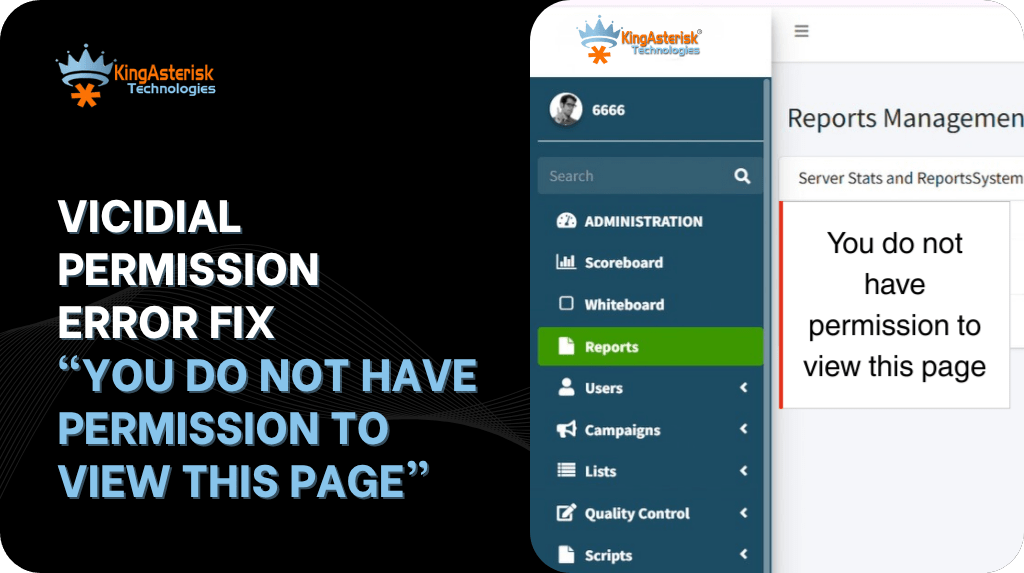
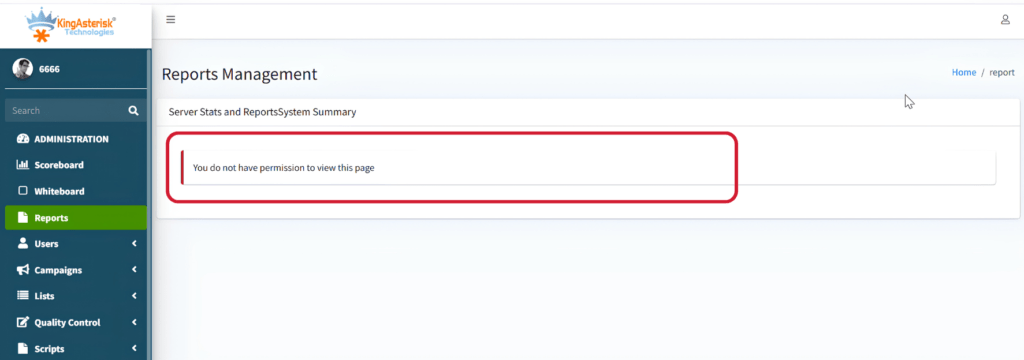
If you administer a VICIdial environment, you have probably seen VICIdial Permission Error. This exact message pops up on a user’s screen: “You Do Not Have Permission to View This Page.”
It usually happens right after a new user is created, an agent is promoted to a supervisor role, or a User Group is copied from an existing template. The login itself works fine – the username and password are correct – but the moment that user clicks into a specific admin page, VICIdial blocks the screen outright.
This is not a bug. It is VICIdial’s permission system doing exactly what it was designed to do: gate every admin page behind a specific permission flag stored against the User Group and User Level. In this guide, we will break down what triggers the error, how to trace it back to the exact permission responsible, and how to fix VICIdial user permissions correctly – the same process our support team follows when clients report this issue on their deployments.
What Does the VICIdial Permission Error Mean?
VICIdial’s admin interface is built as a large collection of individual PHP pages – one for managing users, one for campaigns, one for lists, one for each report, and so on. Every one of these pages runs a permission check at the very top of the script, before any data or form loads. That check looks at two things stored in the vicidial_users and vicidial_user_groups tables: the logged-in user’s User Level, and the specific permission flags attached to that user’s User Group.
When the check passes, the page renders normally. When it fails, VICIdial stops execution immediately and prints the message: “You Do Not Have Permission to View This Page.” No data is shown, no partial page loads – the script exits as soon as the permission check returns false.
This distinction matters for troubleshooting. A login failure means the username or password is wrong, and the user never reaches the dashboard at all.
A permission error means authentication succeeded – the user is genuinely logged in – but authorization failed for that particular page. The fix, therefore, is never about resetting a password. It is about locating and correcting the specific permission flag tied to the page the user is trying to open.
How to Identify the Permission Causing the Error
Every admin page in VICIdial is mapped to a corresponding permission field inside the User Group configuration (and in some cases, an individual toggle on the User record itself). These fields store a simple binary value.
Permission Value 1 – Page Accessible
When the relevant permission field is set to 1, the permission check passes and the page loads exactly as expected. For example, if “Modify Campaigns” is set to 1 for a User Group, any user in that group can open the campaign editing screen without issue.
Permission Value 0 – “You Do Not Have Permission to View This Page”
When that same field is set to 0, VICIdial blocks the page entirely and displays the error message. This is the exact behavior admins run into after cloning a restrictive User Group template, or after a manager account is downgraded without adjusting individual toggles.
To trace the correct field, match the page the user was trying to reach against its corresponding permission name in the User Group screen. Some of the most common mappings include:
- Admin – Users pages – controlled by Modify Users / Delete Users
- Admin – Campaigns pages – controlled by Modify Campaigns
- Admin – Lists / lead upload pages – controlled by Load Leads / Modify Lists
- Reports section (Agent Time, Call Detail, etc.) – controlled by View Reports plus the Allowed Reports list
- Any page under Admin – User Groups – controlled by Modify User Groups
Once you know which permission name corresponds to the blocked page, the fix is a straightforward edit inside that user’s User Group.
🚀 Check Out Our Live Demo
Would you like to check these VICIdial permission settings before applying them to your production server? You can safely test the configuration in our live demonstration environment.
Live Demo →Step-by-Step: How to Fix the VICIdial User Permission
The steps below cover both a general permission fix and the more specific case of restricting a user to a single report – a very common request when a manager should only see Agent Time data and nothing else.
1. Log into the VICIdial admin panel using an account with sufficient User Level (typically Level 1, full administrator access).
2. Navigate to Admin – User Groups – Show User Groups.
3. Locate the User Group assigned to the affected user and click the Edit (Action) icon.
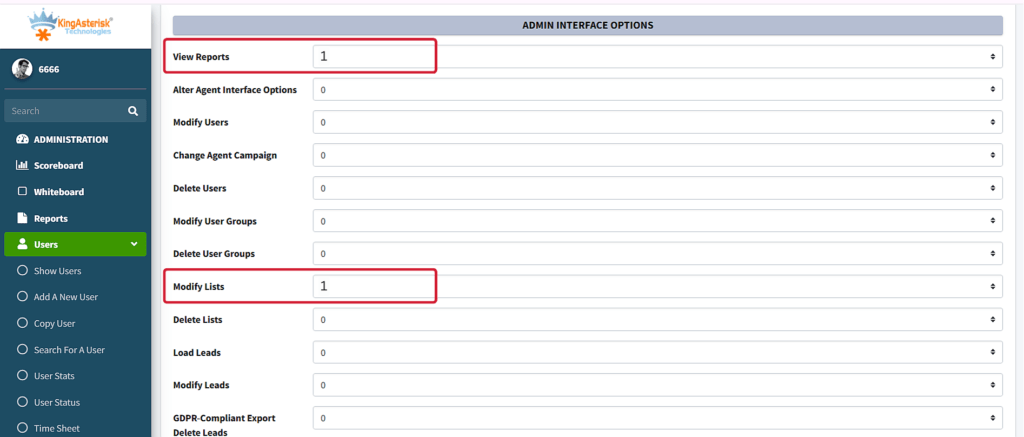
4. Scroll to the permission field that matches the blocked page (for example, Allowed Reports, Modify Campaigns, or Modify Lists) and change the value from 0 to 1.
5. If you are restricting access rather than opening it up – for example, giving a manager visibility into only the Agent Time Detail Report – create a dedicated User Group first (e.g., REPORT_USERS), then set Allowed Reports to only the report you want visible.
6. Create or edit the User record under Admin – Users. Assign the correct User Group, set User Level to 7 or 8 for report-only access, and set View Reports = 1 while leaving Modify Users, Modify Campaigns, Modify Lists, Delete Users, and Load Leads at 0.
7. If report visibility should also be limited by team, configure Allowed User Groups inside the User Group settings so the group can only see report data belonging to specific other groups.
8. Click Save Changes to commit the updated permission set.
This combination – User Level, User Group, View Reports, and Allowed Reports – is how VICIdial layers access control. Getting all four aligned is what separates a user who can see everything from one who can see exactly one report and nothing else.
How to Test the Permission After Making Changes
Permission changes in the VICIdial solution are not applied to an already-open session. The permission set is read once, at login, and cached for that session. Always have the affected user log out completely and log back in before assuming a fix has failed.
- Log in as the affected user (or ask them to) in a fresh browser session or private window.
- Navigate directly to the page that previously triggered the error.
- Confirm the page now loads and displays data as expected.
- If the report-only scenario was configured, confirm that only the intended report appears and that other admin menu items remain hidden.
- If the error persists, double-check that the user is actually assigned to the updated User Group – not a similarly named group left over from a previous setup.
Common VICIdial Permission Issues
Most permission errors trace back to one of a small handful of causes:
User assigned to the wrong User Group – the permission was fixed on one group, but the user’s account still points to a different one.
User Level too low – some pages require a minimum User Level regardless of what the User Group allows, so both gates need to agree.
Stale session – the user tested the page without logging out first, so the old cached permission set was still active.
Custom admin panel paths – on customized deployments the admin interface may live at a different path (for example /dialer/admin.php instead of the standard /vicidial/admin.php); the underlying permission logic is identical, but it helps to confirm you are editing the correct environment.
Allowed Reports vs. general admin toggles confused with one another – restricting a report requires editing Allowed Reports specifically, not the general Modify permissions.
Allowed User Groups left unconfigured – the user has View Reports enabled but still cannot see data belonging to another team’s group.
Watch: Fixing the VICIdial Permission Error
This walkthrough shows the exact VICIdial permission error on screen and demonstrates the User Group fix in real time – useful if you’d rather watch the fix than read it.
Need Setup or Server Support?
If you are configuring User Groups, Allowed Reports, or a full permission structure on a new environment and want it set up correctly from the start, our team can assist with both the permission architecture and the underlying server environment.
Server Information
- Hardware suggested based on your requirements
- Intel and AMD hardware options available
- Installation and configuration support
- Compatible with multiple server environments
Important Note
- AlmaLinux server required from client side
- Dedicated IP required for setup
- Server access needed for installation
- Installation support provided
Frequently Asked Questions
What is the difference between User Level and User Group permissions in VICIdial❓
User Level is a numeric ranking (commonly 1 for full administrators down through higher numbers for restricted roles) that sets a baseline access tier. User Group permissions are separate binary flags – like Modify Campaigns or Allowed Reports – that fine-tune exactly which pages and reports that group can reach. Both must agree for a page to load.
Do permission changes apply immediately in VICIdial❓
Not to an active session. The open source VICIdial software reads permissions at login and caches them, so the affected user needs to log out fully and log back in before the updated permission takes effect.
Can I restrict a user to view only one report in VICIdial❓
Yes. Create a dedicated User Group, set Allowed Reports to only the report you want visible, set View Reports = 1 on the user, and set all other admin permissions to 0. This gives the user access to exactly one report and nothing else.
What should I check if the permission looks correct but the error still appears❓
Confirm the user is actually assigned to the User Group you edited, confirm the User Level meets the minimum required for that page, and make sure the user has logged out and back in since the change was saved.
Final Thoughts
The “You Do Not Have Permission to View This Page” message in VICIdial is a straightforward access-control response once you know where to look. Every blocked page maps back to a specific permission field inside the User Group or User configuration, and correcting it is a matter of locating that field, flipping it to the right value, and having the user log back in to pick up the change.
If your team manages multiple User Groups, custom admin panel builds, or a large agent roster and wants a permission structure that is easier to maintain long-term, KingAsterisk Technologies works with VICIdial and Asterisk environments on exactly this kind of configuration – from user access control to full custom admin panel builds.
Reach out to our team to have your permission structure reviewed and set up correctly.