
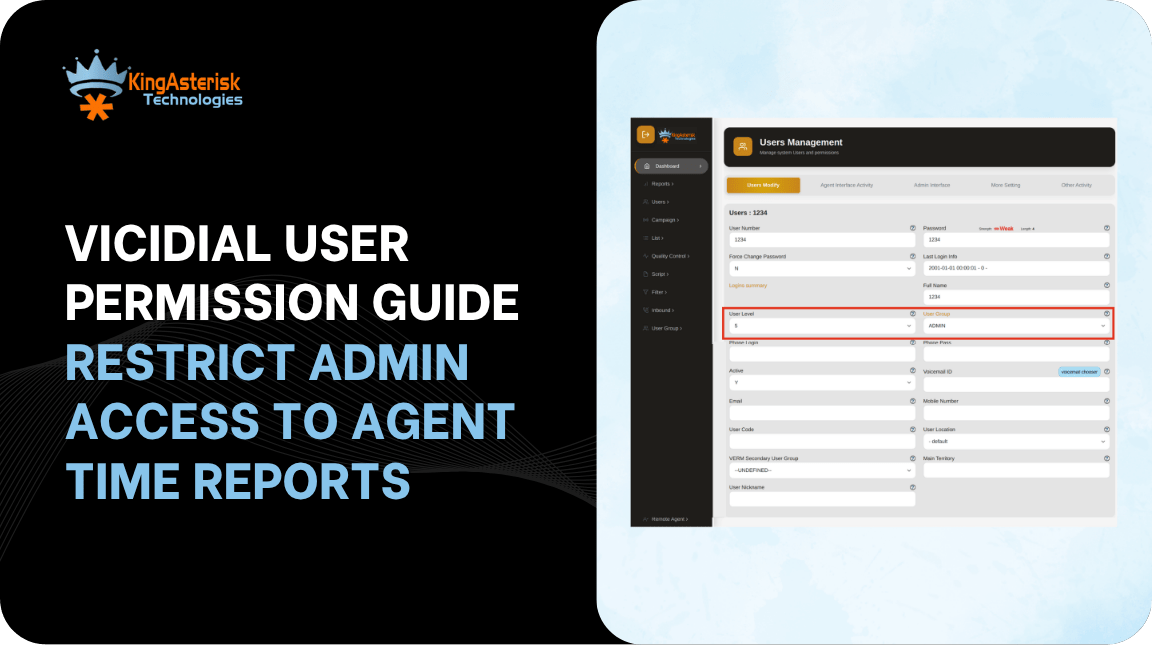
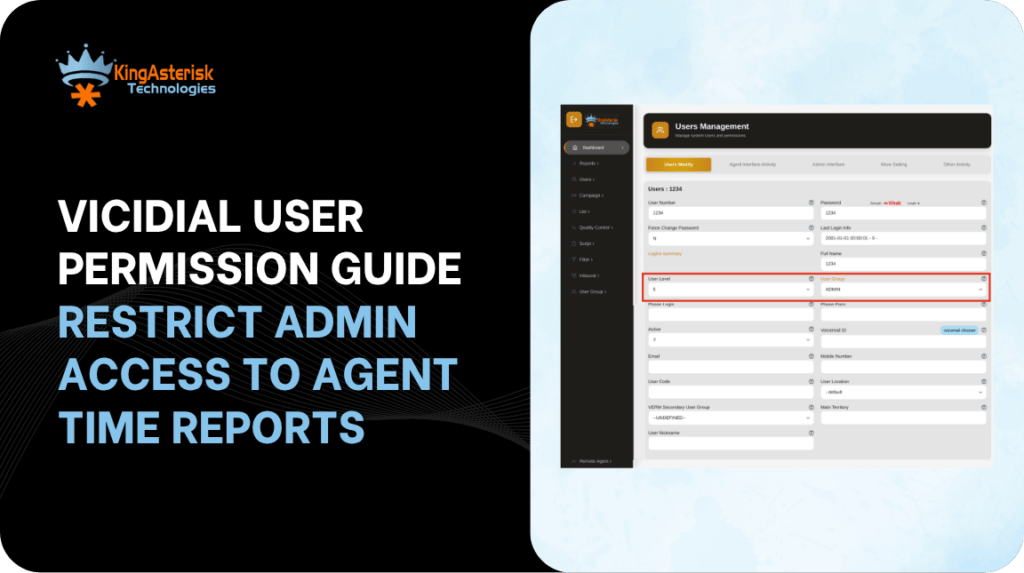
VICIdial user permission guide is one of the most underleveraged features in contact center administration – and one of the most consequential. If you run a busy VICIdial dialing operation with team leaders, supervisors, you need to think about leaving sensitive reports like the Agent Time Report. It opens to every user with admin credentials and is a security gap waiting to cause problems.
This guide walks you through the exact steps to lock down that report, control who sees what, and build a cleaner, more accountable permission structure across your VICIdial environment.
Understanding VICIdial’s Permission Architecture
VICIdial uses a hierarchical, role-based access model. Understanding this hierarchy is the starting point for any serious permission hardening work.
The system separates permissions into three broad categories: User-Level Settings (what the user can do at their own login), Admin Panel Access (which menu items and configuration pages are visible), and Report Access Controls (which data reports a user can pull and export).
The Agent Time Report falls under that third category – and it contains detailed per-agent activity data that most roles simply should not see.
User Types Explained
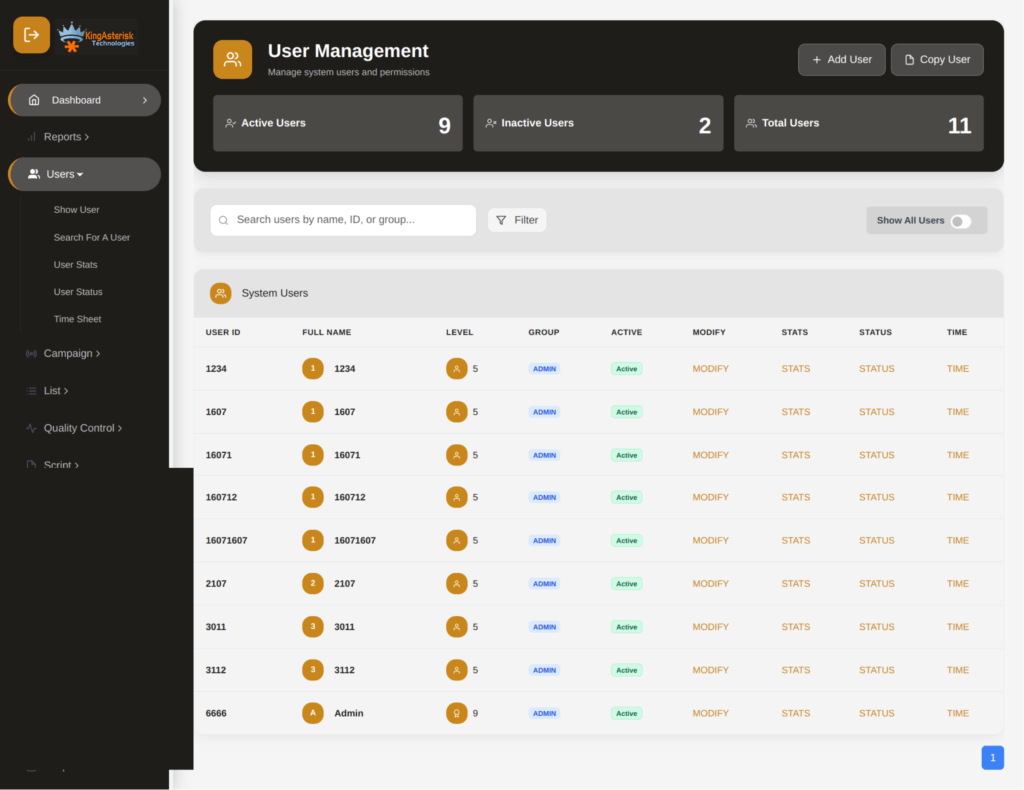
- Admin: Full system access including all configuration, reports, and user management.
- Manager: Campaign-level visibility; can view reports tied to assigned campaigns.
- Agent: Restricted to the softphone interface; no admin panel access by default.
- Custom User: Configured manually – the most flexible and recommended approach for supervisors who need limited access.
What Is the Agent Time Report – and Why Restrict It?
The Agent Time Report is a built-in VICIdial report that tracks exactly how long each agent spent in different states – logged in, on a call, in a pause code, waiting, and so on. It is one of the most granular performance views available in the platform.
From a management standpoint, that granularity is valuable. From a data security standpoint, it is sensitive. If a junior supervisor or a team lead can export this report for all campaigns, they gain visibility into performance data for agents outside their scope – including potential pay-for-performance metrics, attendance records, and shift patterns.
Restricting access to this report ensures that only the right people – typically senior managers or reporting analysts – can run and export it. It also makes your operation cleaner for internal compliance reviews, where auditors will ask who had access to what and when.
How to Create a User in VICIdial
Before you can restrict access, you need users set up with the correct base roles. Here is the standard process for creating a new user through the admin panel.
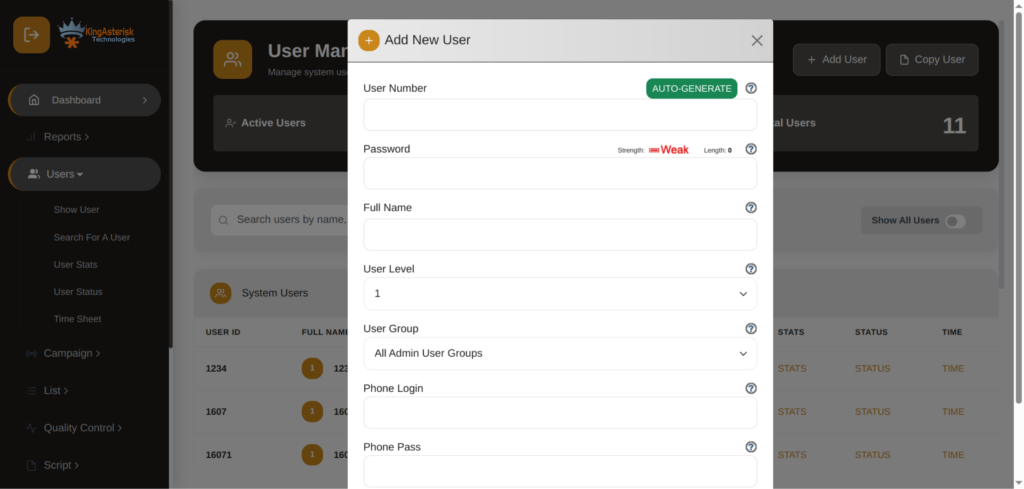
Step-by-Step: Adding a New User
- Log in to the VICIdial Admin Panel using your administrator credentials.
- Navigate to Admin – Users from the top menu.
- Click ‘Add a New User’ at the top of the user list.
- Fill in the required fields: User ID, Password, Full Name, and User Level.
- Set the User Group – this is important as group membership can inherit shared permission settings.
- Under the ‘User Level’ dropdown, select the appropriate base level (1–9, where 9 is full admin).
- Scroll through the extended options to configure phone settings, campaign access, and allowed IPs if needed.
- Click Submit to save the new user.
User Level is a numeric scale, but do not confuse a higher number with unlimited access. The actual report and panel permissions are set through separate toggles lower on the same user configuration page – and those are what matter most for report restriction.
Assigning and Editing User Roles
Once a user exists in the system, you can return to their profile at any time to tighten or expand their permissions. This is done from Admin – Users – [select user] – Modify.
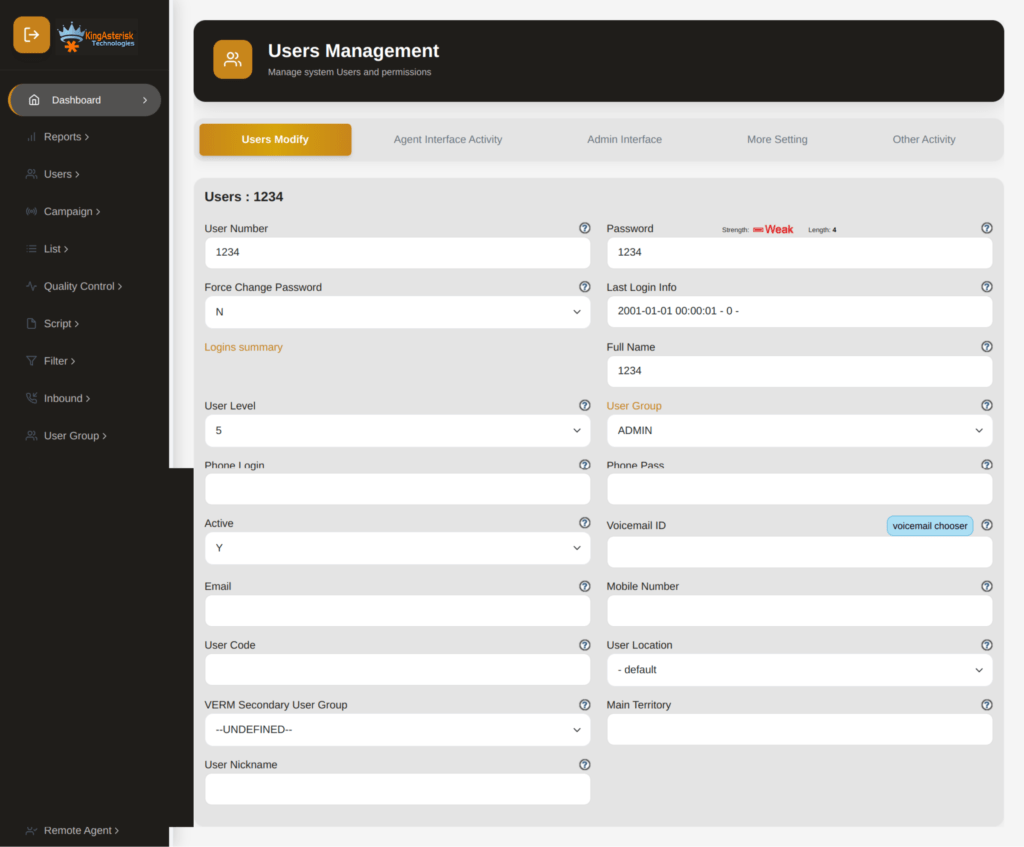
The key fields to pay attention to when controlling report access are:
- allowed_reports: A comma-delimited list of reports the user is allowed to run. Leave this blank to deny all, or list specific report names to whitelist only those.
- admin_hide_lead: Controls visibility of lead data columns.
- report_default_file_download: Determines whether the user can export report data to a file.
- user_group: Membership in a group that may have shared permission templates applied.
A common mistake is setting User Level to 8 or 9 and assuming the granular report fields below will auto-restrict. They will not – each report permission is independently toggled, which is exactly what gives you the control you need.
Step-by-Step: Restricting Access to the Agent Time Report
This is the core of the VICIdial user permission guide. Follow these steps precisely to remove Agent Time Report access from a specific user or role.
Step 1 – Identify the Target User or Group
Go to Admin – Users and locate the user whose access you want to restrict. If you manage a team of supervisors with identical permission needs, consider using a User Group so you can apply changes once and have them cascade to all group members.
Step 2 – Open the User Modify Page
Click Modify next to the user. This opens the full user configuration form. Scroll past the basic fields – phone, campaign assignment, and scheduling – until you reach the Reporting and Admin Options section.
Step 3 – Locate the Report Access Fields
Find the field labeled ‘allowed_reports’. By default, this may be set to ‘ALL’ or left empty, which in many configurations defaults to permissive access. You will change this to an explicit list that excludes the Agent Time Report.
Step 4 – Remove Agent Time Report from Allowed List
The Agent Time Report is identified in VICIdial’s report system as ‘agent_time’. Edit the allowed_reports field to include only the reports this user legitimately needs. Do not include ‘agent_time’ in the list. For example, if this user should only access the Campaign Report and Call Counts Report, your entry would look like: Campaign_stats,call_counts
Step 5 – Disable Report Export Permissions
Scroll down to ‘report_default_file_download’ and set it to 0 (disabled) for this user if you also want to prevent them from downloading any report data even for the reports they can view.
Step 6 – Save and Test
Click Submit to save changes. Log out, then log back in as the restricted user (use a test account) and confirm the Agent Time Report is no longer visible or accessible from the Reports menu. The menu item should either not appear or return an access denied message.
Real-World Use Case: Multi-Team Contact Center
Consider a contact center running three outbound sales campaigns simultaneously. The operation has a General Manager, three Campaign Supervisors, and roughly forty agents spread across shifts. The General Manager needs full reporting access – including Agent Time. Each Campaign Supervisor should only see data for their own campaign and should have no access to time-based performance data for agents outside their team.
Without proper permission control, a Campaign Supervisor logged in at User Level 7 could navigate to the Reports menu and pull Agent Time data for all forty agents – across all three campaigns. That is a data governance failure.
After applying the restriction method outlined in this guide, each supervisor’s ‘allowed_reports’ field is configured to include only campaign_stats and call_counts. The agent_time report is excluded. The General Manager’s account retains full report access as before. Result: clean data boundaries, no cross-team performance leakage, and a straightforward audit trail if compliance ever asks.
How to Log In to VICIdial and Verify Permission Changes
After applying any permission change, verification is a non-negotiable step. Here is how to do it cleanly.
Admin Login
- Navigate to your VICIdial server URL – typically http://[your-server-IP]/vicidial/admin.php
- Enter your admin username and password.
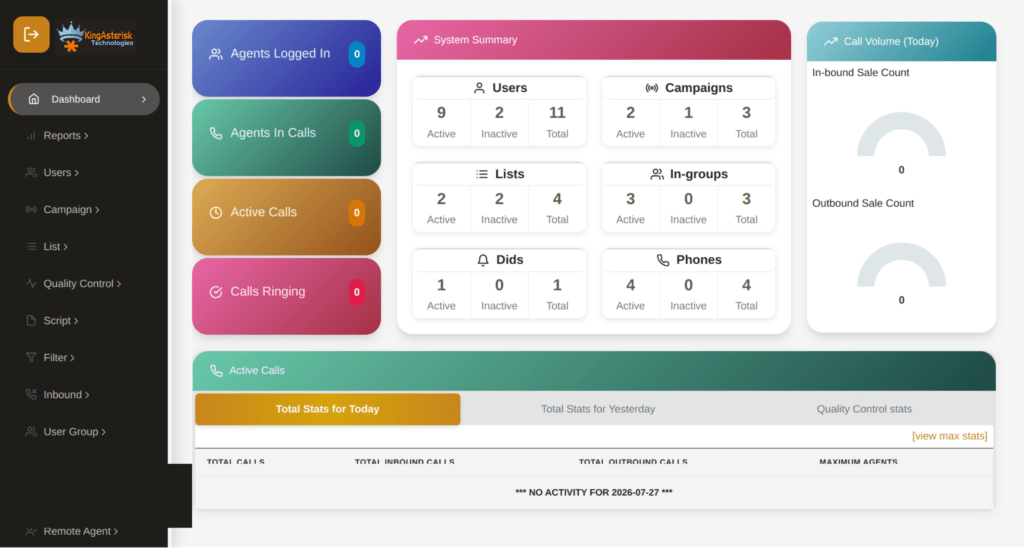
- You will land on the main admin dashboard from where all user management and reporting settings are accessible.
Testing as a Restricted User
- Open a private/incognito browser window to avoid session conflicts.
- Log in using the restricted user’s credentials at the same admin URL.
- Navigate to the Reports section and confirm the Agent Time Report is absent from the menu.
- Attempt to directly access the report URL (if you know it) – a correctly configured system will return an access denial.
If the report still appears, recheck the allowed_reports field – ensure there are no trailing spaces, that ‘agent_time’ is definitely absent, and that the user is not inheriting a permissive group policy that overrides the individual setting.
Frequently Asked Questions
Log into the admin panel and go to Admin – Users – Add a New User. Fill in the User ID, password, full name, and user level. Assign them to a user group if applicable. The granular permission toggles – including report access – are in the extended options on the same form. Always configure those before saving to avoid leaving a new user with overly broad defaults.
Agents log in through the agent web client, typically at http://[server-IP]/vicidial/index.php. Administrators and managers log in through admin.php at the same server IP. The correct login URL depends on the user type – sending an agent to the admin URL will not give them access, but it can cause confusion during onboarding if not documented clearly.
Server-level permission defaults are set in the System Settings section of the admin panel. Here you can define whether new users default to permissive or restrictive access, set global report download permissions, and configure session timeout rules. For report-specific restrictions, individual user configuration always takes precedence over system defaults, so server configuration sets the floor – not the ceiling.
Yes. VICIdial’s IVR setup lives under the Admin panel in the IVR section, where you can build menu trees, record prompts, and assign IVRs to inbound groups. Access to the IVR configuration screens is controlled by user level – only users at level 7 or above typically see IVR options. You can further restrict IVR management by customizing user-level thresholds in the system settings.
What happens if I set ‘allowed_reports’ to blank – does it block all reports or allow all?
This depends on your VICIdial build and configuration. In many standard deployments, a blank allowed_reports field defaults to allowing all reports, which is counterintuitive.
To be safe, always explicitly list only the reports a user needs – never rely on a blank field as a restriction mechanism. If you want to block all report access, set the field to a placeholder value that matches no valid report name, or set the user level below the threshold required to access the Reports menu.
Conclusion
A well-configured VICIdial user permission guide is not just an administrative checklist – it is a core part of running a secure, accountable contact center operation. Restricting the Agent Time Report to authorized users only protects sensitive performance data, reduces internal data exposure, and keeps your system audit-ready without limiting the productivity of the people who legitimately need reporting access.
The steps covered here – from creating users with proper roles, to editing allowed_reports, to testing permissions with a dedicated verification session – give you a repeatable process you can apply across every user type in your environment.
KingAsterisk’s engineering team can help you audit your current setup and implement a permission structure that scales. Reach out to us to discuss your specific deployment.