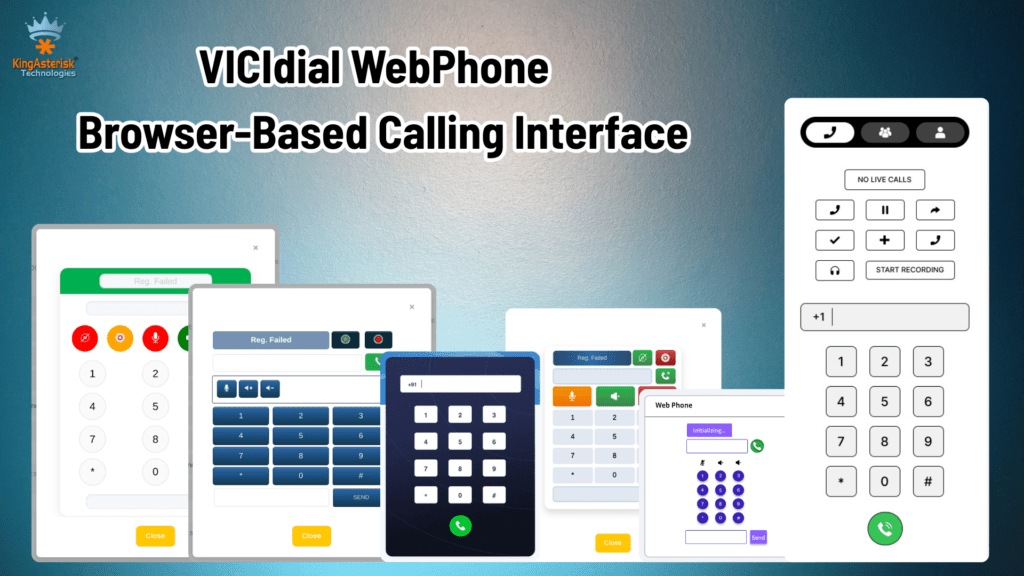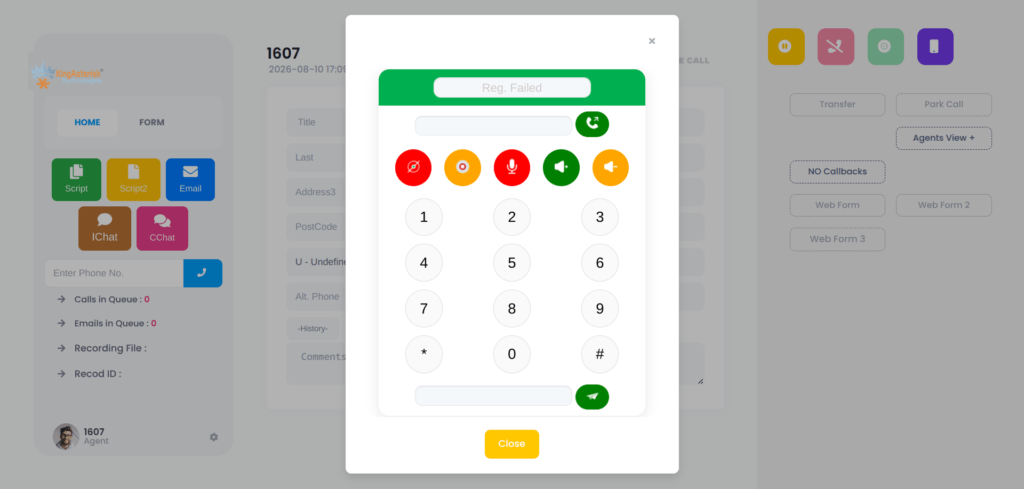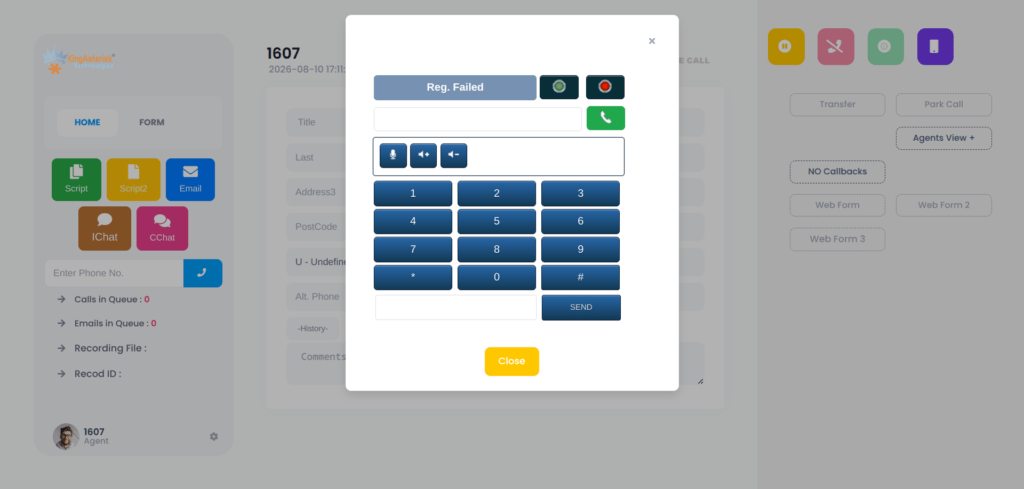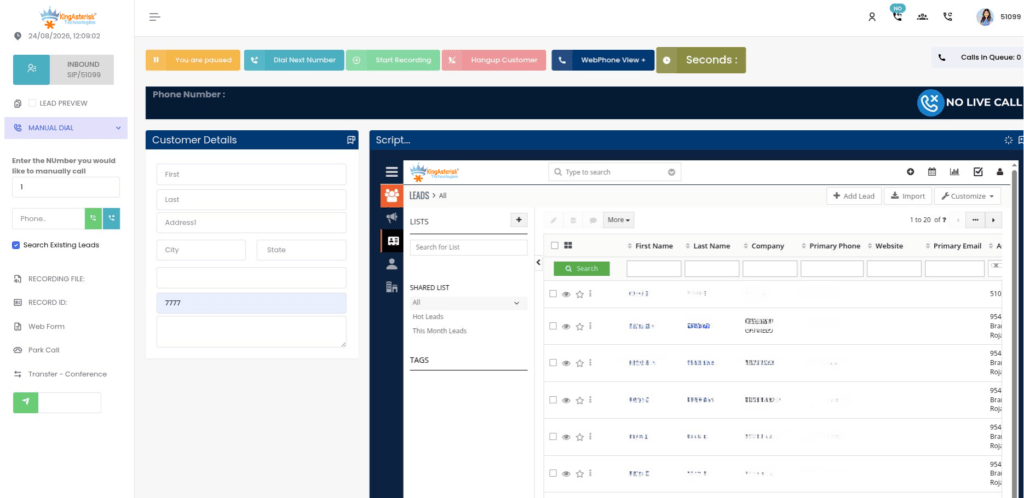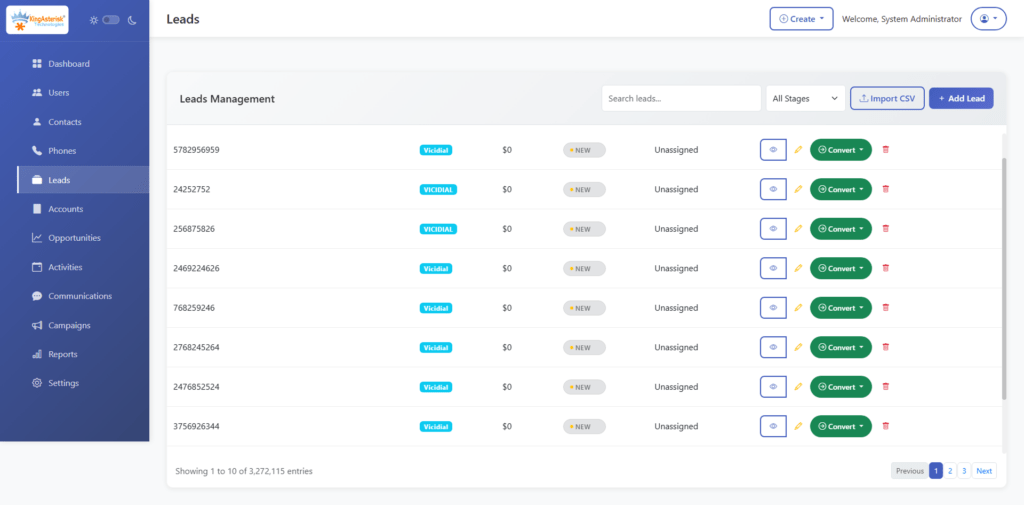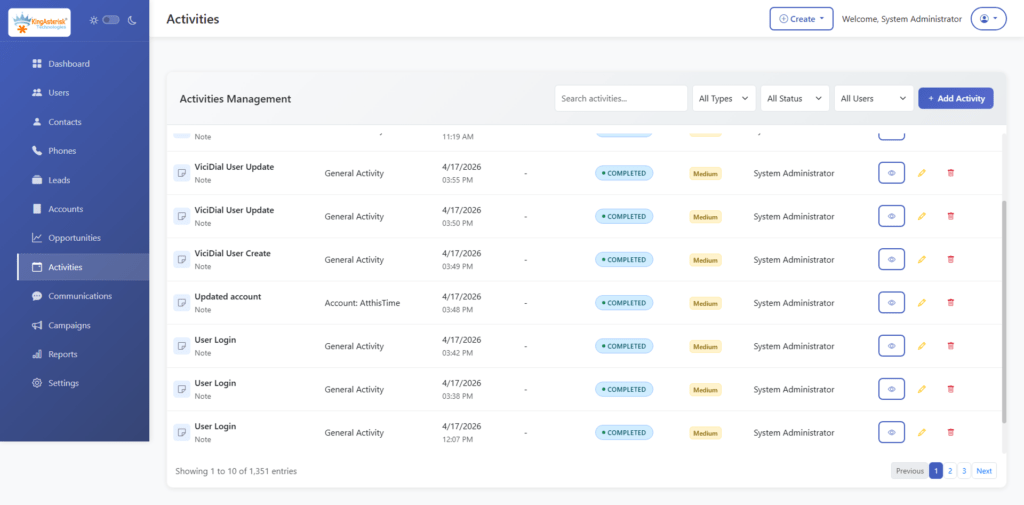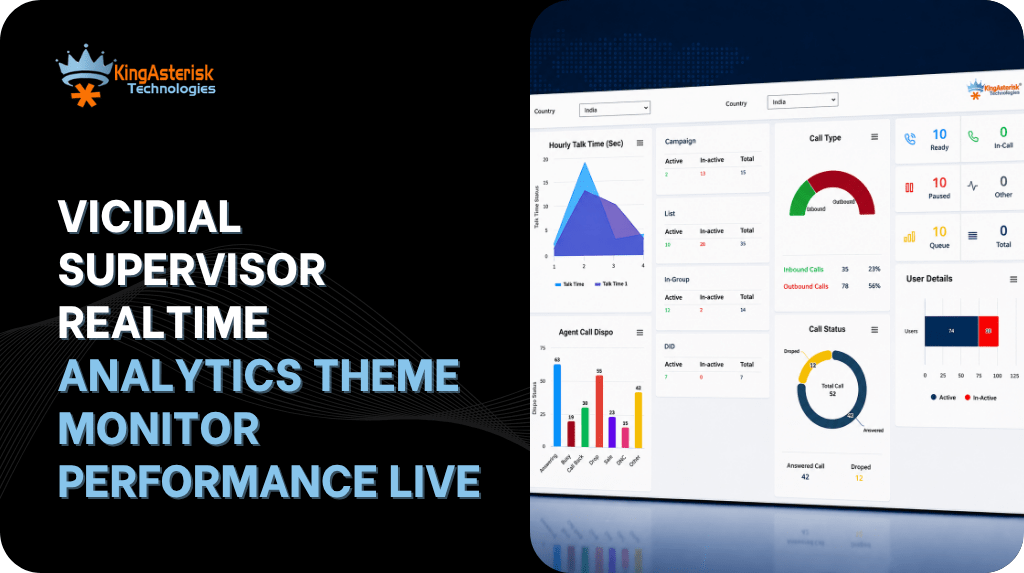
VICIdial Hopper Not Loading Leads Fix Campaign Not Dialing Issues
Vicidial Software Solutions

VICIdial Hopper Not Loading Leads? How to Fix Campaign Not Dialing

VICIdial Hopper Not Loading Leads Fix Campaign Not Dialing Issues

Key Takeaways

  • A VICIdial hopper not loading leads is almost always caused by one of five root causes: inactive lists, misconfigured lead filters, local call time restrictions, a stalled hopper cron job, or incorrect dial statuses.
  • Confirming the hopper count in real time (Admin → Campaigns → Hopper Viewer) is the fastest first diagnostic step.
  • Dial status mismatches are the single most overlooked cause of an empty hopper, always cross-check your “Dial Statuses” field against actual lead statuses in the database.
  • Hopper cron failures are silent, the campaign UI will appear fully active while zero leads load.
  • Most issues resolve in under 15 minutes once the correct root cause is identified.

VICIdial hopper not loading leads is one of the most disruptive issues a contact center operations team can face, agents are logged in, the campaign shows “ACTIVE,” yet the phones stay silent and productivity drains by the minute. The hopper is VICIdial’s pre-dialing buffer: it pulls a configurable batch of leads from your lists into a queue so the predictive dialer can fire calls without waiting on database queries. When that buffer stays at zero, nothing dials.

The good news is that this failure is almost never mysterious. In every deployment our engineering team has worked on, from small 20-seat collections shops to multi-site operations running thousands of concurrent lines, an empty hopper traces back to a small set of well-defined configuration problems. This article walks through each one in plain terms, gives you a hands-on checklist, and gets your campaign dialing again fast.

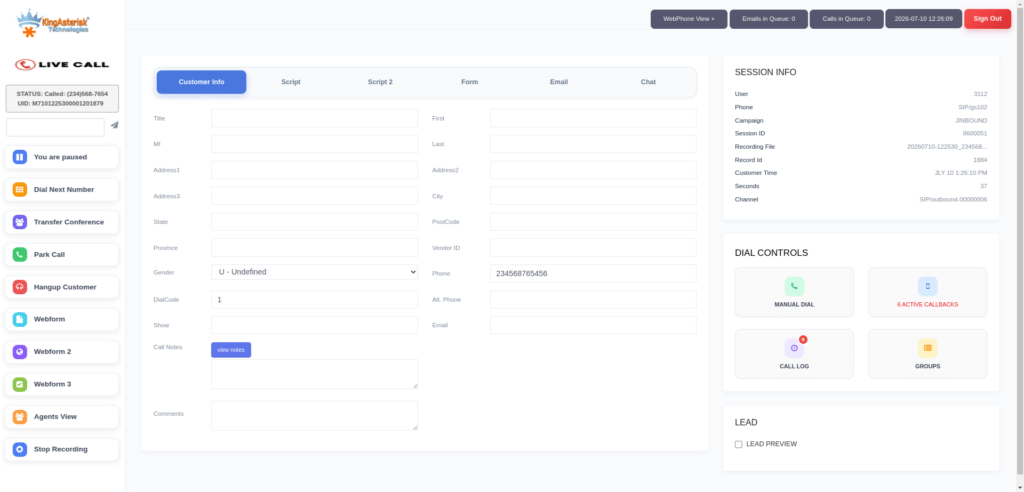
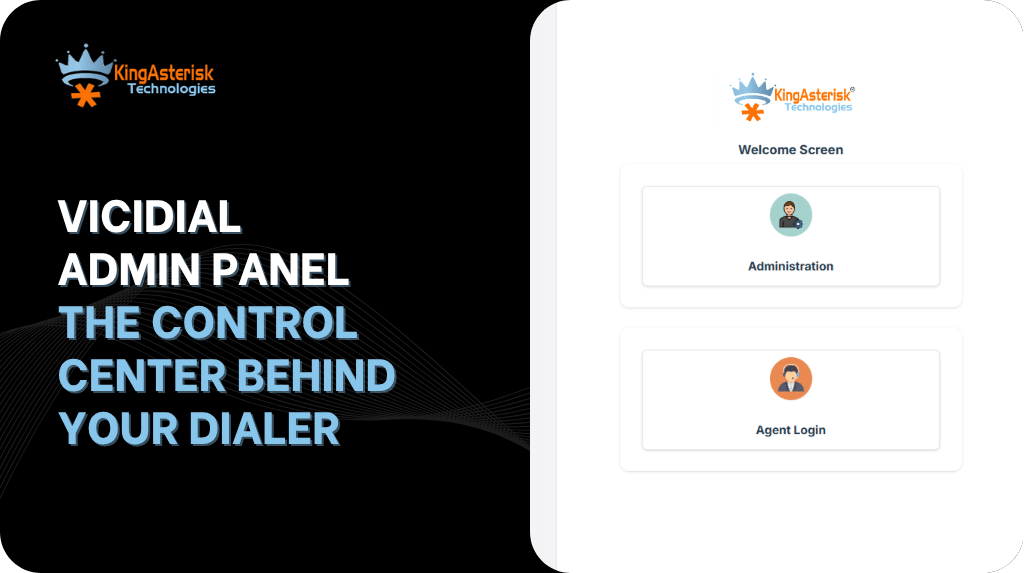
Dialer Theme

Root Cause #1 — List Is Inactive or Not Assigned 

How VICIdial Uses Lists

Every lead in VICIdial belongs to a List. The hopper will only pull from lists that are:

  • Assigned to the active campaign
  • Set to Active status (not “Inactive” or “Inactive, DNC”)
  • Containing leads with a callable dial status (more on this below)

A list that is paused, archived, or accidentally set to inactive will be silently skipped by the hopper process. No warning appears in the campaign UI, the hopper count simply stays at zero.

How to Check

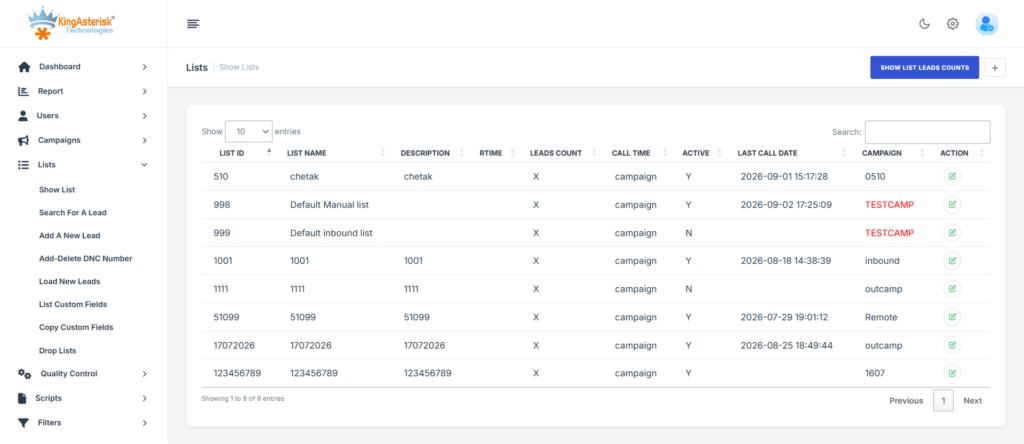
  1. Navigate to Admin → Lists in the VICIdial Admin panel.
  2. Search for all lists linked to your campaign by List ID or campaign name.
  3. Confirm the Active column shows Y for every list you expect to be dialed.
  4. Navigate to Admin → Campaigns → [Campaign Name] → Lists and verify the lists are actually assigned to the campaign, not just active in isolation.

Common Mistake

Teams often bulk-import a new lead file and create a new list, but forget to assign it to the campaign. The list shows thousands of leads, the database is populated, but the hopper never sees them because no campaign-to-list association exists.

Root Cause #2 — Lead Filter Configuration Errors 

What Lead Filters Do

VICIdial’s Lead Filter feature allows campaigns to restrict which leads get loaded into the hopper based on fields like state, postal code, custom fields, or any column in the vicidial_list table. Filters are written as SQL WHERE clause fragments. A poorly constructed filter, or a filter referencing a field that no longer exists, will return zero results and produce an empty hopper.

Diagnosing Filter Issues

Navigate to Admin → Lead Filters and review the filter assigned to your campaign. Pay particular attention to:

  • SQL syntax errors, even a missing quote or mismatched parenthesis will cause the entire filter to fail silently.
  • Field name mismatches, if a custom field was renamed or deleted from your list schema, any filter referencing it returns nothing.
  • State/region values, filters like state = ‘TX‘ will fail if your data was imported with lowercase or full state names.

Quick Test

Temporarily remove the lead filter from the campaign (set it to NONE) and watch the hopper count. If leads start loading immediately, your filter is the culprit. Re-examine the SQL, fix the logic, and reassign.

Root Cause #3 — Local Call Time Restrictions 

How Call Time Windows Work

VICIdial respects local call time rules per lead, calculated from the lead’s state field and the server’s timezone offset table. If a lead’s local time falls outside the campaign’s allowed calling window, the hopper will not load it, even if every other configuration is correct.

This is a particularly common cause of confusion because:

  • It is time-dependent, your campaign may dial correctly at 10 AM but produce an empty hopper at 8 AM or 8 PM.
  • State field errors compound the issue. If state values are blank or incorrect, VICIdial falls back to a default timezone, which may put all leads outside the calling window simultaneously.

How to Check

  1. In the campaign settings, review the Call Time field. Click through to the call time definition and confirm the start/end hours are appropriate.
Check your lead data, run a quick SQL count of leads grouped by state to verify states are populated and formatted correctly.

SELECT state, COUNT(*) as lead_count
FROM vicidial_list
WHERE list_id = 'YOUR_LIST_ID'
  AND status IN ('NEW', 'NI', 'NA')
GROUP BY state
ORDER BY lead_count DESC;
  1. If you operate across multiple time zones, ensure the server system clock and timezone are correctly set. An NTP drift of even a few minutes can push boundary leads out of the window.

Root Cause #4 — Hopper Cron Job Not Running 

The Cron Is the Engine

VICIdial’s hopper does not fill itself passively. A background cron job, AST_VDhopper.pl, runs at regular intervals (typically every 1–5 seconds) to query the database and push leads into the hopper table. If this process has crashed, stalled, or was never scheduled correctly, the hopper will empty out and never refill, even with a perfectly configured campaign. This is the most deceptive root cause because everything in the admin UI looks correct, the campaign is active, lists are assigned, filters are valid, but nothing dials.

How to Diagnose

SSH into your VICIdial server and check whether the hopper process is running:

ps aux | grep VDhopper

If no results appear (beyond the grep process itself), the hopper daemon is not running. You should also check the crontab:\

crontab -l -u root

Look for an entry resembling:

* * * * * /usr/share/astguiclient/AST_VDhopper.pl --debug

If the entry is missing or commented out, that is your problem.

How to Restart

/usr/share/astguiclient/AST_VDhopper.pl --debug &

logs for why the process may have died, disk space exhaustion and MySQL connection timeouts are common culprits on busy servers.

Root Cause #5 — Dial Status Not Configured Correctly 

The Most Overlooked Setting

The Dial Statuses field in campaign settings defines which lead statuses are eligible for dialing. VICIdial only loads leads whose status field in vicidial_list matches one of the values in this list. The defaults typically include NEW, NI (No Answer), NA (Not Available), and a handful of others, but if your campaign has been modified, statuses have been customized, or leads were imported with non-standard status codes, there may be a complete mismatch.

Example: A lead file imported by a third-party tool arrives with status OPEN instead of NEW. If OPEN is not in your campaign’s Dial Statuses list, every single lead in that import is invisible to the hopper.

How to Check and Fix

  1. Go to Admin → Campaigns → [Campaign] → Dial Statuses.
  2. Note which statuses are listed.
  3. Run a database query to see the actual distribution of statuses in your list:
SELECT status, COUNT(*) as count
FROM vicidial_list
WHERE list_id = 'YOUR_LIST_ID'
GROUP BY status
ORDER BY count DESC;
  1. Compare. Any status with a high count that does not appear in your Dial Statuses field is a lead pool being silently ignored.
  2. Add the missing status values to the campaign’s Dial Statuses field, or use a Reset List operation to normalize all lead statuses back to NEW if a full re-dial is appropriate.
Step-by-Step Diagnostic Checklist 

Use this checklist in order. Work through each step before moving to the next, in most cases you will isolate the problem within the first three.
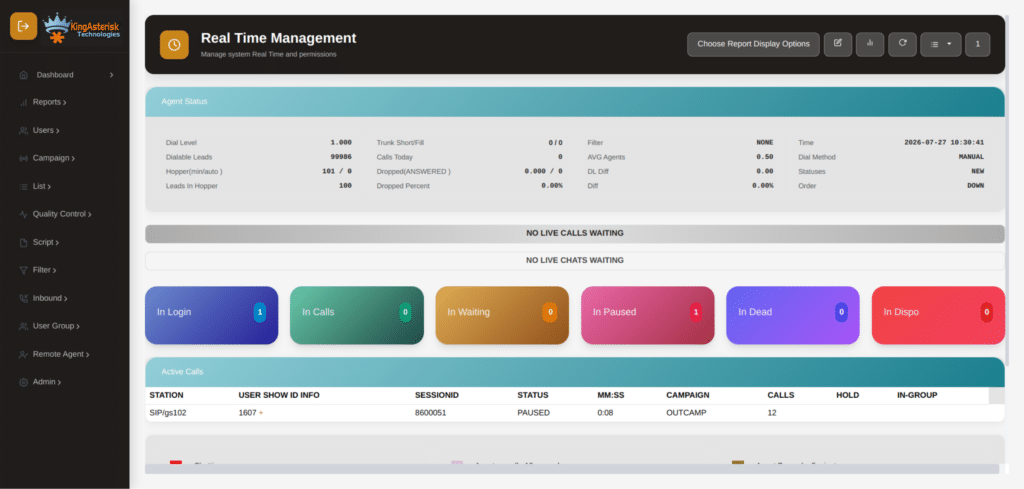
    1. Check the hopper count in real time. Go to Admin → Campaigns → Hopper Viewer. If hopper count is 0 and the campaign is active, proceed.
    2. Verify list assignment and active status. Confirm all expected lists are assigned to the campaign AND show Active = Y in the Lists table.
    3. Temporarily disable lead filters. Set the campaign’s Lead Filter to NONE. Observe whether the hopper count climbs within 30–60 seconds. If yes, the filter is the issue.
    4. Check the local call time window. Confirm the campaign’s call time allows dialing in the current hour for the timezones your leads are in.
    5. Confirm the hopper cron is running. Run ps aux | grep VDhopper on the server. If it’s not running, restart it and verify the crontab entry.
    6. Audit dial statuses vs. actual lead statuses. Run the SQL query above against your active list and compare the output against your campaign’s configured Dial Statuses. Add any missing statuses.
    7. Check available lead count. After correcting statuses, verify there are actually uncalled leads remaining:
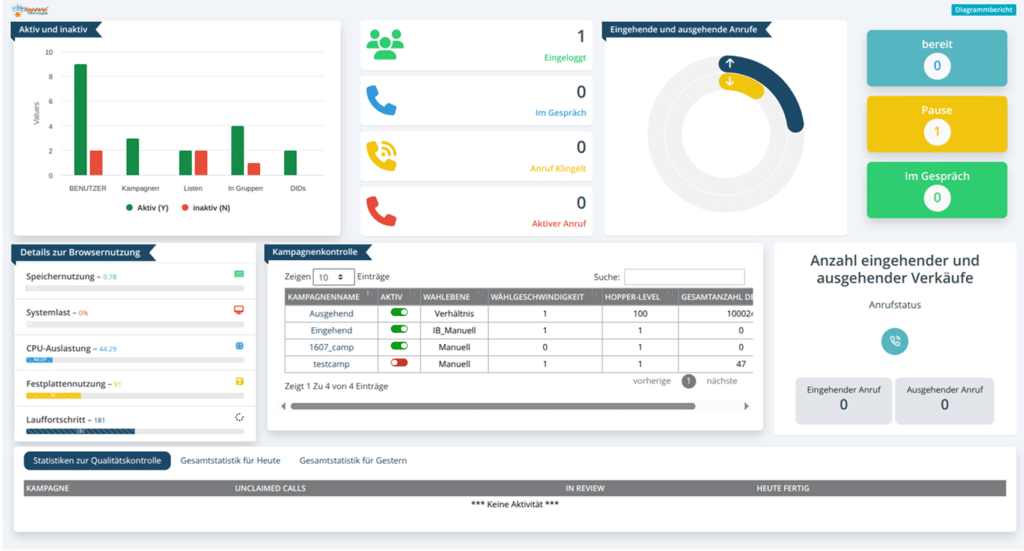
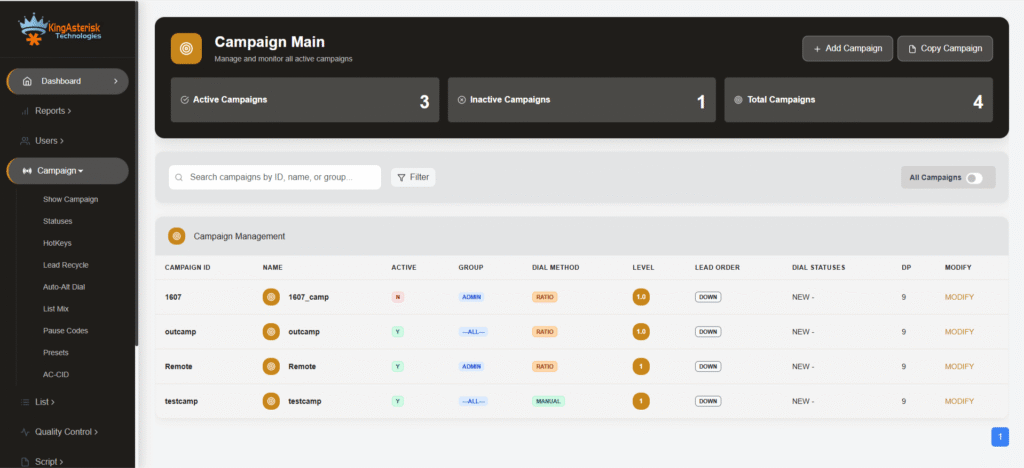
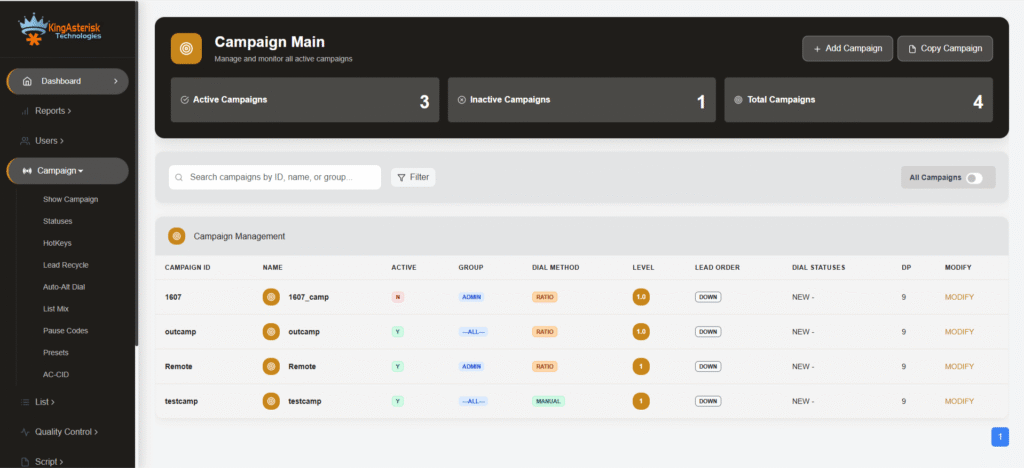
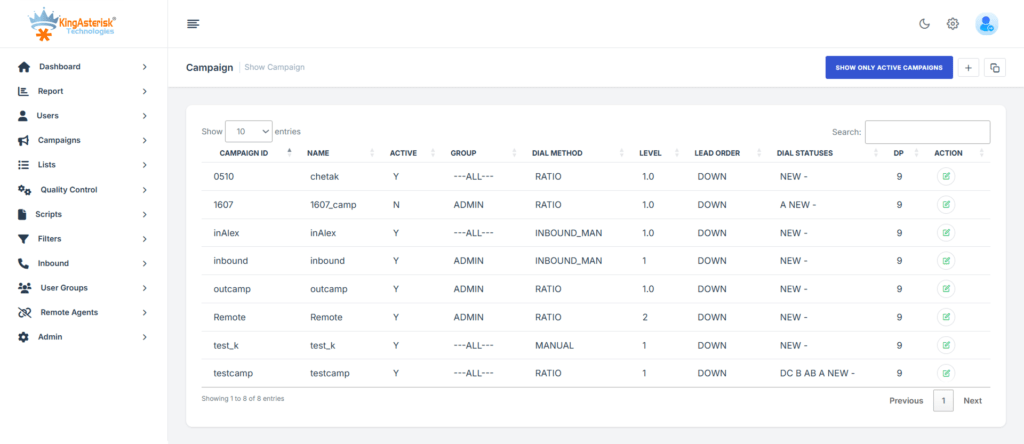
    Vicidial Campaign

    Real-World Use Case: Outbound Collections Campaign 

    A mid-sized receivables management company running a 45-seat outbound campaign contacted us after their morning shift reported zero calls for over 90 minutes. The campaign dashboard showed Active status, agents were logged in and waiting, but the hopper sat at zero.

    What we found:

    The operations manager had run a bulk status reset the previous evening to re-queue all leads that had received a NI (No Answer) disposition, changing them back to NEW. The reset executed correctly. However, during the same session, a well-meaning admin had edited the campaign’s Dial Statuses field and accidentally removed NEW from the list while trying to add a custom status code.

    The result: an entire list of freshly reset NEW leads, invisible to the hopper because NEW was no longer a recognized dialable status in that campaign.

    Resolution time: 4 minutes. Adding NEW back to the Dial Statuses field and triggering a campaign reload had the hopper filling and agents on calls within a single cron cycle.

    Lesson: Any time a bulk status reset or campaign edit occurs, immediately spot-check the hopper count within one cron interval (typically 60 seconds). Don’t wait for agents to report silence, build this check into your post-maintenance procedure.

    🚀 Try It Live: Live Demo of Our Solution!

    Frequently Asked Questions

    Q1: Why does my VICIdial hopper show zero even though leads exist in the list❓

    The most common reason is a dial status mismatch, your leads have statuses that are not included in the campaign’s Dial Statuses configuration, so the hopper query returns nothing. The second most common reason is that the list is not set to Active. Run the SQL status audit described above and cross-check against your campaign settings to pinpoint which condition applies.

    Q2: How do I check if the VICIdial hopper cron job is running❓

    SSH into your server and run ps aux | grep VDhopper. If the AST_VDhopper.pl process is not listed, the cron is not running. Check the crontab with crontab -l -u root and confirm the hopper entry is present and not commented out. Restart the process manually if needed and monitor the hopper count in the admin panel.

    Q3: Can local call time settings block an entire campaign❓

    Yes, if all of your leads share a single state or timezone and the current time falls outside the campaign’s allowed call window, the hopper will load zero leads. This is expected and correct behavior, not a bug. Verify your call time definition covers the hours you intend to operate, and confirm lead state fields are populated accurately so timezone calculation works correctly.

    Q4: My lead filter was working yesterday. Why is it blocking leads today❓

    Lead filters execute as SQL WHERE clauses against your lead table. If you recently modified your list schema (added, removed, or renamed columns), or if a custom field value changed format during an import, the filter may now reference a field or value that no longer exists. Test by temporarily removing the filter, if leads load, rebuild the filter SQL from scratch against your current schema.

    Q5: How many leads should be in the hopper at any given time❓

    The hopper size is set per campaign in the Hopper Level field (commonly 100–500 for active predictive campaigns). A healthy hopper will fluctuate around this target as leads are dialed and replaced. If the hopper consistently stays well below the configured level during active dialing hours, you may have insufficient callable leads remaining in your list, or the cron is running too slowly relative to your dial rate. Check the vicidial_list table for remaining callable leads and consider your list replenishment strategy.

    Conclusion

    A VICIdial hopper not loading leads is a high-urgency problem that brings an entire outbound operation to a halt, but it is reliably diagnosable and fixable when you know where to look. In the vast majority of cases, the issue is one of five root causes: an inactive or unassigned list, a broken lead filter, a local call time restriction blocking all available leads, a crashed hopper cron job, or a dial status configuration that doesn’t match the actual statuses in your lead database.

    Work through the diagnostic checklist in order, use the SQL queries provided to cross-check your data, and you will resolve most hopper issues in under 15 minutes. More importantly, adopt a post-maintenance verification habit, every time a campaign is edited, a list is reset, or a filter is changed, confirm the hopper count is climbing before you walk away.

    If your hopper issues are recurring, inconsistent, or tied to more complex multi-campaign or multi-server deployments, the underlying configuration may require a deeper architectural review. The KingAsterisk team has deployed and maintained VICIdial environments across industries for over a decade. 

    Contact us to schedule a technical consultation, we’ll diagnose your dialer configuration and get your operation running at full capacity. 

    Article authored by the KingAsterisk Senior Engineering Team, with hands-on experience deploying and maintaining VICIdial and Asterisk-based contact center infrastructure across inbound, outbound, and blended environments globally.

    KINGASTERISK_NOTE
    Cloud Telephony Dashboard for Global Communication
    Call Center Dialer Software Solutions

    Cloud Telephony Dashboard Solutions for Global Client Communication

    Cloud Telephony Dashboard for Global Communication

    Key Takeaways

    • Cloud Telephony Dashboard Solutions give contact centers a unified, real-time view of all inbound and outbound communication activity across global teams.
    • A well-configured dashboard reduces average handle time (AHT), improves first-call resolution (FCR), and increases agent accountability.
    • Platforms built on open-source stacks like Asterisk and VICIdial deliver enterprise-grade monitoring without the overhead of proprietary lock-in.
    • Effective dashboards integrate IVR routing, call queue visibility, agent status boards, and CRM data into a single pane of glass.
    • Businesses that deploy structured telephony dashboards report measurable improvements in supervisor response time and customer satisfaction scores.

    Cloud Telephony Dashboard Solutions are centralized interface platforms that aggregate live and historical communication data from telephone systems, IVR engines, and agent workstations into a single, manageable screen. For contact centers handling thousands of calls daily across multiple geographies, these dashboards are not optional, they are the operational backbone that separates reactive management from proactive control.

    This article explains exactly what these solutions do, how they are architected, and how contact center managers, IT teams, and business owners can deploy them effectively using platforms like Asterisk and VICIdial. Whether you are running an inbound support desk, an outbound sales floor, or a blended operation, the dashboard layer determines how quickly you can identify bottlenecks, coach agents, and deliver consistent client experiences.

    Core Components of an Effective Telephony Dashboard

    Not every dashboard is built the same. A genuinely capable telephony dashboard for global operations must include several interdependent modules that work together in real time.

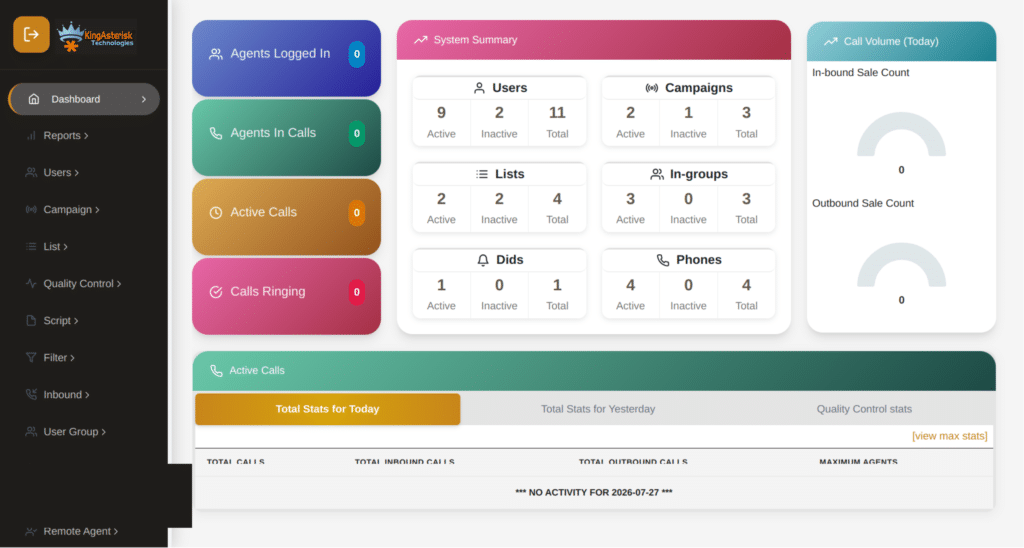
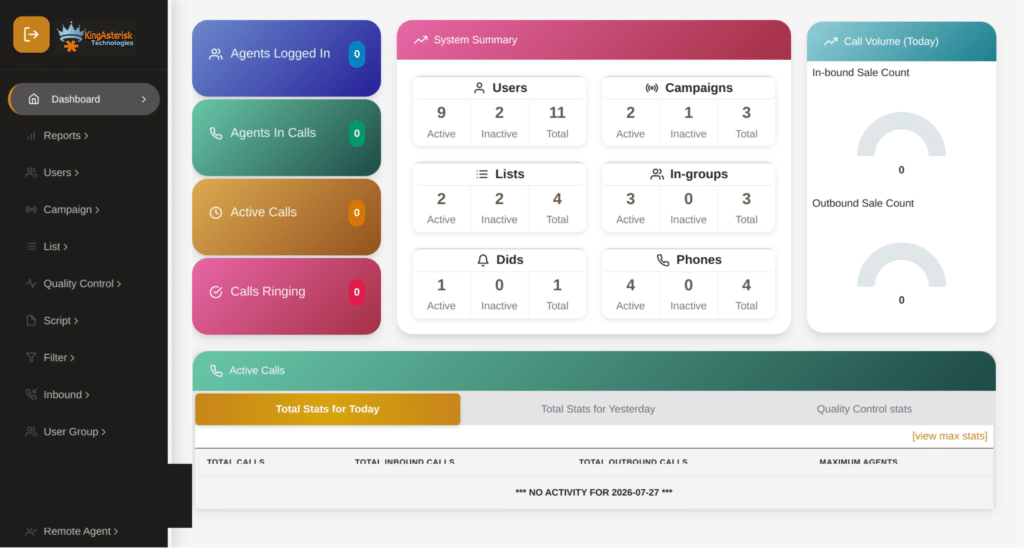
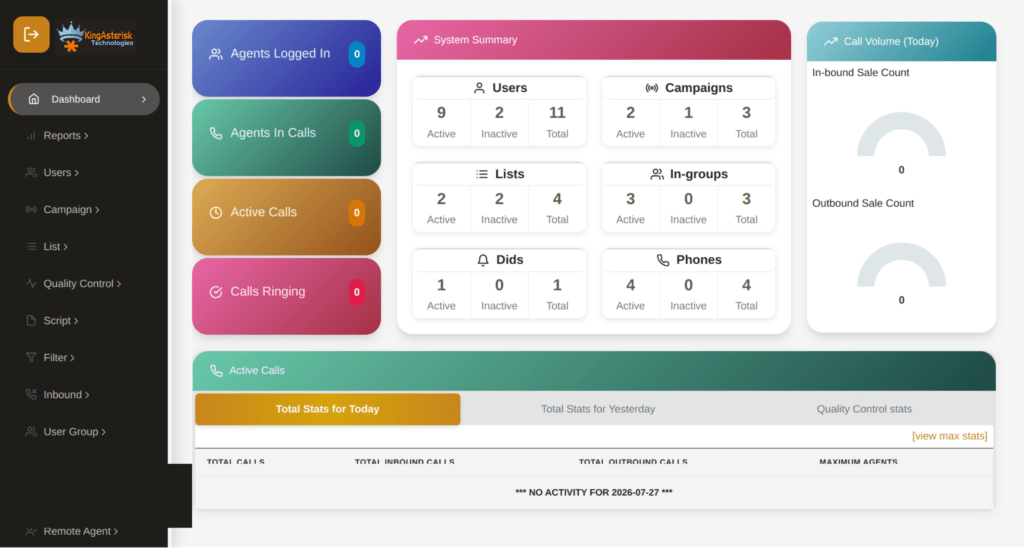
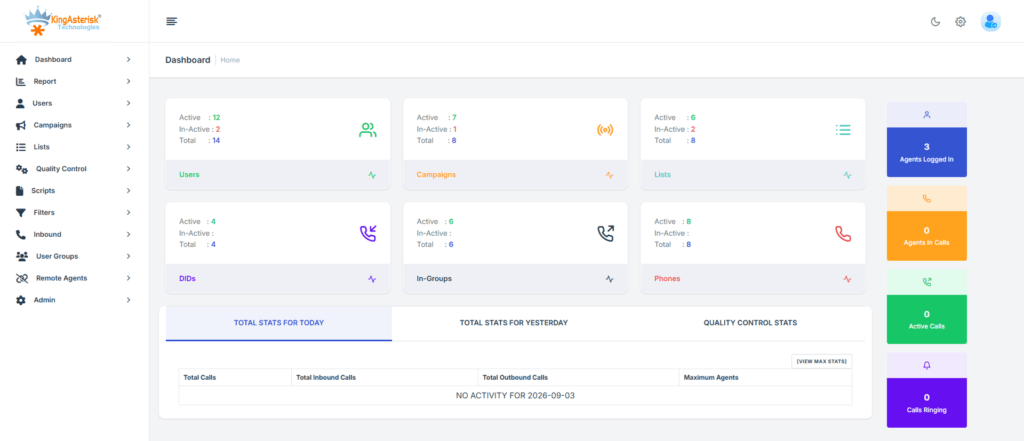
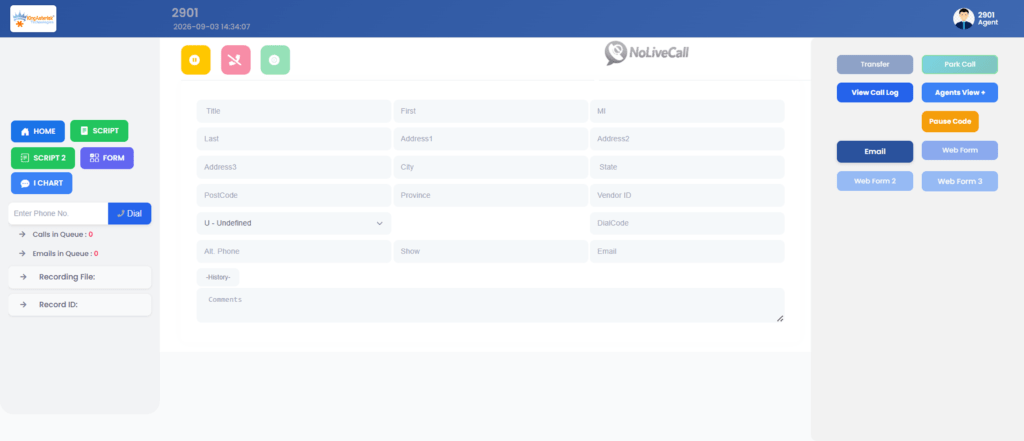
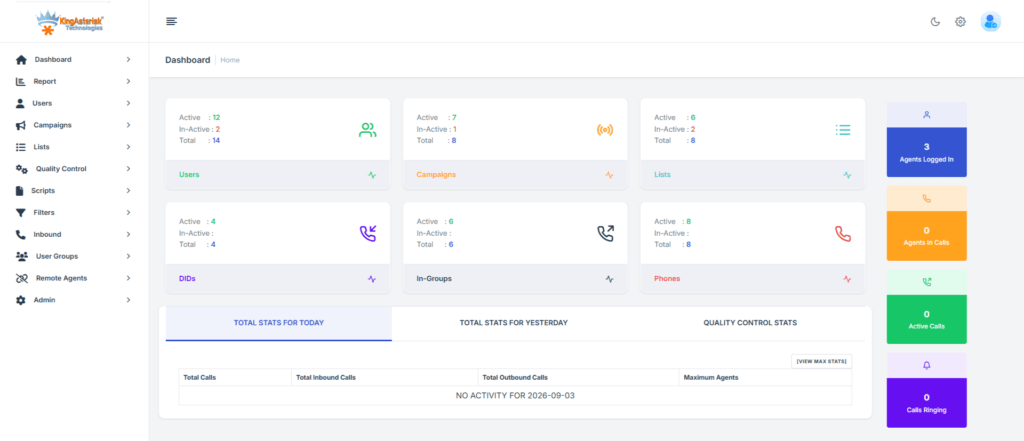
    VICIdial admin dashboard after successful installation

    Real-Time Queue Display

    The queue panel shows the current state of all inbound call queues: how many callers are waiting, how long they have been waiting, which agents are available, and what the current abandon rate looks like. Without this visibility, supervisors are flying blind.

    Agent Status Board

    Each agent’s current state: available, on-call, in wrap-up, or away, must be visible at a glance. This feeds directly into workforce management decisions and lets team leads intervene when an agent has been in wrap-up too long or a queue is growing faster than capacity allows.

    IVR Flow Visualization

    For operations using Interactive Voice Response systems, the dashboard should display how callers are navigating the IVR tree: which menu options are being selected, where drop-offs occur, and how effectively the routing logic is directing traffic to the right skill groups.

    Historical Reporting Panel

    Supervisors need more than a live view. The historical panel surfaces call volume trends by hour, day, or campaign, giving planning teams the data they need to staff accurately and identify seasonal demand patterns.

    Wallboard and Alerting Layer

    High-performing contact centers use wallboards, large displays mounted in the operations floor,  that pull from the same dashboard data. Alert thresholds can be configured to trigger notifications when service levels breach defined limits.

    🎯 Fix in Minutes: One Way Asterisk Audio Fix

    How a Call Monitoring Dashboard Improves Contact Center Performance

    A Call Monitoring Dashboard is the supervisor’s primary tool for quality assurance and real-time intervention. In a properly configured VICIdial or Asterisk environment, the monitoring layer allows supervisors to:

    • Listen silently to live calls without the agent or caller being aware
    • Whisper-coach agents mid-call, where only the agent hears the supervisor’s guidance
    • Barge in to calls where escalation is required and the supervisor needs to speak with the customer directly

    These three modes: monitor, whisper, barge, represent the core of real-time quality management. When tied to a dashboard interface, supervisors can trigger any of these modes by clicking directly on a live agent tile rather than manually dialing extension codes.

    Beyond live monitoring, the call monitoring dashboard captures recordings linked to each interaction record, making post-call coaching structured and evidence-based rather than anecdotal.

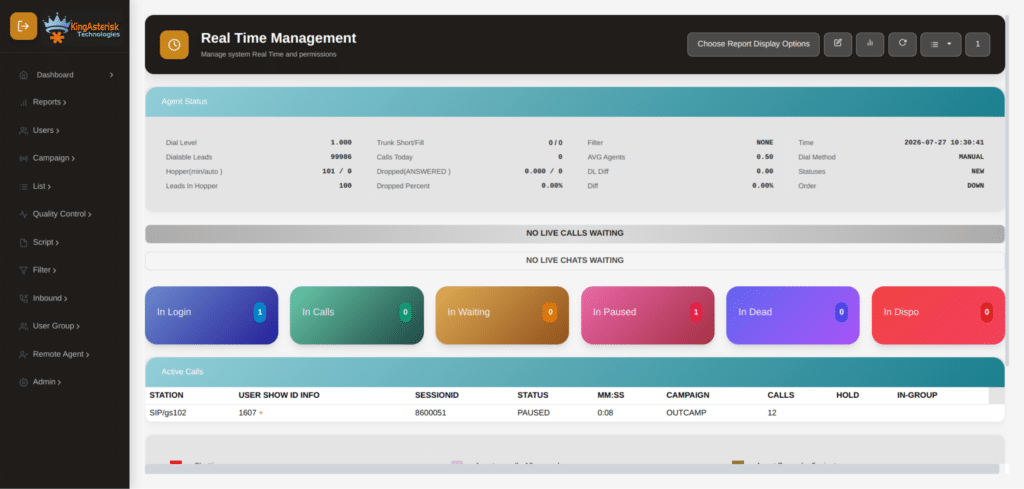
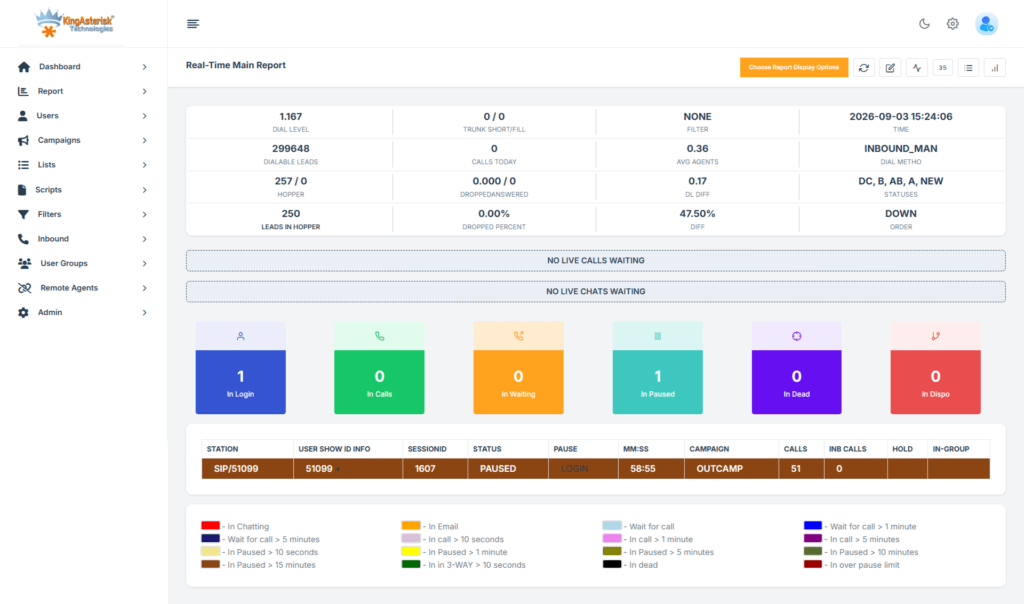
    Vicidial Real time report

    Real-World Use Case: Multi-Site Contact Center Deployment

    Consider a financial services company operating contact centers in three countries, India, the Philippines, and South Africa, supporting a European and North American client base. Before deploying a unified telephony dashboard, each site operated its own reporting tools.

    Supervisors at the central operations hub had no real-time visibility into what was happening at remote locations. Escalations were handled through email, and performance data was compiled manually each morning.

    After deploying an Asterisk-based telephony infrastructure with a centralized dashboard layer, the operations team gained a single view of all three sites simultaneously. Queue depths, agent statuses, and service levels were visible in real time across time zones. The IVR routing logic,  which directed callers to the appropriate regional team based on language preference and account type, was also visible through the IVR flow module.

    The result was a 22% reduction in escalation handling time and a measurable improvement in first-call resolution rates within the first 90 days. Supervisors could identify when a remote site was under capacity and temporarily redirect overflow traffic to another site, without a single phone call or email between management teams.

    This kind of operational coordination is only possible when the telephony dashboard is genuinely integrated across the platform rather than being a bolt-on reporting tool.

    Step-by-Step: Setting Up Your Telephony Dashboard

    For IT managers and contact center operators deploying or upgrading a telephony dashboard on a VICIdial or Asterisk platform, the process follows a structured sequence. Skipping steps,  particularly around data mapping and permission configuration, is the most common cause of dashboard deployments that underdeliver.

    Step 1: Define Your Operational KPIs Before touching a configuration screen, list the 8–12 metrics that matter most to your operation. Service level, AHT, abandon rate, and agent occupancy are standard. Add any campaign-specific metrics relevant to your business.

    Step 2: Map Your Telephony Architecture Document all trunk groups, DIDs (Direct Inward Dial numbers), queue names, skill groups, and IVR nodes. The dashboard can only surface what is correctly labeled in the underlying telephony configuration.

    Step 3: Configure Queue and Agent Integration In VICIdial, ensure that all inbound groups and campaigns are correctly associated with agent login groups. The dashboard’s agent status board pulls directly from these associations.

    Step 4: Set Up the Real-Time Data Feed Asterisk exposes call state information through the Asterisk Manager Interface (AMI). Confirm that AMI is enabled, credentials are correctly configured, and that the dashboard application has read access to the relevant event classes (call, agent, queue events).

    Step 5: Build Your Wallboard Layout Design the wallboard view for your operations floor. Prioritize the metrics most immediately actionable by supervisors, queue depth, service level, and agents available. Avoid cluttering the display with metrics that require context to interpret.

    Step 6: Configure Alerting Thresholds Set threshold-based alerts for service level breaches, long wait times, and high abandon rates. Route alerts to supervisor stations or mobile devices depending on your escalation protocol.

    Step 7: Test with Live Traffic Run the dashboard in parallel with your existing reporting for at least two weeks before decommissioning legacy tools. Validate that the data shown matches CDR (Call Detail Record) exports from your telephony platform.

    Step 8: Train Supervisors and Team Leads Dashboard adoption fails when supervisors revert to manual methods because they were not trained thoroughly. Invest in structured onboarding for every team lead who will use the monitoring and intervention features.

    Step 9: Schedule Regular Configuration Reviews Telephony environments change. New campaigns launch, agent groups restructure, and IVR trees get updated. Build a quarterly review into your operations calendar to ensure the dashboard configuration remains aligned with actual platform architecture.

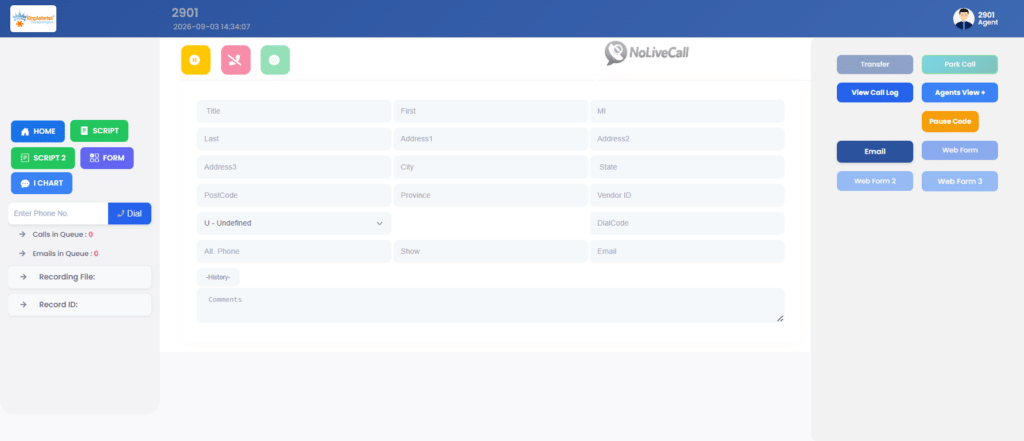
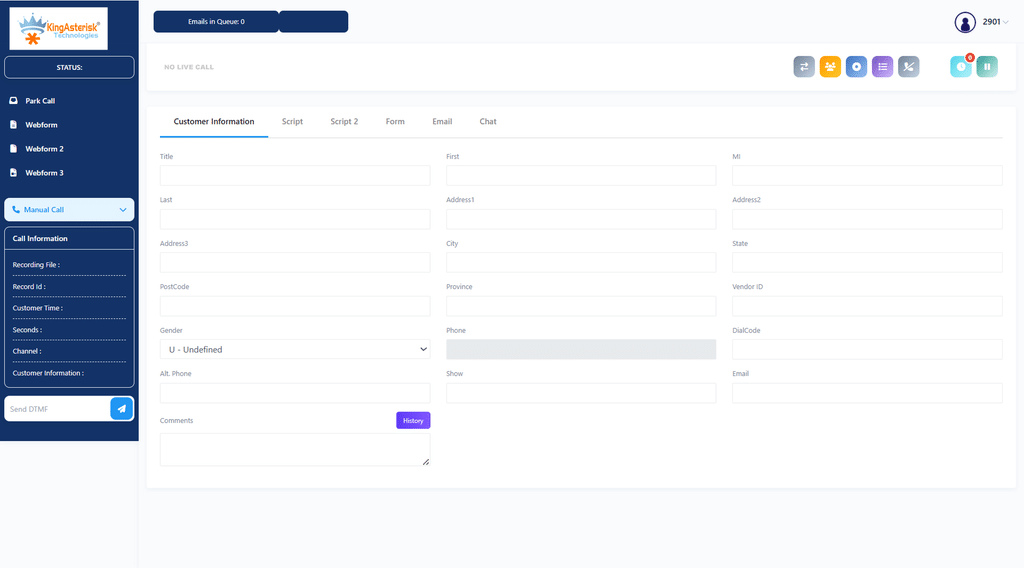
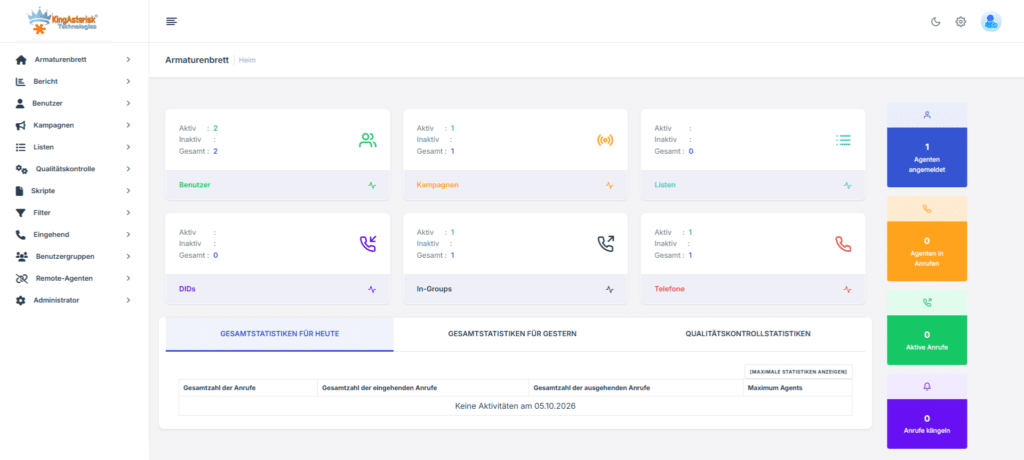
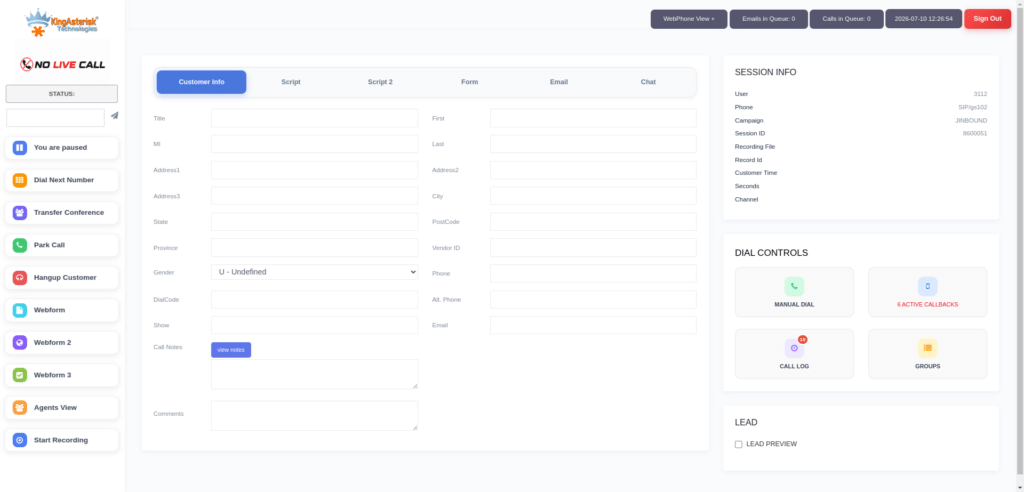
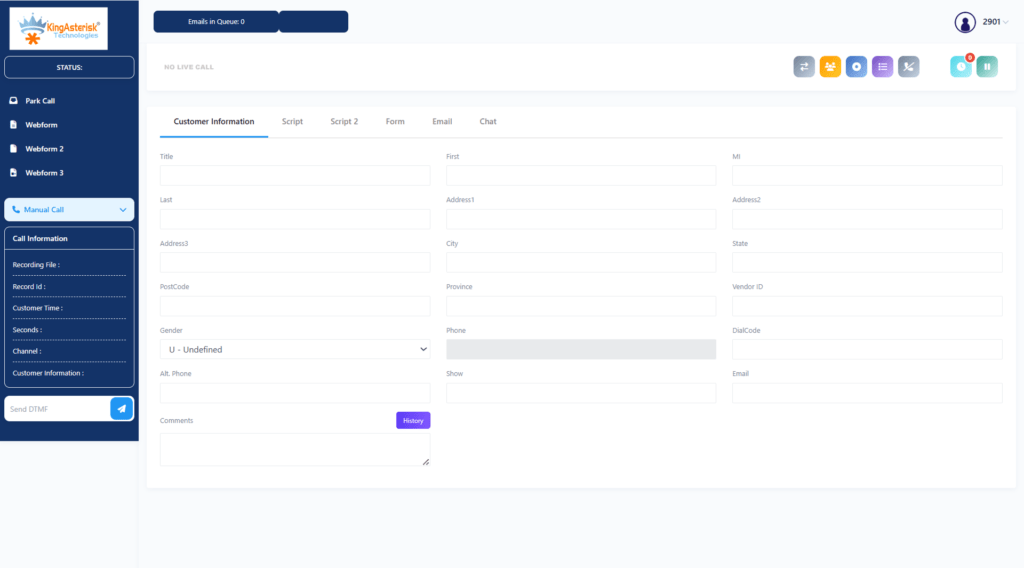
    Vicidial Agent Theme

    Choosing the Right Client Dashboard Software

    Client Dashboard Software in a contact center context serves a dual purpose: it provides operational teams with the internal performance view described above, and it can also surface a client-facing reporting layer for customers who have contracted your center’s services.

    Businesses using the predictive dialing feature inside cloud telephony dashboard solutions can significantly improve agent productivity, reduce idle time, and manage high-volume outbound communication more efficiently.

    For outsourced contact centers and BPOs (Business Process Outsourcing operations), the ability to give clients direct access to their own campaign performance data is a significant differentiator. 

    A well-structured client portal, showing call volumes, resolution rates, and agent productivity for that specific client’s campaigns, builds trust and reduces the overhead of manual reporting.

    When evaluating client dashboard software, prioritize:

    • Role-based access control: Clients should see only their own campaign data. Internal supervisors need access to cross-campaign views. These permission layers must be configurable without custom development.
    • Data refresh rate: Real-time or near-real-time data is table stakes for modern operations. Hourly batch updates are not acceptable for supervisors managing live queues.
    • Export and API access: Clients and internal analysts need to pull data into their own tools. Dashboards that lock data inside a proprietary interface create friction and erode value.
    • Mobile responsiveness: Operations managers and clients alike access dashboard data from mobile devices. A responsive interface is not a luxury feature.
    🚀 Try It Live: Live Demo of Our Solution!

    Frequently Asked Questions

    Yes. Modern telephony platforms built on Asterisk expose data through APIs and database integrations that allow dashboards to pull in and push out information to CRM systems, ticketing platforms, and workforce management tools. The integration architecture depends on your specific stack, but well-structured VICIdial deployments commonly include native integrations, and custom CRM environments.

    VICIdial is architected for high-volume environments and has been deployed in operations handling thousands of concurrent agents across distributed server clusters. Dashboard performance at scale depends more on server architecture and database optimization than on the platform’s inherent limits. KingAsterisk deployments are designed with scalability built in from the initial architecture phase rather than retrofitted after growth creates bottlenecks.

    Conclusion

    Cloud Telephony Dashboard Solutions are the operational infrastructure that separates high-performing contact centers from those perpetually reacting to problems they could have prevented. From the real-time queue visibility that prevents service level breaches to the agent-level performance displays that reduce the need for manual coaching, a properly deployed dashboard layer transforms telephony data into actionable operational intelligence.

    The key takeaways from this guide are clear: effective dashboards must integrate real-time and historical views, support role-based access for both internal teams and external clients, connect to IVR and agent systems at a deep level, and be backed by a telephony infrastructure that is architected for scale from day one.

    KingAsterisk has deployed contact center telephony solutions built on Asterisk and VICIdial for global clients across multiple industries. Our team brings hands-on deployment experience to every engagement, from initial architecture design through ongoing platform optimization.

    If you are evaluating cloud telephony dashboard solutions options for your contact center or looking to upgrade an existing deployment, contact the KingAsterisk team to discuss your specific operational requirements. We build solutions that work for the scale, complexity, and client demands of your business.

    Written by the KingAsterisk Senior Engineering Team, with direct deployment experience across VICIdial, Asterisk, and IVR implementations for global contact center clients.
    KINGASTERISK_NOTE
    How to Solve One-Way Audio Issues in Asterisk Servers
    Asterisk Development Solutions

    One-Way Audio in Asterisk Calls? Complete NAT & RTP Fix Guide for Clear Calls

    How to Solve One-Way Audio Issues in Asterisk Servers

    Key Takeaways

    • Asterisk one way audio is almost always caused by NAT traversal failure, incorrect RTP port ranges, or missing nat= directives in your SIP or PJSIP configuration.
    • The fix requires addressing both the SIP signaling layer and the RTP media layer — fixing one without the other will not resolve the issue.
    • STUN, TURN, and localnet/externip settings inrtp.confandsip.confare the most impactful configuration parameters to review first.
    • Firewall rules must allow UDP traffic on both port 5060 (SIP) and your full RTP port range (default 10000–20000), not just signaling.
    • Packet capture using sngrep or tcpdump is the fastest way to confirm whether the issue is signaling, media, or both.

    Asterisk one way audio is a call quality failure where audio flows in only one direction, typically the agent can hear the customer, but the customer hears nothing (or vice versa). This is one of the most reported and operationally damaging issues in SIP-based contact center Asterisk deployments, and it is almost never a hardware problem. The root cause is virtually always in how SIP signaling and RTP media streams negotiate network paths, particularly across NAT boundaries.

    To understand why this happens, you need to appreciate that a SIP call is actually two separate communication processes running in parallel. The SIP signaling channel sets up, modifies, and tears down the call on port 5060. 

    The RTP (Real-time Transport Protocol) media stream carries the actual voice data on a dynamically negotiated UDP port pair. These two channels can, and frequently do, take completely different network paths. When one path is misconfigured, you get one-way audio.

    In a contact center environment, this is especially damaging. An agent who cannot hear a customer, or a customer who cannot hear an IVR prompt, results in dropped calls, failed escalations, and direct revenue loss. Understanding and permanently resolving Asterisk one way audio is not optional, it is infrastructure-critical. 

    ASTERISK DEVELOPMENT

    Root Causes: Why Does Asterisk One Way Audio Happen?

    Every instance of one-way audio in Asterisk traces back to a breakdown in how the server communicates its IP address and port information during call setup. RTP (Real-Time Transport Protocol) is the media channel responsible for carrying voice packets during SIP calls. While SIP handles call setup, RTP handles the actual audio stream between endpoints. 

    Here are the primary causes, in order of frequency in production deployments:

    NAT Traversal Failure

    Network Address Translation (NAT) is the single most common culprit. When Asterisk sits behind a router or firewall, as it does in the overwhelming majority of deployments, it may advertise its private (internal) IP address in the SIP headers and SDP (Session Description Protocol) body. The remote endpoint (a SIP trunk, a softphone, a PSTN gateway) receives this private IP, attempts to send RTP packets to it, and fails because the private address is not routable from the internet. The SIP call connects and signaling works fine, but the media stream is dead on one or both sides.

    Incorrect or Missing externip / externhost

    Asterisk needs to be explicitly told what its public-facing IP address is so it can advertise the correct address in SDP offers and answers. If externip is missing, wrong, or stale (your IP changed), Asterisk will insert the wrong address into o= and c= lines of the SDP, causing the remote end to direct RTP to an unreachable address.

    Blocked RTP Port Range

    Even when SIP signaling works perfectly, your firewall or upstream provider may be blocking the UDP port range used for RTP. Asterisk’s default RTP port range is 10000–20000 UDP. If your firewall only opens port 5060 for SIP and leaves the RTP range closed, you will get a connected call with no audio in either direction — or, if the firewall is asymmetrically configured, audio in one direction only.

    Codec or SDP Mismatch

    If the two endpoints agree on an IP address and port but negotiate incompatible audio codecs, the receiving side may silently discard the RTP packets. This is less common than NAT issues but produces identical symptoms. Check that your allow= codec list in Asterisk matches what your SIP trunk or endpoint supports.

    Symmetric RTP Not Enabled

    Some endpoints behind NAT send RTP from a different source port than the one they declared in SDP. Asterisk needs rtpnat=yes (chan_sip) or the equivalent PJSIP setting to handle this gracefully. Without it, Asterisk transmits audio to the declared port, which may be unreachable, even though the endpoint is actively sending from a different port.

    Diagnosing the Problem: Tools & Techniques

    Before changing any configuration, confirm exactly where the audio path is breaking. Guessing and restarting Asterisk repeatedly is the wrong approach, a five-minute diagnostic pass will save hours of configuration churn.

    Step 1: Capture SIP & SDP with sngrep

    sngrep is the fastest way to inspect SIP traffic and read the SDP offer/answer exchange. Install it and run it while making a test call:

    Terminal — sngrep capture
    # Install sngrep (Debian/Ubuntu)
    apt-get install sngrep
    
    # Run and filter by SIP port
    sngrep port 5060
    
    # Look at the SDP inside each INVITE — check the 'c=' line
    # c=IN IP4 192.168.1.x  <-- Private IP = NAT problem confirmed
    # c=IN IP4 203.0.113.x  <-- Public IP = signaling OK, check firewall next

    Step 2: Check RTP Packet Flow with tcpdump

    Terminal, RTP traffic check
    # Check if RTP packets are arriving on expected port range
    tcpdump -i eth0 -n "udp portrange 10000-20000"
    
    # If you see packets outbound but nothing inbound — firewall issue
    # If no packets at all outbound — Asterisk is sending to wrong IP
    Step 3: Enable Asterisk RTP Debug
    Asterisk CLI — Enable RTP debug
    # In the Asterisk console
    asterisk -rvvvv
    
    rtp set debug on
    sip set debug on   # for chan_sip
    pjsip set logger on # for chan_pjsip
    
    # Place a test call and watch for RTP Rx/Tx addresses
    # "Got RTP packet from X.X.X.X:YYYY" should show the remote public IP
    Protect your Asterisk calls from one-way audio issues

    Quick Diagnostic Rule: If SIP shows a connected call (200 OK received, ACK sent) but you have no audio, the problem is 100% in the RTP/media layer, not signaling. Focus your investigation on NAT, firewall, and RTP configuration.

    Struggling with RTP or NAT issues in production? KingAsterisk engineers can diagnose one-way audio problems remotely and restore call stability fast. 

    Step-by-Step: Complete Asterisk One Way Audio Fix

    Identify your server’s public IP address

    Run curl -s https://checkip.amazonaws.com on your Asterisk server to confirm the public IP. This is the value you will set as externip. If your IP is dynamic, use externhost=yourdomain.com with a short TTL DNS record instead.

    Set externip and localnet in sip.conf

    Open /etc/asterisk/sip.conf and add your public IP and internal subnet to the [general] section. This tells Asterisk exactly what addresses to advertise in SDP, see the full configuration below.

    Enable nat=force_rport, comedia per peer

    For every SIP peer or trunk that connects from behind NAT, add nat=force_rport, comedia to the peer definition. force_rport ensures response packets go to the correct source port. comedia enables symmetric RTP, critical for endpoints behind NAT. Ubuntu 22.04 LTS provides a stable and secure operating system environment widely used for reliable Asterisk and VoIP server deployments. 

    Verify and open RTP port range in your firewall

    Open UDP ports 10000–20000 (or your custom range) both inbound and outbound on every firewall layer, your server’s iptables/ufw rules, any hardware firewall, and your hosting provider’s security group if applicable.

    Set the RTP port range in rtp.conf

    Open /etc/asterisk/rtp.conf and define explicit rtpstart and rtpend values. Make sure these match exactly what you opened in your firewall. A mismatch here is a common oversight after firewall rule changes.

    Reload Asterisk and run a live test call with CLI debugging on

    Run asterisk -rx “sip reload” (or core restart now for major changes), then place a test call with rtp set debug on active. Confirm you see bidirectional RTP packets in the CLI output before closing the issue.

    For PJSIP deployments: update endpoint & transport configuration

    PJSIP handles NAT differently from chan_sip. Set nat=force_rport,comedia at the endpoint level and ensure your transport section has external_media_address and external_signaling_address both set to your public IP

    SIP Config

    The configuration examples below reflect production-grade settings used in KingAsterisk contact center deployments. Replace 203.0.113.50 with your actual public IP and adjust the localnet range to match your internal subnet.

    Important: Setting direct_media=yes (or canreinvite=yes in chan_sip) tells Asterisk to instruct the two endpoints to send RTP directly to each other, bypassing the Asterisk server. This almost always causes one-way audio when either endpoint is behind NAT. Keep it set to no in any production contact center deployment.

    Port Range Sizing: Each active call requires two UDP ports (one for RTP, one for RTCP). A range of 10000–20000 supports up to 5,000 simultaneous calls. For large contact centers with high concurrent call volumes, verify your range is sized accordingly, a port exhaustion event produces symptoms identical to one-way audio.

    Firewall & Port Rules

    Firewall misconfiguration is the second most common cause of RTP audio issues after NAT, and it often affects only one direction because stateful firewall rules may allow outbound sessions while silently blocking unsolicited inbound UDP.

    # Allow SIP signaling
    iptables -A INPUT -p udp --dport 5060 -j ACCEPT
    iptables -A INPUT -p tcp --dport 5060 -j ACCEPT
    iptables -A INPUT -p tcp --dport 5061 -j ACCEPT  # TLS SIP
    
    # Allow RTP media — this is where most deployments fail
    iptables -A INPUT -p udp --dport 10000:20000 -j ACCEPT
    iptables -A OUTPUT -p udp --sport 10000:20000 -j ACCEPT
    
    # Save rules
    iptables-save > /etc/iptables/rules.v4
    ufw (Ubuntu/Debian alternative)
    ufw allow 5060/udp
    ufw allow 5060/tcp
    ufw allow 5061/tcp
    ufw allow 10000:20000/udp
    ufw reload
    

    Real-World Example: Contact Center Deployment

    A mid-size contact center with 80 concurrent agent seats running VICIdial on Asterisk reported that agents could consistently hear customers, but customers reported complete silence on their end. The issue was intermittent, affecting roughly 30% of inbound calls, and only surfaced after the data center migrated to a new network segment with a different subnet mask.

    Root cause: The localnet directive in sip.conf still referenced the old subnet (192.168.0.0/24). After the migration, agents’ workstations were on 10.10.0.0/16. Asterisk was no longer recognizing agent endpoints as “local,” so it was advertising the public IP correctly for external trunks but handling agent RTP on incorrect assumptions about the network path. 

    The result: RTP to external callers used the correct public IP, but Asterisk was transmitting back to agents using wrong interface addresses.

    Fix applied:
    sip.conf — Updated localnet entries
    ; Before migration (wrong after move)
    ; localnet=192.168.0.0/255.255.255.0
    
    ; After fix — covers both old and new subnets during transition
    localnet=192.168.0.0/255.255.255.0
    localnet=10.10.0.0/255.255.0.0
    localnet=127.0.0.0/255.0.0.0   ; Always include loopback
    

    After a sip reload, bidirectional audio was restored across 100% of calls within minutes. No Asterisk restart was required. The entire diagnostic and fix cycle took 22 minutes, the majority of that time was spent reviewing the network migration documentation, not troubleshooting Asterisk itself.

    🔥 Key lesson: Any infrastructure change — new subnet, ISP failover, data center migration, or firewall rule update — should trigger an immediate review of your localnet, externip, and RTP port range settings. These values do not self-update.

    Frequently Asked Questions

    No audio in both directions usually points to a completely blocked RTP port range, the firewall is rejecting all UDP on ports 10000–20000. One-way audio, where one side can hear but the other cannot, indicates an asymmetric routing problem: the RTP stream in one direction is reaching its destination, but the return stream is not. The fix is usually different for each scenario.

    Yes, but the trade-off is nearly always worth it. With directmedia=no, all RTP traffic passes through the Asterisk server rather than directly between endpoints. This increases server CPU and bandwidth usage but gives you full control over media, enables call recording, and eliminates NAT-related audio failures. On modern hardware, Asterisk handles several hundred simultaneous RTP streams comfortably.

    With PJSIP, NAT settings are split between the transport and endpoint sections. Set external_media_address and external_signaling_address in your transport definition, and set rtp_symmetric=yes, force_rport=yes, and direct_media=no on each endpoint. PJSIP gives more granular control than chan_sip, but requires all three settings to be correct simultaneously.

    Yes, SIP ALG (Application Layer Gateway) is a frequent and underdiagnosed cause of one-way audio. SIP ALG attempts to rewrite SIP headers and SDP to assist NAT traversal, but it often corrupts the IP addresses and ports in the process. Disable SIP ALG on any router or firewall between your Asterisk server and SIP trunks. This setting is found in the firewall or NAT section of most consumer and business routers.

    Resolving Asterisk One Way Audio: Final Summary

    Asterisk one way audio is a solvable problem with a clear, systematic approach. In the vast majority of deployments, including every VICIdial-based contact center we have diagnosed at KingAsterisk, the issue comes down to three configuration areas that must all be correct simultaneously: the externip/localnet settings in your SIP configuration, the RTP port range in rtp.conf, and the firewall rules that allow UDP traffic on that port range.

    The key principle to take away is this: SIP and RTP are separate communication channels. You can have perfect SIP signaling, calls that connect, ring, and show as answered, while RTP is completely broken. Always verify media flow independently of signaling, and never assume a connected call means working audio.

    For contact centers running VICIdial or custom Asterisk dialers, audio reliability is non-negotiable. Every dropped call due to one-way audio is a failed customer interaction. With the configuration examples and diagnostic steps in this guide, your team has everything needed to identify the root cause in minutes and apply a permanent fix.

    Quick Fix Checklist:

    • Verify externip
    • Verify localnet
    • Open RTP ports
    • Disable SIP ALG
    • Enable symmetric RTP
    • Confirm RTP packet flow
    • Match firewall and rtp.conf ranges
    • Reload SIP configuration

    If you are still experiencing one-way audio after following this guide, or if you need expert assistance configuring NAT traversal, RTP, or SIP trunking for a large-scale contact center deployment, the engineering team at KingAsterisk is ready to help.

    Need Expert Help with Your Asterisk Setup?

    Our senior engineers have resolved one-way audio and NAT issues across hundreds of contact center deployments worldwide. Get a fast, accurate diagnosis.

    Contact KingAsterisk Today!

    KINGASTERISK_NOTE

    Modernize Your VICIdial Interface for Better Agent Performance
    Vicidial Software Solutions

    VICIdial Modern Theme: Optimize User Experience Based on Client Requirements

     Key Takeaways

    • The VICIdial Modern Theme replaces the default legacy interface with a structured, responsive agent and supervisor desktop.
    • Theme files, CSS overrides, and server-side configuration paths are fully customizable without touching core VICIdial source code.
    • Proper role-based layout separation, agent view vs. supervisor view, is essential to a clean deployment.
    • Real-world deployments at mid-size contact centers show measurable reductions in average handle time after interface improvements.
    • KingAsterisk has 14+ years of VICIdial deployment experience and provides end-to-end theme implementation services.

    The VICIdial Modern Theme is a complete front-end reskin of that interface, restructuring layout, typography, color hierarchy, and control placement to create a more intuitive desktop without altering any of the core telephony or campaign logic underneath. VICIdial is an open-source contact center suite built on the Asterisk telephony framework. By default, it ships with a functional but visually dated web interface, a dense grid of form fields, status indicators, and action buttons that was designed for functionality, not usability. 

    Unlike third-party overlays or proprietary wrappers, the Modern Theme works natively within VICIdial’s PHP-based interface stack. Theme files live in dedicated directories on your web server, and configuration is managed through a combination of server-side PHP parameters, CSS overrides, and VICIdial’s built-in admin panel. 

    This means your telephony engineers can modify the theme without disrupting call routing, campaign settings, or recording configurations.

    From a deployment standpoint, the theme affects three primary surfaces: the Agent interface (the screen agents see during live calls), the Supervisor real-time monitoring panel, and the Manager/Reports section. Each surface has distinct layout requirements and deserves separate attention during implementation.

    Why the Default VICIdial Interface Needs an Upgrade

    The default VICIdial interface has not changed substantially in visual design since the early 2010s. For contact centers running medium to large teams, this creates several operational problems that compound over time.

    Agent Fatigue and Navigation Errors

    Agents spend 6–9 hours looking at the same screen. A poorly structured interface, with small buttons, dense text, ambiguous icons, and inconsistent color coding, increases mental load. Over a shift, this contributes to misclicks, incorrect dispositions, and slower average handle time (AHT). Interface design directly affects operational metrics.

    Supervisor Visibility Gaps

    The default supervisor panel consolidates too much data into a single, non-hierarchical view. Supervisors scanning for agents who are in the wrong disposition state or whose calls are running long must visually parse through dozens of rows of equally-weighted data. The Modern Theme introduces visual hierarchy, using color, sizing, and layout to surface what matters first.

    Brand Inconsistency

    Many contact centers manage campaigns on behalf of multiple clients, each with their own brand identity. The default VICIdial interface is generic. The Modern Theme allows you to apply per-campaign color palettes, logo placement, and branded language, giving agents a visual context that matches the campaign they are working on at any given moment.

    💎 See Why Experts Prefer This : Build a Web-Based Auto Dialer 

    Core Components of the VICIdial Modern Theme

    Understanding the structure of the theme is prerequisite to configuring it correctly. The Modern Theme is composed of the following layers:

    • CSS Theme File: Controls colors, typography, spacing, button styles, and layout grids for all interface elements.
    • PHP Template Files: Define the structural HTML rendered for the agent screen, supervisor panel, and admin sections.
    • JavaScript Modules: Handle dynamic elements: real-time status updates, timer displays, and campaign-specific UI toggles.
    • Image/Icon Assets: Replace default VICIdial icons with custom SVG or PNG assets suited to your brand.
    • Admin Configuration: Server-level settings within VICIdial’s admin panel that activate the theme and bind it to specific campaigns or user groups.

    Step-by-Step: Deploying the VICIdial Modern Theme

    The following process assumes you have an existing VICIdial installation on a Linux server (CentOS/Rocky Linux recommended) and SSH access with root or sudo privileges. Always back up your current installation before making interface changes.

    Step 1 — Audit Your Current VICIdial Version

    Before deploying any theme files, confirm your VICIdial version by checking the admin panel or the SVN revision number. The Modern Theme files must be compatible with your installed version. Theme files built for VICIdial 2.14.x behave differently on 2.12.x or older releases due to changes in the PHP template structure.

    Step 2 — Back Up the Existing Interface Directory

    1. SSH into your VICIdial web server.

    2. Navigate to /srv/www/htdocs/agc/. (the agent interface directory) and create a dated backup:

    3. cp -r /srv/www/htdocs/agc/ /srv/www/htdocs/agc_backup_$(date +%Y%m%d)/

    4. Repeat for the /vicidial/ directory if you are modifying the manager or reports interface.

    Step 3 — Upload Theme Files to the Server

    Transfer your theme package to the server. The package should include a custom CSS file, any modified PHP templates, and an assets folder for images/icons. Place CSS overrides in: /srv/www/htdocs/agc/css/vicidial_modern_theme.css

    Place modified PHP templates in the corresponding /agc/ subdirectory. Do not overwrite core VICIdial PHP files — use the theme override mechanism to layer your changes.

    Step 4 — Reference the Theme CSS in the VICIdial Configuration

    Open the VICIdial admin panel and navigate to Admin > System Settings. Locate the ‘Agent Screen Style Sheet’ field and enter the relative path to your new CSS file. This ensures every agent session loads the themed interface without requiring server-side PHP edits.

    Step 5 — Configure Per-Campaign Theme Overrides

    For multi-campaign environments where different clients require different brand treatments, navigate to each Campaign record in the admin panel. The ‘Agent Screen Style’ field at the campaign level overrides the system-wide default. Assign the appropriate client-branded CSS to each campaign.

    Step 6 — Set User-Group-Level Layout Permissions

    Navigate to Admin > User Groups and configure which screen elements are visible for each role: agent, team lead, supervisor, and manager. The Modern Theme introduces CSS class-based role visibility, so elements tagged for supervisor-only display are automatically hidden from agent sessions via the user group mapping.

    Step 7 — Test in a Staging Environment

    Before pushing to production, replicate the configuration on a staging VICIdial server. Run a full agent session, make test calls, confirm supervisor panel functionality, and verify that all disposition buttons, script panels, and transfer controls render correctly. Check across Chrome, Firefox, and Edge since VICIdial’s interface renders slightly differently across browser engines.

    Step 8 — Deploy to Production and Monitor

    Schedule the production switchover during a low-traffic window. After deployment, monitor the first 2–3 shifts closely. Collect agent feedback on layout clarity and check that handle time metrics are not temporarily inflated by unfamiliarity with the new layout. Most teams fully adjust within 3–5 working days.

    Customizing the VICIdial Modern Theme Based on Client Requirements

    Every contact center operation has different priorities, and the Modern Theme is intentionally flexible. Below are the most common customization scenarios we handle at KingAsterisk.

    Custom Brand Identity per Campaign

    Multi-brand BPO environments require agents to operate in the visual context of the client brand they are representing. The Modern Theme supports per-campaign color variables defined at the top of the campaign-level CSS file. Changing five CSS variables, primary color, secondary color, button color, header background, and logo URL, is sufficient for a complete brand switch between campaigns.

    Compact vs. Expanded Agent Desktop Layouts

    Some operations prefer a compact view where the script, customer data panel, and dialpad are all visible simultaneously without scrolling. Others prefer a tabbed layout where agents navigate between the active call, CRM fields, and script tabs. The Modern Theme supports both layouts via a CSS class toggle that can be configured per user group or per campaign in the admin panel.

    Dark Mode Interface

    Contact centers operating in low-light environments: late-night shifts, security operations, certain offshore BPO setups, frequently request a dark mode theme. The Modern Theme CSS ships with a prebuilt dark mode variable set. Activating it requires switching a single CSS class at the body level and replacing icon assets with light-weight equivalents.

    Supervisor Panel Real-Time Data Density

    Supervisors managing large teams need to see more agents per screen without sacrificing legibility. The Modern Theme allows configuration of row height, column visibility, and conditional color thresholds for the real-time panel. For example, you can configure agents whose handle time exceeds 4 minutes to appear in amber, and those exceeding 7 minutes to appear in red, giving supervisors an immediate visual alert without requiring them to read every number.

    Custom Script Display Panel

    Many campaigns require agents to follow structured scripts that change based on call stage. The Modern Theme supports a dynamic script display panel that can be embedded in the agent screen and driven by disposition codes. When an agent selects a specific disposition, the script panel automatically updates to show the relevant next steps, reducing cognitive load and improving script adherence.

    💻 Free Live Demo: Live Demo of Our Solution!  

    Case Study: Insurance Sales Contact Center

    A 120-seat outbound contact center running insurance sales campaigns across three separate client brands came to KingAsterisk with a specific problem: their agents were running three different campaigns from the same VICIdial instance, and the generic interface gave agents no visual cue about which brand context they were operating in. Agents were reading from the wrong script, using incorrect sign-offs, and occasionally delivering the wrong product pitch,  compliance violations that had real consequences in a regulated industry.

    We implemented the VICIdial Modern Theme with per-campaign CSS profiles. Brand A received a navy-and-gold color palette with their logo in the header and their compliance script locked in the bottom panel, Brand B received a green-and-white treatment with a different script structure, Brand C operated in a dark mode layout suited to their offshore evening team.

    Within 30 days, the operation reported a 22% reduction in script compliance errors and a measurable drop in call handling time, attributed directly to clearer screen layout and the removal of irrelevant UI elements from the agent view. Supervisors also reported faster identification of underperforming agents due to the enhanced real-time panel color thresholds.

    This outcome is consistent with what we observe across similar deployments: interface clarity is not cosmetic, it is an operational lever.

    Frequently Asked Questions

    No. The Modern Theme only modifies front-end presentation layers: CSS, HTML templates, and JavaScript rendering. It has no interaction with VICIdial’s Asterisk dial engine, campaign dialing logic, or database operations. Call routing, recording, and IVR configurations remain completely unaffected. The theme is a pure interface change.

    Yes. VICIdial’s admin panel supports campaign-level CSS overrides. You can assign a system-wide default theme and then assign campaign-specific CSS files to individual campaigns. This allows multi-client BPO environments to maintain separate brand identities per campaign without running separate VICIdial instances.

    The safest approach is to use VICIdial’s dedicated override directories and the admin panel’s CSS file reference fields rather than directly editing core PHP files. Store all custom CSS and JavaScript in separate theme files. Maintain a version-controlled repository of your theme package and document which core files, if any, were modified so you can reapply changes after an SVN update.

    The standard VICIdial Modern Theme is optimized for desktop browsers. Supervisor access via tablet is possible with responsive CSS additions, but the agent interface itself is not designed for mobile use due to the complexity of the control surface required during live calls. If your supervisors need tablet monitoring access, a custom responsive extension to the Modern Theme’s supervisor panel CSS can accommodate this.


    Conclusion

    Deploying the VICIdial Modern Theme is one of the highest-impact, lowest-risk improvements a contact center can make to an existing VICIdial system. The core telephony infrastructure stays intact while agents gain a cleaner, faster, and less error-prone desktop. Supervisors gain better real-time visibility. And operations running multi-client campaigns finally get the per-brand consistency that compliance and professionalism require.

    The key steps are straightforward when approached systematically: audit your version, back up your installation, layer theme files using VICIdial’s native override mechanisms, configure per-campaign and per-user-group settings, and validate in staging before going live. The customization options, compact layouts, dark mode, dynamic script panels, supervisor color thresholds, give you the flexibility to match the theme precisely to how your teams operate.

    At KingAsterisk, our engineers have deployed and maintained VICIdial systems across hundreds of contact center environments over 14+ years. We know where VICIdial’s interface customization capabilities are deep and where they need careful handling. If you are ready to modernize your VICIdial interface, contact the KingAsterisk team to discuss your requirements, we will scope the right implementation approach for your operation.

    Ready to Modernize Your VICIdial Interface?

    KingAsterisk has helped contact centers across industries deploy, customize, and maintain VICIdial systems for over 14 years. Whether you need a full VICIdial Modern Theme rollout, custom CSS branding, or end-to-end contact center software implementation, our team has the hands-on experience to get it right the first time. 

    Build a Web Based Auto Dialer with Asterisk & VoIP Integration
    Call Center Dialer Software Solutions

    How to Build a Web-Based Auto Dialer with Asterisk and VoIP Integration (Complete Guide)

    Key Takeaways

    • A production-ready Asterisk auto dialer can be built and deployed in under 10 days using a Python/Django backend, Asterisk AMI, and a React agent interface.
    • The AMI (Asterisk Manager Interface) is the critical bridge between your web application and call-processing engine, get this right and everything else follows.
    • Real-time call status, contact list import, and agent dashboards require WebSocket integration alongside standard HTTP API routes.
    • Call recording, predictive pacing, and disposition logging can all be layered on top of the core architecture without rebuilding from scratch.
    • Proper trunk and dialplan configuration is where most first-time Asterisk dialer builds fail,  this guide covers both in detail.

    Asterisk auto dialer setup is one of the most requested, and most underestimated, engineering projects in the contact center space. When a client approached KingAsterisk needing a fully functional web-based outbound Asterisk dialer integrated with their SIP provider, with a clean agent interface and deployment documentation their in-house team could maintain, we had a clear brief and a tight timeline. 

    This guide documents exactly what we built, how we built it, and the architectural decisions you need to get right the first time.

    Whether you are an IT manager evaluating options, a developer inheriting a dialer project, or a contact center operator who wants to understand what is actually going on under the hood, this is the complete walkthrough.

    Why Asterisk for Outbound Dialing

    Not every dialer project calls for a third-party SaaS platform. When your team needs ownership, customisation, and long-term control over telephony infrastructure, Asterisk remains the most proven open-source option available.

    Asterisk is a software-based telephony framework maintained by Sangoma. It has been in production environments since 1999 and underpins a significant portion of the world’s contact center infrastructure, including VICIdial, one of the most widely deployed open-source dialers on the planet. The reasons contact centers continue to build on it are straightforward:

    • Full source access: No licensing fees, no vendor lock-in, no arbitrary API call limits.
    • Mature SIP stack: Asterisk handles SIP trunking, codec negotiation, and call routing with stability accumulated over two decades of production use.
    • AMI integration: The Asterisk Manager Interface gives your web application a programmatic socket-based bridge to originate calls, monitor channels, and receive real-time events.
    • Community and ecosystem: Modules, documentation, and practitioner knowledge are broadly available.
    • Interoperability: Works with any standards-compliant SIP provider, meaning your dialer is not dependent on a single carrier relationship.

    Deployment note: This guide focuses on a self-hosted Asterisk installation (Ubuntu 22.04 LTS recommended). All configuration examples assume Asterisk 20.x with chan_pjsip as the primary channel driver.

    🚨 Don’t Miss : Custom CRM Development Services

    System Architecture Overview

    A web-based auto dialer has three distinct layers that must work in coordination:

    1. Telephony Layer (Asterisk)

    Handles all call signalling, media, recording, and trunk management. Asterisk sits at the center of the telephony layer, communicating with your SIP provider over configured trunks and with your application layer over AMI.

    2. Application Layer (Backend API)

    Manages campaign logic, contact list queuing, agent session state, call disposition recording, and orchestrates origination requests to Asterisk via AMI. This is the brain of the dialer, it decides which contact to call next, which agent to assign it to, and what to do with the result.

    3. Presentation Layer (Agent Interface)

    A browser-based interface where agents log in, see their assigned calls, record outcomes, and handle real-time status updates delivered via WebSocket. No softphone installation required, agents work entirely in the browser using WebRTC or a connected desk phone.

    AMI is your integration backbone. All three layers communicate through two channels: AMI sockets (Asterisk ↔ Backend) and a REST/WebSocket API (Backend ↔ Frontend). Design these interfaces cleanly and your dialer will scale.

    Step-by-Step Build Process for Asterisk Auto Dialer Setup

    The following sequence reflects the actual build order we followed for the client project referenced in this guide. Each step builds on the previous one, do not skip ahead.

    Provision and Harden the Server

    Start with a fresh Ubuntu 22.04 LTS instance. Apply OS updates, configure a firewall (UFW or iptables), lock down SSH to key-based auth, and set up fail2ban. Asterisk servers are attractive targets for toll fraud, security is not optional, it is foundational.

    Install and Compile Asterisk

    Download the Asterisk 20.x source from downloads.asterisk.org. Run./configure, then make menuselect to enable required modules including res_pjsip, app_dial, app_queue, res_agi, and func_odbc for database integration. Compile with make && make install.

    Configure PJSIP Trunks and Extensions

    Create your PJSIP trunk configuration in pjsip.conf pointing to your SIP provider. Define internal endpoints for each agent (or use a single shared endpoint for progressive dialing). This is the most provider-specific part of the setup, your SIP carrier will supply the credentials and registration details.

    Build the Dialplan in extensions.conf

    Write the outbound dialplan context that handles call origination, answer detection, recording initiation, and hangup handling. Include an AGI script hook so your Python backend can inject dynamic behaviour (such as playing a recorded message before bridging to an agent).

    Enable and Configure AMI

    In manager.conf, enable AMI on 127.0.0.1 port 5038. Create a dedicated AMI user for your application with the minimum permissions required: system, call, log, originate. Never expose AMI directly to the internet.

    Build the Django Backend with AMI Client

    Implement a persistent AMI socket connection using Python’s asyncio. Build models for Campaign, Contact, Agent, CallRecord, and Disposition. Create the API endpoints for contact import (CSV/Excel), campaign control, and agent session management.

    Implement the Campaign Dialing Engine

    Write the Celery task that processes the contact queue, checks agent availability, and fires AMI Originate actions. Implement the dialing ratio logic, start with progressive (1:1) before building predictive pacing. Handle NoAnswer, Busy, and Congestion results with appropriate retry scheduling.

    Build WebSocket Event Push

    Use Django Channels with a Redis channel layer to push AMI events to connected agent browsers in real time. Events to forward: Dial, Bridge, Hangup, and channel variable updates. This is what makes the agent interface feel live rather than requiring manual refresh.

    Build the React Agent Interface

    Create the agent dashboard showing current call state, contact information, call history, and disposition form. Connect to the WebSocket endpoint. Implement campaign supervisor view with live stats: calls in progress, available agents, contacts remaining, and answer rate.

    Configure Nginx, SSL, and Process Management

    Set up Nginx as a reverse proxy for Django (via Gunicorn) and React. Configure SSL/TLS. Use systemd unit files or Supervisor to manage Asterisk, Django, Celery, and Redis as persistent services with automatic restart on failure.

    Asterisk Dialplan and Trunk Configuration

    Most first-time dialer builds fail not in the application code, but in the dialplan. Always store SIP credentials in environment variables or a secrets manager, never hardcoded in configuration files committed to version control.

    Agent Web Interface Design

    The agent interface needs to deliver three things without friction: clarity on the current call, fast disposition recording, and zero dependency on external software. 

    Agent Dashboard Components

    • Call status panel: Shows current call state (ringing, connected, hold), contact name, phone number, and duration timer in real time via WebSocket.
    • Contact info sidebar: Pulls contact record from the backend API when a call connects — name, prior call history, campaign notes.
    • Disposition form: A minimal form (dropdown + optional text note) that agents complete before moving to the next call. Dispositions write back to the database and can trigger follow-up tasks via Celery.
    • Queue indicator: Shows the agent their position in the active campaign, calls remaining, and their personal stats for the session.
    • Supervisor overlay: A separate login tier for supervisors to see all agents’ live status, barge into calls, and adjust campaign pacing in real time.
    🔥Design principle: Every additional click on the agent interface has a measurable cost in calls-per-hour. Keep the disposition workflow to a single interaction before the agent is ready for the next call.

    Real-World Use Case: Insurance Outbound Campaign

    A regional insurance broker contacted KingAsterisk needing to replace a manual dialing workflow with an automated system. Their team of 12 agents was manually dialling from spreadsheets. Target: policy renewal reminders to approximately 8,000 contacts over a 3-week campaign window.

    Stack deployed: Asterisk 20 on Ubuntu 22.04, Django backend, React agent interface, PostgreSQL, SIP trunk via their existing carrier.

    Timeline: Architecture confirmed Day 1. Asterisk and backend running Day 4. Agent interface integrated Day 7. UAT and documentation Day 8–9. Live Day 10.

    • Results after first campaign run: 3.8×
    • Increase in contacts reached per agent-hour: 100%
    • Calls recorded and retrievable: 0
    • Third-party software dependencies for agents: 10 days

    Full build to live deployment

    The client’s in-house IT team took over maintenance after a half-day handover session using the deployment documentation we provided. Six months later, they extended the system with an inbound IVR for the same SIP infrastructure, which Asterisk handles natively.

    Advanced Features You Can Layer In

    The architecture described above is intentionally modular. Once your core dialer is stable, the following additions require no structural rebuild:

    Call Recording and Retrieval

    MixMonitor records both legs of every call to a configurable path. Your backend indexes recordings against call records in PostgreSQL. A simple React audio player with permissions-controlled access gives supervisors playback directly in the browser. Store recordings on a separate volume and set a retention policy from day one.

    Automated Message Delivery (AMD + Pre-recorded Drop)

    Asterisk’s built-in AMD (Answer Machine Detection) application can detect whether a human or voicemail has answered. On machine detection, your dialplan can play a pre-recorded message using Playback() and log the outcome. This is useful for notification campaigns that do not require live agent interaction.

    Predictive Dialing

    Progressive dialing (one call per available agent) is the safe starting point. Predictive dialing uses a statistical model to dial ahead of agent availability, abandoning calls when no agent is free. This requires careful abandonment rate monitoring to stay compliant with local telecommunications regulations, implement it only after your progressive dialer is stable and you have sufficient call volume data.

    Campaign Analytics Dashboard

    Vicidial Campaign

    Aggregate your PostgreSQL call records with a charting library on the supervisor interface to show hourly answer rates, disposition breakdowns, agent performance comparison, and campaign completion projections. This data is already in your database, it just needs to be surfaced.

    DNC (Do Not Call) List Integration

    Before any contact is added to the outbound queue, run a check against your DNC table. This is a database lookup in your Celery task before the AMI Originate action fires. Non-negotiable for any commercial deployment.

    💻 Free Live Demo: Live Demo of Our Solution!  

    Frequently Asked Questions

    A progressive dialer places exactly one outbound call per available agent, no call originates until an agent is confirmed free. A predictive dialer dials multiple contacts simultaneously, using statistical models to predict agent availability. Progressive dialing has a zero abandonment rate; predictive dialing increases contact rates but requires careful pacing to avoid excessive abandoned calls.

    Not necessarily. There are two common approaches: WebRTC, where audio runs entirely in the browser with no installation required, or a “click-to-call” model where Asterisk bridges the agent’s desk phone and the outbound call. WebRTC is simpler for agents; desk phone bridging is often preferred in environments with existing phone hardware or strict audio quality requirements.

    Asterisk works with any SIP-compliant provider. Configuration is done in pjsip.conf using the credentials your carrier provides. The main variables are registration host, username, password, and codec preferences. Most SIP providers publish Asterisk-specific setup guides. We have deployed successfully with over a dozen different carriers across international markets.

    Asterisk’s MixMonitor application writes mixed-channel recordings to a configurable local directory in WAV or MP3 format. Your backend application indexes these files against call records in the database. Retrieval is then a standard file-serve operation via your web application. For long-term storage, recordings can be moved to object storage using a scheduled background task.

    Conclusion

    A well-built Asterisk auto dialer setup is not just a technical project, it is a contact center productivity asset that compounds value with every campaign it runs. The architecture described in this guide, Asterisk for telephony, Django for application logic, React for the agent interface, and AMI as the integration bridge, has been validated across real-world deployments and is maintainable by a capable in-house engineering team.

    The key decisions that determine success are made early: server hardening, dialplan design, AMI permission scoping, and WebSocket architecture. Get these right and the rest of the build is systematic. Shortcut them and you will spend double the time fixing instability in production.

    KingAsterisk has been building on Asterisk for over 15 years, from single-site installations to multi-tenant contact center platforms handling millions of calls per month. If you are planning an outbound dialer build and want to discuss architecture, timeline, or technical requirements, our engineering team is ready to help.

    Ready to Build Your Asterisk Dialer?

    Talk to a KingAsterisk engineer about your outbound dialer requirements. We’ll walk you through architecture. Contact Us About Your Dialer Project

    Custom CRM Development for Scalable Business Growth
    CRM Integration Solutions

    Custom CRM Development: Features, Process & Best Practices for Scalable Business Growth

    Key Takeaways

    • Custom CRM development gives contact centers full control over data models, workflows, and third-party integrations, unlike off-the-shelf alternatives.
    • A well-structured CRM integrates directly with telephony platforms like Asterisk and VICIdial via REST APIs or AMI (Asterisk Manager Interface).
    • The build process follows a six-stage lifecycle: discovery, architecture, development, integration, QA, and deployment.
    • Scalable CRM design relies on modular architecture, normalized relational databases, and role-based access control (RBAC).
    • Businesses that invest in custom CRM development see measurable improvements in agent efficiency, data accuracy, and customer retention.

    Custom CRM development is the process of designing and building a Customer Relationship Management system from scratch, or on top of an open framework, to match the exact operational requirements of your business. Unlike packaged CRM solutions that force you to adapt your processes around their feature set, a custom-built CRM is engineered around your workflows, your data structures, and your integration stack.

    At KingAsterisk, we have spent over 15 years building and deploying contact center software solutions, from Asterisk-based telephony platforms to full-scale IVR systems. One of the most consistent pain points we see is teams using generic CRMs that were never designed to handle call dispositions, agent scripting, DNC (Do Not Call) compliance, or live queue data. Custom CRM development solves each of these problems at the root.

    Why Contact Centers Need a Custom CRM

    Off-the-shelf CRM platforms like Salesforce or HubSpot are powerful general-purpose tools. But “general-purpose” is precisely the problem when your operation runs on VICIdial, processes 10,000+ calls per day, and needs disposition codes to trigger automated follow-up sequences.

    Here is what contact centers routinely sacrifice with packaged CRM tools:

    No native CTI (Computer Telephony Integration): Most packaged CRMs require expensive middleware or third-party connectors to link with Asterisk or VICIdial. Even then, screen-pop functionality is often delayed or unreliable.

    Rigid data models: Pre-built CRMs define their own fields, object relationships, and hierarchy. If your lead pipeline has five custom stages with conditional logic, you end up bending your process to fit their schema, which creates data quality issues downstream.

    Licensing costs that scale against you: Per-seat licensing punishes growth. A contact center scaling from 50 to 200 agents can see CRM costs multiply four times with no corresponding improvement in functionality.

    Limited reporting depth: Standard CRM dashboards show basic sales pipeline metrics. Contact centers need custom reporting on Average Handle Time (AHT), First Call Resolution (FCR), agent utilization, and call outcome analysis, all tied back to the same CRM record.

    Custom CRM development eliminates each of these constraints by design.

    Core Features of a Custom-Built CRM

    A well-scoped custom CRM for contact center operations should include the following functional modules:

    Contact & Lead Management

    The foundation of any CRM is its contact database. A custom build allows you to define exactly what a “contact” means in your context, including custom fields, segmentation tags, account hierarchies, and interaction history. Unlike standard tools, you can enforce data validation rules at the database level using constraints and stored procedures.

    Call Logging & Disposition Tracking

    Every inbound and outbound call should automatically create or update a CRM record. This requires a direct integration with your telephony layer, typically through Asterisk’s AMI (Asterisk Manager Interface) or via a REST API bridge to VICIdial. Disposition codes entered by agents post-call should be written back to the CRM record in real time.

    Capturing the UniqueID at call initiation and mapping it to a CRM record allows full call-to-disposition traceability.

    Agent Scripting & Guided Workflows

    A custom CRM can embed dynamic call scripts that adapt based on the contact’s data, past interactions, product interest, geographic segment. This reduces agent training time and ensures compliance with scripted disclosures.

    Automated Follow-Up & Task Scheduling

    Based on disposition codes, the CRM can automatically schedule callbacks, trigger email sequences, or escalate records to supervisors. This logic is typically implemented as a background job queue using tools like Redis or a cron-based task scheduler.

    Role-Based Access Control (RBAC)

    Different users: agents, team leads, compliance officers, administrators, need different levels of access. RBAC ensures that sensitive customer data is only visible to authorized roles, and that agents cannot modify records outside their assigned queue or campaign.

    Reporting & Analytics Dashboard

    Custom dashboards built on your own data model give you query-level flexibility. You can build reports on any combination of fields without worrying about API rate limits or export restrictions.

    DNC & Compliance Management

    For outbound contact centers, maintaining an updated Do Not Call list and automating suppression is a legal requirement. A custom CRM integrates this directly into the dialing logic, blocking calls to flagged numbers before they are ever assigned to an agent.

    Custom CRM Development Process: Step-by-Step

    Building a CRM is not a single sprint, it is a structured engineering lifecycle. Here is the process we follow at KingAsterisk when deploying a custom CRM alongside a contact center telephony stack:

    Step 1: Requirements Discovery & Process Mapping Before any code is written, every workflow that touches customer data must be documented. This includes lead intake, agent interaction flows, escalation paths, reporting requirements, and compliance constraints. Output: a Business Requirements Document (BRD) and data flow diagrams.

    Step 2: Data Architecture & Schema Design Design a normalized relational database schema (typically PostgreSQL or MySQL for contact center workloads). Define your primary entities, Contacts, Accounts, Interactions, Campaigns, Agents, and their foreign key relationships. Avoid over-normalization that creates excessive JOIN overhead on high-frequency queries.

    Step 3: Technology Stack Selection Choose your backend framework, your frontend framework and your API architecture (REST or GraphQL). Define your authentication mechanism, JWT tokens with refresh rotation are standard.

    Step 4: Core Module Development Build and unit-test each module independently before integration: contact management, interaction logging, user management, RBAC, and reporting. Use a microservices approach if the CRM needs to scale horizontally, or a well-structured monolith for smaller deployments.

    Step 5: Telephony & Third-Party Integration Connect your CRM to your telephony layer. For Asterisk/VICIdial environments, this means building an AMI listener service that captures real-time call events and writes to the CRM database. For external integrations (email, SMS, payment gateways), build REST API adapters with retry logic and error logging.

    Step 6: QA, User Acceptance Testing & Deployment Run integration tests across the full interaction flow, from call arrival to disposition to reporting. Conduct UAT (User Acceptance Testing) with actual agents. Deploy to a staging environment before production rollout.

    Implement database migration scripts using a versioned migration tool like Flyway or Liquibase.

    Technical Architecture & Integration Essentials

    A scalable custom CRM for contact centers relies on several architectural decisions made early in the process.

    Database Design

    Use a relational database for transactional CRM data (contact records, interactions, dispositions). For high-frequency read operations like real-time dashboards, implement a read replica or a caching layer using Redis. Avoid storing call recordings directly in the CRM database, reference them by file path or object storage URI.

    API-First Design

    Build every CRM function as an API endpoint from the start. This enables future integrations,  with billing systems, reporting platforms, or additional telephony channels, without requiring rearchitecting. Document your API using OpenAPI 3.0 (Swagger).

    Asterisk Manager Interface (AMI) Integration

    The AMI is a TCP socket-based interface that streams real-time event data from an Asterisk server. A CRM integration service connects to AMI, filters for relevant events (Dial, AgentConnect, Hangup, AgentComplete), and writes structured records to the CRM database.

    Webhooks for Event-Driven Workflows

    Rather than polling the database for state changes, implement a webhook system that fires when key CRM events occur, a lead status change, a callback scheduled, a DNC flag triggered. This powers real-time notifications and downstream automation without database polling overhead.

    Best Practices for Scalable CRM Development

    These practices come directly from deployment experience across dozens of contact center environments:

    Enforce data validation at the database layer, not just the UI. Application-level validation can be bypassed by direct API calls. Use database constraints, triggers, and CHECK clauses as your authoritative validation layer.

    Version your API from day one. Even if you start with /api/v1/, the convention sets you up to introduce /api/v2/ without breaking existing integrations when requirements evolve.

    Design for audit trails. Contact center operations are subject to regulatory scrutiny. Implement an audit log table that records who changed what and when for every sensitive record. A trigger-based approach works well:

    Separate your reporting database from your transactional database. Heavy analytical queries running against your live CRM database will degrade performance for agents. Use ETL pipelines (even simple ones with logical or custom batch jobs) to populate a dedicated reporting schema.

    Plan your indexing strategy before you have performance problems. Index foreign keys, frequently filtered columns (status, campaign_id, agent_id), and any field used in ORDER BY clauses on large result sets. Unindexed queries on a table with 5 million interaction records will cause visible latency in agent screens.

    Types of Custom CRM Development

    Not every CRM serves the same purpose. A sales team chasing quarterly targets has fundamentally different system requirements than a support team managing 500 open tickets or a marketing team running multi-touch drip campaigns. 

    Before committing to a build, identifying which CRM type, or which combination, your operation actually needs is a critical architectural decision. Getting this wrong early means rework later.

    Here are the four primary types of custom CRM development and what each one demands technically and operationally.

    1. Sales CRM Development

    A Sales CRM is engineered around one goal: moving leads through your pipeline faster and with greater visibility at every stage. For contact centers running outbound sales campaigns, this means the CRM must be tightly coupled with your dialer, leads enter the pipeline from your campaign lists, and their status updates in real time as agents work them.

    Key capabilities in a custom-built Sales CRM include configurable pipeline stages with conditional logic, lead scoring based on interaction history and behavioral signals, automated follow-up task creation on specific dispositions, and quota tracking dashboards at the agent, team, and campaign level.

    From an integration standpoint, a Sales CRM for contact center environments typically consumes lead data via REST API imports or direct database sync, and writes disposition outcomes back to the dialer, eliminating the dual-entry problem that plagues teams using disconnected systems.

    A well-designed Sales CRM schema treats the lead lifecycle as a first-class data object:

    Tracking stage_entered for every pipeline transition gives you conversion time metrics per stage,  data that directly informs where your pipeline has friction.

    2. Customer Support CRM Development

    A Customer Support CRM is built around tickets, resolution workflows, and service level adherence. In a contact center context, this type of CRM typically handles inbound customer queries arriving via phone, email, or web form, and it needs to manage the full lifecycle of each issue from first contact to resolution.

    The core data model here is different from a Sales CRM. Instead of pipeline stages, the primary entity is a support ticket with an owner, a priority level, a status, an SLA deadline, and a complete interaction thread attached to it.

    Critical features for a custom Support CRM include:

    • Automatic ticket creation triggered by inbound call events via AMI, so no agent has to manually open a ticket when a call arrives
    • SLA tracking with escalation rules that automatically reassign or flag tickets approaching their resolution deadline
    • Interaction threading that appends every call, email, and note to the same ticket record, giving the next agent full context without asking the customer to repeat themselves
    • CSAT (Customer Satisfaction) scoring integrated post-resolution, feeding back into agent performance reports

    3. Marketing Automation CRM Development

    A Marketing Automation CRM shifts the focus from individual interactions to population-level behavior, segmenting contacts, triggering campaigns based on lifecycle events, and measuring engagement across multiple touchpoints before a lead ever reaches a sales agent or support queue.

    For contact centers, this type of CRM is particularly valuable for pre-call nurturing and post-call follow-up automation. Rather than agents manually following up every unresolved lead, the CRM handles the intermediate touchpoints, sending a follow-up SMS after a missed call, enrolling a contact in a drip email sequence after a product inquiry, or suppressing contacts who have already converted from active campaign lists.

    Custom-built marketing automation CRMs for contact center environments typically implement a campaign enrollment engine, a rules-based service that evaluates contact records against defined criteria and enrolls them in the appropriate sequence:

    Keeping this logic in a configuration layer, rather than hardcoded in application logic, means your marketing team can modify sequences without requiring a developer for every change.

    Key technical considerations for this CRM type include message delivery tracking (opens, clicks, replies) feeding back into the CRM record, unsubscribe and suppression list management enforced at the send layer, and robust contact segmentation using indexed, queryable tag or attribute tables.

    4. Enterprise CRM Development

    An Enterprise CRM operates at a different scale and complexity level than the three types above. It is not just one of those CRMs built bigger, it is an integrated platform that spans multiple departments, teams, and often multiple business units, with centralized data governance, granular permission structures, and the infrastructure to handle millions of records without performance degradation.

    For large contact center operations, multi-site deployments, hundreds of agent seats, multiple simultaneous campaigns across different business lines, an enterprise-grade custom CRM must address several architectural concerns that smaller builds can defer:

    Multi-tenancy or strict data partitioning ensures that data from one business unit, campaign, or client cannot be accessed by another, even though it all lives in the same system. This is typically implemented at the database level using row-level security (RLS) policies in PostgreSQL:

    Workflow orchestration for complex, multi-step business processes: approvals, escalations, compliance reviews, requires a proper workflow engine rather than simple status fields. Tools like Apache Airflow for batch processes or a custom finite-state machine (FSM) for record-level workflows handle this at enterprise scale.

    The investment in enterprise CRM development is significantly higher than a departmental build,  but for organizations at that scale, the cost of not having a unified system shows up as operational inefficiency, compliance exposure, and data quality problems that compound over time.

    Real-World Use Case: Contact Center CRM + VICIdial Integration

    A mid-sized outbound collections contact center operating VICIdial across 120 agent seats approached KingAsterisk with a specific problem: their existing CRM had no knowledge of call outcomes. Agents were manually logging dispositions in two separate systems, the VICIdial agent interface and a generic web-based CRM, which created a 15–20 minute daily overhead per agent and introduced significant data inconsistency.

    We designed and built a custom CRM that integrated directly with their VICIdial MySQL database. Disposition codes entered in the VICIdial agent panel were mapped via a real-time sync service to corresponding status fields in the CRM. Callbacks scheduled within VICIdial automatically created task records in the CRM, assigned to the responsible agent with the correct scheduled time.

    🚨 The result: zero duplicate data entry, a unified interaction history visible to supervisors in real time, and automated compliance reporting that previously required three hours of manual spreadsheet work each week.

    This is the operational value that custom CRM development delivers, not just features, but the elimination of friction at every point in the workflow.

    Frequently Asked Questions

    A functional CRM with core contact management, call logging, and basic reporting typically takes 3–5 months for a dedicated development team. A full-featured system with advanced reporting, IVR integration, RBAC, and multi-campaign support may take 6–12 months. The timeline depends heavily on the quality of the initial requirements and the complexity of existing system integrations.

    There is no single correct answer, but for contact center environments, a common and proven stack includes PostgreSQL (database), or Laravel (backend API), and Redis (caching and job queues). The more important decision is API-first design and a normalized schema, the specific framework matters less than the architectural discipline.

    Yes, this is one of the primary reasons contact centers choose custom CRM development. Integration is typically achieved through Asterisk’s AMI (Asterisk Manager Interface) for real-time event capture, or through direct database-level integration with VICIdial’s MySQL schema for disposition sync, lead management, and reporting.

    Scalability is built in at the architecture stage, not added later. Key decisions include horizontal scaling support (stateless API servers behind a load balancer), database read replicas for reporting workloads, indexed schemas optimized for the most frequent query patterns, and a modular codebase that allows new features to be added without rewriting existing components.

    Conclusion

    Custom CRM development is one of the highest-leverage technology investments a contact center can make. When your CRM is built to match your exact workflows, integrated natively with your telephony stack, enforcing your data standards, and powering reporting that reflects your actual KPIs: every agent, supervisor, and operations manager works with better information and less friction.

    The process requires disciplined planning: a solid requirements phase, a well-normalized data schema, an API-first architecture, and integration layers that connect cleanly with platforms like Asterisk and VICIdial. Done correctly, a custom-built CRM becomes the operational backbone of your contact center, not just a place to store contact records, but the system that ties together every touchpoint, every interaction, and every decision.

    If you are evaluating whether custom CRM development is the right path for your operation: or if you already know it is and want to get the architecture right, the team at KingAsterisk has the contact center expertise and technical depth to build it properly.

    Contact us to discuss your requirements and get an honest assessment of what your CRM should look like.

    Smart Lead Upload Panel for Modern Dialer Systems
    Call Center Dialer Software Solutions

    How to Create Custom Lead Upload Panel for Dialer Systems in 2026

    Key Takeaways

    • A custom lead upload panel eliminates manual CSV prep errors and accelerates lead deployment into active dialer campaigns.
    • Proper field mapping and deduplication logic at the upload stage directly improve answer rates and agent productivity.
    • VICIdial’s native list API and Asterisk AMI can both be leveraged to automate lead ingestion without third-party middleware.
    • Real-time validation rules: DNC scrubbing, format checks, and timezone filtering, should be enforced at the panel level before data reaches the dialer queue.
    • A well-architected upload panel integrates with your existing CRM, reducing duplicate data and giving supervisors a single source of truth.

    A custom lead upload panel is one of the highest-leverage components you can build into a contact center’s dialer infrastructure, and yet most operations still rely on raw CSV drops and manual VICIdial list imports that introduce errors, delay campaigns, and bypass critical compliance checks. 

    This article solves exactly that problem. By the end, you will have a clear blueprint for designing, configuring, and deploying a purpose-built upload panel that integrates with VICIdial, Asterisk-based systems, or any SIP-driven predictive dialer stack, giving your team complete control over how leads enter the system, how they are validated, and how they flow into active campaigns.

    Why a Custom Lead Upload Panel Matters in 2026

    Contact centers operating on VICIdial, FreeSWITCH, or custom Asterisk deployments face a persistent friction point: getting leads from a CRM, third-party data broker, or internal marketing platform into the dialer quickly, cleanly, and in compliance with DNC and TCPA requirements. Out-of-the-box list import tools handle simple CSV uploads, but they lack the field-level control, real-time validation, and automation hooks that high-volume operations demand.

    The business cost of this gap is measurable. A 10,000-record import with 12% bad phone formats wastes 1,200 dial attempts. A campaign launched without timezone filtering generates regulatory exposure. An operator who has to manually remap column headers every Monday morning is a bottleneck that compounds across every new campaign.

    A custom-built upload panel eliminates all of these issues at the source. It enforces your rules before a single record enters the dialer queue, automates repetitive mapping tasks, and connects your lead acquisition pipeline directly to your dialer campaign configuration, with zero manual intervention required once it is set up correctly.

    ⚠️ Don’t Skip This : Vicidial System Lag Issue Fix 

    Core Components of a Lead Upload Panel

    Before building anything, it is important to understand what a complete panel actually consists of. The following components are non-negotiable for a production-grade implementation:

    File Ingestion Layer

    This handles CSV, XLS, or direct API payloads. It must support multiple delimiters, encoding formats (UTF-8, ISO-8859-1), and file sizes up to at least 500,000 records without timeout failures. For large imports, chunked processing with a queue-backed worker (Redis + Python Celery or Node.js Bull) is the right approach.

    Field Mapping Engine

    A drag-and-drop or dropdown interface that lets operators map source columns (e.g., “Mobile_Number”, “ph1”, “contact_phone”) to your canonical schema (phone1, phone2, first_name, etc.). Saved mapping templates prevent repetitive work for recurring data sources.

    Validation and Cleansing Rules

    Phone number normalization (E.164 format), duplicate detection against existing lists, DNC file scrubbing, email format validation, and timezone assignment based on area code. These run before any record is committed to the lead management system.

    Campaign Assignment Interface

    After validation, leads are routed to one or multiple dialer campaigns. This interface exposes campaign IDs, priority settings, list mix ratios, and dial status defaults, matching VICIdial’s list management parameters directly.

    Audit Log and Reporting

    A per-upload summary: total records ingested, records rejected (with reasons), duplicates removed, and campaign destination. Stored for compliance review and troubleshooting.

    Architecture: How the Panel Connects to Your Dialer

    The panel sits between your lead sources and your dialer’s internal database. In a VICIdial environment, this means writing to the vicidial_list table in MariaDB/MySQL, with the correct population of fields like list_id, phone_number, status, phone_code, and custom fields configured per campaign.

    For Asterisk AMI-based systems, the panel can also trigger real-time origination events via the Asterisk Manager Interface, allowing immediate dial initiation on high-priority leads without waiting for the next predictive dial cycle. This is particularly effective in inbound callback scenarios where a lead submits a web form and expects to be reached within seconds.

    The recommended architecture for a contact list import at scale uses three layers:

    • Presentation layer: Browser-based React or PHP panel with drag-and-drop upload and live preview of the first 50 records.
    • Processing layer: Backend API (Laravel, FastAPI, or Node.js Express) that handles validation, deduplication, and database writes via connection pooling.
    • Integration layer: Direct MySQL writes to VICIdial tables, plus optional webhook dispatch to CRM systems on successful import completion.

    Step-by-Step: Building a Custom Lead Upload Panel

    The following process reflects how KingAsterisk engineers approach a ground-up panel build for VICIdial-based deployments. Adapt as needed for other dialer backends.

    1. Define your canonical lead schema. List every field your dialer campaigns require: phone1, phone2, first_name, last_name, address, state, zip, email, custom_1 through custom_20 (VICIdial supports up to 20 custom fields per list). This schema becomes the target for all field mapping.endpoints”.

    2. Set up the file ingestion endpoint. Create a POST endpoint that accepts multipart/form-data. Use a library like Papa Parse (JavaScript) or Python’s pandas.read_csv to parse the file. Stream large files rather than loading them entirely into memory, anything over 100MB will exhaust typical server resources if fully buffered.

    3. Build the field mapping UI. On upload, auto-detect column headers and present them in a mapping interface. Apply fuzzy matching to suggest the most likely canonical field for each source column (e.g., “Mobile” → phone1). Allow operators to lock in mapping templates by data source name for future automation.

    4. Implement validation rules engine. Write modular validators: phone format checker (strip non-digits, verify 10-digit North American or international format), email regex validation, state/zip pairing, timezone lookup by NPA (area code), and duplicate hash comparison against vicidial_list.phone_number for the target list ID.

    5. Apply DNC and compliance filters. Load your internal DNC list and optionally integrate with a third-party DNC scrubbing API. Flag records rather than delete them, pass them to a “DNC-Hold” list so the compliance team can audit the exclusions.

    6. Configure campaign assignment logic. Build a rule engine that assigns list_id and campaign_id based on lead attributes. For example: leads with state=TX go to campaign ID 4; leads from specific zip codes go to a dedicated agent group. This can also be configured as a manual selection step for operators who need full control.

    7. Execute the database write transaction. Use bulk INSERT with prepared statements, never individual row inserts for large batches. For VICIdial, write to vicidial_list in chunks of 1,000–5,000 rows. Wrap in a transaction and roll back on failure. After writing, call VICIdial’s API or update vicidial_lists to refresh the list lead count.

    8. Generate the upload audit report. Return a summary JSON to the frontend: total submitted, total inserted, total rejected (with per-reason counts), total DNC-flagged, and campaign breakdown. Store this log in an upload_audit table for compliance retrieval.

    9. Test with production-scale datasets. Before go-live, import a 50,000-record file and benchmark processing time, database lock duration, and error rate. Tune chunk size and connection pool settings based on results. Monitor vicidial_list index performance, add indexes on phone_number and list_id if not already present.

    10. Deploy with role-based access control. Only authorized roles (Campaign Manager, Admin) should trigger imports. Log every upload event with the user ID and timestamp. Implement upload rate limiting to prevent accidental mass imports from overloading the dialer during peak calling hours.

    Real-World Use Case: Insurance Campaign Migration

    A mid-sized insurance outbound center running VICIdial 2.14 was processing 8–12 daily lead files from four different brokers. Each broker used a different column naming convention. Operators spent 45–60 minutes per file remapping headers and cleaning phone formats manually before import. With an incorrect phone format, agents would encounter SIP 404 errors during the predictive dial cycle, wasting dial time and skewing abandon rate metrics.

    After deploying a custom lead upload panel with saved broker-specific mapping templates, automated E.164 normalization, and a deduplication check against the last 90 days of dialed records, the team cut pre-import processing from 60 minutes to under 4 minutes per file. Duplicate records dropped by 31%. More importantly, the compliance team gained a full audit trail for every import, critical for their state-level insurance license reviews.

    This is the practical value of a properly built custom lead upload panel: not just time savings, but measurable improvement in call connect rates, compliance posture, and supervisor visibility into the predictive dialer workflow.

    Lead Validation and Compliance Logic

    Validation deserves its own section because it is where most DIY implementations fall short. Common gaps include:

    • Phone format inconsistency: Numbers stored as “(555) 123-4567”, “5551234567”, “+15551234567”, and “555-123-4567” all refer to the same number but create four separate records. Normalize everything to E.164 at ingestion.
    • Timezone blind spots: Dialing a Florida number at 7:30 AM from a system configured for Pacific time violates TCPA’s 8 AM–9 PM local time rule. Assign timezone by NPA-NXX lookup at upload, not at dial time.
    • Soft duplicates vs. hard duplicates: Hard duplicates share the same phone number. Soft duplicates share the same first name + last name + zip but different phone numbers,  often indicating a re-list situation. Your panel should surface both.
    • Custom field data type enforcement: If custom_1 is used for a loan amount, enforce numeric-only input. If custom_5 is a date field, enforce ISO 8601 format. Downstream dialer scripts often break when unexpected data types appear in custom fields.

    Connecting the Upload Panel to Your CRM

    A standalone upload panel that does not talk to your CRM creates a data silo. For operations using Salesforce, HubSpot, Zoho, or a custom-built call center CRM integration, the panel should support bidirectional sync:

    • Inbound: Pull lead lists directly from CRM queries via REST API rather than manual CSV export. Operators configure a CRM filter (e.g., “all leads with status = New and source = Web Form”) and the panel fetches, validates, and imports automatically on a schedule.
    • Outbound: After a dialing session concludes, push disposition codes (Contacted, Callback Requested, DNC, Not Interested) back to the CRM record. This keeps the CRM accurate without requiring agents to log dispositions in two systems.

    For VICIdial specifically, this sync can be handled via the VICIdial API server ( /vicidial/non_agent_api.php) using add_lead and update_lead actions, no custom database access required for basic operations.

    Common Mistakes and How to Avoid Them

    Ignoring Index Performance at Scale

    Inserting 500,000 records into vicidial_list without checking existing index strategy can lock the table for several minutes, halting an active dialing campaign. Always run imports during low-traffic windows, and consider using INSERT DELAYED or staging tables for very large batches.

    Skipping the Preview Step

    Operators who cannot preview the first 20–50 parsed rows before committing an import will eventually import a file that was exported in the wrong format. A preview step that shows parsed field values with their mapped target column catches 90% of mapping errors before they affect the dialer.

    Treating DNC as an Afterthought

    DNC scrubbing should run as part of the validation pipeline, not as a separate monthly batch process. Any number added to your internal DNC list today should be unfindable in tomorrow’s upload, automatically.

    No Rollback Mechanism

    If an import of 80,000 records completes but the campaign assignment was wrong, can you undo it cleanly? Build a rollback function that deletes all records associated with a specific upload_id, restoring the list to its pre-import state without affecting other data.

    💻 Start Live Demo: Live Demo of Our Solution!  

    Frequently Asked Questions

    Integration with VICIdial is achieved primarily through direct writes to the vicidial_list MariaDB table, using the target campaign’s list_id and the required schema fields. Alternatively, VICIdial’s non-agent API supports add_lead calls over HTTP, which is preferable when direct database access is restricted. After import, the system updates the list’s lead count so the dialer recognizes the new records immediately in its next dial cycle.

    Yes. A well-built panel exposes a REST API endpoint that can receive a single lead record via POST request, triggered by a web form submission, a CRM workflow, or a third-party lead vendor’s delivery mechanism. The same validation rules apply in real time. For immediate dial initiation, the panel can also fire an Asterisk AMI originate command, placing the call within seconds of lead arrival.

    Duplicate handling operates at two levels. Hard duplicates, identical phone numbers already present in the target list, are detected via a hash lookup or a SQL EXISTS query against vicidial_list. Soft duplicates, where the same contact appears with a different phone number, are detected by matching on name plus zip code. The panel flags duplicates in the audit report and gives the operator the option to skip, overwrite, or route them to a separate review list.

    The choice depends on your team’s existing expertise. PHP (Laravel) integrates naturally with VICIdial’s LAMP-based architecture and is the most common choice for teams already maintaining VICIdial customizations. Python (FastAPI or Django) offers stronger data processing libraries for large-file operations. Node.js works well for real-time, event-driven ingestion scenarios. In all cases, use a background job queue for files over 10,000 records to avoid HTTP timeout failures during processing.

    Conclusion

    A custom lead upload panel is not a luxury for large contact centers, it is a foundational operational tool for any team running more than a handful of campaigns per week. The steps covered in this guide, schema definition, ingestion, field mapping, validation, compliance filtering, campaign assignment, and CRM integration, represent a complete architecture that eliminates the manual overhead and compliance risk associated with standard dialer list imports.

    The key takeaways are simple: validate at the source, automate what is repetitive, audit everything, and design for rollback from day one. Whether you are building on VICIdial, a custom Asterisk stack, or an in-house predictive dialer platform, these principles hold.

    At KingAsterisk, our engineers have built and deployed custom lead management solutions for contact centers across industries, from insurance and collections to healthcare scheduling and financial services. If you are ready to replace manual imports with a purpose-built, production-grade upload panel tailored to your dialer environment, we would be glad to help you get there.

    Contact KingAsterisk to Discuss Your Setup →

    Facing VICIdial Lag Optimize Your Dialer Performance Today
    Vicidial Software Solutions

    VICIdial System Lag Issue? Fix Slow Dialer Performance (2026)

    Key Takeaways

    • A VICIdial system lag issue is almost always traceable to one of four root causes: under-resourced servers, untuned MySQL databases, Asterisk misconfiguration, or network congestion.
    • MySQL query optimization and regular database maintenance alone can reduce dial latency by 30–60% in high-volume deployments.
    • Asterisk real-time settings and correct SIP/PJSIP channel configuration have a direct, measurable impact on slow dialer performance.
    • Monitoring tools likehtop,mysqltuner, and Asterisk’s own CLI are essential for isolating the exact source of contact center latency.
    • Proactive maintenance: log rotation, database purging, and campaign dial ratio audits, prevents lag from recurring after initial fixes.

    A VICIdial system lag issue occurs when the dialer platform fails to respond to agent actions in real time, whether that’s a delayed call connection, sluggish screen-pop loading, frozen campaign controls, or a backend that visibly struggles under concurrent sessions. This article diagnoses the exact causes of slow Vicidial dialer performance and gives you a structured, engineer-tested path to fix it.

    VICIdial is a powerful, open-source predictive dialing platform built on top of Asterisk. When it runs well, it is exceptional. But it is not a plug-and-play system, it requires deliberate server configuration, ongoing database maintenance, and correct telephony stack settings to sustain performance at scale. When any of those layers develops a problem, the resulting contact center latency can cripple agent productivity and erode campaign results.

    The good news: virtually every performance degradation scenario I have encountered across 15 years of deployment work has a clear, fixable root cause. Let’s find yours.

    Root Causes of Slow Dialer Performance

    Before touching any configuration file, understand that slow dialer performance in VICIdial typically originates from one or more of these four layers:

    1. Underpowered or Over-Committed Server Resources

    VICIdial runs its web interface, Asterisk telephony engine, MySQL database, and campaign manager concurrently on the same server in many single-box deployments. When CPU headroom drops below 15–20%, every layer suffers simultaneously. Swap usage is a death knell, if your system is actively swapping to disk, call handling latency spikes immediately.

    2. MySQL Database Bloat and Unoptimized Queries

    The asterisk database that VICIdial uses accumulates enormous table sizes over time, particularly in the vicidial_log, vicidial_closer_log, and recording_log tables. Without scheduled archiving and index maintenance, query times that were once milliseconds begin taking seconds. This is the single most common cause of Asterisk performance tuning complaints I receive from contact centers that have been live for 12+ months.

    3. Asterisk Misconfiguration

    Incorrect settings in sip.conf or pjsip.conf, particularly around qualified timers, registration intervals, and context routing, create unnecessary signaling overhead. A system dialing 200 channels simultaneously with an aggressive qualifying interval of 60 seconds is generating thousands of OPTIONS requests per minute that consume real CPU cycles and Asterisk thread time.

    4. Network and Switching Bottlenecks

    Packet loss above 0.5% or jitter above 20ms on the path between VICIdial and your SIP carrier causes Asterisk to buffer, retry, and re-negotiate. This manifests as call setup delay, one-way audio stuttering, and agents observing long ring durations before answer. Many operators misattribute this to “dialer lag” when it is a network problem at the transport layer.

    Important: Never attempt tuning all four layers simultaneously. Isolate, test, confirm the change, then move to the next. Stacking multiple untested changes makes root cause analysis impossible if performance worsens.

    💎 See Why Experts Prefer This : Vicidial Multi User Setup 

    How to Diagnose the Problem

    Check Server Resource Utilization

    Start with the most immediate view of system health. Run htop or top on your VICIdial server and observe CPU usage per core, memory consumption, and swap activity over a 5-minute window during peak call hours.

    Key thresholds:

    • CPU: sustained above 80% across all cores, server is resource-starved
    • Memory: less than 512 MB free, risk of swap thrashing
    • Swap: any active swap usage during production hours is unacceptable for a telephony system

    Assess MySQL Performance

    Install and run mysqltuner.pl, this script analyzes your running MySQL instance and produces a prioritized list of configuration recommendations specific to your workload. Pay particular attention to innodb_buffer_pool_size, query_cache_size, and table-level statistics for the VICIdial core tables. Check row counts for vicidial_log, anything above 10 million rows without partitioning is a significant performance liability.

    Review Asterisk CLI for Errors and Thread Saturation

    Connect to the running Asterisk instance with asterisk -r and issue core show channels and core show threads. A healthy system under moderate load will show channel counts proportional to active agents. If thread count is approaching Asterisk’s compiled maximum (maxcalls parameter), call queueing and answer detection delays occur at the platform level.

    Network Path Analysis

    Use mtr (My Traceroute) to your SIP carrier’s edge server during a live production window. Observe packet loss percentage and worst-case jitter per hop. If you see loss at any hop inside your own network, your switch, firewall, or WAN router, that is your first priority, regardless of any software tuning you plan.

    Step-by-Step: Fix VICIdial System Lag Issue

    This is the practical resolution sequence I follow when engaging with a new contact center reporting a VICIdial system lag issue. Work through each step before advancing to the next.

    Baseline your metrics before touching anything

    Record current CPU load average, free memory, swap usage, MySQL slow query count, and a sample agent screen-pop time. You need before/after data to confirm improvement.

    Archive and purge oversized MySQL tables

    Export vicidial_log records older than 90 days to a separate archive table or external file. Then run OPTIMIZE TABLE vicidial_log; to reclaim fragmented space and rebuild indexes. Repeat for vicidial_closer_log, recording_log, and vicidial_dial_log.

    Tune MySQL InnoDB buffer pool

    Edit /etc/my.cnf and set innodb_buffer_pool_size to 60–70% of total available RAM. For a server with 16 GB RAM, this means 10–11 GB. Restart MySQL and monitor query execution times, most deployments see immediate reductions in query latency for VICIdial’s real-time reporting tables.

    Adjust Asterisk SIP qualify intervals

    In sip.conf (or the PJSIP equivalent), set qualifyfreq=120 rather than the default 60. For trunks where endpoint health is managed by your carrier, disable qualify entirely with qualify=no. This can reduce background Asterisk CPU consumption by 10–20% on systems with 20+ registered trunks.

    Review and reduce VICIdial real-time refresh intervals

    In astguiclient.conf, the variable VD_REFRESH_INTERVAL controls how frequently the agent interface polls the server. Increasing this from the default 1 second to 2–3 seconds on high-agent-count deployments reduces PHP and MySQL load without a meaningful impact on agent experience.

    Audit campaign dial ratio settings

    An aggressive campaign dial ratio generates more concurrent Asterisk channels than the system can handle gracefully. Review each active campaign’s dial_ratio and auto_dial_level. Temporarily reducing these during peak hours while you complete the other tuning steps prevents the problem from compounding.

    Resolve any network packet loss before concluding

    If your mtr analysis revealed loss, address it: replace faulty patch cables, update switch firmware, adjust QoS policies to prioritize RTP/SIP traffic, or engage your ISP if loss is occurring at their edge. Software tuning cannot compensate for a leaky network.

    Reboot cleanly and re-baseline

    After completing all changes, perform a scheduled maintenance reboot. Allow the system to warm up under light load for 30 minutes before re-running your baseline checks. Compare every metric from step 1. Document improvements and outstanding issues for your next maintenance window.

    Real-World Use Case: 200-Seat Outbound Contact Center

    Real-World Deployment Example

    A financial services contact center running 200 outbound agents on a single VICIdial server (32-core, 64 GB RAM) began experiencing severe call setup delays, agents reported 4–6 second gaps between accepting a call and hearing the connected party. Screen-pop data was arriving 3–5 seconds after connection. Campaign managers also noticed the predictive dialer was underpacing against its configured dial ratio.

    Our diagnosis revealed three concurrent issues. First, the vicidial_log table had grown to 38 million rows across 30 months of operation with no archiving policy in place. MySQL was spending 800–1,200ms on every real-time report query. Second, the InnoDB buffer pool was configured at the default 128 MB, a setting appropriate for a test environment, not production. 

    Third, the SIP qualify interval was set to 30 seconds across 48 registered trunks, generating roughly 96 OPTIONS messages per second as constant background noise for Asterisk.

    The resolution took a single 4-hour maintenance window. After archiving 28 million log records, setting the buffer pool to 40 GB, increasing qualification frequency to 120 seconds, and optimizing all four primary log tables, screen-pop latency dropped from 3–5 seconds to under 400 milliseconds. Call setup delay normalized to under 1 second. The slow dialer performance was entirely a database and Asterisk configuration problem, the hardware was never the bottleneck.

    Advanced Tuning for High-Volume Deployments

    Separate MySQL onto a Dedicated Server

    For deployments above 150 concurrent agents, the most impactful architectural change is removing MySQL from the VICIdial/Asterisk host and placing it on a dedicated database server. 

    This eliminates the resource contention between Asterisk’s real-time audio processing and MySQL’s I/O-heavy query execution. A dedicated database server with NVMe storage can reduce query latency by a further 40–60% compared to a co-located spinning disk deployment.

    Enable MySQL Slow Query Log During Peak Hours

    Temporarily enable the slow query log with a threshold of 1 second to capture the specific queries that are causing delays in your environment. Different deployments accumulate different reporting table sizes, so the slow queries in your system may differ from a reference installation.

    # Add to /etc/my.cnf under [mysqld] slow_query_log = 1 slow_query_log_file = /var/log/mysql/slow.log long_query_time = 1 log_queries_not_using_indexes = 1

    Asterisk Real-Time Performance Settings

    Review /etc/asterisk/extconfig.confto ensure only the tables that VICIdial actually requires are loaded via real-time. Unnecessary real-time table lookups add database round trips to every call routing decision. Removing unused real-time mappings is a low-risk, moderate-impact optimization.

    Operating System Kernel Tuning

    For high-concurrency telephony servers, set the following in /etc/sysctl.conf to increase network socket performance and reduce TIME_WAIT state accumulation:

    net.core.rmem_max = 16777216 net.core.wmem_max = 16777216 net.ipv4.tcp_fin_timeout = 15 net.ipv4.tcp_tw_reuse = 1 fs.file-max = 65536

    Preventing VICIdial Lag from Coming Back

    Fixing a VICIdial system lag issue once is straightforward. Keeping it fixed requires proactive operational discipline. These are the maintenance practices that separate well-run contact centers from those that call for emergency support every few months:

    • Scheduled log archiving: Set a monthly cron job to move VICIdial log records older than 60 days to an archive table. Keep the working tables lean.
    • Weekly OPTIMIZE TABLE runs: Schedule mysqlcheck –optimize during a low-traffic window each week to prevent index fragmentation from accumulating silently.
    • Asterisk log rotation: Verbose Asterisk logging fills disk quickly on busy systems. Configure logrotate for /var/log/asterisk/ with a 7-day retention policy.
    • Monthly capacity review: Compare current agent count and dial volume against the server resources provisioned at deployment. Contact center growth frequently outpaces the original hardware specification within 12–18 months.
    • Quarterly network path testing: Re-run mtr to your carrier edge during production hours quarterly. Network paths change, and a carrier route update can introduce new latency without any action on your part.
    💻 Start Live Demo: Live Demo of Our Solution!  

    Frequently Asked Questions

    Enable the MySQL slow query log with a 1-second threshold during peak operating hours. After 30–60 minutes, review the log file for the most frequent offenders. In the majority of deployments, vicidial_log and vicidial_list dominate the slow query output because they grow unchecked without a maintenance policy. Row count combined with the absence of OPTIMIZE TABLE runs is the primary culprit.

    Yes, indirectly but significantly. An excessively high campaign dial ratio generates more concurrent Asterisk channels than the server can sustain cleanly. This doesn’t directly slow the database, but it saturates Asterisk’s thread pool, delays answer supervision processing, and causes the dialer to appear unresponsive. Temporarily lowering dial ratios while performing other tuning steps prevents the issue from masking your improvements.

    Running OPTIMIZE TABLE on large tables like vicidial_log acquires a table lock for the duration of the operation, which can stall real-time queries for several minutes. Always schedule this during a low-traffic or after-hours maintenance window. For systems that cannot tolerate downtime, consider using pt-online-schema-change from Percona Toolkit, which performs the optimization without full table locking.

    For a single-server deployment supporting 50 concurrent agents with predictive dialing, a minimum of 8 physical CPU cores, 32 GB RAM, and SSD-based storage is recommended. InnoDB buffer pool should be set to at least 18–20 GB. Below these thresholds, the system will perform acceptably at low load but degrade noticeably during peak calling hours, particularly when real-time reporting is active alongside live campaigns.

    VICIdial Multi-User Setup Manage Multiple Users on One Server
    Vicidial Software Solutions

    VICIdial Multi User Setup: Run and Manage Multiple Users on a Single Server (2026)

    Key Takeaways

    • A proper VICIdial Multi User Setup lets you run dozens of concurrent agent sessions on a single, well-tuned server without additional licensing costs.
    • Role separation: administrators, managers, agents, and quality analysts, is the foundation of a secure, auditable contact center deployment.
    • Campaign-level user assignment controls which agents see which queues, preventing configuration bleed between clients or departments.
    • Correct Linux resource limits (ulimit, file descriptor counts) and Asterisk channel settings are non-negotiable for stability under concurrent load.
    • KingAsterisk has deployed and maintained VICIdial environments for 15+ years, this guide reflects real-world production patterns, not theory.

    A well-planned VICIdial multi user setup is the difference between a contact center that scales predictably and one that collapses under the weight of its own configuration debt. VICIdial, built on Asterisk and the VICIDIAL Contact Center Suite, is engineered to support concurrent agent sessions, blended inbound/outbound campaigns, and granular role-based access, all from a single physical or virtual server when configured correctly.

    For contact center operators and IT managers, the core question is not whether VICIdial can handle multiple users. It can, and does so in production environments worldwide. The real question is: how do you structure that setup so it remains maintainable, secure, and performant at 10, 50, or 150 seats?

    This guide answers that question precisely, drawing on patterns we have refined through 15+ years of VICIdial deployment at KingAsterisk.

    Prerequisites and Server Requirements

    Before configuring users, your server baseline must be solid. Running multiple concurrent agents stresses every layer of the stack, the database, the Asterisk engine, the web server, and the kernel’s own file-handling subsystem.

    Minimum recommended specifications (production)

    • OS: CentOS 7 / AlmaLinux 8 (VICIdial-tested distributions)
    • RAM: 8 GB minimum for up to 30 concurrent agents; 16–32 GB for 50–120 seats
    • CPU: 4 cores minimum; 8+ cores recommended for blended campaigns
    • Storage: SSD-backed RAID for /var/spool/asterisk/monitor (call recordings) and MySQL data directory
    • Network: Dedicated NIC for SIP trunk traffic; separate interface for agent web traffic where possible
    • MySQL: 5.7 or 8.0 with InnoDB tuned for high-concurrency writes

    VICIdial’s VICIDIAL Auto-Dialer (AST_VDauto_dial.pl) spawns threads proportional to active campaigns. On a multi-user setup, under-provisioned RAM is the most common cause of agent login failures under load.

    Understanding User Roles in VICIdial

    VICIdial’s access control model is built around user groups and user levels. Before creating individual accounts, you need to understand this hierarchy, misassigning a user level is a common source of security incidents in shared environments.

    User levels explained

    • Level 1 — Agent: Can log into a campaign, handle calls, use dispositions, and access the agent screen. No administrative access.
    • Level 4 — Manager (limited): Can view reports, listen to live calls, and manage agent sessions within their assigned campaigns. Cannot modify system-wide settings.
    • Level 7 — Manager (full): Can create campaigns, IVR menus, inbound groups, and user accounts up to their own level. Commonly assigned to team leads.
    • Level 8 — Administrator: Full access including server configuration screens, carrier settings, and system-level scripts. Restrict this level aggressively.
    • Level 9 — Superadmin: Root-equivalent within the VICIdial interface. Typically one or two accounts maximum per installation.

    User groups and campaign scoping

    Each user belongs to a user group. User groups control which campaigns and reports are visible to that user. For multi-tenant or multi-department deployments, creating one user group per department or client is the cleanest architecture, agents in “Sales_Team_A” simply cannot see the queues or recordings belonging to “Collections_Team_B”.

    Step-by-Step: Configuring Multiple Users on One Server

    The following process assumes a freshly installed VICIdial instance (VICIDIAL Contact Center Suite 2.14-917a or later). If you are adding users to an existing system, skip to step 3.

    Log in as Superadmin and verify server configuration

    Navigate to Admin → Servers. Confirm your server record has the correct local IP, Asterisk version string, and active status. An incorrect server IP will cause agent sessions to fail silently — agents will appear logged in but receive no calls.

    Create user groups before creating users

    Go to Admin → User Groups and add a group for each team or department (e.g., SALES_OUTBOUND, SUPPORT_INBOUND). Set campaign access restrictions and report permissions at the group level, not per individual user. This scales cleanly as headcount grows.

    Create individual user accounts

    Navigate to Admin → Users → Add New User. Assign: username (alphanumeric, no spaces), full name, user group, and user level. Set a temporary password and force change on first login via the Pass Change field. For bulk provisioning, use the Admin → Bulk Account Add utility or the VICIdial API endpoint /vicidial/non_agent_api.php.

    Create a phone extension for each agent seat

    Go to Admin → Phones and add a phone record for each concurrent seat (not per user, seats are shared in hot-desk environments). Set the dialplan number, voicemail box, and server IP. Enable login campaign if you want agents to be auto-assigned to a campaign on extension login.

    Assign phone extensions to users (or leave open for hot-desking)

    In the user record, set the Phone Login field to the agent’s dedicated extension, or leave it blank to enable hot-desk login where any agent picks any available extension. For fixed-seat deployments, a one-to-one mapping between user and phone record is simpler to audit.

    Configure agent options per user

    Per-user overrides include: max_inbound_calls, manual_dial_filter, scheduled_callbacks permission, and closer_default_campaign. These override the user group defaults, use them sparingly to avoid configuration inconsistencies across your agent pool.

    Test login with a non-admin account before go-live

    Log out of the Vicidial admin account and log in as a level-1 agent. Verify you see only the assigned campaigns, that the phone registers, and that a test call routes correctly. This catches 90% of configuration errors before they affect live traffic.

    Manage Multiple Users Seamlessly on a Single VICIdial Server Without Data Overlap

    Running multiple users on one system sounds complex, but with VICIdial, it’s surprisingly simple. You can organize each client using dedicated user groups, assign specific agents (like 10 for Client A and 20 for Client B), and connect them to their own campaigns, inbound flows, and reports. 

    Everything stays structured, clean, and fully separated. Agents only see what they are supposed to see, and users never interact with each other’s data. This setup works perfectly for BPOs and growing contact centers that want to scale without investing in multiple servers. One system, multiple cusers, zero confusion, that’s the real power of a well-configured VICIdial environment.

    💡You can easily manage everything using user groups — assign 10 agents to one group and 20 to another without any overlap. This keeps each client or team fully organized, separate, and easy to control within the same system.

    Assigning Users to Campaigns and Inbound Groups

    In a multi-user environment, campaign-level access is the primary tool for partitioning your agent pool. VICIdial does not automatically expose all campaigns to all users, access is controlled through the user group’s campaign list.

    Outbound campaigns

    Navigate to Admin → Campaigns → [Campaign Name] → Allowed User Groups. Add the relevant user groups. Agents in those groups will see the campaign in their login dropdown. Agents outside those groups will not, even if they are on the same server.

    Inbound groups (queues)

    Inbound routing in VICIdial uses In-Groups (equivalent to queues in a standard ACD). Go to Admin → In-Groups and under the Allowed User Groups field, restrict queue visibility. An agent handling only outbound sales should never see, or accidentally log into, a technical support queue.

    Blended agent configuration

    For agents handling both inbound and outbound calls, enable Dial Method: INBOUND_MAN or use the Auto-Dial with inbound blend setting. Blended agents require slightly more Asterisk channel overhead, accounting for this in your server resource planning.

    Server Tuning for Multi-User Concurrency

    The most common production failure in a multi-user VICIdial setup is not a configuration error, it is a resource exhaustion event. When 40 agents log in simultaneously, each opening a SIP channel and a browser session, the server’s kernel and MySQL instance face significant concurrent demand.

    Linux file descriptor limits

    Each Asterisk channel consumes file descriptors. The default Linux limit of 1,024 per process is insufficient for any production contact center. Add the following to /etc/security/limits.conf:

    asterisk soft nofile 65536
    asterisk hard nofile 65536

    Also set fs.file-max = 200000 in /etc/sysctl.conf and apply with sysctl -p.

    Asterisk channel limits

    In /etc/asterisk/asterisk.conf, set maxcalls to at least 1.5× your expected peak concurrent call count. For a 50-agent setup with blended traffic, a value of 200 provides adequate headroom.

    MySQL InnoDB buffer pool

    VICIdial is database-intensive, every call event, agent status change, and disposition writes to MySQL. Set innodb_buffer_pool_size to 50–70% of available RAM. On a 16 GB server, 8G is a reasonable starting point. Monitor slow query log output during peak hours and index accordingly.

    Apache / web server concurrency

    The VICIdial agent interface is a browser-based application served by Apache. Set MaxRequestWorkers (Apache 2.4) to accommodate your agent count plus administrative sessions. A value of 150 handles 80–100 simultaneous agent browsers without queue buildup.

    Real-World Use Case: 50-Seat BPO on a Single Server

    A business process outsourcing firm running three client campaigns, debt collection, appointment scheduling, and customer satisfaction surveys, approached KingAsterisk needing to consolidate from three separate VICIdial instances onto one server to reduce infrastructure overhead.

    The solution used a single VICIdial server (16 GB RAM, 8-core processor, SSD storage) with the following structure:

    • Three user groups matching the three client campaigns, each with isolated report visibility.
    • 50 phone extension records configured for hot-desking, no agent was bound to a physical extension, reducing seat licensing complexity.
    • Two level-7 manager accounts per client, giving team leads the ability to pull their own reports and monitor live calls without touching each other’s campaigns.
    • One level-8 administrator at KingAsterisk with remote SSH access for server-level maintenance.

    Peak concurrent call load reached 63 simultaneous channels (including auto-dialer lines). With the file descriptor tuning and InnoDB buffer settings described above, the server maintained sub-200ms agent screen refresh times throughout. Call recording storage was the only resource that required ongoing monitoring; at average call lengths, 50 agents generated approximately 80–100 GB of audio per week.

    Frequently Asked Questions

    There is no hard-coded user limit in VICIdial itself. Practical capacity is constrained by server hardware, specifically RAM, CPU, and MySQL throughput. A well-tuned server with 16 GB RAM and 8 cores comfortably supports 50–80 concurrent agent sessions. Beyond that, a multi-server architecture with a separate database node is recommended for production stability.


    Yes. VICIdial’s user level system (levels 1 through 9) and user group framework provide granular, layered permission control. You can restrict which campaigns a user sees, which reports they can access, whether they can perform manual dials, and whether they can view other agents’ call recordings, all independently configurable per user or user group.

    Yes, you can assign agents based on user groups or campaigns. For example: One group of agents can work for Client A. Another group can work for Client B. This keeps operations organized and secure.

    Yes, each campaign can have its own dialer settings. For example: Client A can use predictive dialing. Client B can use manual dialing. This flexibility helps match different business needs.

    You can manage multiple users  using:

    • User Groups
    • Campaigns
    • Access Permissions
    • Reports Filtering

    This structure keeps everything clean and scalable.

    Top 7 Asterisk Issues Breaking Your Contact Center (Fix Fast)
    Asterisk Development Solutions

    Top 7 Asterisk Issues Disrupting Your Contact Center Workflow (Fix Them Quickly with Our Team)

    Asterisk issues are one of the most common, and most operationally damaging, sources of downtime in modern contact center environments. When your open-source Asterisk telephony backbone starts misbehaving, the ripple effects are immediate: agents can’t connect calls, IVR flows break mid-customer-journey, and your SLA metrics collapse in real time. 

    At KingAsterisk, we’ve been deploying and maintaining Asterisk-based contact center platforms for over 15 years, and we’ve seen these problems firsthand across operations of every size, from 10-seat inbound support desks to 500-agent outbound sales floors.

    The difference between a 15-minute fix and a 4-hour outage almost always comes down to knowing exactly where to look. This guide doesn’t deal in generalities. Each section below names a specific failure mode, explains precisely why it happens, and gives you actionable steps to resolve it, whether you’re troubleshooting a live outage right now or hardening your system against the next one.

    Issue #1 — SIP Registration Failures

    What It Looks Like

    Agents report that their softphones show “Registration Failed” or “401 Unauthorized.” Inbound routes stop receiving calls entirely. Your trunk provider’s portal shows the line as offline or unregistered. Sometimes this affects only certain extensions; other times the entire SIP trunk goes dark.

    Why It Happens

    SIP registration failures are among the most frequent Asterisk issues and typically stem from one of three root causes:

    • Incorrect credentials in sip.conf or pjsip.conf — passwords changed at the provider end but not updated locally, or a copy-paste error introduced a hidden character
    • Firewall blocking UDP port 5060 — especially common after a server migration, OS-level security update, or cloud security group change
    • NAT traversal misconfiguration — the externip and localnet parameters are missing or incorrect, causing Asterisk to send a private IP address in its SIP Contact header, which the provider cannot reach

    How to Fix It

    1. Check peer registration status from the CLI: asterisk -rx “sip show peers” — look for peers showing UNREACHABLE or UNKNOWN status. For chan_pjsip: asterisk -rx “pjsip show endpoints”.

    2. Enable SIP debug logging in real time: asterisk -rx “sip set debug on” — watch for 403 Forbidden, 401 Unauthorized, or 404 Not Found responses from your provider.

    3. Verify firewall rules are not blocking port 5060: iptables -L -n | grep 5060 and ufw status verbose on Ubuntu systems.

    4. In sip.conf, confirm that externip= and localnet=192.168.x.x/255.255.255.0 are correctly set under [general].

    5. Reload the SIP channel driver without a full Asterisk restart: asterisk -rx “module reload chan_sip.so”, this applies credential and NAT changes immediately.

        Issue #2 — One-Way or No Audio (RTP Problems)

        What It Looks Like

        Calls connect successfully, the SIP handshake completes and the agent’s phone shows an active call, but one or both parties hear complete silence. The agent hears the customer but the customer hears nothing, or vice versa. Occasionally both sides are silent. This is one of the most frustrating Asterisk issues precisely because the call technically “works” at the signaling layer.

        Why It Happens

        Audio in Asterisk travels over RTP (Real-Time Protocol), which uses a completely separate port range, typically UDP 10000–20000, from SIP signaling on port 5060. One-way audio almost always points to a NAT or firewall problem at the media layer rather than the signaling layer:

        • RTP packets are being sent to a private IP address because nat=yes is not set for the SIP peer, and Asterisk is trusting the IP in the SDP body rather than the source IP of the packet
        • The RTP port range is blocked by a firewall while SIP port 5060 is open, a common misconfiguration when rules are set up quickly
        • A codec mismatch between Asterisk and the remote endpoint, one side is sending G.711 audio and the other is only prepared to decode G.729, so the media stream is received but not rendered

        How to Fix It

        1. Confirm that nat=force_rport,comedia is set under [general] in sip.conf for any NAT environment. For chan_pjsip, ensure direct_media=no for NATted endpoints.

        2. Open the full RTP port range: ensure UDP 10000–20000 is allowed both inbound and outbound on your host firewall and any upstream security groups.

        3. Check active codec negotiation mid-call: asterisk -rx “sip show channel “, look at the Codecs and Format fields.

        4. IControl codec priority explicitly in sip.conf: set disallow=all first, then allow=ulaw and allow=alaw in order of preference. Remove any ambiguous wildcard allowed entries.

        5. If your server runs on a cloud platform (AWS, DigitalOcean, Google Cloud, Azure), verify that the cloud security group or network ACL rules cover the full RTP range, not just port 5060.

        Issue #3 — Unexpected Call Drops

        What It Looks Like

        Calls that were connecting and progressing normally suddenly drop at the 30-second mark, the 90-second mark, or some other suspiciously consistent interval. The timing is too regular to be random. Agents are complaining. Customers are calling back frustrated. Call recordings end abruptly.

        Why It Happens

        Timing-based call drops are a classic symptom of SIP session timer expiry or missing re-INVITE handling, and they’re among the trickier Asterisk issues to diagnose because the problem is often rooted in how a stateful firewall is treating mid-call SIP traffic:

        • SIP session timers are set by your carrier to refresh the session at a defined interval; the re-INVITE packet used for this refresh is being dropped by your firewall, which treats it as a new out-of-state connection
        • rtptimeout and rtpholdtimeout values in sip.conf are configured too aggressively, terminating calls when Asterisk detects a gap in RTP traffic, this hits IVR hold scenarios particularly hard
        • Carrier-side BYE is being sent because the carrier’s session timer expires without receiving a re-INVITE response, often looping back to the one-way audio problem causing the carrier to abandon the session

        How to Fix It

        1. In sip.conf, set session-timers=refuse to reject session timer requests from the carrier if your provider supports sessions without timers, or session-timers=accept to defer the interval decision to them.

        2. Adjust RTP timeout values: rtptimeout=60 and rtpholdtimeout=300 for standard contact center use. Set rtptimeout=0 to disable RTP-based hangups entirely in environments with long IVR hold periods.

        3. Enable qualify=yes for all SIP peers to send OPTIONS keepalives every 60 seconds, this maintains NAT bindings and keeps stateful firewall sessions open.

        4. If using Linux’s netfilter, load the SIP conntrack helper: modprobe nf_conntrack_sip, this allows the firewall to track SIP dialogs properly and permit re-INVITEs.

        5. Consider switching from UDP to TCP for SIP signaling (tcpenable=yes in sip.conf) if your UDP packets are being dropped by intermediate stateful firewalls.

          Issue #4 — High Latency and Audio Jitter

          What It Looks Like

          Agents report that callers sound robotic, words cut in and out, or that there is a noticeable echo on the line. The problem worsens during peak calling hours and improves overnight. Call quality scores drop. CSAT surveys show audio quality complaints spiking. Supervisors can hear it on call recordings.

          Why It Happens

          Audio jitter and high latency in Asterisk deployments are usually infrastructure or configuration issues rather than core Asterisk bugs, but Asterisk configuration choices directly amplify or reduce the problem:

          • Codec transcoding overhead — if Asterisk is converting between G.729 and G.711 at high call volumes, the CPU load during peak hours causes audio buffer starvation, introducing gaps and jitter
          • Insufficient or shared server resources — Asterisk is CPU and I/O sensitive; running your PBX, database, web server, and dialer on a single physical host is a recipe for resource contention during peak campaigns
          • Incorrect jitter buffer configuration — Asterisk’s native jitter buffer is disabled by default; when enabled improperly, it introduces additional latency rather than smoothing out packet arrival variation

          How to Fix It

          1. Monitor CPU usage in real time during peak call hours: htop filtered to the asterisk process — sustained CPU above 70% during calls is a warning sign.

          2. Eliminate transcoding wherever possible: if your SIP trunk and agent endpoints both support G.711 ulaw, force allow=ulaw and disallow=all on both sides. Passthrough audio requires zero CPU for codec conversion.

          3. If a jitter buffer is genuinely needed (high-latency WAN links): set jbenable=yes, jbmaxsize=200, and jbimpl=fixed in sip.conf under [general] — avoid adaptive jitter buffer in contact center environments where latency consistency matters more than flexibility.

          4. Separate Asterisk from your database server — MySQL/MariaDB for VICIdial should run on a dedicated host or at minimum have I/O scheduling priority (ionice -c 1 -n 0 -p ).

          5. Run Asterisk with elevated CPU scheduling priority: nice -n -10 /usr/sbin/asterisk — or set OOMScoreAdjust=-100 in the systemd unit file to protect Asterisk from being killed under memory pressure.

            Issue #5 — Dialplan Errors Breaking IVR Flows

            What It Looks Like

            Callers reach your IVR menu but get dumped to a fast busy tone unexpectedly, hear silence after making a selection, or get trapped in an infinite loop. Your extensions.conf was working correctly until a recent configuration change touched it. Sometimes only specific menu paths are broken; the main greeting plays fine.

            Why It Happens

            IVR-related Asterisk issues almost always trace back to dialplan logic errors, missing context definitions, or silent failures in AGI scripts:

            • A called extension references a context name that doesn’t exist or contains a typo, Asterisk fails to find it and routes to the [default] context or hangs up
            • An AGI or FastAGI script fails silently (non-zero exit code, missing Python library, broken database connection) and the dialplan has no h extension error-handling branch to catch it
            • A Goto() or GotoIf() application targets a label or extension that was renamed or deleted during a configuration update
            • The [default] context is unintentionally catching calls it should never reach, masking the real missing-context error

            How to Fix It

            1. Inspect the loaded dialplan without touching a live call: asterisk -rx “dialplan show ” — if the output is empty, the context isn’t loaded or has a name mismatch.

            2. Enable verbose dialplan tracing on the CLI: asterisk -rx “core set verbose 5” — then run a test call. Watch exactly which extensions are matched and where execution diverges from expectation.

            3. Check AGI script health independently: run the script directly from the shell as the asterisk user — sudo -u asterisk /usr/share/asterisk/agi-bin/your_script.agi — and check its exit code with echo $?. Any non-zero value signals a failure Asterisk will silently route around.

            4. Audit Goto(), GotoIf(), and GoSub() targets after any dialplan edit — confirm every referenced extension, context, and label exists in the current loaded configuration.

            5. After every dialplan change, reload without restarting Asterisk: asterisk -rx “dialplan reload” — then immediately verify with dialplan show to confirm the new configuration is active.

            Issue #6 — VICIdial Agent Login and Session Problems

            What It Looks Like

            Agents are unable to log into VICIdial at shift start, receive “session expired” errors in the middle of active calls, or find themselves listed as logged in after they’ve clocked out. Campaign managers see incorrect real-time agent counts on the supervision screen. The predictive dialer calculates abandon rates incorrectly because it thinks more agents are available than actually are.

            Why It Happens

            VICIdial runs on top of Asterisk and introduces its own session management layer through the vicidial_live_agents MySQL table. Breakdowns here are compound problems, they can involve Asterisk, the database, the AMI connection, or all three simultaneously:

            • Stale session records remaining in vicidial_live_agents from a previous crash, server restart, or agent who closed their browser without logging out properly
            • Asterisk AMI connection instability — VICIdial communicates with Asterisk exclusively through the Asterisk Manager Interface; if this connection drops and doesn’t reconnect cleanly, agent state events stop flowing and VICIdial’s view of call state diverges from reality
            • MySQL max_connections exceeded during high-agent-count shifts, causing VICIdial’s PHP processes to fail silently on database writes

            How to Fix It

            1. Clear stale sessions that are preventing fresh logins: UPDATE vicidial_live_agents SET status=’DEAD’ WHERE last_update_time < NOW() - INTERVAL 10 MINUTE AND status NOT IN ('DEAD'); — run this during a shift transition, not during active calling.

            2. Check AMI connectivity health: grep “AMI” /var/log/asterisk/full | tail -50 — look for “Lost Connection” or “Authentication Failed” entries correlating with the time agents started reporting problems.

            3. In manager.conf, verify the VICIdial AMI user has complete permissions: read = all and write = all — a partially permissioned AMI user is one of the most common causes of intermittent VICIdial session desynchronisation.

            4. Increase MySQL’s connection limit to accommodate peak agent load: in /etc/mysql/my.cnf, set max_connections = (number_of_agents × 3) + 100 — restart MySQL during a maintenance window to apply.

            5. Restart VICIdial’s server-side processes cleanly when stale state has accumulated: /usr/share/astguiclient/ADMIN_restart_vicidial_servers.pl — this script handles process teardown and restart in the correct order.

            Issue #7 — Asterisk Process Crashes and Memory Leaks

            What It Looks Like

            Asterisk stops unexpectedly during active operations, sometimes in the middle of a campaign peak. If a watchdog process is configured, it auto-restarts Asterisk within seconds, but all calls in progress drop instantly. Over days or weeks, you notice memory usage climbing steadily until the server becomes sluggish and then unresponsive, requiring a manual restart to recover.

            Why It Happens

            Process stability Asterisk issues are less common in recent LTS versions but still surface in specific environments and configurations:

            • Module memory leaks: certain third-party modules and older builds of app_queue.so have documented leak patterns under sustained high call volume. The leak is slow enough to go unnoticed for days but eventually critical.
            • Core dump files filling the disk: when Asterisk crashes and core dumps are enabled, /tmp or /var fills up rapidly; subsequent Asterisk restarts then fail because the filesystem is full, turning a recoverable crash into a prolonged outage
            • Improper forced kills: using kill -9 on the Asterisk process instead of graceful shutdown corrupts in-memory state, increases the frequency of subsequent crashes, and can leave SIP sessions in a half-open state at the carrier

            How to Fix It

            1. Run Asterisk under systemd supervision with automatic restart: in /etc/systemd/system/asterisk.service, set Restart=on-failure and RestartSec=5; this provides sub-10-second recovery for most crash scenarios.

            2. Monitor RSS memory growth over time: watch -n 30 “ps -o pid,rss,vsz,comm -p \$(pgrep asterisk)“: if RSS grows continuously over hours without stabilising, a scheduled graceful reload every 24 hours during off-peak is a pragmatic interim measure.

            3. Control core dump behavior in /etc/asterisk/asterisk.conf: set dumpcore = no for production systems, or redirect to a controlled path with a size cap using systemd’s LimitCORE directive.

            4. Always stop Asterisk gracefully: asterisk -rx “core stop gracefully”: this command waits for all active calls to complete before exiting, preventing mid-call drops and carrier-side session corruption. Never use kill -9 unless the process is completely unresponsive.

            5. Stay current on patch releases: review Asterisk’s CHANGES and UPGRADE.txt for your major version branch: the majority of crash-inducing bugs in production environments have already been fixed in a point release.

            Step-by-Step: How KingAsterisk Diagnoses and Resolves Asterisk Issues

            When a contact center brings an active problem to our team, our senior engineers follow a structured diagnostic process that minimises downtime and avoids the “restart everything and hope” trap. Here is the exact approach we use:

            1. Establish live CLI access first: connect to the running Asterisk process: asterisk -rvvv (three to five vs for appropriate verbosity). Never rely solely on log files written hours ago for an active fault.
            2. Reproduce the fault in a controlled way: place a test call that triggers the issue while watching the CLI output in real time. A fault you can reproduce consistently is a fault you can fix.
            3. Isolate the layer: determine precisely whether the problem lives at the SIP signaling layer, the RTP media layer, the dialplan execution layer, or the application layer (VICIdial, AGI scripts, database connections).
            4. Anchor to the change timeline: review /var/log/asterisk/full and server change logs for the exact timestamp when the issue began. Correlate with any configuration edits, OS or kernel updates, network topology changes, or carrier notifications.
            5. Inspect the relevant configuration files: sip.conf or pjsip.conf, extensions.conf, queues.conf, manager.conf: for the specific feature area identified in Step 3.
            6. Test the fix in isolation before applying to production: if the environment allows it, replicate the call path on a test extension or staging system. If not, apply the smallest possible change and observe.
            7. Apply the targeted fix: make only the minimum necessary configuration change, then reload only the affected module (asterisk -rx “module reload chan_sip.so”) rather than a full service restart whenever possible.
            8. Monitor actively for 30–60 minutes: watch the system under normal production load after the fix is applied. A problem that appears resolved in testing can resurface under concurrent call volume.
            9. Set up an automated alert: if the fault had no existing monitoring, add a check in Nagios, Zabbix, or your monitoring tool of choice on the specific metric that failed. Don’t leave the next occurrence to chance discovery.
            10. Document root cause and resolution: record both the cause and fix in your internal runbook. Asterisk issues, especially those caused by carrier behaviour changes or OS interactions, have a pattern of recurring months later when team knowledge has shifted.

            Real-World Use Case: Outbound Campaign Recovery

            A mid-sized collections contact center with 120 VICIdial agents came to KingAsterisk after experiencing a 40% call drop rate that appeared exactly three days after a scheduled server OS upgrade. Agents were logging in, campaigns were running, and calls were connecting — but they were dropping consistently at the 32-second mark with no obvious pattern to which agents or campaigns were affected.

            Our diagnosis: the OS upgrade had reset the server’s iptables rule set to default, and the Linux conntrack module’s default configuration was treating SIP re-INVITE packets at 30 seconds as out-of-state connections and silently dropping them. The carrier’s session timer was set to 30 seconds, meaning every active call that hit that interval was being immediately terminated by the carrier when the re-INVITE went unanswered.

            The fix took under 20 minutes to implement: we loaded nf_conntrack_sip with proper configuration to enable SIP-aware connection tracking, adjusted session-timers=refuse in sip.conf for the affected trunk peer, and flushed the stale conntrack table entries. Call drops fell from 40% to under 0.5% within the first monitored hour. No Asterisk restart was required. The entire resolution happened during a live shift with zero agent disruption.

            This case illustrates the core principle behind how we approach every Asterisk issues engagement: the problem is almost never what it looks like on the surface, and the right diagnostic path gets you to a precise, minimal fix rather than a disruptive restart that buys hours of relief before the fault reappears.

            Frequently Asked Questions

            Enable real-time SIP and RTP debugging directly from the Asterisk CLI with zero service disruption. Run asterisk -rvvv to attach a console to the running process, then execute sip set debug on to begin capturing SIP negotiation output in real time. For RTP-level inspection, use rtp set debug on. Both debug modes are fully safe to enable on a production system and can be turned off with the corresponding off command once you have captured the data you need.

            Calls dropping at consistent intervals, commonly 30, 60, or 90 seconds, almost always indicate a SIP session timer problem. The SIP protocol allows either party to set a session expiry interval; when the re-INVITE used to refresh that session is blocked by a firewall or rejected by one endpoint, the other party sends a BYE and terminates the call. The fix typically involves either adjusting session-timers in sip.conf to refuse or accept, or configuring the Linux kernel’s SIP conntrack module to allow mid-call SIP re-INVITEs to pass through properly.

            Yes, significantly. VICIdial depends on Asterisk’s AMI (Asterisk Manager Interface) for every real-time agent event and call state update. If the AMI connection becomes unstable, due to authentication errors, network interruption, or excessive event volume overwhelming the socket,  VICIdial loses synchronisation with the actual call state. This manifests as agents appearing logged in when they have disconnected, calls not being credited correctly to campaigns, and the predictive dialer calculating abandon rates and dial ratios based on phantom agent availability. Stabilising the AMI connection is always the first remediation step before adjusting any campaign or dialer settings.

            Production contact centers should track Asterisk’s Long-Term Support releases, which receive security and bug fix updates for five years after release. Apply patch releases, for example, moving from 20.x.1 to 20.x.5, within a 30-day window after testing in a staging environment. Never apply them immediately to production, and never delay them indefinitely. Major version upgrades should be treated as a full migration project with a staging environment test, agent impact assessment, and a documented rollback plan ready before the maintenance window begins.

            Key Takeaways

            • The most disruptive Asterisk issues, including SIP failures, one-way audio, and call drops, have clear, proven fixes when diagnosed correctly.
            • Many problems stem from misconfigured NAT settings, codec mismatches, or inadequate server resources rather than Asterisk itself.
            • VICIdial deployments built on Asterisk require careful tuning of dialplan logic, database connections, and agent session management.
            • Proactive monitoring with tools like asterisk -rvvv and log analysis can catch issues before they escalate to full outages.
            • KingAsterisk’s engineering team has resolved these exact problems across hundreds of contact center deployments spanning 15+ years.

            Conclusion

            Asterisk issues don’t have to mean hours of downtime, frustrated agents, and damaged customer relationships. The seven problems covered in this guide, SIP registration failures, one-way audio, call drops, audio jitter, dialplan errors, VICIdial session problems, and process crashes, each have clear diagnostic paths and proven, targeted fixes. The key is knowing which layer of the stack to examine, having the right CLI commands ready, and approaching each fault methodically rather than reactively.

            What separates a 15-minute resolution from a 4-hour outage is almost always experience,  knowing what a 32-second call drop pattern means before you’ve even opened a log file, or recognising a codec mismatch from a single line of SIP debug output. That depth of hands-on knowledge is exactly what KingAsterisk brings to every engagement.

            With over 15 years of specialised experience in Asterisk, VICIdial, IVR systems, and contact center telephony infrastructure, our engineering team has seen, and resolved, every Asterisk issue in this guide and hundreds more. Whether you’re managing an active outage right now or want to harden your system before the next failure strikes, we’re ready to help.

            Contact the KingAsterisk team to speak directly with an engineer who works with Asterisk every day.

            Authored by the KingAsterisk Senior Engineering Team, specialists in Asterisk, VICIdial, IVR, and contact center telephony infrastructure with 15+ years of hands-on deployment experience across inbound, outbound, and blended contact center operations.