

A VICIdial lead import system failure almost always looks the same from the outside: the upload screen confirms the file went through, the list detail page shows no change in lead count, and agents log in to an empty hopper with nothing to dial. For teams running outbound campaigns in Australia and other regions with non-US numbering formats, this is one of the most frequent VICIdial support tickets KingAsterisk receives, and in the overwhelming majority of cases the server is fine.
The real cause sits inside VICIdial’s lead-load validation logic, which rejects rows before they ever reach the vicidial_list table and reports the rejection as a BAD-PHONE error.
This guide walks through reproducing the failure step by step, reading the validation output correctly, fixing the phone number formatting and field mapping that trigger it, resetting and reuploading leads safely, and confirming leads are reaching the dialer hopper once the import itself is fixed.
How the failure typically shows up
Before troubleshooting anything, confirm the pattern matches what VICIdial Lead Import System Failure actually does when phone validation rejects a batch. The reported symptoms usually include:
- CSV uploads appear successful on screen, but no leads land in the target list.
- The import process reports a BAD-PHONE validation error against some or all rows.
- The upload completes without any leads being inserted, and the list’s lead count does not move.
- The same result happens across different file formats and phone number layouts, ruling out a one-off formatting mistake.
- Testing across multiple CSV structures still points back to the lead-import and phone-number validation step, not the file transfer itself.
The clearest evidence is the lead count itself. If the list’s total stays flat after several import attempts, the upload is completed but insertion is failing silently at the validation layer, which is exactly what a BAD-PHONE rejection looks like from the admin panel.
Reproducing the fault step by step
Walking through the failure end to end makes the validation behaviour visible rather than assumed. The sequence below mirrors what KingAsterisk’s support team runs on every lead-import ticket.
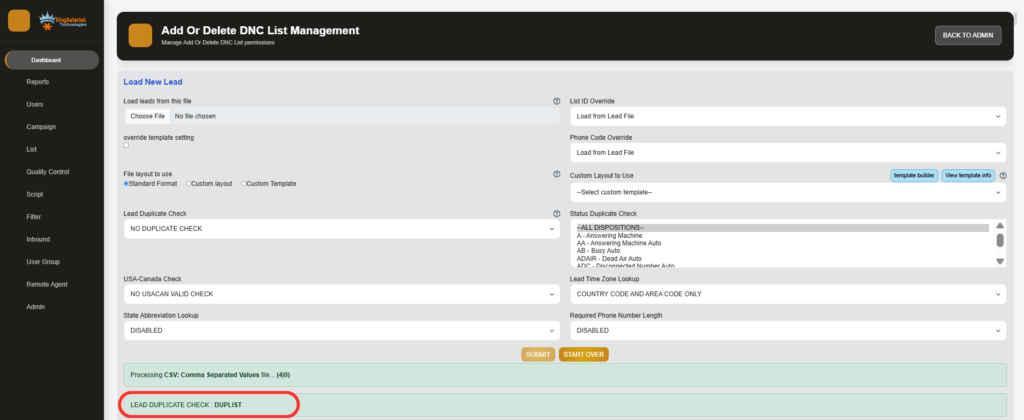
Step 1: Open the load new leads screen
From Admin, go to Lists, select the target list, and open Load New Leads. This screen accepts the CSV, lets you map fields, and shows the import summary once processing finishes.
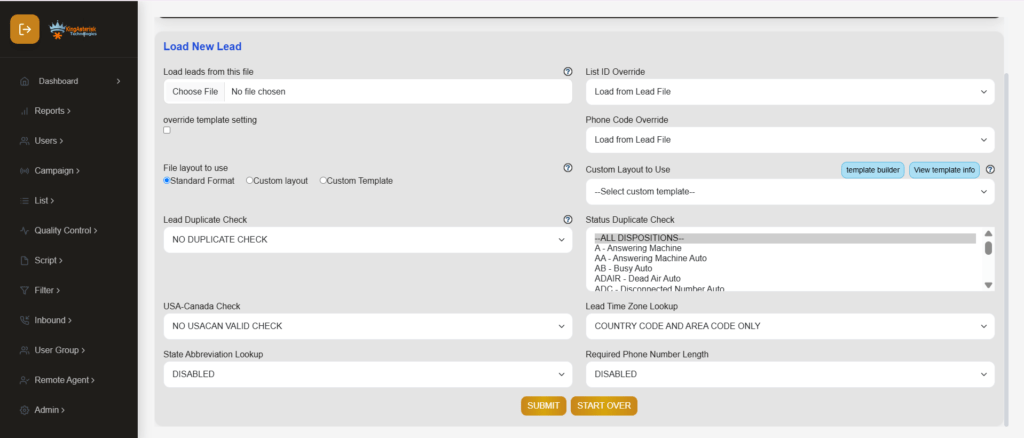
Step 2: Submit without a file attached
Clicking submit without selecting a CSV returns ERROR: No file uploaded. This confirms the form itself is functioning and rules out a broken submit action before moving to real data.

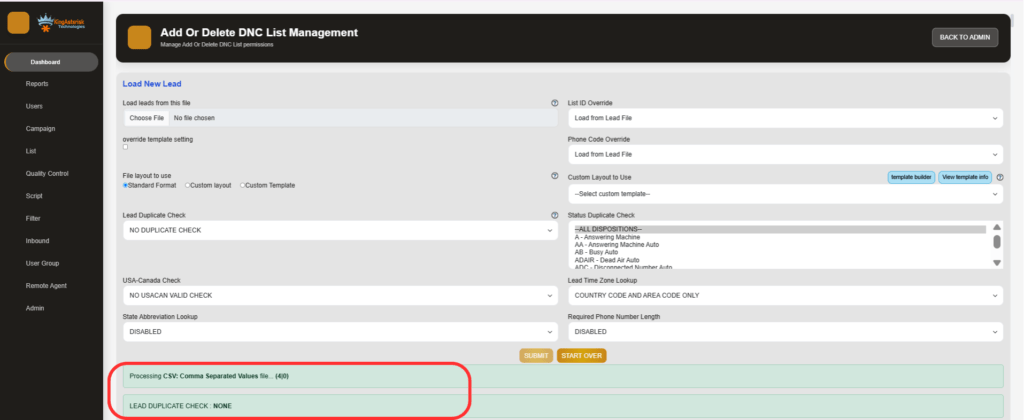
Step 3: Upload a correctly formatted CSV
With a properly structured file – clean header row, phone_number in the expected format, correct list and campaign selected – the import completes and the summary reports the number of leads inserted, updated, and rejected.
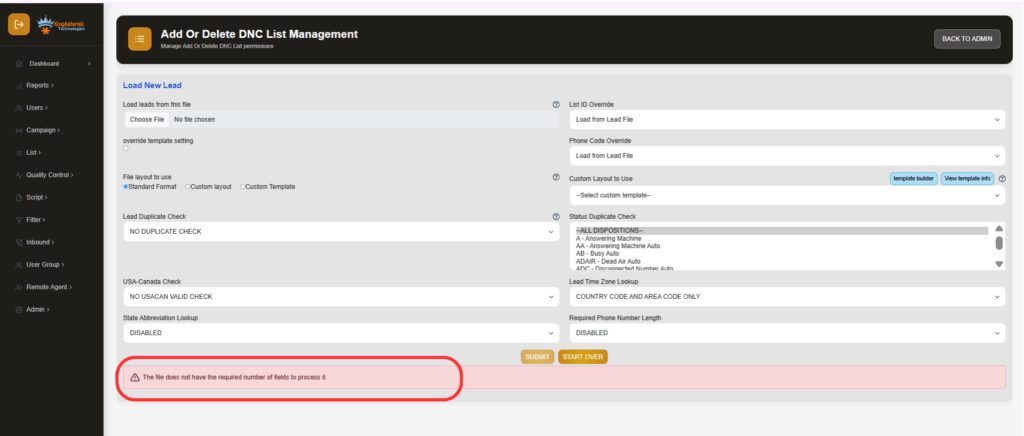
Step 4: Upload a deliberately malformed CSV
Reintroducing a bad phone number format, an extra delimiter, or a shifted column reproduces the BAD-PHONE rejection. The import summary reports rows rejected for phone validation instead of leads inserted, even though the upload itself completes without an error page.
Step 5: Re-upload the same file
Uploading the identical file a second time, without changing vendor_lead_code or resetting the list, returns an already-imported result rather than a fresh insert. This is VICIdial’s duplicate check working correctly, not a second failure.
What actually triggers the BAD-PHONE error
VICIdial validates phone_number during the load process before a row ever reaches the database. A row fails validation, and is reported as BAD-PHONE, for any of the following reasons:
- The number contains letters, spaces, brackets, dashes, or a leading plus sign that was not stripped before upload.
- The digit count falls outside the length VICIdial Lead Import System Failure expects for the configured numbering plan, which defaults to North American 10-digit formatting unless changed.
- The area code or prefix is not present in the system’s reference table, which matters for deployments serving Australian or other non-US number ranges running on default settings.
- The phone_number column is empty for that row because a header mismatch shifted data into the wrong field during mapping.
This last point explains why the same CSV can pass on one list and fail on another. If the column order in the file does not match the field mapping selected on the upload screen, VICIdial system reads a name, an address, or a blank cell as the phone number and rejects the row, even though the actual phone data further along the row is perfectly valid.
How to reboot VICIdial Lead Import System Failure Correctly
Most lead-import and hopper issues do not require a reboot, but a stalled dialer process occasionally does. Restart individual services rather than the full server where possible:
systemctl status mariadb
systemctl restart mariadb
systemctl restart httpd
systemctl restart asteriskIf the predictive dialing process itself has stalled rather than a background service, reconnect to its screen session (commonly astguiclient or AST_VDauto_predictive) and restart it from there rather than rebooting the whole machine. A full server reboot is only necessary after kernel or package updates, or when a service will not come back cleanly through systemctl.
On an AlmaLinux deployment with a dedicated IP, confirm the reboot window with whoever manages the client-side server access before restarting, since it will drop any live calls in progress.
Related fault: manual dialing not responding after a lead import
A second issue sometimes surfaces around the same time as an import failure and gets mistaken for the same root cause: an agent logs in successfully, sees the Dial Next Number button, clicks it, and nothing happens – no outbound call, no screen update, no Asterisk origination. A quick database check confirms whether the agent session itself is the problem:
SELECT user, status, campaign_id
FROM vicidial_live_agents;
Returns:
TEST_AGENT | PAUSED | SAMPLE_CAMPAIGN
A PAUSED status blocks manual dial actions even though the button remains clickable in the interface. Combined with the campaign's dial level setting:
Campaign: SAMPLE_CAMPAIGN
auto_dial_level=0This points to the agent session, not the lead data, as the cause. auto_dial_level=0 is the expected setting for manual dialing campaigns, so the fix is clearing the paused state and confirming the agent’s phone extension is registered, rather than re-checking the leads that were just imported.
Automating lead delivery so this stops recurring
Teams that hit BAD-PHONE errors repeatedly on manual CSV uploads are usually better served moving recurring feeds to a script-driven import through KingAsterisk’s REST integration layer, which returns a structured validation response instead of a generic upload summary. A lead import request looks like this:
POST /api/v1/leads
Authorization: Bearer <token>
Content-Type: application/json

{
  "data": {
    "clientReferenceId": "CRM500001",
    "phoneNumber": "+18005551234",
    "firstName": "John",
    "listId": 1001,
    "campaignId": "OUTBOUND001",
    "vendorLeadCode": "RM10001"
  }
}

A rejected number returns a validation error naming the specific field and reason instead of a batch-level BAD-PHONE summary:
{
  "success": false,
  "code": 422,
  "message": "Validation Failed",
  "errors": [
    { "field": "phoneNumber", "message": "Phone Number is required." }
  ]
}
and a lead that already exists returns a 409 duplicate response referencing the existing lead ID rather than silently discarding the row. For CRM-fed or vendor-fed campaigns running daily volumes, this level of per-record feedback catches formatting problems before they reach a hopper, which is a meaningfully faster diagnostic path than re-running a full CSV to find one bad column.
Frequently asked questions
How to reset leads in VICIdial❓
Use the list detail page in Admin to clear called_since_last_reset or reset the list’s call counts, or schedule the reset_leads.pl utility through cron for lists that need resetting on a recurring basis. Avoid direct database updates unless the list has been isolated first.
How to reboot VICIdial❓
Restart the affected service individually – mariadb, httpd, or asterisk through systemctl – rather than rebooting the full server. Reconnect to the predictive dialing screen session and restart that process directly if it has stalled. Reserve a full reboot for kernel or package updates.
How to upload data on VICIdial❓
Prepare a CSV with a clean header row and a distinct phone_number column, strip formatting characters before upload, map every field explicitly on the Load New Leads screen, confirm the target list and campaign, and check the lead count after the import summary to confirm the numbers match.
Get lead import issues fixed properly
If BAD-PHONE errors, empty hoppers, or stalled manual dialing keep recurring on your VICIdial deployment, KingAsterisk Technologies can review your list configuration, phone validation settings, and campaign hopper filters directly, and set up a script-driven lead feed where manual CSV uploads are no longer practical.
Reach out to discuss your current setup and get a fix that holds beyond the next upload.