VICIdial API Integration Complete Setup Guide for Contact Centers
Vicidial Software Solutions

VICIdial API Integration: Complete Setup Guide for Contact Centers

VICIdial API Integration Complete Setup Guide for Contact Centers

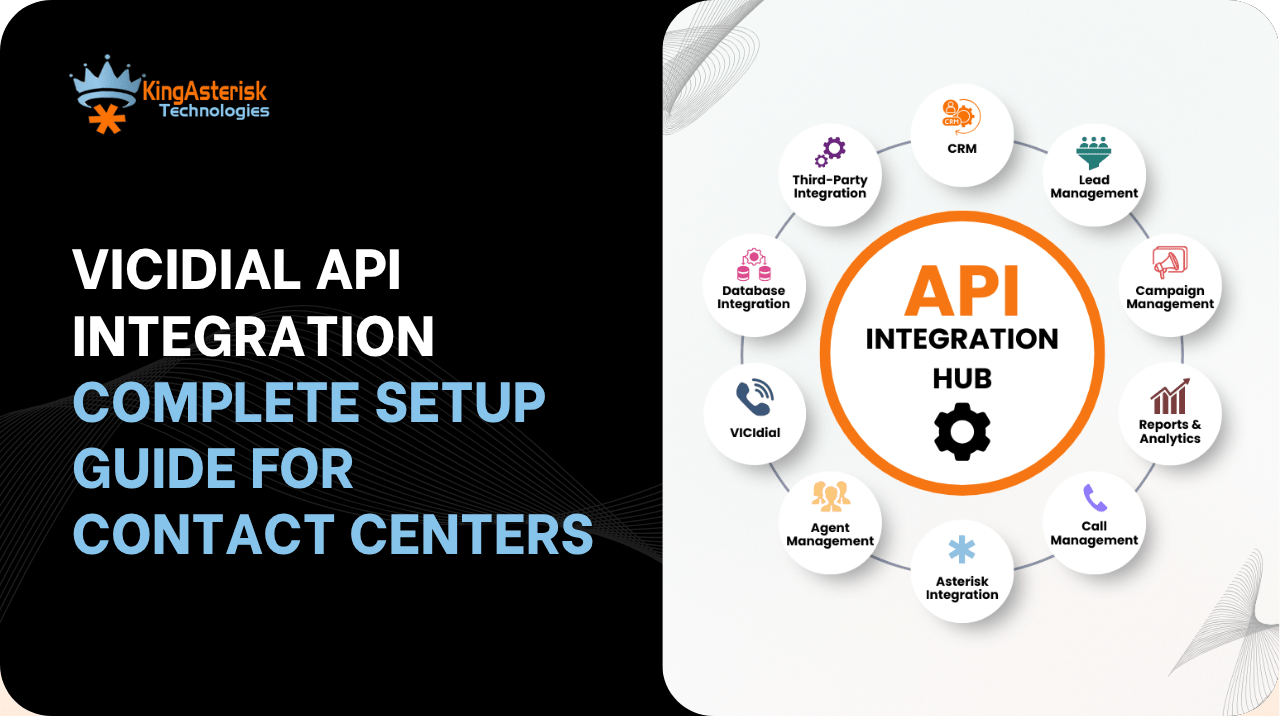
VICIdial API integration is the process of connecting VICIdial’s dialer engine to external applications – CRMs, ticketing platforms, IVR flows, and reporting tools – through secure REST API endpoints rather than direct database access. 

Many contact center teams know they need this kind of integration but aren’t sure which API type to use, how the wrapper layer works, or where the source code fits into the picture. By the end, you’ll know how to plan the setup from first principles, not guesswork.

Understanding VICIdial API Documentation

VICIdial API documentation is typically organized by functional categories rather than by endpoint alphabetically – lead management, campaign configuration, agent status, call history, and system monitoring each get their own section. Before writing any integration code, map out which category your project actually touches. 

A CRM screen-pop project, for example, only needs the call and lead endpoints; it has no reason to touch cluster or server status calls. Reading the documentation this way saves hours of unnecessary exploration.

Reading Endpoints the Right Way

Most VICIdial API integration examples you’ll find online demonstrate a single call in isolation – fetch a lead, update a disposition. Real integrations chain several calls together: a lead lookup, a status check, then a write-back. Treat each documented endpoint as one link in a longer chain, and plan the chain before you plan the code.

Protocol & Data Standards

ItemStandard
Protocol HTTPS only, TLS 1.2+
Data Format JSON, UTF-8
Date Format ISO 8601 (e.g. 2026-07-15T12:35:20Z)
Phone Number Format E.164 (e.g. +18005551234)
Authentication Bearer Token on every request

Every request and response follows a consistent envelope, which is what makes the API predictable for CRM and lead-vendor developers integrating for the first time.

📌 Best Practice : Custom WebUI with Asterisk Dialer

Agent API vs. Non-Agent API

This distinction trips up a lot of teams early on.

VICIdial Agent Login API

The agent login API tracks and manages an individual agent’s session state – login, pause, wrap-up, logout. It’s built for real-time agent-facing tools: softphone panels, custom agent dashboards, or supervisor monitoring screens that need to reflect what one specific agent is doing right now.

VICIdial Non-Agent API

The VICIdial non agent API operates independently of any logged-in agent session. It’s the layer used for background and administrative work: importing leads in bulk, pulling campaign statistics, checking DNC status, or syncing reporting data on a schedule. 

VICIdial non agent API documentation usually separates these calls specifically because they don’t require an active agent context, which makes them ideal for nightly batch jobs and external reporting systems. Mixing the two – for instance, trying to run bulk lead updates through an agent-session-bound call – is the single most common integration mistake we see.

Core VICIdial API Categories for Contact Centers

A complete integration spec organizes endpoints by function. Based on a real 102-endpoint VICIdial integration build, here’s how the categories typically break down.

Lead Management APIs

These handle the flow of leads into and out of VICIdial – importing from a CRM or lead vendor, checking status, and bulk updates. The Lead Import API (POST /api/v1/leads) is the most-used endpoint in almost every integration, since it’s the entry point for outbound dialing data.

Campaign, List, and Reporting APIs

Endpoints here expose campaign configuration, list inventory, and statistics – the data a client-facing dashboard or account manager needs without direct database access.

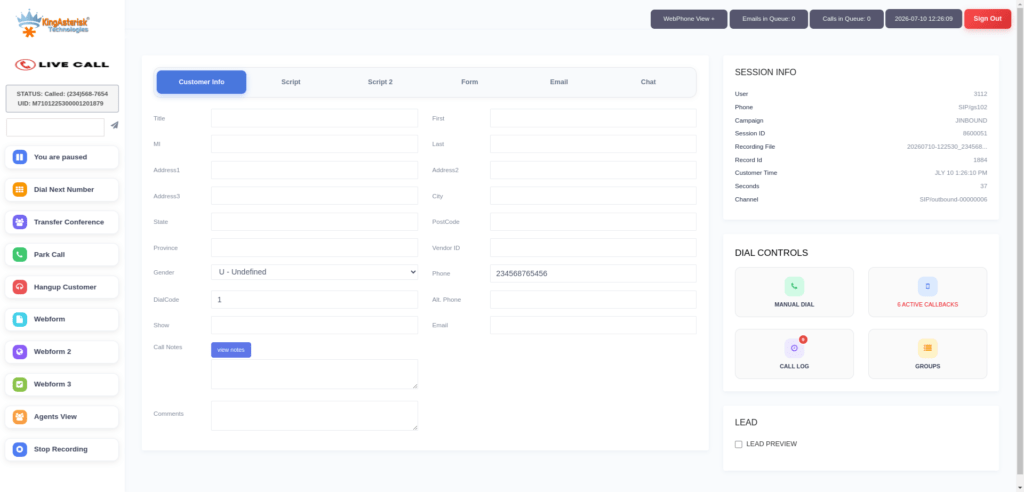
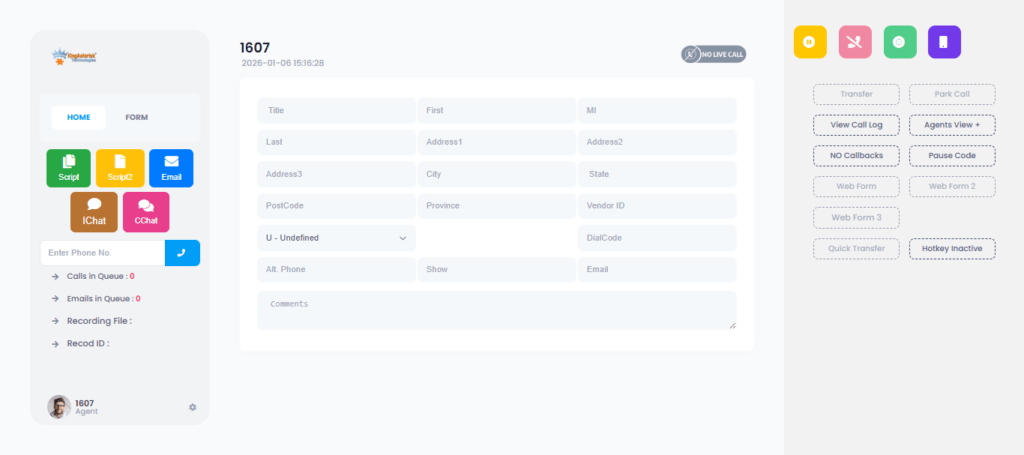
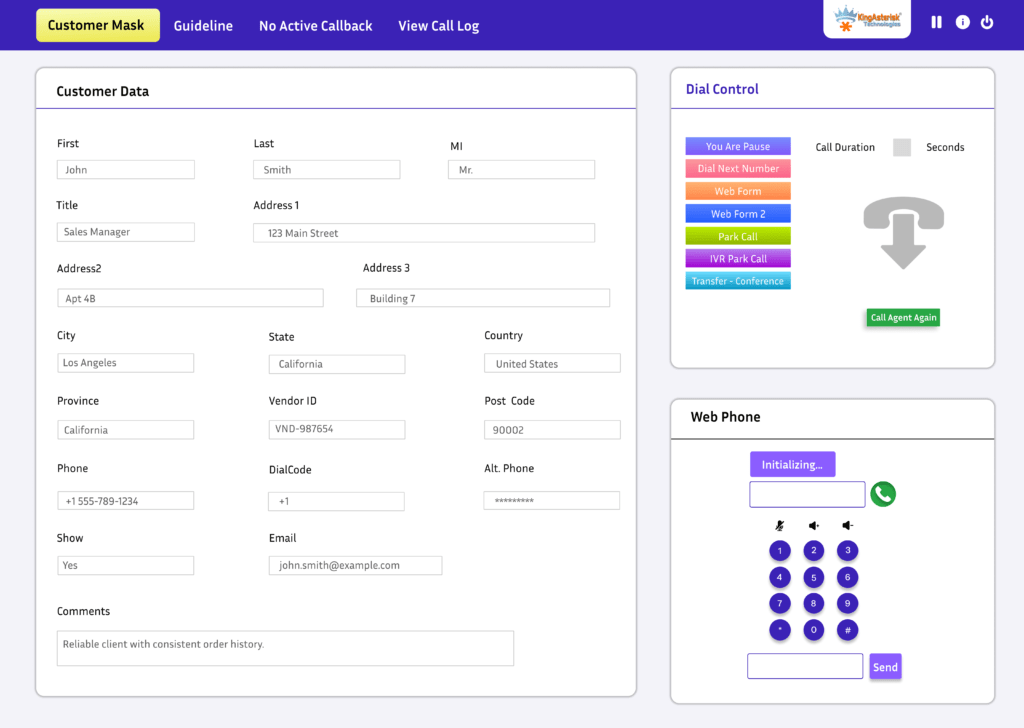
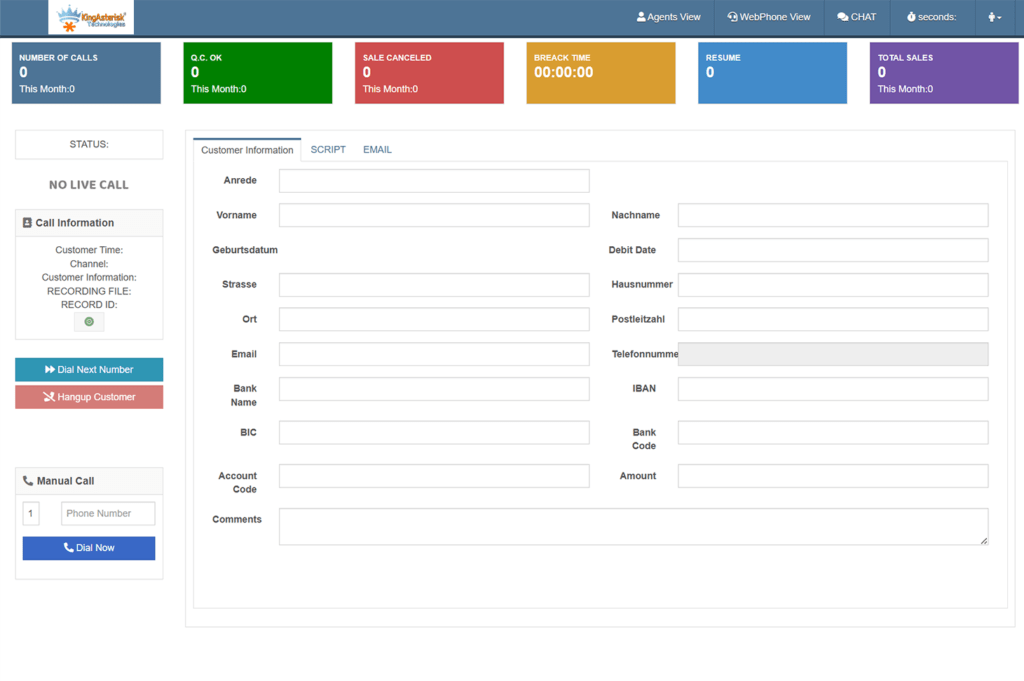
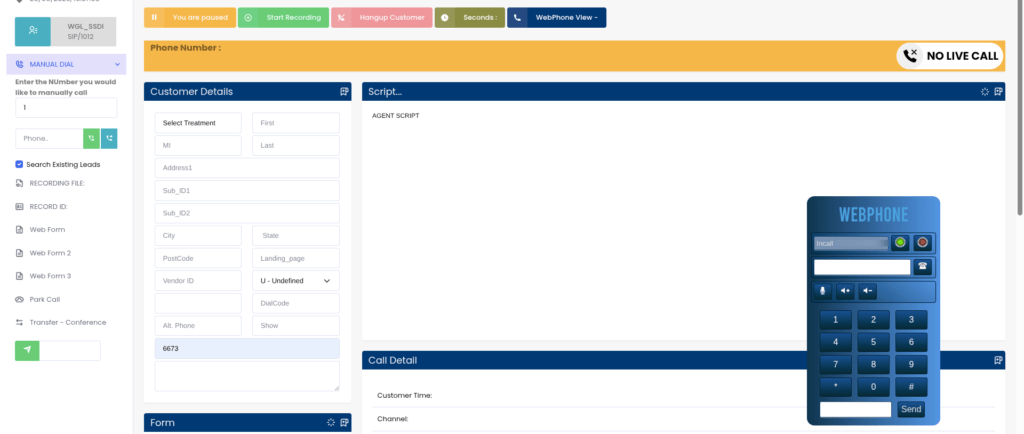
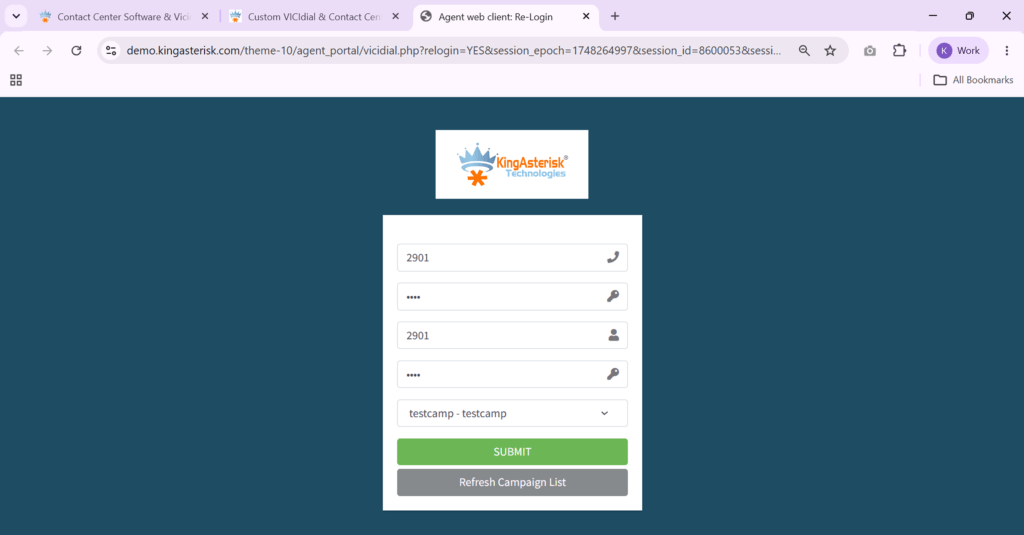
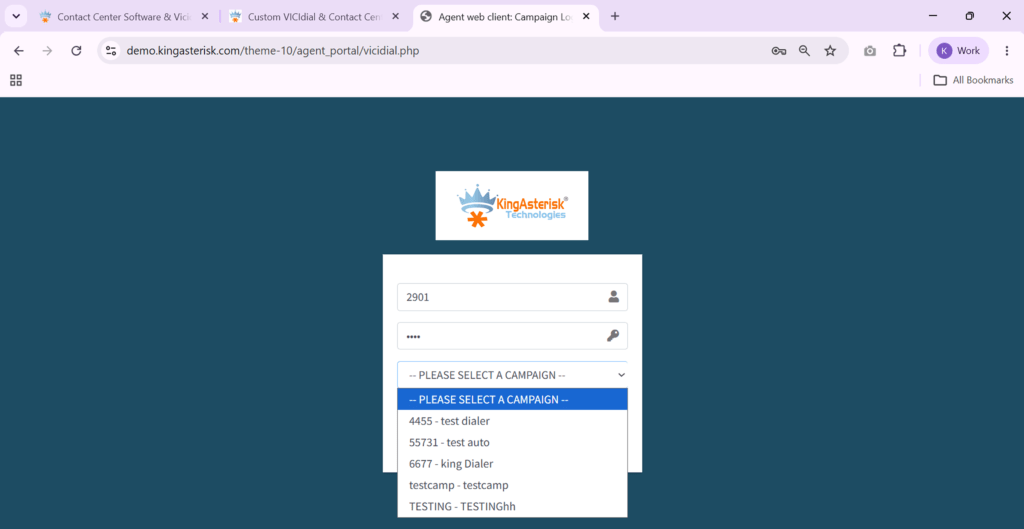
Agent web client

Agent Management APIs

This is where the VICIdial agent login API and related endpoints live – agent list, agent details, live agent status, performance metrics, skills, and login status. These power real-time agent monitoring dashboards and workforce management tools.

Call Management and Real-Time Control APIs

Call history, live calls, recordings, disposition and notes, plus real-time actions: originate, hangup, transfer, hold, mute, conference, whisper, and barge. These map directly onto Asterisk AMI actions under the hood.

Inbound, DNC, and Voicemail APIs

DID lists, inbound groups, callback management, and DNC (Do Not Call) lookups – critical for TCPA compliance in outbound campaigns.

System, Infrastructure, and AI Services APIs

Server and cluster status, database health, queue statistics, and (in more advanced builds) AI-driven call sentiment, keyword detection, auto-QA, and sales opportunity scoring.

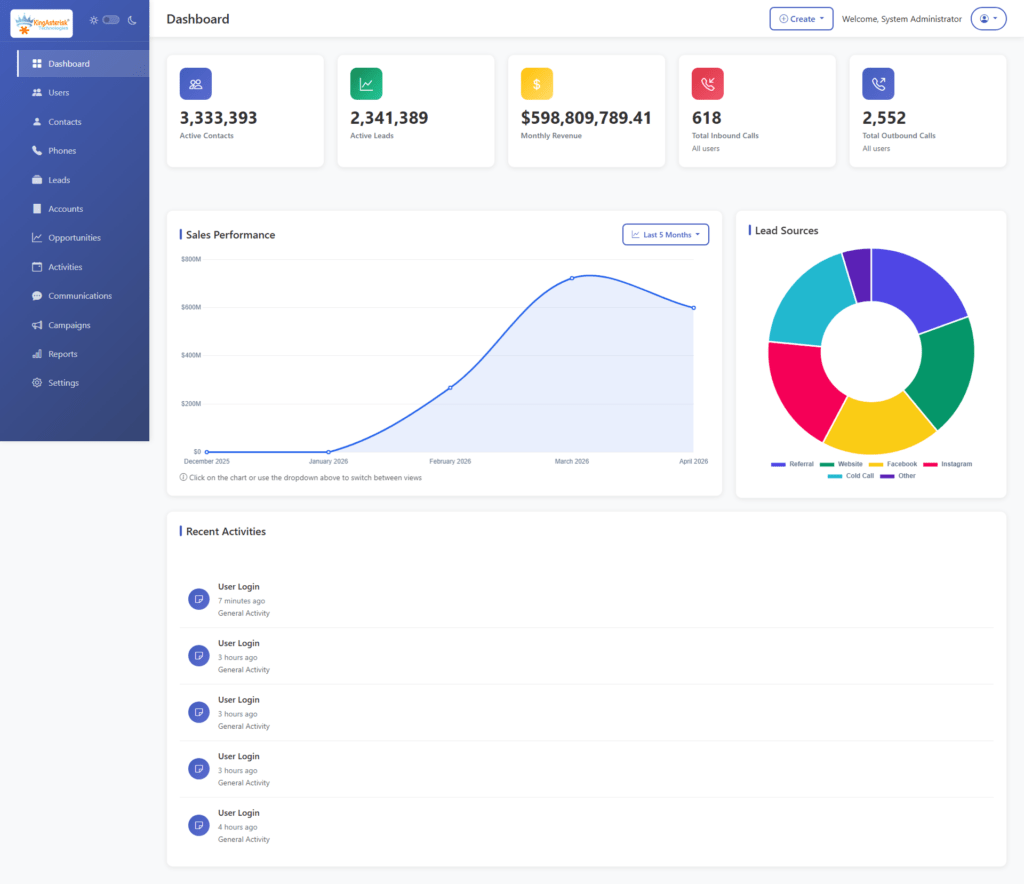
Custom CRM Dashboard

A Real-World Integration Example

A 100-agent contact center migrating from a legacy dialer to VICIdial needed its proprietary CRM to pop the full customer record the moment a call connected. The build used the non-agent API for the overnight lead import from the CRM into VICIdial’s lists, and a lightweight listener on the call and lead endpoints to trigger the screen-pop in under a second after connect. Disposition data then flowed back through the same non-agent layer, keeping the CRM as the single source of truth without duplicating agent login logic.

Building a VICIdial API Wrapper

Calling raw endpoints directly across a large codebase gets messy fast – every developer ends up re-writing authentication headers and error handling. A VICIdial API wrapper solves this by centralizing token handling, retry logic, and response parsing behind a small set of internal functions your team actually calls. For most contact centers, a wrapper covering lead, call, and campaign endpoints handles 80% of integration needs and can be built and tested in under two weeks by a small development team.

Common Headers and Request/Response Structure

Every VICIdial API integration example follows the same request shape. Here’s the standard structure used across the specification:

Standard Request Envelope

json
{
    "requestId": "REQ-100001",
    "timestamp": "2026-07-15T11:00:00Z",
    "data": {}
}

Standard Success Response

json
{
    "success": true,
    "code": 200,
    "message": "Request Completed Successfully",
    "timestamp": "2026-07-15T11:05:10Z",
    "requestId": "REQ-100001",
    "data": {}
}

Standard Error Response

json
{
    "success": false,
    "code": 422,
    "message": "Validation Failed",
    "timestamp": "2026-07-15T11:05:10Z",
    "requestId": "REQ-100001",
    "errors": [
        {
            "field": "phoneNumber",
            "message": "Phone Number is required."
        }
    ]
}

Required headers on every call: Authorization (Bearer token), Content-Type: application/json, and Accept: application/json. 

Optional headers like X-Correlation-ID and X-Client-ID help trace requests across systems during debugging – invaluable once you have more than one CRM hitting the same dialer.

VICIdial Download and Source Code Basics

Before any integration work begins, it’s worth confirming which version you’re running. A VICIdial download from the official project gives you the base dialer, while the VICIDIAL source code repository lets you inspect exactly how agent sessions, campaigns, and the underlying database schema are structured – invaluable when an API response doesn’t match what the documentation describes. Reviewing the relevant source files ahead of a migration project avoids version-mismatch surprises once agents go live.

🖥️ Watch It in Action : Live Demo of Our Solution!

Frequently Asked Questions

What is VICIdial API integration used forâť“

It connects VICIdial to external CRMs, IVR platforms, and reporting tools so data – leads, dispositions, agent status, call records – flows automatically between systems instead of requiring manual entry or direct database access.

What’s the difference between the agent API and the non-agent APIâť“

The agent API manages a specific logged-in agent’s real-time session state. The non-agent API handles background tasks like bulk lead imports and reporting that don’t need an active agent context.

Do I need a VICIdial API wrapper for a small projectâť“

Not always. A single-endpoint integration may not need one. But any project touching more than two or three endpoint categories benefits from a wrapper’s centralized authentication and error handling.

Where can I find the VICIdial source codeâť“

It’s available through the official open-source VICIdial project repository. Reviewing it alongside the API documentation helps confirm your installed version’s behavior before building an integration.

How long does a typical integration project takeâť“

A focused project like a CRM screen-pop can take one to two weeks with a wrapper in place. Larger migrations involving reporting, IVR, and multi-campaign sync typically run four to eight weeks.

Conclusion

Getting VICIdial API integration right comes down to picking the correct endpoint category for the job, wrapping those calls in a maintainable layer, and validating everything against the actual source code your instance runs on. 

Agent APIs handle live session states; non-agent APIs handle everything else. Get that split right, build a wrapper early, and most integration projects – from a single CRM screen-pop to a full multi-campaign migration – stay predictable from start to finish. 

2If you’re planning this kind of build for your contact center, our engineering team at KingAsterisk can walk through your setup and scope the work – contact us to get started.

KINGASTERISK_NOTE
How to Troubleshoot a Custom Web UI with an Asterisk Dialer
Asterisk Development Solutions

How to Troubleshoot a Custom Web UI with Asterisk Dialer: Step-by-Step Guide

How to Troubleshoot a Custom Web UI with an Asterisk Dialer

Troubleshooting a custom web UI Asterisk dialer is one of the most misunderstood challenges in contact center operations. Unlike off-the-shelf PBX systems, a bespoke interface layered over VICIdial or a standalone Asterisk backend does not fail in predictable ways – issues span the web server, database engine, API endpoints, and user permission model simultaneously, often without surfacing a clear error message.

This guide takes a structured, layer-by-layer approach to diagnosing and resolving the most frequent failure points. Whether your team deployed a React-based supervisor dashboard, a Tailwind-styled agent panel, or a lightweight PHP admin interface on Ubuntu or AlmaLinux, the underlying architecture is consistent: browser requests reach a web server, PHP scripts talk to Asterisk via AMI or AGI, and all persistent data lives in MariaDB. Break any link in that chain and the UI goes dark – or worse, fails without explanation.  

How a Custom Web UI Connects to an Asterisk Dialer

Before touching a single config file, you need a clear picture of the stack. A custom web UI deployed over VICIdial or standalone Asterisk is not a monolithic application – it is a collection of loosely coupled layers, and each layer has its own failure modes.

  • Browser (Agent / Admin / Supervisor) – renders your custom HTML, CSS, and JavaScript interface.
  • Web Server (Apache or NGINX on Ubuntu / AlmaLinux) – serves PHP files, handles HTTP routing, and enforces file permissions.
  • PHP Application Layer – your custom scripts, plus core VICIdial PHP files (admin.php, vicidial.php, non_agent_api.php, and others).
  • Asterisk Manager Interfac e(AMI) – a TCP socket over port 5038 allowing PHP scripts to originate calls, monitor channels, and receive real-time events.
  • MariaDB / MySQL – stores all dialer states: leads, campaigns, dispositions, user accounts, call logs, and system configuration.

A fault anywhere in this stack will appear in the browser as a timeout, a blank page, a PHP error, or a misleading “Access Denied” message. Systematic troubleshooting means ruling out each layer in sequence, rather than jumping straight into Asterisk dialplan files or Asterisk Manager Interface logs.

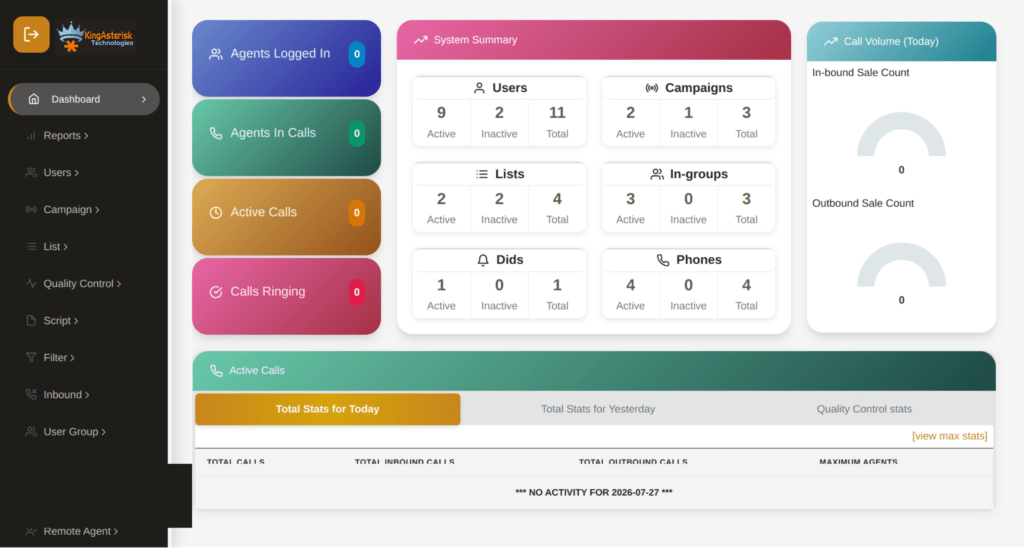
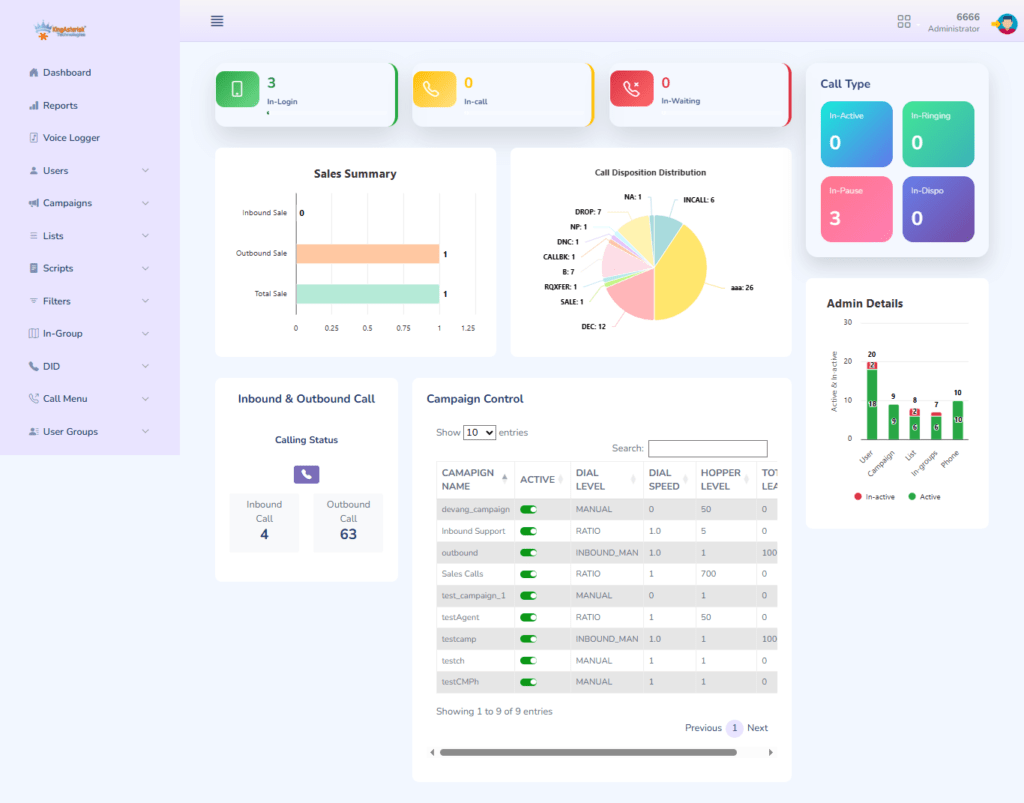
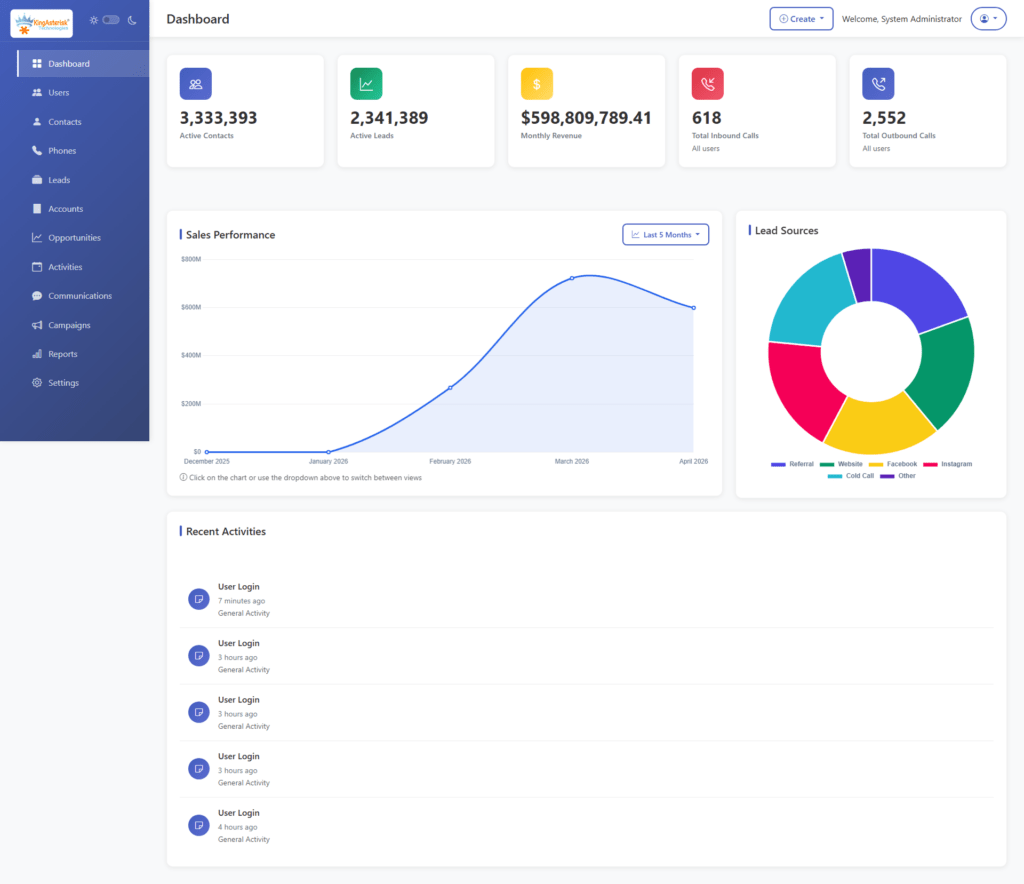
Vicidial Admin Panel

VICIdial API Architecture: Agent API vs Non-Agent API

A significant proportion of custom UI problems originate in incorrect API usage, not in Asterisk configuration. VICIdial exposes two independent API surfaces. Confusing them – or using the wrong credentials with either – is an extremely common source of integration errors in custom PBX web interfaces.

API TypeDefault EndpointPrimary Use Case
Agent API /agc/api.php Controls an active agent session – pause, transfer, hangup, set disposition.
Non-Agent API /vicidial/non_agent_api.php System-level operations: lead injection, CRM sync, campaign statistics, and callback management.

The Non-Agent API is the more frequently integrated endpoint in custom web UIs. It accepts standard HTTP GET or POST requests and does not require an active agent session. If your dashboard pulls real-time campaign statistics, pushes leads from an external CRM, or triggers automated callbacks, every one of those calls routes through non_agent_api.php.

The Agent API acts against a live session identified by a session token. Calling Agent API functions when no agent is logged in will always return an authentication failure – and this is frequently misread as a server configuration error rather than a session state error.

Quick Diagnostic: Testing the Non-Agent API Endpoint

Run a minimal test from the server’s own terminal to isolate whether the issue is in your application code or in the server environment:

curl "http://127.0.0.1/vicidial/non_agent_api.php?source=test&user=admin&pass=yourpass&function=version"

A correct response returns a version string. Anything else – a 403, a blank body, or a PHP parse error – narrows the problem to credentials, file permissions, or a stopped web service. Test from an external IP next to determine whether a firewall rule is the additional variable.

🔌 System Integration : Vicidial Setup & Integration Guide

Step 1 – Diagnosing Web Server and Login Page Failures

Login failures and blank admin pages are the most visible symptom reported by end users. When agents or supervisors cannot reach the admin dashboard, work through these checks before investigating anything else.

Confirm the Web Server Service is Running


systemctl status httpd        
# AlmaLinux / CentOS systemctl status apache2     
 # Ubuntu
If the service is inactive or failed, start it and immediately inspect the error log:
tail -n 50 /var/log/httpd/error_log        
# AlmaLinux tail -n 50 /var/log/apache2/error.log      
# Ubuntu

Verify the Custom Theme Path Exists

KingAsterisk custom themes deploy to a separate directory. The original VICIdial admin lives at /vicidial/admin.php. A custom theme admin panel typically lives at a path such as /dialer/admin.php or /theme-5/dialer/admin.php. A 404 on the login URL almost always means the document root is pointing to the wrong directory, or the custom folder was not transferred to the correct server location.

ls -la /var/www/html/dialer/

Correct File Ownership and Permissions

# AlmaLinux chown -R apache:apache /var/www/html/dialer/ chmod -R 755 /var/www/html/dialer/ 
# Ubuntu chown -R www-data:www-data /var/www/html/dialer/

Incorrect ownership is the single most common cause of blank white pages or silent 500 errors after a fresh theme deployment. PHP cannot read files it does not own when running under the web server user context.

Step 2 – Resolving Database Connection Errors

A database connection failure in a custom web UI Asterisk dialer typically produces either a PHP fatal error or a custom-coded “Could not connect” message. Asterisk’s interface – campaigns, user accounts, lead data, live statistics, and system settings – is fetched live from MariaDB on every page load. No database connection means no functional UI.

Confirm MariaDB is Running

systemctl status mariadb systemctl start mariadb    
# if the service is stopped

Test the VICIdial Database Credentials Directly

VICIdial stores database credentials in /etc/astguiclient.conf. Locate the VARDB_user and VARDB_pass entries, then test the connection from the command line:

mysql -u vicidial -p -h 127.0.0.1 asterisk

An “Access Denied” error means the database user’s password has changed, or the user’s host grant no longer includes 127.0.0.1. Re-establish the grant:


GRANT ALL ON asterisk.* TO 'vicidial'@'127.0.0.1' IDENTIFIED BY 'yourpassword'; FLUSH PRIVILEGES;
2.3 Check Port 3306 Accessibility
ss -tlnp | grep 3306

On multi-server deployments where the database runs on a dedicated host, confirm the firewall on the DB server accepts inbound connections from the web server’s IP on port 3306. Firewall misconfiguration between the web tier and database tier is the second most common cause of database errors in distributed contact center environments.

Step 3 – Fixing API Endpoint and Authentication Failures

When a CRM integration, lead upload form, or reporting widget stops returning data, the failure is almost always one of four things: the wrong endpoint is being called, credentials are invalid or expired, a required function parameter is missing, or a PHP error inside the API script is producing an unexpected response body.

Test the Endpoint from Two Locations

Run the curl test shown in the architecture section from both the server itself (127.0.0.1) and from the external client IP. If localhost succeeds but the external request fails, the issue is a firewall rule or an Apache access control directive – not the PHP application logic.

Verify the API User Account Permissions

Every Non-Agent API request must include a valid user and pass parameter. The VICIdial user account making API calls requires specific flags. Navigate to Admin – Users – [your API service account] and confirm:

  • API Access is set to Y.
  • The calling server’s IP is included in the API user’s allowed IP list (if IP restriction is active).
  • User Level is set to 8 or 9 – some Non-Agent API functions require elevated levels to execute.

Enable API Verbose Logging Temporarily

Set VARAPI_verbose to 3 in /etc/astguiclient.conf, then tail the log file during your next API call:

tail -f /var/log/astguiclient/AGILOG20*.txt | grep -i api 

Verbose mode exposes the exact function call received, the resolved parameters, and the logic path taken by the server – considerably more diagnostic than PHP error logs alone.

Step 4 – Correcting User Permissions and Report Access

A common class of custom admin panel issues involves users seeing too much – or too little – of the reporting interface. VICIdial’s permission system is granular and powerful, but several settings interact in non-obvious ways.

Create a Dedicated User Group for Report Viewers

Manage report access through User Groups, not individual user settings. In Admin – User Groups, create a group (e.g. REPORT_VIEWERS). Inside that group’s configuration, open the Allowed Reports section and select only the reports this group should access. For a typical “supervisor view” scenario, selecting Agent Time Detail and deselecting everything else gives precise, auditable access control.

Apply the Correct User Level and Admin Flags

SettingRecommended Value for Report-Only Users
User Level 7 or 8 (needed for report interface access)
View Reports 1 (enabled)
Modify Users 0 (disabled)
Modify Campaigns 0 (disabled)
Load Leads 0 (disabled)
Delete Users 0 (disabled)

This combination grants sufficient privilege to reach the reporting interface without exposing campaign administration, lead management, or system configuration. User levels 7 and 8 allow reporting; level 9 exposes full administrative functions.

Restrict Report Scope by User Group

If supervisors should only see data for their own team – not other departments – configure the Allowed User Groups setting within REPORT_VIEWERS. This restricts which other User Groups’ data this group can query, providing data segmentation without requiring separate VICIdial Asterisk installations.

Step 5 – Custom Theme Path Conflicts and Deployment Errors

Custom VICIdial themes use a separate directory tree from the core VICIdial codebase. This design is intentional: it keeps theme files isolated from SVN-managed core files, so a VICIdial update does not overwrite your UI customizations. The trade-off is that path-related errors are unique to your specific deployment.

The Two Parallel Path Systems

InterfaceDefault Path
Original VICIdial Admin /vicidial/admin.php
KingAsterisk Custom Admin /dialer/admin.php
or
/theme-N/dialer/admin.php
Original Agent Screen /vicidial/vicidial.php
Custom Agent Screen /agent/agent.php (configurable per deployment)

If your custom panel loads the login page but core VICIdial functions – campaign management, live monitoring, lead lists – fail to render correctly after authentication, verify that the theme’s internal links and backend API calls still point to the correct VICIdial backend paths. 

Customization changes the presentation layer; the backend endpoints remain at their original locations.

Version Alignment: ViciBox and SVN Revision

Custom themes are built and tested against a specific ViciBox version and VICIdial SVN revision. Installing a theme built for SVN 3803 on a system running SVN 3900+ can produce PHP function mismatches or missing database columns. Before any new theme deployment or custom development engagement, document these two values:

  • ViciBox ISO version – visible at the AlmaLinux login prompt or in /etc/vicibox-version.
  • VICIdial SVN revision – found via: svn info /usr/src/vicidial

NOTE: AlmaLinux with a dedicated IP is the required server environment for new custom theme installations from KingAsterisk. Ubuntu is supported for existing deployments, but service names and file ownership differ—adjust systemctl commands and chown targets accordingly.

Vicidial Agent Theme

Real-World Scenario: 80-Agent Outbound Contact Center

A US-based outbound lead generation operation running 80 agents on a KingAsterisk custom Asterisk theme reported that the supervisor dashboard was showing blank campaign statistics at unpredictable intervals. Agents could log in and dial normally, but the real-time reporting panel returned empty tables with no visible error.

Working through the five-step framework above, the root cause was identified at Step 3: the custom dashboard was calling the Non-Agent API using a service account that had API Access set to N – a flag accidentally toggled during a routine user audit the previous week. The API was silently returning an authentication failure, and the custom dashboard’s JavaScript interpreted the empty response as “no data available” rather than surfacing an error state.

The resolution took under 20 minutes: re-enable API Access on the service account, verify via a direct curl test, and confirm data returned to the dashboard without any server restart. The key lesson: always test your API service account independently before debugging dashboard code or investigating Asterisk internals.

🖥️ Watch It in Action : Live Demo of Our Solution!

Frequently Asked Questions

What exactly is a custom web UI Asterisk dialer, and how does it differ from the default VICIdial interfaceâť“

A custom web UI Asterisk dialer is a purpose-built browser interface layered over a VICIdial or Asterisk backend. Where the default VICIdial interface is functional but dated, custom UIs typically feature modernized layouts built with React or Tailwind CSS, role-specific dashboards, branded styling, and simplified navigation. The underlying Asterisk engine, database schema, and API structure remain identical – only the presentation layer changes.

Can I deploy a custom VICIdial admin panel on Ubuntu instead of AlmaLinuxâť“

Yes. Ubuntu server environments fully support VICIdial and Asterisk deployments. Core application behavior is identical, but service names differ: Apache runs as apache2 on Ubuntu (not httpd), and web files are owned by www-data rather than apache. Adjust all systemctl commands and chown targets to match. For new projects, AlmaLinux with a dedicated IP is the preferred baseline since ViciBox is built on that platform.

What is the difference between the VICIdial Agent API and the Non-Agent APIâť“

The Agent API (/agc/api.php) requires an active, authenticated agent session and controls live call actions – pause, resume, transfer, hangup, and disposition. The Non-Agent API (/vicidial/non_agent_api.php) works independently of any agent session and handles system-level operations: injecting leads, syncing CRM data, fetching campaign statistics, managing callbacks, and administering user accounts programmatically. Calling the Agent API without an active session always returns an auth failure – not a server error.

How do I give a supervisor access to only one specific report in VICIdialâť“

Create a User Group (Admin – User Groups), configure Allowed Reports to include only the target report (e.g. Agent Time Detail), and assign the supervisor’s account to that group. Set User Level to 7 or 8 and View Reports = 1, then set all other admin flags – Modify Users, Load Leads, Modify Campaigns, Delete Users – to 0. This grants precise report visibility without exposing any administrative functionality.

Why does my custom VICIdial theme show a blank page immediately after loginâť“

A blank page after authentication almost always points to one of three causes: incorrect file ownership on the custom theme directory (fix with chown -R apache:apache for AlmaLinux, or chown -R www-data:www-data for Ubuntu); a PHP error being suppressed by error_reporting settings (check /var/log/httpd/error_log or /var/log/apache2/error.log); or a misconfigured database connection because the theme’s config file references incorrect credentials or hostname

Conclusion

Troubleshooting a custom web UI Asterisk dialer layer by layer – from web server through database to API and permissions – dramatically shortens resolution time and eliminates the guesswork that turns minor configuration issues into extended outages. The five-step framework in this guide addresses the root causes behind the majority of failures reported on production contact center deployments: service failures, credential mismatches, API authentication errors, misconfigured user permissions, and theme path conflicts.

Carry these principles forward: test API endpoints independently before suspecting application code; manage all report access through User Groups rather than individual user settings; document your ViciBox and SVN versions before any theme build or upgrade; and treat file ownership on the custom theme directory as a first-check item after any server migration or redeployment.

If your team is planning a new custom VICIdial theme, requires a CRM integration built on the Non-Agent API, needs a custom reporting module, or is dealing with a persistent issue that these steps have not resolved – the engineering team at KingAsterisk is ready to assist. Reach out to evaluate current theme options before committing to a deployment.

KINGASTERISK_NOTE
How to Run 500+ VICIdial Scheduled Outbound Calls Per Hour (1)
Vicidial Software Solutions

How to Run 500+ Scheduled Outbound Calls Per Hour with VICIdial Reporting

How to Run 500+ VICIdial Scheduled Outbound Calls Per Hour (1)

Running VICIdial scheduled outbound calls at 500 or more connections per hour is an achievable benchmark for any well-configured contact center operation – but reaching it consistently requires more than pressing a Start button on a campaign. It demands a precise combination of hopper sizing, Vicidial dialing mode selection, trunk capacity, and real-time reporting feedback. 

This guide walks through every layer of that configuration, from first-time campaign setup to backend API automation, so your team stops leaving dial capacity on the table.

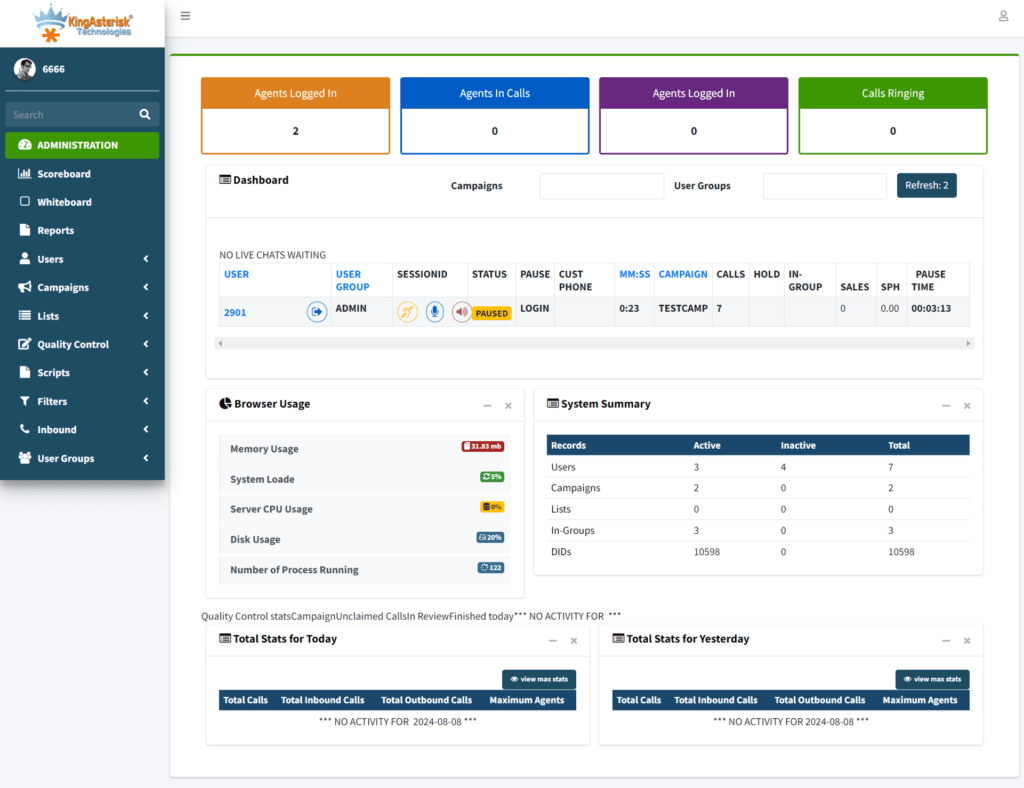
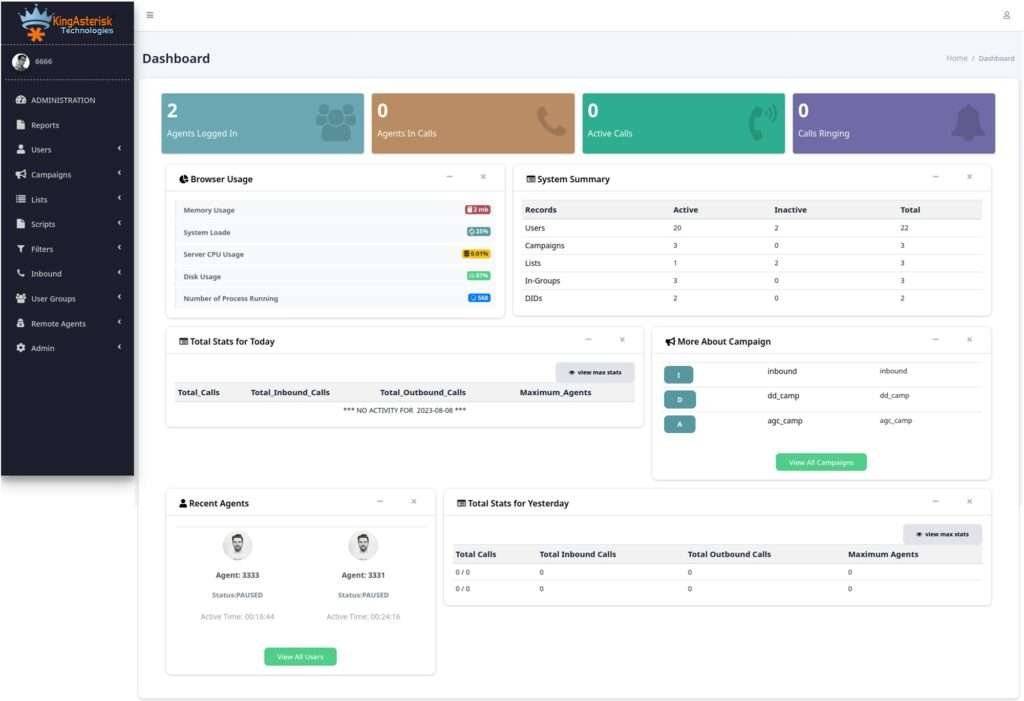
Admin dashboard- theme 2

Is VICIdial a Dialer? Understanding the Platform at Scale

VICIdial is a full-featured, open-source contact center suite built on the Asterisk telephony engine. It combines an outbound auto-dialer, an inbound ACD queue manager, a real-time agent interface, a campaign configuration layer, and a suite of reporting tools into a single system. So yes – VICIdial is a dialer, but calling it only that significantly undersells its role in day-to-day operations.

When configured for high-volume scheduled outbound work, VICIdial manages the entire dial cycle: pulling leads from a hopper queue, connecting answered calls to available agents, detecting answering machines via AMD, logging dispositions, and recycling uncompleted leads back through the queue – all without manual intervention. At scale, a properly sized VICIdial server can sustain well over 500 outbound call attempts per hour per campaign, with multiple campaigns running simultaneously across different agent groups.

🚀 Integration Workflow : Vicidial Setup and integration Guide

What Are the Types of Outbound Calls in VICIdial?

VICIdial supports three primary outbound dialing modes. Understanding which mode fits your operation is the single most impactful configuration decision you will make:

Predictive Dialing

The system dials multiple lines simultaneously per available agent, using a statistical algorithm to estimate when an agent will finish their current call. It adjusts the dial ratio in real time based on drop rate and answer rate. This mode is built for high-volume operations where maximizing agent talk time is the primary goal. At 500+ calls per hour, predictive mode is almost always the correct choice.

Power Dialing

The system dials one call per available agent slot. There is no statistical overdial – when a call connects, it reaches an agent immediately. Power mode offers tighter compliance control at the cost of slightly lower throughput. Teams operating under strict answer-supervision requirements often prefer it.

Progressive Dialing

Similar to power dialing but the call is only placed after the agent is confirmed available. This mode generates the lowest throughput but the highest agent-readiness guarantee. It suits appointment confirmation callbacks and sensitive collections workflows.

Dialing ModeBest Use Case
Predictive High-volume outbound sales, lead generation, surveys
Power Compliance-sensitive outbound, smaller teams
Progressive Callbacks, appointment confirmation, collections

Configuring a High-Volume Outbound Campaign Step by Step

The following configuration path applies to the standard VICIdial admin panel at /vicidial/admin.php, and to KingAsterisk’s custom-themed deployments at /dialer/admin.php – the underlying settings are identical.

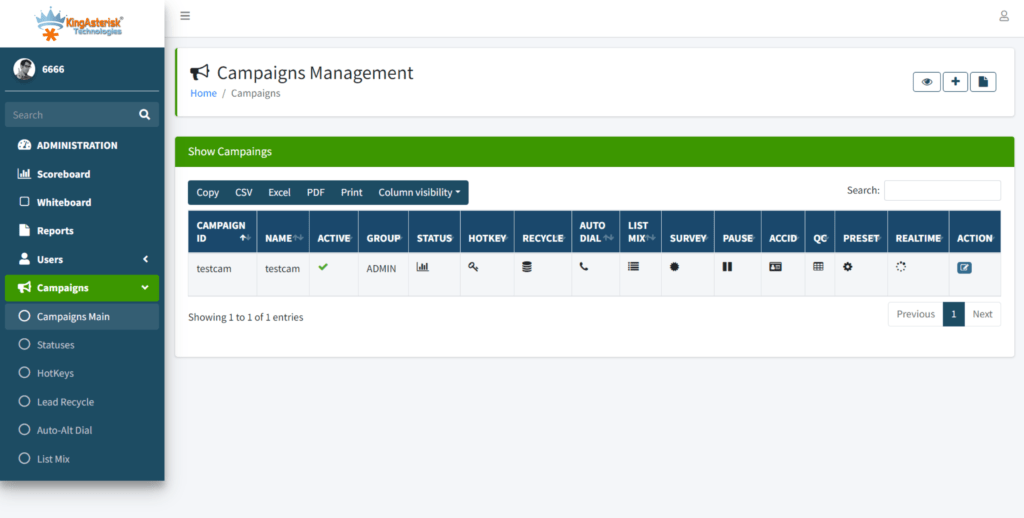
VICIdial Campaigns Management

Step 1 – Create or Open the Campaign

Navigate to Admin – Campaigns – Add Campaign. Give the campaign a clear internal code (e.g., OB_COLLECT_JUL). Set Campaign Status to ACTIVE only when your lead list and trunks are confirmed.

Step 2 – Set the Dialing Method and Ratio

Under the campaign’s Dialing Settings, select RATIO for predictive mode. Set the Dial Ratio to begin at 1.5 (1.5 lines dialed per available agent). Monitor your real-time stats board for the first 15 minutes and raise the ratio incrementally. A well-tuned predictive campaign at 30 agents with a 2.2 ratio will typically push past 500 attempts per hour, depending on your list’s connect rate.

Step 3 – Configure Hopper Level and Local Dial Timeout

The Hopper Level controls how many leads are pre-loaded into the active dial queue. Set it to at least 5x your expected calls-per-minute figure. For a 500/hour target (roughly 8–9 per minute), a hopper of 50–60 leads ensures the dialer never starves waiting for the next record. Set the Local Dial Timeout between 25 and 32 seconds – long enough for a genuine ring cycle, short enough to recycle quickly.

đź’ˇ Implementation Note: Achieving 500+ scheduled outbound calls per hour cannot be done by simply increasing the dial ratio. To maximize performance, you need the right balance of predictive dialing, hopper optimization, SIP trunk capacity, and real-time reporting. Together, these help maximize agent productivity while keeping dead call rates low.

Step 4 – Assign Trunks and DID Configuration

Go to the Carriers section and confirm your active SIP trunk has sufficient concurrent channel capacity. At 500 calls per hour with an average call duration of 90 seconds, you need a minimum of 12–15 simultaneous channels available at peak. Under-provisioned trunks are the most common reason high-dial-ratio campaigns plateau below their targets.

Step 5 – Upload and Activate a Lead List

Under Lists – Add List, create a list assigned to your campaign. Upload leads in the VICIdial-standard CSV format (phone number, first name, last name, address fields, custom fields). Activate the list and verify the record count in the campaign’s List Status view before starting agents.

How to Set Up an Inbound Call in VICIdial (for Blended Operations)

Many high-volume outbound teams also handle inbound return calls, overflow queues, or dedicated inbound campaigns. Setting up inbound call handling in VICIdial uses the Inbound Groups (queues) system rather than the campaign system.

Creating an Inbound Group

Go to Admin – Inbound Groups – Add Group. Assign a group name (e.g., IB_RETURNS), set the Queue Priority, and configure the Agent Grab Time (how many seconds an agent has to accept an inbound before it re-queues). For blended agents, assign both outbound campaign access and an inbound group in the agent’s User settings.

DID Routing

Under Admin – Phones – DIDs, map your inbound telephone number to the Inbound Group. Calls arriving on that DID will enter the queue and ring available blended agents. The system automatically pauses outbound dialing for the agent during an inbound call and resumes after disposition.

Hopper Logic and What “Dead Call” Means in VICIdial

A dead call in VICIdial refers to an outbound call that connected (i.e., a live answer or AMD-detected machine) but had no available agent to receive it within the configured wait window. The system plays a brief audio message or silence and then terminates the call. Dead calls appear in reports as the DEAD disposition.

Dead calls are a direct symptom of a dial ratio that is too aggressive relative to the number of active agents. If your reports show more than 2–3% dead calls, reduce your dial ratio by 0.2 increments and allow the predictive algorithm 10–15 minutes to restabilize. Sustained dead call rates above 5% also trigger compliance risk under regulations governing automated outbound contact – a critical consideration for operations targeting regulated industries.

Hopper Refresh and Lead Recycling

VICIdial’s hopper refresh cycle pulls new leads from the active list and refills the hopper based on the campaign’s reset settings. Leads with specific dispositions (e.g., NI – Not Interested, DC – Disconnected) are excluded from the next cycle automatically. Configuring the Callback and Recycle settings properly ensures your agents spend time on reachable prospects rather than burning through exhausted lead pools.

Automating Lead Flow with the VICIdial Non-Agent API

At 500+ calls per hour, manual lead uploads become a bottleneck. The VICIdial Non-Agent API eliminates that constraint by allowing external CRM systems, web forms, and data pipelines to inject leads, modify records, and retrieve campaign statistics programmatically – without any administrator needing to log in.

API Endpoint and Authentication

The Non-Agent API is accessible at:

http://[YOUR_SERVER_IP]/vicidial/non_agent_api.php

All requests use HTTP GET or POST parameters including a user credential pair with API permissions enabled. Authentication is configured at the user level in Admin – Users.

Core Operations

OperationWhat It Does
add_lead Injects a new prospect directly into a list
update_lead Modifies contact details or custom fields
get_leads_list Returns count and status data for a list
campaign_stats Pulls real-time dial and disposition metrics
add_user Creates a system user without GUI access

Agent API vs. Non-Agent API

The Agent API (/agc/api.php) controls active agent sessions – pausing, transferring, or hanging up calls during a live interaction. The Non-Agent API handles everything outside of that: data management, campaign administration, reporting pulls, and automated lead injection. For a 500+/hour operation, the Non-Agent API is the integration layer your CRM connects to.

Restricting Report Access: User Permission Configuration

Large operations have multiple supervision tiers. A floor supervisor does not need access to carrier configuration or user deletion – they need the Agent Time Detail Report for their group. VICIdial’s User Group permission system handles this precisely.

Creating a Report-Only User Group

Go to Admin – User Groups – Add User Group. Name it something descriptive like REPORT_SUPERVISORS. Under Allowed Reports, select only the reports this group should see (e.g., Agent Time Detail, Hourly Report). Set Allowed User Groups to restrict data visibility to that supervisor’s assigned teams only.

Configuring the User

Under Admin – Users – Add User, assign User Level 7 or 8, set User Group to REPORT_SUPERVISORS, and configure the admin interface options as follows: View Reports = 1, Modify Campaigns = 0, Modify Users = 0, Load Leads = 0. The user can now log into the admin interface, access their permitted reports, and see only their team’s data – nothing else.

Transferring Calls Without Losing Momentum

In high-throughput environments, call transfer speed directly impacts the agent’s effective talk time per hour. VICIdial supports two transfer methods:

Blind Transfer

The agent enters the destination extension or external number, clicks transfer, and the call immediately routes. The agent’s line is released and they return to the queue. Use this when the receiving department does not require a warm introduction – collections escalations to a senior agent, for example.

Attended (Warm) Transfer

The agent places the current call on hold, dials the destination, speaks privately with the receiving party, and then bridges the three-party call before dropping off. This method is preferable for complex sales handoffs or when the caller needs to be formally introduced to a specialist. The additional step costs roughly 45–90 seconds per transfer, which matters when you’re managing a high-call-volume campaign.

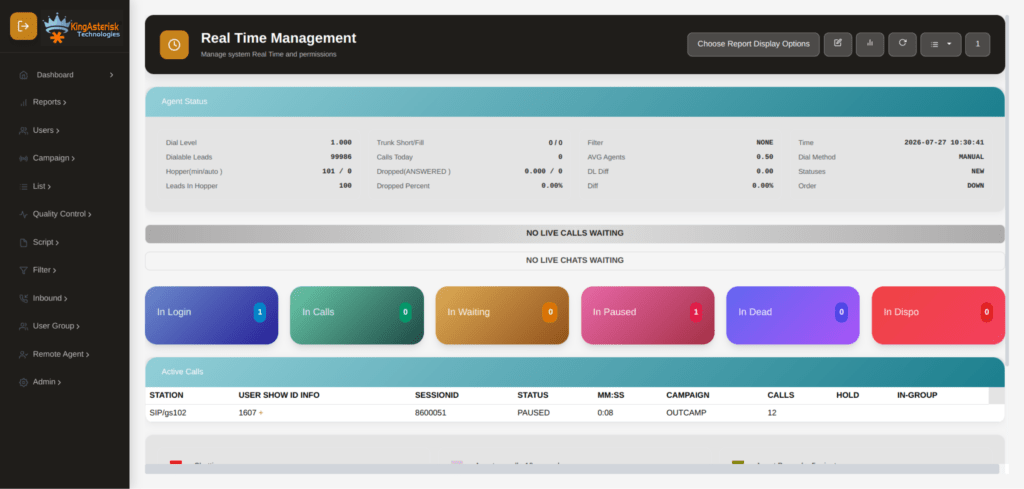
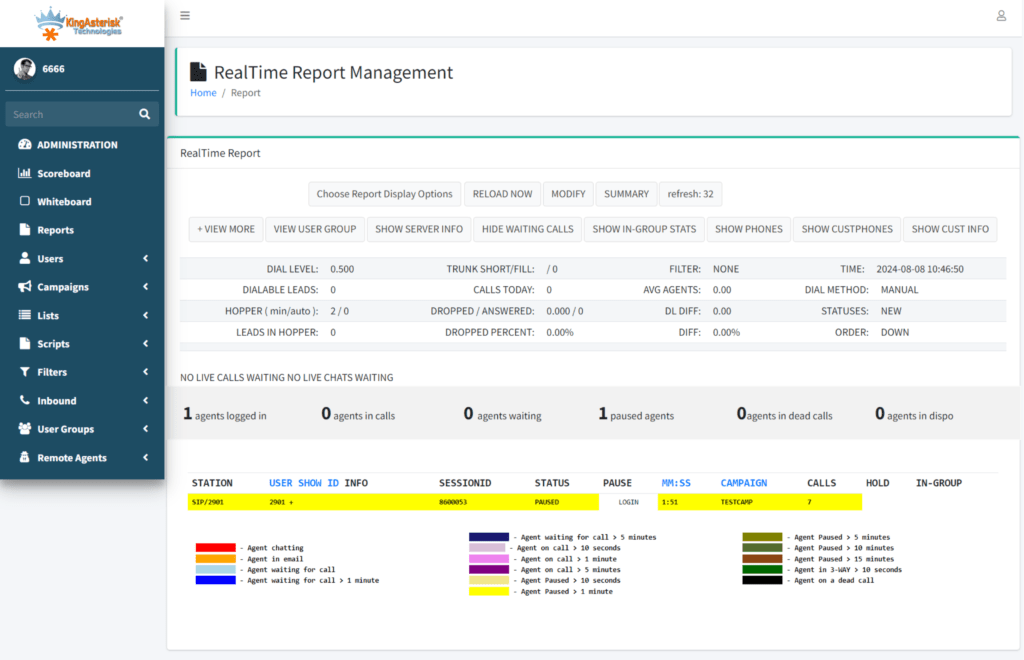
Custom VICIdial Real time Report

Real-World Use Case: 500+ Calls Per Hour in a Debt Recovery Operation

A regional debt recovery firm running a 45-agent blended team migrated their legacy dialer to VICIdial with a KingAsterisk custom interface deployment. Their previous system capped practical outbound volume at roughly 280–310 calls per hour due to rigid dial ratio settings and no API lead injection capability.

After migration, the team configured three simultaneous predictive campaigns with a 2.0 to 2.4 dial ratio per campaign, a hopper level of 80 leads per campaign, and an automated CRM connector using the Non-Agent API to push new recovery accounts directly into the active list every 30 minutes. SIP trunk capacity was expanded to 110 concurrent channels across two carriers.

Within the first billing cycle, the operation recorded a consistent average of 547 outbound call attempts per hour across active campaign hours. Agent talk time utilization increased from 52% to 74%. Dead call rate held at 1.8% – well within acceptable thresholds. The Agent Time Detail Report, restricted to supervisor-level users via User Groups, gave floor managers live visibility into individual agent performance without requiring full admin access.

🖥️ Watch It in Action : Live Demo of Our Solution!

Frequently Asked Questions

VICIdial supports predictive dialing (multiple simultaneous dials per agent, ratio-driven), power dialing (one dial per available agent), and progressive dialing (dial only after agent confirmed available). Additionally, manual dial mode and preview dial mode allow agents to initiate or review calls individually – typically used for sensitive or high-value contacts where automated dialing is inappropriate.

Yes. VICIdial is an open-source auto-dialer and contact center suite built on Asterisk. It handles outbound predictive, power, and progressive dialing alongside inbound ACD queuing, IVR routing, real-time reporting, and CRM integration. It is widely deployed by BPOs, lead generation companies, collections operations, and enterprise customer support teams globally.

A dead call occurs when an outbound call connects – reaching a live answer – but no agent is available to receive it within the configured wait period. The system plays a brief message or silence and ends the call, logging it as a DEAD disposition. Dead calls typically indicate an overly aggressive dial ratio. Keeping the rate below 3% is standard practice to maintain quality and reduce regulatory exposure.

Yes. The Non-Agent API’s add_lead function inserts new records directly into an active list, and those records enter the hopper on the next refresh cycle – which runs continuously during an active campaign. There is no need to pause or restart the campaign. This makes the Non-Agent API particularly valuable for real-time lead routing from web forms, CRM triggers, or third-party data vendors feeding a live operation.

Conclusion

Running VICIdial scheduled outbound calls at 500+ per hour is not a matter of luck or raw server power – it is the result of deliberate configuration across every layer of the system: dialing mode selection, hopper sizing, trunk capacity, campaign settings, and real-time reporting feedback. The Non-Agent API removes the manual bottleneck from lead management, while VICIdial’s User Group permission system keeps supervisors focused without overexposing administrative controls. Dead call rates and disposition data are your operational compass – monitor them continuously and adjust dial ratios accordingly.

If your contact center operation is not consistently hitting its outbound throughput targets, the configuration details covered in this guide are the right place to start. KingAsterisk’s team of senior engineers has deployed and optimized VICIdial environments across dozens of industries and operational scales. 

Contact us to discuss your setup requirements and discover what your current infrastructure is actually capable of.

KINGASTERISK_NOTE
How VICIdial Handles Every Call Complete Setup & Integration Guide
Vicidial Software Solutions

VICIdial Setup & Integration Guide: How VICIdial Handles the Calling Process

How VICIdial Handles Every Call Complete Setup & Integration Guide

VICIdial setup integration is the foundation every contact centre operator needs to get right before a single call is placed. When a client came to KingAsterisk with a straightforward requirement – deploy VICIdial so that the platform itself handles every stage of the calling process, from lead pickup to agent wrap-up.

It surfaced a set of questions that dozens of operations managers face: What hardware do I actually need? How do I wire in my CRM? Where does IVR fit? 

This guide answers all of that, drawing on the real configuration work our engineering team delivered for that engagement.

We cover server architecture, IVR design, dialer campaign logic, CRM connectivity, and the subtle differences between deployment approaches – so that by the end you can evaluate, plan, and execute your own rollout with confidence. 

What Is a VICIdial Server – and What Does It Actually Do?

A VICIdial server is a Linux-based telephony application server that combines an Asterisk PBX engine, a MySQL/MariaDB database layer, and a browser-accessible agent interface into a single, self-contained platform. Unlike hardware PBXs or proprietary dialler appliances, VICIdial is open-source, fully customisable, and purpose-built for high-volume outbound and inbound contact centre workflows.

The server handles call origination (instructing carriers to dial a number), call routing (connecting answered calls to available agents), real-time monitoring (supervisor dashboards, barge, and whisper), and historical reporting – all within the same process. This tight integration is precisely why VICIdial setup integration must be planned holistically rather than assembled piecemeal.

Core Components Inside VICIdial

  • Asterisk PBX – processes SIP signalling and RTP media streams
  • VICIdial Web Interface – PHP/JavaScript front-end for agents and managers
  • MySQL/MariaDB – stores leads, dispositions, recordings metadata, and campaign config
  • Perl-based dialler daemon – executes predictive, power, and progressive dialling algorithms
  • Apache/Nginx – serves the agent and admin portals
🎯 Deployment Advice : Custom Asterisk Theme with Source Code

VICIdial Server Requirements: Hardware, OS & Network

Undersizing the server is the single most common mistake new deployments make. VICIdial is not resource-light – real-time audio processing, active database writes per call event, and concurrent web sessions all demand headroom.

Minimum Hardware Specifications (Production Deployments)

ComponentRecommended Specification
CPU 8-core / 16-thread (Intel Xeon or AMD EPYC preferred)
RAM 16 GB minimum; 32 GB for campaigns above 50 concurrent agents
Storage SSD – 200 GB+ for OS, database, and call recordings
Network 1 Gbps dedicated NIC; low-latency uplink to carrier
OS CentOS 7 / AlmaLinux 8 or 9 (officially supported base)
Asterisk Asterisk 16 LTS or 18 LTS (bundled with ViciBox)

Network Considerations

SIP Protocol quality directly impacts call clarity and AMD (Answering Machine Detection) accuracy. Ensure your upstream bandwidth allocates at least 100 kbps per concurrent call (G.711 codec) and that QoS policies prioritise RTP packets. Firewall rules must open UDP 5060 (SIP) and the RTP port range (typically 10000–20000) to your carrier’s IP block.

âš  IMPORTANT
Every VICIdial Deployment Is Unique
Every VICIdial deployment is different in its own way. Server specifications, IVR configuration, CRM integration, campaign setup, and other settings are customized based on your business requirements. The major decision factors include call volume, concurrent agents, and your complete business workflow.

ViciBox vs VICIdial: Clearing Up the Confusion

This is arguably the most common point of confusion for teams evaluating the platform for the first time. Here is the essential distinction: VICIdial is the application – the dialler, the agent interface, the reporting engine. ViciBox is a pre-built OS image (based on openSUSE) that automates the installation of VICIdial and all its dependencies onto a bare-metal or virtual machine.

Choosing ViciBox simply means you are using a ready-configured Linux environment rather than performing a manual dependency installation on AlmaLinux. The VICIdial codebase running inside both environments is identical.

When to choose each approach

Quick Deployment
ViciBox ISO

Fastest path to a working installation on supported hardware. Ideal for teams without a dedicated Linux administrator.

Enterprise Ready
Manual AlmaLinux Build

Gives engineers precise control over kernel version, storage layout, and security hardening—preferred for enterprise deployments with strict compliance requirements.

How to Set Up IVR in VICIdial

VICIdial handles IVR (Interactive Voice Response) natively through Asterisk dialplan extensions. Unlike bolt-on IVR systems that require a separate server and API bridge, VICIdial’s IVR lives inside the same Asterisk instance that processes your outbound and inbound calls – which means there is no latency gap between IVR traversal and agent connection.

Step-by-Step IVR Configuration

Step 1 – Define your inbound DID: In the VICIdial admin, navigate to Admin > Inbound DIDs and create an entry pointing to your phone number.

Step 2 – Create an IVR menu: Go to Admin > Phone IVR Menus. Set the greeting audio file (WAV, 8 kHz mono), define the digit-to-action mapping (e.g., press 1 – Sales queue, press 2 – Support queue, press 0 – agent).

Step 3 – Link options to in-groups: Each IVR branch should map to a VICIdial In-Group. In-Groups are essentially ACD queues with their own hold music, agent skill routing, and overflow logic.

Step 4 – Set no-input and invalid-digit handlers: Always define a fallback action (re-play message, transfer to default group, or disconnect) to avoid dead air.

Step 5 – Test with a soft-phone: Dial the DID from a SIP soft-phone, walk through each branch, and verify agent screen-pop fires correctly on connection.

Advanced IVR Capabilities

VICIdial’s dialplan supports AGI (Asterisk Gateway Interface) scripts, meaning you can inject database lookups or external API calls into the IVR flow – for instance, reading a caller’s account number from your CRM before routing them to the correct team. This AGI layer is what separates a basic menu from a genuinely intelligent routing engine.

Vicidial Admin Panel

Understanding the Calling Process: From Lead to Disposition

The calling process in VICIdial follows a well-defined sequence that the platform manages entirely autonomously once a campaign is configured and agents log in. Understanding this sequence is essential for diagnosing issues and optimising performance.

The Call Lifecycle

Lead injection – Leads are imported into a VICIdial list via CSV upload, MySQL direct insert, or API. Each lead record carries custom fields that can be surfaced on the agent screen-pop.

AMD screening (optional) – Answering Machine Detection analyses early audio to separate human answers from voicemail greetings, dropping machine-answered calls or routing to a drop-message audio file.

Agent connect – On a confirmed human answer, the platform bridges the remote party to the next available agent. The agent web interface receives a screen-pop displaying the lead record in real time.

Wrap-up and disposition – The agent selects a disposition code (Sale, Callback, No Answer, DNC, etc.) and optionally reschedules a callback. The dialler updates the lead status in the database immediately.

Supervisor oversight – Real-time dashboards display calls in progress, agent states, lines in use, and campaign progress. Supervisors can silently monitor, barge in, or whisper to any active agent.

VICIdial CRM Integration – Including Vtiger

One of the most requested enhancements in any VICIdial deployment is tight CRM connectivity. Agents should never have to navigate between two separate interfaces – lead data, history, and outcomes must flow automatically.

Native Framed CRM (Embedded Web Panel)

VICIdial’s built-in embedded browser frame can load any web-accessible CRM page, auto-populating URL parameters with the lead’s phone number, name, custom fields, and campaign ID. This is the fastest integration path and requires no custom coding – simply configure the ‘VICIdial Custom CRM URL’ in the campaign settings.

Vtiger Integration with VICIdial

Vtiger’s open-source edition exposes a REST API that pairs well with VICIdial’s AGI and callback hooks. A typical Vtiger integration with VICIdial works as follows:

Inbound lookup: When a call arrives, an AGI script queries Vtiger’s Contacts module by caller ID. If a match is found, the contact record ID is passed to the agent screen-pop URL, opening the correct Vtiger record automatically.

Disposition sync: On agent wrap-up, a VICIdial callback (configured under Admin > Campaigns > After Call URL) posts the disposition code and call duration to a Vtiger custom module or activity log.

Lead push: New leads created in Vtiger can be pushed to a VICIdial list via a scheduled cron job or Vtiger workflow, keeping both systems in sync without manual export.

For teams running proprietary or legacy CRM systems, KingAsterisk builds custom integration middleware that sits between VICIdial’s API layer and the CRM’s data endpoints – no rebuild of either system required.

Custom CRM Dashboard

Choosing the Right VICIdial Provider or Expert

VICIdial’s open-source nature means deployment support comes from the community, independent consultants, and specialist firms. The quality gap between providers is significant – a mismatched configuration on the Asterisk layer can cause audio quality issues that take weeks to diagnose if the engineer lacks deep platform experience.

What to Evaluate in a VICIdial Expert

  • Hands-on Asterisk dialplan experience – can they read and write raw dialplan extensions, or do they rely solely on GUI clicks?
  • Database administration capability – VICIdial performance tuning often comes down to MySQL index optimisation and query profiling.
  • Carrier/SIP trunk negotiation – a competent VICIdial provider will help you select and configure trunks that match your call volume patterns.
  • Compliance awareness – TCPA, DNC list management, call recording legislation; these are not optional checkboxes.
  • Post-deployment support commitment – ask about response SLAs for critical issues like dialler daemon crashes or database replication failures.

VICIdial certification is not a formal industry credential issued by a central body; it typically refers to in-house testing or vendor-specific training programmes. Always request references from comparable deployments when assessing any VICIdial expert or provider.

Real-World Use Case: End-to-End Deployment Walkthrough

Client Scenario

A financial services company operating a 60-agent outbound team needed a fully managed dialler deployment where VICIdial would own the entire calling process – from automated lead distribution to CRM record updates – without agents touching any system other than their browser-based desktop.

What We Deployed

  • Primary VICIdial server: AlmaLinux 9, 16-core CPU, 32 GB RAM, 500 GB SSD – sized for 60 concurrent SIP sessions with headroom.
  • Asterisk 18 LTS with G.711 and G.729 codecs configured to match carrier preferences.
  • Three outbound campaigns with predictive dialling, each targeting a distinct lead list segment with separate AMD sensitivity settings.
  • IVR entry point for inbound callbacks: three-branch menu routing to sales, retention, and compliance queues.
  • Vtiger integration via AGI lookup on inbound and After Call URL hook on outbound – bidirectional data flow, no manual entry.
  • Supervisor dashboard with live barge and whisper enabled for the quality team.

Outcome

Within the first production week, agent talk-time increased by 34% compared to their previous manual dialling setup. The AMD layer eliminated the majority of voicemail connections reaching agents. CRM records updated in under two seconds post-disposition, removing a data-entry step that previously added 45 seconds to every agent’s average handling time.

🖥️ Watch It in Action : Live Demo of Our Solution!

Frequently Asked Questions

For a production deployment handling up to 30 concurrent agents, the baseline is an 8-core processor, 16 GB of RAM, an SSD-backed storage volume of at least 200 GB, and a 1 Gbps network interface with low-latency access to your SIP carrier. Larger teams – 50 agents or more – should plan for 32 GB of RAM and a second server for database separation or high-availability failover.

VICIdial is the application stack: the dialler, the agent interface, the reporting engine. ViciBox is a pre-built OS image (openSUSE-based) that installs and configures VICIdial and all its dependencies automatically. They are complementary: ViciBox is an installation vehicle, not a different product. The VICIdial software running inside a ViciBox deployment is the same codebase as a manual installation.

IVR in VICIdial is configured through the Admin panel’s Phone IVR Menus section. You upload greeting audio files, map keypad inputs to VICIdial In-Groups (ACD queues), and define no-input or invalid-digit fallback actions. For dynamic routing – reading caller data from a database before routing – you extend the dialplan with an AGI script that queries your back-end systems before presenting the menu.

Vtiger connects to VICIdial through two hooks: an AGI script that queries Vtiger’s REST API on call arrival to pull the matching contact record into the agent screen-pop, and an After Call URL that posts the agent’s disposition and call metadata back to Vtiger once the call ends. This creates a closed loop where neither system holds stale data and no agent needs to switch applications during their workflow.

Conclusion

A well-executed VICIdial setup integration does more than put a dialler on a server – it creates a calling operation where technology, workflow, and data all move in the same direction at the same time. From correctly sizing your VICIdial server and understanding the ViciBox vs VICIdial distinction, to designing an IVR that routes intelligently and wiring your CRM so agents never break their rhythm, every layer of the configuration compounds into measurable efficiency.

The client scenario we described is not unusual – most teams have the right instinct (let the platform handle the complexity) but underestimate the configuration depth required to achieve it. Whether you are evaluating VICIdial for the first time or inheriting a deployment that is not performing, the architectural decisions described in this guide are the ones that separate a stable, high-throughput dialler from a problematic one.

Ready to deploy or optimize your VICIdial environment?

KingAsterisk’s engineering team has delivered VICIdial setup and integration projects across financial services, healthcare, logistics, and retail – from single-server deployments to multi-node, high-availability architectures. Contact us to discuss your requirements and get a deployment assessment tailored to your call volume, team size, and CRM ecosystem.

KINGASTERISK_NOTE
How to Build a Custom Asterisk Theme with Source Code
Asterisk Development Solutions

How to Build a Custom Asterisk Theme with Source Code: Complete UI Customization Guide

How to Build a Custom Asterisk Theme with Source Code

A custom Asterisk theme is the fastest way to transform a generic dialer interface into a purpose-built tool your agents actually want to use. If your team has struggled with a confusing default Asterisk Development UI – mismatched branding, cluttered panels, or a layout that slows down wrap-up time.

This guide walks you through every layer of the customization stack: from directory structure and stylesheet overrides to template hooks and VICIdial-specific theme integration. No vendor lock-in, no rebuilding core logic, just clean front-end control over a platform you already own.

Why the Default Asterisk UI Falls Short in High-Volume Environments

Out of the box, the Asterisk Management Interface (AMI) and its accompanying web panels are built for administrators – not for agents handling 300+ dials a day. The default layout prioritizes system diagnostics over agent workflows. Color contrast is poor, call disposition buttons are buried, and there is zero accommodation for brand identity.

For contact centers running VICIdial on top of Asterisk, this creates a double problem: VICIdial ships with its own agent screen (agc/), which inherits minimal styling, while the backend admin panel (vicidial/) has an entirely different visual language. Agents switching between screens lose time and make more errors.

A well-executed custom Asterisk theme solves both: it unifies the visual language, surfaces the controls agents use most, and gives your operations team a UI they can actually maintain over time.

Vicidial Admin Panel
Admin dashboard- theme 2

Understanding the Asterisk Web UI Architecture

Before writing a single line of CSS, you need to understand what you are customizing and where those files live on the server.

The Core File Structure

A standard VICIdial + Asterisk deployment on a LAMP stack organizes its web-facing files under /srv/www/htdocs/ (or /var/www/html/ depending on your distro). The directories that matter for theming are:

  • /vicidial/ – Admin and supervisor panel PHP files
  • /agc/ – Agent interface (the screen agents stare at all day)
  • /agc/images/ – Default image assets
  • /agc/css/ (or inline <style> blocks in agent.php) – Presentation layer
  • /vicidial/images/ – Admin panel assets

Asterisk itself does not serve the web UI directly – that responsibility falls to Apache (or Nginx). The telephony engine communicates with the PHP layer via AMI socket connections, which means your theme changes never touch Asterisk’s core configuration. That separation is important: you can iterate on the UI without restarting Asterisk or risking dial-plan integrity.

Where Styling Lives in VICIdial

VICIdial does not use an external stylesheet exclusively. A significant portion of visual rules are embedded directly inside PHP-generated HTML. This means a true custom theme requires both: (a) an overriding stylesheet loaded after the default rules, and (b) targeted edits to specific PHP template files. Attempting to theme VICIdial with CSS alone will get you 60–70% of the way there; the remainder needs template-level work.

Setting Up Your Custom Theme Directory

The safest approach is to keep your custom theme files isolated from the VICIdial core so that software updates do not wipe your work. Here is the directory structure we recommend at KingAsterisk for every custom theme deployment:

/agc/themes/[your-theme-name]/ 

By placing everything under /agc/themes/, you create a clean separation of concerns. When VICIdial releases an update, your customization directory is untouched. A single include line at the bottom of agent.php loads your theme on top of the defaults.

Linking Your Theme Stylesheet

Open agc/agent.php and locate the closing </head> tag. Add the following line directly before it:

<link rel="stylesheet" href="themes/your-theme-name/theme.css">

Loading your stylesheet last guarantees that your rules override the inline and default styles VICIdial generates. Specificity battles are minimized because you are working at the end of the cascade.

🎯 Deployment Advice : Vicidial Agent Web Login Guide

CSS and Template Customization: Layer by Layer

Vicidial Agent Theme
Vicidial Agent Screen

Targeting the Agent Panel Layout

The VICIdial agent screen is divided into several functional zones: the top status bar, the dialing controls section, the script/form area, and the disposition buttons. Each maps to a predictable set of HTML IDs and class names that persist across VICIdial minor versions. Key selectors to override include:

  • #agent_status_bar – Top strip showing agent name, campaign, and status
  • #vicidial_form  – The main call form and script pane
  • .DONTHANG, .CLOSER – Disposition button classes
  • #hupall_button – The hang-up / end-call control
  • .agent_screen_body – Overall body wrapper for the agent view

Keep your overrides specific but not over-qualified. Avoid using !important wherever possible – if you find yourself relying on it heavily, your stylesheet load order is likely wrong.

Responsive Adjustments for Supervisor Screens

Supervisors monitoring live calls often use wider monitors or split-screen setups. Add a media query block in theme.css that expands the status grid at breakpoints above 1400px. This is especially useful for real-time dashboard views where agents-per-row density matters for floor managers.

Integrating a Custom Theme with VICIdial

VICIdial themes differ from pure Asterisk web UI themes because VICIdial generates much of its HTML server-side via PHP. That means some visual elements – button labels, color-coded statuses, form field widths – are controlled by PHP variables rather than CSS classes.

PHP Template Hooks

In vicidial/admin.php and agc/agent.php, look for the VICIDIAL_THEME constant (or its equivalent string in older builds). Some deployments expose this as a database setting in the system_settings table. Setting a theme name here lets VICIdial conditionally load theme-specific PHP partials:

define('VICIDIAL_THEME', 'kingasterisk-default');

Custom Asterisk Theme Download – Packaging for Reuse

Once your theme is stable, package it as a compressed archive for repeatable deployment across multiple servers or clients. A clean custom Asterisk theme download package should include: the /themes/ directory, a README with load-order instructions, a themes-config.sql snippet for any database-driven settings, and a rollback script that restores the original include line in agent.php.

For teams evaluating options before committing to a full build, a custom Asterisk theme free starter kit – containing variables, a base stylesheet, and placeholder icons – gives developers a working foundation without starting from a blank file.

Real-World Example: Roofing Contact Center UI Overhaul

One of our clients – a roofing services company operating a 60-seat outbound operation on VICIdial with a proprietary CRM – came to KingAsterisk with a specific complaint: agents were regularly clicking the wrong disposition button because the color scheme of the default interface made active-call controls indistinguishable from post-call actions.

Their agents worked two distinct roles: appointment setters and quality verification callbacks. Both roles used the same VICIdial instance but different campaigns. The default UI gave no visual cue about which role context an agent was in.

The custom Asterisk theme we built for them introduced two role-specific color palettes loaded dynamically based on the campaign ID returned at login. Appointment setter screens used a cool blue-grey palette with large, high-contrast disposition buttons. Verification agents got a warm neutral theme with a condensed layout optimized for rapid form entry.

The result: average after-call work time dropped from 38 seconds to 23 seconds within the first two weeks. Floor supervisors reported fewer misdisposition incidents in the first month of rollout. The entire theme – from first CSS commit to live deployment – took four working days.

Troubleshooting Common Custom Web UI + Asterisk Dialer Issues

Theme changes not appearing? Work through this checklist before diving into code:

Browser Cache Is Serving the Old Stylesheet

Append a cache-busting version query string to your stylesheet link: theme.css?v=1.0.4. Increment the version number on every deployment. For production environments, automate this with a build step that hashes the file contents.

PHP Output Buffering Stripping Your Link Tag

Some VICIdial builds use output buffering aggressively. If your <link> tag is disappearing from the rendered HTML, confirm that ob_start() is not clearing the head section before your include fires. Move your theme to a later point in the file – after the first echo statement – as a diagnostic step.

VICIdial Custom Theme Not Loading After Upgrade

VICIdial upgrades frequently overwrite agent.php. Maintain a post-upgrade patch script (a simple sed command or a PHP include wrapper) that re-injects your theme link after any core update. Document this in your runbook so on-call engineers do not lose the theme after a late-night patch.

CSS Specificity Conflicts with Inline Styles

VICIdial generates inline style attributes on certain elements – particularly status indicators and button backgrounds. These cannot be overridden by external stylesheets without !important or JavaScript. For persistent inline style conflicts, a small JavaScript snippet using MutationObserver to reapply class-based styles is cleaner than scattering important declarations throughout your CSS.

AMI Events Not Updating the UI After Theme Changes

If the visual state of the agent screen stops updating in real time after a theme modification, the culprit is almost always a JavaScript conflict – not a CSS issue. VICIdial’s agent screen uses long-polling or WebSocket connections to receive AMI event updates. If your theme JavaScript accidentally redefines a global function like refresh_agent_screen(), those updates break silently. Use namespaced function names and keep your theme JS isolated in a self-invoking function block.

đź§© Explore the Solution : Live Demo of Our Solution!

Frequently Asked Questions

Basic VICIdial themes – color palette changes, logo replacement, font adjustments – require only CSS familiarity and the ability to edit a PHP file to add one include line. More advanced themes that adjust layout structure, add role-based UI logic, or hook into AMI events require PHP and JavaScript knowledge. Teams without in-house development capability can engage KingAsterisk’s implementation team for a production-ready custom build.

The theming layer itself – your CSS, templates, and assets – is entirely yours and carries no licensing cost beyond what you already pay for your server and VICIdial installation. VICIdial is open-source under the Mozilla Public License. The cost is in development time and, if applicable, the professional services fee for a managed deployment. Starter theme files shared by the community are also freely available as a foundation.

A correctly structured theme – stored in an isolated directory and linked via a single include hook – will not break from a VICIdial update. The only risk is if an update overwrites the agent.php file that contains your include line. This is mitigated by a post-update patch script or a wrapper file approach where agent.php simply loads a version-controlled master template that KingAsterisk maintains separately.

Asterisk itself does not ship a user-facing web interface – it is a telephony engine. Web UI customization in a VICIdial + Asterisk stack means modifying VICIdial’s PHP-generated agent and admin screens, not Asterisk’s internals. VICIdial themes specifically target the agc/ and vicidial/ directories, while Asterisk configuration changes live in /etc/asterisk/ and never intersect with the visual layer.

Conclusion

Building a custom Asterisk theme is not about cosmetic preference – it is an operational decision that directly affects agent efficiency, error rates, and onboarding speed. When your dialer interface reflects the workflows your team actually follows, the technology gets out of the way and lets your agents focus on conversations.

The approach outlined in this guide – isolated theme directories, CSS custom properties, PHP template hooks, and a JavaScript-safe integration strategy – gives contact center teams a durable, maintainable UI layer that survives upgrades and scales across deployments. Whether you are starting from a custom Asterisk theme free starter kit or building a fully bespoke interface from scratch, the same structural principles apply.

KingAsterisk has deployed custom Asterisk and VICIdial themes across dozens of contact center environments – from 10-seat outbound teams to 500+ agent multi-site operations. If your current interface is costing your team time, or if you are troubleshooting a custom web UI + Asterisk dialer issue that is holding up a go-live, our engineering team is ready to help.

Ready to Build Your Custom Asterisk Theme? Contact the KingAsterisk Team!

KINGASTERISK_NOTE

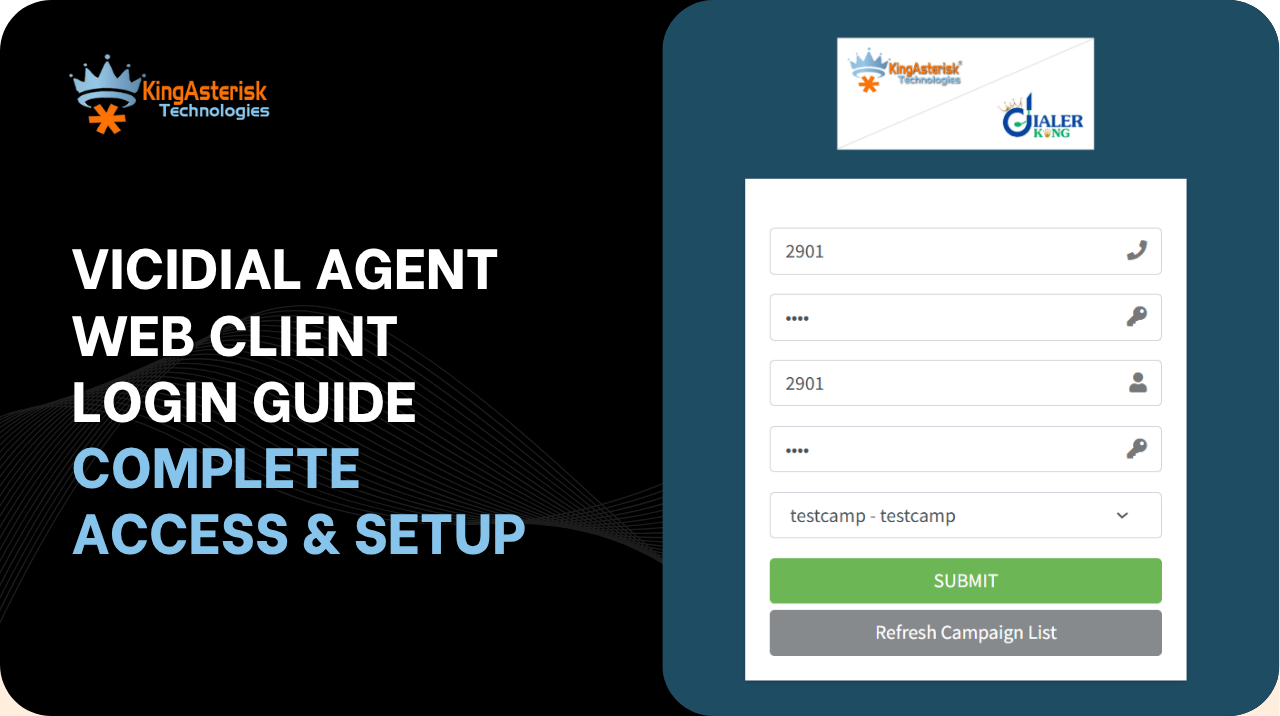
VICIdial Agent Web Client Login Guide Complete Access & Setup
Vicidial Software Solutions

VICIdial Agent Web Client Login Guide : Complete Access & Setup Overview

VICIdial Agent Web Client Login Guide Complete Access & Setup

The VICIdial agent web client login is the entry point every agent touches at the start of every shift – and when it breaks, it stops everything. This Vicidial Solution guide walks through the complete access sequence: from the browser URL to a fully active agent session, including campaign assignment, phone registration, session recovery, and the most common errors your team will run into. Whether you are deploying VICIdial for the first time or troubleshooting an access issue in a live operation, this reference covers it all.

VICIdial is one of the most widely deployed open-source contact center platforms in use today, powering outbound predictive dialing, inbound ACD queuing, and blended operations across industries ranging from healthcare collections to financial services outreach. 

Its agent-facing interface, the agent web client – runs entirely in a browser, which means there is nothing to install on agent workstations. That simplicity, however, comes with its own configuration requirements. Getting the login sequence right is foundational.

What Is the VICIdial Agent Web Client?

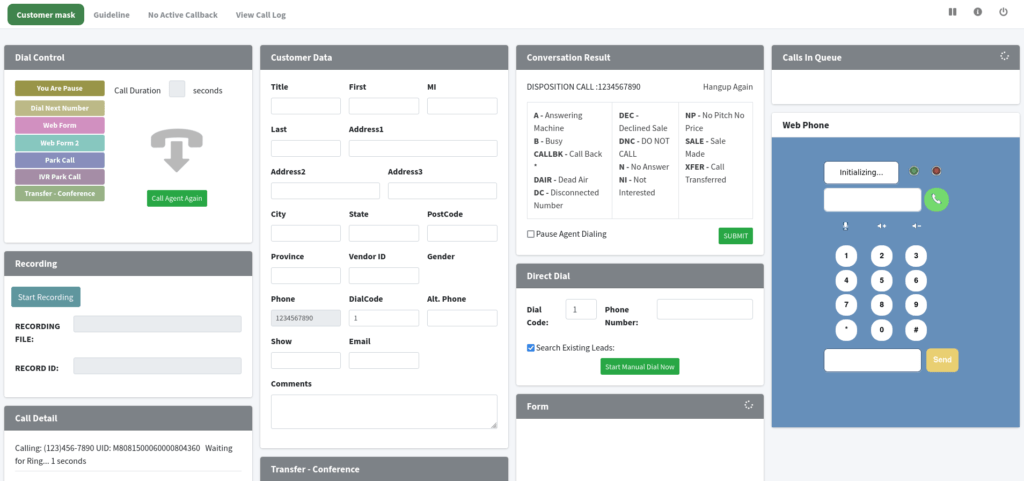
The agent web client is the browser-based interface through which VICIdial agents conduct all their calling activity. Unlike legacy thick-client dialing applications that required desktop software installation, the VICIdial agent web client runs in any standards-compliant browser – Chrome, Firefox, or Edge – making it straightforward to deploy across large agent pools without endpoint management overhead.

Behind the scenes, the agent web client communicates with the VICIdial application server over HTTP/HTTPS and with the Asterisk telephony engine over the manager interface. When an agent logs in, a session is created that binds their agent ID, their assigned campaign, and their phone channel together. Every action – answering a call, entering a disposition, moving to pause – flows through this session.

The platform supports three distinct operational modes accessible through the same login interface: outbound predictive/power/preview dialing, inbound queue handling, and blended campaigns that switch an agent between inbound and outbound automatically based on call volume. The login process is identical across all three; what changes is the campaign the agent is assigned to.

Before You Log In: Prerequisites & System Requirements

Server-Side Requirements

Your VICIdial installation must be running and accessible. Verify the following before an agent attempts to log in:

  • The VICIdial web server is up and reachable on the correct IP or hostname from the agent’s network segment.
  • The Asterisk telephony service is running and the agent’s phone extension is registered (for SIP phones) or configured (for PSTN/external lines).
  • The agent’s user account has been created in the Admin panel under Users, with an active status and an assigned user group.
  • At least one campaign is active and the agent is either in the campaign’s allowed agent list or their user group has access.

Agent Workstation Requirements

  • A modern browser – Chrome 110+ or Firefox 115+ recommended. Internet Explorer is not supported.
  • JavaScript must be enabled. The agent web client is a JavaScript-heavy application; disabling JS will break the interface entirely.
  • For browser-based softphone usage: a working microphone, headset, and WebRTC support in the browser.
  • Stable network connectivity to the VICIdial server. Latency above 150ms will affect audio quality and session stability.

Information the Agent Needs at Login

  • Agent username and password (set by the VICIdial administrator).
  • Phone login – either a SIP extension number or an external PSTN number.
  • The campaign name or code they have been scheduled to work on (in most deployments, this is pre-assigned and selectable from a dropdown).
🎨 Explore Our Custom Themes : Custom Vicidial Theme Demo

Step-by-Step: The VICIdial Agent Web Client Login Sequence

The login sequence has three distinct stages. Understanding each stage separately makes it far easier to diagnose problems when they occur.

Stage 1 – Reaching the Login Page

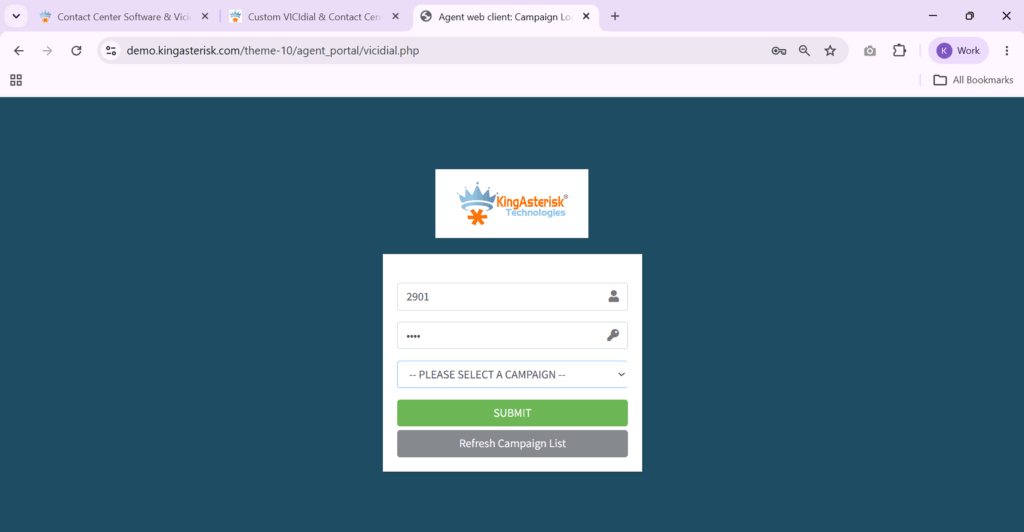
Open a browser and navigate to your VICIdial server’s agent interface URL. The standard path is:

http(s)://[your-server-ip-or-hostname]/agc/vicidial.php 

If your server uses HTTPS (recommended for production environments), ensure the SSL certificate is valid or agents will see browser security warnings that prevent the page from loading.

You will see a login form with two fields: Username and Password. These credentials are the same ones set in the VICIdial admin area under Admin > Users. The default admin credentials for a fresh VICIdial install are username: 6666, password: 1234 – but these should be changed immediately on any production system.

Stage 2 – Entering Credentials

Enter your agent username and password and click Login. VICIdial validates the credentials against its MySQL/MariaDB database. If authentication succeeds, the interface advances to the phone and campaign selection screen. If it fails, an error message is displayed on the same page.

Important: VICIdial tracks concurrent logins. If an agent’s credentials are already active in another browser session, the new login will either fail or force the previous session out, depending on your server’s configuration. This is a common source of confusion in shift-changeover scenarios.

Stage 3 – Phone and Campaign Selection

After credential validation, the agent sees a second screen where they select or confirm three things: their phone/extension, their campaign, and (optionally) their session mode. This stage is covered in detail in the following two sections.

Complete VICIdial Agent Login Workflow: From Login Screen to Ready State

The following screenshots illustrate the complete VICIdial Agent Web Client Login process that every agent follows before handling live calls. Understanding each stage helps agents log in faster, reduces common login issues, and ensures they are connected to the correct campaign with a fully registered phone.

1. Agent Login

The process begins at the standard VICIdial Agent Login page. Agents enter their assigned username and password to authenticate with the server. These credentials are managed by the VICIdial administrator and determine which campaigns and system features the agent can access. A successful login moves the user to the phone registration stage.

Agent Login

2. Phone Login & WebRTC Registration

After authentication, agents register their phone connection. Depending on the deployment, this can be a SIP extension, browser-based WebRTC softphone, or an external phone number. The system verifies that the selected phone is registered and ready before allowing the session to continue. This step establishes the voice channel that will remain active throughout the agent’s shift.

Agent Phone Login WebRTC Registration Screen phone registeredready status

3. Agent Re-Login

If a browser is refreshed, the internet connection drops, or a session times out, agents may be prompted to log in again. VICIdial securely restores access by requiring the same credentials and reconnecting the agent to the active phone session. Proper session cleanup helps prevent duplicate logins and minimizes downtime.

Agent Relogin

4. Campaign Login

Once the phone is connected, the agent selects the campaign assigned for that shift. Campaign selection determines dialing mode, call scripts, caller ID, dispositions, and routing rules. Most organizations restrict agents to authorized campaigns to ensure they handle the correct customer interactions.

5. Agent Web Client Dashboard

After completing all login stages, the agent is taken to the VICIdial Agent Web Client dashboard. This is the primary workspace where agents receive inbound or outbound calls, view customer information, update dispositions, schedule callbacks, transfer calls, and monitor their current status. A successful login ends here, with the agent fully prepared to begin handling live customer conversations.

Agent web client

Campaign Login – How Assignment Works at the Login Stage

Campaign selection during agent web client login is more than a simple dropdown choice – it defines the operational environment the agent will work in for that session. The campaign controls the dial mode, the script displayed on screen, the list of dispositions available, the caller ID presented to called parties, and the wrap-up time the agent gets between calls.

How Campaign Assignment Is Configured

In the VICIdial admin panel, campaigns are configured under Admin > Campaigns. Each campaign has an allowed ingroups list (for inbound) or a lead list (for outbound). The VICIdial administrator assigns agents to campaigns either directly or through user groups.

When an agent reaches the campaign selection screen at login, they will see only the campaigns they are permitted to access. In high-volume operations, it is common for agents to be restricted to a single campaign – the dropdown effectively has only one option – to prevent agents from accidentally logging into the wrong queue.

The Agent Web Client Campaign Login Flow

  • Agent selects campaign from the dropdown (or it is pre-selected).
  • VICIdial checks the campaign’s status – active campaigns only.
  • The agent’s session is bound to the campaign. The script, dispositions, and dialing settings all load from the campaign configuration.
  • For blended campaigns: the agent is registered to both the outbound campaign and the specified inbound ingroup simultaneously.

Phone & Softphone Setup During the Agent Web Client Login

Phone registration is the third critical input at login and the one most likely to cause confusion for new agents. VICIdial supports several phone registration methods, each with different setup requirements.

Option 1 – SIP Extension (Hardware Phone or Soft Client)

This is the most common configuration in production environments. The agent enters their SIP extension number in the phone login field. This extension must be pre-registered in Asterisk’s sip.conf or via a provisioning system. When the agent clicks Login, VICIdial instructs Asterisk to originate a call to that extension to establish the agent’s audio channel. The agent answers the call (often called the ‘keep-alive’ call or ‘agent channel’) and the line stays open throughout the session.

For SIP-based deployments, verify that the SIP port (default UDP 5060) is not blocked between the agent’s network and the Asterisk server, and that the agent’s SIP UA has registered successfully before attempting the VICIdial login.

Option 2 – The VICIdial Softphone (Browser-Based)

VICIdial includes a built-in browser-based softphone option that uses WebRTC to handle audio directly in the browser. To use it, the agent selects ‘SOFTPHONE’ as their phone type at the login screen (the exact label varies by VICIdial version). The browser will request microphone permission – this must be granted for audio to function.

Browser softphone operation requires a WebRTC-capable browser and a valid SSL certificate on the VICIdial server (browsers block WebRTC on non-HTTPS origins). This option is well-suited to remote agents or environments where deploying SIP phones is impractical.

Option 3 – External Number / PSTN

In scenarios where an agent is working from a location with only a standard phone line, VICIdial can be configured to call out to a PSTN number (a mobile or landline) to establish the agent’s audio channel. The agent enters the full PSTN number in the phone login field with the appropriate dial prefix. This method introduces additional per-call telephony costs but provides flexibility for remote or contingency setups.

Phone Login Field Formats

The format entered in the phone field depends on the method:

  •  SIP extension: numeric extension only, e.g. 8301
  •  Softphone: select from dropdown – no number entry required
  •  External PSTN: full number with any required outbound prefix, e.g. 9913005550100
🚀 We also offer live Agent Theme demos so you can explore the experience by logging in and testing it yourself before getting started. We currently have 10 different agent themes available, including options in multiple languages. You can choose the style and setup that best fits your audience and business needs.
Live Agent Demo

Re-Login: Session Recovery After a Timeout or Disconnection

VICIdial agent sessions do not persist indefinitely. A session can terminate due to inactivity timeout, browser closure, network interruption, or a server-side session cleanup. When this happens, the agent is redirected to the login page or sees a session error within the agent web client interface.

What Triggers a Session Termination

  •  Browser tab closed or refreshed during an active session.
  • Session inactivity timeout reached (configured in vicidial.conf or the server admin panel).
  • Network interruption lasted long enough for the Asterisk channel to drop.
  • Administrator forcibly logs out the agent from the admin panel.
  • Server restart or Asterisk reload during the agent’s session.

The Re-Login Process

The re-login flow follows the same steps as a normal login. Navigate to the agent web client URL, enter credentials, select campaign and phone. However, there is an important consideration: if the agent’s previous session has not been fully cleaned up on the server, VICIdial may show a ‘session already active’ warning.

In this case, the agent should wait 60–90 seconds for the server’s session cleanup routine to run, then attempt login again. If the issue persists, a VICIdial administrator can manually terminate the stuck session from Admin > Users > [Agent] by resetting the agent’s session status in the database or using the Real-Time Report to force-logout the agent’s previous session.

Preventing Unnecessary Re-Logins

  • Set appropriate session timeout values – too short causes frequent disruptions; too long leaves ghost sessions on the server.
  • Train agents not to refresh the browser during an active session.
  • Use a wired network connection where possible; Wi-Fi instability is a common cause of dropped agent channels.
  • Enable VICIdial’s built-in session keepalive pings to maintain session continuity during periods of low call volume.

The Agent Dashboard: What You See After a Successful Login

Once all three login stages complete successfully, the agent web client loads the main dashboard. This is where agents spend the entirety of their working session.

Dashboard Layout at a Glance

The dashboard is divided into functional zones. The upper portion shows the agent’s current status – Ready, Pause, or a call-specific state – along with the campaign name and their phone channel status. The central area is the script/information panel, which displays the campaign script and the called party’s information pulled from the lead record. The lower portion contains disposition buttons, callback scheduling, and transfer controls.

Agent Status Indicators After Login

  • READY – Agent is logged in and available to receive or place calls.
  • PAUSED – Agent has activated a pause code (lunch, break, training, etc.). The specific pause reason is logged.
  • INCALL – An active call is in progress. All call controls are active.
  • DISPO – Agent is in the wrap-up period, selecting a call outcome/disposition.
  • CLOSER – Agent has transferred to or received a transfer from another campaign group.

The dashboard also shows real-time statistics relevant to the agent’s session: total calls handled, average handle time, and disposition breakdown — useful for agents managing their own productivity targets.

Advanced Fix: Checking the VICIdial Logs

For errors not resolved by the table above, the VICIdial server logs are the primary diagnostic resource. Key log locations on a standard VICIdial installation:

/var/log/astguiclient/AST_LOG_[date].txt - VICIdial application layer logs

/var/log/asterisk/full - Asterisk engine logs including SIP registration and call events

/var/log/httpd/error_log or /var/log/apache2/error.log - Web server errors

Agent login events are logged with the agent ID, timestamp, IP address, campaign, and phone used. Cross-referencing these with the error timestamp is usually sufficient to pinpoint the root cause.

🖥️ See the Platform Live : Live Demo of Our Solution!

Frequently Asked Questions

Agents navigate to the VICIdial server’s agent interface URL in a browser – typically http(s)://[server-address]/agc/vicidial.php. No software installation is required. The agent enters their username and password, then selects their campaign and phone at the second screen. The entire login sequence takes under 60 seconds on a properly configured system.

The agent web client is designed for desktop browsers and does not render well on mobile screen sizes. While technically accessible on a tablet or mobile browser, the interface layout is not optimized for touchscreens and call-handling operations become cumbersome. For mobile or remote access, a laptop with a full browser and a headset is the recommended minimum setup.

The VICIdial softphone is a built-in WebRTC-based audio client that handles voice directly in the browser, eliminating the need for a separate SIP phone or soft client. At the login screen, the agent selects SOFTPHONE as the phone type. The browser establishes a WebRTC connection to the Asterisk server for audio. This requires HTTPS on the server, a valid SSL certificate, and browser microphone permission to function correctly.

First, confirm the VICIdial server is running and reachable from your network – try pinging the server IP. Check that the Apache or Nginx web service is active on the server. If the server is reachable but the page returns an error, check the web server error log. If the server is accessible from other machines but not yours, check your local firewall or network routing. Also confirm you are using the correct URL including the /agc/ path component.

Conclusion

The VICIdial agent web client login is a three-stage sequence – credential verification, campaign selection, and phone registration – and each stage has specific requirements that must be in place before the next can succeed. Agents who understand what the system expects at each step, and administrators who keep user accounts, campaign assignments, and SIP registrations properly maintained, will rarely encounter login failures.

For high-volume contact centers, login reliability directly affects shift startup time and agent utilization. A 5-minute login issue across 50 agents at shift start is 250 person-minutes of lost productivity. Getting the agent web client login process documented, tested, and streamlined is not a minor operational detail – it is a measurable efficiency factor.

If you are deploying VICIdial for the first time, migrating from an older version, or troubleshooting persistent login issues in an existing operation, the KingAsterisk team brings hands-on deployment experience across multi-site, high-agent-count environments. We handle the technical complexity so your team can focus on what matters: handling calls and serving customers.

Ready to deploy or scale your contact center platform?

The KingAsterisk team has hands-on experience deploying VICIdial across multi-site contact centers worldwide. Whether you need a fresh setup, a performance audit, or a complex multi-campaign configuration, we make it work – reliably.

Contact KingAsterisk Technologies – Let’s Talk Solutions

KINGASTERISK_NOTE