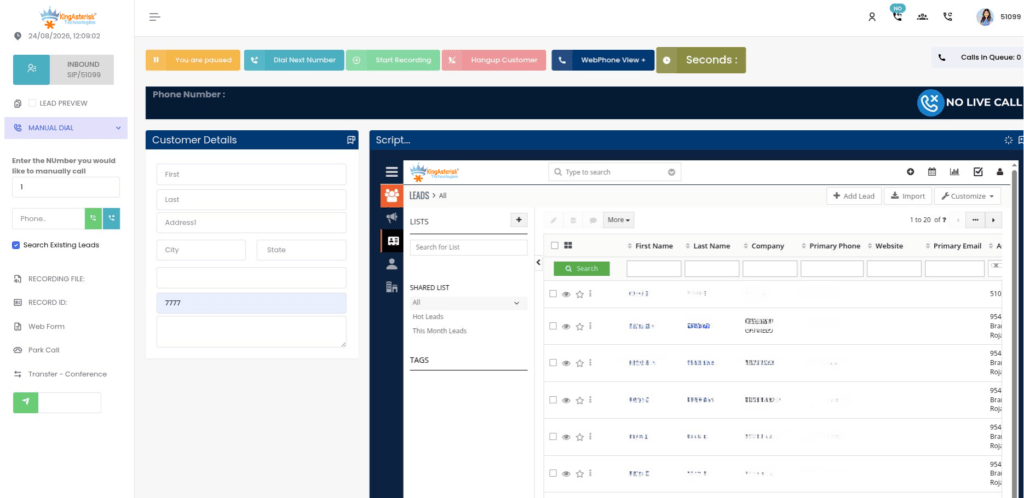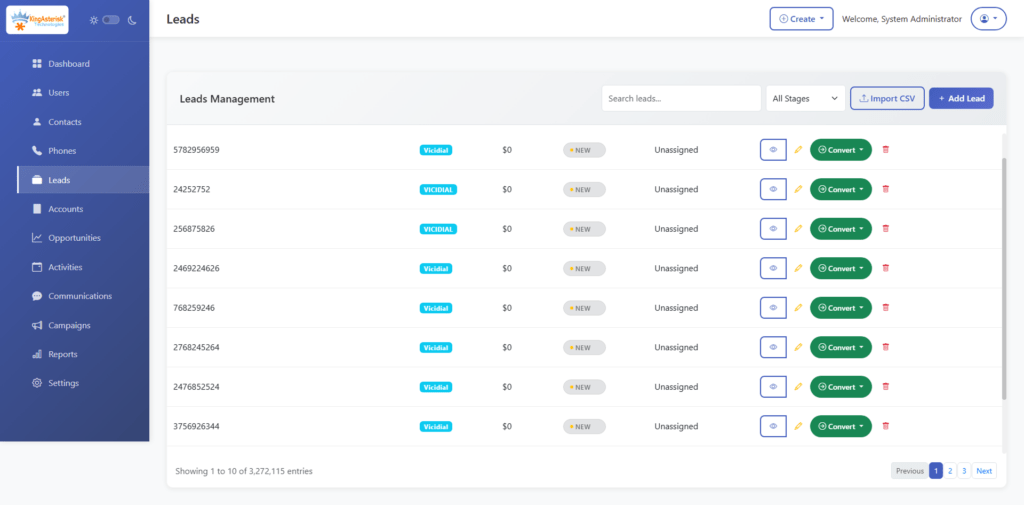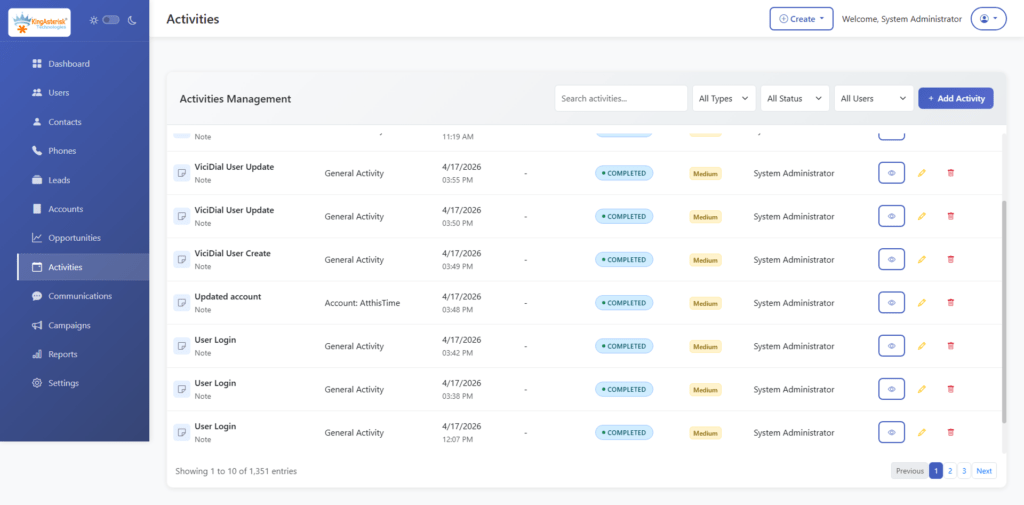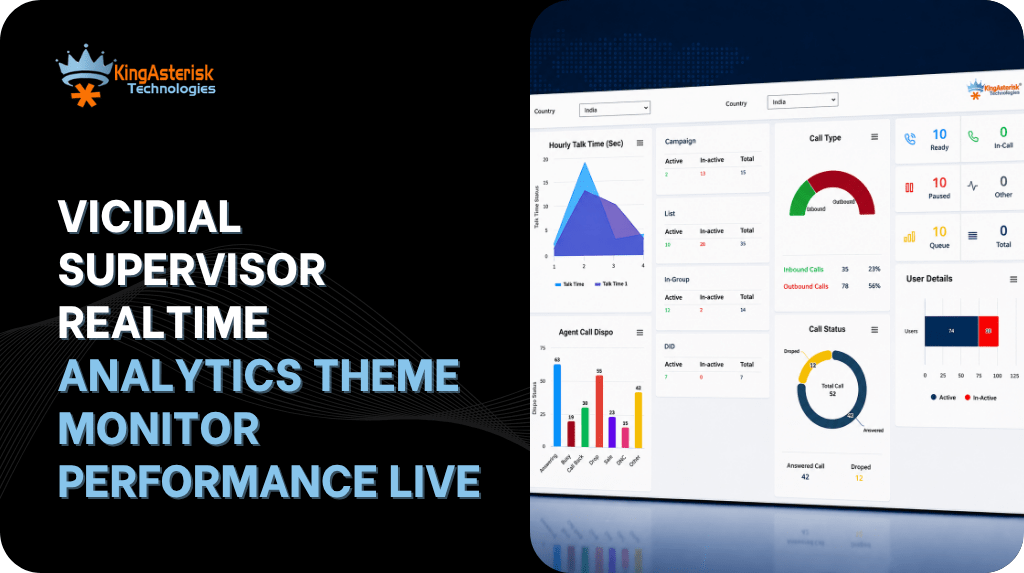

VICIdial Admin Panel The Control Center Behind Your Dialer
Vicidial Software Solutions

VICIdial Administration Explained: Key Controls for Users, Campaigns & Dialer Settings

VICIdial Admin Panel The Control Center Behind Your Dialer

VICIdial Administration is the set of controls an operator uses to manage users, campaigns, lists, and dialer behaviour from the admin panel. For businesses running outbound or inbound contact operations in Australia, getting this layer right determines whether agents can log in reliably, whether leads reach the right queue, and whether the VICIdial dialer paces calls the way the campaign manager intended.

Unlike a single settings page, VICIdial Administration is distributed across several interlinked modules: Admin, User Groups, Campaigns, Lists, Inbound Groups, and Server settings. Each module writes to specific MySQL tables (vicidial_users, vicidial_campaigns, vicidial_lists, vicidial_user_groups) and those tables are what the dialer engine reads from in real time. This article breaks down the controls that matter most for day-to-day administration and walks through a genuine troubleshooting case involving manual dialing.

VICIdial Administration

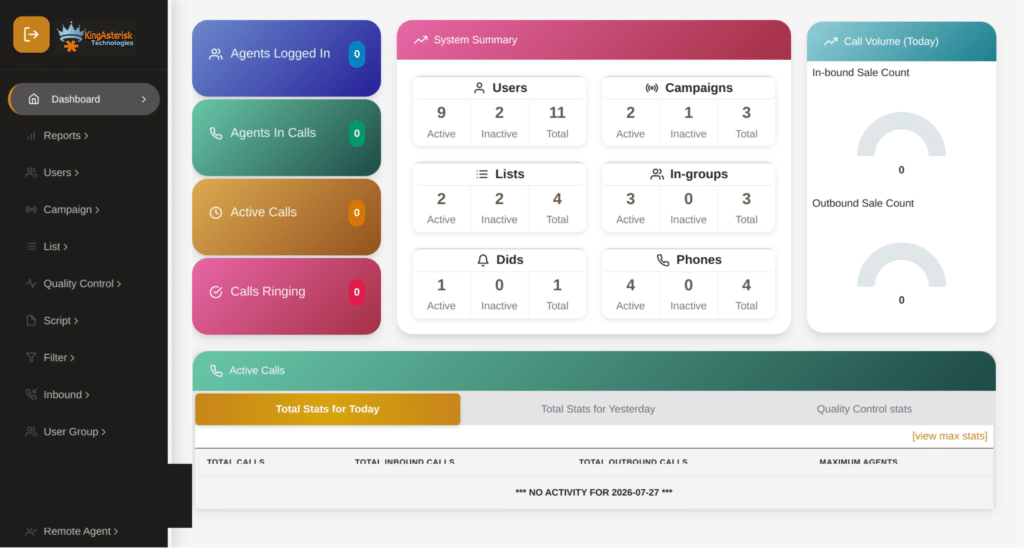
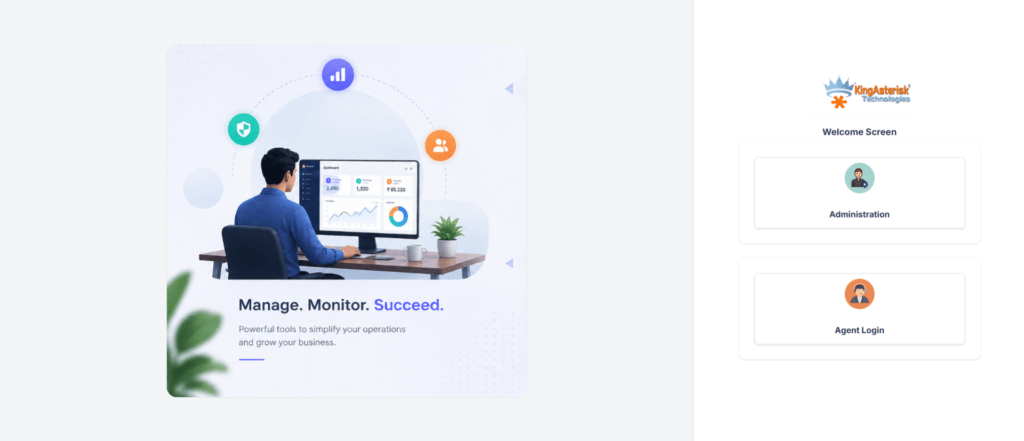
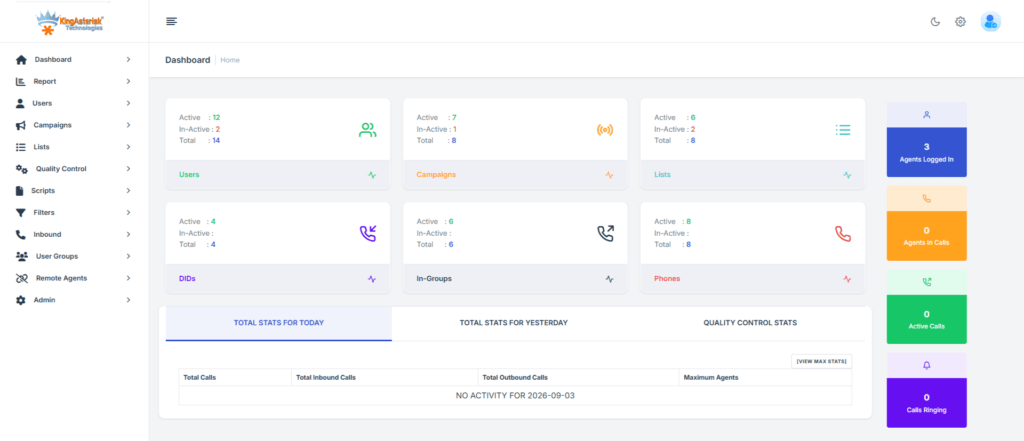
Accessing the VICIdial admin panel

On a standard installation, the administrator dashboard sits at:

http://[YOUR_SERVER_IP]/vicidial/admin.php

Default credentials are publicly documented in the open source project, which makes them the single highest-risk item in a fresh deployment. Change both the username and password immediately through Admin, then Users, then Edit User.

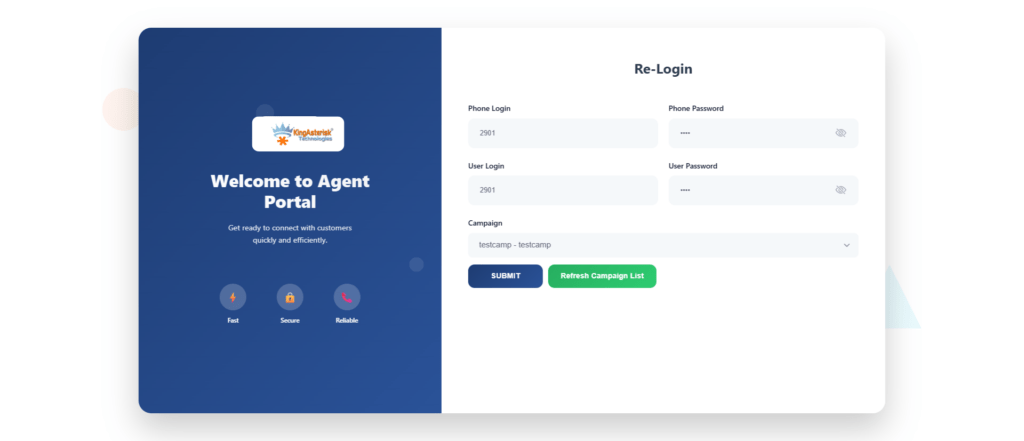
Agents log in through a separate interface, typically:

http://[YOUR_SERVER_IP]/vicidial/vicidial.php 

On custom theme deployments built by KingAsterisk, the agent path is often reorganised to something like /agent/agent.php, and the admin path to /dialer/admin.php, depending on the client’s preferred folder structure. The authentication mechanism underneath does not change; only the file path and the visual theme differ. 

If you are working from a KingAsterisk demo build, the sequence is straightforward: open the KingAsterisk website, go to the Live Demo section, choose a theme, and use the Admin button to reach the login page for that theme (for example, a Theme 5 build would expose an admin login at a path like /theme-5/dialer/admin.php).

☎️ Call Flow Insight : VICIdial Webphone: Browser Calling
VICIdial user and agent management

User Levels, User Groups, and permissions

VICIdial Administration does not use a simple admin-or-agent binary. Access is built from three layers that combine to define what a person can see and do:

User Level is a numeric value, generally from 1 to 9, where higher numbers unlock broader administrative functions. Levels 7 and 8 are commonly used for report-focused staff who need visibility without configuration rights, while full administrative functions typically sit at higher levels.

User Group determines which campaigns, lists, and reports a user can even see as options, separate from what their User Level permits them to do.

Allowed Reports and individual permission flags (View Reports, Modify Users, Modify Campaigns, Modify Lists, Delete Users, Load Leads, and similar) are set per user or per group and override the broader defaults.

A common real-world requirement is limiting a manager to a single report, such as the Agent Time Detail Report, without granting any configuration access. In VICIdial this is handled as follows:

  • Create a dedicated User Group under Admin, then User Groups (for example REPORT_USERS).
  • In that group’s settings, open Allowed Reports and select only Agent Time Detail Report, deselecting everything else.
  • Create the user under Admin, then Users, then Add User, assign them to REPORT_USERS, and set an appropriate User Level (7 or 8 is typical for report-only access).
  • In the user’s individual settings, set View Reports to 1 and set every other admin permission, including Modify Users, Modify Campaigns, Modify Lists, Delete Users, and Load Leads, to 0.
  • If several managers should each see only their own team’s data, configure Allowed User Groups within the group settings so REPORT_USERS can only pull statistics from the groups you specify.

This combination of User Level plus Allowed Reports plus Allowed User Groups is the standard pattern for granular access control in VICIdial, and it applies whether you’re restricting reporting, list access, or campaign visibility.

The underlying data lines up with the platform’s own permission model. A permissions lookup for a given user typically returns a structure similar to this:

{
  "userId": "agent001",
  "userLevel": 8,
  "permissions": {
    "modifyLeads": true,
    "deleteLeads": false,
    "downloadRecordings": true,
    "viewReports": true,
    "manageCampaigns": false,
    "manageUsers": false
  }
}

That data is derived directly from the vicidial_users table (user, user_level) and vicidial_user_groups, which is exactly why User Level and User Group are the two fields administrators should check first whenever a user reports they can or cannot see something they shouldn’t.

Roles as a shortcut, not a replacement

Larger deployments sometimes layer named roles, such as Administrator, Supervisor, or Agent, on top of the User Level and User Group structure to make onboarding faster. A role like Supervisor typically maps to a bundle of permissions such as viewing reports, downloading recordings, live monitoring, and managing callbacks, while an Agent role maps to a narrower set: making calls, updating dispositions, and viewing their own callbacks only. 

Roles are a convenience layer. Underneath, VICIdial still resolves everything back to User Level and User Group, so when a permission dispute comes up, checking those two fields directly is faster than trying to trace it through a role label.

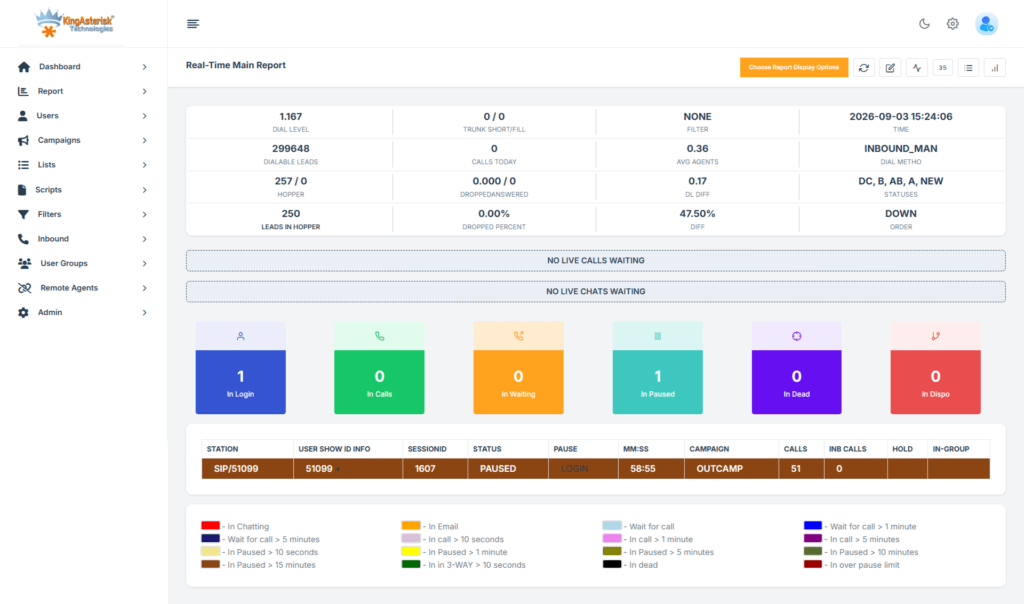
VICIdial user reports and permissions

Campaign configuration: the second pillar of administration

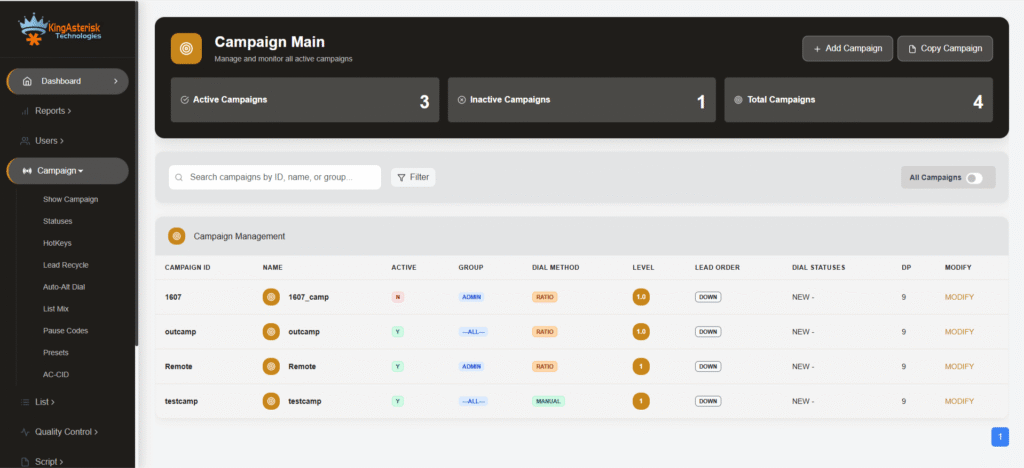
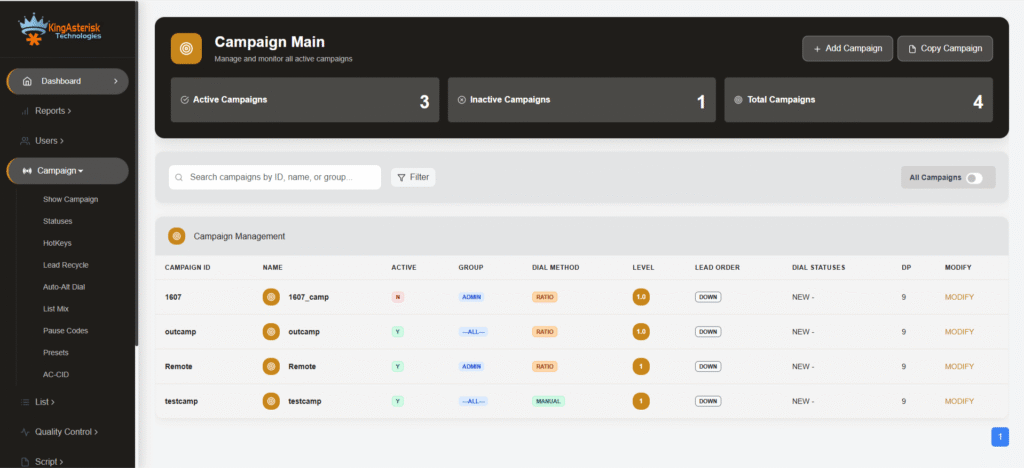
Once user access is sorted, campaign configuration is where dialer behaviour actually lives. Each campaign carries settings such as:

  • Dial method (RATIO, ADAPT_HARD_LIMIT, ADAPT_TAPERED, or manual)
  • Auto dial level, which determines how many lines the system dials per available agent
  • Available agent-only override, campaign call times, and dial statuses
  • Hopper and lead-loading behaviour for the assigned lists

These fields sit in vicidial_campaigns and are read by the dialer engine on every dial cycle. A misconfigured value here does not throw an error message. It simply changes, or stops, dialer behaviour silently, which is why campaign configuration review is one of the first steps in any dialing issue.

Case study: manual dialing not working

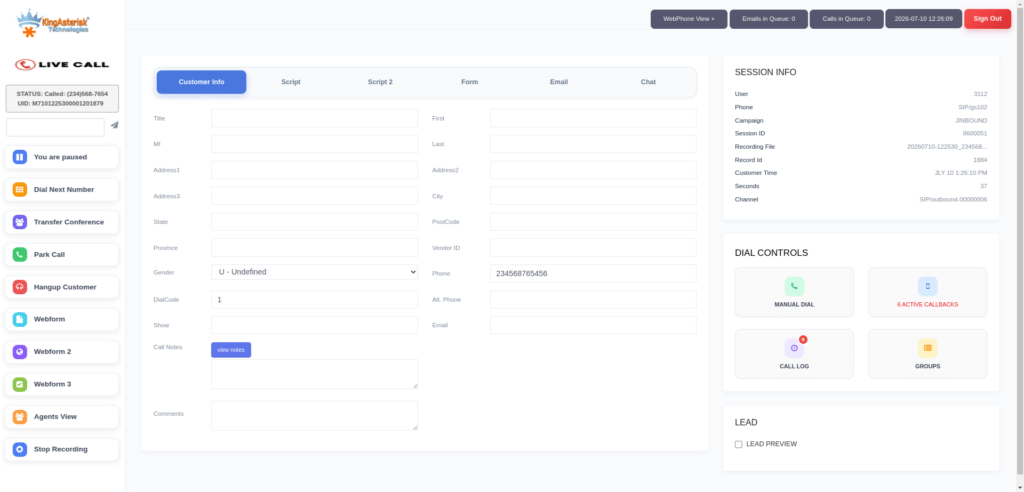
A recurring, genuinely frustrating scenario for administrators looks like this. An agent logs in successfully, is assigned to a campaign, and sees the Dial Next Number button. They click it. Nothing happens: no outbound call, no screen update, no origination on the Asterisk side, no action logged anywhere in VICIdial.

Because the agent can log in and the interface loads normally, it is tempting to suspect a network or telephony fault. In practice, this symptom sets points almost every time at campaign configuration rather than infrastructure.

Start by checking the agent’s live state directly against the database:

SELECT user, status, campaign_id
FROM vicidial_live_agents;

A result such as:

TEST_AGENT | PAUSED | SAMPLE_CAMPAIGN

immediately tells you the agent session is registered but paused, which will block manual dialing regardless of what the button appears to do on screen. If status shows as available rather than paused, the next place to look is the campaign record itself. Pull the campaign’s dial settings and check the auto dial level field:

auto_dial_level=0

An auto dial level of zero effectively tells the dialer not to place any lines for that campaign, including lines initiated manually by an agent pressing Dial Next Number in some configurations, particularly where the campaign is set to a dial method that depends on that ratio for line allocation. 

This single field is one of the most common root causes of a “the button does nothing” report, and it is invisible from the agent’s screen because there is no error state to display. There is simply no instruction reaching the originate layer.

A practical diagnostic order for this exact symptom set looks like this:

  • Confirm the agent’s live status in vicidial_live_agents is not PAUSED or in a wait state.
  • Confirm the campaign’s dial method matches what the button is meant to do (manual dialing needs the campaign correctly set for it).
  • Check auto_dial_level on the campaign record and correct it if it has been zeroed out during a configuration change.
  • Confirm the lead the agent is trying to dial has not exceeded its call count or fallen outside the campaign’s local call time window.
  • Only after ruling out the above should you look at the Asterisk origination layer itself, since the database and campaign configuration account for the overwhelming majority of manual dial failures.

This is a good general lesson for VICIdial Administration: most dialer symptoms that look like a technical fault are actually a configuration value read directly from the database. Knowing which two or three tables and fields to check first saves hours compared to working backwards from the telephony layer.

VICIdial user reports and permissions

Transfers and live call administration

Administration also extends to how agents handle live calls once dialing is working correctly. VICIdial supports two transfer types that administrators should train supervisors on:

Blind transfer sends the call immediately to another agent or department without a conversation first, and is used when there’s no need to brief the receiving party.

Attended, or warm, transfer lets the initiating agent speak with the receiving party before connecting the customer, and is the right choice when context needs to be handed over before the customer joins.

Neither transfer type requires special admin configuration beyond ensuring the destination extension or campaign is reachable and the agent’s permission set allows transfers, which again traces back to their User Level and User Group.

Server and environment requirements

Administrators planning a fresh deployment or a custom theme build should have a few environment details ready before configuration begins. KingAsterisk typically requests the ViciBox version and the SVN codebase version currently in use, since theme and customisation work is built against the existing environment rather than a generic base. 

Hardware is scoped to the expected agent count and campaign volume, with both Intel and AMD options supported. One requirement worth flagging early: an AlmaLinux server with a dedicated IP is needed from the client side before installation and configuration work can begin.

Where custom administration panels fit in

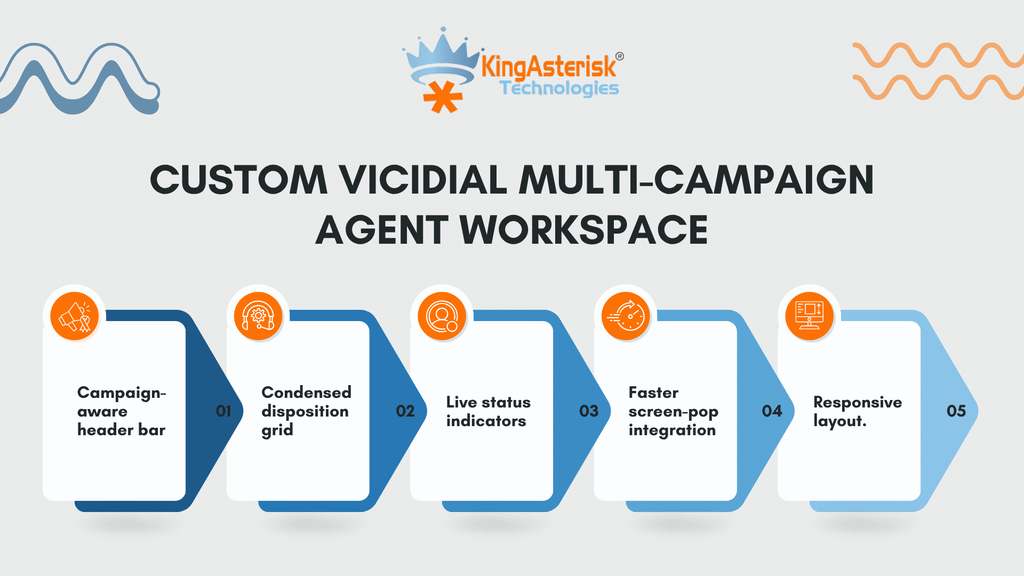
Standard VICIdial administration is fully functional out of the box, but many Australian operators running larger or multi-brand campaigns move to a customised panel for a cleaner interface without losing any underlying control. KingAsterisk builds these on modern front-end stacks, including React-based interfaces and Tailwind CSS styling, while keeping every core administrative function, campaign management, user and agent administration, list management, inbound and outbound routing, real-time reporting, carrier and trunk configuration, call recording settings, and system monitoring, fully intact underneath. 

The admin file path typically moves from /vicidial/admin.php to something like /dialer/admin.php on a custom build, but the permission model, campaign fields, and database structure described throughout this article remain the same.

🔥 Free Live Demo : Live Demo of Our Solution!

Frequently Asked Questions

What is VICIdial Administration❓

VICIdial Administration refers to the set of controls used to manage users, permissions, campaigns, lists, and dialer settings within a VICIdial deployment, typically accessed through the admin.php panel.

Where do I log into the VICIdial admin panel❓

On a standard build it’s at http://[YOUR_SERVER_IP]/vicidial/admin.php. On a custom KingAsterisk theme, the path is often reorganised, commonly to /dialer/admin.php, with credentials specific to that deployment.

How do I restrict a user to only one report in VICIdial❓

Create a dedicated User Group, limit its Allowed Reports to the single report you want visible, assign the user to that group with an appropriate User Level, and set every other admin permission flag to 0.

What controls whether manual dialing works in a campaign❓

The campaign’s dial method and auto dial level fields, combined with the agent’s live status in vicidial_live_agents. An auto dial level of 0 or a paused agent status will both block manual dialing.

What is the difference between User Level and User Group in VICIdial❓

User Level is a numeric value that sets the ceiling on what a user can administratively do. The User Group determines which campaigns, lists, and reports they can see. Both combine to define actual access.

What’s the difference between blind and warm transfer❓

Blind transfer sends the call on immediately with no conversation first. Warm transfer lets the initiating agent brief the receiving party before the customer is connected.

Get administration set up correctly the first time

Misconfigured user permissions and campaign settings are behind most of the dialer issues Australian contact operations run into after go-live. KingAsterisk sets up VICIdial administration correctly from the start, builds custom admin panels where a standard interface doesn’t fit the operation, and troubleshoots existing deployments down to the exact table and field causing the problem. 

Reach out to KingAsterisk to review your current VICIdial administration setup or plan a new deployment.

KINGASTERISK_NOTE
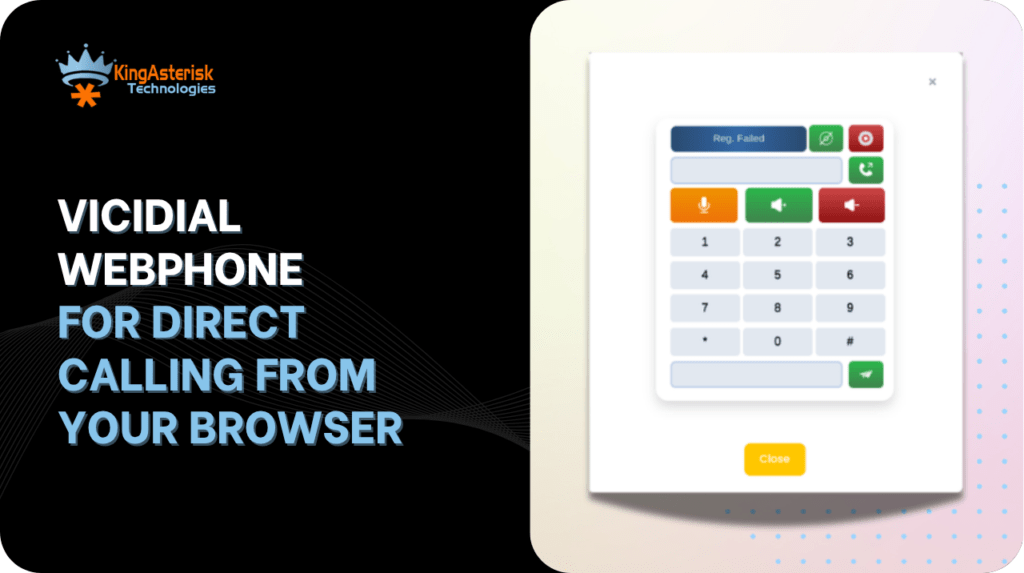
VICIdial Webphone for Direct Calling from Your Browser
Vicidial Software Solutions

VICIdial Webphone: Make Calls Directly from Your Browser

VICIdial Webphone for Direct Calling from Your Browser

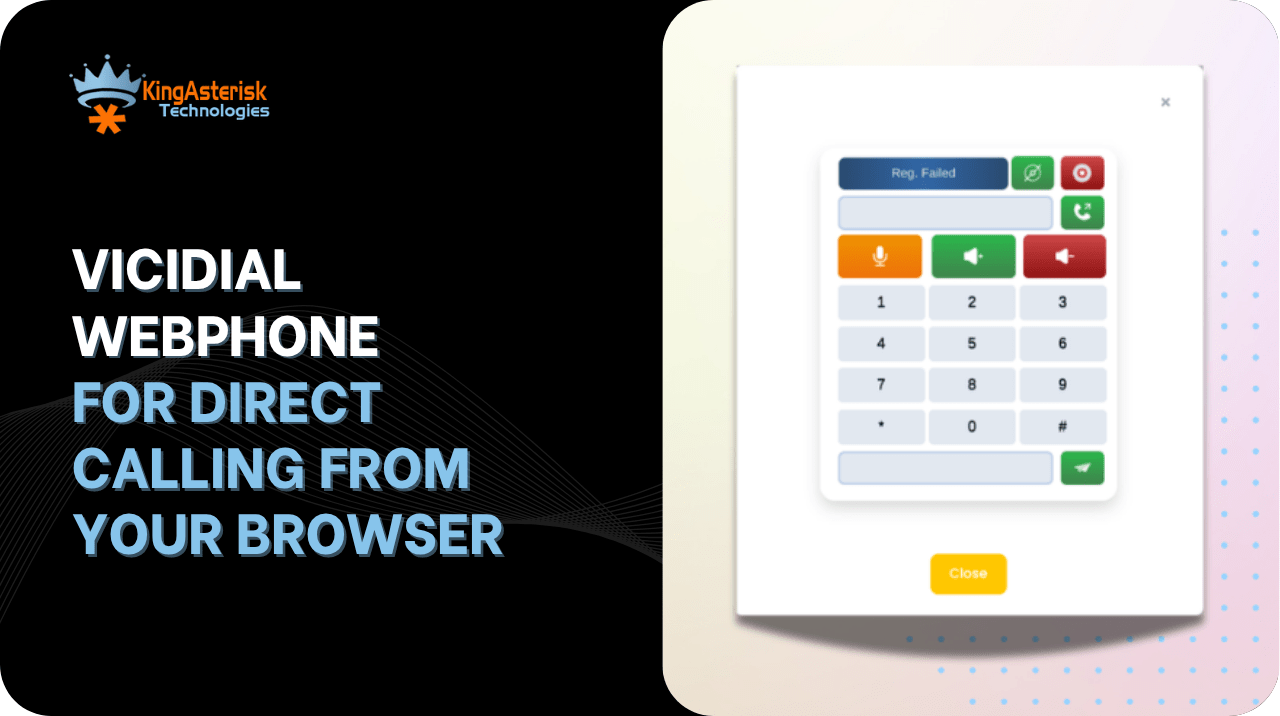
The VICIdial Webphone removes the  second application entirely. Most VICIdial deployment services in Australia still ask agents to run a desktop softphone alongside the agent screen. Two applications, two login states, two points of failure, and a support queue full of tickets that begin with “my phone disconnected but the dialler says I’m live”. 

The agent opens a browser tab, logs in, and the audio path is established by the same page that renders the lead record.

This guide covers what actually happens underneath that tab, how to configure it correctly on a production system, and how to diagnose the three failure patterns that account for most webphone tickets we see at KingAsterisk.

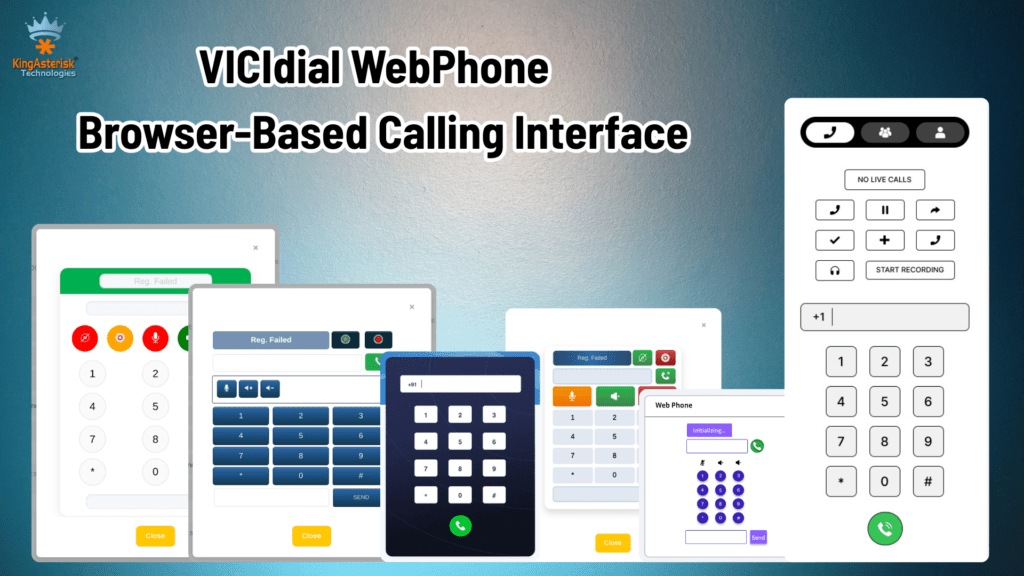
VICIdial Webphone – Browser-Based Calling Interface

What the VICIdial Webphone actually is

The term covers a browser-embedded SIP user agent written in JavaScript, typically built on SIP.js or JsSIP, delivered inside an iframe or a panel within the agent interface. It performs the same functions a hardware IP phone or MicroSIP client would perform: it registers an extension, answers an inbound leg from Asterisk, and passes media.

What changes is the transport. A desktop softphone speaks SIP over UDP or TCP and carries audio as RTP. A browser cannot open raw UDP sockets, so the VICIdial Webphone speaks SIP over WebSocket and carries audio as SRTP with keys negotiated through DTLS. Asterisk handles both sides through res_http_websocket and the transport-wss configuration in PJSIP.

For the agent, the practical effect is that the phone login field in the VICIdial agent screen and the audio device become the same session. There is no separate registration to babysit.

How the browser reaches Asterisk

The call path for a webphone agent in an outbound campaign looks like this:

  • The agent loads the agent interface over HTTPS. The webphone panel initialises and reads its extension and password from the user record.
  • The JavaScript user agent opens a WSS connection to the Asterisk server, normally wss://your-domain:8089/ws.
  • A SIP REGISTER is sent across that WebSocket. Asterisk creates or updates the contact for that endpoint.
  • VICIdial’s dialler originates a call through AMI. Asterisk places a leg to the registered WebRTC endpoint.
  • The browser answers, ICE candidates are exchanged, DTLS completes, and SRTP flows between the browser and Asterisk.

Every one of those five steps can fail independently, which is why a structured diagnosis matters more than restarting services.

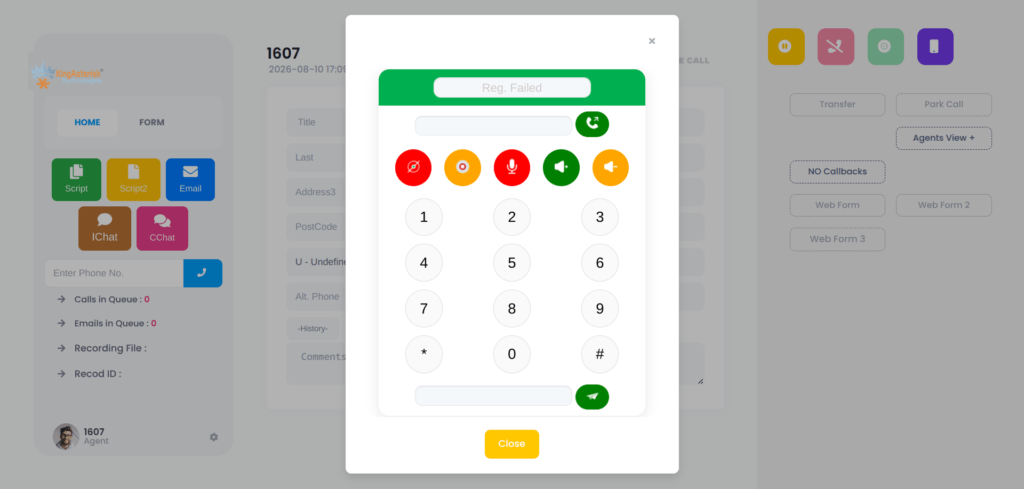
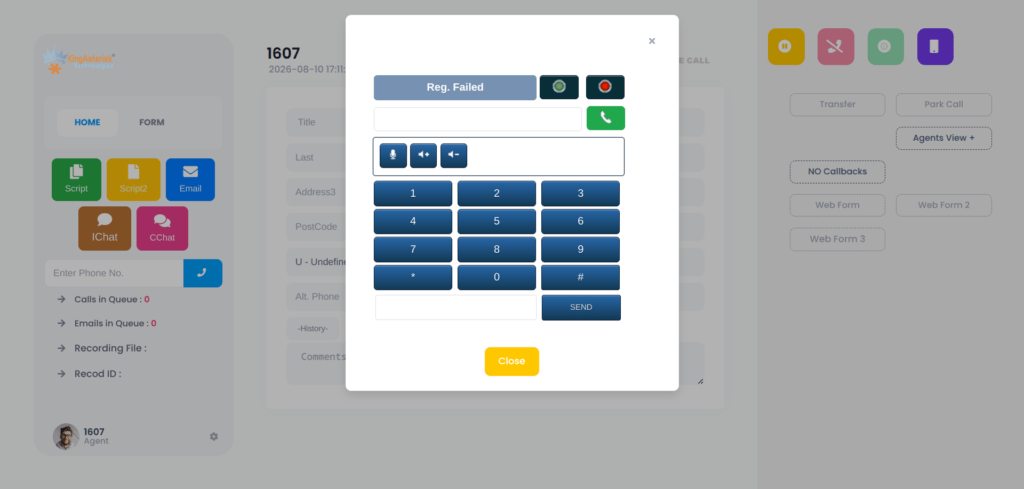
VICIdial webphone.

Server-side requirements

The webphone needs the following in place before an agent ever logs in:

  • Asterisk compiled with res_srtp, res_crypto, res_http_websocket and OpenSSL support.
  • HTTP server enabled in http.conf with TLS bound to 8089 and a certificate chain that the browser trusts.
  • A PJSIP transport of type wss, and endpoints configured with webrtc=yes, media_encryption=dtls, ice_support=yes, use_avpf=yes, and dtls_verify=fingerprint.
  • An RTP port range opened in the firewall, commonly 10000 to 20000 UDP, matching rtp.conf.
  • A STUN server entry where agents sit behind NAT.

On the platform side, we recommend AlmaLinux with a dedicated IP address supplied from the client end. Hardware is sized to the agent count and concurrency target, with both Intel and AMD options available, and KingAsterisk handles installation and configuration on the prepared server.

🚀 Connect via API : VICIdial API Documentation

VICIdial-side configuration

Inside the dialler itself, three records matter.

The phones table entry defines the extension the browser registers as, its password, the server IP it belongs to, and the protocol. For a WebRTC endpoint this must be marked as a webphone entry rather than a standard SIP device, or Asterisk will build the dial string without the WebRTC media flags.

The user record carries the webphone URL and the phone login the agent inherits at session start. Where a client runs a custom interface, the path differs from stock. 

A standard build serves the agent screen at http://[YOUR_SERVER_IP]/vicidial/vicidial.php, while a KingAsterisk custom deployment commonly serves it at /agent/agent.php or a client-specified path. Authentication logic is identical; only the file path changes.

The campaign record controls whether the webphone is used for the agent’s session and whether the browser tab is the audio endpoint for auto-dialled calls.

Verifying registration before blaming the browser

Once an agent logs in, confirm the endpoint is genuinely registered rather than assuming the green indicator in the UI is authoritative.

From the Asterisk CLI:

pjsip show endpoints
pjsip show contacts

Programmatically, the SIP Device Status API returns the same information in JSON, which is useful for monitoring dashboards and supervisor panels:

GET /api/v1/sip/devices?status=ONLINE

A typical response entry:

{
  "extension": "8601",
  "protocol": "PJSIP",
  "deviceName": "Agent 8601",
  "registrationStatus": "ONLINE",
  "ipAddress": "192.168.1.55",
  "lastSeen": "2026-07-15T15:18:40Z"
}

Registration status here is read live from Asterisk rather than from a stored configuration value, so a device that appears in the database but not in this response has never completed a WebSocket handshake.

Three failure patterns and how to work through them

1. The webphone registers but the agent never receives a call

Start with the agent state, not with telephony. Run:

SELECT user, status, campaign_id
FROM vicidial_live_agents;

A result such as:

TEST_AGENT | PAUSED | SAMPLE_CAMPAIGN

tells you the dialler will not route anything to that agent. A paused agent is excluded from the ready pool, so no auto-dialed call and no hopper lead will reach the browser regardless of how healthy the WebRTC session is. If the agent reports they clicked Resume, check whether the pause code selection completed and whether the session is writing updates at all. A stale row with an old last_update_time points to a browser tab that lost its keepalive rather than to a paused agent.

2. Auto-dialling produces nothing

Check the campaign:

Campaign: SAMPLE_CAMPAIGN
auto_dial_level=0

With auto_dial_level set to zero, the dialler places no automatic outbound attempts. The campaign is in manual mode by design. Agents in that campaign must originate calls themselves, and the webphone will sit silent and idle while appearing perfectly healthy. Before changing the value, confirm the campaign was intended to run predictive or ratio dialling. Raising the level on a campaign built for manual verification work will generate abandoned calls and compliance exposure.

3. Manual dialling does not work

This is the pattern that costs the most support time, because everything looks correct.

Symptoms: the agent logs in successfully. The webphone registers. The agent sees the Dial Next Number button and can click it. Nothing happens. There is no outbound call, no screen update, no Asterisk originate, and no VICIdial action recorded.

Work through it in this order:

  • Confirm the agent session is writing to the database. If vicidial_live_agents shows no recent update for that user, the browser is not completing its polling cycles. 
  • Check for a blocked request in the browser console, a reverse proxy stripping requests, or mixed-content blocking where the agent page is HTTPS but an internal request is HTTP.
  • Confirm the campaign permits manual dialling and that the agent’s permissions include it. The Agent Skills API exposes this directly:
GET /api/v1/agents/{agentId}/skills

A permissions array containing ManualDial confirms the entitlement exists.

  • Confirm the hopper has leads available for the list the campaign is using. Dial Next Number pulls from the hopper; an empty hopper produces exactly this silence.
  • Watch Asterisk during the click. If no origin appears in the manager log, the failure is between browser and database. If an origin appears and fails, the problem is the carrier or dial plan, not the webphone.
  • Confirm the dial prefix, the campaign’s dial timeout, and the outbound caller ID are valid for Australian numbering. A malformed prefix on a 61-prefixed number can cause an origin to be rejected before it reaches the carrier.

To test the telephony path independently of the agent screen, originate a call through the API and observe whether the browser rings:

POST /api/v1/calls/originate
{
  "agentId": "agent001",
  "campaignId": "OUTBOUND001",
  "phoneNumber": "+61280001234",
  "recording": true
}

A 202 response with CALL_INITIATED and a silent browser isolates the fault to the WebRTC leg. No response at all isolates it to AMI or campaign configuration.

One-way audio and other media faults

When signalling succeeds but audio does not, the cause sits in media handling.

Silence in both directions after an answer usually means DTLS never completed. Check the certificate on port 8089, its expiry, and whether the chain is complete. Browsers will establish the WebSocket against a trusted certificate and still fail the DTLS handshake if the fingerprint verification setting is inconsistent.

Audio in one direction only points to RTP reaching the browser but not returning, or the reverse. Verify the RTP port range is open bidirectionally, that ice_support is enabled, and that a STUN server is reachable from agent networks. Corporate networks in Australia frequently block high UDP ranges by default.

Choppy audio with good signalling is jitter. For distributed teams across Sydney, Melbourne, Brisbane, Perth and Adelaide, server placement matters. A server located near the majority of agents reduces round-trip delay measurably, and carrier health should be validated alongside it:

GET /api/v1/carriers/status

ASR and ACD figures returned there give a fast read on whether degradation is local media or upstream carrier behaviour.

VICIdial webphone.

Microphone permission and browser behaviour

The webphone calls getUserMedia to capture audio. Browsers grant that only on secure origins, and only after explicit user consent. Two consequences follow.

First, the agent interface must be served over HTTPS with a trusted certificate. An IP-address URL with a self-signed certificate will load the page and fail the microphone request.

Second, a permission denied once may be remembered by the browser profile. An agent who clicked Block on their first day will keep failing until the site permission is reset, even after a full system restart. Include that check in your first-line script.

Where the webphone fits in a wider deployment

Browser-based calling changes what else becomes possible. With no desktop client to install, agent onboarding for a distributed Australian team reduces to a URL and credentials. Screen pops, click-to-dial from a CRM record, and supervisor monitoring all operate against the same session. 

KingAsterisk builds WebRTC softphones, custom agent interfaces, CRM integrations with Salesforce, HubSpot, Zoho and custom platforms, multi-level IVR flows, AMI-driven live dashboards, and performance tuning for high-concurrency MariaDB environments.

🔥 Free Live Demo : Live Demo of Our Solution!

People also ask

Which browsers support the VICIdial Webphone❓

Current versions of Chrome, Edge and Firefox all support the required WebRTC APIs. Chromium-based browsers are the most commonly deployed in production because of consistent device-permission behaviour.

Do I need HTTPS for the VICIdial Webphone❓

Yes. Microphone capture requires a secure context, and the WebSocket connection to Asterisk must be WSS. A valid certificate from a trusted authority is required; self-signed certificates cause intermittent and hard-to-diagnose failures.

Why does my VICIdial Webphone register but never ring❓

Usually agent state or campaign configuration rather than telephony. Check vicidial_live_agents for a PAUSED status and the campaign’s auto_dial_level value before investigating Asterisk.

Can the webphone work through a corporate firewall❓

It can, provided port 8089 TCP outbound and the RTP UDP range are permitted, and a STUN server is reachable. Strict outbound UDP filtering is the most common blocker.

Is a webphone suitable for large agent counts❓

Yes, with appropriate media capacity planning. WebRTC endpoints consume more CPU per channel than plain RTP because of DTLS and transcoding, so server sizing should account for concurrency rather than headcount alone.

Talk to KingAsterisk

If your agents are still running a separate softphone, or your existing webphone drops registrations under load, KingAsterisk can audit the deployment and implement a browser calling setup built for your environment. We handle Asterisk and PJSIP configuration, certificate and transport setup, custom agent interface development, CRM integration, and ongoing support for Australian operations.

Contact KingAsterisk to discuss your requirements and get a deployment plan for your server.

KINGASTERISK_NOTE
VICIdial API Documentation & Integration Guide
Vicidial Software Solutions

VICIdial API Documentation: Complete Guide to API Development & Integration

VICIdial API Documentation & Integration Guide

Most teams building against VICIdial run into the same wall early on. The VICIdial API documentation is scattered across an aging wiki, a Subversion repository, and forum threads that are ten years old in places. There is no single, current reference that lays out every endpoint, every parameter, and every failure mode in one place.

This guide is written for developers, integration engineers, and technical leads across Australia who are connecting a contact platform to a CRM, a lead system, or an internal dashboard, and who need working detail rather than a marketing overview. 

It covers the two native interfaces VICIdial ships with, how a REST layer is typically built on top of them, where to find source material, and a real diagnostic case involving a stalled manual dial function.

What VICIdial API documentation actually covers

VICIdial API Documentation

When people search for VICIdial API documentation, they are usually looking for one of three things: how to pull or push data programmatically, how to control an agent’s live session from an outside application, or how to build a REST layer over the platform for a CRM or reporting tool. 

VICIdial itself does not ship a formal OpenAPI specification. What it provides instead are two PHP-based interfaces that have existed since the early Asterisk-based dialer builds, plus a database schema that experienced integrators query directly for read-heavy reporting needs.

Because the native interfaces are parameter-driven HTTP scripts rather than a documented REST contract, most integration partners, including KingAsterisk, build a REST specification layer on top of them. That layer maps familiar HTTP verbs and JSON payloads onto VICIdial’s underlying tables and scripts, which is what makes modern CRM and lead-management connections practical.

🔐 Access Control : VICIdial Agent Login

The two native VICIdial APIs

VICIdial’s own interfaces split cleanly by what they are allowed to touch.

API TypeEndpointPurpose
Agent API /agc/api.php Controls an active, already-logged-in agent session
Non-Agent API /vicidial/non_agent_api.php System-level automation with no agent login required

VICIdial Agent API

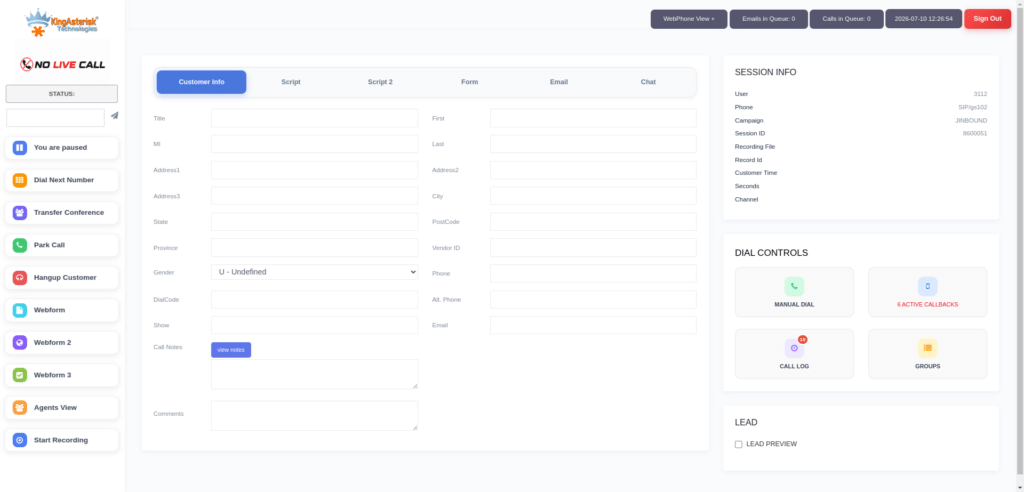
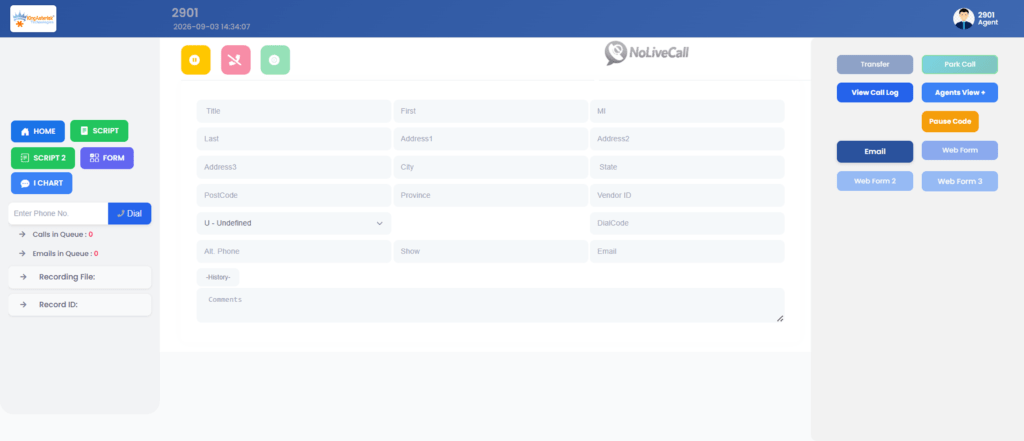
VICIdial agent screen for Agent API integration

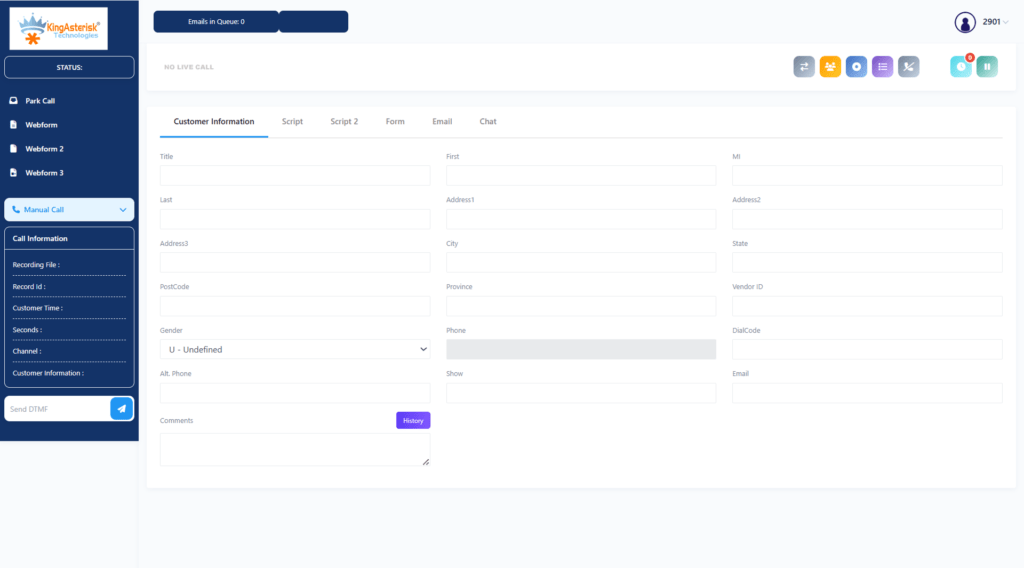
The Agent API is used once an agent is already logged into their web session. It lets an outside application drive that session: pausing the agent, resuming them, initiating a click-to-call, applying a disposition, or transferring a live call. Because it depends on an authenticated, in-progress session, it is the interface behind click-to-call buttons embedded in a CRM record and behind supervisor tools that need to nudge a specific agent’s screen state.

A REST wrapper built over this interface typically exposes a live agent status endpoint and an agent login status endpoint, since most external systems need to know whether an agent is online before attempting any session-level action. A login status check, for example, returns a simple structure confirming whether the agent is currently logged in, what time they logged in, which server they are attached to, and which campaign they are working:

{
  "success": true,
  "data": {
    "loggedIn": true,
    "loginTime": "2026-07-15T08:01:10Z",
    "serverIp": "192.168.10.15",
    "campaignId": "OUTBOUND001"
  }
}

A parallel live status endpoint returns the same detail for every agent on a campaign at once, including pause codes and the customer number currently connected, pulled from the vicidial_live_agents table. That table is the single most useful reference point for anyone debugging agent-state issues, a point worth remembering before the troubleshooting section below.

VICIdial Non-Agent API

The Non-Agent API is the interface most integration work actually runs through, because it does not require a live agent session at all. It is the backend workhorse for:

  • Lead generation and data processing: injecting new lists, inserting individual prospects, updating contact details, or removing leads from an external CRM
  • Data retrieval and reporting: pulling lead status history, checking list tallies, and downloading campaign metrics without a human opening the administration screen
  • Campaign and system administration: adding users, adjusting campaign profiles, or pushing a high-priority lead straight into the active dialing hopper

Because the Non-Agent API operates outside any single agent’s session, it is the correct choice for CRM synchronisation, batch lead uploads, and scheduled reporting jobs. The VICIdial Agent API should only be reached for when the task genuinely depends on a live, logged-in agent screen, such as click-to-call or pause and resume control.

Building a REST layer: a documentation example

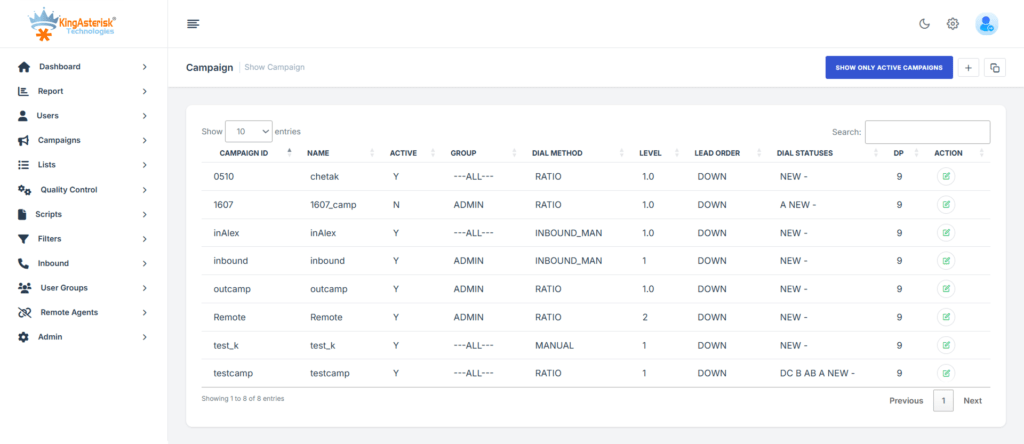
VICIdial campaign main screen for API integration

Most developers searching for a VICIdial API documentation example are not looking for the raw PHP scripts; they are looking for how a modern JSON contract gets built on top of them. A typical specification follows REST conventions closely: HTTPS only, TLS 1.2 or above, JSON with UTF-8 encoding, ISO 8601 timestamps, and E.164 phone number formatting.

Authentication runs on a Bearer token passed in the request header:

Authorization: Bearer eyJhbGc.....

An unauthenticated request returns a standard structure:

{
  "success": false,
  "code": 401,
  "message": "Unauthorized Access"
}

Endpoints are grouped by function rather than by which native script they eventually call. A lead management group typically covers import, lookup, update, status lookup, and bulk update. A campaign group covers listing, configuration, and statistics. An agent group covers listing, live status, performance, login status, and skills. A call management group covers history, live calls, recording metadata, and disposition and notes.

This grouping matters for anyone planning an integration, because it separates what the platform can answer instantly, a live agent status query for instance, from what requires a reporting pass across historical tables, such as a campaign statistics query spanning a date range. Building rate-limit and caching decisions around that distinction saves a lot of rework later.

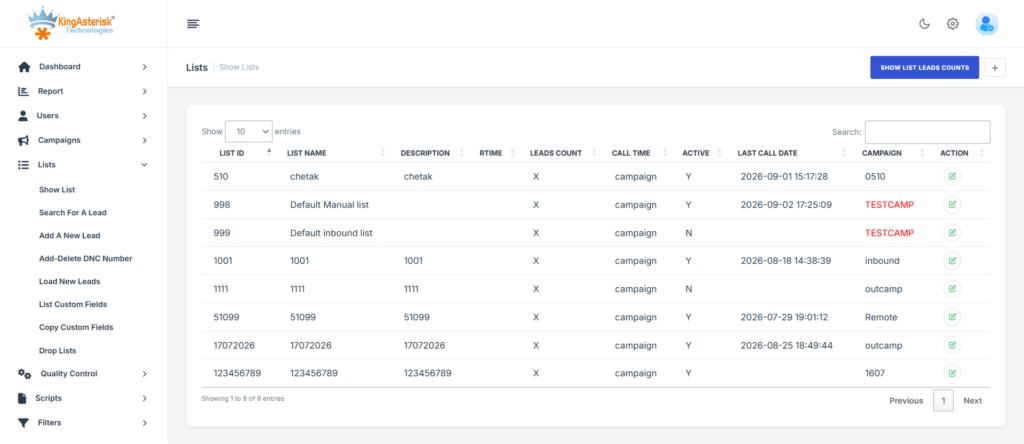
VICIdial lead lists screen for API and lead management

Manual dialing not working: a real diagnostic walkthrough

One of the most common support tickets tied to API-connected deployments has nothing to do with the API layer at all. It looks like this:

Symptoms

The agent logs in successfully. The agent sees the Dial Next Number button and can click it. Nothing happens afterwards: no outbound call, no screen update, no Asterisk originate event, no VICIdial action of any kind. Manual dialing should work. It does not.

First diagnostic step

Before touching Asterisk logs or the dialer process itself, check the agent’s live state directly against the database:

SELECT user, status, campaign_id
FROM vicidial_live_agents;
In one recent case this returned:
TEST_AGENT | PAUSED | SAMPLE_CAMPAIGN

An agent sitting in a PAUSED state will show the interface and respond to button clicks, but VICIdial will not action a dial request until the status changes to READY. This single line is often the entire answer, and it is why the live agent status query belongs at the top of any manual dial investigation rather than at the bottom.

Second diagnostic step

If the agent status checks out as READY and the button still does nothing, the next place to look is the campaign’s dial level configuration:

Campaign: SAMPLE_CAMPAIGN
auto_dial_level=0

An auto_dial_level of 0 disables automatic and manual dialing outbound for that campaign entirely, regardless of agent state. This setting is frequently left at zero on a newly built or newly cloned campaign, and it produces exactly the symptom described above: a responsive interface with no downstream action, because the campaign itself is configured to originate nothing.

Resolution path

  1. Confirm agent status is READY, not PAUSED, using the live agent query above.
  2. Confirm the campaign’s auto_dial_level is set above zero for manual dial to function.
  3. If both check out, review the Asterisk manager connection for the server the agent is attached to, since a dropped AMI connection produces the same symptom set with a correctly configured campaign.
  4. Recheck the agent’s permission set through the skills endpoint if using a REST layer, since a ManualDial permission omission on the agent record will silently block the action even when the campaign and status are both correct.

This kind of layered check, database state, campaign configuration, then transport layer, is the same order worth following for most VICIdial API integration faults, because the symptom visible to the agent or to the external application is almost always several steps removed from the actual cause.

Server requirements for API-connected deployments

Any deployment that will run a REST layer alongside VICIdial needs a server environment sized to the expected concurrency rather than the agent headcount alone. KingAsterisk suggests hardware based on the specific requirements of each build, with support available across multiple Intel and AMD configurations and compatibility across a range of server environments. For custom panel and theme work specifically, an AlmaLinux server with a dedicated IP address is required from the client side, along with server access for installation.

Why this matters for VICIdial API integration projects

A VICIdial API integration project succeeds or fails on how clearly the two native interfaces are separated in the design. Treating the Agent API and Non-Agent API as interchangeable, or routing bulk lead operations through an agent-session-dependent call, is the most common design mistake in early integration work. 

Once that separation is respected, and a REST specification is built to map cleanly onto it, most CRM, reporting, and lead-management connections become straightforward to build and to maintain.

KingAsterisk builds these specifications directly from client environments rather than from generic templates, covering lead management, campaign and list operations, agent and call reporting, and real-time telephony actions such as originate, transfer, and hold, mapped against the exact database tables and scripts a given deployment runs on.

🚀 Try the Live Environment : Live Demo of Our Solution!

Frequently Asked Questions

Is VICIdial API documentation available on GitHub❓

Not as a single official source. The core codebase originates from VICIdial’s Subversion repository, and GitHub mirrors vary in how current they are. A version-controlled specification document built for the specific deployment is more reliable for production integration work.

What is a VICIdial API wrapper❓

A VICIdial API wrapper is a REST layer, typically JSON over HTTPS with token-based authentication, built over the native Agent and Non-Agent interfaces so external systems can integrate using standard HTTP verbs instead of the raw PHP scripts directly.

What is the VICIdial agent login API❓

It is an endpoint that reports whether a given agent is currently logged into VICIdial, along with their login time, server, and active campaign. It is commonly checked before any session-dependent action is attempted through the Agent API.

How does VICIdial API integration typically work❓

Most integrations combine both native interfaces behind a REST specification: the Non-Agent API handles lead and campaign data, and the Agent API handles live session actions, with the REST layer routing requests to whichever native script the action requires.

Where can I download VICIdial❓

VICIdial is distributed as an open-source platform, most commonly deployed through the ViciBox build on a Linux server. Before any custom installation or theme work, confirming the existing ViciBox and Subversion codebase version is the standard first step.

Is there a VICIdial API documentation example available❓

Yes. A typical example follows REST conventions: Bearer token authentication, JSON payloads, ISO 8601 timestamps, and endpoint groups for leads, campaigns, agents, and calls, built on top of the native Agent and Non-Agent scripts rather than replacing them

Get a VICIdial API specification built for your environment

If your team is planning a CRM connection, a lead-management build, or a reporting layer against VICIdial, KingAsterisk develops the specification directly from your ViciBox version, SVN codebase, and existing campaign structure. 

We will then map it against the Agent and Non-Agent interfaces your deployment actually runs. Reach out to KingAsterisk to scope the endpoints your integration needs. 

KINGASTERISK_NOTE

VICIdial Agent Login Connect Agents to Campaigns
Vicidial Software Solutions

VICIdial Agent Login: Connecting Agents with Campaigns, Dialer Workflows & Contact Center Operations

VICIdial Agent Login Connect Agents to Campaigns

VICIdial agent login is not just a form – it is a database write, a session handshake with Asterisk, and a permission check that decides what that agent is allowed to do for the rest of their shift. Every VICIdial dialer session starts with one action: an agent typing a user ID, a password, and a campaign into a login screen. 

For a supervisor troubleshooting a stalled shift, or a developer wiring VICIdial into a CRM, that single action is where most operational problems either begin or end. 

For contact center teams in Australia managing distributed agents across time zones, the login step also carries practical weight: shift handovers, remote agent connectivity, and integration with rostering or CRM systems all depend on knowing exactly what happens when someone logs in – and what to check when they cannot. 

This guide breaks down the VICIdial agent login process end to end: the URL structure, the password model, the newer agent web client, the login API, and a real troubleshooting case where login succeeds but dialing does not.

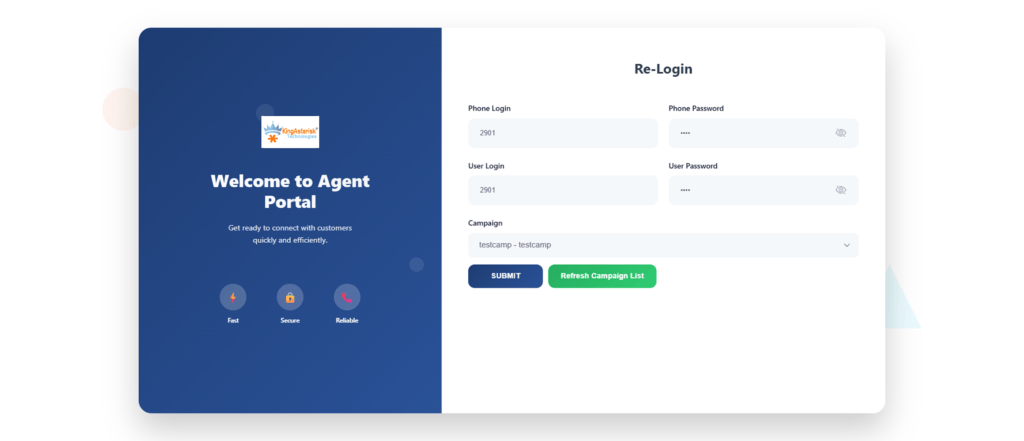
VICIdial Agent Login Screen 2

What actually happens when an agent logs into VICIdial

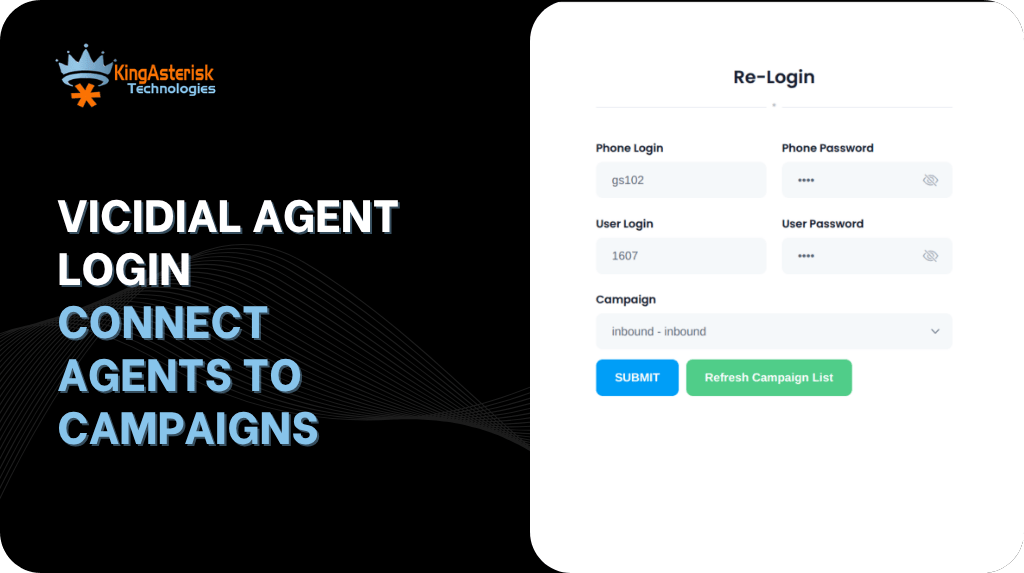
The VICIdial agent login screen asks for three pieces of information: a user ID, a password, and a campaign ID. A fourth field, the phone login, ties the browser session to a specific SIP extension or softphone registration. When an agent submits this form, VICIdial does not simply grant access to a page – it performs a sequence of checks and writes that determine everything about the session that follows.

First, the submitted credentials are checked against the vicidial_users table. If the user ID and password match an active record, VICIdial confirms the agent’s user level and user group, which together determine what buttons, campaigns, and reports that agent can see. Next, VICIdial checks that the requested campaign is active and that the agent’s user group is permitted to work it – an agent cannot simply type any campaign ID into the login screen and expect access.

Once both checks pass, VICIdial inserts a row into vicidial_live_agents, recording the agent’s username, campaign, extension, and an initial status. This table is the single source of truth for “who is logged in right now” across the entire installation, and it is what every supervisor screen, wallboard, and reporting query reads from. The phones table is checked in parallel to confirm the extension is registered with Asterisk before the agent is marked ready to take or place calls.

🧠 Connect via API : CRM API Integration

The VICIdial agent login URL structure

On a standard installation, the agent interface is reached at:

http://[YOUR_SERVER_IP]/vicidial/vicidial.php 

This is separate and distinct from the administration login, which lives at /vicidial/admin.php. Custom theme deployments often move the agent interface to a different path – KingAsterisk’s custom builds, for example, commonly serve it at /agent/agent.php or a client-specified path. The file path changes; the underlying authentication logic against vicidial_users does not.

Agent web client 2.0 login

Agent web client 2.0 refers to the newer interface layer used on more recent VICIdial builds and on most custom theme deployments, including KingAsterisk’s React-based agent interfaces. The visual layout changes – real-time status updates arrive over a persistent connection rather than a page refresh, and the screen is generally built to work better on narrower displays for agents working from a laptop rather than a fixed workstation. 

What does not change is the authentication step underneath it: agent web client 2.0 still checks the same vicidial_users credentials and still writes to vicidial_live_agents on a successful login. Teams evaluating an upgrade to the newer client should treat it as an interface and transport change, not a change to how accounts, passwords, or permissions are managed.

VICIdial agent login API – programmatic visibility into login state

Integrating VICIdial agent login into a CRM, workforce dashboard, or automation workflow does not mean querying the agent screen or the underlying tables directly. VICIdial exposes two separate API surfaces for exactly this purpose, and choosing the right one matters.

For login state specifically, a REST-style integration layer built on top of these – the kind KingAsterisk implements for CRM and dashboard integrations – typically exposes a dedicated login-status endpoint. A request against /api/v1/agents/{agentId}/login returns a structured response such as:

{
  "success": true,
  "code": 200,
  "data": {
    "loggedIn": true,
    "loginTime": "2026-07-15T08:01:10Z",
    "serverIp": "192.168.10.15",
    "campaignId": "OUTBOUND001"
  }
}

This is useful for workforce management tools that need to confirm an agent has actually logged in for a rostered shift without polling the database. A companion endpoint, the live agent status API, returns real-time state across every logged-in agent:

{
  "success": true,
  "code": 200,
  "data": [
    {
      "agentId": "1001",
      "username": "agent001",
      "campaignId": "OUTBOUND001",
      "status": "INCALL",
      "pauseCode": null,
      "loginTime": "2026-07-15T08:00:00Z"
    },
    {
      "agentId": "1002",
      "username": "agent002",
      "campaignId": "OUTBOUND001",
      "status": "PAUSED",
      "pauseCode": "BREAK"
    }
  ]
}

The status field maps directly to values VICIdial writes internally: READY, INCALL, PAUSED, DISPO, WRAPUP, and DEAD (an unexpected logout). Any integration built against this endpoint should treat DEAD as an operational alert rather than a routine state – it usually means the agent’s browser session or extension dropped without a clean logout, which needs a supervisor’s attention. 

All of these API requests carry a bearer token in the Authorization header, and unauthorized calls return a standard 401 response rather than partial data, which matters when the integration is handling account-linked information.

VICIdial agent Screen 2

Diagnosing a login that isn’t behaving

When a login-related ticket comes in, the fastest diagnostic step is not the browser – it is the vicidial_live_agents table itself, which reflects exactly what the login process wrote.

SELECT user, status, campaign_id
FROM vicidial_live_agents;

A result such as:

TEST_AGENT | PAUSED | SAMPLE_CAMPAIGN

tells a supervisor something specific: the login itself succeeded. The credential check passed, the campaign check passed, and a row was written. The agent is not stuck at the login screen – they are sitting in a paused state inside a live session, most likely on a break code or waiting on a manual state change. 

This distinction matters operationally, because “the agent can’t log in” and “the agent is logged in but paused” call for completely different fixes. The first points at credentials, campaign permissions, or extension registration. The second points at agent workflow, pause code configuration, or a campaign left in a state the agent doesn’t expect.

When login succeeds but manual dialing does not work

This is one of the more disorienting tickets a supervisor can receive, because every visible signal looks correct: the agent has logged in, the campaign has loaded, and the Dial Next Number button is sitting right there, clickable. And then nothing happens.

Symptoms

  • Agent logs in successfully
  • Agent sees the Dial Next Number button and can click it
  • No outbound call is placed
  • No screen update occurs
  • No Asterisk originate event fires
  • No VICIdial action is logged against the attempt

Where to look first

The most common cause in this exact pattern is a campaign configuration value, not a login or permission problem. Check the campaign’s dial method setting:

Campaign: SAMPLE_CAMPAIGN
auto_dial_level=0

An auto_dial_level of 0 combined with a campaign set to a mode that expects the dialer engine – rather than manual agent action – to initiate calls will produce exactly this symptom: the button exists on the screen, the click registers in the browser, but the originate request never reaches Asterisk because the campaign is not configured to accept a manual trigger from that agent state. Three places to check in sequence:

1. Campaign dial method. 

Confirm the campaign is genuinely set for manual or click-to-call dialing, not left on an automated mode with a manual-looking interface.

2. Agent permission scope. 

Cross-check the agent’s assigned permissions – the ManualDial permission specifically – against their user group. An account without it will show the button but silently reject the click server-side.

3. Hopper and lead availability. 

If the hopper has no eligible leads loaded for that agent’s filters, there is nothing to dial against regardless of button state, and the failure looks identical from the agent’s side.

Working through these in order – campaign configuration, then permission scope, then lead availability – resolves the large majority of “logged in but can’t dial” tickets without needing to touch Asterisk logs directly.

Admin login vs agent login – two different doors

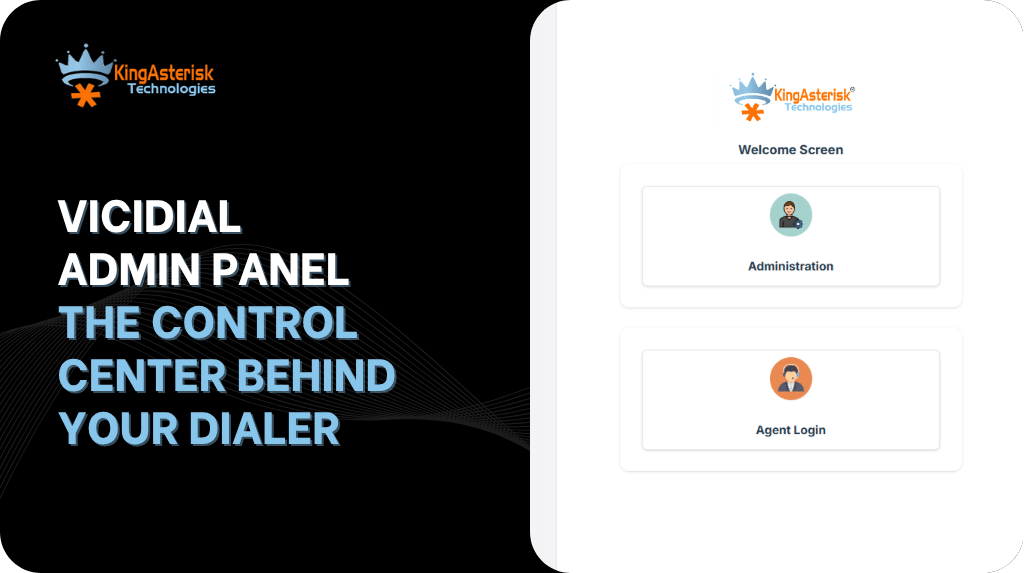
VICIdial Welcome Screen 1
Agent Login Screen

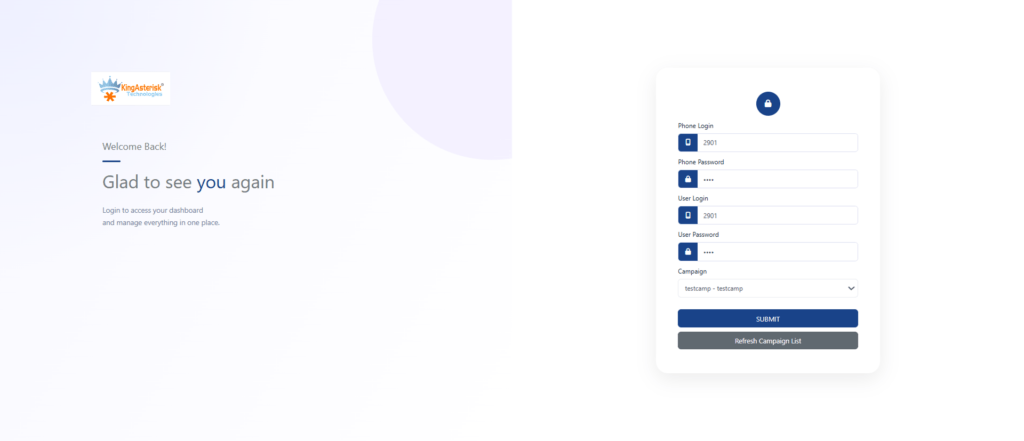
It’s worth being explicit about this because the two are frequently confused in support conversations. The administration dashboard, reached at /vicidial/admin.php on a standard build (or a custom path such as /dialer/admin.php on a KingAsterisk theme deployment), controls campaigns, user accounts, lists, and system settings. The agent login at /vicidial/vicidial.php (or its custom-theme equivalent) is scoped entirely to that one agent’s session. 

Default administrator credentials are publicly documented across VICIdial installations generally, which makes changing both the username and password immediately after first login – through Admin – Users – Edit User – one of the highest-value security steps in any new deployment.

Where KingAsterisk fits

KingAsterisk builds on top of the standard VICIdial agent login and administration structure rather than replacing it – every custom theme, React-based agent interface, or Tailwind-styled login screen still authenticates against the same vicidial_users table and writes to the same vicidial_live_agents record described above. The work sits in a few specific areas:

  • Custom agent interfaces and supervisor dashboards, including agent web client 2.0-style real-time status screens
  • Browser-based softphone integration for agents who need a login-to-dial path without a physical handset
  • API development connecting login status, campaign data, and lead activity into external CRM and workforce systems
  • Security hardening around session handling, credential storage, and administrator access
  • Custom reporting on login/logout timing, pause code use, and agent occupancy

For AU-based operations coordinating shifts across a single time zone or a distributed remote team, this typically means a login and permission structure that maps cleanly to rostering, plus API access that lets a workforce tool confirm attendance without a supervisor manually checking the agent screen.

🚀 Try the Live Environment : Live Demo of Our Solution!

Frequently asked questions

What is the VICIdial agent login password policy❓

Agent passwords are set and stored by an administrator in the vicidial_users table rather than chosen by the agent through a sign-up flow. There is no built-in self-service reset; password changes go through Admin – Users – Edit User.

Is there a VICIdial agent login app❓

VICIdial’s agent interface is browser-based rather than a native mobile or desktop application. Agents log in through a URL such as /vicidial/vicidial.php, and custom theme deployments may present this as a branded web interface, but it runs in a browser rather than as an installed app.

What is agent web client 2.0 and how is it different from the classic client❓

Agent web client 2.0 is a newer interface layer, generally used on recent builds and custom theme deployments, that delivers real-time agent status over a persistent connection instead of page refreshes. It authenticates against the same underlying credentials as the classic client – the difference is in the interface and status transport, not the login mechanism.

How do I sign up for VICIdial agent web client access❓

There is no self-service sign-up. An administrator creates the account under Admin – Users, sets the user level and user group, assigns campaigns, and links a phone extension before the agent can log in.

Is there an API for checking VICIdial agent login status❓

Yes. A dedicated login-status endpoint returns whether a given agent is currently logged in, along with login time and assigned campaign. A companion live-status endpoint returns real-time state – ready, in-call, paused, wrap-up, or dead – for every logged-in agent, authenticated with a bearer token.

Where can I get a VICIdial download❓

VICIdial is available as open-source software, typically deployed through the ViciBox installer or built from the SVN codebase onto a supported Linux server. Teams wanting a custom login screen, theme, or agent interface generally pair this base install with a development partner for the customization layer.

Get your VICIdial agent login environment right

Whether the issue is a custom agent web client rollout, a login API integration into an existing CRM, or a campaign that’s quietly blocking manual dials despite a clean login, KingAsterisk works on the VICIdial deployment layer every day. 

Reach out to talk through your current setup, your ViciBox and SVN versions, and what a login and permission structure built for your team would look like.

KINGASTERISK_NOTE
CRM API Integration Connect Your CRM with Contact Center Systems
CRM Integration Solutions

CRM API Integration: A Simple Way to Connect CRM Systems

CRM API Integration Connect Your CRM with Contact Center Systems

CRM API integration is the method that lets your contact center platform exchange data automatically with a CRM system, so agents see caller history, open tickets, and account notes the moment a call connects, without anyone copying information between two screens. 

This article covers what a CRM API integration actually does, the stages involved in setting one up, a real deployment example, the tools worth connecting, and where CRM is headed as automation matures. By the end, you will know what to consider before starting a CRM API integration project and which common mapping mistakes can delay deployment.

Custom CRM Dashboard

What CRM API integration actually does

An API is a set of rules that lets two separate pieces of software talk to each other. CRM API integration applies that idea to your contact center stack: your dialer or agent desktop sends and receives data from the CRM in real time, instead of an agent typing notes into two systems after every interaction. When a call connects, the integration pulls the caller’s record and displays it on the agent’s screen. 

When the call ends, the disposition, notes, and any new lead status get written back to the CRM automatically. Done correctly, CRM API integration removes the double entry that slows agents down and introduces typos into customer records.

VICIdial CRM Integration

The five stages of CRM API integration

Most CRM API integration projects move through the same five stages, whether the CRM is a custom-built system.

Stage 1: Mapping your data fields

Custom CRM Leads Management

Before any code gets written, someone needs to decide which fields matter. Lead status, phone number, agent ID, call outcome, and timestamp are common candidates. Skipping this step is the single most common reason integrations need to be rebuilt later.

Stage 2: Setting up authentication

The CRM and the contact center platform need a secure way to identify each other, usually through API keys or OAuth tokens. This stage also sets the permission scope, so the integration can only touch the data it actually needs.

Stage 3: Building the connection logic

This is where the actual code runs: request and response formatting, error handling, and retry logic for when a call to the CRM times out. Webhooks are often used here so the CRM updates the moment an event happens, rather than on a delay.

Stage 4: Testing with real call flows

Sample data rarely catches everything. Testing with an actual campaign, including edge cases like a dropped call or a duplicate lead, shows whether the field mapping and error handling hold up under real conditions.

Stage 5: Deployment and monitoring

Once live, the integration needs monitoring for failed syncs, rate limit warnings, and data mismatches. A dashboard or alert system catches problems before an agent notices the CRM record is missing information.

API vs CRM: what is the actual difference

This question comes up constantly, and the answer is simpler than it sounds. A CRM is the system of record: it stores customer information, deal history, and support tickets. An API is not a system at all. It is the bridge that lets other software, such as a dialer, a website form, or an accounting tool, read from or write to that CRM without a human copying data by hand. 

You do not choose between an API and a CRM. You use an API to connect your CRM to everything else.

CRM API integration example: syncing calls and lead data

Custom CRM Activities Management

A mid-sized outbound sales team running campaigns through VICIdial had agents manually updating Salesforce after every call, which took roughly 45 seconds per interaction and led to inconsistent lead statuses across the team. Once CRM API integration was set up, the flow changed: when an agent selected a call disposition inside VICIdial, a webhook fired immediately to Salesforce, updating the lead status, logging the call outcome, and creating a follow-up task if the disposition indicated interest. 

Agents no longer switched screens, supervisors could see accurate lead statuses in real time, and the team recovered close to four hours of agent time per day across a twenty-agent floor.

Features, such as lead scoring or suggested next actions, are being added inside CRM platforms rather than replacing them. The CRM still functions as the system of record: names, phone numbers, deal stages, and interaction history need to live somewhere structured, and that role has not gone away. 

💡 CRM INTEGRATION: We do CRM integration with all kinds of APIs to connect your systems, tools, and business applications seamlessly. Our solutions simplify data exchange and help your teams work with connected, reliable systems.

What good CRM API documentation should include

Weak documentation is the top reason contact center integration projects run over schedule. Solid CRM API documentation should include:

  • A clear authentication method with example requests
  • A full list of available endpoints, with expected inputs and outputs
  • Sample payloads for common actions like creating a lead or updating a call disposition
  • Rate limits and what happens when they are exceeded
  • Error codes with plain, readable explanations instead of numeric codes alone
  • A changelog so integration teams know when something has changed

If a CRM’s documentation is missing more than one or two of these, budget extra time for the integration, or plan on direct contact with the CRM vendor’s support team.

🖥️ Watch It in Action : Live Demo of Our Solution!

Frequently Asked Questions

What are the five stages of API integration❓

Most CRM API integration projects follow five stages: mapping the data fields that need to sync, setting up authentication between the two systems, building the connection logic and webhook handling, testing against real call flows and edge cases, then deploying with ongoing monitoring for failed syncs or data mismatches. Skipping the mapping or testing stage is the most common cause of integration failures.

Will the recent technology advancements replace CRM systems❓

No. Recent tech features are being built into CRM platforms to automate scoring, suggest actions, and flag patterns, but the CRM still holds the structured record of customer data that those features depend on. What is changing is how much manual entry gets removed through better CRM API integration, not whether a CRM is needed at all.

What is the difference between an API and a CRM❓

A CRM is the software that stores customer records, deal history, and support tickets. An API is the connection method that lets other systems, such as a dialer or a website form, read from or write to that CRM without manual entry. You need an API to connect a CRM to your contact center platform; the two serve different purposes entirely.

What does a real CRM API integration example look like❓

A common example is an outbound dialer that pushes call dispositions straight into a CRM through a webhook. When an agent finishes a call in VICIdial, the outcome, notes, and any new lead status post within seconds, and a follow-up task gets created automatically if the disposition calls for one.

Conclusion

CRM API integration removes the manual work that slows contact center teams down: no more retyping notes, no more mismatched lead statuses between two systems. The process follows five clear stages, works with any major CRM, and depends heavily on how well the CRM’s API documentation is written. 

If your team is running VICIdial or an Asterisk-based platform and still updating a CRM by hand, get in touch with our engineering team at KingAsterisk to talk through what a working CRM API integration would look like for your setup.

KINGASTERISK_NOTE
VICIdial Supervisor Real-Time Analytics Theme Monitor Performance Live
Vicidial Software Solutions

VICIdial Supervisor Real-Time Analytics Theme: Track Contact Center Performance Live

VICIdial Supervisor Real-Time Analytics Theme Monitor Performance Live

The VICIdial Supervisor Analytics Theme is a purpose-built dashboard that gives contact center supervisors a live, consolidated view of every metric that matters – agent states, wait times, call volume, and queue performance – all updated in real time. For operations teams running busy contact centers on VICIdial, the difference between reacting to a problem after the damage is done and catching it while it is still manageable often comes down to what is on the supervisor’s screen. 

This article explains what the theme delivers, how to configure it, and how organisations get the most out of it in daily operations.

The VICIdial admin login screen is the entry point for supervisors and administrators. Access is controlled through VICIdial’s built-in user management, so only authorised personnel reach the analytics dashboard.

VICIdial admin login interface

What the VICIdial Supervisor Analytics Theme actually does

The standard VICIdial supervisor panel shows data, but its layout was designed around function, not speed of comprehension. A supervisor managing 40 agents across three inbound campaigns has to click through multiple screens to get a complete picture. The analytics theme changes that by pulling all of the same underlying data into a single, high-contrast view that a supervisor can scan in seconds.

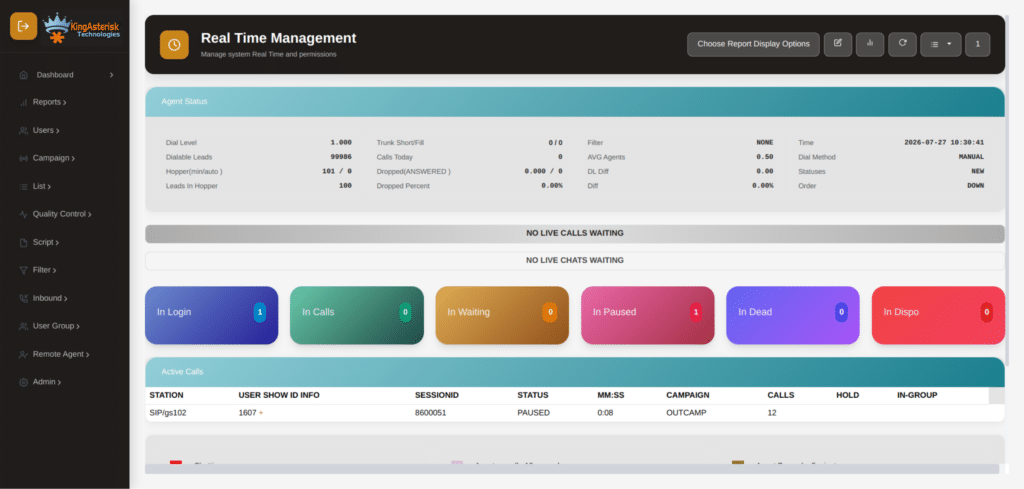
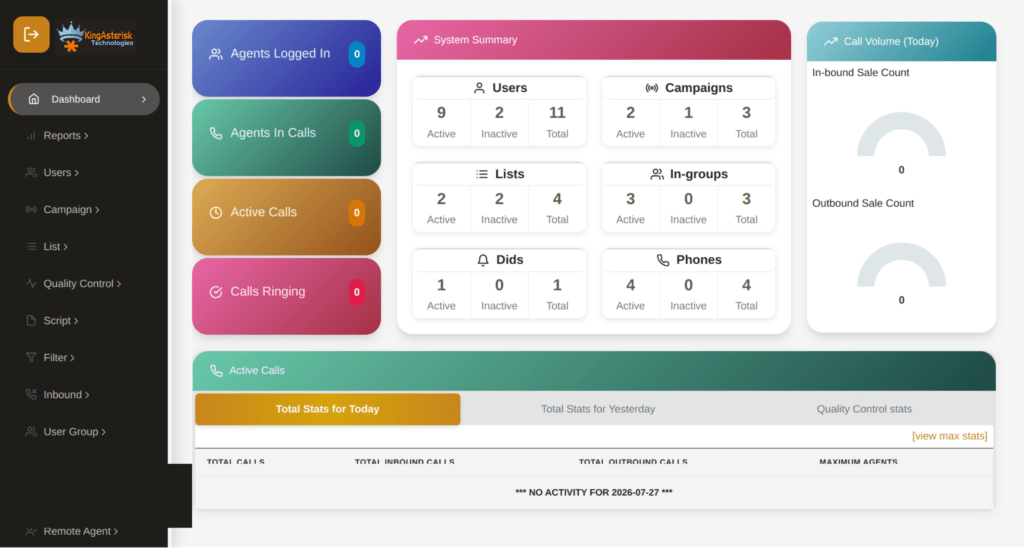
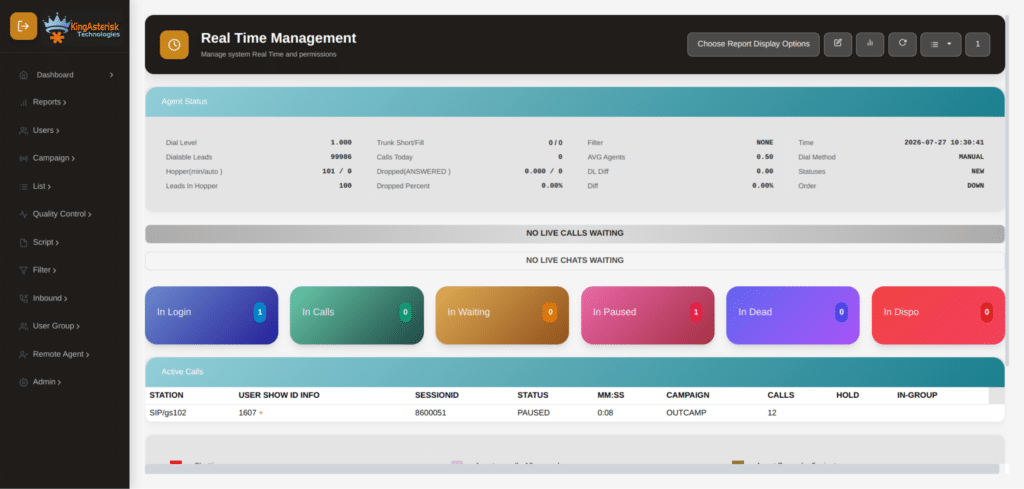
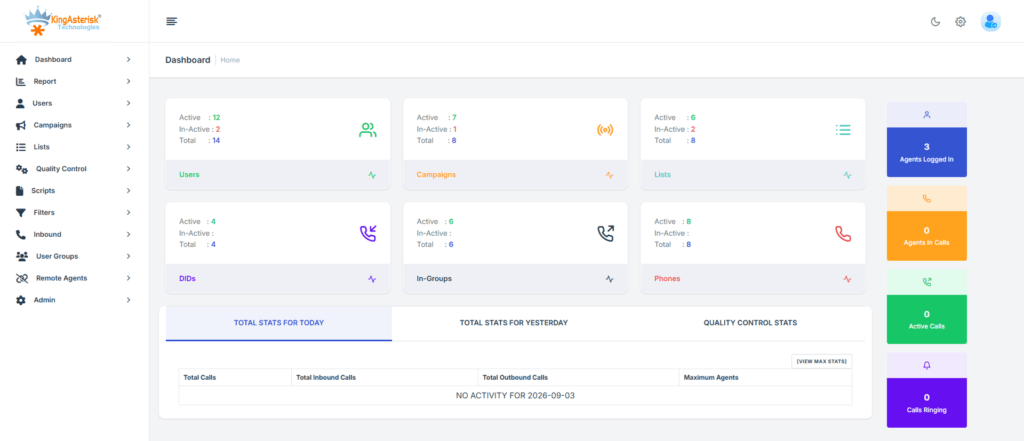
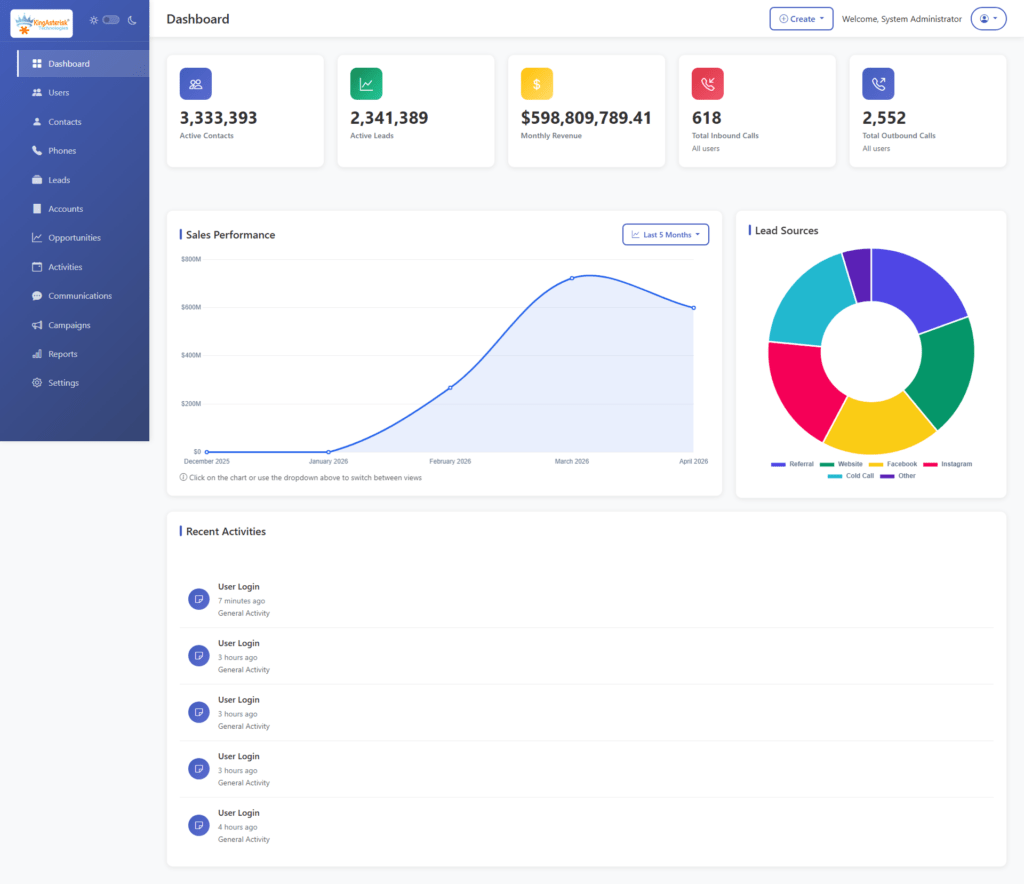
The admin dashboard gives a consolidated view of all active campaigns, agent counts, and current queue status. Everything visible here updates without a page refresh, so the data on screen reflects what is happening on the floor right now. 

VICIdial admin dashboard with contact center analytics

The theme runs in the browser, reads from the VICIdial real-time reporting tables, and refreshes at configurable intervals – typically every two to five seconds. No separate server process is required. The interface is responsive, which means it can run on a dedicated wall-mounted monitor showing the full floor view, or on a supervisor’s secondary screen.

The outcome is not just cosmetic. When the data is easier to read, supervisors make faster decisions. Agents who are stuck on hold get flagged. Queues that are building get spotted before abandonment rates tick upward.

📞 Automate Call Summaries : VICIdial AI Call Summary Fix

Core metrics displayed on the dashboard

Real-time reports pull directly from VICIdial’s live data tables. Supervisors can see call volume, wait times, answer rates, and drop rates across all campaigns in a single view — no manual report generation required.

VICIdial real-time reports for contact center performance

Agent state breakdown

Every logged-in agent appears with their current state: INCALL, CLOSER, DISPO, PAUSED, or DEAD. The colour-coded grid makes it immediately obvious if an unusual number of agents are in pause or dispo simultaneously. Supervisors can also see how long each agent has been in their current state, which flags excessive pause time without needing to pull a separate report.

Live queue and campaign stats

Each active campaign shows the number of calls waiting, the average wait time, the current answer rate, and the number of agents assigned. When a VICIdial inbound queue starts building, the waiting call count turns amber and then red based on configurable thresholds. No manual calculation is needed – the threshold logic is built in.

Call volume and drop rate indicators

The dashboard aggregates the total calls answered, calls dropped, and current average handle time across all active campaigns. Drop rate is particularly valuable for outbound operations: a spike in dropped calls often signals a dial ratio issue before it becomes a compliance concern.

Hourly trend bars

A compact bar view shows call volume and answer rates for each hour of the current shift. This lets supervisors see at a glance whether performance is tracking ahead of or behind the same period on the previous day, without opening a separate reporting module.

How the real-time data feed works

VICIdial stores live operational data in a set of MySQL tables – live_inbound_agents, vicidial_live_agents, vicidial_campaigns, and related tables. The supervisor analytics theme queries these tables directly using AJAX calls that fire on a polling interval set in the theme’s configuration file. The default is three seconds, which is usually the right balance between freshness and server load.

For larger deployments running more than 200 concurrent agents, it is worth increasing the polling interval to five or six seconds and adding a read replica for the reporting queries. This prevents the real-time dashboard from adding load to the same database connection pool that handles dialer operations.

The theme does not require WebSockets, which keeps the setup simple. The data is fetched as JSON and rendered client-side. This means even a basic Apache or Nginx web server can serve the theme without any additional back-end infrastructure.

Setting up and customising the theme

Agents log in through the standard VICIdial agent interface. The supervisor analytics theme runs in parallel, pulling agent state data from VICIdial’s live tables as soon as an agent session is active.

VICIdial agent login interface

Minimum requirements

The theme runs on any server that already hosts VICIdial. It requires PHP 7.4 or higher, MySQL 5.7 or MariaDB 10.3 or higher, and a web server with mod_rewrite enabled. Browser-side, it works on Chrome, Firefox, and Edge without any plugins.

Installation steps

The theme files sit in a subdirectory of your VICIdial web root, typically /var/www/html/vicidial/supervisor_theme/. The config.php file holds the database credentials, the polling interval, and the campaign filter list. Once configured, the dashboard is accessible at the subdirectory URL and login is handled through VICIdial’s existing session management.

Customisation options

The most commonly adjusted settings are the colour thresholds for queue depth alerts, the list of campaigns displayed, and whether the hourly trend bars show the current day only or a comparison against the prior day. Teams with branded interfaces often update the CSS variables to match their internal tool colour scheme. The theme’s stylesheet uses CSS custom properties throughout, so a brand colour update requires changing fewer than ten lines.

Common mistakes supervisors make without live analytics

The absence of a real-time view leads to a predictable set of problems. Understanding them is useful both for making the case for the theme and for configuring it correctly once deployed.

The agent dashboard shows each agent’s current state, time in state, and campaign assignment in real time. Supervisors can spot excessive pause time or dispo lag immediately, without checking each agent individually.

VICIdial agent dashboard for live call center performance

Relying on scheduled reports creates a lag between the event and the response. A drop in answer rate that shows up in a 30-minute report has already been affecting customers for up to 30 minutes.

Manual agent monitoring – supervisors walking the floor or sending internal messages to check agent status – is inconsistent and does not scale beyond small teams.

Without a queue depth view, supervisors cannot distinguish between a slow period and a period where agents are available but callers are not waiting long enough to be answered. These two situations require opposite responses.

Pause time misuse is difficult to catch without a live agent state view. An agent in PAUSED state for 12 minutes looks exactly the same as one in PAUSED for 90 seconds until someone checks – and without the theme, checking requires opening the supervisor panel manually for each agent.

🖥️ Watch It in Action : Live Demo of Our Solution!

Frequently asked questions

What is the VICIdial Supervisor Analytics Theme and who is it for❓

The VICIdial Supervisor Analytics Theme is a real-time dashboard that replaces or supplements the standard VICIdial supervisor screen. It is built for floor supervisors and operations managers who need to monitor agent states, queue depth, and call volume across multiple campaigns simultaneously. It is particularly useful in operations where conditions change quickly during peak periods and delayed reporting creates response lag.

Where can I find the VICIdial supervisor analytics theme download❓

The community version is available on GitHub under the VICIdial open-source project repositories. A production-ready build with additional features – configurable alert thresholds, multi-campaign filtering, and wall-display mode – is available from KingAsterisk. The maintained version includes compatibility updates for recent VICIdial releases and has been deployed across contact centers in multiple regions.

Does the VICIdial supervisor analytics theme GitHub version work on current VICIdial
builds❓

The GitHub community version was originally written for VICIdial 2.12 and 2.13. Some of the database table queries need updating for version 2.14 and above due to changes in the live_inbound_agents schema. Teams running current VICIdial versions should either apply the necessary query updates manually or use a maintained build that has already been adjusted for the current table structure.

How often does the dashboard refresh❓

The polling interval is configurable in the theme’s config.php file. The default is three seconds, which is suitable for most operations. High-agent-count deployments – over 150 concurrent agents – often benefit from a five-second interval to reduce database query frequency. For operations where sub-second latency matters, a WebSocket-based approach would be needed, which requires custom development beyond the standard theme.

Can the theme be customised to show only specific campaigns❓

Yes. The campaign filter list in config.php accepts a comma-separated list of VICIdial campaign IDs. Supervisors who manage a subset of campaigns see only those queues and agent states, which reduces visual noise and makes threshold alerts more meaningful. Multiple supervisor accounts can each have different campaign filters if the theme is configured with per-user settings.

Conclusion

The VICIdial Supervisor Analytics Theme solves a specific and common problem: supervisors managing busy operations cannot act on information they do not have. Real-time visibility into agent states, queue depth, drop rates, and hourly trends gives supervisors the context to make staffing decisions in the moment rather than after the fact.

The setup is straightforward for any team already running VICIdial. The community version on GitHub is a good starting point for technical teams, while production deployments benefit from a maintained build that tracks VICIdial version changes. The real-world impact – shorter wait times, fewer dropped calls, faster reassignment of idle agents – comes from making the right data easy to read at a glance.

KingAsterisk has deployed and customized the VICIdial Supervisor Analytics Theme for contact centers across India, Southeast Asia, the United States, and the Middle East. If your operation runs VICIdial and you want to implement or tailor this dashboard for your specific setup, contact the KingAsterisk team for a no-obligation conversation about what would work for your environment.

KINGASTERISK_NOTE