
VICIdial Administration is the set of controls an operator uses to manage users, campaigns, lists, and dialer behaviour from the admin panel. For businesses running outbound or inbound contact operations in Australia, getting this layer right determines whether agents can log in reliably, whether leads reach the right queue, and whether the VICIdial dialer paces calls the way the campaign manager intended.
Unlike a single settings page, VICIdial Administration is distributed across several interlinked modules: Admin, User Groups, Campaigns, Lists, Inbound Groups, and Server settings. Each module writes to specific MySQL tables (vicidial_users, vicidial_campaigns, vicidial_lists, vicidial_user_groups) and those tables are what the dialer engine reads from in real time. This article breaks down the controls that matter most for day-to-day administration and walks through a genuine troubleshooting case involving manual dialing.
Accessing the VICIdial admin panel
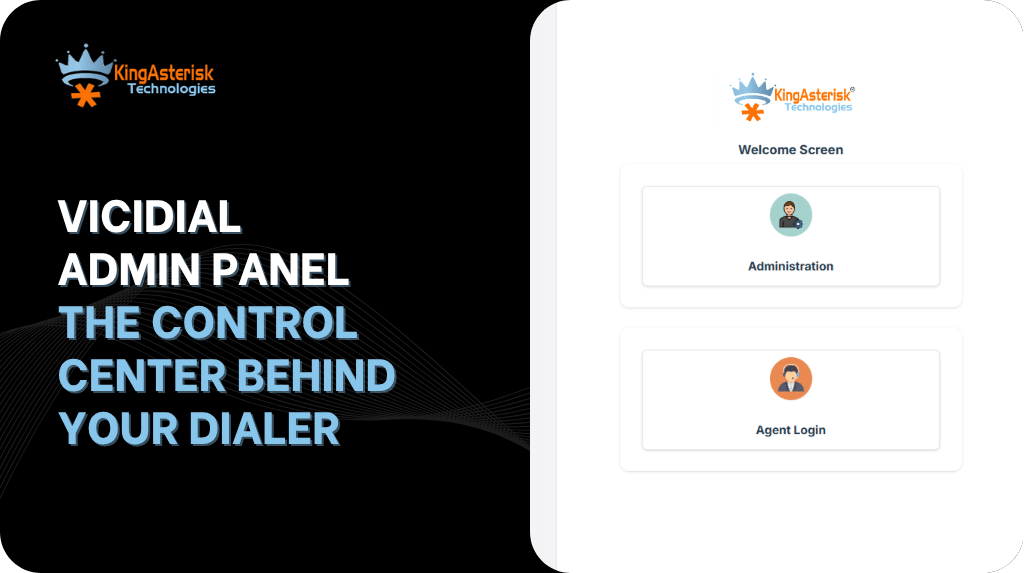
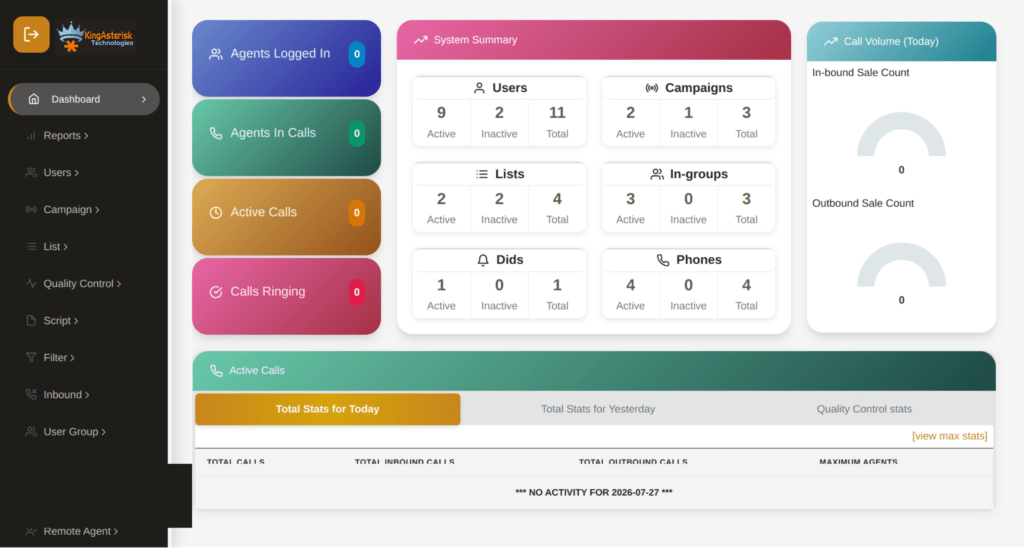
On a standard installation, the administrator dashboard sits at:
http://[YOUR_SERVER_IP]/vicidial/admin.phpDefault credentials are publicly documented in the open source project, which makes them the single highest-risk item in a fresh deployment. Change both the username and password immediately through Admin, then Users, then Edit User.
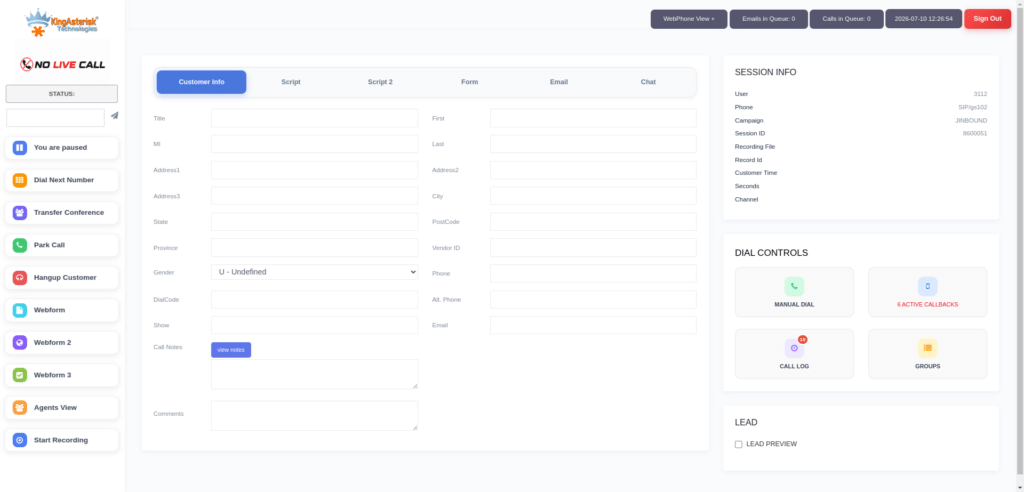
Agents log in through a separate interface, typically:
http://[YOUR_SERVER_IP]/vicidial/vicidial.php On custom theme deployments built by KingAsterisk, the agent path is often reorganised to something like /agent/agent.php, and the admin path to /dialer/admin.php, depending on the client’s preferred folder structure. The authentication mechanism underneath does not change; only the file path and the visual theme differ.
If you are working from a KingAsterisk demo build, the sequence is straightforward: open the KingAsterisk website, go to the Live Demo section, choose a theme, and use the Admin button to reach the login page for that theme (for example, a Theme 5 build would expose an admin login at a path like /theme-5/dialer/admin.php).
User Levels, User Groups, and permissions
VICIdial Administration does not use a simple admin-or-agent binary. Access is built from three layers that combine to define what a person can see and do:
User Level is a numeric value, generally from 1 to 9, where higher numbers unlock broader administrative functions. Levels 7 and 8 are commonly used for report-focused staff who need visibility without configuration rights, while full administrative functions typically sit at higher levels.
User Group determines which campaigns, lists, and reports a user can even see as options, separate from what their User Level permits them to do.
Allowed Reports and individual permission flags (View Reports, Modify Users, Modify Campaigns, Modify Lists, Delete Users, Load Leads, and similar) are set per user or per group and override the broader defaults.
A common real-world requirement is limiting a manager to a single report, such as the Agent Time Detail Report, without granting any configuration access. In VICIdial this is handled as follows:
- Create a dedicated User Group under Admin, then User Groups (for example REPORT_USERS).
- In that group’s settings, open Allowed Reports and select only Agent Time Detail Report, deselecting everything else.
- Create the user under Admin, then Users, then Add User, assign them to
REPORT_USERS, and set an appropriate User Level (7 or 8 is typical for report-only access). - In the user’s individual settings, set View Reports to 1 and set every other admin permission, including Modify Users, Modify Campaigns, Modify Lists, Delete Users, and Load Leads, to 0.
- If several managers should each see only their own team’s data, configure Allowed User Groups within the group settings so
REPORT_USERScan only pull statistics from the groups you specify.
This combination of User Level plus Allowed Reports plus Allowed User Groups is the standard pattern for granular access control in VICIdial, and it applies whether you’re restricting reporting, list access, or campaign visibility.
The underlying data lines up with the platform’s own permission model. A permissions lookup for a given user typically returns a structure similar to this:
{
  "userId": "agent001",
  "userLevel": 8,
  "permissions": {
    "modifyLeads": true,
    "deleteLeads": false,
    "downloadRecordings": true,
    "viewReports": true,
    "manageCampaigns": false,
    "manageUsers": false
  }
}That data is derived directly from the vicidial_users table (user, user_level) and vicidial_user_groups, which is exactly why User Level and User Group are the two fields administrators should check first whenever a user reports they can or cannot see something they shouldn’t.
Roles as a shortcut, not a replacement
Larger deployments sometimes layer named roles, such as Administrator, Supervisor, or Agent, on top of the User Level and User Group structure to make onboarding faster. A role like Supervisor typically maps to a bundle of permissions such as viewing reports, downloading recordings, live monitoring, and managing callbacks, while an Agent role maps to a narrower set: making calls, updating dispositions, and viewing their own callbacks only.
Roles are a convenience layer. Underneath, VICIdial still resolves everything back to User Level and User Group, so when a permission dispute comes up, checking those two fields directly is faster than trying to trace it through a role label.
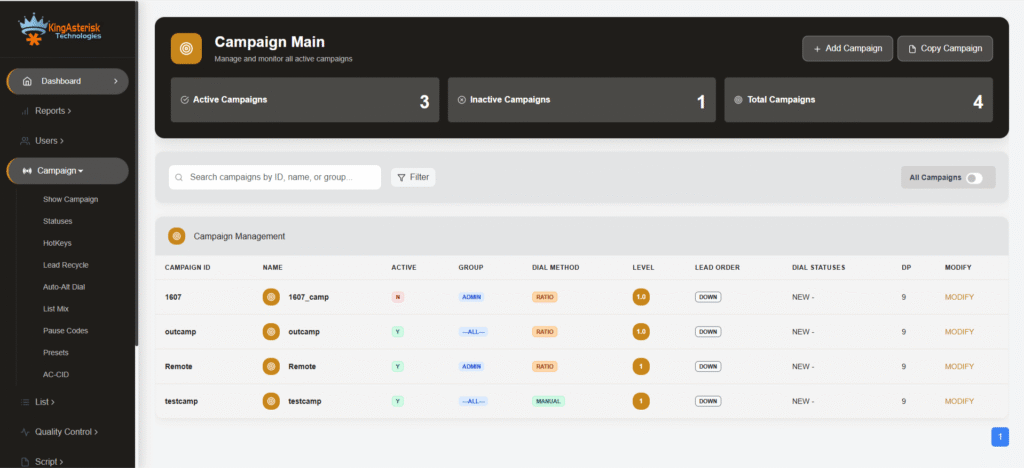
Campaign configuration: the second pillar of administration
Once user access is sorted, campaign configuration is where dialer behaviour actually lives. Each campaign carries settings such as:
- Dial method (RATIO, ADAPT_HARD_LIMIT, ADAPT_TAPERED, or manual)
- Auto dial level, which determines how many lines the system dials per available agent
- Available agent-only override, campaign call times, and dial statuses
- Hopper and lead-loading behaviour for the assigned lists
These fields sit in vicidial_campaigns and are read by the dialer engine on every dial cycle. A misconfigured value here does not throw an error message. It simply changes, or stops, dialer behaviour silently, which is why campaign configuration review is one of the first steps in any dialing issue.
Case study: manual dialing not working
A recurring, genuinely frustrating scenario for administrators looks like this. An agent logs in successfully, is assigned to a campaign, and sees the Dial Next Number button. They click it. Nothing happens: no outbound call, no screen update, no origination on the Asterisk side, no action logged anywhere in VICIdial.
Because the agent can log in and the interface loads normally, it is tempting to suspect a network or telephony fault. In practice, this symptom sets points almost every time at campaign configuration rather than infrastructure.
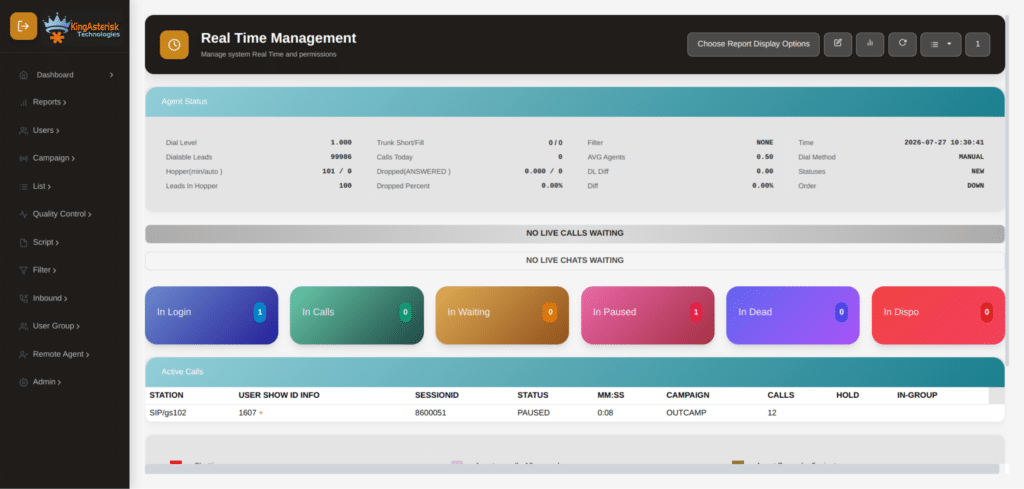
Start by checking the agent’s live state directly against the database:
SELECT user, status, campaign_id
FROM vicidial_live_agents;A result such as:
TEST_AGENT | PAUSED | SAMPLE_CAMPAIGNimmediately tells you the agent session is registered but paused, which will block manual dialing regardless of what the button appears to do on screen. If status shows as available rather than paused, the next place to look is the campaign record itself. Pull the campaign’s dial settings and check the auto dial level field:
auto_dial_level=0An auto dial level of zero effectively tells the dialer not to place any lines for that campaign, including lines initiated manually by an agent pressing Dial Next Number in some configurations, particularly where the campaign is set to a dial method that depends on that ratio for line allocation.
This single field is one of the most common root causes of a “the button does nothing” report, and it is invisible from the agent’s screen because there is no error state to display. There is simply no instruction reaching the originate layer.
A practical diagnostic order for this exact symptom set looks like this:
- Confirm the agent’s live status in vicidial_live_agents is not PAUSED or in a wait state.
- Confirm the campaign’s dial method matches what the button is meant to do (manual dialing needs the campaign correctly set for it).
- Check auto_dial_level on the campaign record and correct it if it has been zeroed out during a configuration change.
- Confirm the lead the agent is trying to dial has not exceeded its call count or fallen outside the campaign’s local call time window.
- Only after ruling out the above should you look at the Asterisk origination layer itself, since the database and campaign configuration account for the overwhelming majority of manual dial failures.
This is a good general lesson for VICIdial Administration: most dialer symptoms that look like a technical fault are actually a configuration value read directly from the database. Knowing which two or three tables and fields to check first saves hours compared to working backwards from the telephony layer.
Transfers and live call administration
Administration also extends to how agents handle live calls once dialing is working correctly. VICIdial supports two transfer types that administrators should train supervisors on:
Blind transfer sends the call immediately to another agent or department without a conversation first, and is used when there’s no need to brief the receiving party.
Attended, or warm, transfer lets the initiating agent speak with the receiving party before connecting the customer, and is the right choice when context needs to be handed over before the customer joins.
Neither transfer type requires special admin configuration beyond ensuring the destination extension or campaign is reachable and the agent’s permission set allows transfers, which again traces back to their User Level and User Group.
Server and environment requirements
Administrators planning a fresh deployment or a custom theme build should have a few environment details ready before configuration begins. KingAsterisk typically requests the ViciBox version and the SVN codebase version currently in use, since theme and customisation work is built against the existing environment rather than a generic base.
Hardware is scoped to the expected agent count and campaign volume, with both Intel and AMD options supported. One requirement worth flagging early: an AlmaLinux server with a dedicated IP is needed from the client side before installation and configuration work can begin.
Where custom administration panels fit in
Standard VICIdial administration is fully functional out of the box, but many Australian operators running larger or multi-brand campaigns move to a customised panel for a cleaner interface without losing any underlying control. KingAsterisk builds these on modern front-end stacks, including React-based interfaces and Tailwind CSS styling, while keeping every core administrative function, campaign management, user and agent administration, list management, inbound and outbound routing, real-time reporting, carrier and trunk configuration, call recording settings, and system monitoring, fully intact underneath.
The admin file path typically moves from /vicidial/admin.php to something like /dialer/admin.php on a custom build, but the permission model, campaign fields, and database structure described throughout this article remain the same.
Frequently Asked Questions
VICIdial Administration refers to the set of controls used to manage users, permissions, campaigns, lists, and dialer settings within a VICIdial deployment, typically accessed through the admin.php panel.
On a standard build it’s at http://[YOUR_SERVER_IP]/vicidial/admin.php. On a custom KingAsterisk theme, the path is often reorganised, commonly to /dialer/admin.php, with credentials specific to that deployment.
Create a dedicated User Group, limit its Allowed Reports to the single report you want visible, assign the user to that group with an appropriate User Level, and set every other admin permission flag to 0.
The campaign’s dial method and auto dial level fields, combined with the agent’s live status in vicidial_live_agents. An auto dial level of 0 or a paused agent status will both block manual dialing.
User Level is a numeric value that sets the ceiling on what a user can administratively do. The User Group determines which campaigns, lists, and reports they can see. Both combine to define actual access.
Blind transfer sends the call on immediately with no conversation first. Warm transfer lets the initiating agent brief the receiving party before the customer is connected.
Get administration set up correctly the first time
Misconfigured user permissions and campaign settings are behind most of the dialer issues Australian contact operations run into after go-live. KingAsterisk sets up VICIdial administration correctly from the start, builds custom admin panels where a standard interface doesn’t fit the operation, and troubleshoots existing deployments down to the exact table and field causing the problem.
Reach out to KingAsterisk to review your current VICIdial administration setup or plan a new deployment.