
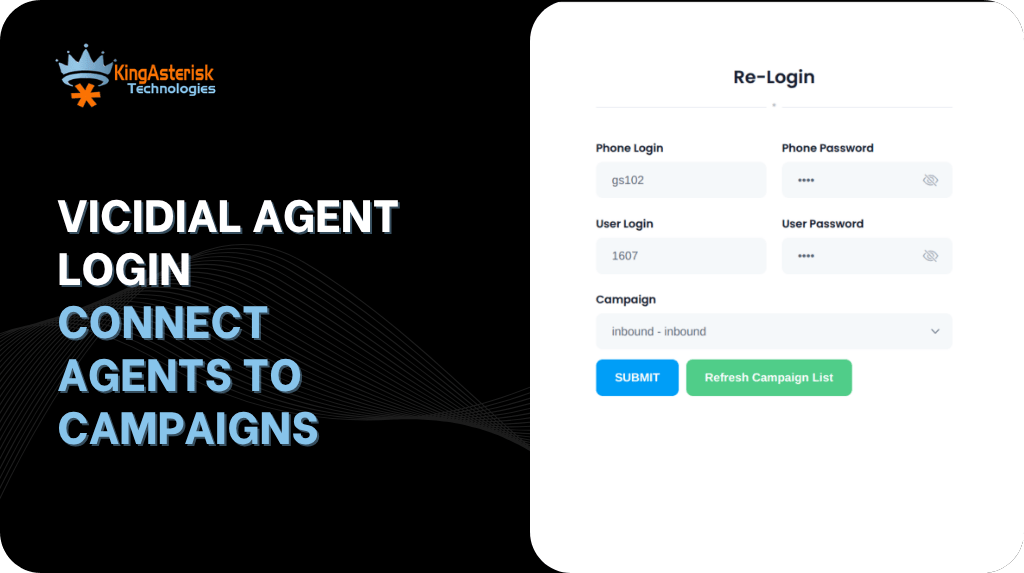
VICIdial agent login is not just a form – it is a database write, a session handshake with Asterisk, and a permission check that decides what that agent is allowed to do for the rest of their shift. Every VICIdial dialer session starts with one action: an agent typing a user ID, a password, and a campaign into a login screen.
For a supervisor troubleshooting a stalled shift, or a developer wiring VICIdial into a CRM, that single action is where most operational problems either begin or end.
For contact center teams in Australia managing distributed agents across time zones, the login step also carries practical weight: shift handovers, remote agent connectivity, and integration with rostering or CRM systems all depend on knowing exactly what happens when someone logs in – and what to check when they cannot.
This guide breaks down the VICIdial agent login process end to end: the URL structure, the password model, the newer agent web client, the login API, and a real troubleshooting case where login succeeds but dialing does not.
What actually happens when an agent logs into VICIdial
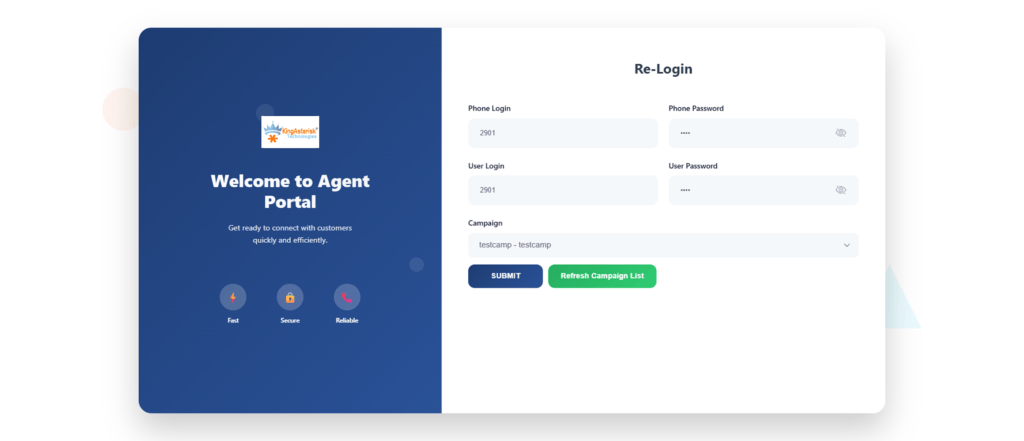
The VICIdial agent login screen asks for three pieces of information: a user ID, a password, and a campaign ID. A fourth field, the phone login, ties the browser session to a specific SIP extension or softphone registration. When an agent submits this form, VICIdial does not simply grant access to a page – it performs a sequence of checks and writes that determine everything about the session that follows.
First, the submitted credentials are checked against the vicidial_users table. If the user ID and password match an active record, VICIdial confirms the agent’s user level and user group, which together determine what buttons, campaigns, and reports that agent can see. Next, VICIdial checks that the requested campaign is active and that the agent’s user group is permitted to work it – an agent cannot simply type any campaign ID into the login screen and expect access.
Once both checks pass, VICIdial inserts a row into vicidial_live_agents, recording the agent’s username, campaign, extension, and an initial status. This table is the single source of truth for “who is logged in right now” across the entire installation, and it is what every supervisor screen, wallboard, and reporting query reads from. The phones table is checked in parallel to confirm the extension is registered with Asterisk before the agent is marked ready to take or place calls.
The VICIdial agent login URL structure
On a standard installation, the agent interface is reached at:
http://[YOUR_SERVER_IP]/vicidial/vicidial.php This is separate and distinct from the administration login, which lives at /vicidial/admin.php. Custom theme deployments often move the agent interface to a different path – KingAsterisk’s custom builds, for example, commonly serve it at /agent/agent.php or a client-specified path. The file path changes; the underlying authentication logic against vicidial_users does not.
Agent web client 2.0 login
Agent web client 2.0 refers to the newer interface layer used on more recent VICIdial builds and on most custom theme deployments, including KingAsterisk’s React-based agent interfaces. The visual layout changes – real-time status updates arrive over a persistent connection rather than a page refresh, and the screen is generally built to work better on narrower displays for agents working from a laptop rather than a fixed workstation.
What does not change is the authentication step underneath it: agent web client 2.0 still checks the same vicidial_users credentials and still writes to vicidial_live_agents on a successful login. Teams evaluating an upgrade to the newer client should treat it as an interface and transport change, not a change to how accounts, passwords, or permissions are managed.
VICIdial agent login API – programmatic visibility into login state
Integrating VICIdial agent login into a CRM, workforce dashboard, or automation workflow does not mean querying the agent screen or the underlying tables directly. VICIdial exposes two separate API surfaces for exactly this purpose, and choosing the right one matters.
For login state specifically, a REST-style integration layer built on top of these – the kind KingAsterisk implements for CRM and dashboard integrations – typically exposes a dedicated login-status endpoint. A request against /api/v1/agents/{agentId}/login returns a structured response such as:
{
  "success": true,
  "code": 200,
  "data": {
    "loggedIn": true,
    "loginTime": "2026-07-15T08:01:10Z",
    "serverIp": "192.168.10.15",
    "campaignId": "OUTBOUND001"
  }
}This is useful for workforce management tools that need to confirm an agent has actually logged in for a rostered shift without polling the database. A companion endpoint, the live agent status API, returns real-time state across every logged-in agent:
{
  "success": true,
  "code": 200,
  "data": [
    {
      "agentId": "1001",
      "username": "agent001",
      "campaignId": "OUTBOUND001",
      "status": "INCALL",
      "pauseCode": null,
      "loginTime": "2026-07-15T08:00:00Z"
    },
    {
      "agentId": "1002",
      "username": "agent002",
      "campaignId": "OUTBOUND001",
      "status": "PAUSED",
      "pauseCode": "BREAK"
    }
  ]
}The status field maps directly to values VICIdial writes internally: READY, INCALL, PAUSED, DISPO, WRAPUP, and DEAD (an unexpected logout). Any integration built against this endpoint should treat DEAD as an operational alert rather than a routine state – it usually means the agent’s browser session or extension dropped without a clean logout, which needs a supervisor’s attention.
All of these API requests carry a bearer token in the Authorization header, and unauthorized calls return a standard 401 response rather than partial data, which matters when the integration is handling account-linked information.
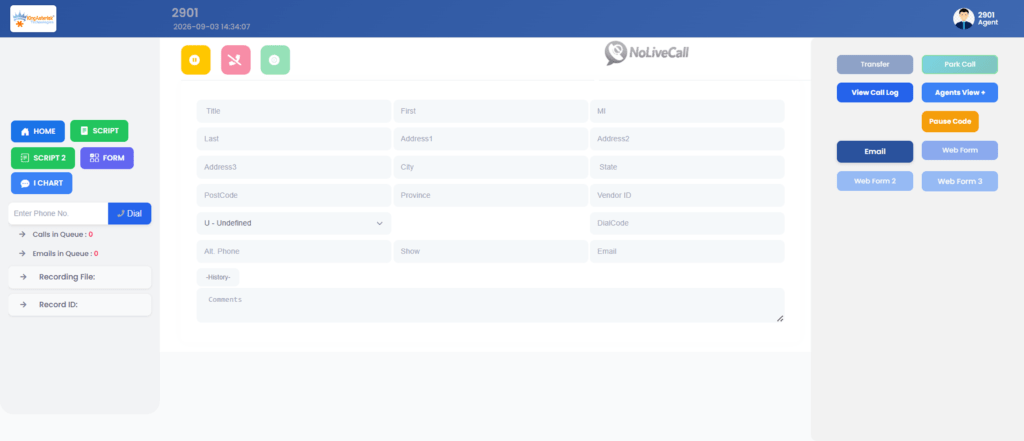
Diagnosing a login that isn’t behaving
When a login-related ticket comes in, the fastest diagnostic step is not the browser – it is the vicidial_live_agents table itself, which reflects exactly what the login process wrote.
SELECT user, status, campaign_id
FROM vicidial_live_agents;A result such as:
TEST_AGENT | PAUSED | SAMPLE_CAMPAIGNtells a supervisor something specific: the login itself succeeded. The credential check passed, the campaign check passed, and a row was written. The agent is not stuck at the login screen – they are sitting in a paused state inside a live session, most likely on a break code or waiting on a manual state change.
This distinction matters operationally, because “the agent can’t log in” and “the agent is logged in but paused” call for completely different fixes. The first points at credentials, campaign permissions, or extension registration. The second points at agent workflow, pause code configuration, or a campaign left in a state the agent doesn’t expect.
When login succeeds but manual dialing does not work
This is one of the more disorienting tickets a supervisor can receive, because every visible signal looks correct: the agent has logged in, the campaign has loaded, and the Dial Next Number button is sitting right there, clickable. And then nothing happens.
Symptoms
- Agent logs in successfully
- Agent sees the Dial Next Number button and can click it
- No outbound call is placed
- No screen update occurs
- No Asterisk originate event fires
- No VICIdial action is logged against the attempt
Where to look first
The most common cause in this exact pattern is a campaign configuration value, not a login or permission problem. Check the campaign’s dial method setting:
Campaign: SAMPLE_CAMPAIGN
auto_dial_level=0An auto_dial_level of 0 combined with a campaign set to a mode that expects the dialer engine – rather than manual agent action – to initiate calls will produce exactly this symptom: the button exists on the screen, the click registers in the browser, but the originate request never reaches Asterisk because the campaign is not configured to accept a manual trigger from that agent state. Three places to check in sequence:
1. Campaign dial method.
Confirm the campaign is genuinely set for manual or click-to-call dialing, not left on an automated mode with a manual-looking interface.
2. Agent permission scope.
Cross-check the agent’s assigned permissions – the ManualDial permission specifically – against their user group. An account without it will show the button but silently reject the click server-side.
3. Hopper and lead availability.
If the hopper has no eligible leads loaded for that agent’s filters, there is nothing to dial against regardless of button state, and the failure looks identical from the agent’s side.
Working through these in order – campaign configuration, then permission scope, then lead availability – resolves the large majority of “logged in but can’t dial” tickets without needing to touch Asterisk logs directly.
Admin login vs agent login – two different doors
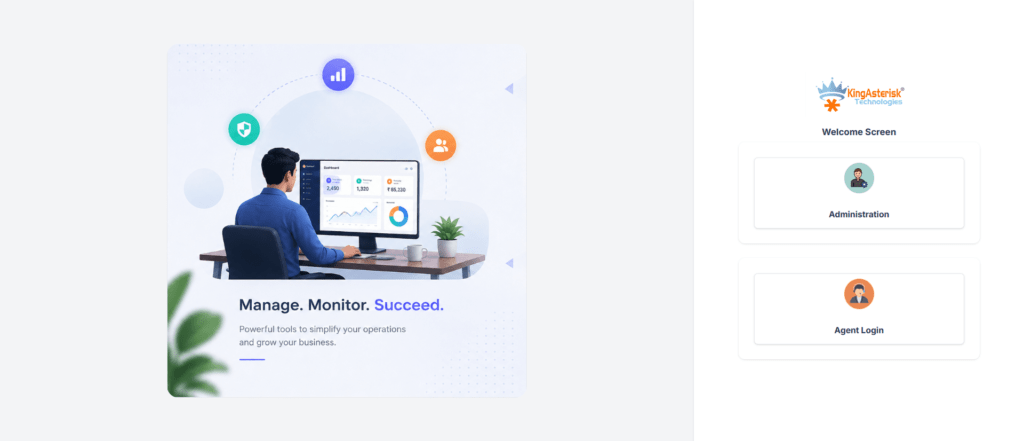
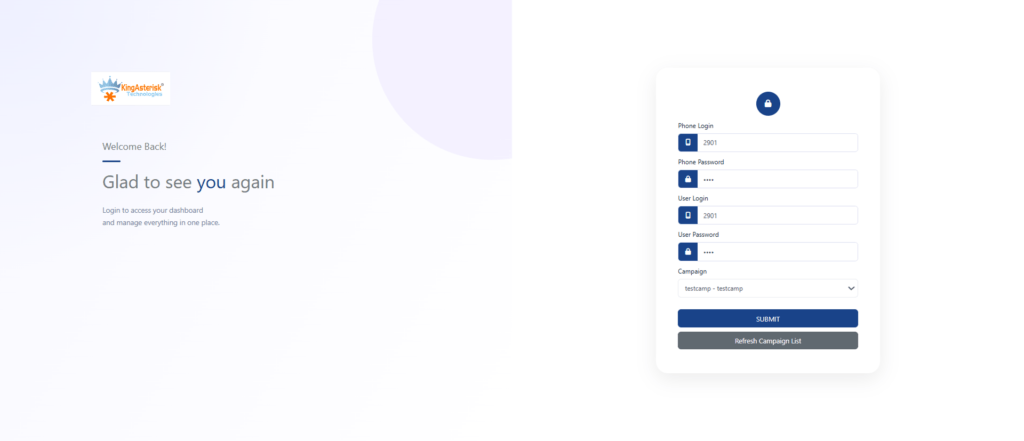
It’s worth being explicit about this because the two are frequently confused in support conversations. The administration dashboard, reached at /vicidial/admin.php on a standard build (or a custom path such as /dialer/admin.php on a KingAsterisk theme deployment), controls campaigns, user accounts, lists, and system settings. The agent login at /vicidial/vicidial.php (or its custom-theme equivalent) is scoped entirely to that one agent’s session.
Default administrator credentials are publicly documented across VICIdial installations generally, which makes changing both the username and password immediately after first login – through Admin – Users – Edit User – one of the highest-value security steps in any new deployment.
Where KingAsterisk fits
KingAsterisk builds on top of the standard VICIdial agent login and administration structure rather than replacing it – every custom theme, React-based agent interface, or Tailwind-styled login screen still authenticates against the same vicidial_users table and writes to the same vicidial_live_agents record described above. The work sits in a few specific areas:
- Custom agent interfaces and supervisor dashboards, including agent web client 2.0-style real-time status screens
- Browser-based softphone integration for agents who need a login-to-dial path without a physical handset
- API development connecting login status, campaign data, and lead activity into external CRM and workforce systems
- Security hardening around session handling, credential storage, and administrator access
- Custom reporting on login/logout timing, pause code use, and agent occupancy
For AU-based operations coordinating shifts across a single time zone or a distributed remote team, this typically means a login and permission structure that maps cleanly to rostering, plus API access that lets a workforce tool confirm attendance without a supervisor manually checking the agent screen.
Frequently asked questions
Agent passwords are set and stored by an administrator in the vicidial_users table rather than chosen by the agent through a sign-up flow. There is no built-in self-service reset; password changes go through Admin – Users – Edit User.
VICIdial’s agent interface is browser-based rather than a native mobile or desktop application. Agents log in through a URL such as /vicidial/vicidial.php, and custom theme deployments may present this as a branded web interface, but it runs in a browser rather than as an installed app.
Agent web client 2.0 is a newer interface layer, generally used on recent builds and custom theme deployments, that delivers real-time agent status over a persistent connection instead of page refreshes. It authenticates against the same underlying credentials as the classic client – the difference is in the interface and status transport, not the login mechanism.
There is no self-service sign-up. An administrator creates the account under Admin – Users, sets the user level and user group, assigns campaigns, and links a phone extension before the agent can log in.
Yes. A dedicated login-status endpoint returns whether a given agent is currently logged in, along with login time and assigned campaign. A companion live-status endpoint returns real-time state – ready, in-call, paused, wrap-up, or dead – for every logged-in agent, authenticated with a bearer token.
VICIdial is available as open-source software, typically deployed through the ViciBox installer or built from the SVN codebase onto a supported Linux server. Teams wanting a custom login screen, theme, or agent interface generally pair this base install with a development partner for the customization layer.
Get your VICIdial agent login environment right
Whether the issue is a custom agent web client rollout, a login API integration into an existing CRM, or a campaign that’s quietly blocking manual dials despite a clean login, KingAsterisk works on the VICIdial deployment layer every day.
Reach out to talk through your current setup, your ViciBox and SVN versions, and what a login and permission structure built for your team would look like.