VICIdial Lead Import Failure Fix BAD-PHONE & CSV Issues
Vicidial Software Solutions

VICIdial Lead Import System Failure: Troubleshooting BAD-PHONE Errors and CSV Upload Issues

VICIdial Lead Import Failure Fix BAD-PHONE & CSV Issues

A VICIdial lead import system failure almost always looks the same from the outside: the upload screen confirms the file went through, the list detail page shows no change in lead count, and agents log in to an empty hopper with nothing to dial. For teams running outbound campaigns in Australia and other regions with non-US numbering formats, this is one of the most frequent VICIdial support tickets KingAsterisk receives, and in the overwhelming majority of cases the server is fine. 

The real cause sits inside VICIdial’s lead-load validation logic, which rejects rows before they ever reach the vicidial_list table and reports the rejection as a BAD-PHONE error.

This guide walks through reproducing the failure step by step, reading the validation output correctly, fixing the phone number formatting and field mapping that trigger it, resetting and reuploading leads safely, and confirming leads are reaching the dialer hopper once the import itself is fixed.

How the failure typically shows up

Before troubleshooting anything, confirm the pattern matches what VICIdial Lead Import System Failure actually does when phone validation rejects a batch. The reported symptoms usually include:

  • CSV uploads appear successful on screen, but no leads land in the target list.
  • The import process reports a BAD-PHONE validation error against some or all rows.
  • The upload completes without any leads being inserted, and the list’s lead count does not move.
  • The same result happens across different file formats and phone number layouts, ruling out a one-off formatting mistake.
  • Testing across multiple CSV structures still points back to the lead-import and phone-number validation step, not the file transfer itself.

The clearest evidence is the lead count itself. If the list’s total stays flat after several import attempts, the upload is completed but insertion is failing silently at the validation layer, which is exactly what a BAD-PHONE rejection looks like from the admin panel.

đź’Ž Hidden Opportunity : Top 5 Custom VICIdial Admin Theme

Reproducing the fault step by step

Walking through the failure end to end makes the validation behaviour visible rather than assumed. The sequence below mirrors what KingAsterisk’s support team runs on every lead-import ticket.

Step 1: Open the load new leads screen

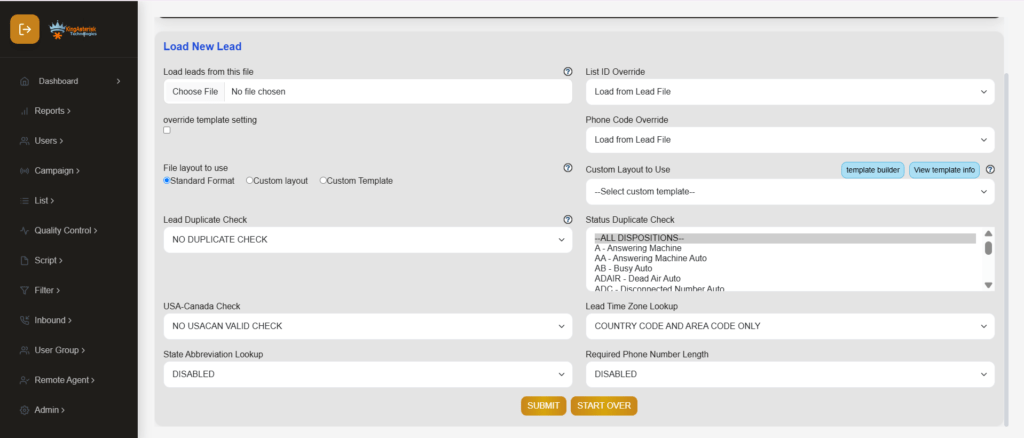
From Admin, go to Lists, select the target list, and open Load New Leads. This screen accepts the CSV, lets you map fields, and shows the import summary once processing finishes.

VICIdial Lead Import System Failure

Step 2: Submit without a file attached

Clicking submit without selecting a CSV returns ERROR: No file uploaded. This confirms the form itself is functioning and rules out a broken submit action before moving to real data.

VICIdial CSV upload error

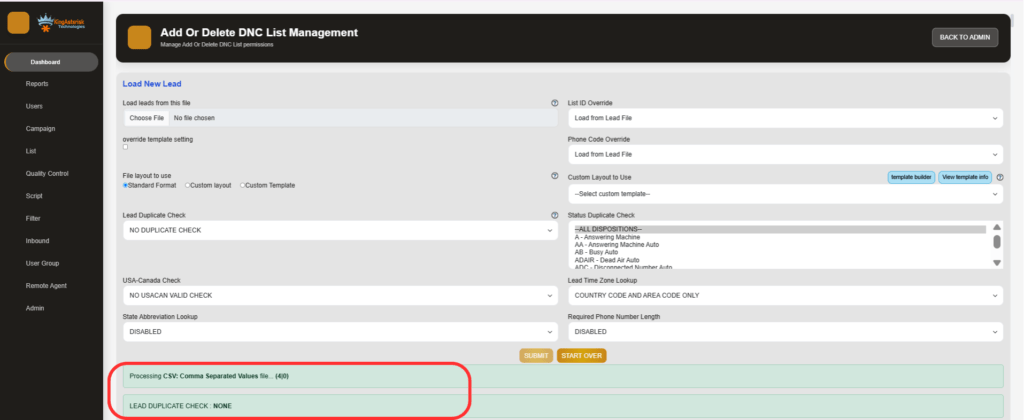
Step 3: Upload a correctly formatted CSV

With a properly structured file – clean header row, phone_number in the expected format, correct list and campaign selected – the import completes and the summary reports the number of leads inserted, updated, and rejected.

VICIdial leads CSV import success

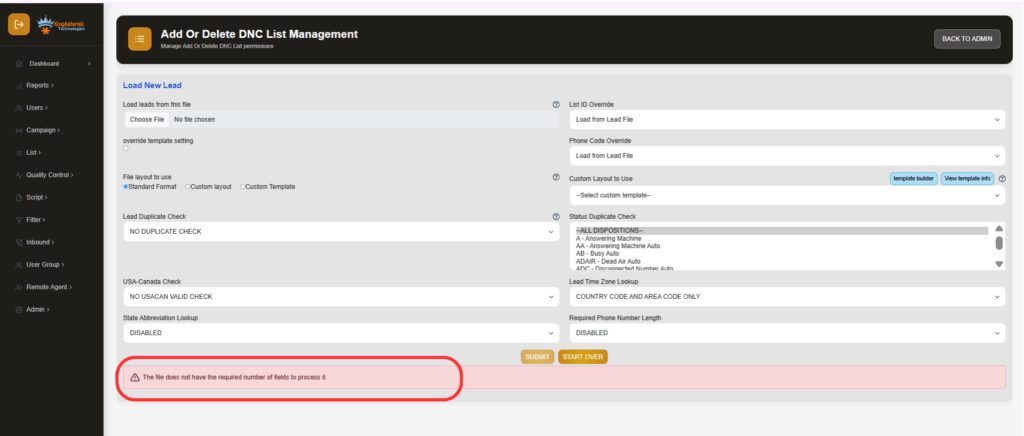
Step 4: Upload a deliberately malformed CSV

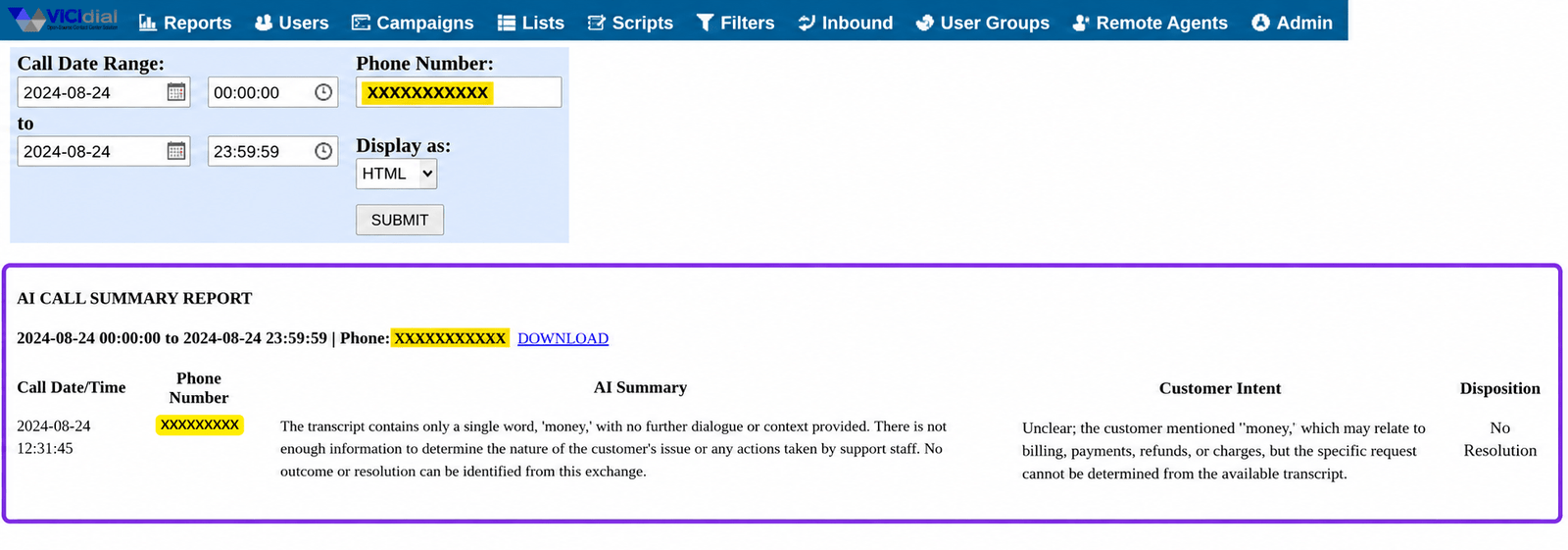
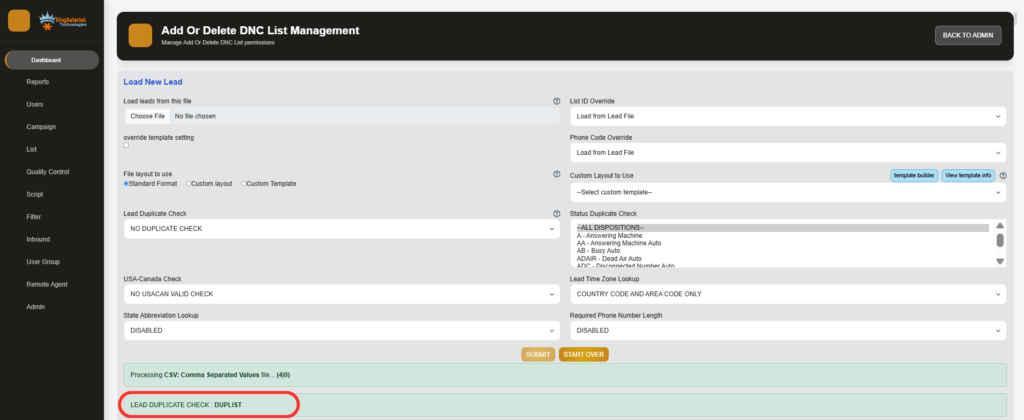
Reintroducing a bad phone number format, an extra delimiter, or a shifted column reproduces the BAD-PHONE rejection. The import summary reports rows rejected for phone validation instead of leads inserted, even though the upload itself completes without an error page.

VICIdial invalid CSV fields error

Step 5: Re-upload the same file

Uploading the identical file a second time, without changing vendor_lead_code or resetting the list, returns an already-imported result rather than a fresh insert. This is VICIdial’s duplicate check working correctly, not a second failure.

VICIdial duplicate leads import error

What actually triggers the BAD-PHONE error

VICIdial validates phone_number during the load process before a row ever reaches the database. A row fails validation, and is reported as BAD-PHONE, for any of the following reasons:

  • The number contains letters, spaces, brackets, dashes, or a leading plus sign that was not stripped before upload.
  • The digit count falls outside the length VICIdial Lead Import System Failure expects for the configured numbering plan, which defaults to North American 10-digit formatting unless changed.
  • The area code or prefix is not present in the system’s reference table, which matters for deployments serving Australian or other non-US number ranges running on default settings.
  • The phone_number column is empty for that row because a header mismatch shifted data into the wrong field during mapping.

This last point explains why the same CSV can pass on one list and fail on another. If the column order in the file does not match the field mapping selected on the upload screen, VICIdial system reads a name, an address, or a blank cell as the phone number and rejects the row, even though the actual phone data further along the row is perfectly valid.

How to reboot VICIdial Lead Import System Failure Correctly

Most lead-import and hopper issues do not require a reboot, but a stalled dialer process occasionally does. Restart individual services rather than the full server where possible:

systemctl status mariadb
systemctl restart mariadb
systemctl restart httpd
systemctl restart asterisk

If the predictive dialing process itself has stalled rather than a background service, reconnect to its screen session (commonly astguiclient or AST_VDauto_predictive) and restart it from there rather than rebooting the whole machine. A full server reboot is only necessary after kernel or package updates, or when a service will not come back cleanly through systemctl. 

On an AlmaLinux deployment with a dedicated IP, confirm the reboot window with whoever manages the client-side server access before restarting, since it will drop any live calls in progress.

Related fault: manual dialing not responding after a lead import

A second issue sometimes surfaces around the same time as an import failure and gets mistaken for the same root cause: an agent logs in successfully, sees the Dial Next Number button, clicks it, and nothing happens – no outbound call, no screen update, no Asterisk origination. A quick database check confirms whether the agent session itself is the problem:

SELECT user, status, campaign_id
FROM vicidial_live_agents;
Returns:
TEST_AGENT | PAUSED | SAMPLE_CAMPAIGN
A PAUSED status blocks manual dial actions even though the button remains clickable in the interface. Combined with the campaign's dial level setting:
Campaign: SAMPLE_CAMPAIGN
auto_dial_level=0

This points to the agent session, not the lead data, as the cause. auto_dial_level=0 is the expected setting for manual dialing campaigns, so the fix is clearing the paused state and confirming the agent’s phone extension is registered, rather than re-checking the leads that were just imported.

Automating lead delivery so this stops recurring

Teams that hit BAD-PHONE errors repeatedly on manual CSV uploads are usually better served moving recurring feeds to a script-driven import through KingAsterisk’s REST integration layer, which returns a structured validation response instead of a generic upload summary. A lead import request looks like this:

POST /api/v1/leads
Authorization: Bearer <token>
Content-Type: application/json
 
{
  "data": {
    "clientReferenceId": "CRM500001",
    "phoneNumber": "+18005551234",
    "firstName": "John",
    "listId": 1001,
    "campaignId": "OUTBOUND001",
    "vendorLeadCode": "RM10001"
  }
}
 
A rejected number returns a validation error naming the specific field and reason instead of a batch-level BAD-PHONE summary:
{
  "success": false,
  "code": 422,
  "message": "Validation Failed",
  "errors": [
    { "field": "phoneNumber", "message": "Phone Number is required." }
  ]
}
 

and a lead that already exists returns a 409 duplicate response referencing the existing lead ID rather than silently discarding the row. For CRM-fed or vendor-fed campaigns running daily volumes, this level of per-record feedback catches formatting problems before they reach a hopper, which is a meaningfully faster diagnostic path than re-running a full CSV to find one bad column.

🖥️ Watch It in Action : Live Demo of Our Solution!

Frequently asked questions

Use the list detail page in Admin to clear called_since_last_reset or reset the list’s call counts, or schedule the reset_leads.pl utility through cron for lists that need resetting on a recurring basis. Avoid direct database updates unless the list has been isolated first.

Restart the affected service individually – mariadb, httpd, or asterisk through systemctl – rather than rebooting the full server. Reconnect to the predictive dialing screen session and restart that process directly if it has stalled. Reserve a full reboot for kernel or package updates.

Prepare a CSV with a clean header row and a distinct phone_number column, strip formatting characters before upload, map every field explicitly on the Load New Leads screen, confirm the target list and campaign, and check the lead count after the import summary to confirm the numbers match.

Get lead import issues fixed properly

If BAD-PHONE errors, empty hoppers, or stalled manual dialing keep recurring on your VICIdial deployment, KingAsterisk Technologies can review your list configuration, phone validation settings, and campaign hopper filters directly, and set up a script-driven lead feed where manual CSV uploads are no longer practical. 

Reach out to discuss your current setup and get a fix that holds beyond the next upload.

KINGASTERISK_NOTE

Top 5 Custom VICIdial Admin Themes for a Modern Dialer Interface
Vicidial Software Solutions

Top 5 Custom VICIdial Admin Themes for a Modern Dialer Interface

Top 5 Custom VICIdial Admin Themes for a Modern Dialer Interface

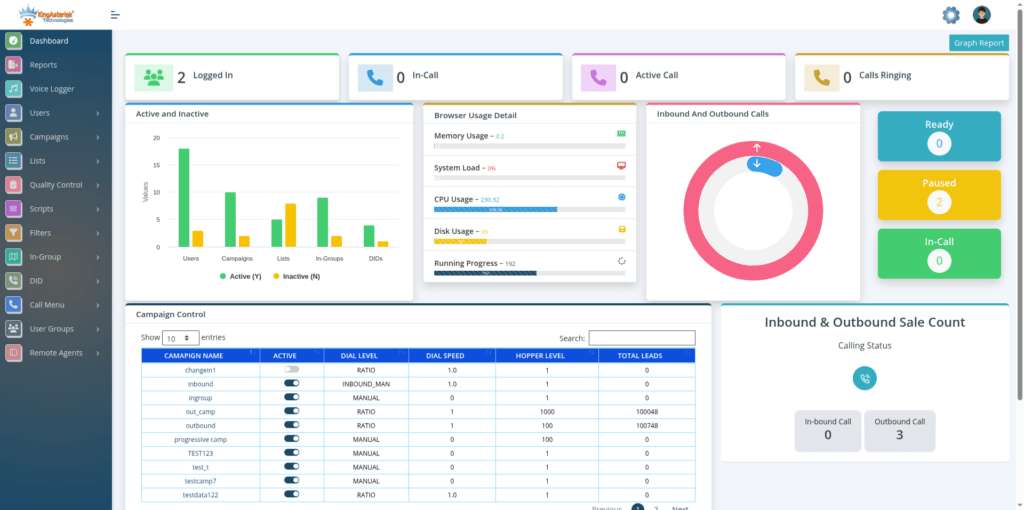
If you’ve spent any time inside a stock VICIdial admin panel, you already know the feeling: dense tables, 2005-era form fields, and a navigation structure that hasn’t meaningfully changed in over a decade. That’s the exact gap KingAsterisk Technologies built its custom VICIdial admin themes to close. 

VICIdial’s underlying engine is rock solid – but the interface supervisors and administrators stare at for eight hours a day hasn’t kept pace with how contact centers actually operate in 2026. Every theme in this roundup is a proprietary, in-house build – not a community skin, not a third-party plugin, and not a repackaged open-source template. 

We design, code, and test each dashboard against live VICIdial and ViciBox deployments, then refine it based on direct feedback from supervisors managing real campaigns across industries like lead generation, appointment setting, collections, and customer support.

In this guide, we’re walking through the top 5 custom VICIdial admin themes currently available from KingAsterisk, what makes each one different, and how you can explore them yourself in our live demo environment before committing to a deployment.

Why a Custom VICIdial Admin Theme Actually Matters

It’s tempting to dismiss admin theming as cosmetic. It isn’t. A poorly organized dashboard adds seconds to every lookup a supervisor performs – and across hundreds of daily actions, that adds up to real lost floor time. A custom VICIdial admin theme changes three things that directly affect day-to-day operations:

Navigation speed – grouping campaign management, list management, and reporting into a logical, visual structure instead of VICIdial’s flat menu tree.

Onboarding time – new administrators and team leads learn a clean, modern layout faster than the stock interface’s dense forms.

Data legibility – real-time agent status, campaign statistics, and queue information are easier to scan at a glance, which matters most during peak call volume.

Brand consistency – for agencies and BPOs running the panel in front of clients, a themed dashboard looks like a purpose-built platform rather than an off-the-shelf install.

None of this changes VICIdial’s core dialing engine, campaign logic, or database structure. A custom admin theme is a presentation layer built on top of the existing VICIdial and Asterisk stack – the underlying system you already know still does the work.

The Top 5 Custom VICIdial Admin Themes from KingAsterisk

All five of these dashboards are custom VICIdial admin themes designed and maintained by KingAsterisk. Four are English-language administration interfaces built around different operational priorities. The fifth is a dedicated German-language dashboard, built for teams operating in DACH-region deployments who need the admin panel itself – not just campaign scripts – presented in German.

The Streamlined Operations Theme

VICIdial Theme

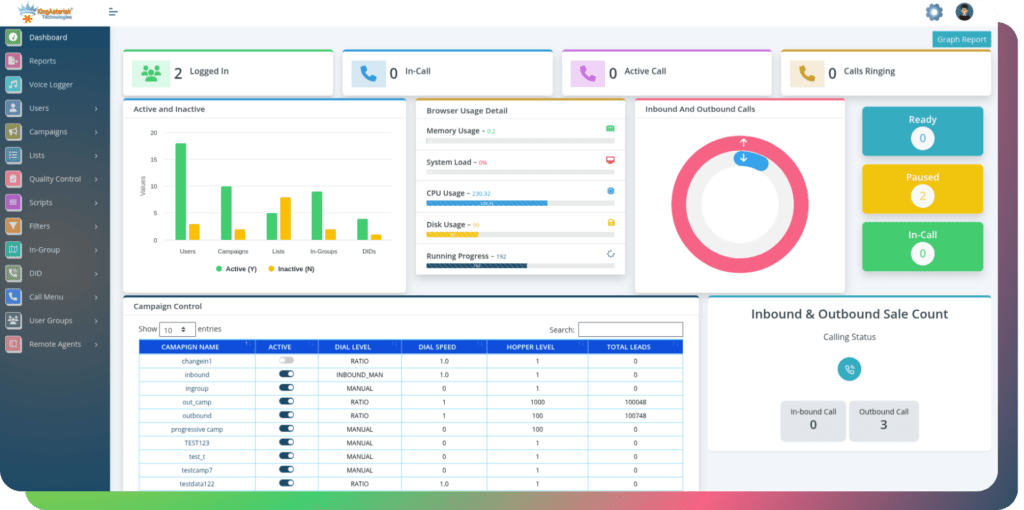
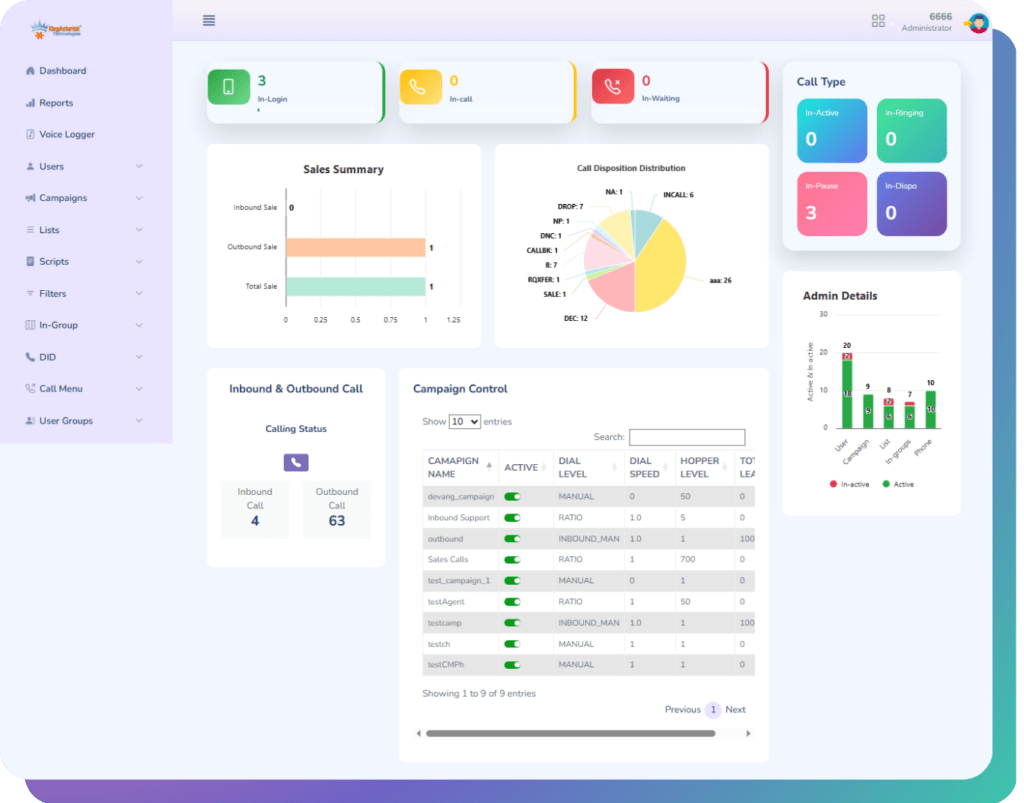
This one is the entry point for teams moving off the stock VICIdial interface for the first time. It restructures the default admin menu into a card-based navigation layout, with campaign management, list management, and user administration grouped into clearly labeled sections instead of a long left-hand tree.

This theme keeps every native VICIdial function in place – nothing is hidden or removed – but reorganizes the visual hierarchy so the most frequently used screens (live agent status, campaign configuration, and lead search) sit one click from the home dashboard instead of three or four.

Best suited for: smaller teams and agencies making their first move to a custom admin theme without wanting to relearn where anything lives.

The Real-Time Monitoring Theme

Custom VICIdial

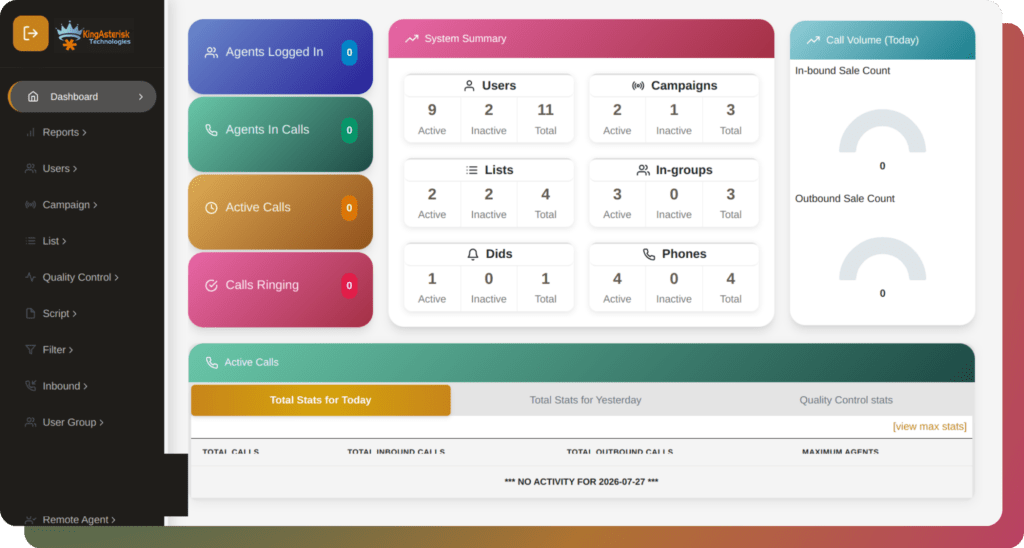
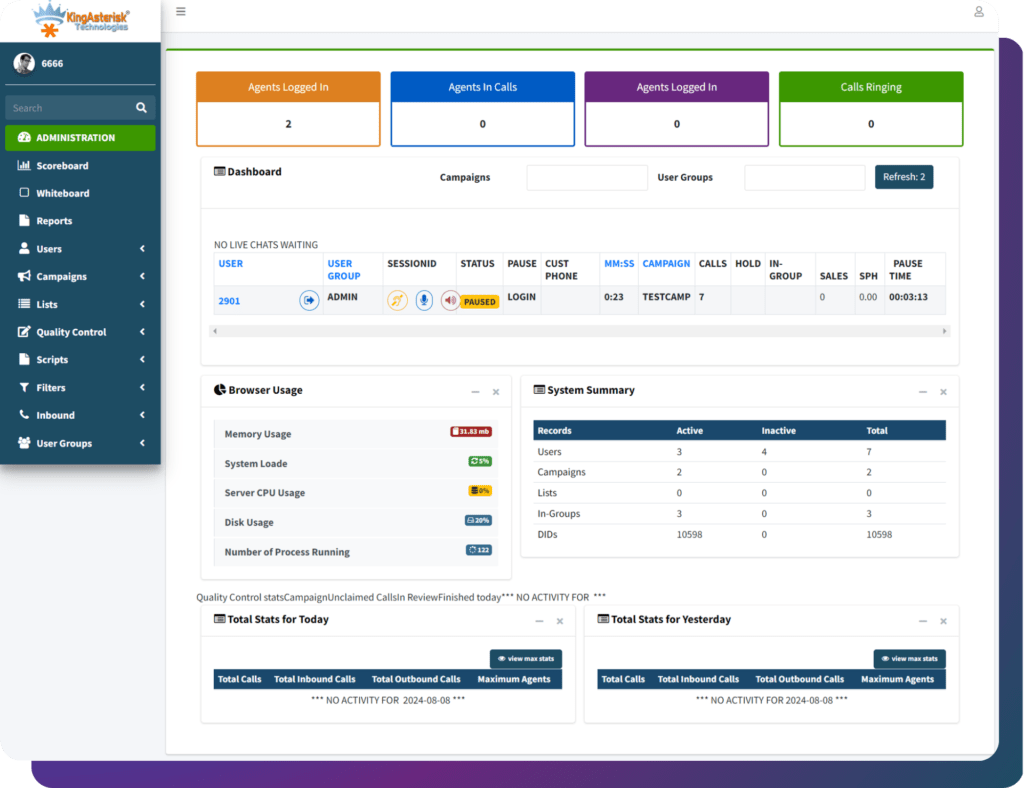
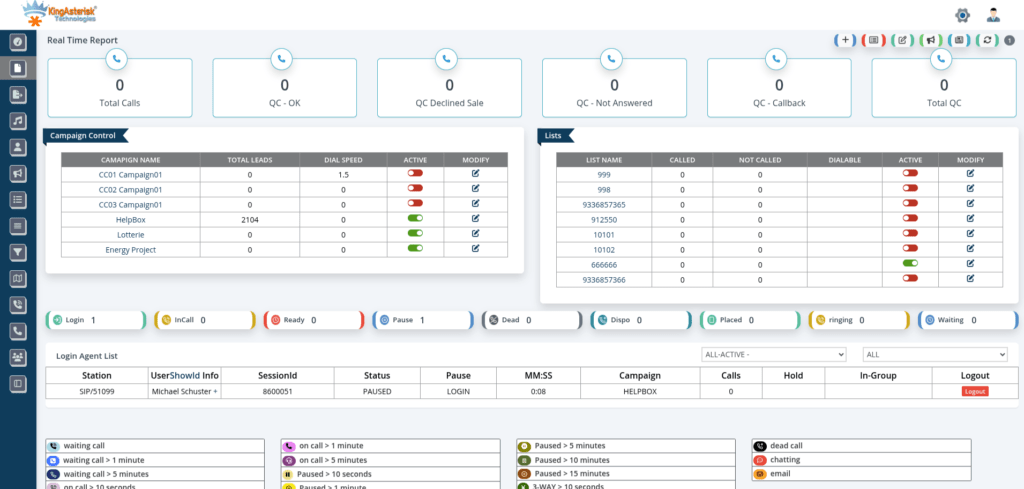
The real-time monitoring theme is built for supervisors who spend most of their day watching live queues rather than running reports. The dashboard opens directly into a real-time monitoring view showing agent status, live call counts, and queue depth across active campaigns, refreshed continuously rather than requiring a manual page reload.

It also incorporates an Auto-Attendant management panel, giving administrators a visual editor for call-routing logic instead of navigating raw menu configuration screens. Routing rules, time-based conditions, and department transfers can be reviewed and adjusted from a single screen, which meaningfully cuts down the time it takes to update inbound routing during shift changes or campaign launches.

Best suited for: floor supervisors and operations managers who need at-a-glance visibility into live activity, and teams that frequently adjust inbound routing.

The Conversation Intelligence Theme

Custom VICIdial Theme

The conversation intelligence theme is built around post-call visibility. Alongside the standard VICIdial disposition and recording tools, this theme layers in a sentiment analysis module that flags calls likely to need supervisor review – tone shifts, extended silence, or abrupt call endings – without requiring a manager to listen to every recording end-to-end.

The sentiment view sits alongside disposition data and campaign statistics on the same dashboard, so quality assurance teams can move from a flagged call straight into the relevant lead record and agent history without switching screens.

Best suited for: quality assurance teams, coaching-focused supervisors, and campaigns where conversation quality directly affects conversion or compliance.

The Productivity Theme

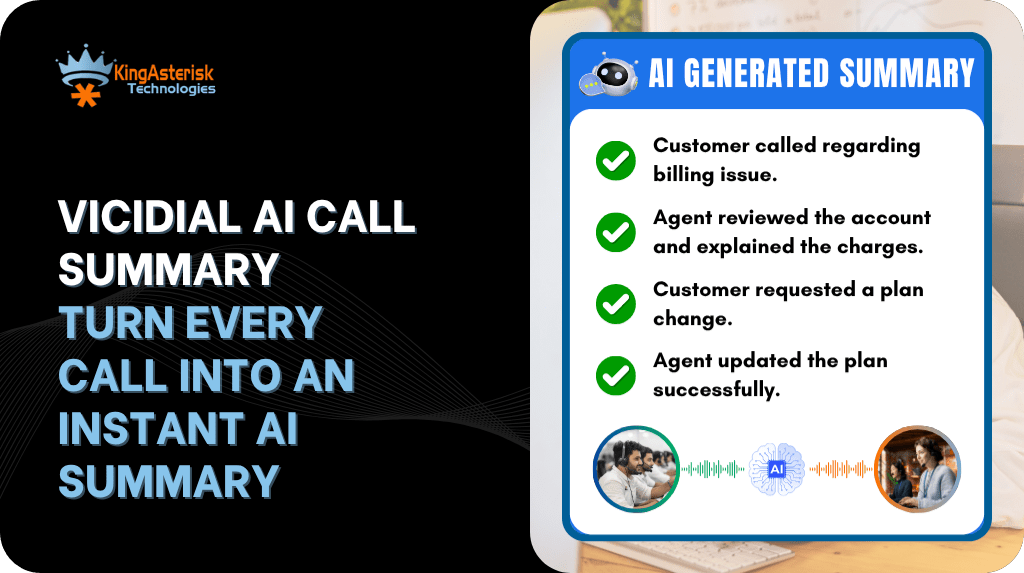
The productivity theme is designed around after-call workflow speed. Its standout addition is a call summarization panel that condenses each completed call into a short, structured summary – key discussion points, disposition reasoning, and any follow-up flagged by the agent – displayed directly in the lead history.

For campaigns with high call volume and tight after-call work targets, this cuts down the time supervisors spend reconstructing what happened on a call from raw recordings or agent notes alone, particularly useful when handing a lead off between shifts or agents.

Best suited for: high-volume outbound campaigns, appointment-setting teams, and any operation where fast lead handoffs matter.

The German-Language Dashboard

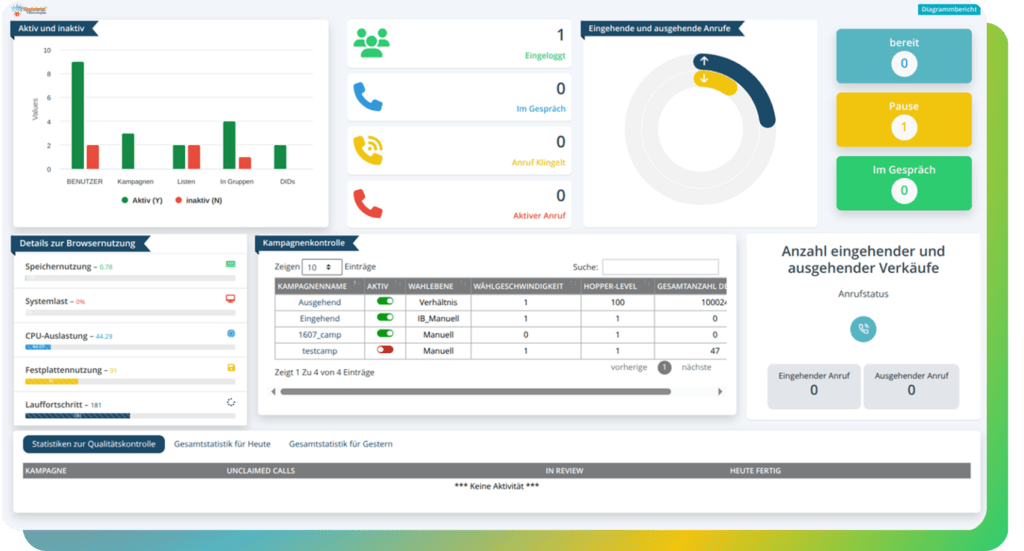
The German Theme is the only theme in this list built as a fully localized German-language administration panel – menu labels, form fields, report headers, and system messages are presented natively in German rather than relying on a browser-level translation layer. This is the theme we deploy for clients running DACH-region operations who need administrators to work in their own language, not just agents.

This theme also includes a predictive analytics module, surfacing forward-looking indicators such as projected list exhaustion, expected connect rates for the remainder of a shift, and campaign pacing trends – presented as simple visual indicators rather than raw statistical output, so administrators can act on them without needing a background in data analysis.

Best suited for: contact centers operating in German-speaking regions, and any deployment where administrator-level localization is a requirement rather than a nice-to-have.

âš  NOTE
A Note on These Themes
All five dashboards above are proprietary custom VICIdial admin themes built and maintained by KingAsterisk Technologies. They are not open-source templates, and they are not distributed as free downloads or published on GitHub. Each deployment is built against your specific ViciBox and SVN version — see the section below for how that process works.

How KingAsterisk Builds Every Custom Theme

A custom VICIdial admin theme isn’t a drop-in skin – VICIdial installations vary enough in the ViciBox version and SVN codebase revision that a theme built for one environment can break on another if it isn’t matched correctly. Our build process accounts for that from the start.

Step 1: Environment Assessment

Before development starts, we confirm two details from your existing setup: your ViciBox version and your SVN (VICIdial codebase) revision. These determine which theme structure and file paths we can safely build against.

Step 2: Custom Development

The theme is developed specifically for your environment – not adapted from a generic template. Depending on the project, this can include a modern interface layer, updated dashboard components, and campaign management tooling built on top of your existing VICIdial installation.

Step 3: Delivery

Once development is complete, you have two options: we provide the source code and installation steps for your own team to deploy, or you provide server access and we handle installation and configuration directly.

Step 4: Ongoing Support

Several support packages are available for post-installation needs, scoped to your environment and update frequency requirements – we can walk through the right fit once your ViciBox and SVN details are confirmed.

🖥️ Watch It in Action : Live Demo of Our Solution!

How to Explore These Themes on the Live Demo

Every theme above can be explored before deployment through the KingAsterisk demo portal. Here’s the process, using the Global Admin theme as an example:

  • Visit kingasterisk.com and select Live Demo from the main navigation.
  • This opens the demo portal at demo.kingasterisk.com, where each available theme is listed.
  • Choose a theme – for example, Theme 5 for the German-language Global Admin dashboard.
  • Click Admin to reach the themed login screen, located at a custom path such as
  • demo.kingasterisk.com/theme-5/dialer/admin.php
  • Enter the demo credentials provided on the login page and sign in to explore the full dashboard.

Once logged in, you can navigate the complete admin panel – campaign management, agent administration, lead and list management, real-time reporting, and system monitoring – all through the selected theme’s interface, with full underlying VICIdial functionality intact.

A Security Note on Custom Admin Panel Paths

One side benefit of a custom theme deployment worth mentioning: the admin login path itself changes. A standard VICIdial installation serves its admin panel at a predictable, publicly documented location. A KingAsterisk custom deployment instead serves the panel at a client-specific path – commonly something like /dialer/admin.php rather than the default /vicidial/admin.php – which can be adjusted further per project.

âš  SECURITY
Security Reminder
Regardless of which theme or panel path you use, always change default administrator credentials immediately after first login, through Admin – Users – Edit User. Default credentials are publicly documented for the base platform and remain one of the most common entry points for unauthorized access on any new deployment.

Frequently Asked Questions

Is there a custom VICIdial admin theme free download availableâť“

No. The five themes covered in this guide are proprietary builds developed and maintained by KingAsterisk for specific client environments – they aren’t distributed as free downloads. Each one is matched to your ViciBox version and SVN codebase revision during development, which isn’t something a generic downloadable package can account for. You can explore all five through our live demo before deciding on a deployment.

Is a custom VICIdial admin theme available on GitHub❓ 

KingAsterisk’s admin themes are not published on GitHub or any public repository. Source code is delivered directly to clients as part of a development engagement, either for in-house deployment or installed by our team on your server.

Can I try a custom VICIdial admin theme for free before committingâť“

Yes – every theme listed here, including the German-language Global Admin dashboard, is accessible through our live demo portal at no cost, using provided demo credentials. This lets you evaluate the interface and workflow before any development or deployment begins.

Do these themes work with any VICIdial installationâť“

Compatibility depends on your specific ViciBox version and SVN codebase revision, which is why we assess your environment before development starts rather than offering a one-size-fits-all package.

Does the German-language theme translate agent scripts too, or only the admin panelâť“

Global Admin specifically localizes the administration panel – menus, forms, and system messages. Agent-facing scripts and campaign content are configured separately within your campaign setup, independent of which admin theme is active.

Final Thoughts

The stock VICIdial admin panel gets the job done, but it wasn’t built with today’s contact center pace in mind. Whether your priority is faster navigation, real-time visibility, post-call intelligence, faster after-call summaries, or a fully localized German-language experience for your administrators, there’s a custom VICIdial admin theme built for that specific need – not a generic reskin applied after the fact.

If you’re ready to see how any of these five themes look against your own ViciBox and SVN environment, reach out to KingAsterisk Technologies to start with an environment assessment, or head straight to the live demo to explore them yourself.

KingAsterisk Technologies designs, develops, and deploys custom VICIdial, Asterisk, and dialer interface solutions for contact centers worldwide. For more on our development services, visit our contact page. 

KINGASTERISK_NOTE
VICIdial Permission ErrorFix “You Do Not Have Permission to View This Page” (2)
Vicidial Software Solutions

VICIdial “You Do Not Have Permission to View This Page” Error: How to Fix User Permissions

VICIdial Permission ErrorFix “You Do Not Have Permission to View This Page” (2)

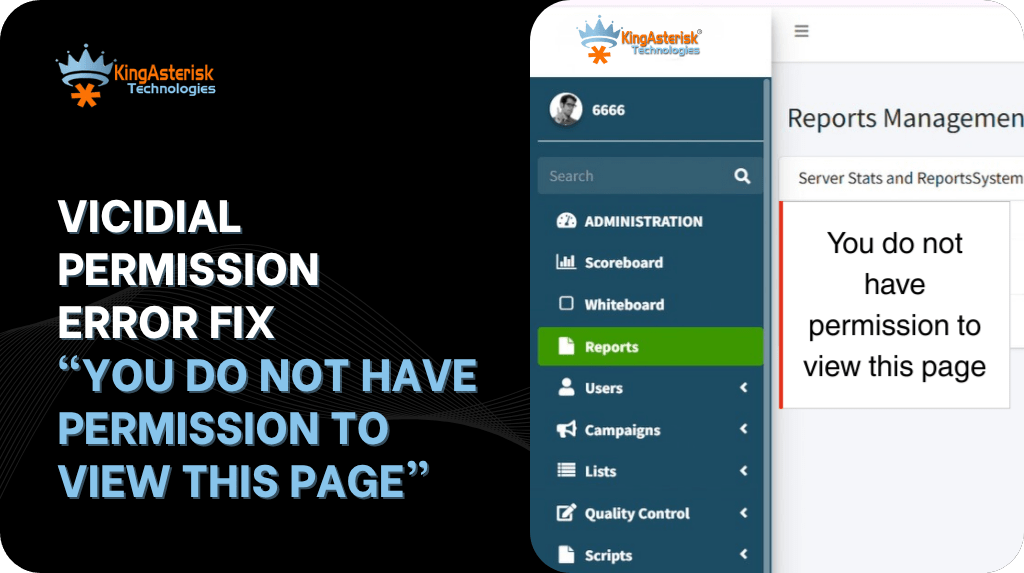
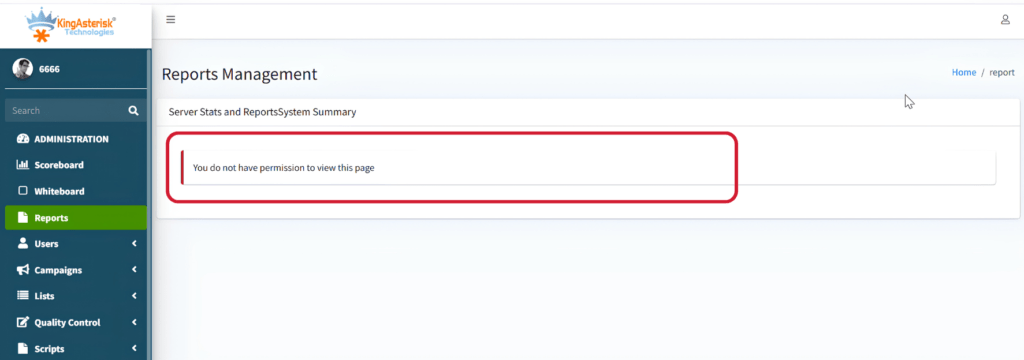
If you administer a VICIdial environment, you have probably seen VICIdial Permission Error.  This exact message pops up on a user’s screen: “You Do Not Have Permission to View This Page.” 

It usually happens right after a new user is created, an agent is promoted to a supervisor role, or a User Group is copied from an existing template. The login itself works fine – the username and password are correct – but the moment that user clicks into a specific admin page, VICIdial blocks the screen outright.

This is not a bug. It is VICIdial’s permission system doing exactly what it was designed to do: gate every admin page behind a specific permission flag stored against the User Group and User Level. In this guide, we will break down what triggers the error, how to trace it back to the exact permission responsible, and how to fix VICIdial user permissions correctly – the same process our support team follows when clients report this issue on their deployments.

VICIdial “You Do Not Have Permission to View This Page”

What Does the VICIdial Permission Error Mean?

VICIdial’s admin interface is built as a large collection of individual PHP pages – one for managing users, one for campaigns, one for lists, one for each report, and so on. Every one of these pages runs a permission check at the very top of the script, before any data or form loads. That check looks at two things stored in the vicidial_users and vicidial_user_groups tables: the logged-in user’s User Level, and the specific permission flags attached to that user’s User Group.

When the check passes, the page renders normally. When it fails, VICIdial stops execution immediately and prints the message: “You Do Not Have Permission to View This Page.” No data is shown, no partial page loads – the script exits as soon as the permission check returns false.

This distinction matters for troubleshooting. A login failure means the username or password is wrong, and the user never reaches the dashboard at all. 

A permission error means authentication succeeded – the user is genuinely logged in – but authorization failed for that particular page. The fix, therefore, is never about resetting a password. It is about locating and correcting the specific permission flag tied to the page the user is trying to open.

🎨 Customize Your Dialer : Build a Vicidial Responsive Theme

How to Identify the Permission Causing the Error

Every admin page in VICIdial is mapped to a corresponding permission field inside the User Group configuration (and in some cases, an individual toggle on the User record itself). These fields store a simple binary value.

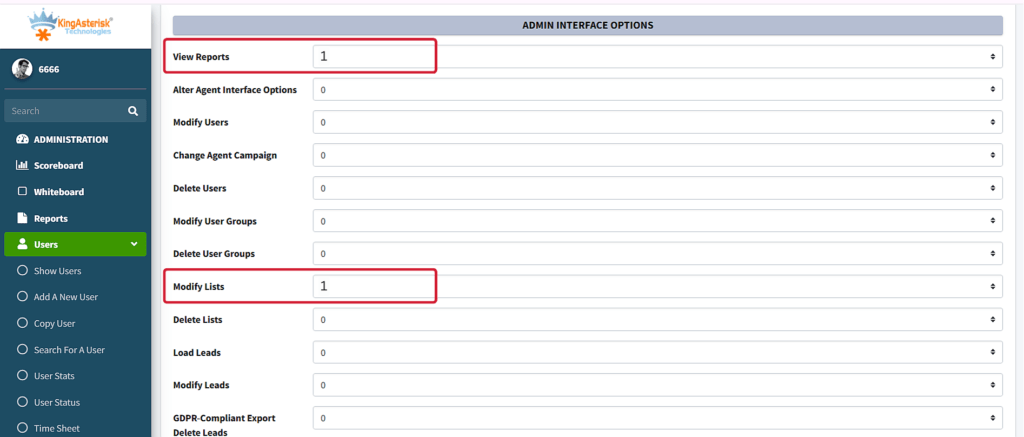
Permission Value 1 – Page Accessible

When the relevant permission field is set to 1, the permission check passes and the page loads exactly as expected. For example, if “Modify Campaigns” is set to 1 for a User Group, any user in that group can open the campaign editing screen without issue.

Permission Value 0 – “You Do Not Have Permission to View This Page”

When that same field is set to 0, VICIdial blocks the page entirely and displays the error message. This is the exact behavior admins run into after cloning a restrictive User Group template, or after a manager account is downgraded without adjusting individual toggles.

To trace the correct field, match the page the user was trying to reach against its corresponding permission name in the User Group screen. Some of the most common mappings include:

  • Admin – Users pages – controlled by Modify Users / Delete Users
  • Admin – Campaigns pages – controlled by Modify Campaigns
  • Admin – Lists / lead upload pages – controlled by Load Leads / Modify Lists
  • Reports section (Agent Time, Call Detail, etc.) – controlled by View Reports plus the Allowed Reports list
  • Any page under Admin – User Groups – controlled by Modify User Groups

Once you know which permission name corresponds to the blocked page, the fix is a straightforward edit inside that user’s User Group.

🚀 Check Out Our Live Demo

Would you like to check these VICIdial permission settings before applying them to your production server? You can safely test the configuration in our live demonstration environment.

Live Demo →

Step-by-Step: How to Fix the VICIdial User Permission

The steps below cover both a general permission fix and the more specific case of restricting a user to a single report – a very common request when a manager should only see Agent Time data and nothing else.

1. Log into the VICIdial admin panel using an account with sufficient User Level (typically Level 1, full administrator access).

2. Navigate to Admin – User Groups – Show User Groups.

3. Locate the User Group assigned to the affected user and click the Edit (Action) icon.

4. Scroll to the permission field that matches the blocked page (for example, Allowed Reports, Modify Campaigns, or Modify Lists) and change the value from 0 to 1.

5. If you are restricting access rather than opening it up – for example, giving a manager visibility into only the Agent Time Detail Report – create a dedicated User Group first (e.g., REPORT_USERS), then set Allowed Reports to only the report you want visible.

6. Create or edit the User record under Admin – Users. Assign the correct User Group, set User Level to 7 or 8 for report-only access, and set View Reports = 1 while leaving Modify Users, Modify Campaigns, Modify Lists, Delete Users, and Load Leads at 0.

7. If report visibility should also be limited by team, configure Allowed User Groups inside the User Group settings so the group can only see report data belonging to specific other groups.

8. Click Save Changes to commit the updated permission set.

This combination – User Level, User Group, View Reports, and Allowed Reports – is how VICIdial layers access control. Getting all four aligned is what separates a user who can see everything from one who can see exactly one report and nothing else.

How to Test the Permission After Making Changes

Permission changes in the VICIdial solution are not applied to an already-open session. The permission set is read once, at login, and cached for that session. Always have the affected user log out completely and log back in before assuming a fix has failed.

  • Log in as the affected user (or ask them to) in a fresh browser session or private window.
  • Navigate directly to the page that previously triggered the error.
  • Confirm the page now loads and displays data as expected.
  • If the report-only scenario was configured, confirm that only the intended report appears and that other admin menu items remain hidden.
  • If the error persists, double-check that the user is actually assigned to the updated User Group – not a similarly named group left over from a previous setup.

Common VICIdial Permission Issues

Most permission errors trace back to one of a small handful of causes:

User assigned to the wrong User Group – the permission was fixed on one group, but the user’s account still points to a different one.

User Level too low – some pages require a minimum User Level regardless of what the User Group allows, so both gates need to agree.

Stale session – the user tested the page without logging out first, so the old cached permission set was still active.

Custom admin panel paths – on customized deployments the admin interface may live at a different path (for example /dialer/admin.php instead of the standard /vicidial/admin.php); the underlying permission logic is identical, but it helps to confirm you are editing the correct environment.

Allowed Reports vs. general admin toggles confused with one another – restricting a report requires editing Allowed Reports specifically, not the general Modify permissions.

Allowed User Groups left unconfigured – the user has View Reports enabled but still cannot see data belonging to another team’s group.

Watch: Fixing the VICIdial Permission Error

This walkthrough shows the exact VICIdial permission error on screen and demonstrates the User Group fix in real time – useful if you’d rather watch the fix than read it.

Need Setup or Server Support?

If you are configuring User Groups, Allowed Reports, or a full permission structure on a new environment and want it set up correctly from the start, our team can assist with both the permission architecture and the underlying server environment.

Server Information

  1. Hardware suggested based on your requirements
  2. Intel and AMD hardware options available
  3. Installation and configuration support
  4. Compatible with multiple server environments

Important Note

  • AlmaLinux server required from client side
  • Dedicated IP required for setup
  • Server access needed for installation
  • Installation support provided
🖥️ Watch It in Action : Live Demo of Our Solution!

Frequently Asked Questions

User Level is a numeric ranking (commonly 1 for full administrators down through higher numbers for restricted roles) that sets a baseline access tier. User Group permissions are separate binary flags – like Modify Campaigns or Allowed Reports – that fine-tune exactly which pages and reports that group can reach. Both must agree for a page to load.

Not to an active session. The open source VICIdial software reads permissions at login and caches them, so the affected user needs to log out fully and log back in before the updated permission takes effect.

Yes. Create a dedicated User Group, set Allowed Reports to only the report you want visible, set View Reports = 1 on the user, and set all other admin permissions to 0. This gives the user access to exactly one report and nothing else.

Confirm the user is actually assigned to the User Group you edited, confirm the User Level meets the minimum required for that page, and make sure the user has logged out and back in since the change was saved.

Final Thoughts

The “You Do Not Have Permission to View This Page” message in VICIdial is a straightforward access-control response once you know where to look. Every blocked page maps back to a specific permission field inside the User Group or User configuration, and correcting it is a matter of locating that field, flipping it to the right value, and having the user log back in to pick up the change.

If your team manages multiple User Groups, custom admin panel builds, or a large agent roster and wants a permission structure that is easier to maintain long-term, KingAsterisk Technologies works with VICIdial and Asterisk environments on exactly this kind of configuration – from user access control to full custom admin panel builds. 

Reach out to our team to have your permission structure reviewed and set up correctly.

KINGASTERISK_NOTE
Custom VICIdial Responsive Theme for Modern Contact Centers
Vicidial Software Solutions

VICIdial Responsive Theme: How to Build a Flexible Agent Interface

Custom VICIdial Responsive Theme for Modern Contact Centers

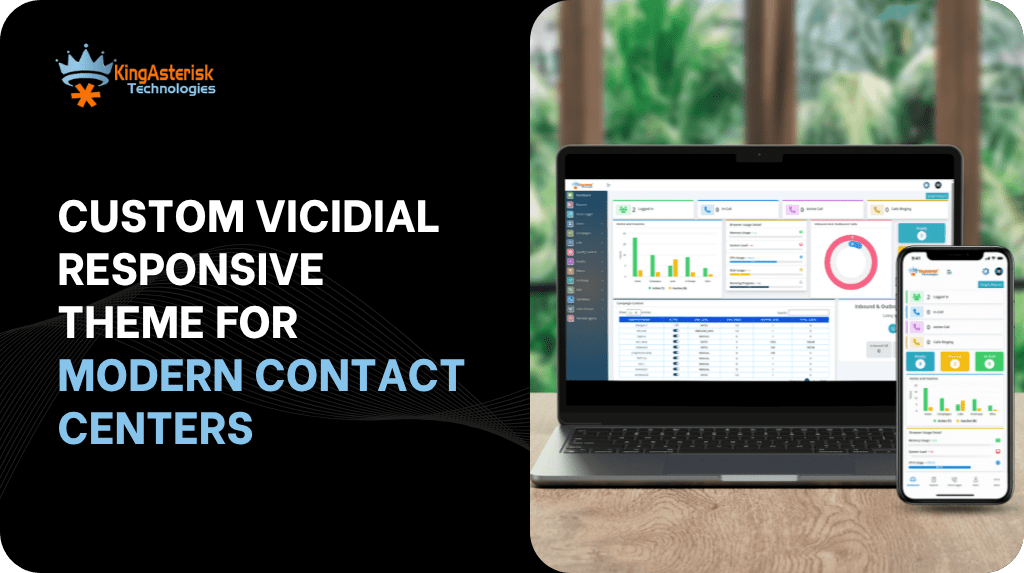
A VICIdial Responsive Theme platform is only as effective as the screen an agent looks at for eight or more hours a day. When that VICIdial screen fails to adapt to different monitors, laptops, or window sizes, it slows agents down, hides critical panels, and adds friction to every call. This is exactly the problem a custom theme is built to solve – a layout that adjusts intelligently to any resolution while keeping every dialing, scripting, and disposition tool exactly where an agent expects it.

In this guide, we break down what a VICIdial responsive theme actually is, why flexible agent interfaces matter more than ever for distributed teams, what to check before using a VICIdial responsive theme download or a VICIdial responsive theme GitHub repository, and how KingAsterisk Technologies approaches custom theme development for VICIdial deployments.

What Is a VICIdial Responsive Theme?

At its core, VICIdial ships with an agent screen and administration panel built on a traditional, fixed-layout structure. That structure works well on a standard desktop monitor, but it doesn’t automatically reflow when an agent switches to a smaller laptop, an ultrawide display, or a different browser zoom level.

A responsive theme replaces that rigid structure with a flexible grid system. Instead of hard-coded pixel widths, panels, buttons, and script windows are built using relative units and breakpoints, so the interface reorganizes itself based on the available screen space. The dial pad, call control buttons, lead information panel, disposition list, and script area all remain visible and usable, regardless of the device an agent is working from.

This is different from simply changing colors or fonts. A true responsive theme touches the underlying HTML and CSS structure of the agent screen, the layout grid, and often the JavaScript that governs how panels expand, collapse, or stack.

đź§  Optimization Tip : Vicidial User Permission Guide

Why Agent Interfaces Need to Be Flexible

Dialer teams today rarely work from a single, uniform hardware setup. Agents log in from different monitor sizes, different operating systems, and increasingly from home-based workstations that were never standardized by an IT department. A fixed-width interface assumes a single ideal screen size – and breaks the moment reality doesn’t match that assumption.

Common problems with non-responsive dialer screens

  • Script or CRM panels get cut off on smaller displays, forcing agents to scroll mid-call.
  • Buttons for hold, transfer, or disposition shift position depending on browser zoom, causing mis-clicks.
  • New agents need extra training time just to learn where controls ‘end up’ on their specific screen.
  • Supervisors reviewing multiple agent screens side-by-side struggle when layouts don’t scale down cleanly.
  • Remote or field-based agents on laptops experience a cramped, unusable version of the same interface a desktop agent sees comfortably.

A responsive theme removes these inconsistencies. The same underlying dialer logic runs identically for every agent – only the presentation adapts.

FeatureFixed-Width ThemeResponsive Theme
Screen adaptabilityBreaks on smaller screensAuto-adjusts to any resolution
Agent onboardingRequires manual zoom/scroll fixesConsistent layout, faster training
Remote agent supportLimited, prone to layout errorsWorks reliably across devices
Panel visibilityScript/CRM panels can get cut offPanels reflow using flexible grids
Long-term maintenanceNeeds rework for every new displayOne codebase, fewer patches

Core Building Blocks of a Responsive VICIdial Theme

1. A flexible grid layout

Rather than positioning elements at fixed pixel coordinates, a responsive theme organizes the agent screen into a grid of proportionally sized regions – call controls, lead data, script text, and disposition options. As screen width changes, these regions resize or stack in a predictable order instead of overlapping or disappearing.

2. Breakpoints for different screen classes

Breakpoints are the rules that tell the interface how to reorganize itself at specific screen widths – for example, a wide desktop monitor, a standard laptop, and a narrower browser window. A well-built theme defines breakpoints that keep every essential control reachable at each of these stages, without requiring horizontal scrolling.

3. Scalable typography and controls

Text sizing, button dimensions, and spacing are defined in relative units so they scale smoothly rather than becoming unreadably small or awkwardly oversized. This matters particularly for agents who work extended shifts and rely on quick visual scanning of lead details and script prompts.

4. Cross-device and cross-browser compatibility

A properly engineered theme is tested across the major browsers agents actually use, along with common operating system combinations, to confirm that call controls, real-time timers, and popup windows behave consistently everywhere.

5. Preserved core dialer functionality

Visual flexibility should never come at the cost of dialer performance. The underlying agent screen logic – call state handling, disposition submission, script rendering, and real-time status updates – needs to remain untouched while only the presentation layer is restructured.

VICIdial Responsive Theme Download: What to Check First

Many teams start their search by looking for a ready-made VICIdial responsive theme download or browsing a VICIdial responsive theme GitHub repository for community-built templates. Pre-built themes can be a reasonable starting point, but a few checks matter before installing one on a live system.

1. Version compatibility: Confirm the theme was built for your installed VICIdial and VICIBox version. Themes built for older releases can break newer agent screen scripts.

2. Codebase transparency: Review the source files before deployment. A theme pulled from a public GitHub repository should be readable, documented, and free of unnecessary external calls.

3. Update history: Check whether the repository is actively maintained. An abandoned project can leave security gaps as VICIdial itself continues to evolve.

4. Licensing terms: Confirm the theme’s license allows the kind of customization and redistribution your organization plans to do.

5. Testing on a staging environment: Never apply a downloaded theme directly to a production dialer. Test agent login, call handling, and disposition flows on a staging instance first.

For organizations that need guaranteed compatibility, dedicated support, and a theme built specifically around their campaign structure, a custom-built responsive theme is generally the safer long-term path compared with adapting a generic download.

How KingAsterisk Builds a Responsive Agent Theme

KingAsterisk Technologies develops custom VICIdial themes tailored to each client’s existing environment rather than applying a one-size-fits-all template. The process is structured around a few clear stages.

Step 1: Environment assessment

Development begins by confirming the client’s current ViciBox version and the underlying VICIdial codebase version. This ensures the responsive theme is engineered against the exact environment it will run on, rather than a generic baseline that may not match.

Step 2: Interface design and grid planning

The agent screen is mapped out region by region – call controls, script area, lead panel, disposition list – and rebuilt using a flexible grid with defined breakpoints. Where a client uses a modern front-end stack, this can include a React-based interface with a utility-first styling approach for faster iteration and consistent design tokens.

Step 3: Development and internal testing

The theme is built and tested across common screen sizes and browser combinations before being shared with the client, checking that every control agents rely on – hold, transfer, disposition, script navigation – remains accessible at each breakpoint.

Step 4: Delivery or managed installation

Depending on the client’s preference, KingAsterisk either delivers the completed source code and installation steps for the client’s own team to deploy, or completes the installation directly on client-provided server access.

Step 5: Post-launch support

Once a responsive theme is live, ongoing support options are available to handle future VICIdial updates, additional breakpoint tuning, or new panel requirements as a campaign structure evolves.

Need a Responsive VICIdial Theme Built for Your Environment?

KingAsterisk Technologies designs custom VICIdial agent interfaces tailored to your exact ViciBox deployment and codebase version — from responsive grid layouts and agent workflow optimization to testing, customization, and final production deployment. Contact us to discuss your current setup, feature requirements, and project timeline.

Server and Environment Requirements

Before any custom theme project begins, a few infrastructure basics need to be confirmed on the client side.

  • Hardware recommendations are provided based on expected campaign volume, with support for both Intel and AMD server configurations.
  • An AlmaLinux server is required from the client side, provisioned with a dedicated IP address.
  • Server access is needed for installation and configuration once the theme has been finalized.
  • Installation and configuration support is included as part of the deployment process.

Confirming these requirements early prevents delays once development work is complete and installation is ready to begin.

Agent and Administration Access Structure

On a standard VICIdial installation, agents typically log in through a dedicated agent screen path, separate from the administration dashboard used to manage campaigns, lists, and users. Custom theme deployments often use a distinct, client-specified path for both the agent interface and the administration panel, while the underlying authentication mechanism stays the same as a standard installation – only the file path and visual layout change.

Keeping this separation clear during theme development matters: the responsive treatment needs to be applied consistently to both the agent-facing screen and any administration view the theme touches, so supervisors and agents get the same reliable experience.

Common Pitfalls When Building or Installing a Responsive Theme

  • Overriding core dialer scripts instead of layering theme changes on top, which makes future upgrades difficult.
  • Skipping cross-browser testing and discovering layout issues only after agents are already live on the new theme.
  • Using a downloaded theme without checking version compatibility against the current VICIdial and ViciBox release.
  • Ignoring smaller breakpoints, so agents on laptops or narrower windows still end up scrolling.
  • Not testing real call scenarios – hold, transfer, conference – after the visual layer has changed, since a theme change can sometimes affect how a script triggers UI updates.
🖥️ Watch It in Action : Live Demo of Our Solution!

Frequently Asked Questions

It can be, provided you verify the version compatibility, review the codebase, check that the repository is actively maintained, and test thoroughly on a staging environment before touching a production dialer.

A well-built theme only changes the presentation layer and leaves core call-handling logic untouched. Performance issues typically arise when theme changes accidentally overwrite or conflict with core agent screen scripts, which is why careful testing matters.

Both options are available. Clients can receive the completed source code and installation steps to deploy themselves, or provide server access for KingAsterisk to complete installation and configuration directly.

An AlmaLinux server with a dedicated IP is required from the client side, along with server access for installation once development is complete. Hardware recommendations are provided based on expected campaign volume and can run on either Intel or AMD configurations.

Final Thoughts

A responsive agent interface isn’t a cosmetic upgrade – it’s a practical fix for the everyday friction agents face when a fixed layout doesn’t match their actual screen. Whether a team starts by evaluating a VICIdial responsive theme download, exploring a VICIdial responsive theme GitHub project, or commissioning a fully custom build, the underlying goal is the same: keep every control an agent needs visible and consistent, no matter what device they’re logging in from.

KingAsterisk Technologies builds responsive and custom VICIdial themes matched to each client’s exact ViciBox and codebase version, from initial grid design through installation and ongoing support, so agent screens stay fast, consistent, and easy to train on as teams grow.

KINGASTERISK_NOTE
VICIdial User Permission Guide Restrict Admin Access to Agent Time Reports (2)
Vicidial Software Solutions

VICIdial User Permission Guide: Restrict Admin Access to Agent Time Report

VICIdial User Permission Guide Restrict Admin Access to Agent Time Reports (2)

VICIdial user permission guide is one of the most underleveraged features in contact center administration – and one of the most consequential. If you run a busy VICIdial dialing operation with team leaders, supervisors, you need to think about leaving sensitive reports like the Agent Time Report. It opens to every user with admin credentials and is a security gap waiting to cause problems.

This guide walks you through the exact steps to lock down that report, control who sees what, and build a cleaner, more accountable permission structure across your VICIdial environment.

Understanding VICIdial’s Permission Architecture

VICIdial uses a hierarchical, role-based access model. Understanding this hierarchy is the starting point for any serious permission hardening work.

The system separates permissions into three broad categories: User-Level Settings (what the user can do at their own login), Admin Panel Access (which menu items and configuration pages are visible), and Report Access Controls (which data reports a user can pull and export). 

The Agent Time Report falls under that third category – and it contains detailed per-agent activity data that most roles simply should not see.

Understanding VICIdial's Permission Architecture

User Types Explained

  • Admin: Full system access including all configuration, reports, and user management.
  • Manager: Campaign-level visibility; can view reports tied to assigned campaigns.
  • Agent: Restricted to the softphone interface; no admin panel access by default.
  • Custom User: Configured manually – the most flexible and recommended approach for supervisors who need limited access.
🎨 Explore Our Custom Themes : New Custom Vicidial Theme: Modern UI Design

What Is the Agent Time Report – and Why Restrict It?

The Agent Time Report is a built-in VICIdial report that tracks exactly how long each agent spent in different states – logged in, on a call, in a pause code, waiting, and so on. It is one of the most granular performance views available in the platform.

From a management standpoint, that granularity is valuable. From a data security standpoint, it is sensitive. If a junior supervisor or a team lead can export this report for all campaigns, they gain visibility into performance data for agents outside their scope – including potential pay-for-performance metrics, attendance records, and shift patterns.

Restricting access to this report ensures that only the right people – typically senior managers or reporting analysts – can run and export it. It also makes your operation cleaner for internal compliance reviews, where auditors will ask who had access to what and when.

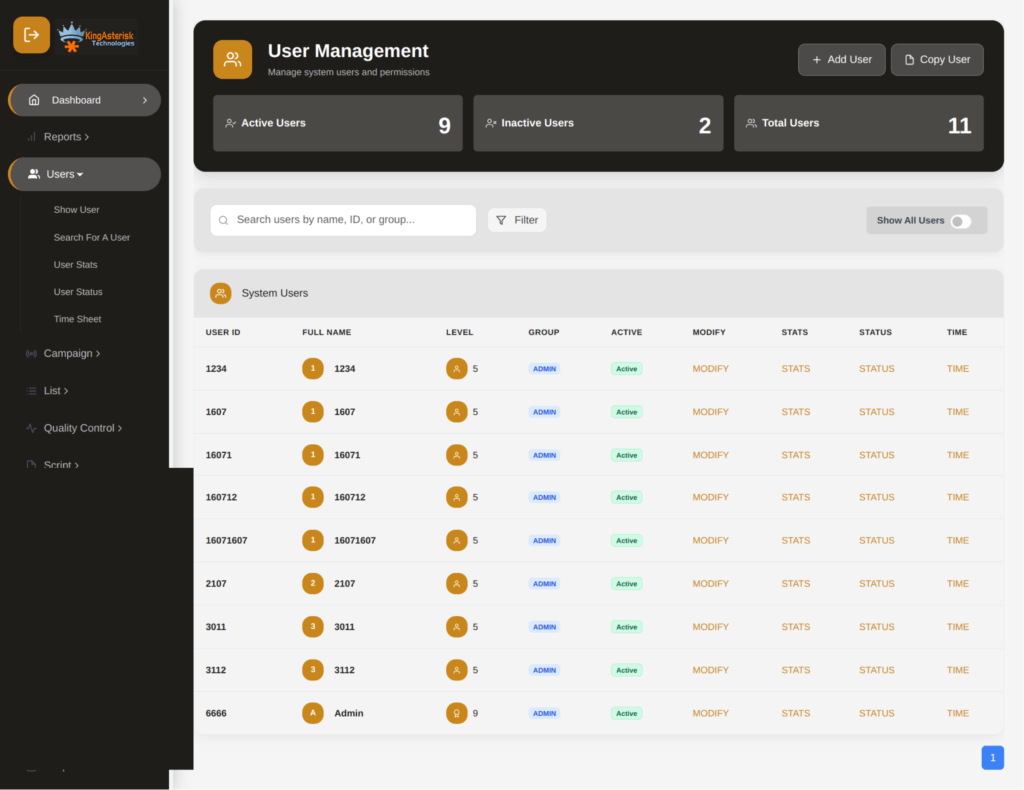
How to Create a User in VICIdial

Before you can restrict access, you need users set up with the correct base roles. Here is the standard process for creating a new user through the admin panel.

How to Create a User in VICIdial

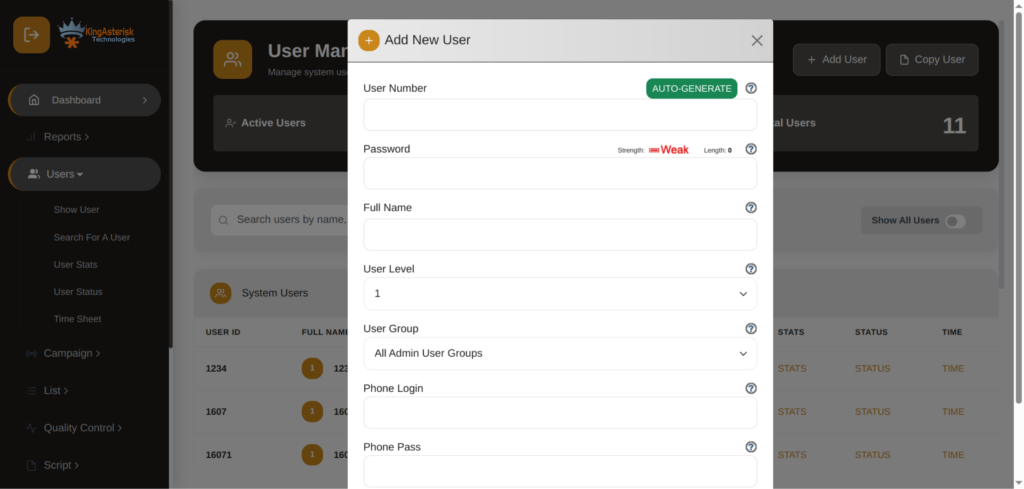
Step-by-Step: Adding a New User

  • Log in to the VICIdial Admin Panel using your administrator credentials.
  • Navigate to Admin – Users from the top menu.
  • Click ‘Add a New User’ at the top of the user list.
  • Fill in the required fields: User ID, Password, Full Name, and User Level.
  • Set the User Group – this is important as group membership can inherit shared permission settings.
  • Under the ‘User Level’ dropdown, select the appropriate base level (1–9, where 9 is full admin).
  • Scroll through the extended options to configure phone settings, campaign access, and allowed IPs if needed.
  • Click Submit to save the new user.

User Level is a numeric scale, but do not confuse a higher number with unlimited access. The actual report and panel permissions are set through separate toggles lower on the same user configuration page – and those are what matter most for report restriction.

Assigning and Editing User Roles

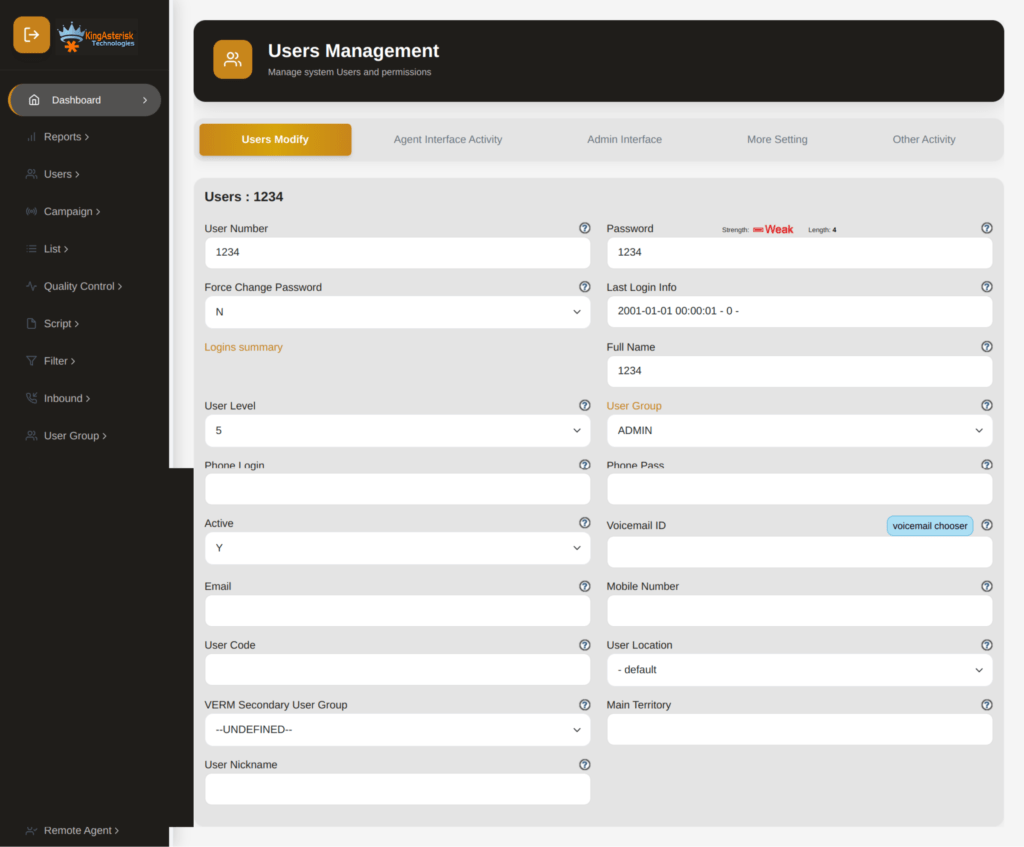
Once a user exists in the system, you can return to their profile at any time to tighten or expand their permissions. This is done from Admin – Users – [select user] – Modify.

Assigning and Editing User Roles

The key fields to pay attention to when controlling report access are:

  • allowed_reports: A comma-delimited list of reports the user is allowed to run. Leave this blank to deny all, or list specific report names to whitelist only those.
  • admin_hide_lead: Controls visibility of lead data columns.
  • report_default_file_download: Determines whether the user can export report data to a file.
  • user_group: Membership in a group that may have shared permission templates applied.

A common mistake is setting User Level to 8 or 9 and assuming the granular report fields below will auto-restrict. They will not – each report permission is independently toggled, which is exactly what gives you the control you need.

Step-by-Step: Restricting Access to the Agent Time Report

This is the core of the VICIdial user permission guide. Follow these steps precisely to remove Agent Time Report access from a specific user or role.

Step 1 – Identify the Target User or Group

Go to Admin – Users and locate the user whose access you want to restrict. If you manage a team of supervisors with identical permission needs, consider using a User Group so you can apply changes once and have them cascade to all group members.

Step 2 – Open the User Modify Page

Click Modify next to the user. This opens the full user configuration form. Scroll past the basic fields – phone, campaign assignment, and scheduling – until you reach the Reporting and Admin Options section.

Step 3 – Locate the Report Access Fields

Find the field labeled ‘allowed_reports’. By default, this may be set to ‘ALL’ or left empty, which in many configurations defaults to permissive access. You will change this to an explicit list that excludes the Agent Time Report.

💡 Quick Test Option: Ready to test out these permissions yourself? You can explore our KingAsterisk Free Live Demo at demo.kingasterisk.com, select the available Custom VICIdial Theme, sign in to the demo environment, and test Users → Modify → allowed_reports to verify how report access limits function in a real VICIdial setup.

Step 4 – Remove Agent Time Report from Allowed List

The Agent Time Report is identified in VICIdial’s report system as ‘agent_time’. Edit the allowed_reports field to include only the reports this user legitimately needs. Do not include ‘agent_time’ in the list. For example, if this user should only access the Campaign Report and Call Counts Report, your entry would look like: Campaign_stats,call_counts

Step 5 – Disable Report Export Permissions

Scroll down to ‘report_default_file_download’ and set it to 0 (disabled) for this user if you also want to prevent them from downloading any report data even for the reports they can view.

Step 6 – Save and Test

Click Submit to save changes. Log out, then log back in as the restricted user (use a test account) and confirm the Agent Time Report is no longer visible or accessible from the Reports menu. The menu item should either not appear or return an access denied message.

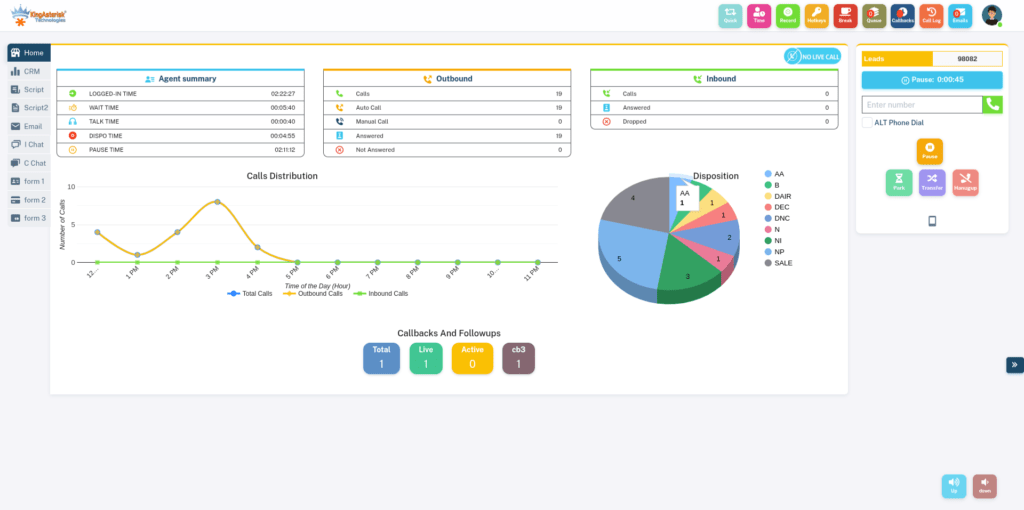
VICIdial Admin Dashboard

Real-World Use Case: Multi-Team Contact Center

Consider a contact center running three outbound sales campaigns simultaneously. The operation has a General Manager, three Campaign Supervisors, and roughly forty agents spread across shifts. The General Manager needs full reporting access – including Agent Time. Each Campaign Supervisor should only see data for their own campaign and should have no access to time-based performance data for agents outside their team.

Without proper permission control, a Campaign Supervisor logged in at User Level 7 could navigate to the Reports menu and pull Agent Time data for all forty agents – across all three campaigns. That is a data governance failure.

After applying the restriction method outlined in this guide, each supervisor’s ‘allowed_reports’ field is configured to include only campaign_stats and call_counts. The agent_time report is excluded. The General Manager’s account retains full report access as before. Result: clean data boundaries, no cross-team performance leakage, and a straightforward audit trail if compliance ever asks.

How to Log In to VICIdial and Verify Permission Changes

After applying any permission change, verification is a non-negotiable step. Here is how to do it cleanly.

Admin Login

  • Navigate to your VICIdial server URL – typically http://[your-server-IP]/vicidial/admin.php
  • Enter your admin username and password.
  • You will land on the main admin dashboard from where all user management and reporting settings are accessible.

Testing as a Restricted User

  • Open a private/incognito browser window to avoid session conflicts.
  • Log in using the restricted user’s credentials at the same admin URL.
  • Navigate to the Reports section and confirm the Agent Time Report is absent from the menu.
  • Attempt to directly access the report URL (if you know it) – a correctly configured system will return an access denial.

If the report still appears, recheck the allowed_reports field – ensure there are no trailing spaces, that ‘agent_time’ is definitely absent, and that the user is not inheriting a permissive group policy that overrides the individual setting.

🖥️ Free Live Demo : Live Demo of Our Solution!

Frequently Asked Questions

How do I create a user in VICIdialâť“

Log into the admin panel and go to Admin – Users – Add a New User. Fill in the User ID, password, full name, and user level. Assign them to a user group if applicable. The granular permission toggles – including report access – are in the extended options on the same form. Always configure those before saving to avoid leaving a new user with overly broad defaults.

How do I log in to VICIdialâť“

Agents log in through the agent web client, typically at http://[server-IP]/vicidial/index.php. Administrators and managers log in through admin.php at the same server IP. The correct login URL depends on the user type – sending an agent to the admin URL will not give them access, but it can cause confusion during onboarding if not documented clearly.

How to configure the VICIdial server for user permissionsâť“

Server-level permission defaults are set in the System Settings section of the admin panel. Here you can define whether new users default to permissive or restrictive access, set global report download permissions, and configure session timeout rules. For report-specific restrictions, individual user configuration always takes precedence over system defaults, so server configuration sets the floor – not the ceiling.

Can I set up IVR in VICIdial and control who configures itâť“

Yes. VICIdial’s IVR setup lives under the Admin panel in the IVR section, where you can build menu trees, record prompts, and assign IVRs to inbound groups. Access to the IVR configuration screens is controlled by user level – only users at level 7 or above typically see IVR options. You can further restrict IVR management by customizing user-level thresholds in the system settings.

What happens if I set ‘allowed_reports’ to blank – does it block all reports or allow all?

This depends on your VICIdial build and configuration. In many standard deployments, a blank allowed_reports field defaults to allowing all reports, which is counterintuitive. 

To be safe, always explicitly list only the reports a user needs – never rely on a blank field as a restriction mechanism. If you want to block all report access, set the field to a placeholder value that matches no valid report name, or set the user level below the threshold required to access the Reports menu. 

Conclusion

A well-configured VICIdial user permission guide is not just an administrative checklist – it is a core part of running a secure, accountable contact center operation. Restricting the Agent Time Report to authorized users only protects sensitive performance data, reduces internal data exposure, and keeps your system audit-ready without limiting the productivity of the people who legitimately need reporting access.

The steps covered here – from creating users with proper roles, to editing allowed_reports, to testing permissions with a dedicated verification session – give you a repeatable process you can apply across every user type in your environment.

KingAsterisk’s engineering team can help you audit your current setup and implement a permission structure that scales. Reach out to us to discuss your specific deployment.

KINGASTERISK_NOTE