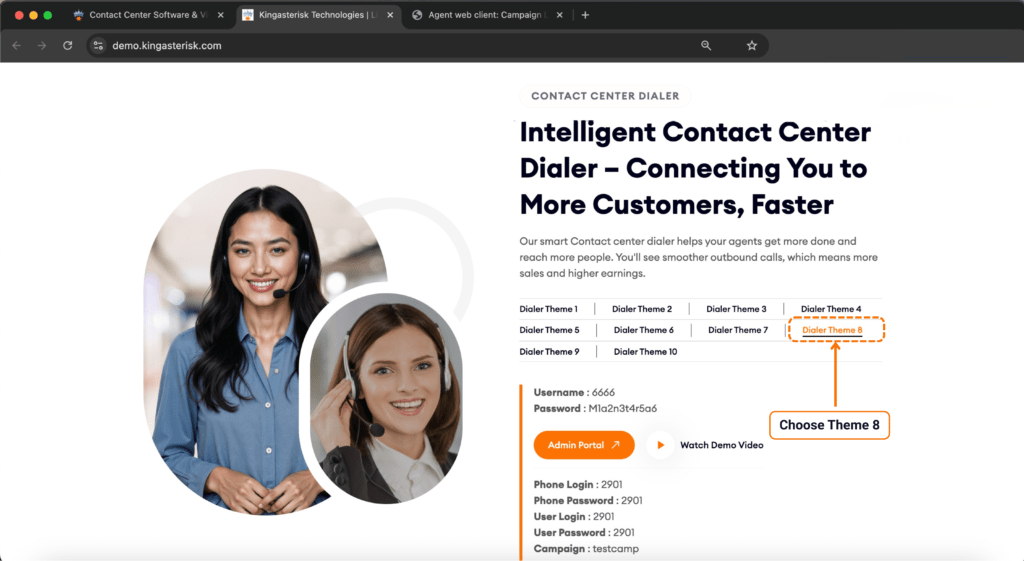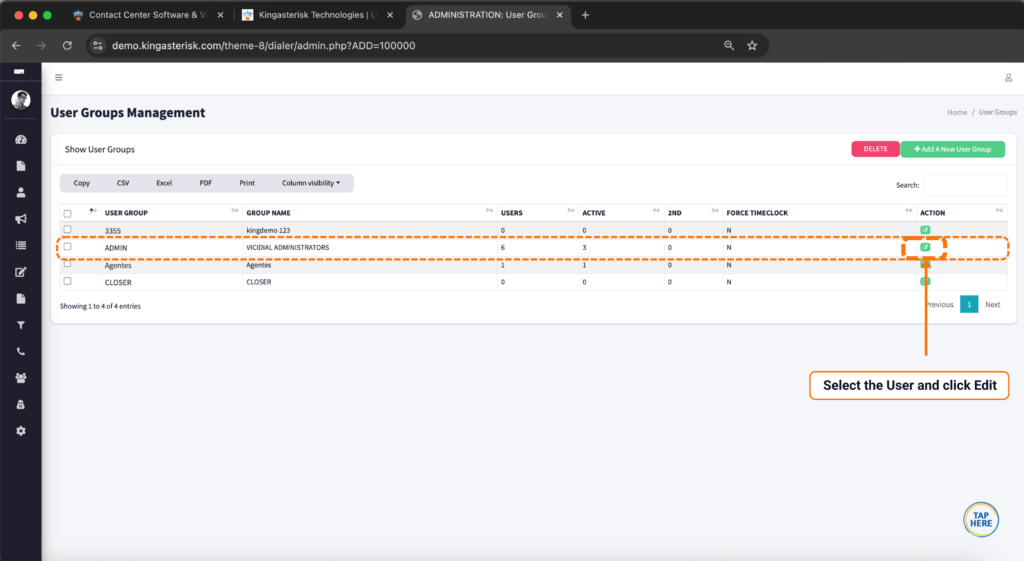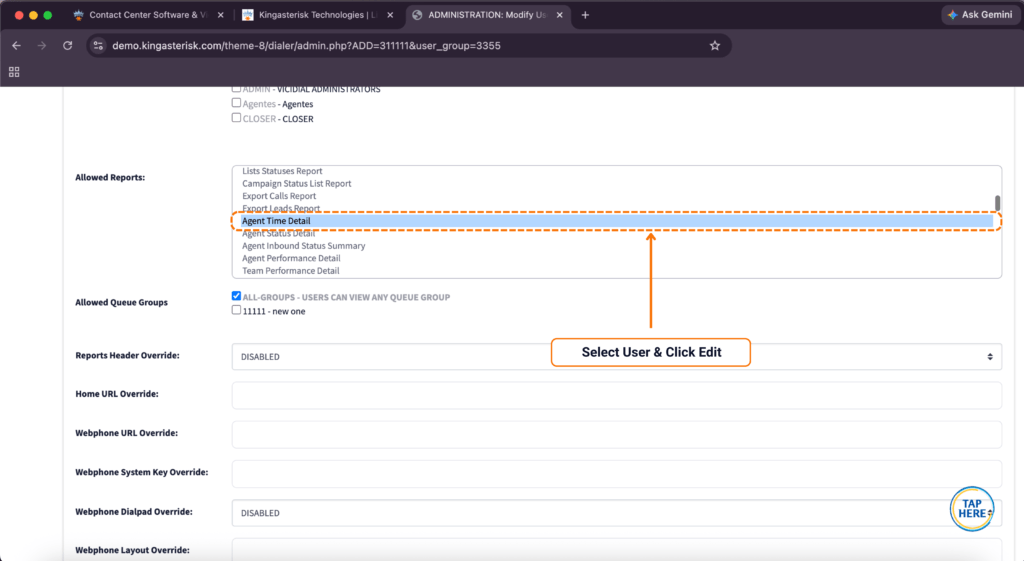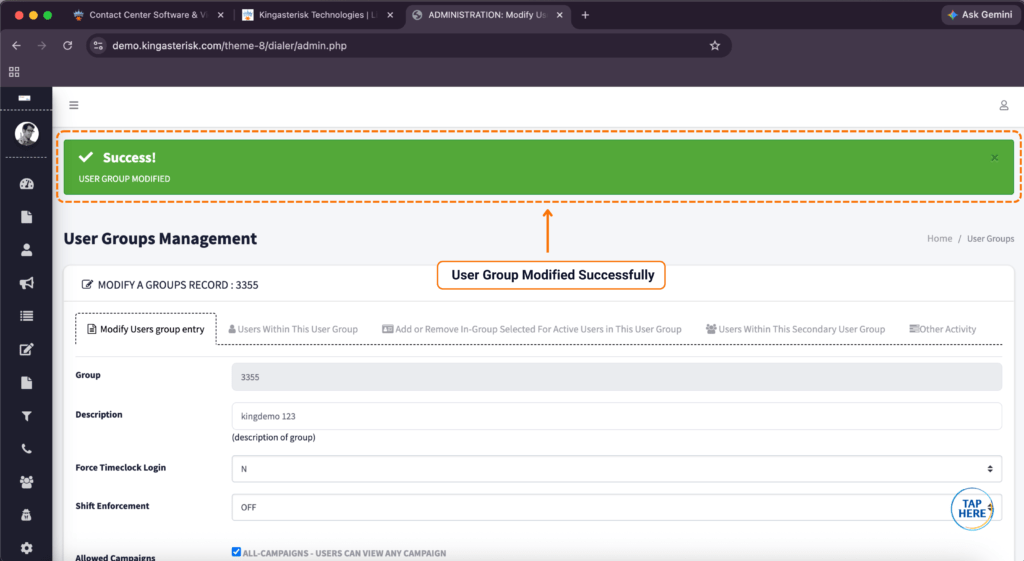
VICIdial Setup with CRM Integration for a 100-Agent Contact Center (1)
Vicidial Software Solutions

VICIdial Setup with CRM Integration for a 100-Agent Contact Center Migrating from ReadyMode

VICIdial Setup with CRM Integration for a 100-Agent Contact Center (1)

By KingAsterisk Technology | Contact Center Solutions

If you are running a VICIdial Setup with CRM Integration on ReadyMode and wondering whether VICIdial can replace it while also integrating cleanly with your in-house CRM, the short answer is yes,  and this post walks you through exactly how that works.

We will see what the architecture looks like, what the migration path involves, and why businesses in roofing, insurance, real estate, and other appointment-setting verticals are making the switch.

We recently handled two very similar client inquiries that illustrate the most common scenarios our team deals with.

Why Contact Centers Are Moving Away from ReadyMode

ReadyMode (formerly XenCALL) is a predictive dialer with a built-in CRM. For smaller operations, it works reasonably well. But as contact centers scale toward 100 agents and beyond, several limitations begin to surface:

Cost at Scale

ReadyMode charges per seat. At 100 agents, licensing fees become substantial on a monthly recurring basis. VICIdial, being open-source, eliminates per-seat licensing entirely.

CRM Lock-In

ReadyMode bundles its own CRM, which means if your team has already invested in a proprietary CRM – like the Roofing Leads Master Tracker in our second inquiry – you are essentially paying for duplicate functionality and forcing agents to juggle two systems.

Customization Ceiling

Dialers are black boxes. You cannot customize the dialing logic, agent interface, reporting layer, or lead distribution rules beyond what the vendor allows. VICIdial Setup with CRM Integration exposes every layer of the stack.

Data Ownership

With a SaaS dialer, your call recordings, lead data, and dispositions live on someone else’s server. With VICIdial Setup with CRM Integration deployed on your own infrastructure or a dedicated system environment, you own all of it.

Compliance Modules

TCPA-compliant dialing, DNC list integration, state-specific time-zone restrictions, and scrubbing logic are all configurable at the code level in VICIdial Setup with CRM Integration. In such solutions, you are dependent on the vendor roadmap.

🚀 Apply the Fix : SuiteCRM Campaign Emails Fix

What Is VICIdial and Why It Works at 100 Agents

VICIdial is the world’s most widely deployed open-source contact center suite. It is built on the Asterisk telephony platform and supports inbound, outbound, and blended calling across hundreds of concurrent agents. It handles predictive dialing, progressive dialing, manual preview dialing, inbound ACD queuing, IVR routing, real-time agent monitoring, call recording, and detailed reporting, all without a per-seat license.

At 100 agents operating simultaneously, VICIdial Setup with CRM Integration needs to be deployed correctly to handle the telephony load, database concurrency, and real-time event processing without bottlenecks. That is where cluster architecture becomes critical.

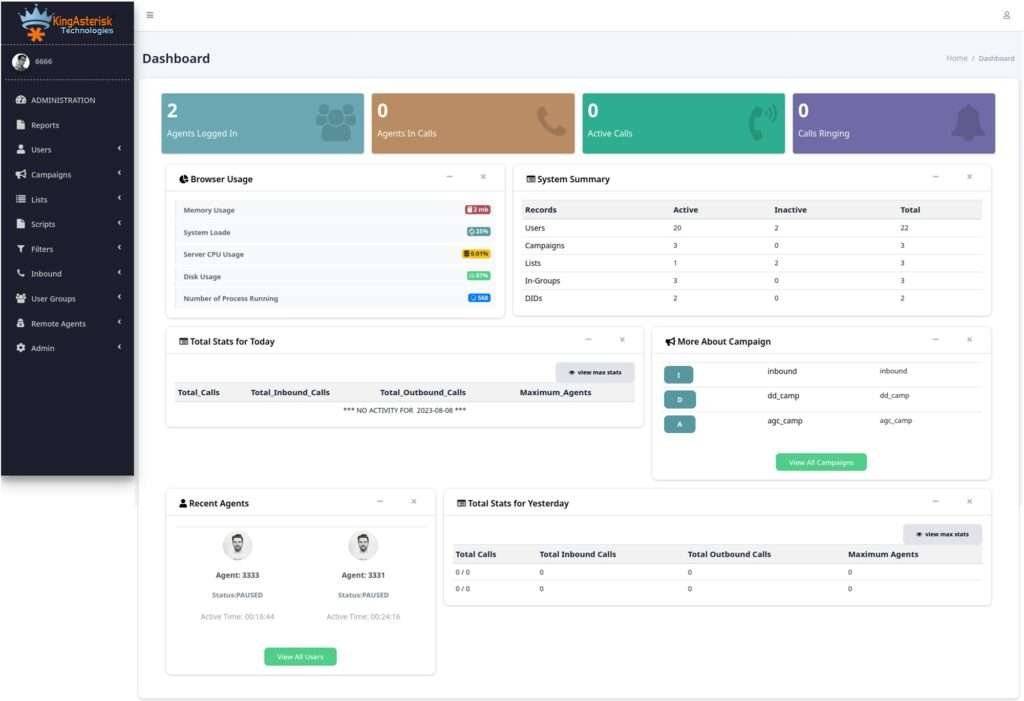
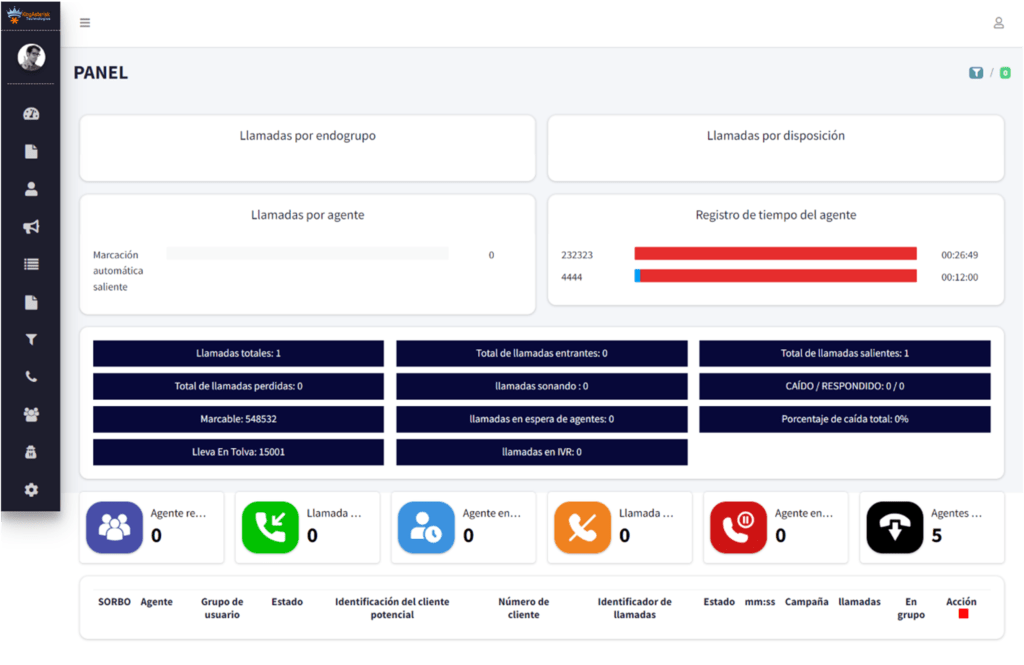
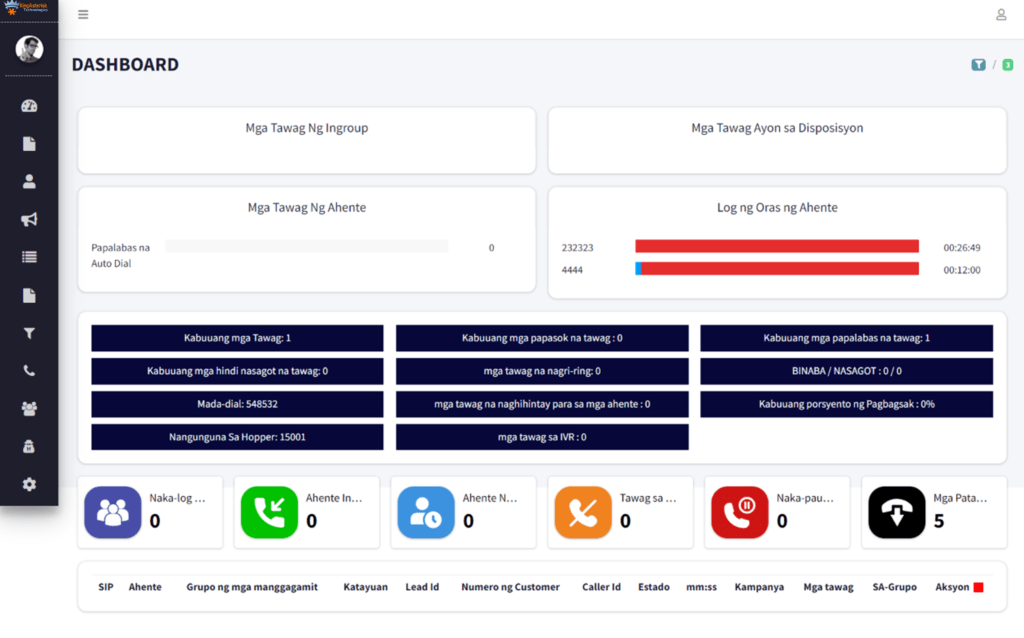
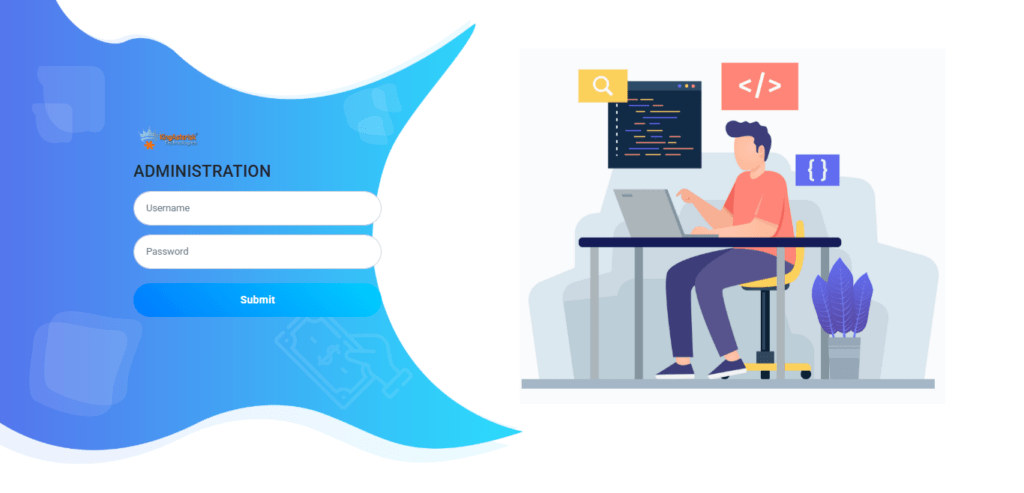
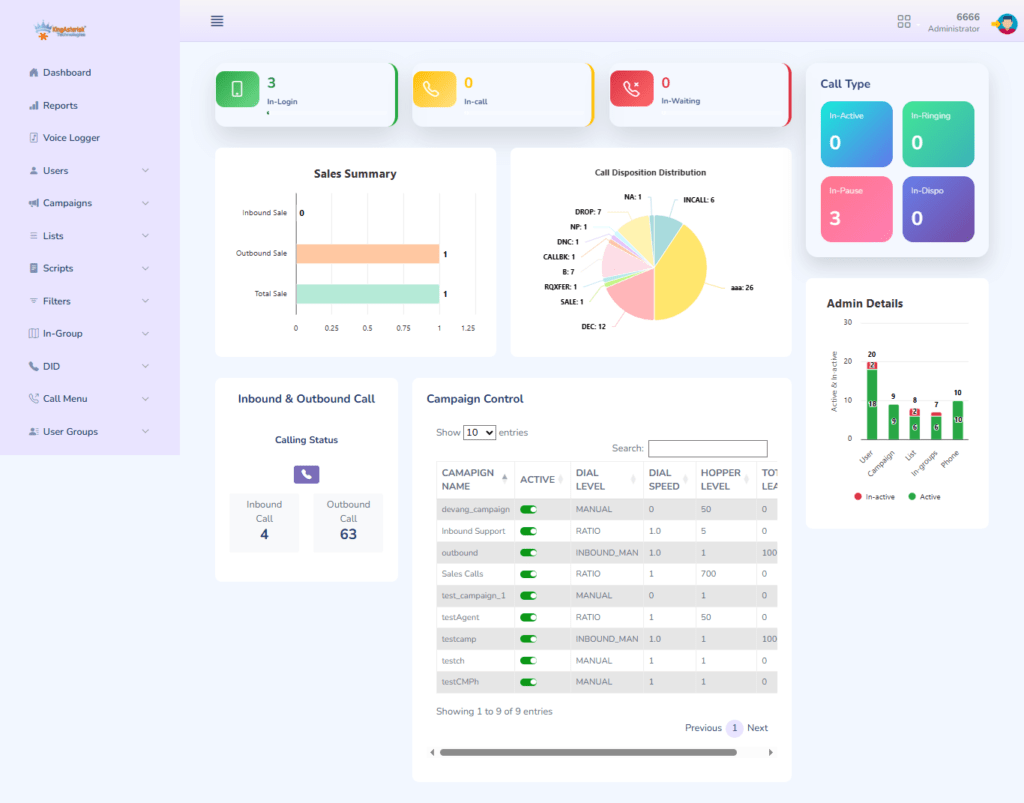
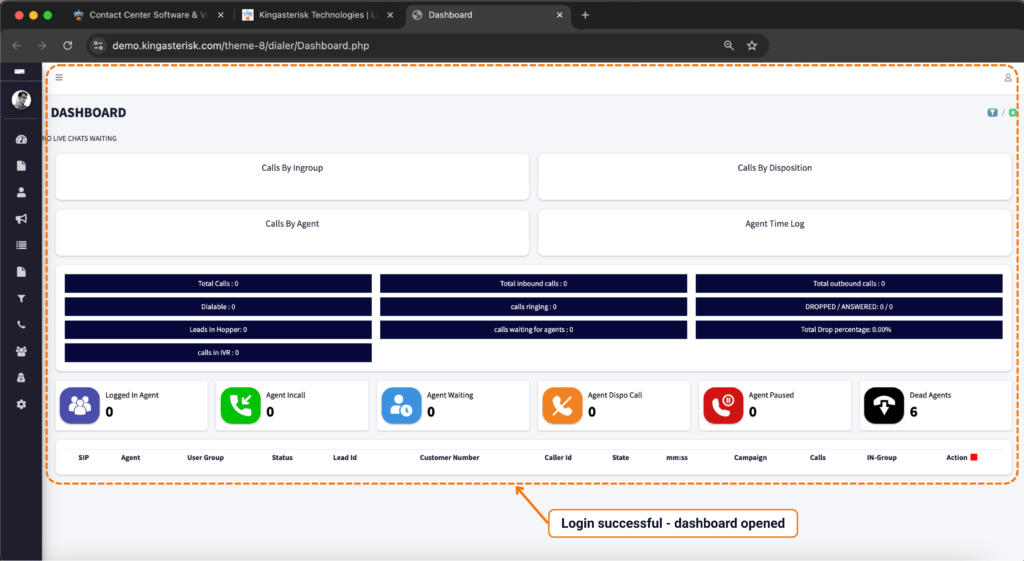
Admin dashboard- theme 2
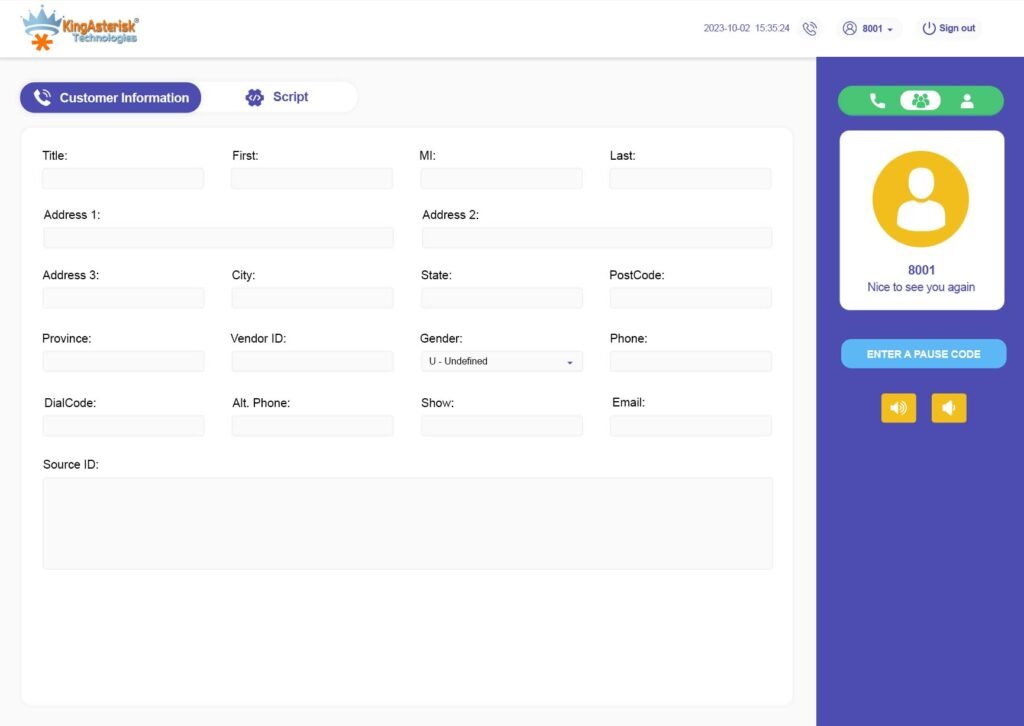
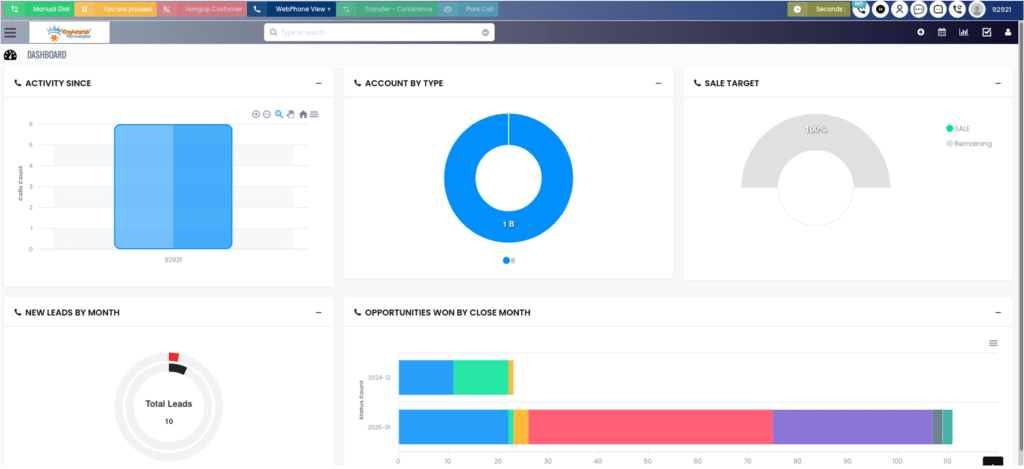
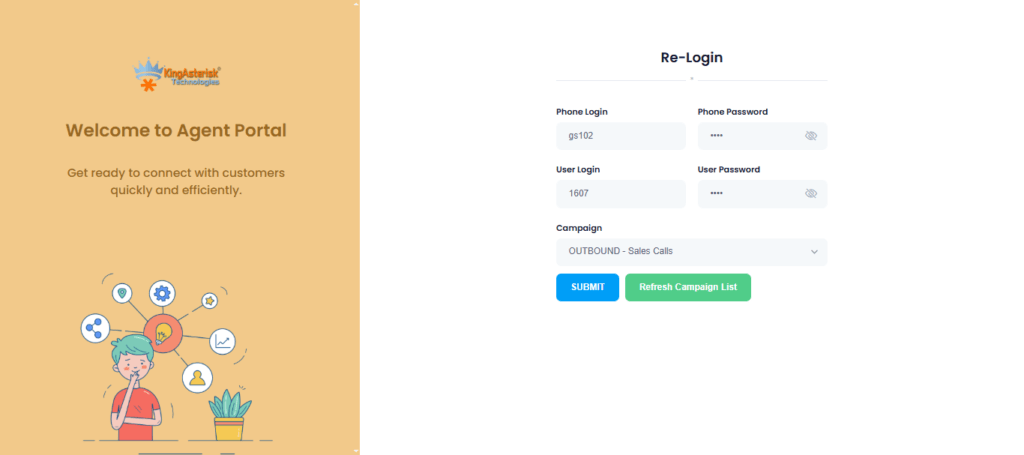
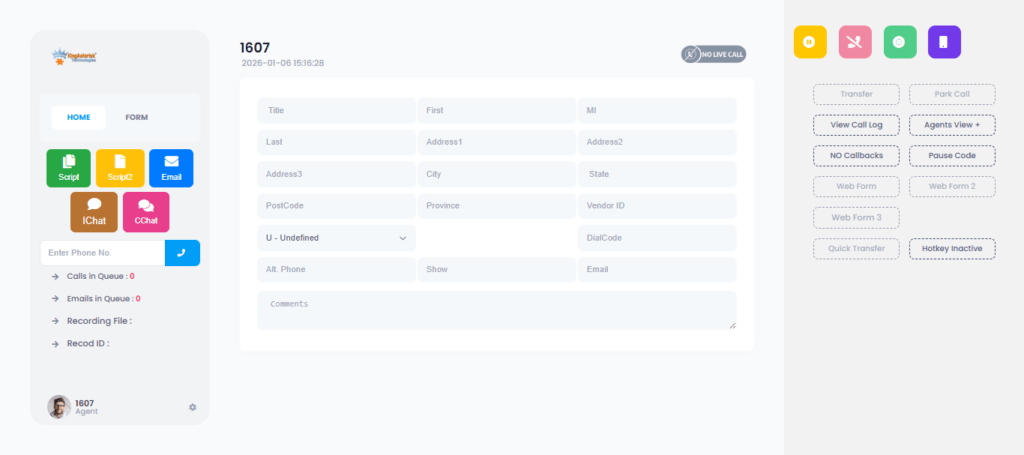
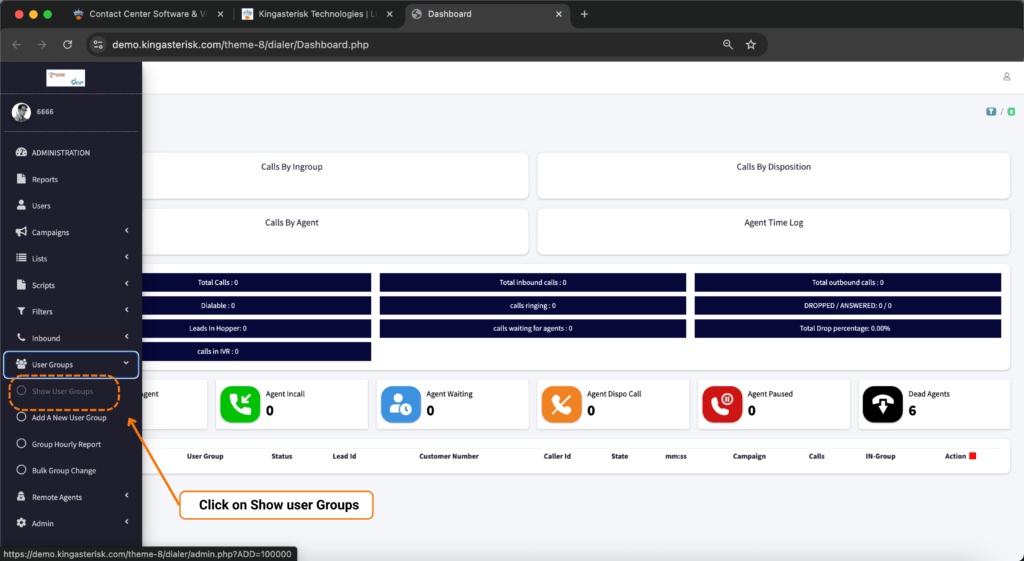
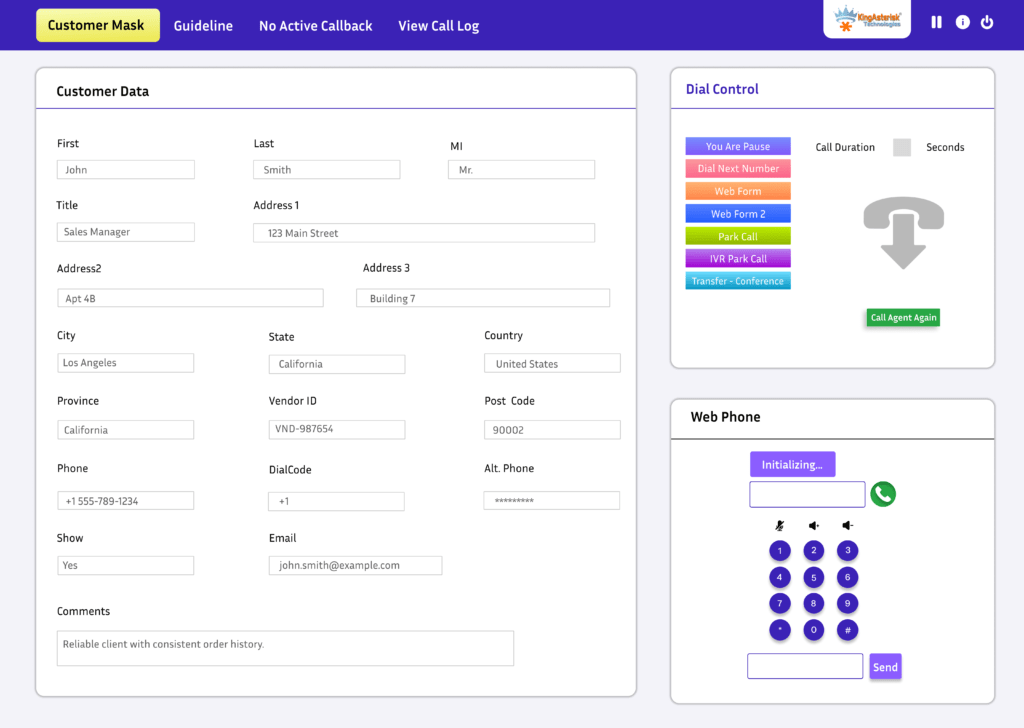
Vicidial Agent Theme

100-Agent Cluster Architecture: Technical Overview

Running 100 agents on a single VICIdial server is technically possible but strongly inadvisable in a production environment. Single-server deployments create a single point of failure, and the combined load of predictive dialing (which dials 3–5x agent count), real-time AMI events, MySQL read/write operations, and SIP signaling will saturate system resources during peak hours.

KingAsterisk designs multi-server VICIdial Setup with CRM Integration clusters specifically sized for the agent count and call volume. Here is what a production-grade 100-agent cluster looks like:

Technical Note: 100-Agent VICIdial Cluster Specification

Node 1 – Primary Web/Database Server

  • Role: VICIdial web interface (Apache/PHP), MySQL/MariaDB primary database, campaign management, admin portal
  • Specs: 16–32 vCPU, 64–128 GB RAM, NVMe SSD RAID for DB storage
  • Handles all web traffic, reporting queries, and agent session state

Node 2 – Asterisk Telephony Server (Primary)

  • Role: SIP signaling, RTP media, predictive dialing engine, call routing
  • Specs: 16 vCPU, 32–64 GB RAM, dedicated NIC for SIP/RTP traffic
  • Handles approximately 50 concurrent agents + dialing headroom

Node 3 – Asterisk Telephony Server (Secondary / Load Balanced)

  • Role: Overflow telephony, failover, and load distribution
  • Specs: Mirrors Node 2
  • Handles remaining 50 agents and predictive dial burst traffic

Node 4 – Recording & Storage Server

  • Role: Call recording storage, NFS/CIFS mount for recordings across all nodes, media archival
  • Specs: High-capacity HDD array (10–50 TB depending on retention policy), RAID 6

Cluster Communication:

  • All nodes communicate over a private VLAN (isolated from public internet)
  • MySQL replication (primary → read replicas) for reporting and redundancy
  • Shared recording mount accessible across all Asterisk nodes
  • Heartbeat/Keepalived for automatic failover between telephony nodes

Frontend Theme & Backend Integration

The cluster configuration is also reflected in the frontend interface. KingAsterisk’s custom VICIdial theme and agent portal are designed to be cluster-aware. It means the React-based frontend dynamically connects agents to the least-loaded Asterisk node, session routing is handled transparently, and supervisor dashboards aggregate real-time data across all nodes in a unified view. 

The backend API layer abstracts the multi-node complexity so agents always see a single, consistent interface regardless of which telephony node they are connected to.

Scalability

This architecture scales horizontally. Adding 50 more agents means provisioning a third Asterisk node and updating the load balancer config, no changes to the web server or database layer required.

CRM Integration Architecture: Making Your CRM the Agent’s Main Screen

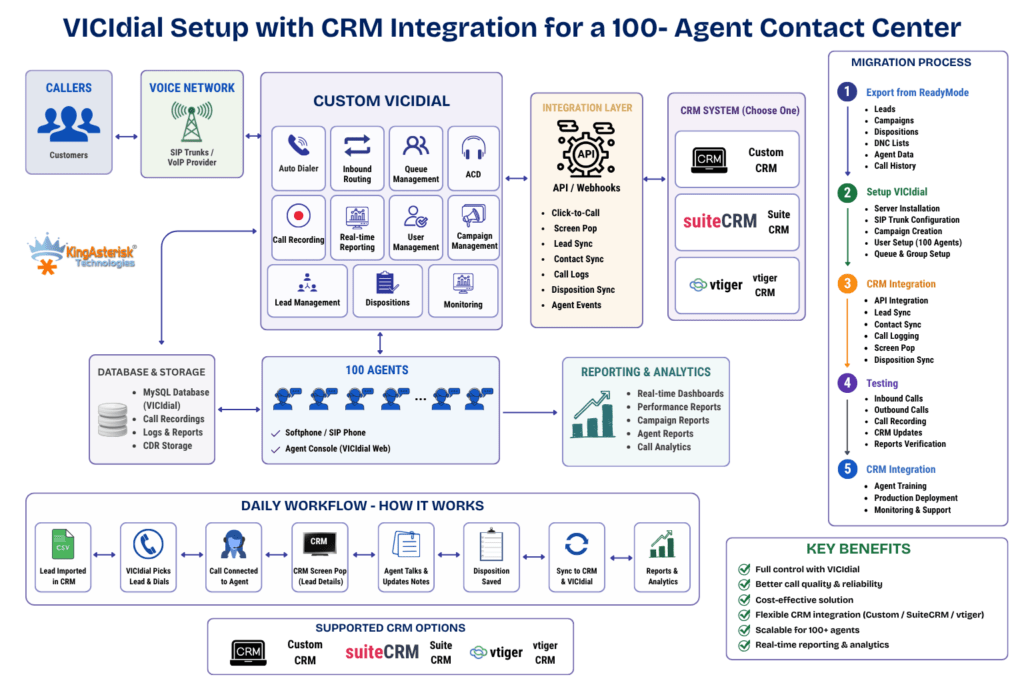
This is the most technically interesting part of both client requests. In both cases, the CRM needs to remain the primary agent interface. Agents should not be logging into VICIdial’s native interface to work leads, they should be working inside the CRM they already know, while VICIdial Setup with CRM Integration handles all the dialing invisibly in the background.

KingAsterisk builds this integration in several layers:

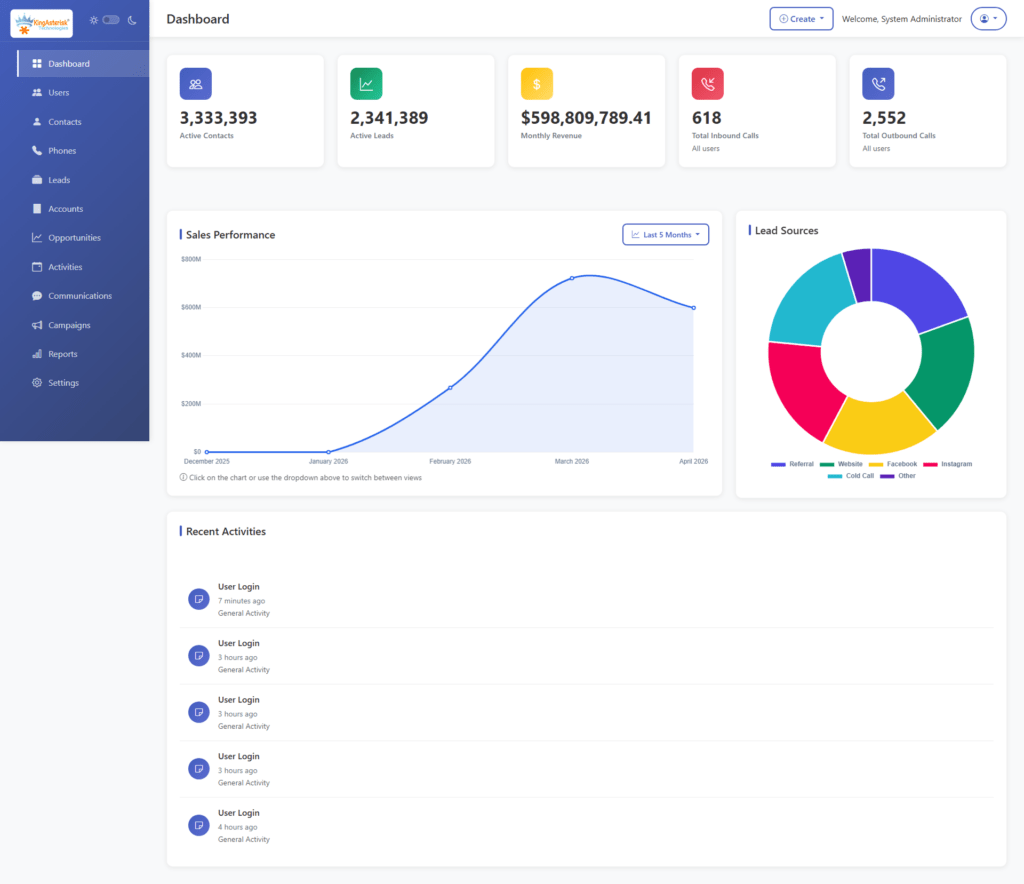
Custom CRM Dashboard
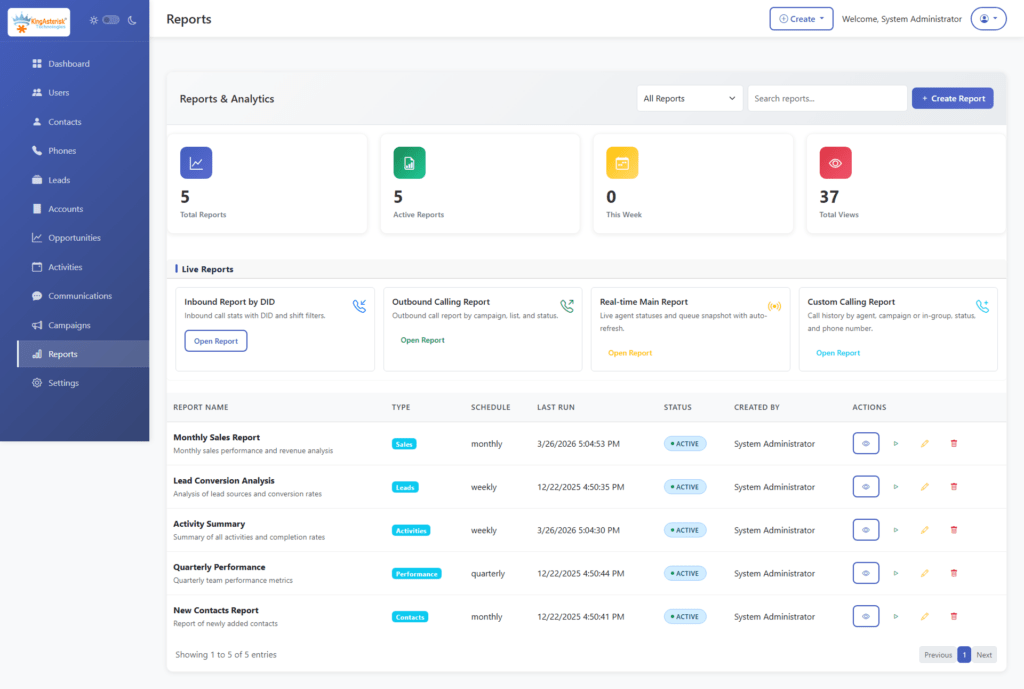
Custom CRM Reports & Analytics

Layer 1 – VICIdial API Connection

VICIdial exposes a native HTTP API that allows external systems to control virtually every dialing function: log agents in and out, set agent status, trigger manual dials, transfer calls, update dispositions, and retrieve real-time call status. Your CRM communicates with this API to orchestrate the calling session without the agent ever touching the VICIdial interface.

Layer 2 – Screen Pop via Webhooks

When VICIdial connects a call to an agent, it fires a webhook to your CRM’s inbound endpoint. The CRM receives the payload – which includes the phone number, lead ID, campaign name, and any custom fields mapped during lead upload – and uses it to auto-open the correct lead record on the agent’s screen. The agent sees the homeowner’s information, appointment availability, and campaign rules already loaded before they say hello.

For the Roofing Leads Master Tracker scenario, this means: VICIdial Setup with CRM Integration dials the homeowner, connects the call to the agent’s softphone (WebRTC browser phone or hardware SIP phone), and simultaneously pushes the lead record to the CRM screen. The agent works entirely in their familiar CRM portal.

Layer 3 – Bidirectional Disposition Sync

When the agent selects a disposition in the CRM – “Appointment Booked,” “No Answer,” “Callback Scheduled,” “DNC” – the CRM pushes that disposition back to VICIdial via API call. VICIdial updates its internal records, triggers the appropriate post-call logic (callback scheduling, DNC flagging, lead recycling), and moves to the next dial. The CRM remains the source of truth for appointment and lead status; VICIdial handles the telephony state machine.

Layer 4 – Agent WebRTC Softphone Embedded in CRM

Rather than having agents use a separate softphone application, KingAsterisk embeds a WebRTC-based softphone directly inside the CRM portal. This is a browser-based SIP client that connects to the Asterisk SIP-over-WebSocket server. Agents click to answer, transfer, mute, and hang up all from within their CRM tab – no external phone app required.

This also enables full remote agent support. Agents working from home connect to the cluster over HTTPS/WSS; their browser becomes their phone.

Layer 5 – Lead Upload and Campaign Sync

Leads are managed in the CRM and pushed to VICIdial’s lead tables via scheduled API sync or real-time webhook on new lead creation. Campaign rules defined in the CRM (calling hours, state restrictions, attempt limits, callback windows) are mapped to VICIdial campaign configuration during the integration setup. When campaign rules change in the CRM, they propagate to VICIdial automatically.

Migration Path: ReadyMode to VICIdial in a 100-Agent Operation

Migrating a live 100-agent contact center from ReadyMode to VICIdial requires a phased approach. A hard cutover with 100 agents simultaneously is a recipe for chaos. Here is the migration sequence KingAsterisk follows:

Phase 1 – Infrastructure Setup (Week 1–2)

Provision the cluster nodes on your chosen environment (dedicated bare metal, AWS, or a hybrid system setup). Install and configure VICIdial on all nodes. Set up MySQL replication, shared recording storage, and load balancing. Configure SIP trunks with your carrier — VICIdial supports virtually every SIP provider, so your existing DID numbers and carrier relationships port over cleanly.

Phase 2 – CRM Integration Development (Week 2–4)

This is the custom development phase. KingAsterisk’s integration team maps your CRM’s data model to VICIdial’s lead table schema, builds the webhook and API bridge, embeds the WebRTC softphone into your CRM frontend, and implements the disposition sync logic. For the Roofing Leads Master Tracker use case, this also includes mapping appointment availability windows and contractor-specific campaign rules into VICIdial’s campaign configuration.

Phase 3 – Parallel Testing with a Pilot Group (Week 3–4)

Before cutting over all 100 agents, run 10–15 agents on the new VICIdial Setup with CRM Integration cluster in parallel with ReadyMode. Both systems dial simultaneously from separate lead lists. This stress-tests the integration under live conditions and gives your supervisors time to validate that screen pops, dispositions, recordings, and reporting all work as expected.

Phase 4 – Phased Rollout (Week 4–6)

Migrate agents in groups of 25–30. Each group trains on the CRM-integrated workflow (which should be minimal training since they are still using their familiar CRM). Once a group is stable on VICIdial, move to the next group. By Week 6, all 100 agents are on VICIdial and ReadyMode is fully deprecated.

Phase 5 – ReadyMode Data Export

Export all historical call records, lead dispositions, and recordings from ReadyMode. KingAsterisk can build data migration scripts to import historical lead activity into VICIdial’s database so your reporting continuity is preserved. Call recordings from ReadyMode are downloaded and archived alongside your new VICIdial recordings.

Custom Reporting and Real-Time Dashboards

One area where VICIdial + custom development significantly outperforms ReadyMode is reporting depth and flexibility.

KingAsterisk builds custom reporting modules on top of VICIdial’s database that give contact center managers visibility they cannot get from any out-of-the-box dialer:

Agent Performance Layer

Talk time per hour, pause code breakdown (how long agents spend in each idle state), disposition conversion rates by agent, average handle time, login/logout history, and performance ranking across the team. For a 100-agent roofing center, this translates to knowing exactly which agents are booking the most roof inspection appointments and why.

Campaign Analytics

Lead penetration rate (what percentage of your list has been attempted), contact rate by hour of day, best calling windows by state or area code, callback queue depth, and recycled lead performance. These metrics directly drive ROI decisions – when to dial which lists, how aggressively to recycle, and when to retire dead leads.

Real-Time Supervisor Dashboard

A live view of all 100 agents showing current call status, duration on current call, disposition of last call, and queue wait times. Supervisors can barge into calls, whisper to agents, or take over calls from this dashboard. KingAsterisk builds this as a React-based interface that updates via WebSocket – no page refreshes, sub-second latency.

Executive KPI Dashboard

Appointments booked per day, per campaign, per contractor (for roofing centers serving multiple clients), revenue-linked conversion metrics, and trend analysis over configurable date ranges. Exportable to PDF or pushed automatically to your BI tool via scheduled data export.

IVR, Compliance, and Advanced Dialing Logic

For contact centers in regulated or compliance-sensitive environments, VICIdial’s open architecture allows compliance modules that dialers cannot match.

TCPA Compliance

Configurable DNC list integration, calling hour enforcement by state time zone, cell phone detection logic, and consent-based dialing modes. All configurable at the campaign level.

Multi-Client Campaign Isolation

For roofing centers calling on behalf of multiple contractors, each contractor gets their own campaign with isolated lead lists, reporting, and DNC lists. Agents can be assigned to specific contractor campaigns. Lead credits, delivery records, and appointment outcomes are tracked per contractor inside the VICIdial Setup with CRM Integration.

Dynamic IVR for Inbound Callbacks

When a homeowner calls back after a missed call, a custom IVR routes them to the correct contractor campaign queue. Text-to-speech reads their name and appointment reference from the CRM database in real time.

Advanced Dialing Features

KingAsterisk configures advanced VICIdial features that help improve outbound campaign performance and agent productivity. These include answering machine detection (AMD), call recording, callback management, DNC list integration, lead recycling, and campaign-specific dialing strategies. By automating routine dialing processes and reducing manual effort, contact centers can increase efficiency while maintaining compliance and reporting accuracy.

Why KingAsterisk for This Deployment

KingAsterisk Technology has handled VICIdial deployments ranging from small 10-agent pilot setups to enterprise-scale 500+ agent clusters. Our team brings deep expertise across every layer of the stack – Asterisk dialplan development, VICIdial Setup with CRM Integration and customization, CRM API integration, WebRTC softphone development, MariaDB performance optimization, and custom React-based frontend development.
For the specific scenario described in both client inquiries – 100 agents, custom CRM as primary interface, migration from ReadyMode, we have a proven deployment playbook. We understand that your CRM is not just a database; it is the operational hub your agents live in, and the integration has to be invisible and reliable from day one.

What we deliver:

  • Multi-node VICIdial cluster sized for 100 agents with headroom for growth
  • Full CRM integration with screen pop, disposition sync, and lead management
  • WebRTC softphone embedded in your CRM portal
  • Custom agent and supervisor dashboards built in React with real-time WebSocket data
  • ReadyMode data migration and historical reporting continuity
  • TCPA and DNC compliance configuration
  • Ongoing support, monitoring, and performance optimization
🎯 View Real Use Case : Live Demo of Our Solution!

FAQs

Yes. VICIdial can integrate with custom CRMs using APIs, webhooks, database connections, and screen pop integrations.

Migration timelines vary, but most 100-agent deployments can typically be completed within a few weeks, depending on CRM complexity and data migration requirements.

Not necessarily. With a custom CRM integration, agents can manage their daily tasks directly from your CRM.

In most situations, yes. Your existing DIDs, SIP trunks, and preferred telecom carrier can usually be retained and connected to the new VICIdial platform.

Absolutely. VICIdial is designed to support distributed teams. Remote agents can securely connect using WebRTC softphones, SIP devices, VPN access, or browser-based dialing solutions.

Ready to Migrate from ReadyMode or Integrate Your CRM with VICIdial?

Whether you are running a roofing appointment-setting center, an insurance lead generation operation, or a general outbound contact center looking to cut per-seat SaaS costs and take control of your dialing infrastructure, KingAsterisk can scope, build, and deploy the right solution.

Contact KingAsterisk Technology!

Get a detailed technical consultation and cost estimate for your specific setup – 100 agents, your CRM, your data, your control.

KingAsterisk Technology specializes in VICIdial Setup with CRM Integration, Asterisk, IVR, and custom contact center development. We serve contact centers, BPOs, appointment-setting agencies, and enterprise communication environments globally.
KINGASTERISK_NOTE

How to Fix SuiteCRM Campaign Email Sending Errors Easily.
CRM Integration Solutions

SuiteCRM Campaign Emails Not Sending: A Complete Troubleshooting Guide

How to Fix SuiteCRM Campaign Email Sending Errors Easily.

SuiteCRM campaign emails not sending after the first scheduled batch is one of the most disruptive, and least well-documented, failures in a live contact center environment. If your first send window is delivered correctly while the remaining batches sit frozen in the queue, this guide explains precisely why it happens, how to diagnose the CRM Integration issues root cause, and how to restore normal delivery. You will also learn how to restructure your campaign so the same problem cannot recur.
Why SuiteCRM Campaign Emails Stop After the First Batch

SuiteCRM’s campaign engine is built around a data object called an Email Marketing record. Most administrators are unaware that this record is not simply a delivery schedule, it is the bridge between a campaign, its email template, and a specific target list. When you need to send the same message to three separate target lists at three different times, SuiteCRM expects three separate Email Marketing records: one record per batch.

Creating a single Email Marketing record and attaching multiple target lists to it, or attempting to schedule multiple send windows within one record, is the most common cause of multi-batch campaign failure.

Here is what happens internally: the first scheduled run picks up the Email Marketing record, marks it as processed, and sets a status flag that prevents it from firing again for the same recipients. When the scheduler fires for the second time window, it finds no eligible, unprocessed Email Marketing record and leaves those messages in the queue indefinitely. The entry does not fail visibly, it simply stalls.

💎 Hidden Opportunity : Custom CRM vs Off-the-Shelf CRM

Why This Matters in Contact Centers

In high-volume contact center environments, campaigns often drive follow-up sequences, SLA reminders, and post-interaction surveys across segmented agent groups or customer cohorts. A stalled batch can break a time-sensitive outreach sequence, skew campaign reporting, and leave supervisors unaware that large portions of their audience never received the message.

Decoding the [FATAL] Template Error

The log entry that accompanies a stalled campaign batch typically reads:

[FATAL] Error retrieving template for the email campaign.
marketing_id = ca7e469b-e6a6-439e-bf52-cece53bd0901

This error is generated by CRM’s campaign scheduler when it attempts to load the Email Marketing record referenced by that marketing_id and cannot resolve the linked email template. There are three primary reasons this occurs:

Template Was Deleted or Unlinked

If the email template associated with the Email Marketing record was edited, duplicated, or deleted after the campaign was scheduled, the foreign key relationship between the marketing record and the template is broken. The scheduler finds the marketing_id but cannot locate the template it references.

The Email Marketing Record Was Reused Across Batches

A single Email Marketing record cannot service multiple independent send windows. After the first batch processes, the record’s internal state is no longer suitable for a fresh send cycle. SuiteCRM attempts to re-use it, cannot match it to a valid template context for the new batch, and logs a fatal error.

Database Corruption or Incomplete Save

In rare cases, particularly after an interrupted save operation or a failed system upgrade, the relationship tables that link Email Marketing records to templates (specifically the email_marketing table and its associated prospect_list_campaigns entries) can contain orphaned or NULL foreign key values. The scheduler hits a NULL reference and throws the fatal error.

Emails Stuck in Campaign Queue

When campaign emails become stuck in the queue and the standard UI does not offer a clear path to remove or reset them, the issue is almost always one of three states: the Email Marketing record is locked in a processing status, the campaign_log table contains orphaned entries that block re-processing, or the queue has grown large enough that the scheduler times out before completing a full pass.

UI-side steps to attempt first:

Open the campaign, navigate to the Email Marketing subpanel, and check whether the record status is set to “Sending” rather than “Active.” A record frozen in “Sending” status will block the scheduler from re-queuing it. Edit the record directly and reset the status to Active.

Check for any prospect list entries marked with a deleted flag. SuiteCRM will silently skip an entire send cycle if it detects a corrupted or partially deleted target list association.

If the queue cannot be cleared through the UI:

Query the email_marketing table for the affected record and verify its status, start_date, and frequency values. A frequency set to “Once” on a record that has already been processed will prevent any further sends, which can appear identical to a stuck queue from the outside.

SELECT id, name, status, start_date, frequency FROM email_marketing WHERE campaign_id = ‘your-campaign-uuid’; 

Step-by-Step: Diagnosing Your Campaign Setup

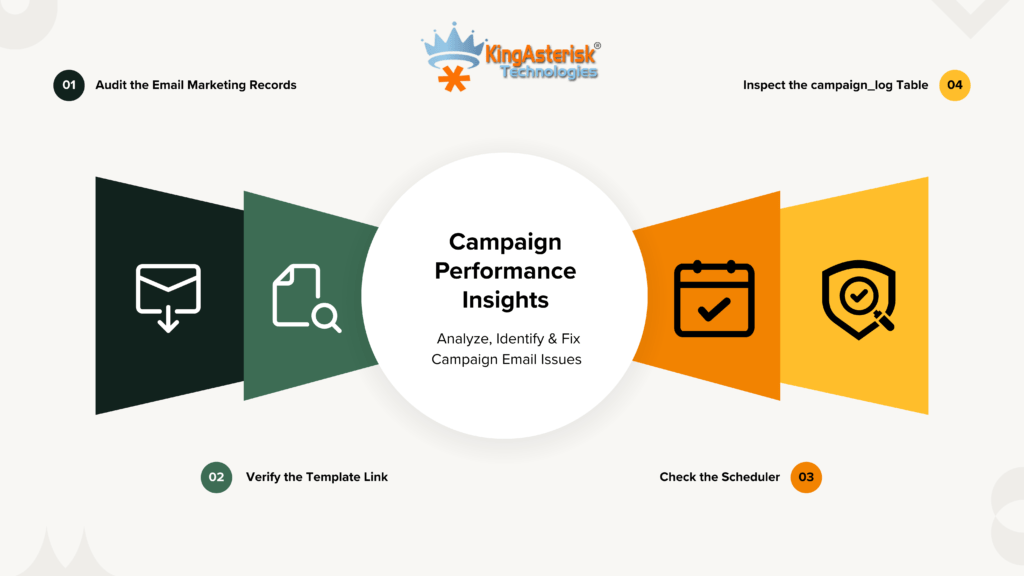
Step 1 — Audit the Email Marketing Records

Navigate to Campaigns, select your campaign, and scroll to the Email Marketing subpanel. You should see one record per scheduled send window. If you see a single record with multiple target lists attached, that is your root cause. You need to create additional Email Marketing records, one per remaining batch.

Step 2 — Verify the Template Link

Click into each Email Marketing record and confirm that the Email Template field is populated and points to an existing, active template. If the field is blank or displays a broken reference, the scheduler cannot retrieve the template and will throw the [FATAL] error above.

Step 3 — Check the Scheduler

Go to Admin > Schedulers and verify that the Process Campaign Emails scheduler is Active and set to run at an appropriate interval, typically every five minutes for time-sensitive campaigns. If the scheduler is Inactive or shows a Last Run time that is hours old, it may have crashed silently.

Step 4 — Inspect the campaign_log Table

For administrators comfortable with database access, query the campaign_log table for entries matching your campaign_id. Look for records with a status of ‘send_error’ or an empty status — these rows represent the stalled messages.

SELECT id, marketing_id, activity_type, activity_date, campaign_id
FROM campaign_log
WHERE campaign_id = 'your-campaign-uuid'
ORDER BY activity_date DESC
LIMIT 50;

Verify Outbound SMTP Settings

Before investigating campaign architecture or scheduler configuration, confirm that SuiteCRM can actually send emails through its configured mail server. A misconfigured SMTP connection will silently block all outbound campaign delivery regardless of how correctly your campaign, target lists, or Email Marketing records are set up.

Navigate to Admin > Email Settings and send a test email before troubleshooting any deeper campaign component. If the test email fails, the problem is at the transport layer, not inside the campaign itself.

Key items to verify:

  • SMTP Host and Port – Confirm the hostname is correct and the port is appropriate for your configuration (typically 25, 465, or 587). Port mismatches are one of the most common causes of silent delivery failure.
  • SMTP Authentication Credentials – Verify that the username and password are current. Expired or rotated credentials will cause authentication rejections that SuiteCRM may not surface clearly in the UI.
  • SSL/TLS Configuration – Ensure the encryption setting (None, SSL, or TLS) matches what your mail server requires. A TLS/SSL mismatch often produces a connection timeout rather than a clear error message.
  • Outbound Email Account Status – If your mail provider has suspended or rate-limited the outbound account due to bounce rates or inactivity, campaigns will queue but never deliver.
  • Test Email Functionality – Always use the built-in test send in Admin > Email Settings to confirm the transport is working before activating any campaign.

How to Clear the Stuck Email Queue

SuiteCRM’s interface does not always expose a direct delete option for queued campaign emails that are in a transitional state. If the standard UI does not allow deletion, use the following database approach, always take a full backup before proceeding.

Identify the Stuck Queue Entries

SELECT id, marketing_id, status, date_entered
FROM email_marketing
WHERE campaign_id = 'your-campaign-uuid';

Remove or Reset the Orphaned Records

Update the status of the stalled Email Marketing record to allow re-processing, or remove the orphaned campaign_log entries and re-run the scheduler after correcting the campaign architecture:

-- Reset a stuck Email Marketing record for re-queue (use cautiously)
UPDATE email_marketing
SET status = 'Active'
WHERE id = 'your-marketing-uuid';
-- Remove stalled campaign_log entries for the affected marketing_id
DELETE FROM campaign_log
WHERE marketing_id = 'your-marketing-uuid'
AND activity_type = 'send';
⚠ IMPORTANT
Always Back Up Before Database Changes
Always back up the affected tables before running DELETE or UPDATE statements. Incorrect deletions can corrupt campaign reporting data and impact future campaign tracking. If you are not confident with direct database access, engage a qualified CRM administrator or contact KingAsterisk for assisted remediation.

Check Scheduler Jobs

SuiteCRM does not send campaign emails directly on save or activation, it relies entirely on background scheduler jobs to process and dispatch queued messages. If the relevant schedulers are disabled, have silently crashed, or are stuck in a processing loop, emails remain in the queue indefinitely with no visible error in the campaign UI.

Navigate to Admin > Schedulers and review the status and Last Run timestamp of each campaign-related job. An outdated Last Run time is a reliable indicator that the scheduler has stopped executing, even if its status shows as Active.

Important schedulers to review:

  • Process Campaign Emails – The primary job responsible for dispatching queued campaign messages. If this is disabled or stalled, no campaign emails will send.
  • Run Nightly Mass Email Campaigns – Handles bulk campaign sends scheduled for overnight delivery. Relevant if your campaigns are set to run outside business hours.
  • Process Workflow Tasks – Can indirectly affect campaign-triggered workflows and follow-up automations.
  • Prune Database on Scheduler – Relevant to queue cleanup; an overloaded campaign_log table can slow scheduler execution significantly.

If any of these schedulers show an outdated Last Run timestamp or an error status, proceed to verify your cron job configuration before making changes inside SuiteCRM. 

Preventing the Problem: Best-Practice Campaign Architecture

The correct way to send the same message to three different target lists at three different times in SuiteCRM is straightforward once you understand the underlying data model:

1. Create one campaign. This is the top-level container and does not change.

2. Create one Email Marketing record per batch. Three batches require three Email Marketing records. Each record links to the same template and to a single target list.

3. Set a unique Start Date and Time on each Email Marketing record. This is how SuiteCRM staggers the three sends, not through a single record with multiple lists or multiple time entries.

4. Do not modify the email template after scheduling. If content changes are necessary, duplicate the template, make your edits to the copy, and update the Email Marketing records to reference the new version.

5. Always test with a small test list first. Confirm delivery for the first batch before the remaining batches are due to fire.

Campaign Deliverability Checklist

Proper campaign architecture also requires regular prospect list hygiene, outbound SMTP relay verification before each campaign cycle, and routine auditing of the scheduler log, not only during active campaigns but as part of ongoing CRM maintenance. These practices together form the foundation of reliable campaign delivery in any contact center environment.

Verify Cron Job Configuration

An active scheduler inside SuiteCRM is not sufficient on its own — the scheduler engine must be triggered by a server-level cron job. If the cron entry is missing, pointing to the wrong path, or running as a user without adequate file permissions, no SuiteCRM scheduled task will execute regardless of how the schedulers appear inside the application.

Verify that your server’s cron configuration includes the following entry (adjust the path to match your SuiteCRM installation directory):

* * * * * cd /var/www/html/suitecrm; php -f cron.php > /dev/null 2>&1 

Common cron configuration issues to check:

  • Incorrect installation path 
  • PHP binary not in PATH
  • File permission errors
  • PHP execution errors
  • Cron service not running

Once cron is confirmed to be executing correctly, return to Admin > Schedulers and verify that Last Run timestamps begin updating at the expected interval.

🚀 Explore the Interface : Live Demo of Our Solution!

Frequently Asked Questions

This log entry means the campaign scheduler found an Email Marketing record by its marketing_id but could not load the email template it references. The most common causes are a deleted or edited template that broke the database link, or a reused Email Marketing record whose internal state no longer maps to a valid template context. Verify and relink the template in the Email Marketing record.

SuiteCRM’s UI often does not expose a delete button for emails in a transitional queue state. The reliable method is direct database access: identify orphaned rows in campaign_log using the affected marketing_id, then remove or reset them via SQL. Always take a full database backup before making direct changes. Contact a qualified administrator if direct DB access is not available.

Yes, and this is the recommended approach. Create three separate Email Marketing records, each pointing to the same email template, each linked to a different target list, and each with a unique scheduled start time. Do not modify or delete the shared template after the campaign is active. If changes are needed, duplicate the template and update the relevant Email Marketing records to use the new version.

By default the Process Campaign Emails scheduler runs every five minutes, but this depends on your server cron configuration and the settings in Admin > Schedulers. In high-load environments the scheduler may skip cycles or fail silently. Monitor the Last Run time in the Schedulers panel and review your server cron logs regularly to confirm consistent execution.

Conclusion

SuiteCRM campaign emails not sent after the first batch is, in nearly every case, an architectural problem rather than a mail server or network failure. SuiteCRM’s campaign engine is designed around a one-Email-Marketing-record-per-batch model, and attempting to run multiple batches through a single record reliably produces the [FATAL] template error and a frozen queue.

The resolution path is consistent: audit your Email Marketing records, verify template linkage, clean the queue via direct database access where the UI falls short, and rebuild your campaign using the correct one-record-per-batch structure. Checking scheduler health and keeping your prospect lists clean throughout the process prevents secondary failures from obscuring the primary fix.

For contact centers where SuiteCRM operates alongside Asterisk dialers, IVR workflows, or VICIdial integrations, these delivery failures carry greater operational cost. Missed campaign batches break follow-up sequences, distort performance data, and create compliance gaps in regulated industries.

Need Hands-On Support?

KingAsterisk’s senior engineers have resolved SuiteCRM campaign delivery failures across on-premise contact center deployments globally. If your queue is stuck, your template links are broken, or you need a complete audit of your campaign architecture, reach out to us at kingasterisk.com. We provide direct, no-jargon technical support for SuiteCRM, VICIdial, Asterisk, and integrated contact center solutions.

KINGASTERISK_NOTE
Custom CRM vs Off-the-Shelf CRM Make the Smart Business Choice
CRM Integration Solutions

Custom CRM vs Off-the-Shelf CRM: Which CRM Is Right for Your Business?

Custom CRM vs Off-the-Shelf CRM Make the Smart Business Choice

Choosing between custom CRM vs off-the-shelf CRM is one of the most consequential technology decisions a contact center operation will make, and it rarely comes down to price alone. This CRM Integration guide gives you a structured, experience-backed framework to evaluate both paths across total cost, integration depth, workflow fit, and long-term scalability. 

By the end, you will know exactly which approach maps to your operational reality.

What Is a Custom CRM?

A custom CRM is software engineered from the ground up, or through deep configuration of an open-source base, to match your precise business processes. Every data model, every workflow trigger, every reporting view is built to reflect how your operation actually works, not how a vendor thinks it should work. For contact centers running on Asterisk or VICIdial infrastructure, this often means native event-level integration: automatic ticket creation on answered calls, real-time disposition sync, and screen-pop driven by queue data rather than a polling API.

What Is an Off-the-Shelf CRM?

An off-the-shelf CRM, sometimes called a packaged or commercial CRM, is a ready-made platform designed for a wide range of businesses. Vendors invest heavily in making these products usable across industries, which means they include a broad feature set but are necessarily built around generalised assumptions. Popular examples include Salesforce, Zoho CRM, and HubSpot. Deployment is fast, documentation is mature, and in-house expertise is easier to hire. The trade-off is that you adapt your workflows to the platform’s model rather than the reverse.

Comparison Table

CriteriaCustom CRMOff-the-Shelf CRM
Initial Cost High (development + setup) Low to moderate (subscription or licence)
Deployment Time 3–12 months Days to weeks
Workflow Fit Exact fit to your processes Adapted to vendor’s model
Telephony Integration Deep, native (Asterisk/VICIdial) API-based, variable depth
Scalability Built to your growth path Vendor-dependent feature roadmap
Long-term TCO Lower after 3–5 years Ongoing per-seat fees accumulate
Data Ownership Full ownership Shared/vendor-controlled
Customisation Ceiling None Limited by platform

The True Cost of Ownership Over Time

Purchase price is the wrong measure. What you actually need to compare is total cost of ownership (TCO) across a three-to-five-year window.

Off-the-Shelf TCO Realities

A typical packaged CRM starts with a manageable per-seat monthly fee. Add 50 agents and the math changes quickly. Overlay premium API access, advanced analytics modules, storage overages, and annual licence increases of 8–15%, and the cumulative spend over five years often surprises buyers who are anchored on the introductory price.

Customisation costs are the less-visible driver. Every time your business process does not match the platform’s model, your team builds a workaround – manual steps, spreadsheet bridges, or bespoke scripts. These workarounds are not free. They consume agent time every day and create fragility that multiplies during staff turnover.

Custom CRM TCO Realities

A custom build has a genuine upfront cost: scoping, development, testing, and training. For a well-specified mid-market contact center project, expect four to twelve months of delivery time and a corresponding investment. The economics shift after go-live. There are no per-seat licence fees. New features add to a codebase your team owns. Integrations are deep by design rather than bolted on after the fact.

Maintenance is the ongoing variable. Retaining a competent development partner or an in-house developer is non-negotiable. Factor this in honestly. A custom system with no maintenance plan is a liability, not an asset.

Integration with Telephony Systems: Where It Gets Decisive

For contact centers, CRM value is inseparable from telephony integration. The two systems exchange data on every interaction – call answered, disposition selected, ticket updated, follow-up scheduled. The quality of that exchange directly affects agent efficiency and reporting accuracy.

Custom CRM and Asterisk/VICIdial Integration

When your CRM is custom-built with Asterisk or VICIdial in mind, the integration is event-driven and bidirectional at a native level. The dialler can write directly to the CRM database on call events. The CRM can dynamically adjust IVR routing parameters based on customer segment data. Agent screen-pops load before the call connects, not 2–3 seconds after, because the system is not crossing an API boundary.

This matters for contact centers running predictive or progressive dialling campaigns. Disposition data written in near-real-time allows supervisors to act on campaign performance within the same shift rather than next morning.

Off-the-Shelf CRM and Telephony Integration

Packaged CRM platforms do support telephony integrations. Most offer a CTI (Computer Telephony Integration) layer or marketplace connectors for common platforms. Basic features – click-to-dial, call logging, screen-pop, work reliably in these setups. Advanced use cases, however, frequently require custom middleware that effectively becomes a small custom development project in itself. You end up paying integration development costs on top of the platform licence, narrowing the cost advantage.

Real-World Use Case: A Growing Outbound Contact Center

Consider a contact center operation running 80 outbound agents on VICIdial, handling insurance renewal campaigns across three time zones. Their original packaged CRM tracked customer records adequately but could not reflect the campaign-level disposition logic their business rules required. Agents were maintaining parallel spreadsheets to capture outcome codes that the CRM did not support. Supervisors exported data nightly to produce reports that should have been live.

After a scoping exercise, the team chose to build a custom CRM with a native VICIdial event bridge. Campaign dispositions, call outcomes, and callback scheduling were mapped directly from the dialler into the CRM on each interaction. Reporting became real-time. The parallel spreadsheets were eliminated. Agent average handle time dropped measurably in the first quarter because agents were no longer manually logging outcomes after each call.

The custom build took five months to deliver. Within eighteen months, the elimination of the packaged CRM licence, the middleware tool, and the productivity losses from manual processes had recovered the full development cost.

Decision Framework: Which Path Fits Your Operation?

Use the following criteria to guide your decision. There is no universal answer, the right choice is the one that matches your actual constraints.

Strong Signals for a Custom CRM

  • Your contact center has workflows that differ substantially from generic sales or support models.
  • You run Asterisk, VICIdial, or a proprietary telephony stack and need deep, event-level integration.
  • You are at 50+ agents and the per-seat cost of packaged CRM is already significant.
  • You have been building workarounds in your current platform for more than six months.
  • Data ownership and security architecture are non-negotiable, your data cannot reside in a third-party environment.

Strong Signals for an Off-the-Shelf CRM

  • You are a small or early-stage operation that needs a functioning system within weeks.
  • Your workflows closely match standard sales pipeline or support ticket models.
  • You lack internal technical resources to oversee a development engagement.
  • Your telephony needs are met by standard CTI features: click-to-dial and basic call logging.
  • You need a proven, vendor-supported platform your team can self-administer.

A hybrid approach is also worth evaluating: deploy a packaged CRM for standard functions while building a lightweight custom layer that handles the telephony-specific data exchange. This trades some elegance for faster time-to-value and is a practical path for operations in transition.

🚀 Explore the Interface : Live Demo of Our Solution!

Frequently Asked Questions

For a mid-sized contact center handling 500+ daily interactions with unique escalation workflows or deep Asterisk/VICIdial integration, the answer is often yes. The productivity gains from a precise fit – no workarounds, no manual data bridges, compound over time. Most operations recoup the development investment within two to three years through reduced agent handling time and eliminated third-party middleware fees.

Timelines vary with complexity. A focused deployment for a contact center with clearly documented workflows typically takes three to six months from scoping to go-live. Larger builds with multi-site integration and advanced reporting can take nine to twelve months. Off-the-shelf platforms can be live in days, which is a real advantage when speed is the priority.

Yes, but with limitations. Most mainstream CRM platforms expose APIs that allow basic screen-pop, call logging, and click-to-dial functions with Asterisk or VICIdial. However, advanced features – real-time queue stats, automated disposition writing, or dynamic IVR branching based on CRM data, generally require custom middleware or a purpose-built solution. The deeper the integration requirement, the stronger the case for a custom build.


Per-seat licence fees scale quickly as headcount grows. Many platforms charge extra for advanced reporting, API call volumes, storage, or premium support tiers. Custom integrations often require a specialist partner, adding implementation cost. Factor in ongoing subscription increases and the cumulative cost of workarounds your team builds when the platform does not match your process. Total cost of ownership over five years is frequently higher than the initial price suggests.

Conclusion: Making the Right CRM Decision for Your Contact Center

The custom CRM vs off-the-shelf CRM decision is not a question of which product is better in the abstract, it is a question of fit. Off-the-shelf platforms deliver real value for operations that align with their design assumptions. Custom solutions are the stronger choice when your workflows, telephony integrations, or data requirements fall outside what packaged software handles gracefully.

What this guide has shown is that the cost story inverts over time, the integration depth gap is material for Asterisk and VICIdial environments, and the decision is fully reversible only if you plan carefully from the start. Whether you are a contact center operator evaluating your first CRM or an IT manager questioning whether your current platform still fits, the framework above gives you the criteria to decide with confidence.

KingAsterisk has deployed CRM integrations alongside Asterisk, VICIdial, and custom IVR solutions for contact centers across multiple industries and geographies. If you would like an expert assessment of which approach fits your specific infrastructure and scale, get in touch with our team. We are happy to walk through your requirements and give you a straight answer.

Contact KingAsterisk to discuss your CRM integration requirements.

KINGASTERISK_NOTE
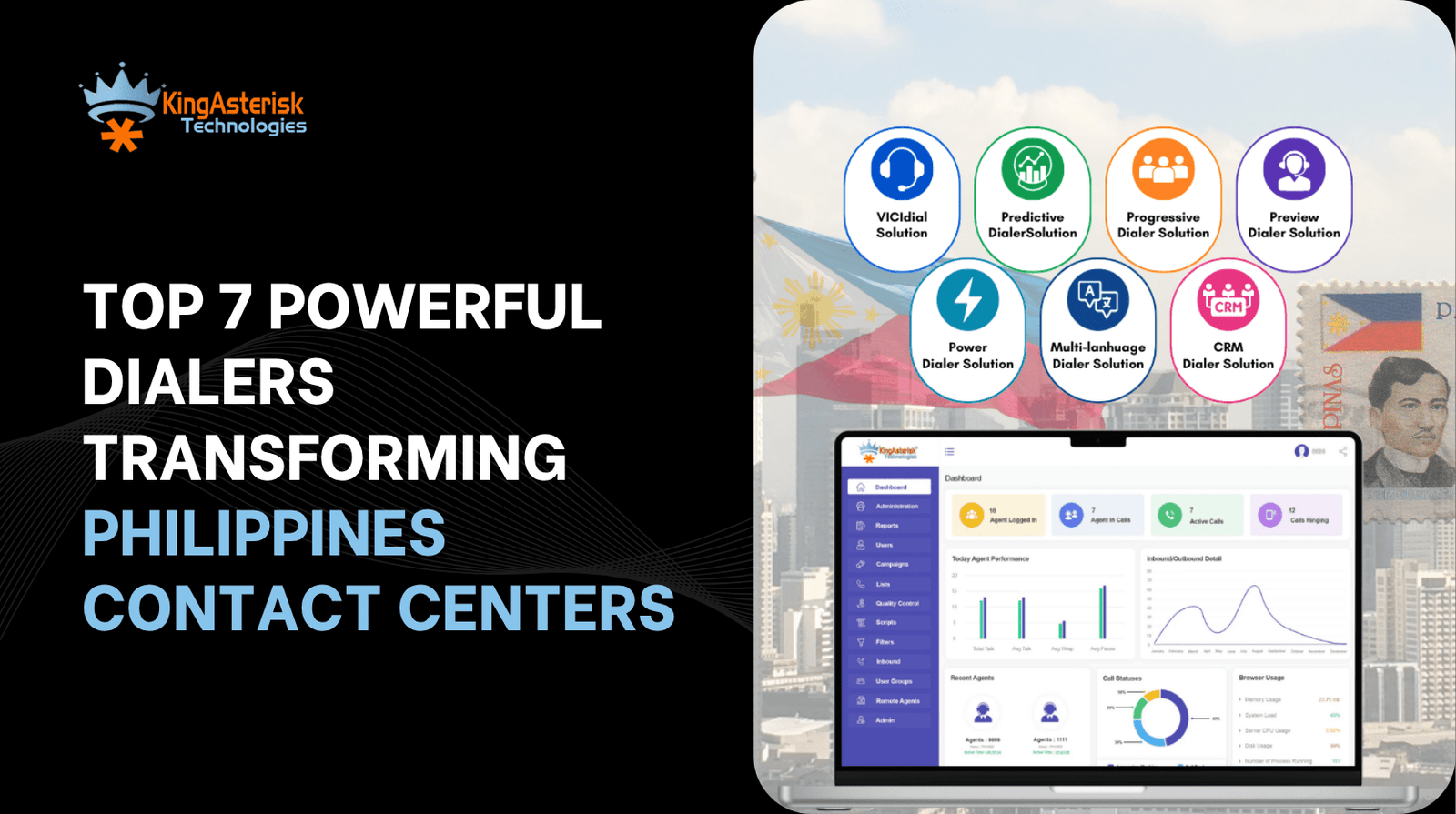
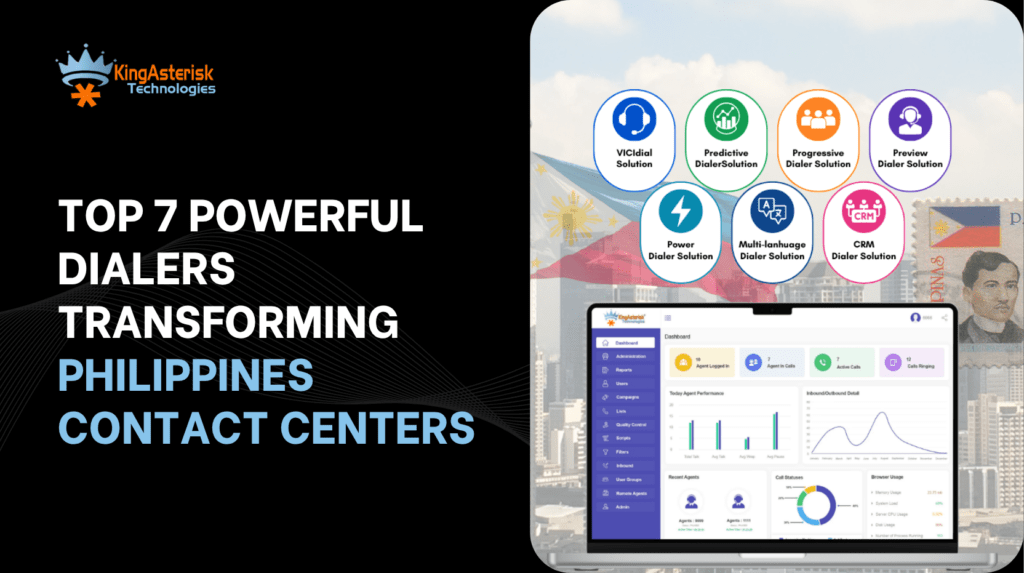
Top 7 Powerful Dialers Transforming Philippines Contact Centers
Call Center Dialer Software Solutions

Top 7 Philippines-Based Dialers for Contact Center Success

Top 7 Powerful Dialers Transforming Philippines Contact Centers

Philippines contact center dialers are the operational backbone of one of the world’s most active outsourcing industries, and selecting the wrong one costs your business far more than productivity. This article breaks down the top seven dialer platforms deployed across Philippine contact center operations, comparing their architecture, best-use scenarios, and technical trade-offs so IT managers, operations heads, and business owners can make an informed decision without guesswork.

The Philippine BPO sector employs over 1.3 million workers across more than 1,000 registered contact centers, according to the IT and Business Process Association of the Philippines (IBPAP). With that scale comes intense demand for dialer platforms that can handle blended campaigns, complex IVR routing, and high concurrent agent seats without collapsing under load. The seven options below represent the most widely evaluated and deployed systems across this market.

What Is a Dialer in a Contact Center?

A dialer is the telephony automation engine that connects agents to live customers — eliminating the manual effort of dialing numbers, handling busy signals, filtering answering machines, and managing call pacing. In a contact center context, dialers exist in several distinct modes:

  • Predictive Dialers 
  • Progressive Dialers 
  • Preview Dialers 
  • Power Dialers 
  • Auto Dialers / Robocallers 
  • IVR (Interactive Voice Response) systems

Why Dialer Choice Matters More in the Philippines

Philippine contact centers operate under a unique set of pressures that amplify the impact of dialer selection:

Multi-timezone campaigns 

Most Philippine operations serve US, UK, and Australian clients simultaneously. Dialers must handle campaign scheduling, DNC compliance by geography, and time-zone-aware pacing without manual reconfiguration per shift.

High agent turnover and training cycles

The Philippine BPO industry experiences consistent agent churn. Dialer platforms with complex UI add onboarding friction. Systems with intuitive agent screens reduce training time from days to hours.

Infrastructure variability.

Tier-2 BPO hubs face bandwidth constraints. Dialers built on lean Asterisk-based dialer architectures perform better under constrained network conditions than heavier proprietary systems.

Blended inbound-outbound requirements

Many Philippine contact centers run the same agent pool across inbound service queues and outbound sales or collections campaigns. The dialer must support true blending, pulling agents off inbound queues to fill outbound capacity during off-peak inbound periods, without manual supervisor intervention.

Wage context

The Philippines remains attractive for outsourcing in part because of competitive labor costs. Entry-level contact center agents earn between ₱15,000 and ₱25,000 per month (approximately $260–$435 USD), with team leaders and QA specialists earning ₱30,000–₱50,000. 

Given these economics, contact center operators are acutely sensitive to per-seat software licensing costs,  making open-source and self-hosted platforms especially competitive in this market.

🤔 What’s Next?: Complete Vicidial Login Guide
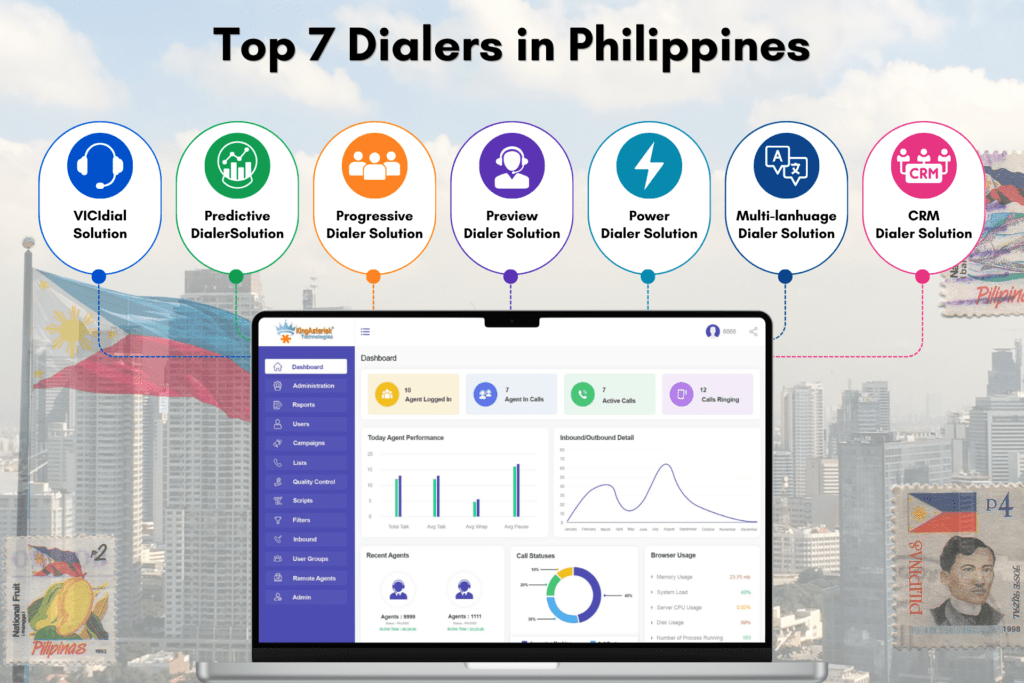
Top 7 Dialers in Philippines

The Top 7 Philippines Contact Center Dialers Compared

1. VICIdial Solution — The Proven Contact Center Foundation

KingAsterisk’s VICIdial Solution is designed for contact centers that need a reliable, scalable, and cost-effective dialing platform. Built on the powerful Asterisk framework, it supports predictive, progressive, preview, and manual dialing modes while delivering complete inbound and outbound call management from a single interface.

Architecture: Our VICIdial deployments are self- hosted on optimized Linux-based environments and integrated with Asterisk telephony services. Administrators can manage campaigns, agents, reports, recordings, and customer interactions through a centralized web-based dashboard.

Key strengths for Philippine contact centers:

• Supports predictive, progressive, preview, and manual dialing
• Inbound and outbound campaign management from one platform
• Real-time monitoring, whisper, barge, and call listening features
• Advanced call recording and quality management tools
• Custom reporting and CRM integration options
• Scalable architecture for growing contact center operations
• Professional deployment, customization, and support from KingAsterisk

Best for: Contact centers seeking a proven and flexible dialer platform that can scale from small teams to enterprise-level operations.

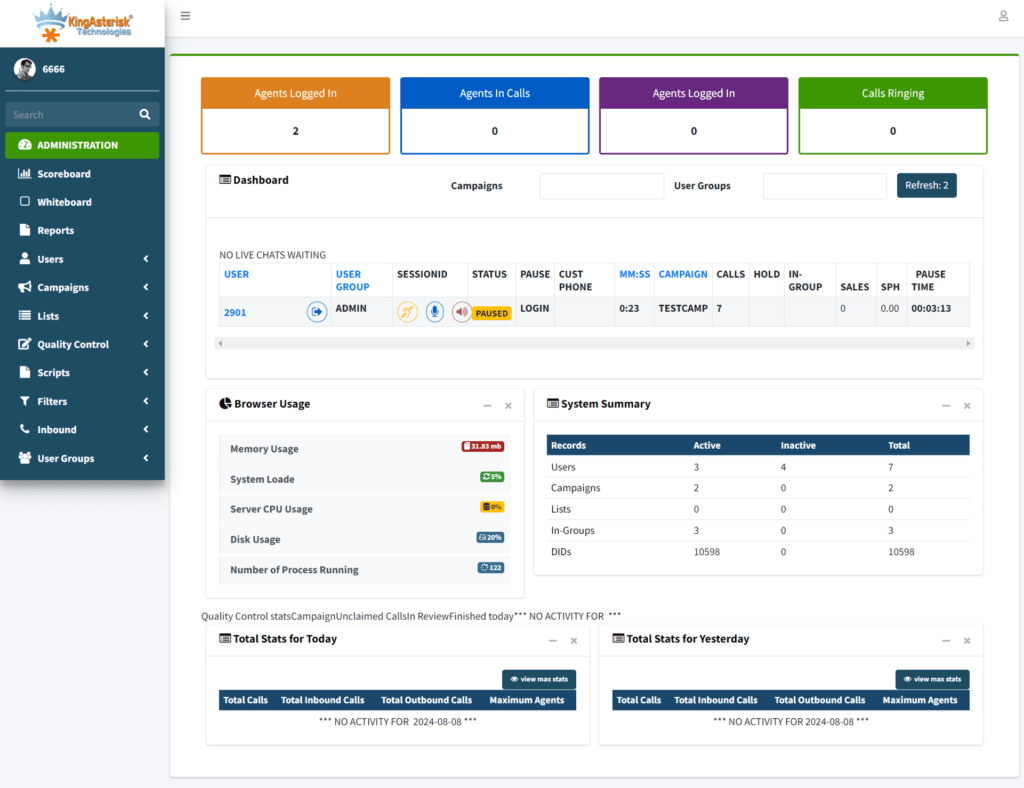
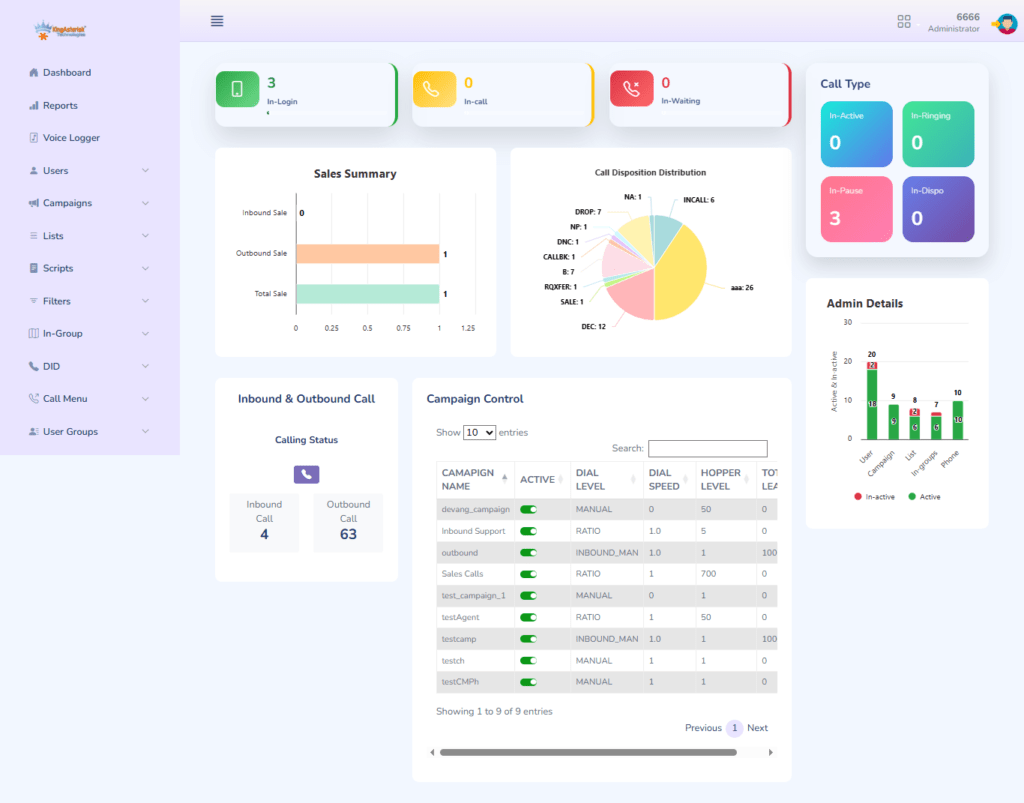
Custom VICIdial Admin Dashboard Real-time Monitoring analytics

2. Predictive Dialer Solution — Maximize Agent Productivity

Predictive Dialer Solution is built to help contact centers increase agent talk time and maximize campaign performance. Using intelligent dialing algorithms, the system automatically places multiple outbound calls and connects agents only when a live person answers, significantly reducing idle time and boosting productivity.

Architecture: The Predictive Dialer Solution operates on a robust Asterisk-powered infrastructure that continuously analyzes agent availability, call answer rates, and campaign performance. The system automatically adjusts dialing ratios in real time to ensure agents receive a steady stream of connected calls while minimizing downtime.

Key strengths for Philippine contact centers:

• Increases agent utilization by reducing idle and waiting time
• Automatically filters busy signals, unanswered calls, and voicemails
• Intelligent call pacing based on real-time campaign performance
• Supports high-volume outbound sales, collections, and lead generation campaigns
• Real-time dashboards for supervisors and campaign managers
• Integrated call recording and quality monitoring features
• Seamless CRM and third-party application integration

Limitations: Predictive dialing requires careful campaign configuration and compliance management. Aggressive dialing ratios may lead to abandoned calls if not properly optimized. Organizations should ensure local telemarketing regulations and customer communication policies are followed.

Best for: Mid-sized and large Philippine contact centers running high-volume outbound campaigns, including telesales, debt collection, lead generation, customer acquisition, and customer retention programs.

Admin dashboard- theme 2

3. Progressive Dialer Solution — Controlled High-Quality Outreach

Progressive Dialer Solution is built for contact centers that prioritize agent efficiency and conversation quality over aggressive dialing. Unlike predictive dialing, the system places one call at a time for each available agent, ensuring every connected customer is immediately routed to a live representative without delays or abandoned calls.

Architecture: Our Progressive Dialer integrates seamlessly with Asterisk, VICIdial, CRM platforms, and SIP infrastructure. The system automatically dials the next lead only when an agent becomes available, creating a balanced workflow that improves customer experience while maintaining strong outbound productivity.

Key strengths for Philippine contact centers:

• One-to-one dialing approach for better customer engagement
• Eliminates agent wait times after call connections
• Reduces abandoned calls and compliance risks
• Improves lead conversion through personalized conversations
• Seamless CRM integration with automatic customer data pop-ups
• Real-time campaign monitoring and agent performance tracking
• Flexible deployment for sales, collections, insurance, and customer service teams

Limitations: Progressive dialing delivers a lower call volume than predictive dialing because each call is initiated only when an agent becomes available. Organizations focused solely on maximum outbound volume may prefer predictive dialing for high-scale campaigns.

Best for: Philippine BPOs, sales teams, financial service providers, insurance campaigns, and customer engagement operations that require higher connection quality, improved compliance, and more meaningful agent-to-customer interactions.

4. Preview Dialer Solution — Personalized Customer Engagement

Preview Dialer Solution is built for contact centers where agent preparation matters more than call volume. Before each call is placed, agents are presented with complete customer information, interaction history, notes, and campaign details, allowing them to review the record and prepare for a more meaningful conversation.

Architecture: The Preview Dialer operates within the KingAsterisk contact center platform and integrates seamlessly with CRM systems, customer databases, and campaign management tools. Agents receive a customer profile screen before dialing begins, enabling informed decision-making and highly personalized customer interactions.

Key strengths for Philippine contact centers:

• Provides agents with customer information before each call
• Improves conversation quality through personalized engagement
• Reduces errors by allowing record verification before dialing
• Integrates with CRM platforms and customer databases
• Supports custom scripts, notes, and call disposition workflows
• Enhances lead qualification and relationship-building efforts
• Detailed reporting for agent performance and campaign outcomes

Limitations: Because agents review customer information before each call, dialing speed is slower compared to predictive and power dialers. Organizations focused solely on high-volume outbound campaigns may not achieve the same call throughput as automated dialing solutions.

Best for: Philippine contact centers handling high-value sales, financial services, insurance campaigns, healthcare outreach, customer retention programs, and B2B lead generation where personalized communication is essential for success.

5. Power Dialer Solution — Fast and Efficient Outbound Calling

KingAsterisk’s Power Dialer Solution is built for contact centers that need to increase agent talk time while maintaining complete control over outbound calling activities. Unlike manual dialing, the system automatically dials the next contact as soon as an agent becomes available, eliminating idle time and helping teams connect with more prospects throughout the day.

Architecture: The Power Dialer operates on a robust Asterisk-based calling infrastructure and integrates seamlessly with CRM platforms, lead management systems, and contact center applications. Calls are automatically distributed to available agents while supervisors can monitor campaign performance through a centralized web-based dashboard.

Key strengths for Philippine contact centers:

• Automatically dials the next contact when an agent finishes a call
• Reduces manual dialing time and improves agent productivity
• Increases daily call volume without overwhelming agents
• CRM integration for instant customer information access
• Real-time campaign monitoring and performance tracking
• Built-in call recording and quality assurance capabilities
• Customizable dialing rules based on campaign requirements

Limitations: Power dialing requires well-maintained contact lists to achieve the best results. While it significantly improves outbound efficiency, it does not use advanced call pacing algorithms like predictive dialers, making it more suitable for controlled outreach campaigns rather than high-volume dialing environments.

Best for: Sales teams, lead generation campaigns, customer follow-ups, appointment scheduling, collections, and contact centers that want to increase outbound productivity while maintaining a personalized customer experience.

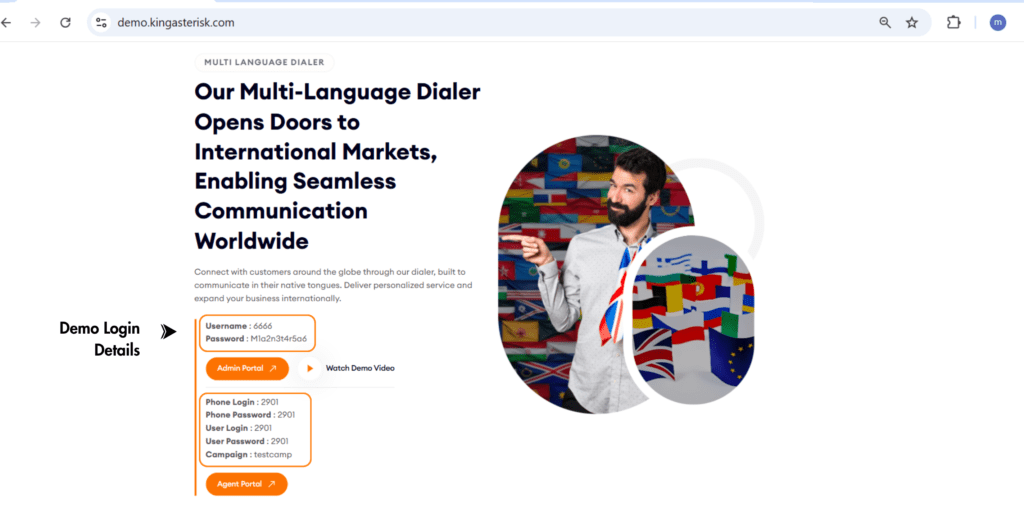
6. Multi-Language Dialer Solution — Global Customer Communication Made Easy

KingAsterisk’s Multi-Language Dialer Solution helps contact centers communicate effectively with customers across different countries, regions, and language preferences. Designed for international BPOs, customer support teams, and outbound sales operations, this solution enables businesses to deliver personalized customer experiences while improving communication accuracy and engagement rates.

Architecture: The Multi-Language Dialer Solution is built on a scalable Asterisk and VICIdial-based framework with support for multiple language prompts, agent interfaces, IVR menus, call scripts, CRM integrations, and customer journey workflows. 

Administrators can configure campaigns based on customer language preferences, ensuring every interaction is routed to the most suitable agent or automated service.

Key strengths for Philippine contact center operations:

• Supports multiple languages within a single dialing platform
• Language-based call routing for improved customer experience
• Multi-language IVR menus and voice prompts
• Agent interfaces and call scripts can be customized by language
• CRM integration for storing customer language preferences
• Ideal for international campaigns across North America, Europe, Asia, and the Middle East
• Scalable architecture capable of handling high-volume multilingual operations
• Custom development and deployment services from KingAsterisk

Limitations: Successful multilingual operations require accurate language data, properly translated scripts, and trained agents for each supported language. Organizations may also need additional voice recordings and localization resources when expanding into new markets.

Best for: Philippine BPOs, multilingual customer support centers, international sales teams, healthcare providers, financial services organizations, and enterprises managing customer interactions across multiple countries and languages.

Multi-Language Dialer Filippino

7. CRM Dialer Solution — Unified Customer Management and Calling Platform

CRM Dialer Solution combines customer relationship management and outbound calling into a single platform, helping contact centers streamline operations, improve agent productivity, and deliver better customer experiences. By connecting customer data directly with dialing campaigns, agents gain instant access to customer information before, during, and after every call.

Architecture: The CRM Dialer Solution integrates advanced dialing technology with a centralized CRM database. Customer records, lead information, call history, notes, follow-ups, and campaign data are synchronized in real time, allowing agents and supervisors to manage customer interactions from a unified web-based interface.

Key strengths for Philippine operations:

• Single platform for customer management and outbound calling
• Real-time customer information displayed during live calls
• Automatic call logging and interaction tracking
• Lead management, follow-up scheduling, and task automation
• Seamless integration with VICIdial, Asterisk, and third-party CRMs
• Customizable dashboards, reports, and performance analytics
• Improves agent efficiency while enhancing customer engagement

Limitations: CRM Dialer implementations often require customization to align with specific business workflows and processes. Organizations migrating from legacy systems may need data migration planning and user training to ensure a smooth transition.

Best for: Philippine BPOs, sales teams, customer support centers, collections agencies, and enterprises that want to centralize customer information, improve agent performance, and create a more personalized customer communication strategy.

CRM Dialer Admin Dashboard
🖥️ Live Environment : Live Demo of Our Solution!

Real-World Deployment: Outbound Collections in Cebu

A mid-sized Cebu-based BPO running outbound debt collections for a US-based financial services client migrated from a legacy proprietary dialer to VICIdial deployed on-premises across two Linux servers. The operation ran 120 agent seats across two shifts.

Before migration: The team was paying approximately $18 per seat per month in dialer licensing – $2,160/month. Agent talk time averaged 38 minutes per hour due to dialer pacing limitations and manual list management.

After VICIdial deployment: Licensing costs dropped to zero. After tuning the predictive pacing algorithm and implementing automated DNC scrubbing, agent talk time increased to 47 minutes per hour — a 23% improvement. The operations manager gained real-time campaign dashboards and could monitor agent performance without waiting for end-of-day reports.

IVR integration: An Asterisk-based IVR was configured to handle inbound customer callbacks generated by outbound messages, routing callers to the appropriate account specialist queue. Previously this required a separate IVR vendor contract.

The total first-year saving, including implementation and support costs, was approximately $22,000, reinvested into agent training and QA capacity.

Conclusion

Philippines contact center dialers span a wide spectrum, from zero-cost open-source platforms like VICIdial and Asterisk to enterprise commercial systems. The right choice is never universal; it depends on your agent count, campaign mix, technical team capacity, budget, and client compliance obligations.

A dialer misconfigured or under-supported will erode performance regardless of its feature list. If you’re evaluating Philippines contact center dialers for a new deployment, migration, or expansion, the team at KingAsterisk has hands-on deployment experience across Philippine and global contact center environments. Contact us to discuss your requirements.

Written by the KingAsterisk Engineering Team, specialists in Asterisk, VICIdial, and IVR deployments for contact center operations globally.

KINGASTERISK_NOTE
Complete VICIdial Login Setup Guide for Admins & Agents
Vicidial Software Solutions

Complete VICIdial Login Guide: Admin Panel, Agent Access & Dashboard Setup (2026)

Complete VICIdial Login Setup Guide for Admins & Agents

Key Takeaways

  • VICIdial Login has two distinct entry paths, the admin panel and the agent interface, each requiring separate credentials and configurations.
  • Admin users control system-wide settings including campaigns, user roles, and inbound/outbound routing from a centralized panel.
  • Agents log in through a dedicated interface that ties their session to a specific phone extension and campaign queue.
  • Custom dashboard views can be configured per user role, improving supervisor visibility and agent focus.
  • Most login failures trace back to a small set of fixable issues: wrong port, user_level mismatches, or browser cache problems.

Published by KingAsterisk Technologies | Contact Center Software Solutions Specialists | VICIdial, Asterisk & IVR Solutions

VICIdial Login is the gateway to one of the most widely deployed open-source contact center platforms in the world, and configuring it correctly from day one determines how smoothly your entire operation runs. Whether you’re setting up a fresh Vicidial installation, onboarding a new batch of agents, or troubleshooting why a supervisor can’t reach the admin panel, this guide covers every step with precision.

This isn’t a surface-level overview. What follows is a field-tested walkthrough drawn from hands-on deployment experience across contact centers of varying sizes, from 10-seat outbound teams to enterprise-scale multi-tenant environments running hundreds of concurrent sessions.

Understanding VICIdial’s Login Architecture 

Before touching a browser, it helps to understand that VICIdial operates on a web-based interface served by Apache on your server. All login requests, whether from an admin or an agent, are handled through HTTP/HTTPS to your server’s IP or domain.

VICIdial separates its access model into two primary interfaces:

The Admin Panel (/vicidial/admin.php)

This is where system administrators manage campaigns, user accounts, call routing, scripts, reports, and server settings. Access is controlled by user_level values ranging from 1 to 9, with higher values granting broader privileges.

The Agent Interface (/vicidial/vicidial.php)

This is what agents interact with during live sessions. It connects to a SIP extension or Asterisk channel and drops the agent into whichever campaign they’re assigned to.

Both interfaces share the same user database (vicidial_users table in MySQL), but the permissions and features available depend entirely on how each user account is configured.

Understanding this split is critical because a common mistake during initial setup is assigning admin-level credentials to agents or, worse, giving agents access to the admin URL directly. Neither scenario ends well in production.

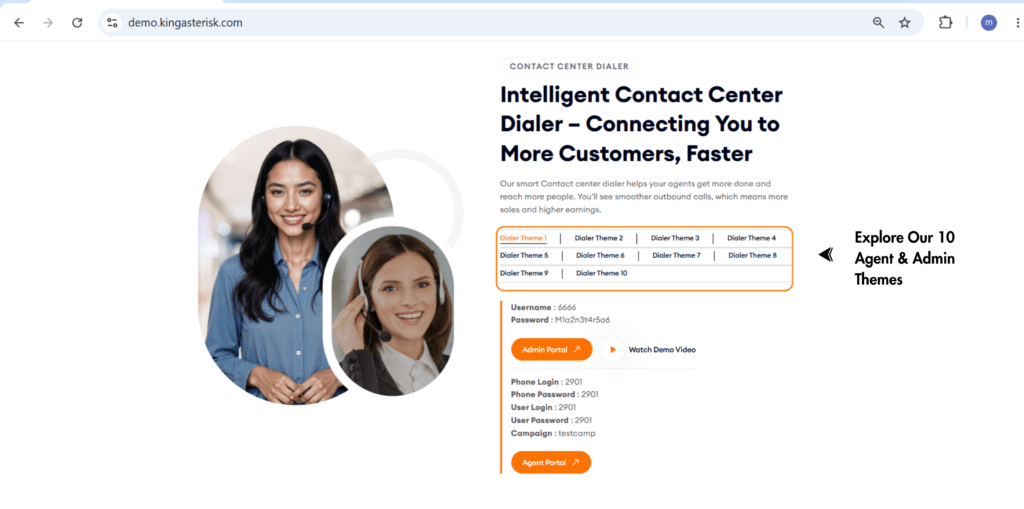
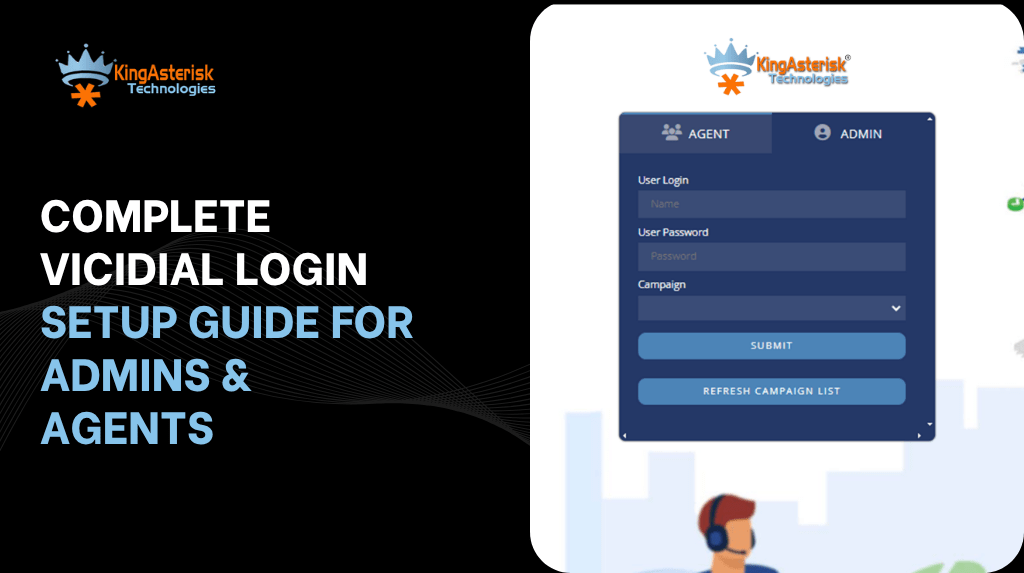
Accessing the KingAsterisk Custom VICIdial Admin Panel Login

Getting started with VICIdial is simple when using the live demo environment provided by KingAsterisk. Follow the steps below to access the VICIdial Admin Panel and explore its features.

Step 1: Visit the KingAsterisk Website

Open your web browser and navigate to the official KingAsterisk website. From the homepage, locate the Live Demo option in the navigation menu or homepage banner.

Website: https://kingasterisk.com 

Step 2: Open the Live Demo

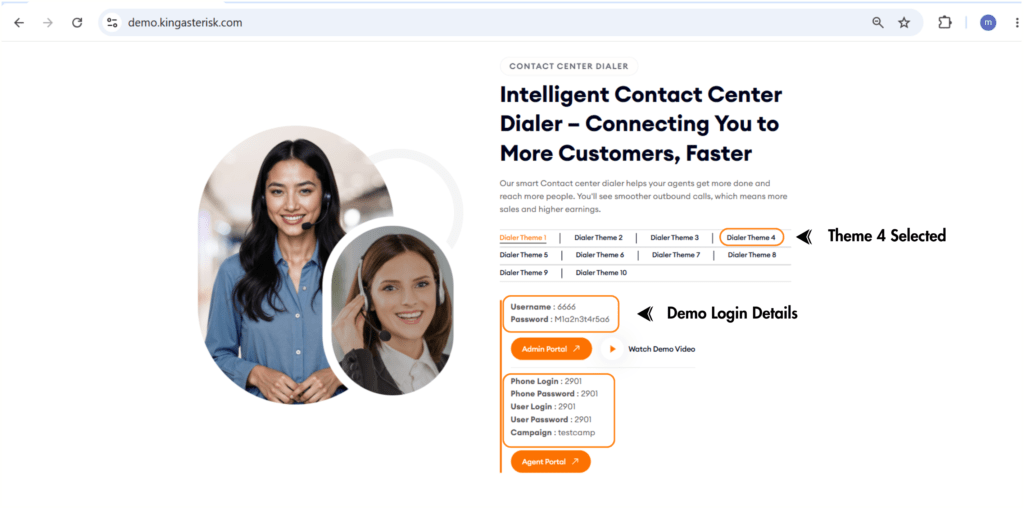
Click on the Live Demo button to access the demo portal. This area allows you to experience different VICIdial themes and interface layouts before deployment.

Demo Portal: https://demo.kingasterisk.com  

Step 3: Select a VICIdial Theme

Browse the available themes and choose the one you want to explore. Each theme offers a unique user interface while maintaining the powerful functionality of the VICIdial platform.

For this example, select Theme 5

Step 4: Access the Admin Login

After selecting your preferred theme, click the Admin button. This will redirect you to the VICIdial Admin Panel login page.

Admin Login URL: https://demo.kingasterisk.com/theme-5/dialer/admin.php 

Step 5: Enter Login Credentials

Input the demo Admin ID and Password provided on the demo page. Verify that the credentials are entered correctly and click Login.

Username: 6666
Password: M1a2n3t4r5a6 

Step 6: Explore the VICIdial Admin Dashboard

Once authenticated, you will gain access to the VICIdial Admin Panel. From here, administrators can manage campaigns, users, leads, lists, reports, carrier settings, inbound routing, and other call center configurations.

Note: The live demo environment is designed for evaluation purposes and allows users to understand the VICIdial administrative workflow before implementing the solution in a production environment.

Step-by-Step Agent Login Process 

Agent login in VICIdial is a multi-step process that does more than authenticate a user, it also initializes an Asterisk channel and connects the agent’s phone to the system. Here’s the exact sequence:

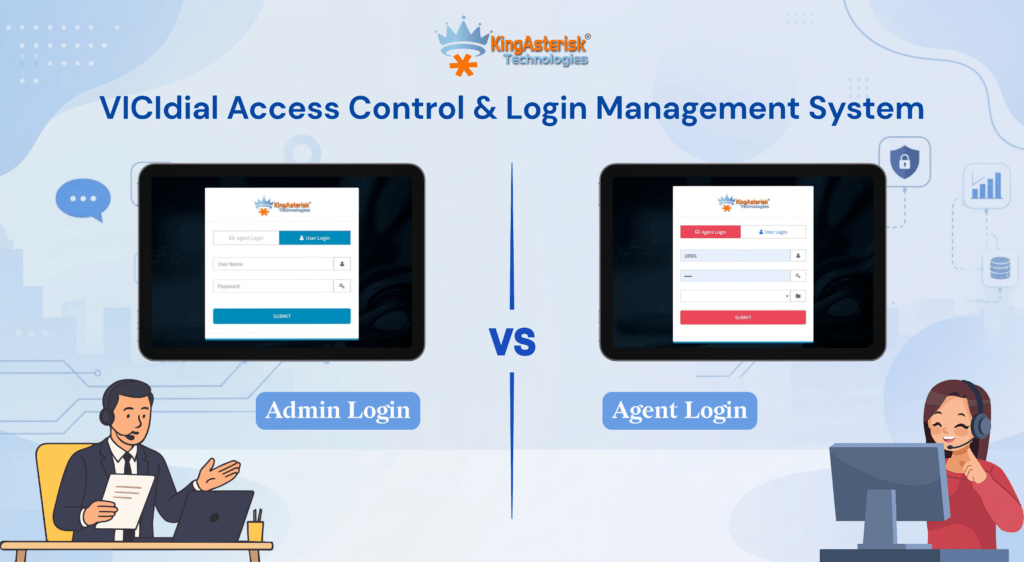
Vicidial Agent login screen

Step 1 — Navigate to the Agent Interface

http://[YOUR_SERVER_IP]/vicidial/vicidial.php
http://[YOUR_SERVER_IP]/agent/agent.php

Note: You can changes folder and file name as per requirement

Step 2 — Enter User Credentials

Agents log in using their assigned username and password, which are created by an administrator in the VICIdial User Management section. Usernames are often numeric for easier administration.

Example:

  • Username: 1001
  • Password: Agent123

The agent enters these credentials on the VICIdial login screen to access the system.

Step 3 — Phone Extension Entry

Unlike a standard web login, VICIdial agents must also enter a phone extension (SIP phone, softphone, or WebRTC phone). The extension must be registered with the Asterisk server before the agent can go active and receive calls. If it is not registered, VICIdial will display a “Phone Not Responding”, “initializing”, “unregister” error, which is usually caused by a phone or network configuration issue rather than the VICIdial interface itself.

Step 4 — Select a Campaign

After logging in, the agent selects a campaign from the available list or is automatically assigned a default campaign based on their settings.

Example:

  • Campaign: US_Sales
  • Campaign: Customer_Support
  • Campaign: Insurance_Renewals

Agents can only access campaigns that are assigned to their user group by the administrator.

Step 5 — Go on “Ready” Status

Once logged in, connected to a phone, and assigned to a campaign, the agent clicks “ready” to start receiving calls.

Example:

  • Agent 1001 logs in and selects the US_Sales campaign.
  • The agent clicks “Go Available”.
  • The system now begins delivering calls based on the campaign’s dial method (Predictive, Preview, Manual, etc.).

Only agents in Available status can receive inbound or outbound calls

Agent can take inbound ,outbound ,manual , progressive call based on campaign configuration

User Roles and Permission Levels

VICIdial’s permission system is built around the user_level field and a series of granular feature flags per user account. Understanding this structure is essential for any admin managing a multi-role team.

User Level Scale

LevelRoleDescription
1Standard AgentHandles inbound and outbound calls, updates customer information, and performs daily campaign activities. Access is limited to agent functions only.
5Lead / Senior AgentHandles inbound and outbound calls, updates customer information, and performs daily campaign activities. Access is limited to agent functions only.
7Remote QcReviews call recordings, evaluates agent performance, verifies compliance, and provides feedback to improve service quality.
8Supervisor / ManagerManages agents and campaigns, monitors live activity, generates reports, handles escalations, and oversees daily call center operations.
9Master AdministratorHas full system access, including user management, campaign configuration, dialer settings, reporting, integrations, and overall VICIdial administration.

Levels 7 and above can access the admin panel. Levels 1–6 are restricted to the agent interface only.

Key Permission Flags

Beyond user level, individual feature access is controlled by binary flags on each account. These include:

  • agentcall_manual: Allows agents to make manual outbound calls outside the auto-dialer
  • delete_vm: Grants permission to delete voicemail records
  • closer_default_blended: Controls blended inbound/outbound behavior
  • agent_choose_ingroups: Lets agents self-select inbound queues at login

Admins often overlook these granular flags and then wonder why a team lead can’t access a feature they should have. Always audit both the user level and the individual flags when configuring a new role.

Configuring and Customizing the VICIdial Dashboard 

The Real-Time Report (Wallboard)

The VICIdial dashboard for supervisors lives primarily in the Real-Time Report, accessible from the admin panel under Reports. This view gives a live feed of:

  • Agents currently logged in and their status (Ready, Paused, On Call, Waiting)
  • Campaign-level stats: calls in queue, average wait time, abandon rate
  • Individual agent call counts and talk time

This screen auto-refreshes at a configurable interval (default is typically 30 seconds; reducing it to 10–15 seconds is standard for active floor supervision).

Customizing Agent Dashboard Views

Individual agents don’t see a “dashboard” in the traditional sense, their interface is purpose-built for call handling. However, admins can customize what agents see by configuring:

  • Custom agent scripts – HTML-based call scripts tied to specific campaigns display automatically when a call connects
  • Disposition buttons – Tailored call outcome codes per campaign keep agents focused on relevant dispositions
  • Custom fields – Campaign-specific data fields can be surfaced directly in the agent interface, reducing the need for agents to switch between windows

Supervisor Monitoring Tools

Supervisors with the appropriate user level can access live call monitoring tools directly from their login session, including:

  • Listen – Silent monitoring without agent or customer awareness
  • Whisper – Coach the agent without the customer hearing
  • Barge – Join the call as a three-way participant

These tools are available through the Real-Time Report by clicking on an active agent row, provided the supervisor’s account has the monitor_phones permission enabled.

VICIdial Login Troubleshooting: Common Issues and Fixes

“Wrong Password” Despite Correct Credentials

VICIdial passwords are case-sensitive and stored as MD5 hashes in the database. If an agent is certain of their password but still can’t log in,one of the most common fixes is to reset the password directly from the admin panel: 

Admin > Users > [Select User] > Change Password.

This issue is not always password-related; it may also occur due to inactive user status, incorrect configuration, or permission mismatches. 

If the admin themselves is locked out, the password can be reset via MySQL:

UPDATE vicidial_users SET pass=MD5('newpassword') WHERE user='6666';

Use this method carefully and ensure you have proper database access permissions before executing any changes

Agent Interface Shows Blank or Doesn’t Load

This is almost always a browser compatibility issue. VICIdial’s agent interface was built for Firefox and functions best there. Chrome generally works, but certain extensions or strict security policies can break functionality. Test in a clean Firefox profile before escalating.

“Phone Not Responding” Error at Agent Login

This error means Asterisk cannot reach the extension the agent entered. Check:

  1. Is the SIP phone or softphone registered to the Asterisk server? Verify in Asterisk’s SIP peer list (sip show peers).
  2. Is the extension defined in VICIdial’s Phones section (Admin > Phones)?
  3. Is there a firewall rule blocking UDP port 5060 or the RTP port range?

Admin Panel Login Redirects or Returns 403

A 403 error on the admin panel URL typically means Apache’s access control is blocking the request. Check /etc/apache2/conf.d/ or the VirtualHost configuration for IP-based Allow/Deny directives. If you’re accessing from a new IP, you’ll need to update the allowed list.

Session Timeout Causing Agents to Log Out Mid-Shift

VICIdial’s session timeout is controlled by PHP’s session.gc_maxlifetime setting and VICIdial’s own php_auth_user timeout values. For long shifts, increase the session lifetime in php.ini and ensure keepalive_send_interval in VICIdial’s admin settings is set to a value lower than your timeout threshold

Frequently Asked Questions

No. Admins use /vicidial/admin.php while agents use /vicidial/vicidial.php. Although both use the same user database, the interfaces are entirely different. Attempting to log an agent into the admin URL with a low user_level account will result in a permissions error.

VICIdial requires agents to associate their login session with a registered phone extension because it needs to control an actual Asterisk channel for call delivery. If you don’t want agents entering this each session, you can pre-configure a default phone in their user profile or use a WebRTC browser phone that auto-registers on login.

Set the supervisor’s user_level to 7 and enable the monitor_phones permission flag on their account. This grants access to the Real-Time Report and live monitoring tools (listen, whisper, barge) without exposing system-level admin functions like server configuration or user deletion.

Campaign visibility for agents at login is controlled by User Group assignments. Each campaign specifies which user groups can access it. If an agent doesn’t see a campaign they should have access to, verify their user group membership in Admin > Users and cross-check it against the campaign’s allowed groups under Admin > Campaigns > [Campaign Name].

Conclusion

Getting VICIdial Login right, from admin panel access to agent session initialization and dashboard configuration, is foundational to running a stable, well-organized contact center. The platform offers a level of granularity in its permission and login framework that, when properly configured, gives operations teams precise control over who sees what and who can do what across every layer of the system.

The key points to carry forward: keep admin and agent login URLs separate and secured, configure user_levels and permission flags with intention rather than defaults, ensure every agent’s phone extension is properly registered before their first login, and use the Real-Time Report as your primary supervisory dashboard rather than trying to bolt on third-party tooling for a job VICIdial already handles natively.

If you’re setting up VICIdial for the first time, migrating an existing deployment, or running into configuration challenges, the team at KingAsterisk has hands-on experience deploying and optimizing VICIdial environments across industries. Get in touch with us – we’re glad to help you build a system that works the way your operation demands.

KINGASTERISK_NOTE
How to Restrict VICIdial Admin Access to Agent Time Report Only
Vicidial Software Solutions

How to Restrict VICIdial Admin Access to Agent Time Report Only (User Permission Guide)

How to Restrict VICIdial Admin Access to Agent Time Report Only

VICIdial restrict admin access configurations are one of the most underutilized, and most important, features in any busy contact center environment. Out of the box, Custom VICIdial gives admin-level users broad visibility: campaign data, disposition summaries, inbound queue metrics, agent performance breakdowns, and more. That breadth is exactly what a senior operations manager needs. It’s precisely what a team-lead or quality auditor should not have.

When every user can see every report, you introduce three real problems. First, agents or junior supervisors may access wage-sensitive productivity metrics for colleagues, creating compliance and HR exposure. Second, unrestricted report access can slow down VICIdial’s interface for users who only need one or two data views. Third, and most practically: when something looks wrong in a report, too many cooks in the analytics kitchen leads to confusion rather than resolution.

The fix is granular. Custom VICIdial’s User Group permission system lets you define, at the group level, exactly which reports a category of users can open. This guide focuses specifically on locking a User Group down to the Agent Time Detail Report – one of the most requested single-report access configurations in mid-sized contact center deployments.

Understanding VICIdial’s Permission Architecture 

Before touching any settings, it helps to understand how customized VICIdial organizes user-level access.

Users, User Groups, and Report Permissions

Custom VICIdial operates on a three-tier model for access control:

Users are individual login accounts assigned to agents, supervisors, or administrators. Each user belongs to a User Group, and the User Group defines what that user can see and do. Report access is not configured per-user, it is configured per-group, which means a single change propagates to every member of that group instantly.

Allowed Reports is a subsection within each User Group’s configuration. It functions as a whitelist: only the report types explicitly enabled in this section will appear in the reporting menu for users in that group. If a report is not listed in the Allowed Reports section, users simply won’t see it – no error, no workaround.

This architecture is particularly efficient for contact centers that employ tiered staffing: junior agents, QA analysts, team leads, and operations managers all have different informational needs. Rather than managing permissions one user at a time, you configure four User Groups and assign employees accordingly. 

What Is the Agent Time Detail Report?

The Agent Time Detail report shows a granular breakdown of how each agent spent their logged-in time – talk time, pause durations, wait time between calls, and disposition intervals. It is the go-to report for workforce management reviews, attendance audits, and performance conversations. Many contact centers assign this specific report to team leads so they can monitor their floor without accessing billing data, campaign-level statistics, or administrative configuration options.

Real-World Use Case: Supervisor Access in a Multi-Team Contact Center

Consider a contact center running three inbound service queues and two outbound sales campaigns simultaneously. The operations director needs full report access, they review everything from campaign conversion rates to average handle time trends across the floor.

Each team lead, however, manages a group of eight to twelve agents and cares about one thing above all else: whether their agents are at their desks, taking calls, and logging appropriate pause reasons. The Agent Time Detail report gives them exactly that. There is no reason for a team lead to access outbound campaign disposition summaries or real-time queue dashboards – in fact, giving them access often leads to misinterpretation and unnecessary escalations.

By creating a “Team Lead” User Group with Allowed Reports restricted to Agent Time Detail only, the operations director achieves clean separation of concern. Team leads see what they need. Sensitive campaign and financial performance data stays visible only to those with the right context to interpret it. The configuration takes under five minutes and requires no technical background.

Step-by-Step: Restricting Access to Agent Time Report Only

The following walkthrough uses the Custom VICIdial Live Demo environment, which mirrors a production installation. If you are working in your own deployed instance, the navigation path is identical.

Step 1: Open VICIdial and Select a Theme

Open the VICIdial web interface in your browser. If you are using the public Live Demo for practice, navigate to the Live Demo section of the KingAsterisk website. 

You will be offered a choice of interface themes. 

Select any available theme – Theme 8 is a clean option for following this guide, as its layout matches most production deployments.

VICIdial live demo theme selection interface showing contact center dialer options.

Step 2: Log In to the Admin Dashboard

Use the provided admin credentials to log in.

Username: 6666
Password: M1a2n3t4r5a6

Upon successful login, you will land on the Custom VICIdial Admin Dashboard – the central hub for all configuration options.

Take a moment to orient yourself. The left-side navigation panel is your primary tool here, and you will only need two levels of that menu to complete this configuration.

Custom VICIdial admin dashboard showing real-time call center statistics and inbound outbound call metrics.

Step 3: Navigate to User Groups

From the left navigation panel, follow this path:

Administration → User Groups → Show User Groups

This brings up a full list of all User Groups currently configured in your Customized VICIdial instance. 

Depending on your setup, you may see groups such as ADMIN, AGENT, CLOSER, or custom groups your team has created.

Navigating to Show User Groups under Administration panel in VICIdial sidebar menu.

Step 4: Edit the Target User Group

Locate the User Group you want to restrict. 

If you are setting up a new restricted group, it is best practice to clone an existing lower-privilege group and modify the clone, rather than editing a group that is already in active use.

Click the Action (Edit) icon next to the desired group. 

This opens the full User Group configuration page, which contains dozens of permission toggles across several subsections.

User Groups Management table in VICIdial showcasing admin and agent group records with edit action button

Step 5: Configure Allowed Reports

Scroll down the configuration page until you reach the Allowed Reports section. This is a checklist of every report type available in VICIdial.

To restrict this group to the Agent Time Report only:

  1. Select (enable) the checkbox next to “Agent Time Detail”.
  2. Review every other report checkbox. If any other report types are currently enabled for this group, deselect them.
  3. Double-check the list. It is easy to miss an enabled checkbox in a long list, scroll slowly and confirm that only Agent Time Detail is checked.

This whitelist approach means that when users in this group log in, their reporting menu will display only the Agent Time Detail report

All other report types become invisible to them.

Selecting Agent Time Detail report under Allowed Reports section in VICIdial configuration.

Step 6: Save Changes and Verify Access

Click the Save Changes button at the bottom of the User Group configuration page. VICIdial will confirm the update.

Verification is a non-negotiable step. Log out of the admin account and log back in using a user account that belongs to the User Group you just modified. Navigate to the Reports section of the interface. You should see only the Agent Time Detail report available. If other reports are still visible, return to the User Group configuration and confirm your save was successful.

This two-minute verification step prevents a common mistake: assuming the configuration is saved correctly without confirming the end-user experience.

reen success banner indicating user group modified successfully in VICIdial administration panel.

Common Questions About VICIdial Access and Configuration

Changing the IP Address in VICIdial

When your server’s network configuration changes, VICIdial needs to be updated to match. The primary place to update the IP address is in the /etc/asterisk/manager.conf file and in the VICIdial astguiclient.conf configuration file, both of which reference the server’s bind address. You will also want to update any hardcoded IP references in your web server’s virtual host configuration.

You will also want to update any hardcoded IP references in your web server’s virtual host configuration. 

After making changes, restart both the Asterisk service and the VICIdial web components for the new address to take effect. In production environments, it is worth checking the custom VICIdial server table in the MySQL database as well, since server IP records stored there drive multi-server deployments.

Refreshing Leads in VICIdial

Lead refresh is controlled through the Campaign settings. Within a campaign’s configuration, the Recycling section governs how and when leads cycle back into the dialing queue based on disposition codes. To force a manual refresh – for example, after importing a new lead list – navigate to Admin → Leads and use the lead loader or list management tools to re-activate a list. Ensuring your lead list status is set to “Active” and that the campaign’s dial level is correctly configured will prevent leads from appearing stale in the queue.

Remote Agents in VICIdial

A remote agent in VICIdial is a user who logs into the system and takes calls through an external phone number rather than a softphone or extension registered on the local Asterisk server. Remote agents are accommodated through VICIdial’s “Phone Login” feature, where the agent specifies an external number at login. 

The system bridges inbound and outbound calls to that number, allowing agents working from external locations to participate in campaigns exactly as they would on-site. Remote agent functionality does not require any changes to User Group permissions – it is a dial-plan and session configuration separate from the access control framework covered in this guide.

🚀 Free Live Demo: Live Demo of Our Solution!

Watch: How to Restrict VICIdial Admin Access to Agent Time Report Only

Managing user permissions is a critical part of maintaining security and operational control in any contact center. In this video tutorial, we demonstrate how to configure VICIdial user permissions so that an admin or supervisor can access only the Agent Time Detail Report while being restricted from viewing other reports and administrative sections. 

This setup helps protect sensitive data, improves role-based access control, and ensures users can only access the information relevant to their responsibilities. 

Watch the step-by-step guide below to learn how to implement report-level access restrictions in your VICIdial system.

Frequently Asked Questions

Yes, and this is exactly how VICIdial’s access system is designed to work. Each User Group has its own independent Allowed Reports configuration. You can create a “QA Analyst” group with access to Agent Time Detail and Call Recordings, a “Team Lead” group with access only to Agent Time Detail, and keep the full report suite available exclusively to your operations admin group. Changes to one group have no effect on any other group.

If the Allowed Reports section for a User Group has no reports selected, users in that group will see an empty or unavailable reports menu. They will not receive an error message – the section simply will not display any report options. If you are troubleshooting a user who cannot access any reports, this is the first place to check: navigate to their User Group and confirm at least one report type is enabled.

User Group permission changes in VICIdial take effect at the next login for affected users. If a user is currently logged in when you save the User Group changes, they will need to log out and log back in before the new permission set applies. In a live contact center environment, plan permission changes during shift transitions to minimize disruption.

VICIdial’s standard User Group permissions control report type access rather than campaign-specific data filtering within a report. For campaign-level data isolation, you would need to combine User Group report restrictions with campaign-level user assignments – ensuring users are only assigned to campaigns whose data they should see. This adds a second layer of access control beyond what the Allowed Reports section provides on its own.

Conclusion

VICIdial restrict admin access configuration through User Groups is one of the most practical ways to maintain a secure, well-organized contact center reporting environment. The process outlined in this guide – navigating to User Groups, enabling only Agent Time Detail in the Allowed Reports section, saving the change, and verifying the result from an end-user account,  takes less than five minutes and immediately improves your access control posture.

The broader principle is just as important as the specific steps: access should be granted by need, not by convenience. When team leads, QA auditors, and junior supervisors see only the reports relevant to their role, data integrity improves, compliance exposure decreases, and the reporting system becomes faster and easier for everyone to navigate.

Whether you are managing a small team or a multi-site contact center operation, granular permission control in custom VICIdial scales with you. Start with a single User Group, validate the configuration, then roll the model out across your full team structure.

Need help configuring custom VICIdial permissions, setting up User Groups, or deploying a custom contact center solution built on Asterisk and VICIdial? The team at KingAsterisk has supported installations across industries and regions for years. Contact us to discuss your specific requirements, we are happy to help you get it right the first time.

KINGASTERISK_NOTE
Create a Professional VICIdial Agent Theme
Vicidial Software Solutions

VICIdial Agent Theme: How to Create a Professional Agent Interface for Contact Centers

Create a Professional VICIdial Agent Theme

The VICIdial Agent Theme is the single most visible layer between your agents and the platform they spend eight hours a day operating, and getting it right has a measurable impact on performance metrics. Most contact center managers who approach us initially think of theming as a branding exercise. Within weeks of a proper rollout, they realize it’s actually an operational decision. A poorly structured Vicidial agent screen creates micro-friction. 

Buttons placed in unexpected locations, distracting color palettes, overly dense information layouts, each of these adds a fraction of a second to every action an agent takes. Multiply that across hundreds of interactions per shift, and you have a quantifiable drag on productivity. Conversely, a clean, purpose-built interface shortens training ramp-up time, reduces misclick errors, and makes it easier for supervisors to standardize agent behavior.

VICIdial, the open-source predictive dialer and contact center suite built on the Asterisk telephony framework, ships with a functional default agent interface. That default, however, is built to be generic, it has to work for every conceivable deployment. A professional operation customizes it for their specific workflows.

Vicidial Agent Theme

Understanding the VICIdial Agent Theme Architecture 

Before touching any files, every administrator should understand how VICIdial’s theme layer is structured. This prevents the most common mistake: overwriting core files that get replaced on every update.

The File Structure

VICIdial’s agent interface is rendered primarily through PHP templates and CSS stylesheets located in the web root, typically under /srv/www/htdocs/ or /var/www/html/ depending on your server distribution. The key files relevant to agent theming are:

  • agent.php – The primary agent screen template. Controls layout, element placement, and what functionality is exposed.
  • vicidial.css – The master stylesheet driving colors, fonts, button styles, and spacing across the interface.
  • agent_script.php – Controls how scripts display to agents during live interactions.
  • Custom theme directories – VICIdial supports placing override CSS files in designated paths so your changes survive platform updates.

How CSS Overrides Work

Rather than directly editing vicidial.css, the recommended approach is to create a custom stylesheet that loads after the master CSS. This override file targets specific element selectors and overwrites only what you need to change. Any element not addressed in your override retains the default style, meaning a system update to the core CSS doesn’t wipe your customizations.

The Role of Admin Panel Settings

VICIdial’s administration panel (accessed through /dialer/admin.php) exposes several theme-related settings without requiring file-level access. These include:

  • Agent Screen Color Scheme – Preset palette options for the overall interface
  • Agent Interface Options – Toggles for which interface elements appear (timer display, queue counts, callback buttons, etc.)
  • Campaign-Level Overrides – The ability to assign specific CSS or layout profiles per campaign

Understanding this two-layer system, admin panel settings on top of file-level customization underneath, gives you the flexibility to make broad changes quickly while preserving the ability to fine-tune at a granular level.

Step-by-Step: Customizing Your VICIdial Agent Theme 

Step 1: Audit the Default Interface First

Before making a single change, document what the current interface looks like from an agent’s perspective. Log in as a test agent, run through a typical interaction workflow, and note every point of friction. Where do agents hesitate? What information is missing at the critical moment? What’s present but never used?

This audit forms your brief for the customization. Theming without an audit produces a prettier version of the same problems.

Step 2: Set Up a Staging Environment

Never apply theme changes directly to a production server. VICIdial installations are straightforward to mirror, create a staging instance with a copy of your current database, apply and test changes there, then migrate verified changes to production.

Step 3: Create Your Custom CSS Override File

Create a new file, for example, custom_agent_theme.css, in your VICIdial web root. This is where all visual modifications will live. Reference it by adding a stylesheet link inside the section of agent.php, positioned after the existing CSS references to ensure your rules take precedence

Key elements to address in your custom CSS: 

Color palette:

/* Example: Replace the default grey header with a brand-aligned dark navy */
#agent_header {
    background-color: #1a2740;
    color: #ffffff;
}

/* Disposition buttons — high contrast for quick visual scanning */
.dispo_button {
    background-color: #2d6a4f;
    color: #ffffff;
    font-weight: 600;
    border-radius: 4px;
    padding: 8px 16px;
}

Typography: Use a legible sans-serif font at a minimum of 14px for all interactive elements. Agents read script text, customer data, and disposition options rapidly under pressure. Small or decorative fonts introduce unnecessary cognitive load.

Button sizing and spacing: Touch-friendly sizing (minimum 40px tall for click targets) matters even on desktop deployments, because agents clicking through 200+ interactions per shift make small targeting errors when buttons are undersized.

Vicidial Admin Panel

Step 4: Configure Interface Options via Admin Panel

Navigate to Admin → System Settings → Agent Interface Options. 

Review and configure:

  • Show Agent Timezone – Useful for inbound operations handling multi-region contacts
  • Show Call Timer – Essential for operations with talk-time targets
  • Script Display Mode – Choose between inline script (always visible) and popup script (on demand); inline reduces clicks but adds visual density
  • Callback Button Visibility – Hide if not applicable to a campaign to reduce agent decision points

Step 5: Customize the Agent Script Display

The script panel is where agents spend most of their visual attention during live interactions. A well-formatted script with clear section headings, consistent font hierarchy, and highlighted input prompts dramatically reduces fumbling.

VICIdial’s script editor (Admin → Scripts) accepts HTML, meaning you can apply structured formatting directly. Use <h3> tags for section headers, <strong> for key phrases, and inline CSS for highlighting colors on critical fields like objection-handling sections.

Step 6: Configure the Disposition Layout

Dispositions, the outcome codes agents select after each interaction, are one of the highest-frequency interface interactions in the entire workflow. Poor disposition layout directly inflates after-call work time.

Best practices for disposition configuration:

  • Limit visible dispositions to 8–12 per campaign (use sub-categories for anything beyond this)
  • Place the most common dispositions at the top of the list
  • Use descriptive names, not internal codes (agents shouldn’t need to memorize that “CB2” means “scheduled callback, second attempt”)
  • Color-code by outcome type if your interface supports it (sale outcomes in green, callback outcomes in blue, negative outcomes in grey)

Step 7: Test With Real Agents Before Going Live

Deploy the updated theme to your staging environment, then run a structured usability session with 3–5 agents who represent different experience levels. Observe, don’t guide. Watch where their eyes go, what they click first, and where hesitation occurs. Iterate before pushing to production.

Applying Themes Per Campaign vs. Globally 

VICIdial supports both global themes (applied to all campaigns and all agents) and campaign-specific theme overrides. The right approach depends on operational structure.

Global theming makes sense when all campaigns run similar workflows. It simplifies maintenance, one CSS file to update, one place to test, and ensures visual consistency across your entire operation.

Per-campaign theming becomes valuable when campaigns have meaningfully different workflows. An outbound sales campaign and an inbound customer service campaign have different disposition sets, different script structures, and often different pace requirements. Giving each its own color accent (not a full redesign, just a consistent differentiator like a different header color) helps agents who work multiple campaigns stay oriented.

To assign a campaign-specific CSS override in VICIdial, navigate to Admin → Campaigns → [Your Campaign] → Agent Interface Options, and specify the custom CSS filename in the designated field.

Real-World Use Case: Mid-Size Outbound Operation 

A mid-size outbound operation running approximately 120 concurrent agents across three campaigns approached KingAsterisk with a familiar problem: agent handle times were consistently longer than industry benchmarks, and supervisors were observing agents pausing between disposition selection and the next dial.

The audit revealed three specific interface problems:

  1. The disposition list for their primary campaign had 34 entries, many of which hadn’t been used in over a year.
  2. The script panel was configured in popup mode, requiring agents to open and close it multiple times per interaction.
  3. The color scheme used low-contrast grey-on-grey for the disposition buttons, slowing visual scanning.

The KingAsterisk team applied a targeted theme customization: dispositions were reduced to 11 active entries, the script was moved to an inline panel with a fixed height and scroll, and the disposition buttons were restyled with high-contrast color coding. No new features were added,  only the interface was refined.

Within the first full week after deployment, the operation recorded a measurable reduction in average after-call work time. Agents reported in feedback sessions that the interface “felt faster,” which is precisely the subjective experience a professional theme should produce.

Vicidial Agent Theme

Common Mistakes That Undermine a Professional Interface

Over-customizing before stabilizing the workflow. If your campaigns, scripts, and disposition sets are still changing frequently, invest in stabilizing those first. Theming a moving target wastes effort.

Ignoring supervisor and reporting views. The agent interface is one half of the picture. Supervisors monitoring live campaigns through the VICIdial supervisor interface benefit from the same level of design attention. Consistent visual language across both views reduces supervision errors.

Applying branding at the expense of usability. Brand colors are appropriate for headers and accents. They are not appropriate for primary action buttons if they produce poor contrast ratios. WCAG AA contrast standards (minimum 4.5:1 for normal text) should be your floor, not your ceiling.

Failing to version-control theme files. Custom CSS and template modifications should be stored in a version-controlled repository alongside documentation of what each change does and why. This prevents the all-too-common scenario where an admin update overwrites months of customization work.

Not accounting for monitor resolution variability. Contact center agent workstations vary widely. Test your theme at 1280×768, 1366×768, and 1920×1080 resolutions, the three most common in contact center environments. An interface that looks sharp at full HD may have overlapping elements at lower resolutions.

🚀 Free Live Demo: Live Demo of Our Solution!

Frequently Asked Questions

Yes. VICIdial supports campaign-level interface overrides, allowing you to specify a different CSS stylesheet or set different interface options for each campaign. This is particularly useful in mixed-operation contact centers where outbound and inbound campaigns have different workflow requirements and benefit from visually distinct environments.

They can, if implemented correctly. Customizations applied directly to core files like vicidial.css or agent.php will be overwritten during updates. The correct approach is to create separate override files that are referenced by the core templates. Since your custom files live outside the update path, they remain intact. Document every override so you can quickly verify compatibility after each update.

Based on deployment experience, the three highest-impact changes are: reducing the visible disposition list to only actively-used entries, switching to inline script display to eliminate popup clicks, and applying high-contrast button styling so agents can visually scan disposition options without slowing down. These changes address the highest-frequency interactions in the agent workflow.

Basic customizations, color changes, toggling interface options, script formatting, can be handled by an administrator with HTML and CSS familiarity. More advanced customizations involving layout restructuring or PHP template changes require developer-level access and a working knowledge of the VICIdial codebase. For production deployments, engaging an experienced VICIdial implementation partner reduces the risk of introducing instability.

Conclusion

A properly implemented VICIdial Agent Theme is not a cosmetic upgrade, it is an operational investment. When agents interact with a well-structured, distraction-free interface that puts the right controls in the right places at the right moment, the entire operation performs more consistently. Training time shortens. Error rates drop. Supervisors spend less time correcting avoidable interface-driven mistakes.

The steps covered in this guide, auditing the existing interface, building overrides rather than editing core files, optimizing disposition layout, configuring campaign-specific profiles, and testing with real agents, represent the proven approach we apply across every VICIdial deployment at KingAsterisk.

Whether you’re building a new contact center environment from scratch or optimizing an existing operation that’s hitting a performance ceiling, getting the agent interface right is one of the highest-return improvements available to you.

Ready to build a professional VICIdial agent environment that your team will actually want to use? Contact the KingAsterisk team, we’ve deployed and customized VICIdial installations across industries and geographies, and we’ll help you build an interface engineered for your specific operation.

KINGASTERISK_NOTE