


The VICIdial Agent Theme is the single most visible layer between your agents and the platform they spend eight hours a day operating, and getting it right has a measurable impact on performance metrics. Most contact center managers who approach us initially think of theming as a branding exercise. Within weeks of a proper rollout, they realize it’s actually an operational decision. A poorly structured Vicidial agent screen creates micro-friction.
Buttons placed in unexpected locations, distracting color palettes, overly dense information layouts, each of these adds a fraction of a second to every action an agent takes. Multiply that across hundreds of interactions per shift, and you have a quantifiable drag on productivity. Conversely, a clean, purpose-built interface shortens training ramp-up time, reduces misclick errors, and makes it easier for supervisors to standardize agent behavior.
VICIdial, the open-source predictive dialer and contact center suite built on the Asterisk telephony framework, ships with a functional default agent interface. That default, however, is built to be generic, it has to work for every conceivable deployment. A professional operation customizes it for their specific workflows.
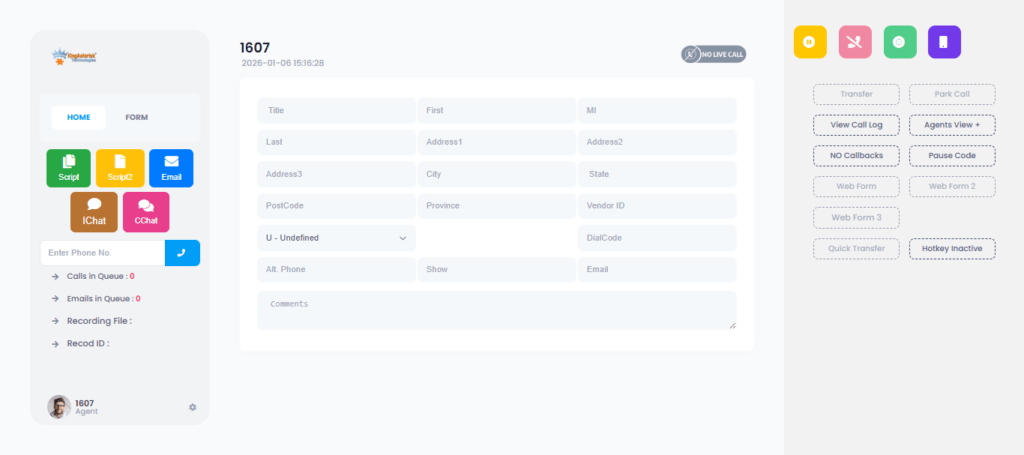
Understanding the VICIdial Agent Theme Architecture
Before touching any files, every administrator should understand how VICIdial’s theme layer is structured. This prevents the most common mistake: overwriting core files that get replaced on every update.
The File Structure
VICIdial’s agent interface is rendered primarily through PHP templates and CSS stylesheets located in the web root, typically under /srv/www/htdocs/ or /var/www/html/ depending on your server distribution. The key files relevant to agent theming are:
- agent.php – The primary agent screen template. Controls layout, element placement, and what functionality is exposed.
- vicidial.css – The master stylesheet driving colors, fonts, button styles, and spacing across the interface.
- agent_script.php – Controls how scripts display to agents during live interactions.
- Custom theme directories – VICIdial supports placing override CSS files in designated paths so your changes survive platform updates.
How CSS Overrides Work
Rather than directly editing vicidial.css, the recommended approach is to create a custom stylesheet that loads after the master CSS. This override file targets specific element selectors and overwrites only what you need to change. Any element not addressed in your override retains the default style, meaning a system update to the core CSS doesn’t wipe your customizations.
The Role of Admin Panel Settings
VICIdial’s administration panel (accessed through /dialer/admin.php) exposes several theme-related settings without requiring file-level access. These include:
- Agent Screen Color Scheme – Preset palette options for the overall interface
- Agent Interface Options – Toggles for which interface elements appear (timer display, queue counts, callback buttons, etc.)
- Campaign-Level Overrides – The ability to assign specific CSS or layout profiles per campaign
Understanding this two-layer system, admin panel settings on top of file-level customization underneath, gives you the flexibility to make broad changes quickly while preserving the ability to fine-tune at a granular level.
Step-by-Step: Customizing Your VICIdial Agent Theme
Step 1: Audit the Default Interface First
Before making a single change, document what the current interface looks like from an agent’s perspective. Log in as a test agent, run through a typical interaction workflow, and note every point of friction. Where do agents hesitate? What information is missing at the critical moment? What’s present but never used?
This audit forms your brief for the customization. Theming without an audit produces a prettier version of the same problems.
Step 2: Set Up a Staging Environment
Never apply theme changes directly to a production server. VICIdial installations are straightforward to mirror, create a staging instance with a copy of your current database, apply and test changes there, then migrate verified changes to production.
Step 3: Create Your Custom CSS Override File
Create a new file, for example, custom_agent_theme.css, in your VICIdial web root. This is where all visual modifications will live. Reference it by adding a stylesheet link inside the
section of agent.php, positioned after the existing CSS references to ensure your rules take precedenceKey elements to address in your custom CSS:
Color palette:
/* Example: Replace the default grey header with a brand-aligned dark navy */
#agent_header {
    background-color: #1a2740;
    color: #ffffff;
}

/* Disposition buttons — high contrast for quick visual scanning */
.dispo_button {
    background-color: #2d6a4f;
    color: #ffffff;
    font-weight: 600;
    border-radius: 4px;
    padding: 8px 16px;
}
Typography: Use a legible sans-serif font at a minimum of 14px for all interactive elements. Agents read script text, customer data, and disposition options rapidly under pressure. Small or decorative fonts introduce unnecessary cognitive load.
Button sizing and spacing: Touch-friendly sizing (minimum 40px tall for click targets) matters even on desktop deployments, because agents clicking through 200+ interactions per shift make small targeting errors when buttons are undersized.
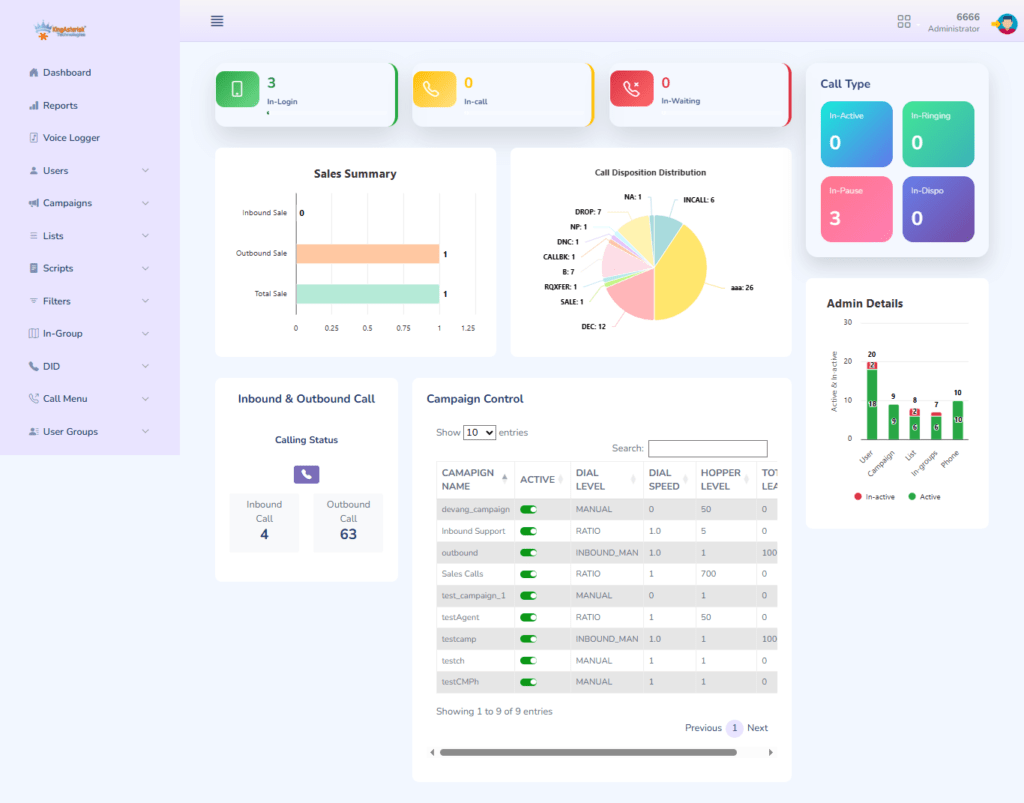
Step 4: Configure Interface Options via Admin Panel
Navigate to Admin → System Settings → Agent Interface Options.
Review and configure:
- Show Agent Timezone – Useful for inbound operations handling multi-region contacts
- Show Call Timer – Essential for operations with talk-time targets
- Script Display Mode – Choose between inline script (always visible) and popup script (on demand); inline reduces clicks but adds visual density
- Callback Button Visibility – Hide if not applicable to a campaign to reduce agent decision points
Step 5: Customize the Agent Script Display
The script panel is where agents spend most of their visual attention during live interactions. A well-formatted script with clear section headings, consistent font hierarchy, and highlighted input prompts dramatically reduces fumbling.
VICIdial’s script editor (Admin → Scripts) accepts HTML, meaning you can apply structured formatting directly. Use <h3> tags for section headers, <strong> for key phrases, and inline CSS for highlighting colors on critical fields like objection-handling sections.
Step 6: Configure the Disposition Layout
Dispositions, the outcome codes agents select after each interaction, are one of the highest-frequency interface interactions in the entire workflow. Poor disposition layout directly inflates after-call work time.
Best practices for disposition configuration:
- Limit visible dispositions to 8–12 per campaign (use sub-categories for anything beyond this)
- Place the most common dispositions at the top of the list
- Use descriptive names, not internal codes (agents shouldn’t need to memorize that “CB2” means “scheduled callback, second attempt”)
- Color-code by outcome type if your interface supports it (sale outcomes in green, callback outcomes in blue, negative outcomes in grey)
Step 7: Test With Real Agents Before Going Live
Deploy the updated theme to your staging environment, then run a structured usability session with 3–5 agents who represent different experience levels. Observe, don’t guide. Watch where their eyes go, what they click first, and where hesitation occurs. Iterate before pushing to production.
Applying Themes Per Campaign vs. Globally
VICIdial supports both global themes (applied to all campaigns and all agents) and campaign-specific theme overrides. The right approach depends on operational structure.
Global theming makes sense when all campaigns run similar workflows. It simplifies maintenance, one CSS file to update, one place to test, and ensures visual consistency across your entire operation.
Per-campaign theming becomes valuable when campaigns have meaningfully different workflows. An outbound sales campaign and an inbound customer service campaign have different disposition sets, different script structures, and often different pace requirements. Giving each its own color accent (not a full redesign, just a consistent differentiator like a different header color) helps agents who work multiple campaigns stay oriented.
To assign a campaign-specific CSS override in VICIdial, navigate to Admin → Campaigns → [Your Campaign] → Agent Interface Options, and specify the custom CSS filename in the designated field.
Real-World Use Case: Mid-Size Outbound Operation
A mid-size outbound operation running approximately 120 concurrent agents across three campaigns approached KingAsterisk with a familiar problem: agent handle times were consistently longer than industry benchmarks, and supervisors were observing agents pausing between disposition selection and the next dial.
The audit revealed three specific interface problems:
- The disposition list for their primary campaign had 34 entries, many of which hadn’t been used in over a year.
- The script panel was configured in popup mode, requiring agents to open and close it multiple times per interaction.
- The color scheme used low-contrast grey-on-grey for the disposition buttons, slowing visual scanning.
The KingAsterisk team applied a targeted theme customization: dispositions were reduced to 11 active entries, the script was moved to an inline panel with a fixed height and scroll, and the disposition buttons were restyled with high-contrast color coding. No new features were added, only the interface was refined.
Within the first full week after deployment, the operation recorded a measurable reduction in average after-call work time. Agents reported in feedback sessions that the interface “felt faster,” which is precisely the subjective experience a professional theme should produce.
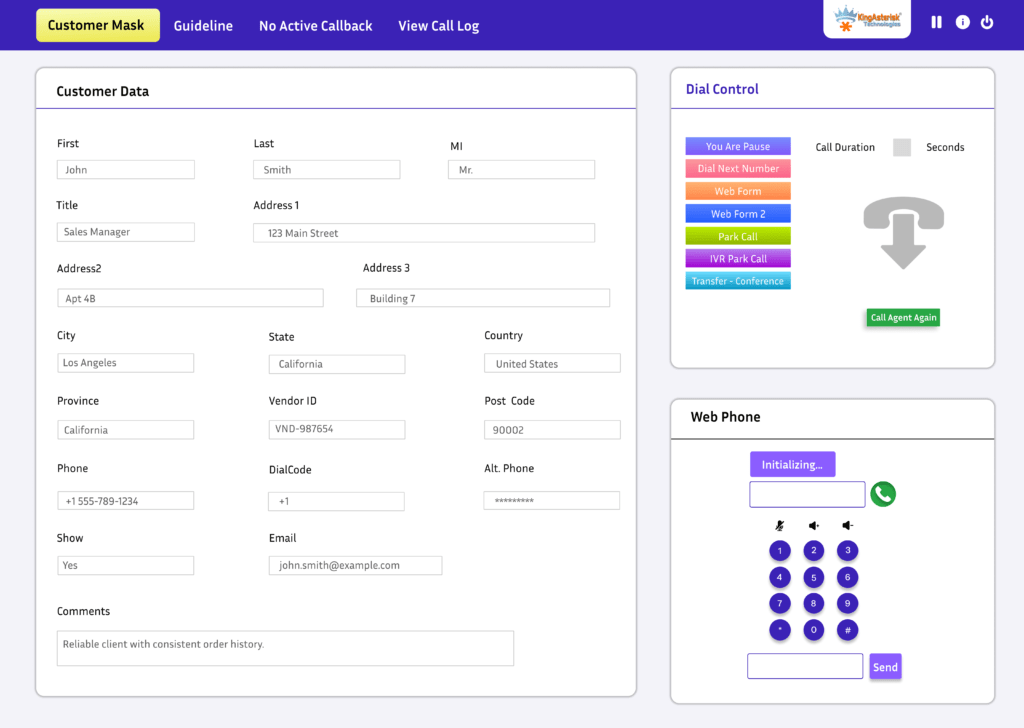
Common Mistakes That Undermine a Professional Interface
Over-customizing before stabilizing the workflow. If your campaigns, scripts, and disposition sets are still changing frequently, invest in stabilizing those first. Theming a moving target wastes effort.
Ignoring supervisor and reporting views. The agent interface is one half of the picture. Supervisors monitoring live campaigns through the VICIdial supervisor interface benefit from the same level of design attention. Consistent visual language across both views reduces supervision errors.
Applying branding at the expense of usability. Brand colors are appropriate for headers and accents. They are not appropriate for primary action buttons if they produce poor contrast ratios. WCAG AA contrast standards (minimum 4.5:1 for normal text) should be your floor, not your ceiling.
Failing to version-control theme files. Custom CSS and template modifications should be stored in a version-controlled repository alongside documentation of what each change does and why. This prevents the all-too-common scenario where an admin update overwrites months of customization work.
Not accounting for monitor resolution variability. Contact center agent workstations vary widely. Test your theme at 1280×768, 1366×768, and 1920×1080 resolutions, the three most common in contact center environments. An interface that looks sharp at full HD may have overlapping elements at lower resolutions.
Frequently Asked Questions
Can I apply different themes to different campaigns in VICIdial❓
Yes. VICIdial supports campaign-level interface overrides, allowing you to specify a different CSS stylesheet or set different interface options for each campaign. This is particularly useful in mixed-operation contact centers where outbound and inbound campaigns have different workflow requirements and benefit from visually distinct environments.
Do VICIdial theme customizations survive software updates❓
They can, if implemented correctly. Customizations applied directly to core files like vicidial.css or agent.php will be overwritten during updates. The correct approach is to create separate override files that are referenced by the core templates. Since your custom files live outside the update path, they remain intact. Document every override so you can quickly verify compatibility after each update.
What are the most impactful VICIdial interface changes for reducing handle time❓
Based on deployment experience, the three highest-impact changes are: reducing the visible disposition list to only actively-used entries, switching to inline script display to eliminate popup clicks, and applying high-contrast button styling so agents can visually scan disposition options without slowing down. These changes address the highest-frequency interactions in the agent workflow.
Is technical expertise required to customize the VICIdial Agent Theme❓
Basic customizations, color changes, toggling interface options, script formatting, can be handled by an administrator with HTML and CSS familiarity. More advanced customizations involving layout restructuring or PHP template changes require developer-level access and a working knowledge of the VICIdial codebase. For production deployments, engaging an experienced VICIdial implementation partner reduces the risk of introducing instability.
Conclusion
A properly implemented VICIdial Agent Theme is not a cosmetic upgrade, it is an operational investment. When agents interact with a well-structured, distraction-free interface that puts the right controls in the right places at the right moment, the entire operation performs more consistently. Training time shortens. Error rates drop. Supervisors spend less time correcting avoidable interface-driven mistakes.
The steps covered in this guide, auditing the existing interface, building overrides rather than editing core files, optimizing disposition layout, configuring campaign-specific profiles, and testing with real agents, represent the proven approach we apply across every VICIdial deployment at KingAsterisk.
Whether you’re building a new contact center environment from scratch or optimizing an existing operation that’s hitting a performance ceiling, getting the agent interface right is one of the highest-return improvements available to you.
Ready to build a professional VICIdial agent environment that your team will actually want to use? Contact the KingAsterisk team, we’ve deployed and customized VICIdial installations across industries and geographies, and we’ll help you build an interface engineered for your specific operation.