
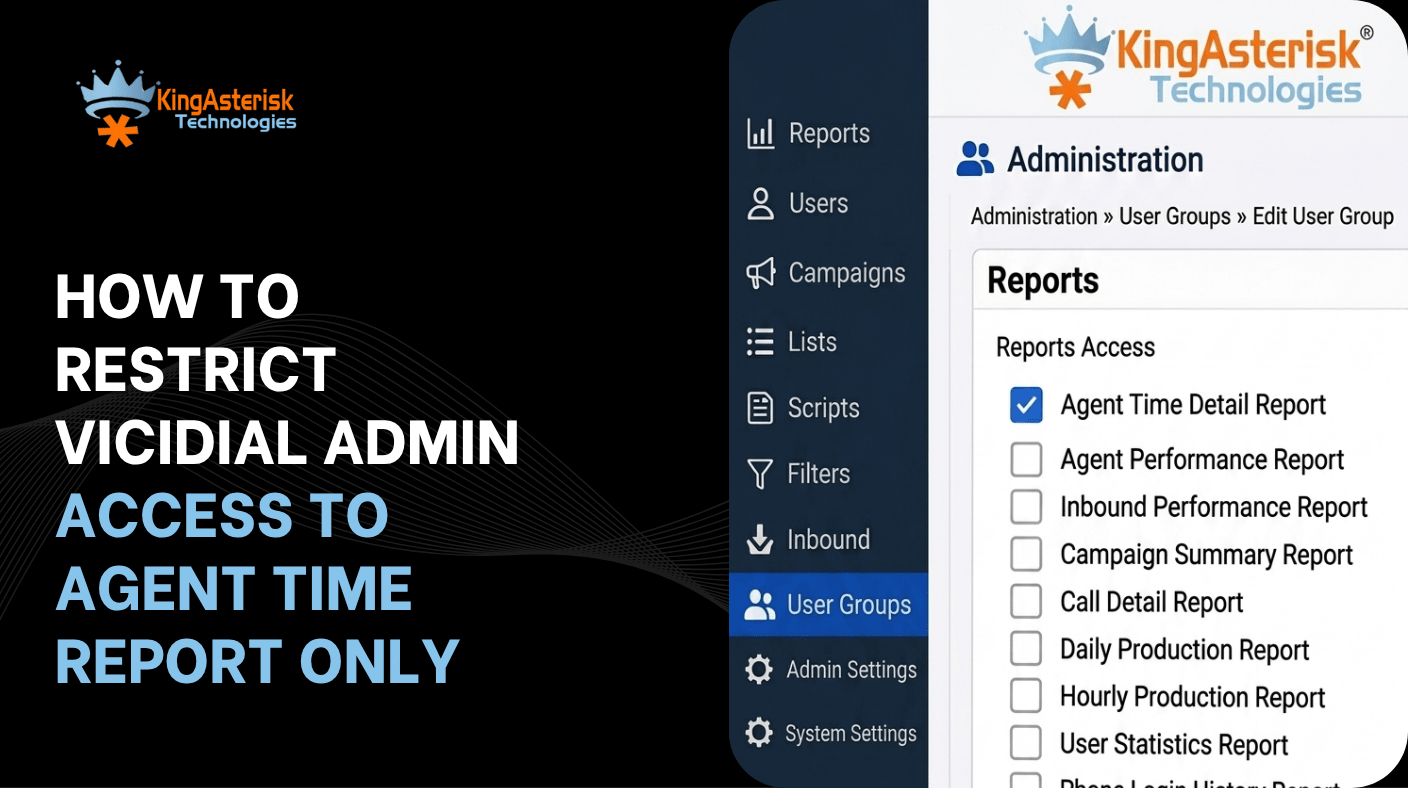
VICIdial restrict admin access configurations are one of the most underutilized, and most important, features in any busy contact center environment. Out of the box, Custom VICIdial gives admin-level users broad visibility: campaign data, disposition summaries, inbound queue metrics, agent performance breakdowns, and more. That breadth is exactly what a senior operations manager needs. It’s precisely what a team-lead or quality auditor should not have.
When every user can see every report, you introduce three real problems. First, agents or junior supervisors may access wage-sensitive productivity metrics for colleagues, creating compliance and HR exposure. Second, unrestricted report access can slow down VICIdial’s interface for users who only need one or two data views. Third, and most practically: when something looks wrong in a report, too many cooks in the analytics kitchen leads to confusion rather than resolution.
The fix is granular. Custom VICIdial’s User Group permission system lets you define, at the group level, exactly which reports a category of users can open. This guide focuses specifically on locking a User Group down to the Agent Time Detail Report – one of the most requested single-report access configurations in mid-sized contact center deployments.
Understanding VICIdial’s Permission Architecture
Before touching any settings, it helps to understand how customized VICIdial organizes user-level access.
Users, User Groups, and Report Permissions
Custom VICIdial operates on a three-tier model for access control:
Users are individual login accounts assigned to agents, supervisors, or administrators. Each user belongs to a User Group, and the User Group defines what that user can see and do. Report access is not configured per-user, it is configured per-group, which means a single change propagates to every member of that group instantly.
Allowed Reports is a subsection within each User Group’s configuration. It functions as a whitelist: only the report types explicitly enabled in this section will appear in the reporting menu for users in that group. If a report is not listed in the Allowed Reports section, users simply won’t see it – no error, no workaround.
This architecture is particularly efficient for contact centers that employ tiered staffing: junior agents, QA analysts, team leads, and operations managers all have different informational needs. Rather than managing permissions one user at a time, you configure four User Groups and assign employees accordingly.
What Is the Agent Time Detail Report?
The Agent Time Detail report shows a granular breakdown of how each agent spent their logged-in time – talk time, pause durations, wait time between calls, and disposition intervals. It is the go-to report for workforce management reviews, attendance audits, and performance conversations. Many contact centers assign this specific report to team leads so they can monitor their floor without accessing billing data, campaign-level statistics, or administrative configuration options.
Real-World Use Case: Supervisor Access in a Multi-Team Contact Center
Consider a contact center running three inbound service queues and two outbound sales campaigns simultaneously. The operations director needs full report access, they review everything from campaign conversion rates to average handle time trends across the floor.
Each team lead, however, manages a group of eight to twelve agents and cares about one thing above all else: whether their agents are at their desks, taking calls, and logging appropriate pause reasons. The Agent Time Detail report gives them exactly that. There is no reason for a team lead to access outbound campaign disposition summaries or real-time queue dashboards – in fact, giving them access often leads to misinterpretation and unnecessary escalations.
By creating a “Team Lead” User Group with Allowed Reports restricted to Agent Time Detail only, the operations director achieves clean separation of concern. Team leads see what they need. Sensitive campaign and financial performance data stays visible only to those with the right context to interpret it. The configuration takes under five minutes and requires no technical background.
Step-by-Step: Restricting Access to Agent Time Report Only
The following walkthrough uses the Custom VICIdial Live Demo environment, which mirrors a production installation. If you are working in your own deployed instance, the navigation path is identical.
Step 1: Open VICIdial and Select a Theme
Open the VICIdial web interface in your browser. If you are using the public Live Demo for practice, navigate to the Live Demo section of the KingAsterisk website.
You will be offered a choice of interface themes.
Select any available theme – Theme 8 is a clean option for following this guide, as its layout matches most production deployments.
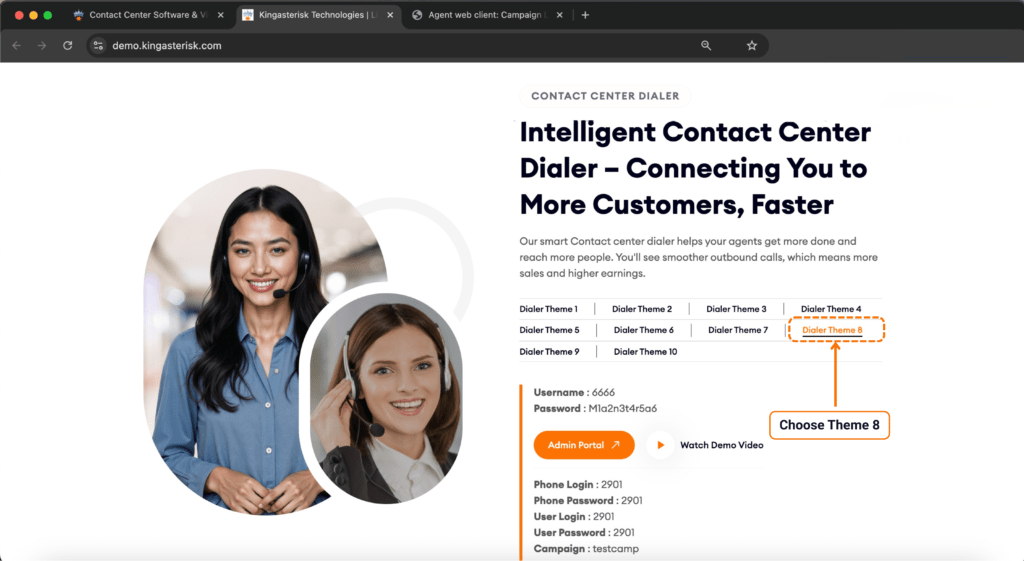
Step 2: Log In to the Admin Dashboard
Use the provided admin credentials to log in.
Password: M1a2n3t4r5a6
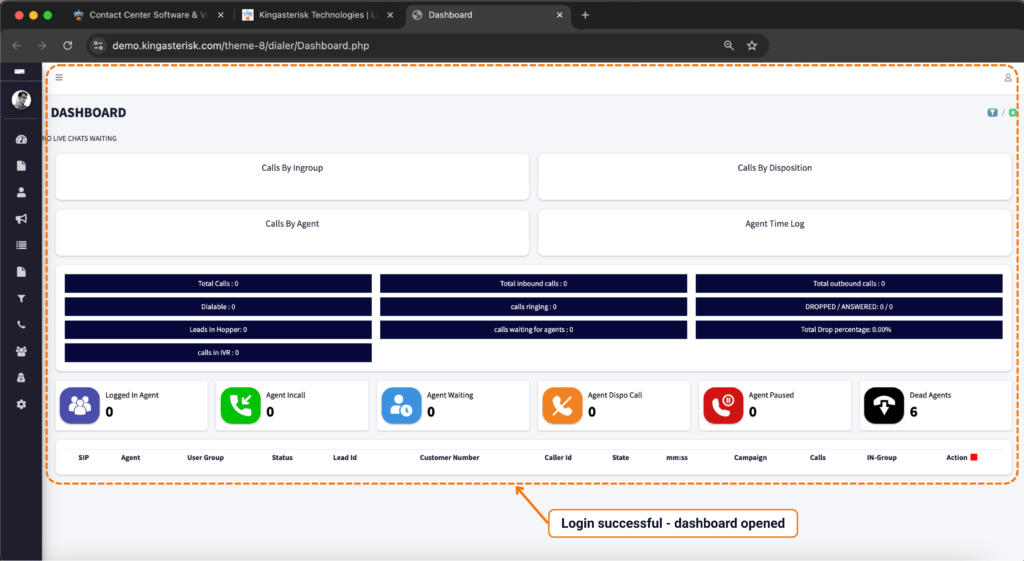
Upon successful login, you will land on the Custom VICIdial Admin Dashboard – the central hub for all configuration options.
Take a moment to orient yourself. The left-side navigation panel is your primary tool here, and you will only need two levels of that menu to complete this configuration.
Step 3: Navigate to User Groups
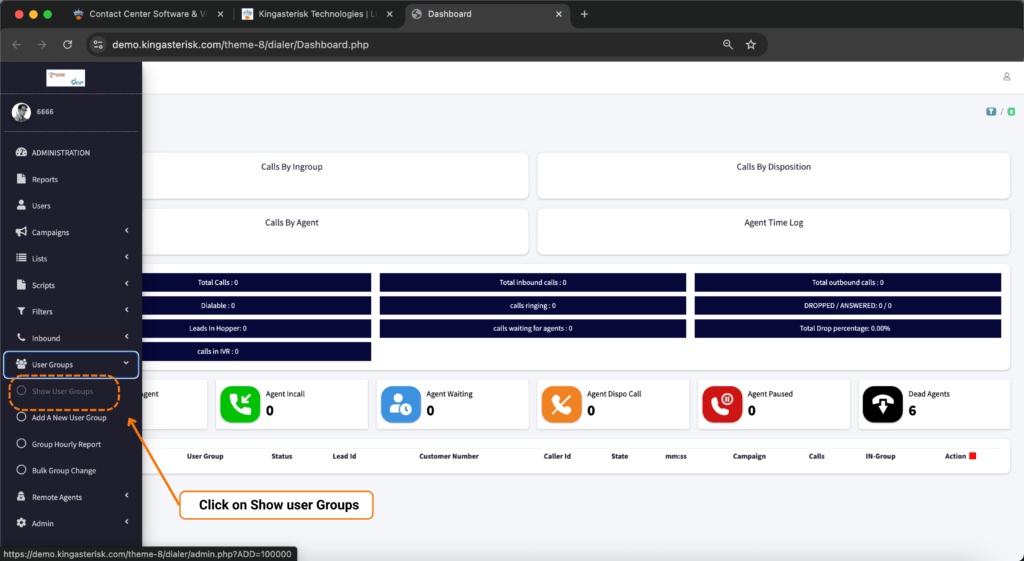
From the left navigation panel, follow this path:
This brings up a full list of all User Groups currently configured in your Customized VICIdial instance.
Depending on your setup, you may see groups such as ADMIN, AGENT, CLOSER, or custom groups your team has created.
Step 4: Edit the Target User Group
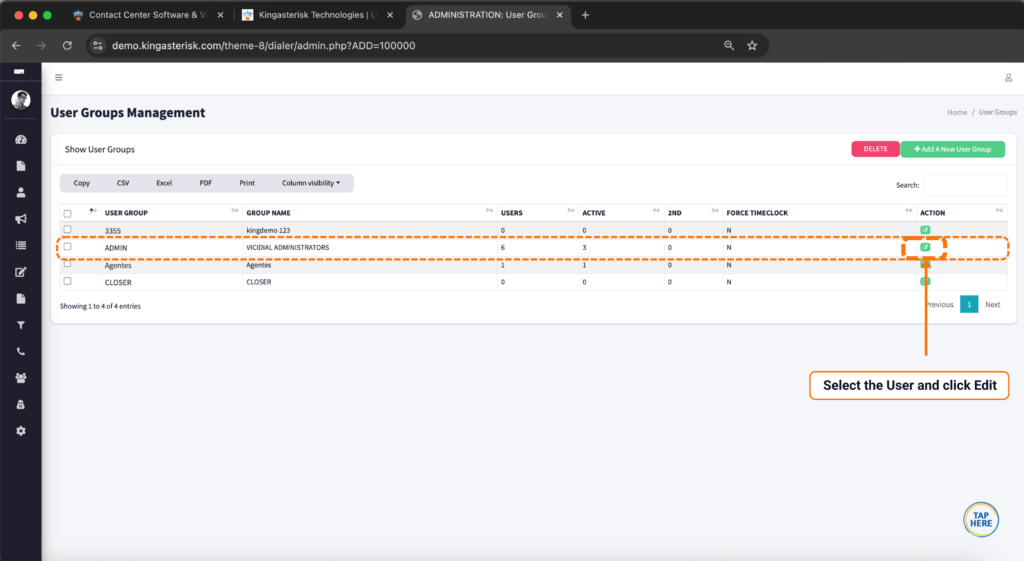
Locate the User Group you want to restrict.
If you are setting up a new restricted group, it is best practice to clone an existing lower-privilege group and modify the clone, rather than editing a group that is already in active use.
Click the Action (Edit) icon next to the desired group.
This opens the full User Group configuration page, which contains dozens of permission toggles across several subsections.
Step 5: Configure Allowed Reports
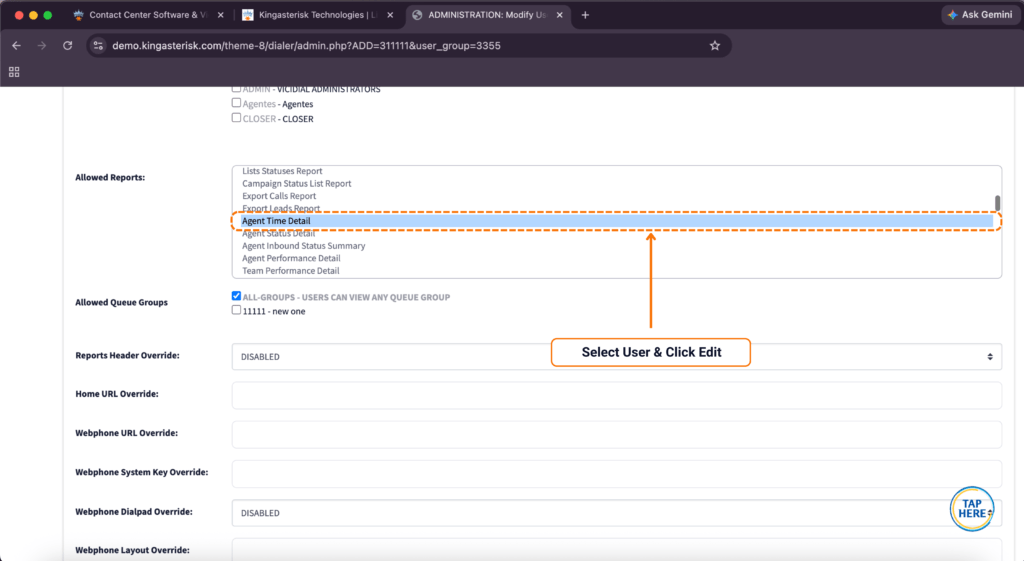
Scroll down the configuration page until you reach the Allowed Reports section. This is a checklist of every report type available in VICIdial.
To restrict this group to the Agent Time Report only:
- Select (enable) the checkbox next to “Agent Time Detail”.
- Review every other report checkbox. If any other report types are currently enabled for this group, deselect them.
- Double-check the list. It is easy to miss an enabled checkbox in a long list, scroll slowly and confirm that only Agent Time Detail is checked.
This whitelist approach means that when users in this group log in, their reporting menu will display only the Agent Time Detail report.
All other report types become invisible to them.
Step 6: Save Changes and Verify Access
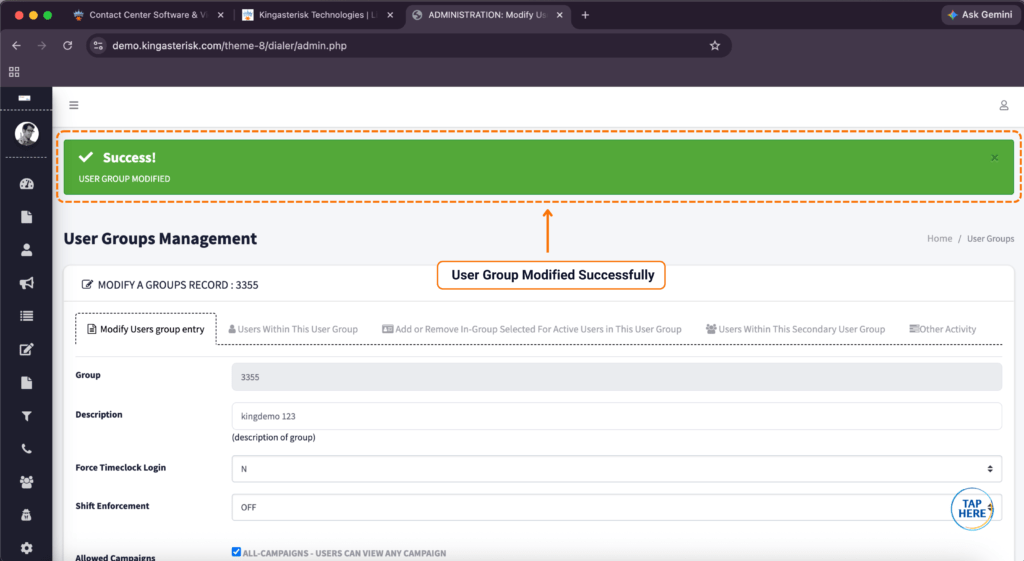
Click the Save Changes button at the bottom of the User Group configuration page. VICIdial will confirm the update.
Verification is a non-negotiable step. Log out of the admin account and log back in using a user account that belongs to the User Group you just modified. Navigate to the Reports section of the interface. You should see only the Agent Time Detail report available. If other reports are still visible, return to the User Group configuration and confirm your save was successful.
This two-minute verification step prevents a common mistake: assuming the configuration is saved correctly without confirming the end-user experience.
Common Questions About VICIdial Access and Configuration
Changing the IP Address in VICIdial
When your server’s network configuration changes, VICIdial needs to be updated to match. The primary place to update the IP address is in the /etc/asterisk/manager.conf file and in the VICIdial astguiclient.conf configuration file, both of which reference the server’s bind address. You will also want to update any hardcoded IP references in your web server’s virtual host configuration.
You will also want to update any hardcoded IP references in your web server’s virtual host configuration.
After making changes, restart both the Asterisk service and the VICIdial web components for the new address to take effect. In production environments, it is worth checking the custom VICIdial server table in the MySQL database as well, since server IP records stored there drive multi-server deployments.
Refreshing Leads in VICIdial
Lead refresh is controlled through the Campaign settings. Within a campaign’s configuration, the Recycling section governs how and when leads cycle back into the dialing queue based on disposition codes. To force a manual refresh – for example, after importing a new lead list – navigate to Admin → Leads and use the lead loader or list management tools to re-activate a list. Ensuring your lead list status is set to “Active” and that the campaign’s dial level is correctly configured will prevent leads from appearing stale in the queue.
Remote Agents in VICIdial
A remote agent in VICIdial is a user who logs into the system and takes calls through an external phone number rather than a softphone or extension registered on the local Asterisk server. Remote agents are accommodated through VICIdial’s “Phone Login” feature, where the agent specifies an external number at login.
The system bridges inbound and outbound calls to that number, allowing agents working from external locations to participate in campaigns exactly as they would on-site. Remote agent functionality does not require any changes to User Group permissions – it is a dial-plan and session configuration separate from the access control framework covered in this guide.
Watch: How to Restrict VICIdial Admin Access to Agent Time Report Only
Managing user permissions is a critical part of maintaining security and operational control in any contact center. In this video tutorial, we demonstrate how to configure VICIdial user permissions so that an admin or supervisor can access only the Agent Time Detail Report while being restricted from viewing other reports and administrative sections.
This setup helps protect sensitive data, improves role-based access control, and ensures users can only access the information relevant to their responsibilities.
Watch the step-by-step guide below to learn how to implement report-level access restrictions in your VICIdial system.
Frequently Asked Questions
Can I restrict different User Groups to different sets of reports❓
Yes, and this is exactly how VICIdial’s access system is designed to work. Each User Group has its own independent Allowed Reports configuration. You can create a “QA Analyst” group with access to Agent Time Detail and Call Recordings, a “Team Lead” group with access only to Agent Time Detail, and keep the full report suite available exclusively to your operations admin group. Changes to one group have no effect on any other group.
What happens if no reports are enabled in Allowed Reports❓
If the Allowed Reports section for a User Group has no reports selected, users in that group will see an empty or unavailable reports menu. They will not receive an error message – the section simply will not display any report options. If you are troubleshooting a user who cannot access any reports, this is the first place to check: navigate to their User Group and confirm at least one report type is enabled.
Do User Group changes take effect immediately or after a session restart❓
User Group permission changes in VICIdial take effect at the next login for affected users. If a user is currently logged in when you save the User Group changes, they will need to log out and log back in before the new permission set applies. In a live contact center environment, plan permission changes during shift transitions to minimize disruption.
Is it possible to restrict access to a specific campaign’s reports only, not just report types❓
VICIdial’s standard User Group permissions control report type access rather than campaign-specific data filtering within a report. For campaign-level data isolation, you would need to combine User Group report restrictions with campaign-level user assignments – ensuring users are only assigned to campaigns whose data they should see. This adds a second layer of access control beyond what the Allowed Reports section provides on its own.
Conclusion
VICIdial restrict admin access configuration through User Groups is one of the most practical ways to maintain a secure, well-organized contact center reporting environment. The process outlined in this guide – navigating to User Groups, enabling only Agent Time Detail in the Allowed Reports section, saving the change, and verifying the result from an end-user account, takes less than five minutes and immediately improves your access control posture.
The broader principle is just as important as the specific steps: access should be granted by need, not by convenience. When team leads, QA auditors, and junior supervisors see only the reports relevant to their role, data integrity improves, compliance exposure decreases, and the reporting system becomes faster and easier for everyone to navigate.
Whether you are managing a small team or a multi-site contact center operation, granular permission control in custom VICIdial scales with you. Start with a single User Group, validate the configuration, then roll the model out across your full team structure.
Need help configuring custom VICIdial permissions, setting up User Groups, or deploying a custom contact center solution built on Asterisk and VICIdial? The team at KingAsterisk has supported installations across industries and regions for years. Contact us to discuss your specific requirements, we are happy to help you get it right the first time.