VICIdial Hopper Not Loading Leads Fix Campaign Not Dialing Issues
Vicidial Software Solutions

VICIdial Hopper Not Loading Leads? How to Fix Campaign Not Dialing

VICIdial Hopper Not Loading Leads Fix Campaign Not Dialing Issues

Key Takeaways

  • A VICIdial hopper not loading leads is almost always caused by one of five root causes: inactive lists, misconfigured lead filters, local call time restrictions, a stalled hopper cron job, or incorrect dial statuses.
  • Confirming the hopper count in real time (Admin → Campaigns → Hopper Viewer) is the fastest first diagnostic step.
  • Dial status mismatches are the single most overlooked cause of an empty hopper, always cross-check your “Dial Statuses” field against actual lead statuses in the database.
  • Hopper cron failures are silent, the campaign UI will appear fully active while zero leads load.
  • Most issues resolve in under 15 minutes once the correct root cause is identified.

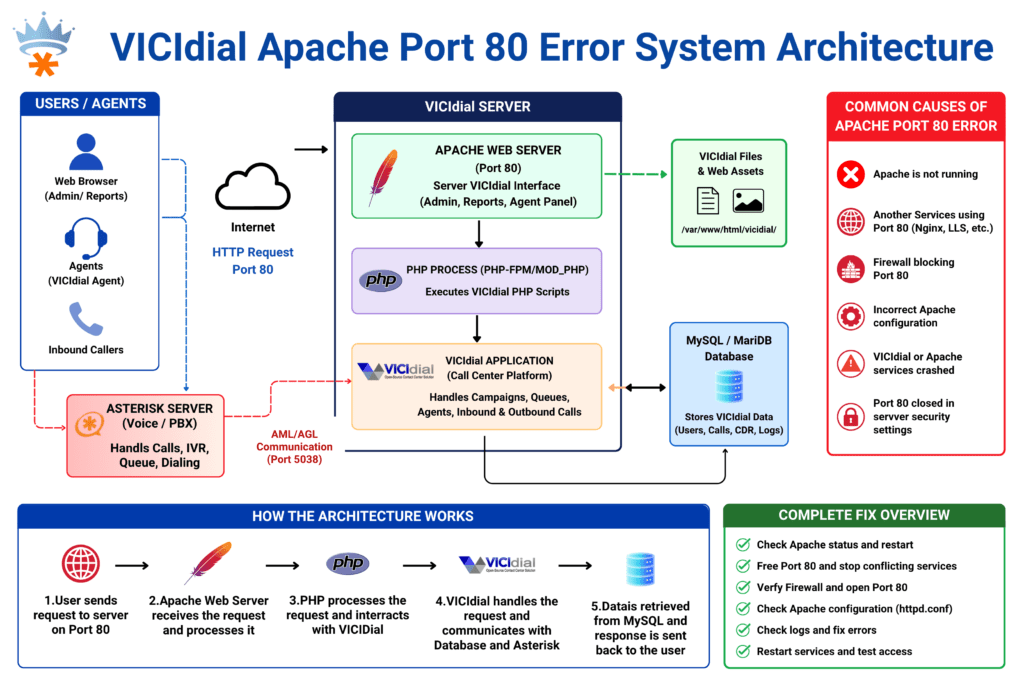
VICIdial hopper not loading leads is one of the most disruptive issues a contact center operations team can face, agents are logged in, the campaign shows “ACTIVE,” yet the phones stay silent and productivity drains by the minute. The hopper is VICIdial’s pre-dialing buffer: it pulls a configurable batch of leads from your lists into a queue so the predictive dialer can fire calls without waiting on database queries. When that buffer stays at zero, nothing dials.

The good news is that this failure is almost never mysterious. In every deployment our engineering team has worked on, from small 20-seat collections shops to multi-site operations running thousands of concurrent lines, an empty hopper traces back to a small set of well-defined configuration problems. This article walks through each one in plain terms, gives you a hands-on checklist, and gets your campaign dialing again fast.

Dialer Theme

Root Cause #1 — List Is Inactive or Not Assigned 

How VICIdial Uses Lists

Every lead in VICIdial belongs to a List. The hopper will only pull from lists that are:

  • Assigned to the active campaign
  • Set to Active status (not “Inactive” or “Inactive, DNC”)
  • Containing leads with a callable dial status (more on this below)

A list that is paused, archived, or accidentally set to inactive will be silently skipped by the hopper process. No warning appears in the campaign UI, the hopper count simply stays at zero.

How to Check

  1. Navigate to Admin → Lists in the VICIdial Admin panel.
  2. Search for all lists linked to your campaign by List ID or campaign name.
  3. Confirm the Active column shows Y for every list you expect to be dialed.
  4. Navigate to Admin → Campaigns → [Campaign Name] → Lists and verify the lists are actually assigned to the campaign, not just active in isolation.

Common Mistake

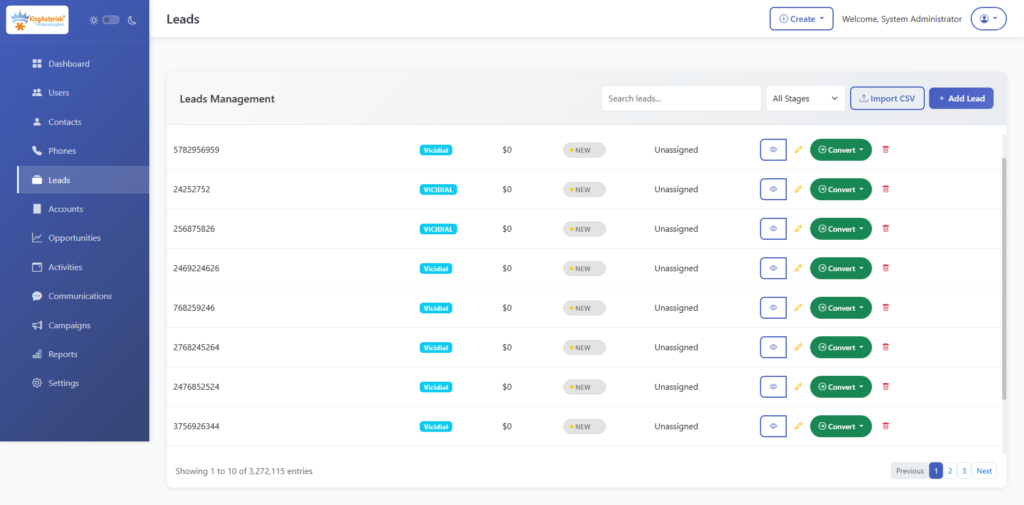
Teams often bulk-import a new lead file and create a new list, but forget to assign it to the campaign. The list shows thousands of leads, the database is populated, but the hopper never sees them because no campaign-to-list association exists.

Root Cause #2 — Lead Filter Configuration Errors 

What Lead Filters Do

VICIdial’s Lead Filter feature allows campaigns to restrict which leads get loaded into the hopper based on fields like state, postal code, custom fields, or any column in the vicidial_list table. Filters are written as SQL WHERE clause fragments. A poorly constructed filter, or a filter referencing a field that no longer exists, will return zero results and produce an empty hopper.

Diagnosing Filter Issues

Navigate to Admin → Lead Filters and review the filter assigned to your campaign. Pay particular attention to:

  • SQL syntax errors, even a missing quote or mismatched parenthesis will cause the entire filter to fail silently.
  • Field name mismatches, if a custom field was renamed or deleted from your list schema, any filter referencing it returns nothing.
  • State/region values, filters like state = ‘TX‘ will fail if your data was imported with lowercase or full state names.

Quick Test

Temporarily remove the lead filter from the campaign (set it to NONE) and watch the hopper count. If leads start loading immediately, your filter is the culprit. Re-examine the SQL, fix the logic, and reassign.

Root Cause #3 — Local Call Time Restrictions 

How Call Time Windows Work

VICIdial respects local call time rules per lead, calculated from the lead’s state field and the server’s timezone offset table. If a lead’s local time falls outside the campaign’s allowed calling window, the hopper will not load it, even if every other configuration is correct.

This is a particularly common cause of confusion because:

  • It is time-dependent, your campaign may dial correctly at 10 AM but produce an empty hopper at 8 AM or 8 PM.
  • State field errors compound the issue. If state values are blank or incorrect, VICIdial falls back to a default timezone, which may put all leads outside the calling window simultaneously.

How to Check

  1. In the campaign settings, review the Call Time field. Click through to the call time definition and confirm the start/end hours are appropriate.

Check your lead data, run a quick SQL count of leads grouped by state to verify states are populated and formatted correctly.

SELECT state, COUNT(*) as lead_count
FROM vicidial_list
WHERE list_id = 'YOUR_LIST_ID'
  AND status IN ('NEW', 'NI', 'NA')
GROUP BY state
ORDER BY lead_count DESC;
  1. If you operate across multiple time zones, ensure the server system clock and timezone are correctly set. An NTP drift of even a few minutes can push boundary leads out of the window.

Root Cause #4 — Hopper Cron Job Not Running 

The Cron Is the Engine

VICIdial’s hopper does not fill itself passively. A background cron job, AST_VDhopper.pl, runs at regular intervals (typically every 1–5 seconds) to query the database and push leads into the hopper table. If this process has crashed, stalled, or was never scheduled correctly, the hopper will empty out and never refill, even with a perfectly configured campaign. This is the most deceptive root cause because everything in the admin UI looks correct, the campaign is active, lists are assigned, filters are valid, but nothing dials.

How to Diagnose

SSH into your VICIdial server and check whether the hopper process is running:

ps aux | grep VDhopper

If no results appear (beyond the grep process itself), the hopper daemon is not running. You should also check the crontab:\

crontab -l -u root

Look for an entry resembling:

* * * * * /usr/share/astguiclient/AST_VDhopper.pl --debug

If the entry is missing or commented out, that is your problem.

How to Restart

/usr/share/astguiclient/AST_VDhopper.pl --debug &

logs for why the process may have died, disk space exhaustion and MySQL connection timeouts are common culprits on busy servers.

Root Cause #5 — Dial Status Not Configured Correctly 

The Most Overlooked Setting

The Dial Statuses field in campaign settings defines which lead statuses are eligible for dialing. VICIdial only loads leads whose status field in vicidial_list matches one of the values in this list. The defaults typically include NEW, NI (No Answer), NA (Not Available), and a handful of others, but if your campaign has been modified, statuses have been customized, or leads were imported with non-standard status codes, there may be a complete mismatch.

Example: A lead file imported by a third-party tool arrives with status OPEN instead of NEW. If OPEN is not in your campaign’s Dial Statuses list, every single lead in that import is invisible to the hopper.

How to Check and Fix

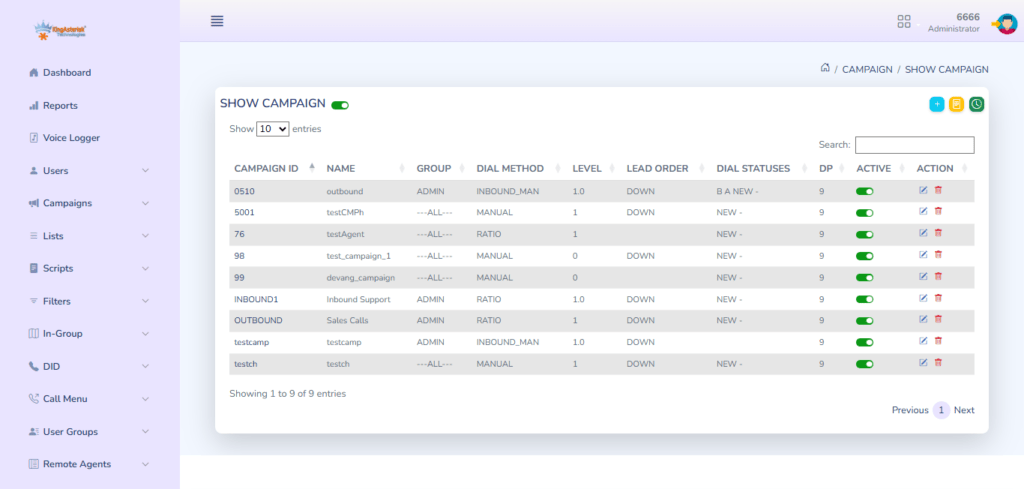
  1. Go to Admin → Campaigns → [Campaign] → Dial Statuses.
  2. Note which statuses are listed.
  3. Run a database query to see the actual distribution of statuses in your list:
SELECT status, COUNT(*) as count
FROM vicidial_list
WHERE list_id = 'YOUR_LIST_ID'
GROUP BY status
ORDER BY count DESC;
  1. Compare. Any status with a high count that does not appear in your Dial Statuses field is a lead pool being silently ignored.
  2. Add the missing status values to the campaign’s Dial Statuses field, or use a Reset List operation to normalize all lead statuses back to NEW if a full re-dial is appropriate.

Step-by-Step Diagnostic Checklist 

Use this checklist in order. Work through each step before moving to the next, in most cases you will isolate the problem within the first three.

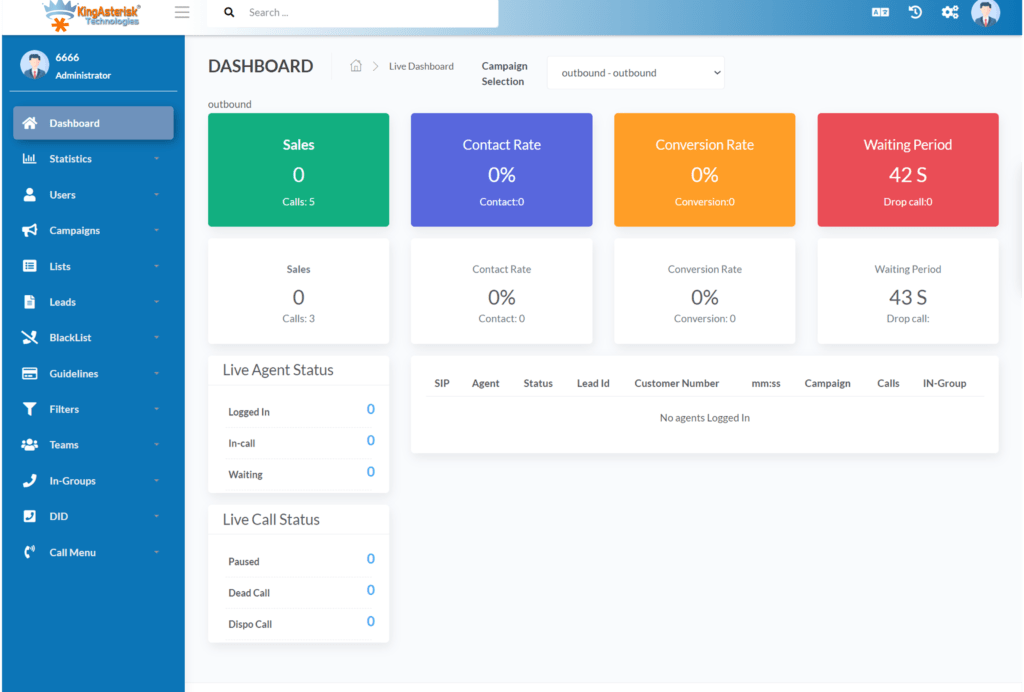
    1. Check the hopper count in real time. Go to Admin → Campaigns → Hopper Viewer. If hopper count is 0 and the campaign is active, proceed.
    2. Verify list assignment and active status. Confirm all expected lists are assigned to the campaign AND show Active = Y in the Lists table.
    3. Temporarily disable lead filters. Set the campaign’s Lead Filter to NONE. Observe whether the hopper count climbs within 30–60 seconds. If yes, the filter is the issue.
    4. Check the local call time window. Confirm the campaign’s call time allows dialing in the current hour for the timezones your leads are in.
    5. Confirm the hopper cron is running. Run ps aux | grep VDhopper on the server. If it’s not running, restart it and verify the crontab entry.
    6. Audit dial statuses vs. actual lead statuses. Run the SQL query above against your active list and compare the output against your campaign’s configured Dial Statuses. Add any missing statuses.
    7. Check available lead count. After correcting statuses, verify there are actually uncalled leads remaining:
    Vicidial Campaign

    Real-World Use Case: Outbound Collections Campaign 

    A mid-sized receivables management company running a 45-seat outbound campaign contacted us after their morning shift reported zero calls for over 90 minutes. The campaign dashboard showed Active status, agents were logged in and waiting, but the hopper sat at zero.

    What we found:

    The operations manager had run a bulk status reset the previous evening to re-queue all leads that had received a NI (No Answer) disposition, changing them back to NEW. The reset executed correctly. However, during the same session, a well-meaning admin had edited the campaign’s Dial Statuses field and accidentally removed NEW from the list while trying to add a custom status code.

    The result: an entire list of freshly reset NEW leads, invisible to the hopper because NEW was no longer a recognized dialable status in that campaign.

    Resolution time: 4 minutes. Adding NEW back to the Dial Statuses field and triggering a campaign reload had the hopper filling and agents on calls within a single cron cycle.

    Lesson: Any time a bulk status reset or campaign edit occurs, immediately spot-check the hopper count within one cron interval (typically 60 seconds). Don’t wait for agents to report silence, build this check into your post-maintenance procedure.

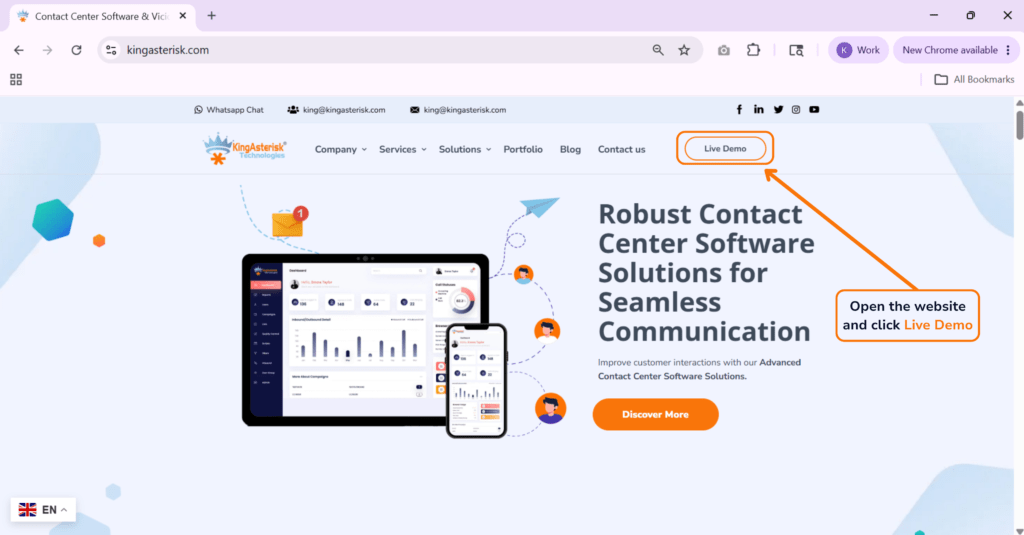
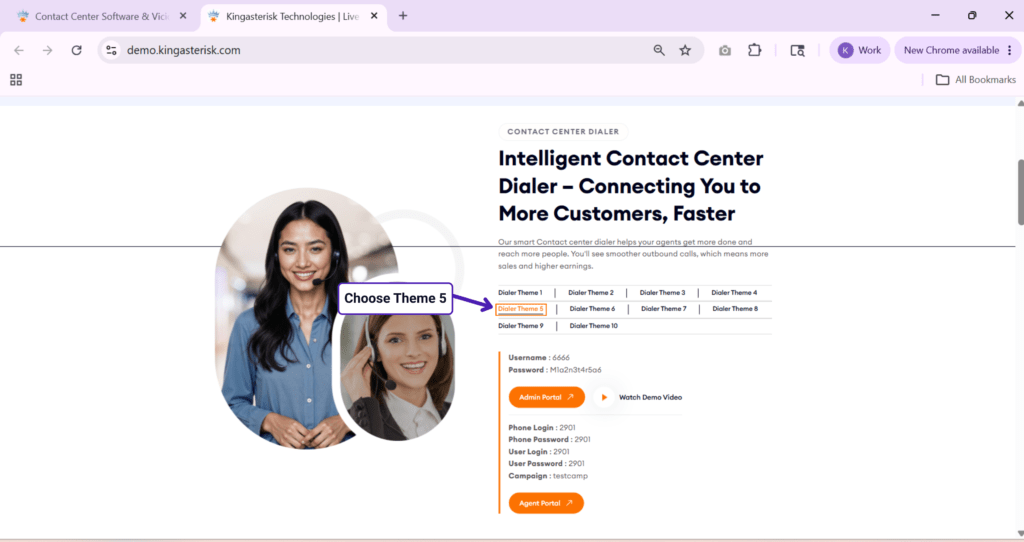
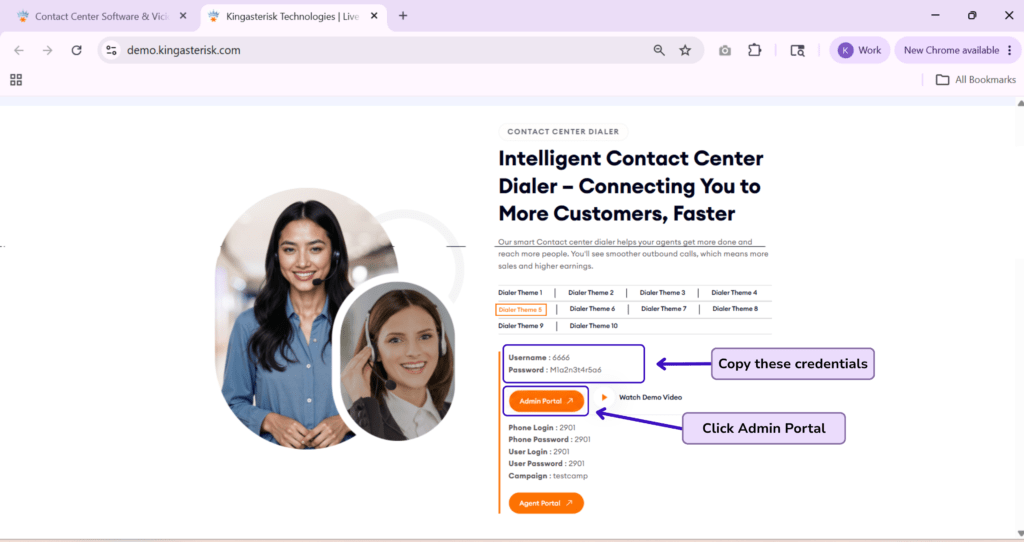
    🚀 Try It Live: Live Demo of Our Solution!

    Frequently Asked Questions

    Q1: Why does my VICIdial hopper show zero even though leads exist in the listâť“

    The most common reason is a dial status mismatch, your leads have statuses that are not included in the campaign’s Dial Statuses configuration, so the hopper query returns nothing. The second most common reason is that the list is not set to Active. Run the SQL status audit described above and cross-check against your campaign settings to pinpoint which condition applies.

    Q2: How do I check if the VICIdial hopper cron job is runningâť“

    SSH into your server and run ps aux | grep VDhopper. If the AST_VDhopper.pl process is not listed, the cron is not running. Check the crontab with crontab -l -u root and confirm the hopper entry is present and not commented out. Restart the process manually if needed and monitor the hopper count in the admin panel.

    Q3: Can local call time settings block an entire campaignâť“

    Yes, if all of your leads share a single state or timezone and the current time falls outside the campaign’s allowed call window, the hopper will load zero leads. This is expected and correct behavior, not a bug. Verify your call time definition covers the hours you intend to operate, and confirm lead state fields are populated accurately so timezone calculation works correctly.

    Q4: My lead filter was working yesterday. Why is it blocking leads todayâť“

    Lead filters execute as SQL WHERE clauses against your lead table. If you recently modified your list schema (added, removed, or renamed columns), or if a custom field value changed format during an import, the filter may now reference a field or value that no longer exists. Test by temporarily removing the filter, if leads load, rebuild the filter SQL from scratch against your current schema.

    Q5: How many leads should be in the hopper at any given timeâť“

    The hopper size is set per campaign in the Hopper Level field (commonly 100–500 for active predictive campaigns). A healthy hopper will fluctuate around this target as leads are dialed and replaced. If the hopper consistently stays well below the configured level during active dialing hours, you may have insufficient callable leads remaining in your list, or the cron is running too slowly relative to your dial rate. Check the vicidial_list table for remaining callable leads and consider your list replenishment strategy.

    Conclusion

    A VICIdial hopper not loading leads is a high-urgency problem that brings an entire outbound operation to a halt, but it is reliably diagnosable and fixable when you know where to look. In the vast majority of cases, the issue is one of five root causes: an inactive or unassigned list, a broken lead filter, a local call time restriction blocking all available leads, a crashed hopper cron job, or a dial status configuration that doesn’t match the actual statuses in your lead database.

    Work through the diagnostic checklist in order, use the SQL queries provided to cross-check your data, and you will resolve most hopper issues in under 15 minutes. More importantly, adopt a post-maintenance verification habit, every time a campaign is edited, a list is reset, or a filter is changed, confirm the hopper count is climbing before you walk away.

    If your hopper issues are recurring, inconsistent, or tied to more complex multi-campaign or multi-server deployments, the underlying configuration may require a deeper architectural review. The KingAsterisk team has deployed and maintained VICIdial environments across industries for over a decade. 

    Contact us to schedule a technical consultation, we’ll diagnose your dialer configuration and get your operation running at full capacity. 

    Article authored by the KingAsterisk Senior Engineering Team, with hands-on experience deploying and maintaining VICIdial and Asterisk-based contact center infrastructure across inbound, outbound, and blended environments globally.

    KINGASTERISK_NOTE
    Cloud Telephony Dashboard for Global Communication
    Call Center Dialer Software Solutions

    Cloud Telephony Dashboard Solutions for Global Client Communication

    Cloud Telephony Dashboard for Global Communication

    Key Takeaways

    • Cloud Telephony Dashboard Solutions give contact centers a unified, real-time view of all inbound and outbound communication activity across global teams.
    • A well-configured dashboard reduces average handle time (AHT), improves first-call resolution (FCR), and increases agent accountability.
    • Platforms built on open-source stacks like Asterisk and VICIdial deliver enterprise-grade monitoring without the overhead of proprietary lock-in.
    • Effective dashboards integrate IVR routing, call queue visibility, agent status boards, and CRM data into a single pane of glass.
    • Businesses that deploy structured telephony dashboards report measurable improvements in supervisor response time and customer satisfaction scores.

    Cloud Telephony Dashboard Solutions are centralized interface platforms that aggregate live and historical communication data from telephone systems, IVR engines, and agent workstations into a single, manageable screen. For contact centers handling thousands of calls daily across multiple geographies, these dashboards are not optional, they are the operational backbone that separates reactive management from proactive control.

    This article explains exactly what these solutions do, how they are architected, and how contact center managers, IT teams, and business owners can deploy them effectively using platforms like Asterisk and VICIdial. Whether you are running an inbound support desk, an outbound sales floor, or a blended operation, the dashboard layer determines how quickly you can identify bottlenecks, coach agents, and deliver consistent client experiences.

    Core Components of an Effective Telephony Dashboard

    Not every dashboard is built the same. A genuinely capable telephony dashboard for global operations must include several interdependent modules that work together in real time.

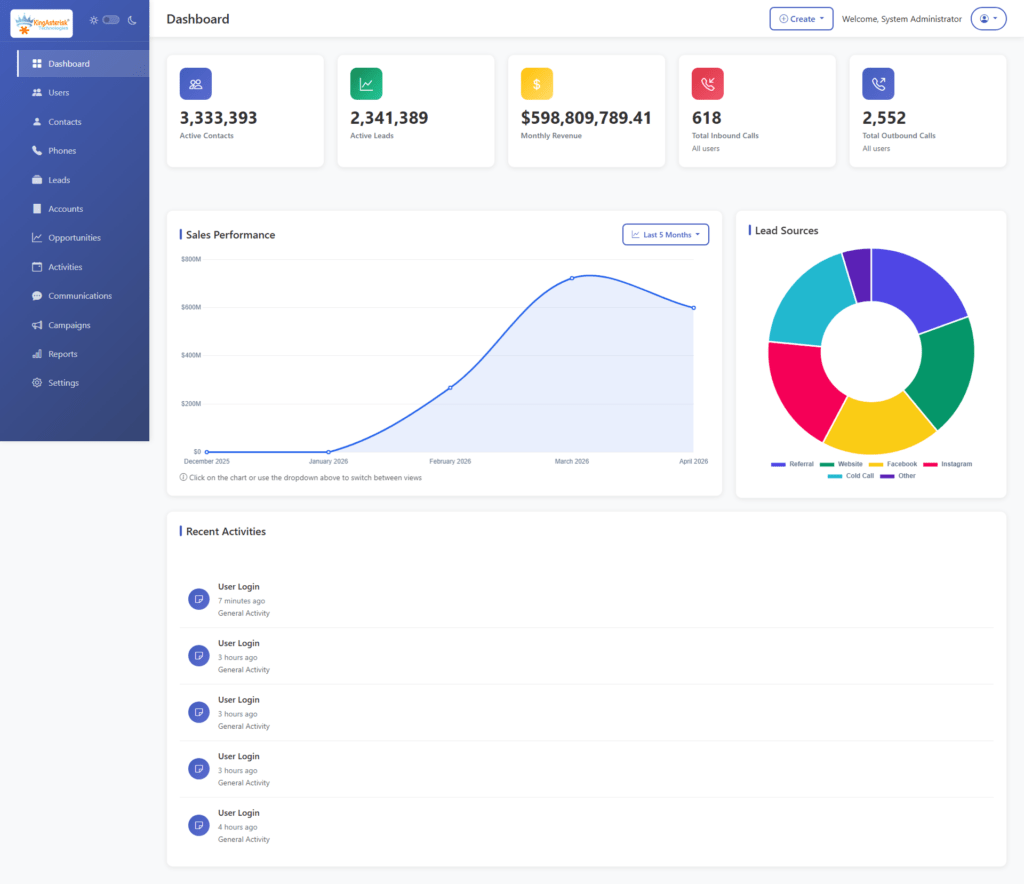
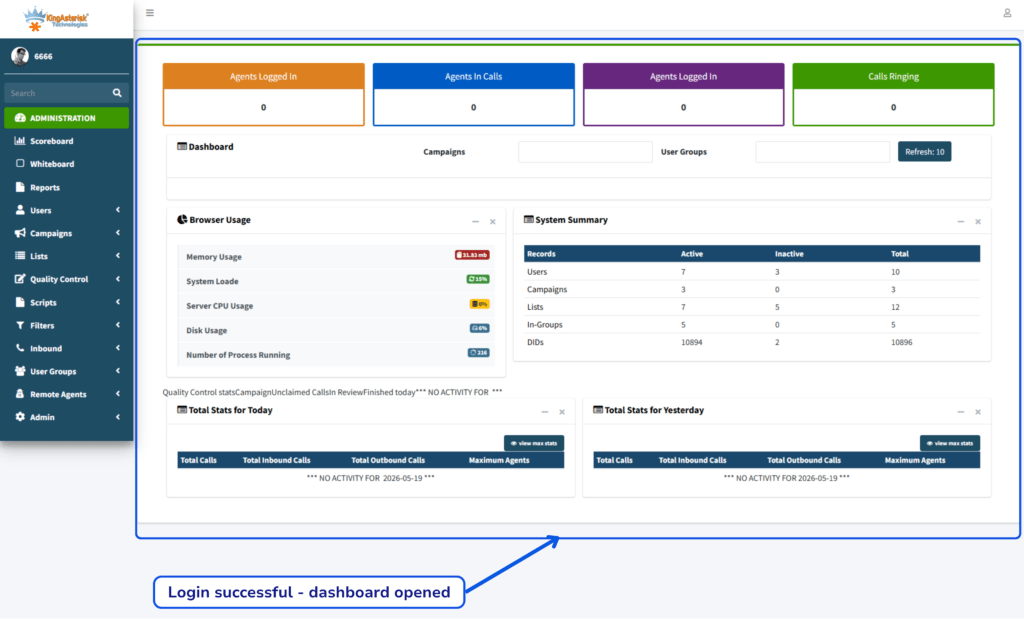
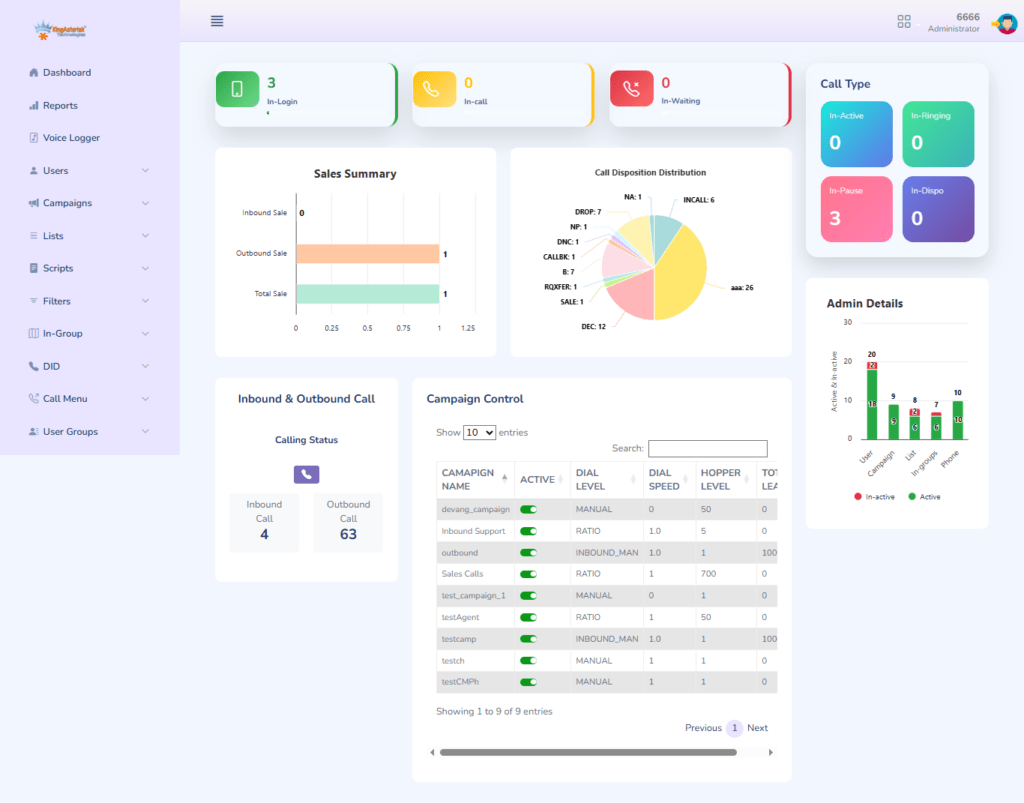
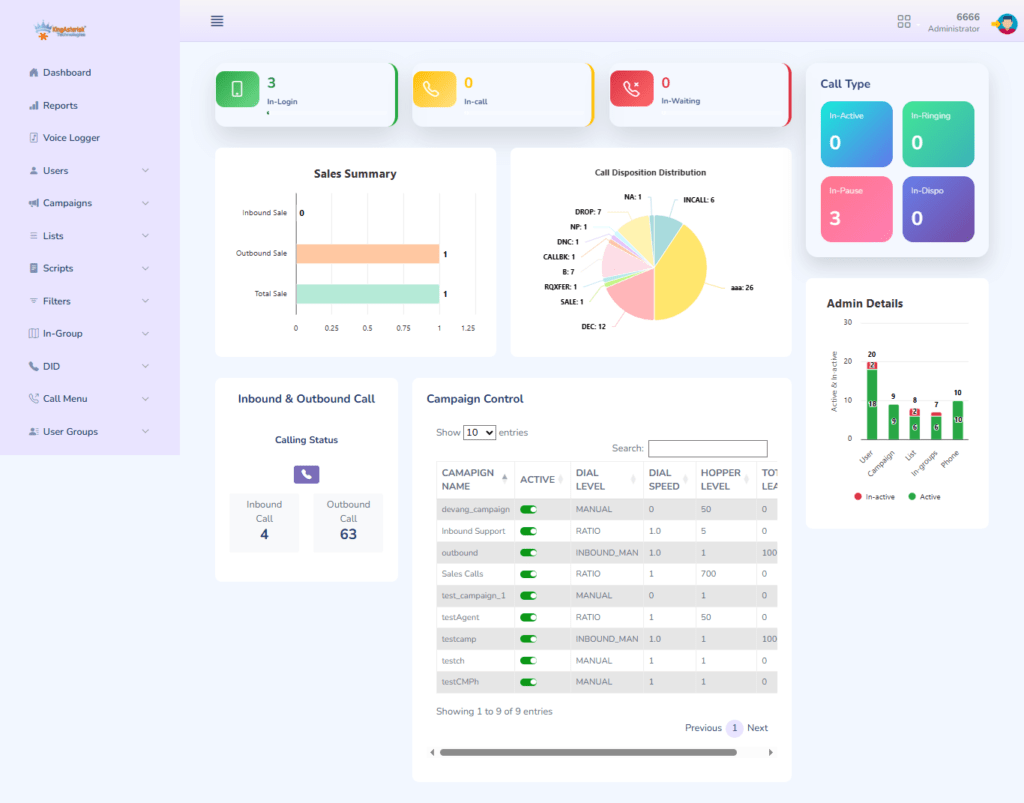
    VICIdial admin dashboard after successful installation

    Real-Time Queue Display

    The queue panel shows the current state of all inbound call queues: how many callers are waiting, how long they have been waiting, which agents are available, and what the current abandon rate looks like. Without this visibility, supervisors are flying blind.

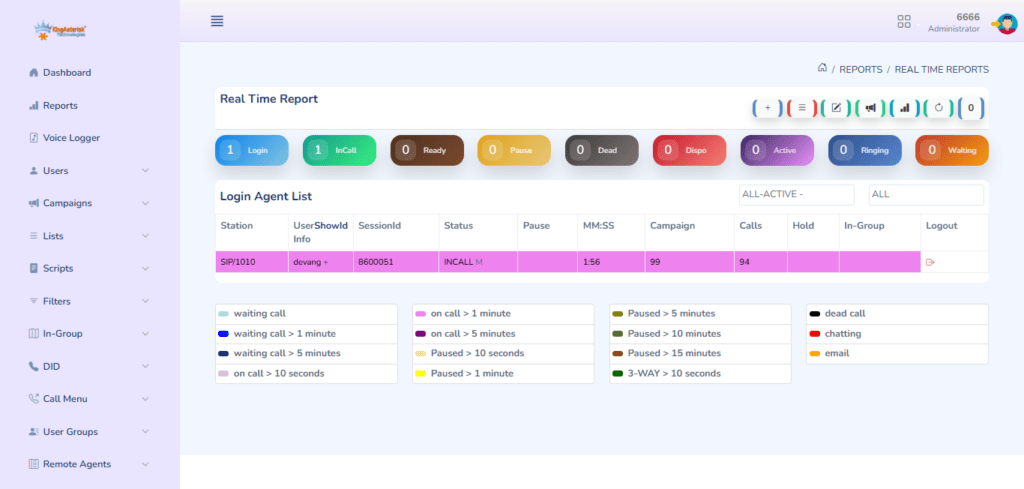
    Agent Status Board

    Each agent’s current state: available, on-call, in wrap-up, or away, must be visible at a glance. This feeds directly into workforce management decisions and lets team leads intervene when an agent has been in wrap-up too long or a queue is growing faster than capacity allows.

    IVR Flow Visualization

    For operations using Interactive Voice Response systems, the dashboard should display how callers are navigating the IVR tree: which menu options are being selected, where drop-offs occur, and how effectively the routing logic is directing traffic to the right skill groups.

    Historical Reporting Panel

    Supervisors need more than a live view. The historical panel surfaces call volume trends by hour, day, or campaign, giving planning teams the data they need to staff accurately and identify seasonal demand patterns.

    Wallboard and Alerting Layer

    High-performing contact centers use wallboards, large displays mounted in the operations floor,  that pull from the same dashboard data. Alert thresholds can be configured to trigger notifications when service levels breach defined limits.

    🎯 Fix in Minutes: One Way Asterisk Audio Fix

    How a Call Monitoring Dashboard Improves Contact Center Performance

    A Call Monitoring Dashboard is the supervisor’s primary tool for quality assurance and real-time intervention. In a properly configured VICIdial or Asterisk environment, the monitoring layer allows supervisors to:

    • Listen silently to live calls without the agent or caller being aware
    • Whisper-coach agents mid-call, where only the agent hears the supervisor’s guidance
    • Barge in to calls where escalation is required and the supervisor needs to speak with the customer directly

    These three modes: monitor, whisper, barge, represent the core of real-time quality management. When tied to a dashboard interface, supervisors can trigger any of these modes by clicking directly on a live agent tile rather than manually dialing extension codes.

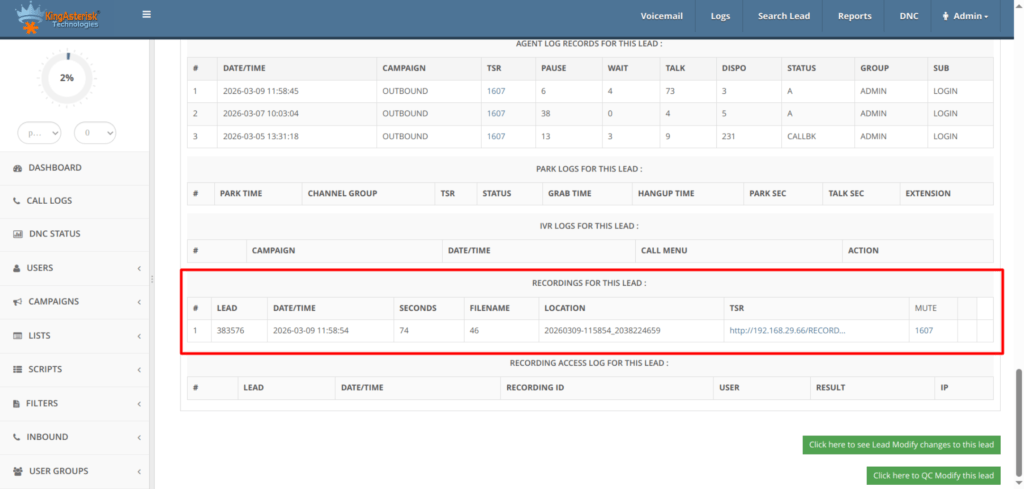
    Beyond live monitoring, the call monitoring dashboard captures recordings linked to each interaction record, making post-call coaching structured and evidence-based rather than anecdotal.

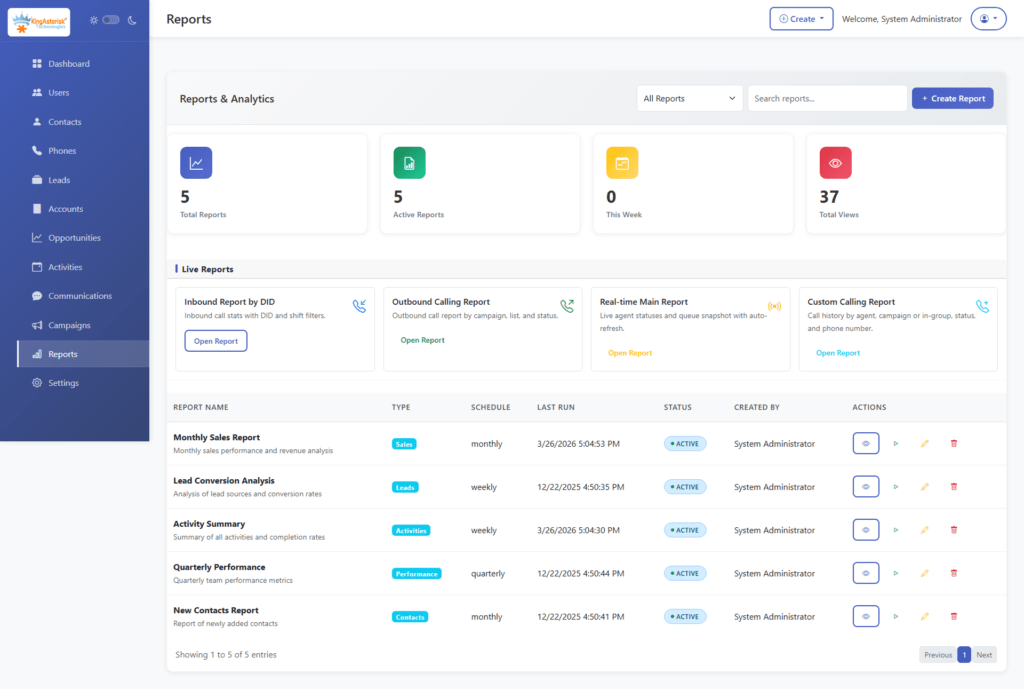
    Vicidial Real time report

    Real-World Use Case: Multi-Site Contact Center Deployment

    Consider a financial services company operating contact centers in three countries, India, the Philippines, and South Africa, supporting a European and North American client base. Before deploying a unified telephony dashboard, each site operated its own reporting tools.

    Supervisors at the central operations hub had no real-time visibility into what was happening at remote locations. Escalations were handled through email, and performance data was compiled manually each morning.

    After deploying an Asterisk-based telephony infrastructure with a centralized dashboard layer, the operations team gained a single view of all three sites simultaneously. Queue depths, agent statuses, and service levels were visible in real time across time zones. The IVR routing logic,  which directed callers to the appropriate regional team based on language preference and account type, was also visible through the IVR flow module.

    The result was a 22% reduction in escalation handling time and a measurable improvement in first-call resolution rates within the first 90 days. Supervisors could identify when a remote site was under capacity and temporarily redirect overflow traffic to another site, without a single phone call or email between management teams.

    This kind of operational coordination is only possible when the telephony dashboard is genuinely integrated across the platform rather than being a bolt-on reporting tool.

    Step-by-Step: Setting Up Your Telephony Dashboard

    For IT managers and contact center operators deploying or upgrading a telephony dashboard on a VICIdial or Asterisk platform, the process follows a structured sequence. Skipping steps,  particularly around data mapping and permission configuration, is the most common cause of dashboard deployments that underdeliver.

    Step 1: Define Your Operational KPIs Before touching a configuration screen, list the 8–12 metrics that matter most to your operation. Service level, AHT, abandon rate, and agent occupancy are standard. Add any campaign-specific metrics relevant to your business.

    Step 2: Map Your Telephony Architecture Document all trunk groups, DIDs (Direct Inward Dial numbers), queue names, skill groups, and IVR nodes. The dashboard can only surface what is correctly labeled in the underlying telephony configuration.

    Step 3: Configure Queue and Agent Integration In VICIdial, ensure that all inbound groups and campaigns are correctly associated with agent login groups. The dashboard’s agent status board pulls directly from these associations.

    Step 4: Set Up the Real-Time Data Feed Asterisk exposes call state information through the Asterisk Manager Interface (AMI). Confirm that AMI is enabled, credentials are correctly configured, and that the dashboard application has read access to the relevant event classes (call, agent, queue events).

    Step 5: Build Your Wallboard Layout Design the wallboard view for your operations floor. Prioritize the metrics most immediately actionable by supervisors, queue depth, service level, and agents available. Avoid cluttering the display with metrics that require context to interpret.

    Step 6: Configure Alerting Thresholds Set threshold-based alerts for service level breaches, long wait times, and high abandon rates. Route alerts to supervisor stations or mobile devices depending on your escalation protocol.

    Step 7: Test with Live Traffic Run the dashboard in parallel with your existing reporting for at least two weeks before decommissioning legacy tools. Validate that the data shown matches CDR (Call Detail Record) exports from your telephony platform.

    Step 8: Train Supervisors and Team Leads Dashboard adoption fails when supervisors revert to manual methods because they were not trained thoroughly. Invest in structured onboarding for every team lead who will use the monitoring and intervention features.

    Step 9: Schedule Regular Configuration Reviews Telephony environments change. New campaigns launch, agent groups restructure, and IVR trees get updated. Build a quarterly review into your operations calendar to ensure the dashboard configuration remains aligned with actual platform architecture.

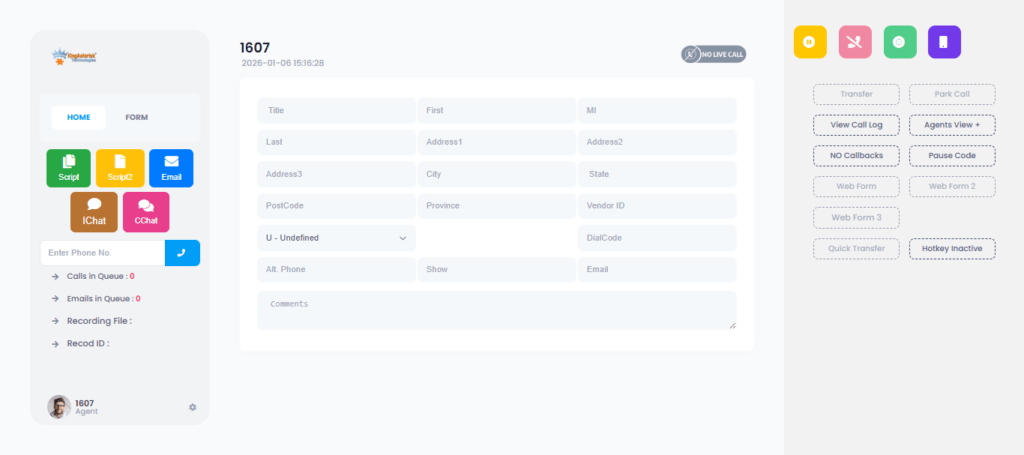
    Vicidial Agent Theme

    Choosing the Right Client Dashboard Software

    Client Dashboard Software in a contact center context serves a dual purpose: it provides operational teams with the internal performance view described above, and it can also surface a client-facing reporting layer for customers who have contracted your center’s services.

    Businesses using the predictive dialing feature inside cloud telephony dashboard solutions can significantly improve agent productivity, reduce idle time, and manage high-volume outbound communication more efficiently.

    For outsourced contact centers and BPOs (Business Process Outsourcing operations), the ability to give clients direct access to their own campaign performance data is a significant differentiator. 

    A well-structured client portal, showing call volumes, resolution rates, and agent productivity for that specific client’s campaigns, builds trust and reduces the overhead of manual reporting.

    When evaluating client dashboard software, prioritize:

    • Role-based access control: Clients should see only their own campaign data. Internal supervisors need access to cross-campaign views. These permission layers must be configurable without custom development.
    • Data refresh rate: Real-time or near-real-time data is table stakes for modern operations. Hourly batch updates are not acceptable for supervisors managing live queues.
    • Export and API access: Clients and internal analysts need to pull data into their own tools. Dashboards that lock data inside a proprietary interface create friction and erode value.
    • Mobile responsiveness: Operations managers and clients alike access dashboard data from mobile devices. A responsive interface is not a luxury feature.
    🚀 Try It Live: Live Demo of Our Solution!

    Frequently Asked Questions

    Yes. Modern telephony platforms built on Asterisk expose data through APIs and database integrations that allow dashboards to pull in and push out information to CRM systems, ticketing platforms, and workforce management tools. The integration architecture depends on your specific stack, but well-structured VICIdial deployments commonly include native integrations, and custom CRM environments.

    VICIdial is architected for high-volume environments and has been deployed in operations handling thousands of concurrent agents across distributed server clusters. Dashboard performance at scale depends more on server architecture and database optimization than on the platform’s inherent limits. KingAsterisk deployments are designed with scalability built in from the initial architecture phase rather than retrofitted after growth creates bottlenecks.

    Conclusion

    Cloud Telephony Dashboard Solutions are the operational infrastructure that separates high-performing contact centers from those perpetually reacting to problems they could have prevented. From the real-time queue visibility that prevents service level breaches to the agent-level performance displays that reduce the need for manual coaching, a properly deployed dashboard layer transforms telephony data into actionable operational intelligence.

    The key takeaways from this guide are clear: effective dashboards must integrate real-time and historical views, support role-based access for both internal teams and external clients, connect to IVR and agent systems at a deep level, and be backed by a telephony infrastructure that is architected for scale from day one.

    KingAsterisk has deployed contact center telephony solutions built on Asterisk and VICIdial for global clients across multiple industries. Our team brings hands-on deployment experience to every engagement, from initial architecture design through ongoing platform optimization.

    If you are evaluating cloud telephony dashboard solutions options for your contact center or looking to upgrade an existing deployment, contact the KingAsterisk team to discuss your specific operational requirements. We build solutions that work for the scale, complexity, and client demands of your business.

    Written by the KingAsterisk Senior Engineering Team, with direct deployment experience across VICIdial, Asterisk, and IVR implementations for global contact center clients.
    KINGASTERISK_NOTE
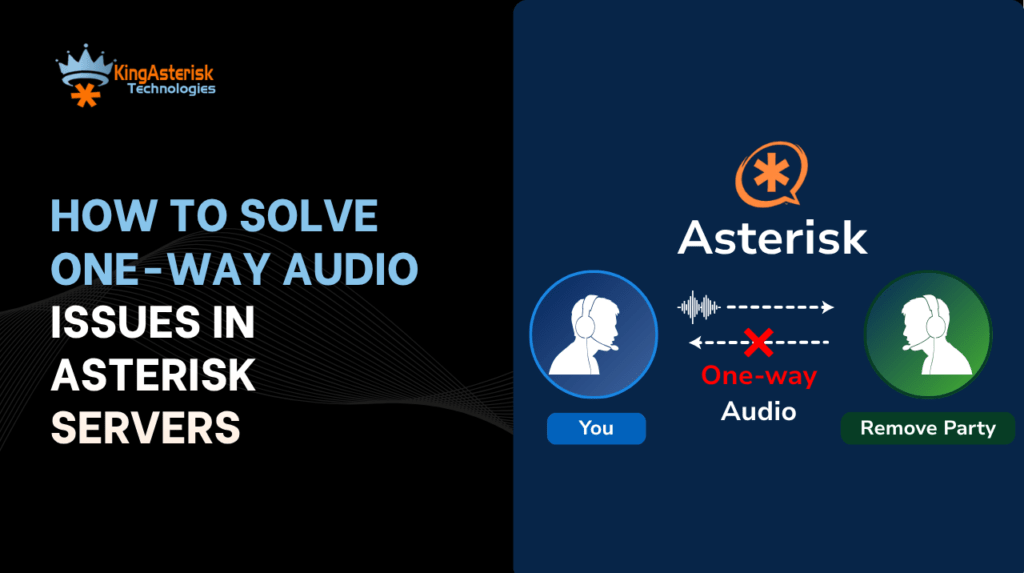
    How to Solve One-Way Audio Issues in Asterisk Servers
    Asterisk Development Solutions

    One-Way Audio in Asterisk Calls? Complete NAT & RTP Fix Guide for Clear Calls

    How to Solve One-Way Audio Issues in Asterisk Servers

    Key Takeaways

    • Asterisk one way audio is almost always caused by NAT traversal failure, incorrect RTP port ranges, or missing nat= directives in your SIP or PJSIP configuration.
    • The fix requires addressing both the SIP signaling layer and the RTP media layer — fixing one without the other will not resolve the issue.
    • STUN, TURN, and localnet/externip settings inrtp.confandsip.confare the most impactful configuration parameters to review first.
    • Firewall rules must allow UDP traffic on both port 5060 (SIP) and your full RTP port range (default 10000–20000), not just signaling.
    • Packet capture using sngrep or tcpdump is the fastest way to confirm whether the issue is signaling, media, or both.

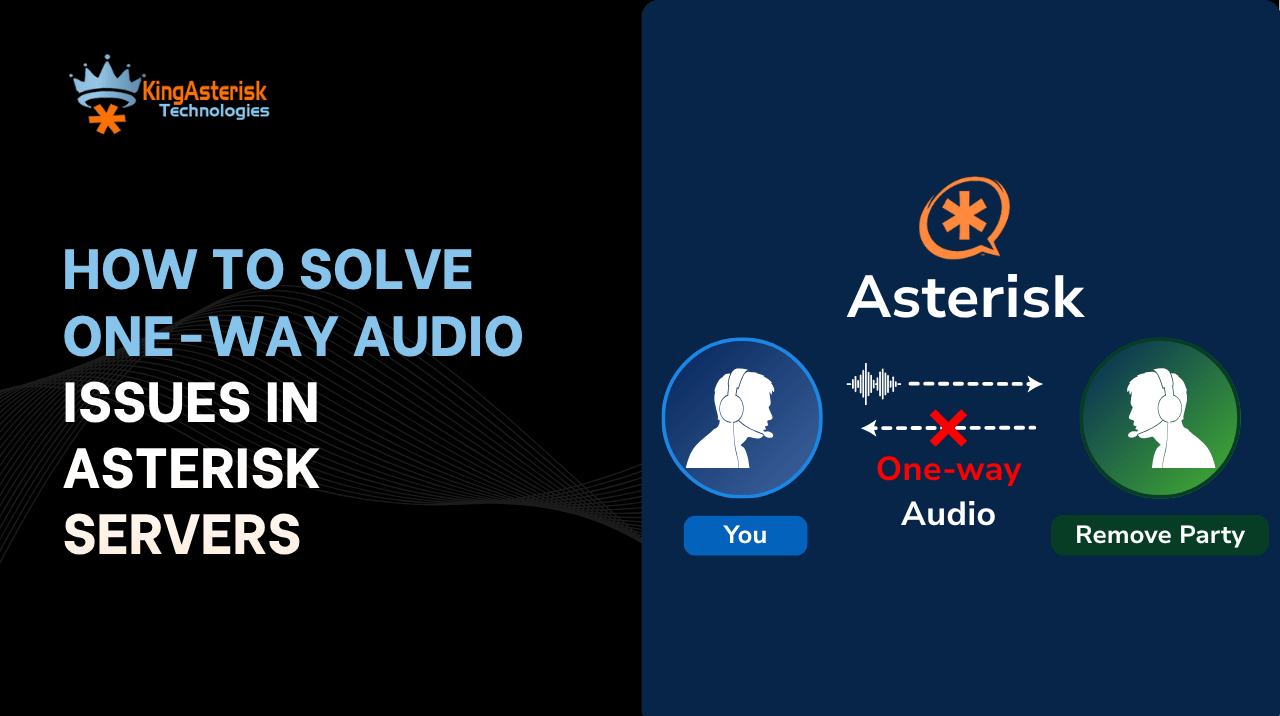
    Asterisk one way audio is a call quality failure where audio flows in only one direction, typically the agent can hear the customer, but the customer hears nothing (or vice versa). This is one of the most reported and operationally damaging issues in SIP-based contact center Asterisk deployments, and it is almost never a hardware problem. The root cause is virtually always in how SIP signaling and RTP media streams negotiate network paths, particularly across NAT boundaries.

    To understand why this happens, you need to appreciate that a SIP call is actually two separate communication processes running in parallel. The SIP signaling channel sets up, modifies, and tears down the call on port 5060. 

    The RTP (Real-time Transport Protocol) media stream carries the actual voice data on a dynamically negotiated UDP port pair. These two channels can, and frequently do, take completely different network paths. When one path is misconfigured, you get one-way audio.

    In a contact center environment, this is especially damaging. An agent who cannot hear a customer, or a customer who cannot hear an IVR prompt, results in dropped calls, failed escalations, and direct revenue loss. Understanding and permanently resolving Asterisk one way audio is not optional, it is infrastructure-critical. 

    ASTERISK DEVELOPMENT

    Root Causes: Why Does Asterisk One Way Audio Happen?

    Every instance of one-way audio in Asterisk traces back to a breakdown in how the server communicates its IP address and port information during call setup. RTP (Real-Time Transport Protocol) is the media channel responsible for carrying voice packets during SIP calls. While SIP handles call setup, RTP handles the actual audio stream between endpoints. 

    Here are the primary causes, in order of frequency in production deployments:

    NAT Traversal Failure

    Network Address Translation (NAT) is the single most common culprit. When Asterisk sits behind a router or firewall, as it does in the overwhelming majority of deployments, it may advertise its private (internal) IP address in the SIP headers and SDP (Session Description Protocol) body. The remote endpoint (a SIP trunk, a softphone, a PSTN gateway) receives this private IP, attempts to send RTP packets to it, and fails because the private address is not routable from the internet. The SIP call connects and signaling works fine, but the media stream is dead on one or both sides.

    Incorrect or Missing externip / externhost

    Asterisk needs to be explicitly told what its public-facing IP address is so it can advertise the correct address in SDP offers and answers. If externip is missing, wrong, or stale (your IP changed), Asterisk will insert the wrong address into o= and c= lines of the SDP, causing the remote end to direct RTP to an unreachable address.

    Blocked RTP Port Range

    Even when SIP signaling works perfectly, your firewall or upstream provider may be blocking the UDP port range used for RTP. Asterisk’s default RTP port range is 10000–20000 UDP. If your firewall only opens port 5060 for SIP and leaves the RTP range closed, you will get a connected call with no audio in either direction — or, if the firewall is asymmetrically configured, audio in one direction only.

    Codec or SDP Mismatch

    If the two endpoints agree on an IP address and port but negotiate incompatible audio codecs, the receiving side may silently discard the RTP packets. This is less common than NAT issues but produces identical symptoms. Check that your allow= codec list in Asterisk matches what your SIP trunk or endpoint supports.

    Symmetric RTP Not Enabled

    Some endpoints behind NAT send RTP from a different source port than the one they declared in SDP. Asterisk needs rtpnat=yes (chan_sip) or the equivalent PJSIP setting to handle this gracefully. Without it, Asterisk transmits audio to the declared port, which may be unreachable, even though the endpoint is actively sending from a different port.

    Diagnosing the Problem: Tools & Techniques

    Before changing any configuration, confirm exactly where the audio path is breaking. Guessing and restarting Asterisk repeatedly is the wrong approach, a five-minute diagnostic pass will save hours of configuration churn.

    Step 1: Capture SIP & SDP with sngrep

    sngrep is the fastest way to inspect SIP traffic and read the SDP offer/answer exchange. Install it and run it while making a test call:

    Terminal — sngrep capture
    # Install sngrep (Debian/Ubuntu)
    apt-get install sngrep
    
    # Run and filter by SIP port
    sngrep port 5060
    
    # Look at the SDP inside each INVITE — check the 'c=' line
    # c=IN IP4 192.168.1.x  <-- Private IP = NAT problem confirmed
    # c=IN IP4 203.0.113.x  <-- Public IP = signaling OK, check firewall next

    Step 2: Check RTP Packet Flow with tcpdump

    Terminal, RTP traffic check
    # Check if RTP packets are arriving on expected port range
    tcpdump -i eth0 -n "udp portrange 10000-20000"
    
    # If you see packets outbound but nothing inbound — firewall issue
    # If no packets at all outbound — Asterisk is sending to wrong IP
    Step 3: Enable Asterisk RTP Debug
    Asterisk CLI — Enable RTP debug
    # In the Asterisk console
    asterisk -rvvvv
    
    rtp set debug on
    sip set debug on   # for chan_sip
    pjsip set logger on # for chan_pjsip
    
    # Place a test call and watch for RTP Rx/Tx addresses
    # "Got RTP packet from X.X.X.X:YYYY" should show the remote public IP
    Protect your Asterisk calls from one-way audio issues

    Quick Diagnostic Rule: If SIP shows a connected call (200 OK received, ACK sent) but you have no audio, the problem is 100% in the RTP/media layer, not signaling. Focus your investigation on NAT, firewall, and RTP configuration.

    Struggling with RTP or NAT issues in production? KingAsterisk engineers can diagnose one-way audio problems remotely and restore call stability fast. 

    Step-by-Step: Complete Asterisk One Way Audio Fix

    Identify your server’s public IP address

    Run curl -s https://checkip.amazonaws.com on your Asterisk server to confirm the public IP. This is the value you will set as externip. If your IP is dynamic, use externhost=yourdomain.com with a short TTL DNS record instead.

    Set externip and localnet in sip.conf

    Open /etc/asterisk/sip.conf and add your public IP and internal subnet to the [general] section. This tells Asterisk exactly what addresses to advertise in SDP, see the full configuration below.

    Enable nat=force_rport, comedia per peer

    For every SIP peer or trunk that connects from behind NAT, add nat=force_rport, comedia to the peer definition. force_rport ensures response packets go to the correct source port. comedia enables symmetric RTP, critical for endpoints behind NAT. Ubuntu 22.04 LTS provides a stable and secure operating system environment widely used for reliable Asterisk and VoIP server deployments. 

    Verify and open RTP port range in your firewall

    Open UDP ports 10000–20000 (or your custom range) both inbound and outbound on every firewall layer, your server’s iptables/ufw rules, any hardware firewall, and your hosting provider’s security group if applicable.

    Set the RTP port range in rtp.conf

    Open /etc/asterisk/rtp.conf and define explicit rtpstart and rtpend values. Make sure these match exactly what you opened in your firewall. A mismatch here is a common oversight after firewall rule changes.

    Reload Asterisk and run a live test call with CLI debugging on

    Run asterisk -rx “sip reload” (or core restart now for major changes), then place a test call with rtp set debug on active. Confirm you see bidirectional RTP packets in the CLI output before closing the issue.

    For PJSIP deployments: update endpoint & transport configuration

    PJSIP handles NAT differently from chan_sip. Set nat=force_rport,comedia at the endpoint level and ensure your transport section has external_media_address and external_signaling_address both set to your public IP

    SIP Config

    The configuration examples below reflect production-grade settings used in KingAsterisk contact center deployments. Replace 203.0.113.50 with your actual public IP and adjust the localnet range to match your internal subnet.

    Important: Setting direct_media=yes (or canreinvite=yes in chan_sip) tells Asterisk to instruct the two endpoints to send RTP directly to each other, bypassing the Asterisk server. This almost always causes one-way audio when either endpoint is behind NAT. Keep it set to no in any production contact center deployment.

    Port Range Sizing: Each active call requires two UDP ports (one for RTP, one for RTCP). A range of 10000–20000 supports up to 5,000 simultaneous calls. For large contact centers with high concurrent call volumes, verify your range is sized accordingly, a port exhaustion event produces symptoms identical to one-way audio.

    Firewall & Port Rules

    Firewall misconfiguration is the second most common cause of RTP audio issues after NAT, and it often affects only one direction because stateful firewall rules may allow outbound sessions while silently blocking unsolicited inbound UDP.

    # Allow SIP signaling
    iptables -A INPUT -p udp --dport 5060 -j ACCEPT
    iptables -A INPUT -p tcp --dport 5060 -j ACCEPT
    iptables -A INPUT -p tcp --dport 5061 -j ACCEPT  # TLS SIP
    
    # Allow RTP media — this is where most deployments fail
    iptables -A INPUT -p udp --dport 10000:20000 -j ACCEPT
    iptables -A OUTPUT -p udp --sport 10000:20000 -j ACCEPT
    
    # Save rules
    iptables-save > /etc/iptables/rules.v4
    ufw (Ubuntu/Debian alternative)
    ufw allow 5060/udp
    ufw allow 5060/tcp
    ufw allow 5061/tcp
    ufw allow 10000:20000/udp
    ufw reload
    

    Real-World Example: Contact Center Deployment

    A mid-size contact center with 80 concurrent agent seats running VICIdial on Asterisk reported that agents could consistently hear customers, but customers reported complete silence on their end. The issue was intermittent, affecting roughly 30% of inbound calls, and only surfaced after the data center migrated to a new network segment with a different subnet mask.

    Root cause: The localnet directive in sip.conf still referenced the old subnet (192.168.0.0/24). After the migration, agents’ workstations were on 10.10.0.0/16. Asterisk was no longer recognizing agent endpoints as “local,” so it was advertising the public IP correctly for external trunks but handling agent RTP on incorrect assumptions about the network path. 

    The result: RTP to external callers used the correct public IP, but Asterisk was transmitting back to agents using wrong interface addresses.

    Fix applied:
    sip.conf — Updated localnet entries
    ; Before migration (wrong after move)
    ; localnet=192.168.0.0/255.255.255.0
    
    ; After fix — covers both old and new subnets during transition
    localnet=192.168.0.0/255.255.255.0
    localnet=10.10.0.0/255.255.0.0
    localnet=127.0.0.0/255.0.0.0   ; Always include loopback
    

    After a sip reload, bidirectional audio was restored across 100% of calls within minutes. No Asterisk restart was required. The entire diagnostic and fix cycle took 22 minutes, the majority of that time was spent reviewing the network migration documentation, not troubleshooting Asterisk itself.

    🔥 Key lesson: Any infrastructure change — new subnet, ISP failover, data center migration, or firewall rule update — should trigger an immediate review of your localnet, externip, and RTP port range settings. These values do not self-update.

    Frequently Asked Questions

    No audio in both directions usually points to a completely blocked RTP port range, the firewall is rejecting all UDP on ports 10000–20000. One-way audio, where one side can hear but the other cannot, indicates an asymmetric routing problem: the RTP stream in one direction is reaching its destination, but the return stream is not. The fix is usually different for each scenario.

    Yes, but the trade-off is nearly always worth it. With directmedia=no, all RTP traffic passes through the Asterisk server rather than directly between endpoints. This increases server CPU and bandwidth usage but gives you full control over media, enables call recording, and eliminates NAT-related audio failures. On modern hardware, Asterisk handles several hundred simultaneous RTP streams comfortably.

    With PJSIP, NAT settings are split between the transport and endpoint sections. Set external_media_address and external_signaling_address in your transport definition, and set rtp_symmetric=yes, force_rport=yes, and direct_media=no on each endpoint. PJSIP gives more granular control than chan_sip, but requires all three settings to be correct simultaneously.

    Yes, SIP ALG (Application Layer Gateway) is a frequent and underdiagnosed cause of one-way audio. SIP ALG attempts to rewrite SIP headers and SDP to assist NAT traversal, but it often corrupts the IP addresses and ports in the process. Disable SIP ALG on any router or firewall between your Asterisk server and SIP trunks. This setting is found in the firewall or NAT section of most consumer and business routers.

    🔥 Try It Live: Live Demo of Our Solution!  

    Resolving Asterisk One Way Audio: Final Summary

    Asterisk one way audio is a solvable problem with a clear, systematic approach. In the vast majority of deployments, including every VICIdial-based contact center we have diagnosed at KingAsterisk, the issue comes down to three configuration areas that must all be correct simultaneously: the externip/localnet settings in your SIP configuration, the RTP port range in rtp.conf, and the firewall rules that allow UDP traffic on that port range.

    The key principle to take away is this: SIP and RTP are separate communication channels. You can have perfect SIP signaling, calls that connect, ring, and show as answered, while RTP is completely broken. Always verify media flow independently of signaling, and never assume a connected call means working audio.

    For contact centers running VICIdial or custom Asterisk dialers, audio reliability is non-negotiable. Every dropped call due to one-way audio is a failed customer interaction. With the configuration examples and diagnostic steps in this guide, your team has everything needed to identify the root cause in minutes and apply a permanent fix.

    Quick Fix Checklist:

    • Verify externip
    • Verify localnet
    • Open RTP ports
    • Disable SIP ALG
    • Enable symmetric RTP
    • Confirm RTP packet flow
    • Match firewall and rtp.conf ranges
    • Reload SIP configuration

    If you are still experiencing one-way audio after following this guide, or if you need expert assistance configuring NAT traversal, RTP, or SIP trunking for a large-scale contact center deployment, the engineering team at KingAsterisk is ready to help.

    Need Expert Help with Your Asterisk Setup?

    Our senior engineers have resolved one-way audio and NAT issues across hundreds of contact center deployments worldwide. Get a fast, accurate diagnosis.

    Contact KingAsterisk Today!

    KINGASTERISK_NOTE

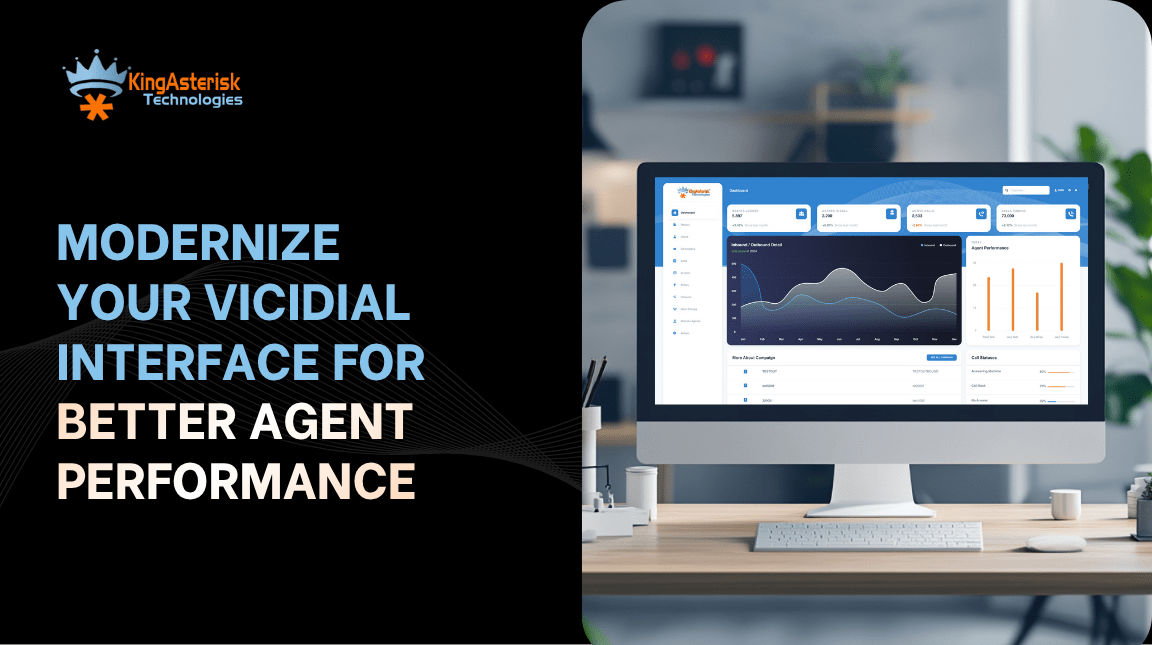
    Modernize Your VICIdial Interface for Better Agent Performance
    Vicidial Software Solutions

    VICIdial Modern Theme: Optimize User Experience Based on Client Requirements

     Key Takeaways

    • The VICIdial Modern Theme replaces the default legacy interface with a structured, responsive agent and supervisor desktop.
    • Theme files, CSS overrides, and server-side configuration paths are fully customizable without touching core VICIdial source code.
    • Proper role-based layout separation, agent view vs. supervisor view, is essential to a clean deployment.
    • Real-world deployments at mid-size contact centers show measurable reductions in average handle time after interface improvements.
    • KingAsterisk has 14+ years of VICIdial deployment experience and provides end-to-end theme implementation services.

    The VICIdial Modern Theme is a complete front-end reskin of that interface, restructuring layout, typography, color hierarchy, and control placement to create a more intuitive desktop without altering any of the core telephony or campaign logic underneath. VICIdial is an open-source contact center suite built on the Asterisk telephony framework. By default, it ships with a functional but visually dated web interface, a dense grid of form fields, status indicators, and action buttons that was designed for functionality, not usability. 

    Unlike third-party overlays or proprietary wrappers, the Modern Theme works natively within VICIdial’s PHP-based interface stack. Theme files live in dedicated directories on your web server, and configuration is managed through a combination of server-side PHP parameters, CSS overrides, and VICIdial’s built-in admin panel. 

    This means your telephony engineers can modify the theme without disrupting call routing, campaign settings, or recording configurations.

    From a deployment standpoint, the theme affects three primary surfaces: the Agent interface (the screen agents see during live calls), the Supervisor real-time monitoring panel, and the Manager/Reports section. Each surface has distinct layout requirements and deserves separate attention during implementation.

    Why the Default VICIdial Interface Needs an Upgrade

    The default VICIdial interface has not changed substantially in visual design since the early 2010s. For contact centers running medium to large teams, this creates several operational problems that compound over time.

    Agent Fatigue and Navigation Errors

    Agents spend 6–9 hours looking at the same screen. A poorly structured interface, with small buttons, dense text, ambiguous icons, and inconsistent color coding, increases mental load. Over a shift, this contributes to misclicks, incorrect dispositions, and slower average handle time (AHT). Interface design directly affects operational metrics.

    Supervisor Visibility Gaps

    The default supervisor panel consolidates too much data into a single, non-hierarchical view. Supervisors scanning for agents who are in the wrong disposition state or whose calls are running long must visually parse through dozens of rows of equally-weighted data. The Modern Theme introduces visual hierarchy, using color, sizing, and layout to surface what matters first.

    Brand Inconsistency

    Many contact centers manage campaigns on behalf of multiple clients, each with their own brand identity. The default VICIdial interface is generic. The Modern Theme allows you to apply per-campaign color palettes, logo placement, and branded language, giving agents a visual context that matches the campaign they are working on at any given moment.

    💎 See Why Experts Prefer This : Build a Web-Based Auto Dialer 

    Core Components of the VICIdial Modern Theme

    Understanding the structure of the theme is prerequisite to configuring it correctly. The Modern Theme is composed of the following layers:

    • CSS Theme File: Controls colors, typography, spacing, button styles, and layout grids for all interface elements.
    • PHP Template Files: Define the structural HTML rendered for the agent screen, supervisor panel, and admin sections.
    • JavaScript Modules: Handle dynamic elements: real-time status updates, timer displays, and campaign-specific UI toggles.
    • Image/Icon Assets: Replace default VICIdial icons with custom SVG or PNG assets suited to your brand.
    • Admin Configuration: Server-level settings within VICIdial’s admin panel that activate the theme and bind it to specific campaigns or user groups.

    Step-by-Step: Deploying the VICIdial Modern Theme

    The following process assumes you have an existing VICIdial installation on a Linux server (CentOS/Rocky Linux recommended) and SSH access with root or sudo privileges. Always back up your current installation before making interface changes.

    Step 1 — Audit Your Current VICIdial Version

    Before deploying any theme files, confirm your VICIdial version by checking the admin panel or the SVN revision number. The Modern Theme files must be compatible with your installed version. Theme files built for VICIdial 2.14.x behave differently on 2.12.x or older releases due to changes in the PHP template structure.

    Step 2 — Back Up the Existing Interface Directory

    1. SSH into your VICIdial web server.

    2. Navigate to /srv/www/htdocs/agc/. (the agent interface directory) and create a dated backup:

    3. cp -r /srv/www/htdocs/agc/ /srv/www/htdocs/agc_backup_$(date +%Y%m%d)/

    4. Repeat for the /vicidial/ directory if you are modifying the manager or reports interface.

    Step 3 — Upload Theme Files to the Server

    Transfer your theme package to the server. The package should include a custom CSS file, any modified PHP templates, and an assets folder for images/icons. Place CSS overrides in: /srv/www/htdocs/agc/css/vicidial_modern_theme.css

    Place modified PHP templates in the corresponding /agc/ subdirectory. Do not overwrite core VICIdial PHP files — use the theme override mechanism to layer your changes.

    Step 4 — Reference the Theme CSS in the VICIdial Configuration

    Open the VICIdial admin panel and navigate to Admin > System Settings. Locate the ‘Agent Screen Style Sheet’ field and enter the relative path to your new CSS file. This ensures every agent session loads the themed interface without requiring server-side PHP edits.

    Step 5 — Configure Per-Campaign Theme Overrides

    For multi-campaign environments where different clients require different brand treatments, navigate to each Campaign record in the admin panel. The ‘Agent Screen Style’ field at the campaign level overrides the system-wide default. Assign the appropriate client-branded CSS to each campaign.

    Step 6 — Set User-Group-Level Layout Permissions

    Navigate to Admin > User Groups and configure which screen elements are visible for each role: agent, team lead, supervisor, and manager. The Modern Theme introduces CSS class-based role visibility, so elements tagged for supervisor-only display are automatically hidden from agent sessions via the user group mapping.

    Step 7 — Test in a Staging Environment

    Before pushing to production, replicate the configuration on a staging VICIdial server. Run a full agent session, make test calls, confirm supervisor panel functionality, and verify that all disposition buttons, script panels, and transfer controls render correctly. Check across Chrome, Firefox, and Edge since VICIdial’s interface renders slightly differently across browser engines.

    Step 8 — Deploy to Production and Monitor

    Schedule the production switchover during a low-traffic window. After deployment, monitor the first 2–3 shifts closely. Collect agent feedback on layout clarity and check that handle time metrics are not temporarily inflated by unfamiliarity with the new layout. Most teams fully adjust within 3–5 working days.

    Customizing the VICIdial Modern Theme Based on Client Requirements

    Every contact center operation has different priorities, and the Modern Theme is intentionally flexible. Below are the most common customization scenarios we handle at KingAsterisk.

    Custom Brand Identity per Campaign

    Multi-brand BPO environments require agents to operate in the visual context of the client brand they are representing. The Modern Theme supports per-campaign color variables defined at the top of the campaign-level CSS file. Changing five CSS variables, primary color, secondary color, button color, header background, and logo URL, is sufficient for a complete brand switch between campaigns.

    Compact vs. Expanded Agent Desktop Layouts

    Some operations prefer a compact view where the script, customer data panel, and dialpad are all visible simultaneously without scrolling. Others prefer a tabbed layout where agents navigate between the active call, CRM fields, and script tabs. The Modern Theme supports both layouts via a CSS class toggle that can be configured per user group or per campaign in the admin panel.

    Dark Mode Interface

    Contact centers operating in low-light environments: late-night shifts, security operations, certain offshore BPO setups, frequently request a dark mode theme. The Modern Theme CSS ships with a prebuilt dark mode variable set. Activating it requires switching a single CSS class at the body level and replacing icon assets with light-weight equivalents.

    Supervisor Panel Real-Time Data Density

    Supervisors managing large teams need to see more agents per screen without sacrificing legibility. The Modern Theme allows configuration of row height, column visibility, and conditional color thresholds for the real-time panel. For example, you can configure agents whose handle time exceeds 4 minutes to appear in amber, and those exceeding 7 minutes to appear in red, giving supervisors an immediate visual alert without requiring them to read every number.

    Custom Script Display Panel

    Many campaigns require agents to follow structured scripts that change based on call stage. The Modern Theme supports a dynamic script display panel that can be embedded in the agent screen and driven by disposition codes. When an agent selects a specific disposition, the script panel automatically updates to show the relevant next steps, reducing cognitive load and improving script adherence.

    💻 Free Live Demo: Live Demo of Our Solution!  

    Case Study: Insurance Sales Contact Center

    A 120-seat outbound contact center running insurance sales campaigns across three separate client brands came to KingAsterisk with a specific problem: their agents were running three different campaigns from the same VICIdial instance, and the generic interface gave agents no visual cue about which brand context they were operating in. Agents were reading from the wrong script, using incorrect sign-offs, and occasionally delivering the wrong product pitch,  compliance violations that had real consequences in a regulated industry.

    We implemented the VICIdial Modern Theme with per-campaign CSS profiles. Brand A received a navy-and-gold color palette with their logo in the header and their compliance script locked in the bottom panel, Brand B received a green-and-white treatment with a different script structure, Brand C operated in a dark mode layout suited to their offshore evening team.

    Within 30 days, the operation reported a 22% reduction in script compliance errors and a measurable drop in call handling time, attributed directly to clearer screen layout and the removal of irrelevant UI elements from the agent view. Supervisors also reported faster identification of underperforming agents due to the enhanced real-time panel color thresholds.

    This outcome is consistent with what we observe across similar deployments: interface clarity is not cosmetic, it is an operational lever.

    Frequently Asked Questions

    No. The Modern Theme only modifies front-end presentation layers: CSS, HTML templates, and JavaScript rendering. It has no interaction with VICIdial’s Asterisk dial engine, campaign dialing logic, or database operations. Call routing, recording, and IVR configurations remain completely unaffected. The theme is a pure interface change.
    Yes. VICIdial’s admin panel supports campaign-level CSS overrides. You can assign a system-wide default theme and then assign campaign-specific CSS files to individual campaigns. This allows multi-client BPO environments to maintain separate brand identities per campaign without running separate VICIdial instances.

    The safest approach is to use VICIdial’s dedicated override directories and the admin panel’s CSS file reference fields rather than directly editing core PHP files. Store all custom CSS and JavaScript in separate theme files. Maintain a version-controlled repository of your theme package and document which core files, if any, were modified so you can reapply changes after an SVN update.

    The standard VICIdial Modern Theme is optimized for desktop browsers. Supervisor access via tablet is possible with responsive CSS additions, but the agent interface itself is not designed for mobile use due to the complexity of the control surface required during live calls. If your supervisors need tablet monitoring access, a custom responsive extension to the Modern Theme’s supervisor panel CSS can accommodate this.


    Conclusion

    Deploying the VICIdial Modern Theme is one of the highest-impact, lowest-risk improvements a contact center can make to an existing VICIdial system. The core telephony infrastructure stays intact while agents gain a cleaner, faster, and less error-prone desktop. Supervisors gain better real-time visibility. And operations running multi-client campaigns finally get the per-brand consistency that compliance and professionalism require.

    The key steps are straightforward when approached systematically: audit your version, back up your installation, layer theme files using VICIdial’s native override mechanisms, configure per-campaign and per-user-group settings, and validate in staging before going live. The customization options, compact layouts, dark mode, dynamic script panels, supervisor color thresholds, give you the flexibility to match the theme precisely to how your teams operate.

    At KingAsterisk, our engineers have deployed and maintained VICIdial systems across hundreds of contact center environments over 14+ years. We know where VICIdial’s interface customization capabilities are deep and where they need careful handling. If you are ready to modernize your VICIdial interface, contact the KingAsterisk team to discuss your requirements, we will scope the right implementation approach for your operation.

    Ready to Modernize Your VICIdial Interface?

    KingAsterisk has helped contact centers across industries deploy, customize, and maintain VICIdial systems for over 14 years. Whether you need a full VICIdial Modern Theme rollout, custom CSS branding, or end-to-end contact center software implementation, our team has the hands-on experience to get it right the first time. 

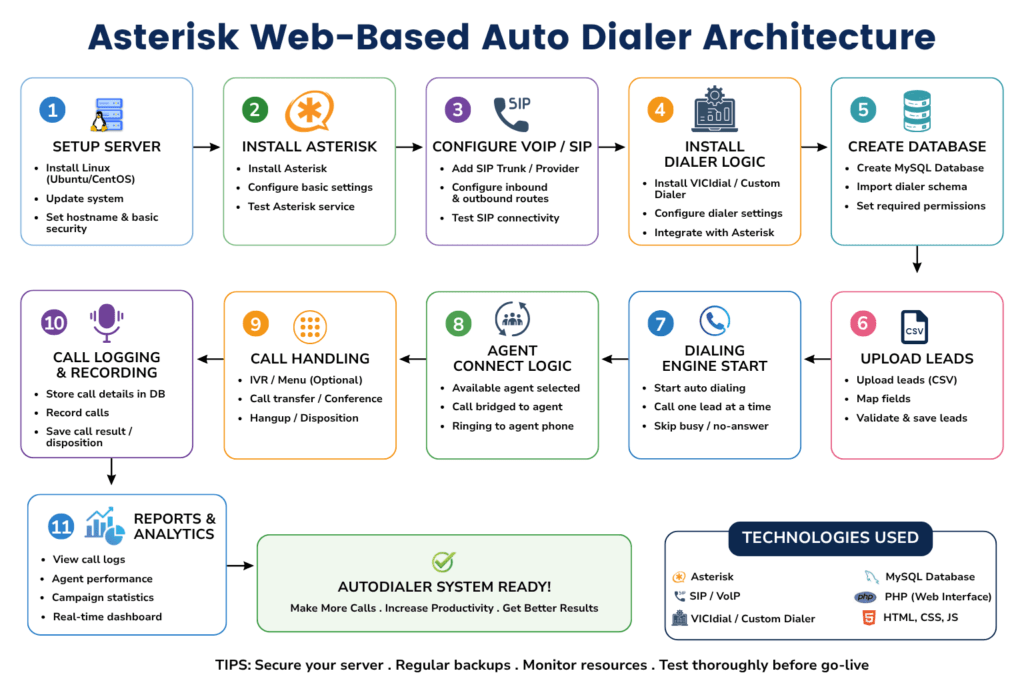
    Build a Web Based Auto Dialer with Asterisk & VoIP Integration
    Call Center Dialer Software Solutions

    How to Build a Web-Based Auto Dialer with Asterisk and VoIP Integration (Complete Guide)

    Key Takeaways

    • A production-ready Asterisk auto dialer can be built and deployed in under 10 days using a Python/Django backend, Asterisk AMI, and a React agent interface.
    • The AMI (Asterisk Manager Interface) is the critical bridge between your web application and call-processing engine, get this right and everything else follows.
    • Real-time call status, contact list import, and agent dashboards require WebSocket integration alongside standard HTTP API routes.
    • Call recording, predictive pacing, and disposition logging can all be layered on top of the core architecture without rebuilding from scratch.
    • Proper trunk and dialplan configuration is where most first-time Asterisk dialer builds fail,  this guide covers both in detail.

    Asterisk auto dialer setup is one of the most requested, and most underestimated, engineering projects in the contact center space. When a client approached KingAsterisk needing a fully functional web-based outbound Asterisk dialer integrated with their SIP provider, with a clean agent interface and deployment documentation their in-house team could maintain, we had a clear brief and a tight timeline. 

    This guide documents exactly what we built, how we built it, and the architectural decisions you need to get right the first time.

    Whether you are an IT manager evaluating options, a developer inheriting a dialer project, or a contact center operator who wants to understand what is actually going on under the hood, this is the complete walkthrough.

    Why Asterisk for Outbound Dialing

    Not every dialer project calls for a third-party SaaS platform. When your team needs ownership, customisation, and long-term control over telephony infrastructure, Asterisk remains the most proven open-source option available.

    Asterisk is a software-based telephony framework maintained by Sangoma. It has been in production environments since 1999 and underpins a significant portion of the world’s contact center infrastructure, including VICIdial, one of the most widely deployed open-source dialers on the planet. The reasons contact centers continue to build on it are straightforward:

    • Full source access: No licensing fees, no vendor lock-in, no arbitrary API call limits.
    • Mature SIP stack: Asterisk handles SIP trunking, codec negotiation, and call routing with stability accumulated over two decades of production use.
    • AMI integration: The Asterisk Manager Interface gives your web application a programmatic socket-based bridge to originate calls, monitor channels, and receive real-time events.
    • Community and ecosystem: Modules, documentation, and practitioner knowledge are broadly available.
    • Interoperability: Works with any standards-compliant SIP provider, meaning your dialer is not dependent on a single carrier relationship.

    Deployment note: This guide focuses on a self-hosted Asterisk installation (Ubuntu 22.04 LTS recommended). All configuration examples assume Asterisk 20.x with chan_pjsip as the primary channel driver.

    🚨 Don’t Miss : Custom CRM Development Services

    System Architecture Overview

    A web-based auto dialer has three distinct layers that must work in coordination:

    1. Telephony Layer (Asterisk)

    Handles all call signalling, media, recording, and trunk management. Asterisk sits at the center of the telephony layer, communicating with your SIP provider over configured trunks and with your application layer over AMI.

    2. Application Layer (Backend API)

    Manages campaign logic, contact list queuing, agent session state, call disposition recording, and orchestrates origination requests to Asterisk via AMI. This is the brain of the dialer, it decides which contact to call next, which agent to assign it to, and what to do with the result.

    3. Presentation Layer (Agent Interface)

    A browser-based interface where agents log in, see their assigned calls, record outcomes, and handle real-time status updates delivered via WebSocket. No softphone installation required, agents work entirely in the browser using WebRTC or a connected desk phone.

    AMI is your integration backbone. All three layers communicate through two channels: AMI sockets (Asterisk ↔ Backend) and a REST/WebSocket API (Backend ↔ Frontend). Design these interfaces cleanly and your dialer will scale.

    Step-by-Step Build Process for Asterisk Auto Dialer Setup

    The following sequence reflects the actual build order we followed for the client project referenced in this guide. Each step builds on the previous one, do not skip ahead.

    Provision and Harden the Server

    Start with a fresh Ubuntu 22.04 LTS instance. Apply OS updates, configure a firewall (UFW or iptables), lock down SSH to key-based auth, and set up fail2ban. Asterisk servers are attractive targets for toll fraud, security is not optional, it is foundational.

    Install and Compile Asterisk

    Download the Asterisk 20.x source from downloads.asterisk.org. Run./configure, then make menuselect to enable required modules including res_pjsip, app_dial, app_queue, res_agi, and func_odbc for database integration. Compile with make && make install.

    Configure PJSIP Trunks and Extensions

    Create your PJSIP trunk configuration in pjsip.conf pointing to your SIP provider. Define internal endpoints for each agent (or use a single shared endpoint for progressive dialing). This is the most provider-specific part of the setup, your SIP carrier will supply the credentials and registration details.

    Build the Dialplan in extensions.conf

    Write the outbound dialplan context that handles call origination, answer detection, recording initiation, and hangup handling. Include an AGI script hook so your Python backend can inject dynamic behaviour (such as playing a recorded message before bridging to an agent).

    Enable and Configure AMI

    In manager.conf, enable AMI on 127.0.0.1 port 5038. Create a dedicated AMI user for your application with the minimum permissions required: system, call, log, originate. Never expose AMI directly to the internet.

    Build the Django Backend with AMI Client

    Implement a persistent AMI socket connection using Python’s asyncio. Build models for Campaign, Contact, Agent, CallRecord, and Disposition. Create the API endpoints for contact import (CSV/Excel), campaign control, and agent session management.

    Implement the Campaign Dialing Engine

    Write the Celery task that processes the contact queue, checks agent availability, and fires AMI Originate actions. Implement the dialing ratio logic, start with progressive (1:1) before building predictive pacing. Handle NoAnswer, Busy, and Congestion results with appropriate retry scheduling.

    Build WebSocket Event Push

    Use Django Channels with a Redis channel layer to push AMI events to connected agent browsers in real time. Events to forward: Dial, Bridge, Hangup, and channel variable updates. This is what makes the agent interface feel live rather than requiring manual refresh.

    Build the React Agent Interface

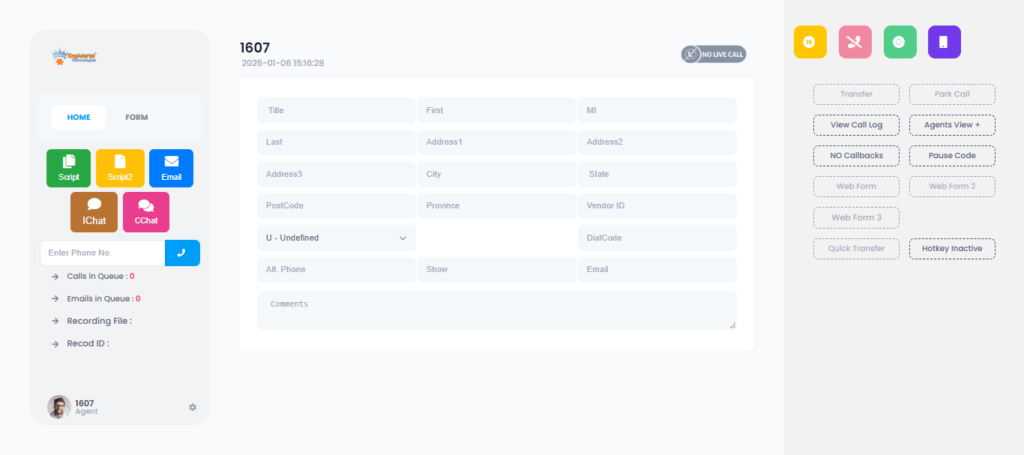
    Create the agent dashboard showing current call state, contact information, call history, and disposition form. Connect to the WebSocket endpoint. Implement campaign supervisor view with live stats: calls in progress, available agents, contacts remaining, and answer rate.

    Configure Nginx, SSL, and Process Management

    Set up Nginx as a reverse proxy for Django (via Gunicorn) and React. Configure SSL/TLS. Use systemd unit files or Supervisor to manage Asterisk, Django, Celery, and Redis as persistent services with automatic restart on failure.

    Asterisk Dialplan and Trunk Configuration

    Most first-time dialer builds fail not in the application code, but in the dialplan. Always store SIP credentials in environment variables or a secrets manager, never hardcoded in configuration files committed to version control.

    Agent Web Interface Design

    The agent interface needs to deliver three things without friction: clarity on the current call, fast disposition recording, and zero dependency on external software. 

    Agent Dashboard Components

    • Call status panel: Shows current call state (ringing, connected, hold), contact name, phone number, and duration timer in real time via WebSocket.
    • Contact info sidebar: Pulls contact record from the backend API when a call connects — name, prior call history, campaign notes.
    • Disposition form: A minimal form (dropdown + optional text note) that agents complete before moving to the next call. Dispositions write back to the database and can trigger follow-up tasks via Celery.
    • Queue indicator: Shows the agent their position in the active campaign, calls remaining, and their personal stats for the session.
    • Supervisor overlay: A separate login tier for supervisors to see all agents’ live status, barge into calls, and adjust campaign pacing in real time.
    🔥Design principle: Every additional click on the agent interface has a measurable cost in calls-per-hour. Keep the disposition workflow to a single interaction before the agent is ready for the next call.

    Real-World Use Case: Insurance Outbound Campaign

    A regional insurance broker contacted KingAsterisk needing to replace a manual dialing workflow with an automated system. Their team of 12 agents was manually dialling from spreadsheets. Target: policy renewal reminders to approximately 8,000 contacts over a 3-week campaign window.

    Stack deployed: Asterisk 20 on Ubuntu 22.04, Django backend, React agent interface, PostgreSQL, SIP trunk via their existing carrier.

    Timeline: Architecture confirmed Day 1. Asterisk and backend running Day 4. Agent interface integrated Day 7. UAT and documentation Day 8–9. Live Day 10.

    • Results after first campaign run: 3.8Ă—
    • Increase in contacts reached per agent-hour: 100%
    • Calls recorded and retrievable: 0
    • Third-party software dependencies for agents: 10 days

    Full build to live deployment

    The client’s in-house IT team took over maintenance after a half-day handover session using the deployment documentation we provided. Six months later, they extended the system with an inbound IVR for the same SIP infrastructure, which Asterisk handles natively.

    Advanced Features You Can Layer In

    The architecture described above is intentionally modular. Once your core dialer is stable, the following additions require no structural rebuild:

    Call Recording and Retrieval

    MixMonitor records both legs of every call to a configurable path. Your backend indexes recordings against call records in PostgreSQL. A simple React audio player with permissions-controlled access gives supervisors playback directly in the browser. Store recordings on a separate volume and set a retention policy from day one.

    Automated Message Delivery (AMD + Pre-recorded Drop)

    Asterisk’s built-in AMD (Answer Machine Detection) application can detect whether a human or voicemail has answered. On machine detection, your dialplan can play a pre-recorded message using Playback() and log the outcome. This is useful for notification campaigns that do not require live agent interaction.

    Predictive Dialing

    Progressive dialing (one call per available agent) is the safe starting point. Predictive dialing uses a statistical model to dial ahead of agent availability, abandoning calls when no agent is free. This requires careful abandonment rate monitoring to stay compliant with local telecommunications regulations, implement it only after your progressive dialer is stable and you have sufficient call volume data.

    Campaign Analytics Dashboard

    Vicidial Campaign

    Aggregate your PostgreSQL call records with a charting library on the supervisor interface to show hourly answer rates, disposition breakdowns, agent performance comparison, and campaign completion projections. This data is already in your database, it just needs to be surfaced.

    DNC (Do Not Call) List Integration

    Before any contact is added to the outbound queue, run a check against your DNC table. This is a database lookup in your Celery task before the AMI Originate action fires. Non-negotiable for any commercial deployment.

    💻 Free Live Demo: Live Demo of Our Solution!  

    Frequently Asked Questions

    A progressive dialer places exactly one outbound call per available agent, no call originates until an agent is confirmed free. A predictive dialer dials multiple contacts simultaneously, using statistical models to predict agent availability. Progressive dialing has a zero abandonment rate; predictive dialing increases contact rates but requires careful pacing to avoid excessive abandoned calls.

    Not necessarily. There are two common approaches: WebRTC, where audio runs entirely in the browser with no installation required, or a “click-to-call” model where Asterisk bridges the agent’s desk phone and the outbound call. WebRTC is simpler for agents; desk phone bridging is often preferred in environments with existing phone hardware or strict audio quality requirements.

    Asterisk works with any SIP-compliant provider. Configuration is done in pjsip.conf using the credentials your carrier provides. The main variables are registration host, username, password, and codec preferences. Most SIP providers publish Asterisk-specific setup guides. We have deployed successfully with over a dozen different carriers across international markets.

    Asterisk’s MixMonitor application writes mixed-channel recordings to a configurable local directory in WAV or MP3 format. Your backend application indexes these files against call records in the database. Retrieval is then a standard file-serve operation via your web application. For long-term storage, recordings can be moved to object storage using a scheduled background task.

    Conclusion

    A well-built Asterisk auto dialer setup is not just a technical project, it is a contact center productivity asset that compounds value with every campaign it runs. The architecture described in this guide, Asterisk for telephony, Django for application logic, React for the agent interface, and AMI as the integration bridge, has been validated across real-world deployments and is maintainable by a capable in-house engineering team.
    The key decisions that determine success are made early: server hardening, dialplan design, AMI permission scoping, and WebSocket architecture. Get these right and the rest of the build is systematic. Shortcut them and you will spend double the time fixing instability in production.

    KingAsterisk has been building on Asterisk for over 15 years, from single-site installations to multi-tenant contact center platforms handling millions of calls per month. If you are planning an outbound dialer build and want to discuss architecture, timeline, or technical requirements, our engineering team is ready to help.

    Ready to Build Your Asterisk Dialer?

    Talk to a KingAsterisk engineer about your outbound dialer requirements. We’ll walk you through architecture. Contact Us About Your Dialer Project