
Key Takeaways
- A VICIdial hopper not loading leads is almost always caused by one of five root causes: inactive lists, misconfigured lead filters, local call time restrictions, a stalled hopper cron job, or incorrect dial statuses.
- Confirming the hopper count in real time (Admin → Campaigns → Hopper Viewer) is the fastest first diagnostic step.
- Dial status mismatches are the single most overlooked cause of an empty hopper, always cross-check your “Dial Statuses” field against actual lead statuses in the database.
- Hopper cron failures are silent, the campaign UI will appear fully active while zero leads load.
- Most issues resolve in under 15 minutes once the correct root cause is identified.
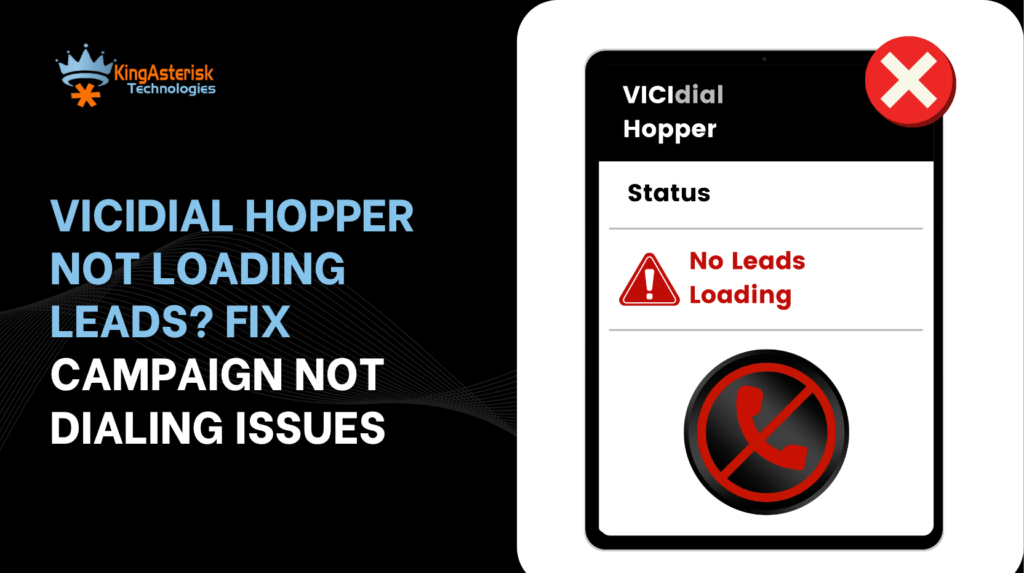
VICIdial hopper not loading leads is one of the most disruptive issues a contact center operations team can face, agents are logged in, the campaign shows “ACTIVE,” yet the phones stay silent and productivity drains by the minute. The hopper is VICIdial’s pre-dialing buffer: it pulls a configurable batch of leads from your lists into a queue so the predictive dialer can fire calls without waiting on database queries. When that buffer stays at zero, nothing dials.
The good news is that this failure is almost never mysterious. In every deployment our engineering team has worked on, from small 20-seat collections shops to multi-site operations running thousands of concurrent lines, an empty hopper traces back to a small set of well-defined configuration problems. This article walks through each one in plain terms, gives you a hands-on checklist, and gets your campaign dialing again fast.
Root Cause #1 — List Is Inactive or Not Assigned
How VICIdial Uses Lists
Every lead in VICIdial belongs to a List. The hopper will only pull from lists that are:
- Assigned to the active campaign
- Set to Active status (not “Inactive” or “Inactive, DNC”)
- Containing leads with a callable dial status (more on this below)
A list that is paused, archived, or accidentally set to inactive will be silently skipped by the hopper process. No warning appears in the campaign UI, the hopper count simply stays at zero.
How to Check
- Navigate to Admin → Lists in the VICIdial Admin panel.
- Search for all lists linked to your campaign by List ID or campaign name.
- Confirm the Active column shows Y for every list you expect to be dialed.
- Navigate to Admin → Campaigns → [Campaign Name] → Lists and verify the lists are actually assigned to the campaign, not just active in isolation.
Common Mistake
Teams often bulk-import a new lead file and create a new list, but forget to assign it to the campaign. The list shows thousands of leads, the database is populated, but the hopper never sees them because no campaign-to-list association exists.
Root Cause #2 — Lead Filter Configuration Errors
What Lead Filters Do
VICIdial’s Lead Filter feature allows campaigns to restrict which leads get loaded into the hopper based on fields like state, postal code, custom fields, or any column in the vicidial_list table. Filters are written as SQL WHERE clause fragments. A poorly constructed filter, or a filter referencing a field that no longer exists, will return zero results and produce an empty hopper.
Diagnosing Filter Issues
Navigate to Admin → Lead Filters and review the filter assigned to your campaign. Pay particular attention to:
- SQL syntax errors, even a missing quote or mismatched parenthesis will cause the entire filter to fail silently.
- Field name mismatches, if a custom field was renamed or deleted from your list schema, any filter referencing it returns nothing.
- State/region values, filters like state = ‘TX‘ will fail if your data was imported with lowercase or full state names.
Quick Test
Temporarily remove the lead filter from the campaign (set it to NONE) and watch the hopper count. If leads start loading immediately, your filter is the culprit. Re-examine the SQL, fix the logic, and reassign.
Root Cause #3 — Local Call Time Restrictions
How Call Time Windows Work
VICIdial respects local call time rules per lead, calculated from the lead’s state field and the server’s timezone offset table. If a lead’s local time falls outside the campaign’s allowed calling window, the hopper will not load it, even if every other configuration is correct.
This is a particularly common cause of confusion because:
- It is time-dependent, your campaign may dial correctly at 10 AM but produce an empty hopper at 8 AM or 8 PM.
- State field errors compound the issue. If state values are blank or incorrect, VICIdial falls back to a default timezone, which may put all leads outside the calling window simultaneously.
How to Check
- In the campaign settings, review the Call Time field. Click through to the call time definition and confirm the start/end hours are appropriate.
Check your lead data, run a quick SQL count of leads grouped by state to verify states are populated and formatted correctly.
SELECT state, COUNT(*) as lead_count
FROM vicidial_list
WHERE list_id = 'YOUR_LIST_ID'
  AND status IN ('NEW', 'NI', 'NA')
GROUP BY state
ORDER BY lead_count DESC;- If you operate across multiple time zones, ensure the server system clock and timezone are correctly set. An NTP drift of even a few minutes can push boundary leads out of the window.
Root Cause #4 — Hopper Cron Job Not Running
The Cron Is the Engine
VICIdial’s hopper does not fill itself passively. A background cron job, AST_VDhopper.pl, runs at regular intervals (typically every 1–5 seconds) to query the database and push leads into the hopper table. If this process has crashed, stalled, or was never scheduled correctly, the hopper will empty out and never refill, even with a perfectly configured campaign. This is the most deceptive root cause because everything in the admin UI looks correct, the campaign is active, lists are assigned, filters are valid, but nothing dials.
How to Diagnose
SSH into your VICIdial server and check whether the hopper process is running:
ps aux | grep VDhopper
If no results appear (beyond the grep process itself), the hopper daemon is not running. You should also check the crontab:\
crontab -l -u rootLook for an entry resembling:
* * * * * /usr/share/astguiclient/AST_VDhopper.pl --debugIf the entry is missing or commented out, that is your problem.
How to Restart
/usr/share/astguiclient/AST_VDhopper.pl --debug &logs for why the process may have died, disk space exhaustion and MySQL connection timeouts are common culprits on busy servers.
Root Cause #5 — Dial Status Not Configured Correctly
The Most Overlooked Setting
The Dial Statuses field in campaign settings defines which lead statuses are eligible for dialing. VICIdial only loads leads whose status field in vicidial_list matches one of the values in this list. The defaults typically include NEW, NI (No Answer), NA (Not Available), and a handful of others, but if your campaign has been modified, statuses have been customized, or leads were imported with non-standard status codes, there may be a complete mismatch.
Example: A lead file imported by a third-party tool arrives with status OPEN instead of NEW. If OPEN is not in your campaign’s Dial Statuses list, every single lead in that import is invisible to the hopper.
How to Check and Fix
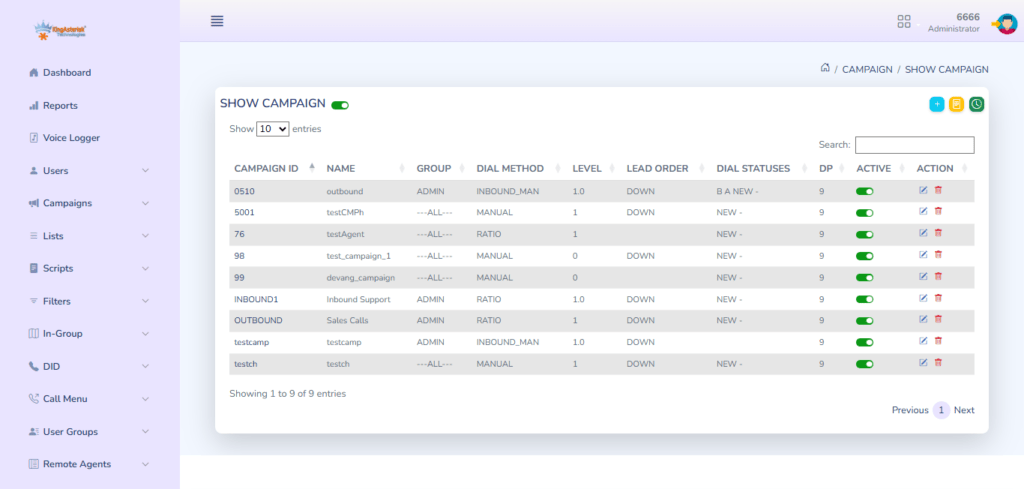
- Go to Admin → Campaigns → [Campaign] → Dial Statuses.
- Note which statuses are listed.
- Run a database query to see the actual distribution of statuses in your list:
SELECT status, COUNT(*) as count
FROM vicidial_list
WHERE list_id = 'YOUR_LIST_ID'
GROUP BY status
ORDER BY count DESC;- Compare. Any status with a high count that does not appear in your Dial Statuses field is a lead pool being silently ignored.
- Add the missing status values to the campaign’s Dial Statuses field, or use a Reset List operation to normalize all lead statuses back to NEW if a full re-dial is appropriate.
Step-by-Step Diagnostic Checklist
Use this checklist in order. Work through each step before moving to the next, in most cases you will isolate the problem within the first three.
- Check the hopper count in real time. Go to Admin → Campaigns → Hopper Viewer. If hopper count is 0 and the campaign is active, proceed.
- Verify list assignment and active status. Confirm all expected lists are assigned to the campaign AND show Active = Y in the Lists table.
- Temporarily disable lead filters. Set the campaign’s Lead Filter to NONE. Observe whether the hopper count climbs within 30–60 seconds. If yes, the filter is the issue.
- Check the local call time window. Confirm the campaign’s call time allows dialing in the current hour for the timezones your leads are in.
- Confirm the hopper cron is running. Run ps aux | grep VDhopper on the server. If it’s not running, restart it and verify the crontab entry.
- Audit dial statuses vs. actual lead statuses. Run the SQL query above against your active list and compare the output against your campaign’s configured Dial Statuses. Add any missing statuses.
- Check available lead count. After correcting statuses, verify there are actually uncalled leads remaining:
Real-World Use Case: Outbound Collections Campaign
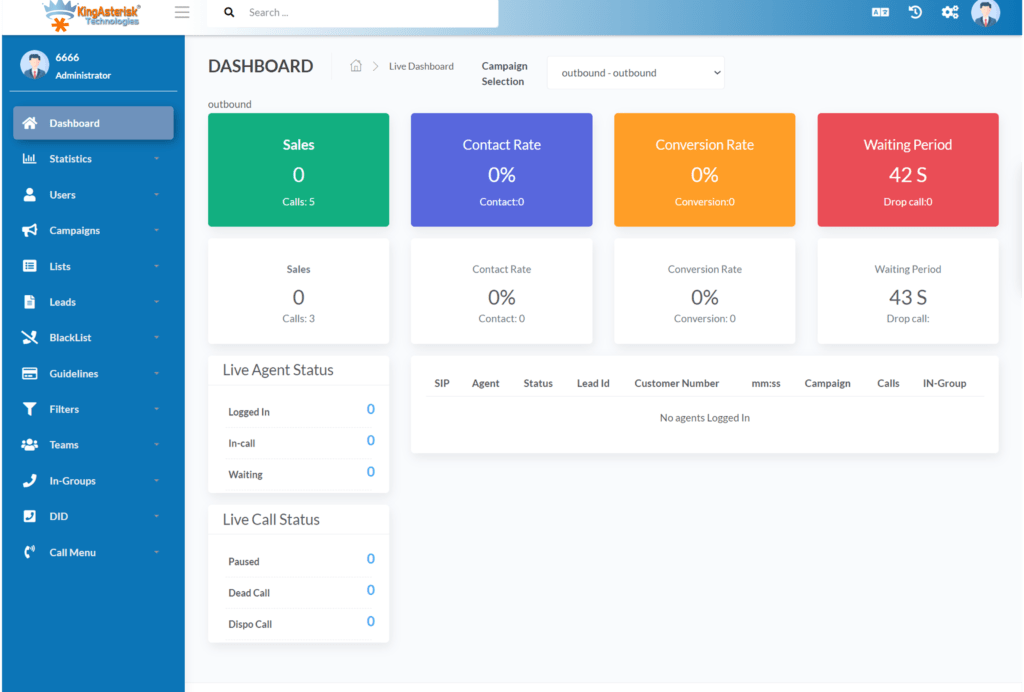
A mid-sized receivables management company running a 45-seat outbound campaign contacted us after their morning shift reported zero calls for over 90 minutes. The campaign dashboard showed Active status, agents were logged in and waiting, but the hopper sat at zero.
What we found:
The operations manager had run a bulk status reset the previous evening to re-queue all leads that had received a NI (No Answer) disposition, changing them back to NEW. The reset executed correctly. However, during the same session, a well-meaning admin had edited the campaign’s Dial Statuses field and accidentally removed NEW from the list while trying to add a custom status code.
The result: an entire list of freshly reset NEW leads, invisible to the hopper because NEW was no longer a recognized dialable status in that campaign.
Resolution time: 4 minutes. Adding NEW back to the Dial Statuses field and triggering a campaign reload had the hopper filling and agents on calls within a single cron cycle.
Lesson: Any time a bulk status reset or campaign edit occurs, immediately spot-check the hopper count within one cron interval (typically 60 seconds). Don’t wait for agents to report silence, build this check into your post-maintenance procedure.
Frequently Asked Questions
The most common reason is a dial status mismatch, your leads have statuses that are not included in the campaign’s Dial Statuses configuration, so the hopper query returns nothing. The second most common reason is that the list is not set to Active. Run the SQL status audit described above and cross-check against your campaign settings to pinpoint which condition applies.
SSH into your server and run ps aux | grep VDhopper. If the AST_VDhopper.pl process is not listed, the cron is not running. Check the crontab with crontab -l -u root and confirm the hopper entry is present and not commented out. Restart the process manually if needed and monitor the hopper count in the admin panel.
Yes, if all of your leads share a single state or timezone and the current time falls outside the campaign’s allowed call window, the hopper will load zero leads. This is expected and correct behavior, not a bug. Verify your call time definition covers the hours you intend to operate, and confirm lead state fields are populated accurately so timezone calculation works correctly.
Lead filters execute as SQL WHERE clauses against your lead table. If you recently modified your list schema (added, removed, or renamed columns), or if a custom field value changed format during an import, the filter may now reference a field or value that no longer exists. Test by temporarily removing the filter, if leads load, rebuild the filter SQL from scratch against your current schema.
The hopper size is set per campaign in the Hopper Level field (commonly 100–500 for active predictive campaigns). A healthy hopper will fluctuate around this target as leads are dialed and replaced. If the hopper consistently stays well below the configured level during active dialing hours, you may have insufficient callable leads remaining in your list, or the cron is running too slowly relative to your dial rate. Check the vicidial_list table for remaining callable leads and consider your list replenishment strategy.
Conclusion
A VICIdial hopper not loading leads is a high-urgency problem that brings an entire outbound operation to a halt, but it is reliably diagnosable and fixable when you know where to look. In the vast majority of cases, the issue is one of five root causes: an inactive or unassigned list, a broken lead filter, a local call time restriction blocking all available leads, a crashed hopper cron job, or a dial status configuration that doesn’t match the actual statuses in your lead database.
Work through the diagnostic checklist in order, use the SQL queries provided to cross-check your data, and you will resolve most hopper issues in under 15 minutes. More importantly, adopt a post-maintenance verification habit, every time a campaign is edited, a list is reset, or a filter is changed, confirm the hopper count is climbing before you walk away.
If your hopper issues are recurring, inconsistent, or tied to more complex multi-campaign or multi-server deployments, the underlying configuration may require a deeper architectural review. The KingAsterisk team has deployed and maintained VICIdial environments across industries for over a decade.
Contact us to schedule a technical consultation, we’ll diagnose your dialer configuration and get your operation running at full capacity.
Article authored by the KingAsterisk Senior Engineering Team, with hands-on experience deploying and maintaining VICIdial and Asterisk-based contact center infrastructure across inbound, outbound, and blended environments globally.