
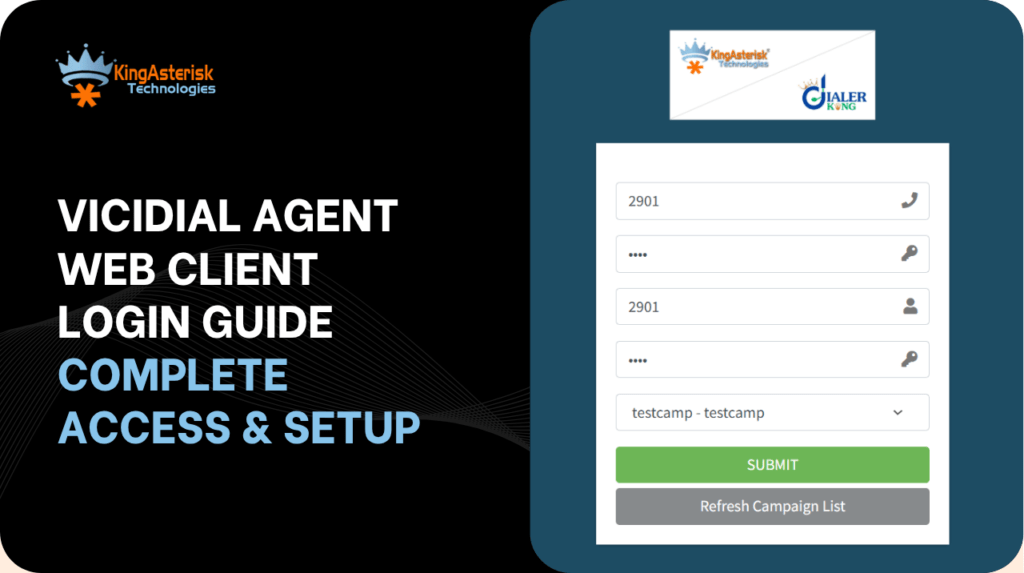
The VICIdial agent web client login is the entry point every agent touches at the start of every shift – and when it breaks, it stops everything. This Vicidial Solution guide walks through the complete access sequence: from the browser URL to a fully active agent session, including campaign assignment, phone registration, session recovery, and the most common errors your team will run into. Whether you are deploying VICIdial for the first time or troubleshooting an access issue in a live operation, this reference covers it all.
VICIdial is one of the most widely deployed open-source contact center platforms in use today, powering outbound predictive dialing, inbound ACD queuing, and blended operations across industries ranging from healthcare collections to financial services outreach.
Its agent-facing interface, the agent web client – runs entirely in a browser, which means there is nothing to install on agent workstations. That simplicity, however, comes with its own configuration requirements. Getting the login sequence right is foundational.
What Is the VICIdial Agent Web Client?
The agent web client is the browser-based interface through which VICIdial agents conduct all their calling activity. Unlike legacy thick-client dialing applications that required desktop software installation, the VICIdial agent web client runs in any standards-compliant browser – Chrome, Firefox, or Edge – making it straightforward to deploy across large agent pools without endpoint management overhead.
Behind the scenes, the agent web client communicates with the VICIdial application server over HTTP/HTTPS and with the Asterisk telephony engine over the manager interface. When an agent logs in, a session is created that binds their agent ID, their assigned campaign, and their phone channel together. Every action – answering a call, entering a disposition, moving to pause – flows through this session.
The platform supports three distinct operational modes accessible through the same login interface: outbound predictive/power/preview dialing, inbound queue handling, and blended campaigns that switch an agent between inbound and outbound automatically based on call volume. The login process is identical across all three; what changes is the campaign the agent is assigned to.
Before You Log In: Prerequisites & System Requirements
Server-Side Requirements
Your VICIdial installation must be running and accessible. Verify the following before an agent attempts to log in:
- The VICIdial web server is up and reachable on the correct IP or hostname from the agent’s network segment.
- The Asterisk telephony service is running and the agent’s phone extension is registered (for SIP phones) or configured (for PSTN/external lines).
- The agent’s user account has been created in the Admin panel under Users, with an active status and an assigned user group.
- At least one campaign is active and the agent is either in the campaign’s allowed agent list or their user group has access.
Agent Workstation Requirements
- A modern browser – Chrome 110+ or Firefox 115+ recommended. Internet Explorer is not supported.
- JavaScript must be enabled. The agent web client is a JavaScript-heavy application; disabling JS will break the interface entirely.
- For browser-based softphone usage: a working microphone, headset, and WebRTC support in the browser.
- Stable network connectivity to the VICIdial server. Latency above 150ms will affect audio quality and session stability.
Information the Agent Needs at Login
- Agent username and password (set by the VICIdial administrator).
- Phone login – either a SIP extension number or an external PSTN number.
- The campaign name or code they have been scheduled to work on (in most deployments, this is pre-assigned and selectable from a dropdown).
Step-by-Step: The VICIdial Agent Web Client Login Sequence
The login sequence has three distinct stages. Understanding each stage separately makes it far easier to diagnose problems when they occur.
Stage 1 – Reaching the Login Page
Open a browser and navigate to your VICIdial server’s agent interface URL. The standard path is:
http(s)://[your-server-ip-or-hostname]/agc/vicidial.php If your server uses HTTPS (recommended for production environments), ensure the SSL certificate is valid or agents will see browser security warnings that prevent the page from loading.
You will see a login form with two fields: Username and Password. These credentials are the same ones set in the VICIdial admin area under Admin > Users. The default admin credentials for a fresh VICIdial install are username: 6666, password: 1234 – but these should be changed immediately on any production system.
Stage 2 – Entering Credentials
Enter your agent username and password and click Login. VICIdial validates the credentials against its MySQL/MariaDB database. If authentication succeeds, the interface advances to the phone and campaign selection screen. If it fails, an error message is displayed on the same page.
Important: VICIdial tracks concurrent logins. If an agent’s credentials are already active in another browser session, the new login will either fail or force the previous session out, depending on your server’s configuration. This is a common source of confusion in shift-changeover scenarios.
Stage 3 – Phone and Campaign Selection
After credential validation, the agent sees a second screen where they select or confirm three things: their phone/extension, their campaign, and (optionally) their session mode. This stage is covered in detail in the following two sections.
Complete VICIdial Agent Login Workflow: From Login Screen to Ready State
The following screenshots illustrate the complete VICIdial Agent Web Client Login process that every agent follows before handling live calls. Understanding each stage helps agents log in faster, reduces common login issues, and ensures they are connected to the correct campaign with a fully registered phone.
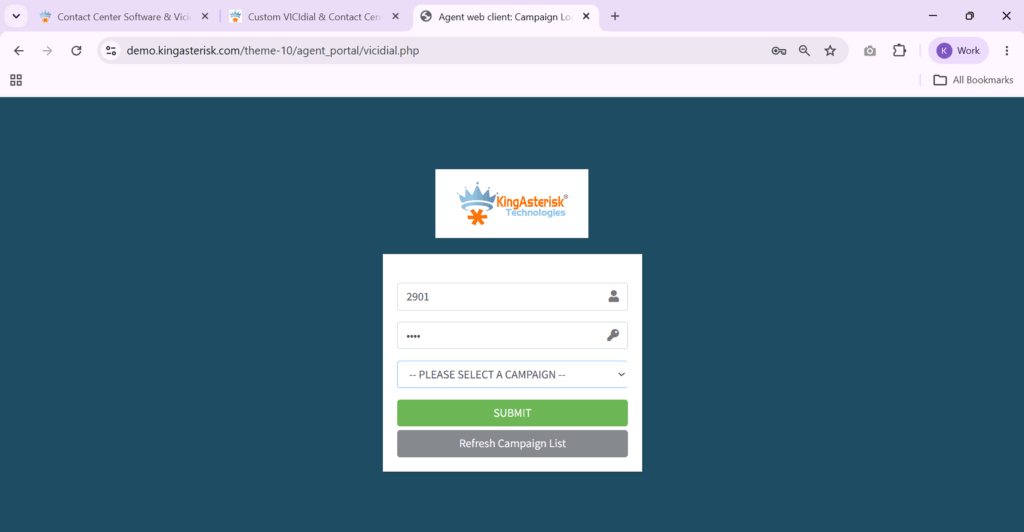
1. Agent Login
The process begins at the standard VICIdial Agent Login page. Agents enter their assigned username and password to authenticate with the server. These credentials are managed by the VICIdial administrator and determine which campaigns and system features the agent can access. A successful login moves the user to the phone registration stage.
2. Phone Login & WebRTC Registration
After authentication, agents register their phone connection. Depending on the deployment, this can be a SIP extension, browser-based WebRTC softphone, or an external phone number. The system verifies that the selected phone is registered and ready before allowing the session to continue. This step establishes the voice channel that will remain active throughout the agent’s shift.
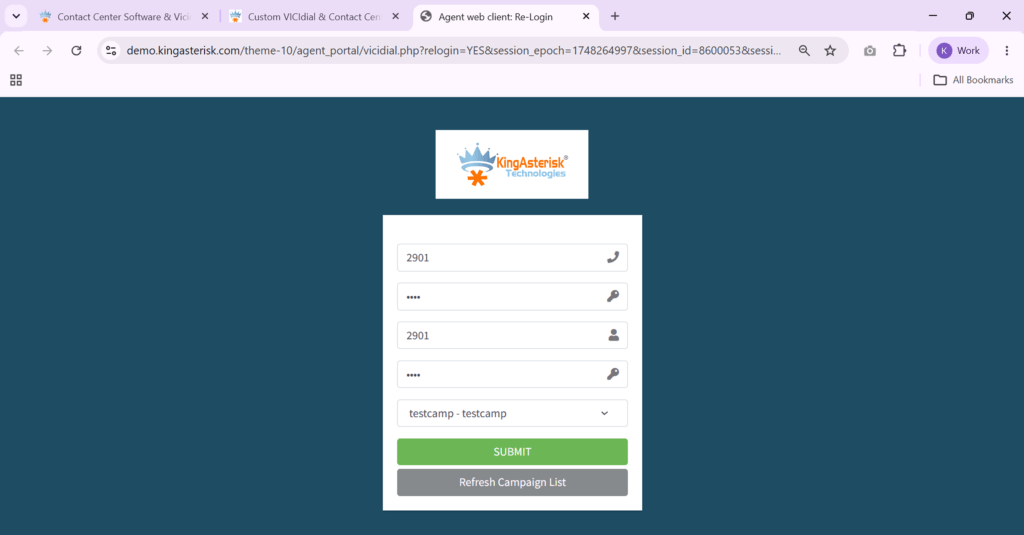
3. Agent Re-Login
If a browser is refreshed, the internet connection drops, or a session times out, agents may be prompted to log in again. VICIdial securely restores access by requiring the same credentials and reconnecting the agent to the active phone session. Proper session cleanup helps prevent duplicate logins and minimizes downtime.
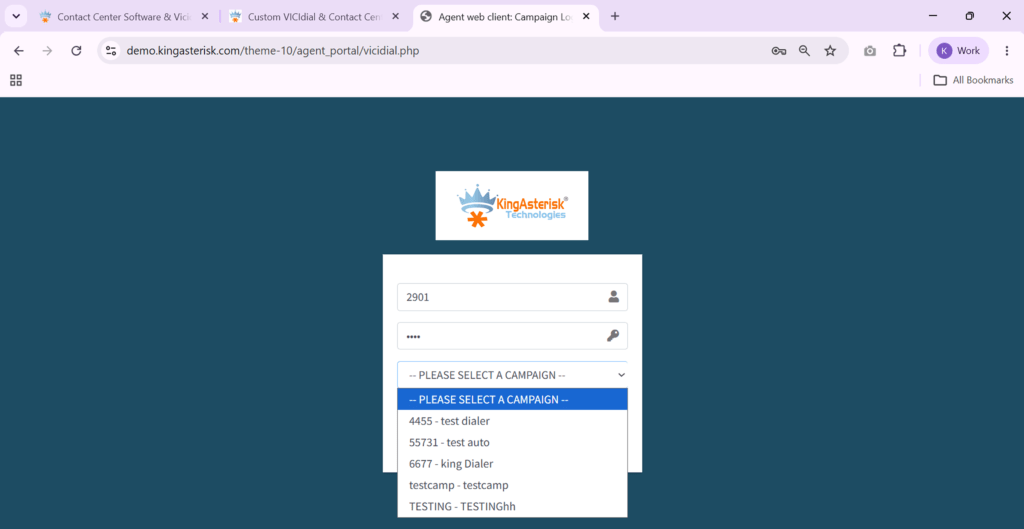
4. Campaign Login
Once the phone is connected, the agent selects the campaign assigned for that shift. Campaign selection determines dialing mode, call scripts, caller ID, dispositions, and routing rules. Most organizations restrict agents to authorized campaigns to ensure they handle the correct customer interactions.
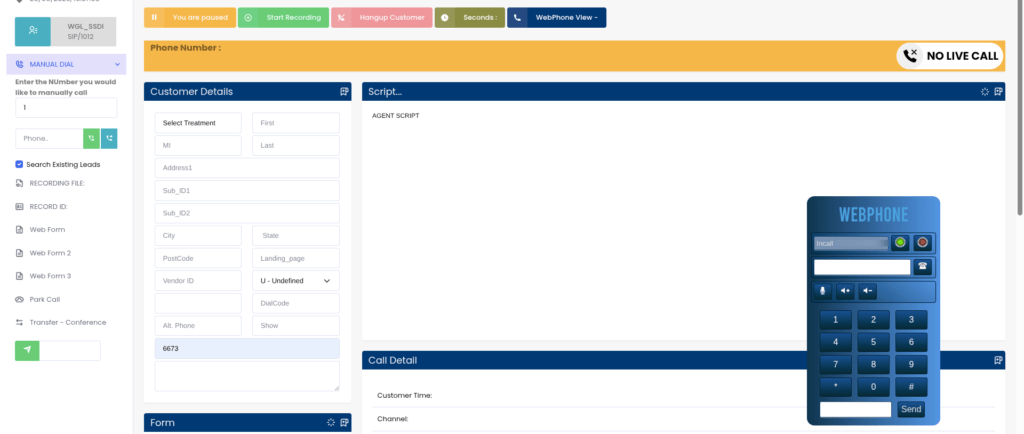
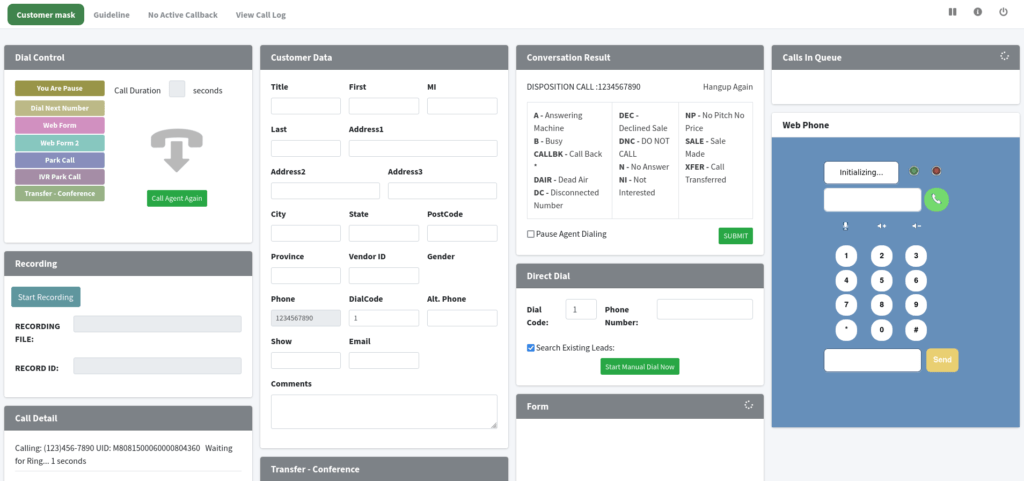
5. Agent Web Client Dashboard
After completing all login stages, the agent is taken to the VICIdial Agent Web Client dashboard. This is the primary workspace where agents receive inbound or outbound calls, view customer information, update dispositions, schedule callbacks, transfer calls, and monitor their current status. A successful login ends here, with the agent fully prepared to begin handling live customer conversations.
Campaign Login – How Assignment Works at the Login Stage
Campaign selection during agent web client login is more than a simple dropdown choice – it defines the operational environment the agent will work in for that session. The campaign controls the dial mode, the script displayed on screen, the list of dispositions available, the caller ID presented to called parties, and the wrap-up time the agent gets between calls.
How Campaign Assignment Is Configured
In the VICIdial admin panel, campaigns are configured under Admin > Campaigns. Each campaign has an allowed ingroups list (for inbound) or a lead list (for outbound). The VICIdial administrator assigns agents to campaigns either directly or through user groups.
When an agent reaches the campaign selection screen at login, they will see only the campaigns they are permitted to access. In high-volume operations, it is common for agents to be restricted to a single campaign – the dropdown effectively has only one option – to prevent agents from accidentally logging into the wrong queue.
The Agent Web Client Campaign Login Flow
- Agent selects campaign from the dropdown (or it is pre-selected).
- VICIdial checks the campaign’s status – active campaigns only.
- The agent’s session is bound to the campaign. The script, dispositions, and dialing settings all load from the campaign configuration.
- For blended campaigns: the agent is registered to both the outbound campaign and the specified inbound ingroup simultaneously.
Phone & Softphone Setup During the Agent Web Client Login
Phone registration is the third critical input at login and the one most likely to cause confusion for new agents. VICIdial supports several phone registration methods, each with different setup requirements.
Option 1 – SIP Extension (Hardware Phone or Soft Client)
This is the most common configuration in production environments. The agent enters their SIP extension number in the phone login field. This extension must be pre-registered in Asterisk’s sip.conf or via a provisioning system. When the agent clicks Login, VICIdial instructs Asterisk to originate a call to that extension to establish the agent’s audio channel. The agent answers the call (often called the ‘keep-alive’ call or ‘agent channel’) and the line stays open throughout the session.
For SIP-based deployments, verify that the SIP port (default UDP 5060) is not blocked between the agent’s network and the Asterisk server, and that the agent’s SIP UA has registered successfully before attempting the VICIdial login.
Option 2 – The VICIdial Softphone (Browser-Based)
VICIdial includes a built-in browser-based softphone option that uses WebRTC to handle audio directly in the browser. To use it, the agent selects ‘SOFTPHONE’ as their phone type at the login screen (the exact label varies by VICIdial version). The browser will request microphone permission – this must be granted for audio to function.
Browser softphone operation requires a WebRTC-capable browser and a valid SSL certificate on the VICIdial server (browsers block WebRTC on non-HTTPS origins). This option is well-suited to remote agents or environments where deploying SIP phones is impractical.
Option 3 – External Number / PSTN
In scenarios where an agent is working from a location with only a standard phone line, VICIdial can be configured to call out to a PSTN number (a mobile or landline) to establish the agent’s audio channel. The agent enters the full PSTN number in the phone login field with the appropriate dial prefix. This method introduces additional per-call telephony costs but provides flexibility for remote or contingency setups.
Phone Login Field Formats
The format entered in the phone field depends on the method:
- SIP extension: numeric extension only, e.g. 8301
- Softphone: select from dropdown – no number entry required
- External PSTN: full number with any required outbound prefix, e.g. 9913005550100
Live Agent Demo
Re-Login: Session Recovery After a Timeout or Disconnection
VICIdial agent sessions do not persist indefinitely. A session can terminate due to inactivity timeout, browser closure, network interruption, or a server-side session cleanup. When this happens, the agent is redirected to the login page or sees a session error within the agent web client interface.
What Triggers a Session Termination
- Browser tab closed or refreshed during an active session.
- Session inactivity timeout reached (configured in vicidial.conf or the server admin panel).
- Network interruption lasted long enough for the Asterisk channel to drop.
- Administrator forcibly logs out the agent from the admin panel.
- Server restart or Asterisk reload during the agent’s session.
The Re-Login Process
The re-login flow follows the same steps as a normal login. Navigate to the agent web client URL, enter credentials, select campaign and phone. However, there is an important consideration: if the agent’s previous session has not been fully cleaned up on the server, VICIdial may show a ‘session already active’ warning.
In this case, the agent should wait 60–90 seconds for the server’s session cleanup routine to run, then attempt login again. If the issue persists, a VICIdial administrator can manually terminate the stuck session from Admin > Users > [Agent] by resetting the agent’s session status in the database or using the Real-Time Report to force-logout the agent’s previous session.
Preventing Unnecessary Re-Logins
- Set appropriate session timeout values – too short causes frequent disruptions; too long leaves ghost sessions on the server.
- Train agents not to refresh the browser during an active session.
- Use a wired network connection where possible; Wi-Fi instability is a common cause of dropped agent channels.
- Enable VICIdial’s built-in session keepalive pings to maintain session continuity during periods of low call volume.
The Agent Dashboard: What You See After a Successful Login
Once all three login stages complete successfully, the agent web client loads the main dashboard. This is where agents spend the entirety of their working session.
Dashboard Layout at a Glance
The dashboard is divided into functional zones. The upper portion shows the agent’s current status – Ready, Pause, or a call-specific state – along with the campaign name and their phone channel status. The central area is the script/information panel, which displays the campaign script and the called party’s information pulled from the lead record. The lower portion contains disposition buttons, callback scheduling, and transfer controls.
Agent Status Indicators After Login
- READY – Agent is logged in and available to receive or place calls.
- PAUSED – Agent has activated a pause code (lunch, break, training, etc.). The specific pause reason is logged.
- INCALL – An active call is in progress. All call controls are active.
- DISPO – Agent is in the wrap-up period, selecting a call outcome/disposition.
- CLOSER – Agent has transferred to or received a transfer from another campaign group.
The dashboard also shows real-time statistics relevant to the agent’s session: total calls handled, average handle time, and disposition breakdown — useful for agents managing their own productivity targets.
Advanced Fix: Checking the VICIdial Logs
For errors not resolved by the table above, the VICIdial server logs are the primary diagnostic resource. Key log locations on a standard VICIdial installation:
/var/log/astguiclient/AST_LOG_[date].txt - VICIdial application layer logs

/var/log/asterisk/full - Asterisk engine logs including SIP registration and call events

/var/log/httpd/error_log or /var/log/apache2/error.log - Web server errors
Agent login events are logged with the agent ID, timestamp, IP address, campaign, and phone used. Cross-referencing these with the error timestamp is usually sufficient to pinpoint the root cause.
Frequently Asked Questions
How do agents access the VICIdial agent web client❓
Agents navigate to the VICIdial server’s agent interface URL in a browser – typically http(s)://[server-address]/agc/vicidial.php. No software installation is required. The agent enters their username and password, then selects their campaign and phone at the second screen. The entire login sequence takes under 60 seconds on a properly configured system.
Can the agent web client be accessed from a mobile device or tablet❓
The agent web client is designed for desktop browsers and does not render well on mobile screen sizes. While technically accessible on a tablet or mobile browser, the interface layout is not optimized for touchscreens and call-handling operations become cumbersome. For mobile or remote access, a laptop with a full browser and a headset is the recommended minimum setup.
What is the VICIdial softphone and how does it work at login❓
The VICIdial softphone is a built-in WebRTC-based audio client that handles voice directly in the browser, eliminating the need for a separate SIP phone or soft client. At the login screen, the agent selects SOFTPHONE as the phone type. The browser establishes a WebRTC connection to the Asterisk server for audio. This requires HTTPS on the server, a valid SSL certificate, and browser microphone permission to function correctly.
What should an agent do if the login page is not loading❓
First, confirm the VICIdial server is running and reachable from your network – try pinging the server IP. Check that the Apache or Nginx web service is active on the server. If the server is reachable but the page returns an error, check the web server error log. If the server is accessible from other machines but not yours, check your local firewall or network routing. Also confirm you are using the correct URL including the /agc/ path component.
Conclusion
The VICIdial agent web client login is a three-stage sequence – credential verification, campaign selection, and phone registration – and each stage has specific requirements that must be in place before the next can succeed. Agents who understand what the system expects at each step, and administrators who keep user accounts, campaign assignments, and SIP registrations properly maintained, will rarely encounter login failures.
For high-volume contact centers, login reliability directly affects shift startup time and agent utilization. A 5-minute login issue across 50 agents at shift start is 250 person-minutes of lost productivity. Getting the agent web client login process documented, tested, and streamlined is not a minor operational detail – it is a measurable efficiency factor.
If you are deploying VICIdial for the first time, migrating from an older version, or troubleshooting persistent login issues in an existing operation, the KingAsterisk team brings hands-on deployment experience across multi-site, high-agent-count environments. We handle the technical complexity so your team can focus on what matters: handling calls and serving customers.
Ready to deploy or scale your contact center platform?
The KingAsterisk team has hands-on experience deploying VICIdial across multi-site contact centers worldwide. Whether you need a fresh setup, a performance audit, or a complex multi-campaign configuration, we make it work – reliably.
Contact KingAsterisk Technologies – Let’s Talk Solutions