
Top 7 Asterisk Issues Breaking Your Contact Center (Fix Fast)
Asterisk Development Solutions

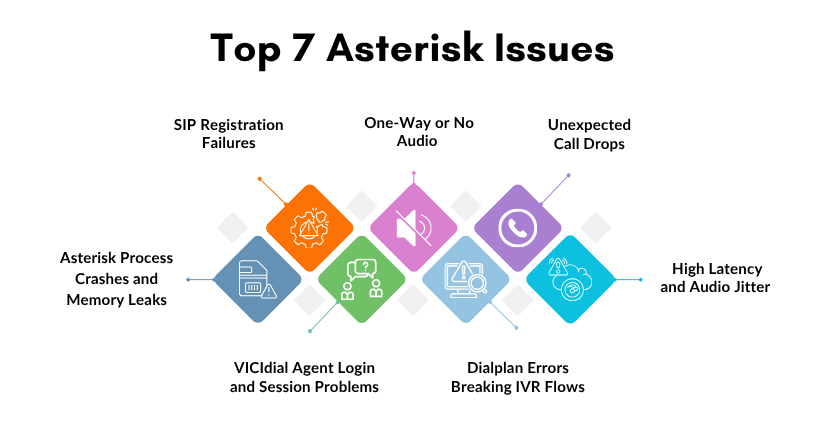
Top 7 Asterisk Issues Disrupting Your Contact Center Workflow (Fix Them Quickly with Our Team)

Asterisk issues are one of the most common, and most operationally damaging, sources of downtime in modern contact center environments. When your open-source Asterisk telephony backbone starts misbehaving, the ripple effects are immediate: agents can’t connect calls, IVR flows break mid-customer-journey, and your SLA metrics collapse in real time. 

At KingAsterisk, we’ve been deploying and maintaining Asterisk-based contact center platforms for over 15 years, and we’ve seen these problems firsthand across operations of every size, from 10-seat inbound support desks to 500-agent outbound sales floors.

The difference between a 15-minute fix and a 4-hour outage almost always comes down to knowing exactly where to look. This guide doesn’t deal in generalities. Each section below names a specific failure mode, explains precisely why it happens, and gives you actionable steps to resolve it, whether you’re troubleshooting a live outage right now or hardening your system against the next one.
Issue #1 — SIP Registration Failures

What It Looks Like

Agents report that their softphones show “Registration Failed” or “401 Unauthorized.” Inbound routes stop receiving calls entirely. Your trunk provider’s portal shows the line as offline or unregistered. Sometimes this affects only certain extensions; other times the entire SIP trunk goes dark.

Why It Happens

SIP registration failures are among the most frequent Asterisk issues and typically stem from one of three root causes:

  • Incorrect credentials in sip.conf or pjsip.conf — passwords changed at the provider end but not updated locally, or a copy-paste error introduced a hidden character
  • Firewall blocking UDP port 5060 — especially common after a server migration, OS-level security update, or cloud security group change
  • NAT traversal misconfiguration — the externip and localnet parameters are missing or incorrect, causing Asterisk to send a private IP address in its SIP Contact header, which the provider cannot reach

How to Fix It

  1. Check peer registration status from the CLI: asterisk -rx “sip show peers” — look for peers showing UNREACHABLE or UNKNOWN status. For chan_pjsip: asterisk -rx “pjsip show endpoints”.

  2. Enable SIP debug logging in real time: asterisk -rx “sip set debug on” — watch for 403 Forbidden, 401 Unauthorized, or 404 Not Found responses from your provider.

  3. Verify firewall rules are not blocking port 5060: iptables -L -n | grep 5060 and ufw status verbose on Ubuntu systems.

  4. In sip.conf, confirm that externip= and localnet=192.168.x.x/255.255.255.0 are correctly set under [general].

  5. Reload the SIP channel driver without a full Asterisk restart: asterisk -rx “module reload chan_sip.so”, this applies credential and NAT changes immediately.

    💡 Pro Insights: Custom Vicidial Admin Dashboard  

      Issue #2 — One-Way or No Audio (RTP Problems)

      What It Looks Like

      Calls connect successfully, the SIP handshake completes and the agent’s phone shows an active call, but one or both parties hear complete silence. The agent hears the customer but the customer hears nothing, or vice versa. Occasionally both sides are silent. This is one of the most frustrating Asterisk issues precisely because the call technically “works” at the signaling layer.

      Why It Happens

      Audio in Asterisk travels over RTP (Real-Time Protocol), which uses a completely separate port range, typically UDP 10000–20000, from SIP signaling on port 5060. One-way audio almost always points to a NAT or firewall problem at the media layer rather than the signaling layer:

      • RTP packets are being sent to a private IP address because nat=yes is not set for the SIP peer, and Asterisk is trusting the IP in the SDP body rather than the source IP of the packet
      • The RTP port range is blocked by a firewall while SIP port 5060 is open, a common misconfiguration when rules are set up quickly
      • A codec mismatch between Asterisk and the remote endpoint, one side is sending G.711 audio and the other is only prepared to decode G.729, so the media stream is received but not rendered

      How to Fix It

      1. Confirm that nat=force_rport,comedia is set under [general] in sip.conf for any NAT environment. For chan_pjsip, ensure direct_media=no for NATted endpoints.

      2. Open the full RTP port range: ensure UDP 10000–20000 is allowed both inbound and outbound on your host firewall and any upstream security groups.

      3. Check active codec negotiation mid-call: asterisk -rx “sip show channel “, look at the Codecs and Format fields.

      4. IControl codec priority explicitly in sip.conf: set disallow=all first, then allow=ulaw and allow=alaw in order of preference. Remove any ambiguous wildcard allowed entries.

      5. If your server runs on a cloud platform (AWS, DigitalOcean, Google Cloud, Azure), verify that the cloud security group or network ACL rules cover the full RTP range, not just port 5060.

      Issue #3 — Unexpected Call Drops

      What It Looks Like

      Calls that were connecting and progressing normally suddenly drop at the 30-second mark, the 90-second mark, or some other suspiciously consistent interval. The timing is too regular to be random. Agents are complaining. Customers are calling back frustrated. Call recordings end abruptly.

      Why It Happens

      Timing-based call drops are a classic symptom of SIP session timer expiry or missing re-INVITE handling, and they’re among the trickier Asterisk issues to diagnose because the problem is often rooted in how a stateful firewall is treating mid-call SIP traffic:

      • SIP session timers are set by your carrier to refresh the session at a defined interval; the re-INVITE packet used for this refresh is being dropped by your firewall, which treats it as a new out-of-state connection
      • rtptimeout and rtpholdtimeout values in sip.conf are configured too aggressively, terminating calls when Asterisk detects a gap in RTP traffic, this hits IVR hold scenarios particularly hard
      • Carrier-side BYE is being sent because the carrier’s session timer expires without receiving a re-INVITE response, often looping back to the one-way audio problem causing the carrier to abandon the session

      How to Fix It

      1. In sip.conf, set session-timers=refuse to reject session timer requests from the carrier if your provider supports sessions without timers, or session-timers=accept to defer the interval decision to them.

      2. Adjust RTP timeout values: rtptimeout=60 and rtpholdtimeout=300 for standard contact center use. Set rtptimeout=0 to disable RTP-based hangups entirely in environments with long IVR hold periods.

      3. Enable qualify=yes for all SIP peers to send OPTIONS keepalives every 60 seconds, this maintains NAT bindings and keeps stateful firewall sessions open.

      4. If using Linux’s netfilter, load the SIP conntrack helper: modprobe nf_conntrack_sip, this allows the firewall to track SIP dialogs properly and permit re-INVITEs.

      5. Consider switching from UDP to TCP for SIP signaling (tcpenable=yes in sip.conf) if your UDP packets are being dropped by intermediate stateful firewalls.

        Issue #4 — High Latency and Audio Jitter

        What It Looks Like

        Agents report that callers sound robotic, words cut in and out, or that there is a noticeable echo on the line. The problem worsens during peak calling hours and improves overnight. Call quality scores drop. CSAT surveys show audio quality complaints spiking. Supervisors can hear it on call recordings.

        Why It Happens

        Audio jitter and high latency in Asterisk deployments are usually infrastructure or configuration issues rather than core Asterisk bugs, but Asterisk configuration choices directly amplify or reduce the problem:

        • Codec transcoding overhead — if Asterisk is converting between G.729 and G.711 at high call volumes, the CPU load during peak hours causes audio buffer starvation, introducing gaps and jitter
        • Insufficient or shared server resources — Asterisk is CPU and I/O sensitive; running your PBX, database, web server, and dialer on a single physical host is a recipe for resource contention during peak campaigns
        • Incorrect jitter buffer configuration — Asterisk’s native jitter buffer is disabled by default; when enabled improperly, it introduces additional latency rather than smoothing out packet arrival variation

        How to Fix It

        1. Monitor CPU usage in real time during peak call hours: htop filtered to the asterisk process — sustained CPU above 70% during calls is a warning sign.

        2. Eliminate transcoding wherever possible: if your SIP trunk and agent endpoints both support G.711 ulaw, force allow=ulaw and disallow=all on both sides. Passthrough audio requires zero CPU for codec conversion.

        3. If a jitter buffer is genuinely needed (high-latency WAN links): set jbenable=yes, jbmaxsize=200, and jbimpl=fixed in sip.conf under [general] — avoid adaptive jitter buffer in contact center environments where latency consistency matters more than flexibility.

        4. Separate Asterisk from your database server — MySQL/MariaDB for VICIdial should run on a dedicated host or at minimum have I/O scheduling priority (ionice -c 1 -n 0 -p ).

        5. Run Asterisk with elevated CPU scheduling priority: nice -n -10 /usr/sbin/asterisk — or set OOMScoreAdjust=-100 in the systemd unit file to protect Asterisk from being killed under memory pressure.

          Issue #5 — Dialplan Errors Breaking IVR Flows

          What It Looks Like

          Callers reach your IVR menu but get dumped to a fast busy tone unexpectedly, hear silence after making a selection, or get trapped in an infinite loop. Your extensions.conf was working correctly until a recent configuration change touched it. Sometimes only specific menu paths are broken; the main greeting plays fine.

          Why It Happens

          IVR-related Asterisk issues almost always trace back to dialplan logic errors, missing context definitions, or silent failures in AGI scripts:

          • A called extension references a context name that doesn’t exist or contains a typo, Asterisk fails to find it and routes to the [default] context or hangs up
          • An AGI or FastAGI script fails silently (non-zero exit code, missing Python library, broken database connection) and the dialplan has no h extension error-handling branch to catch it
          • A Goto() or GotoIf() application targets a label or extension that was renamed or deleted during a configuration update
          • The [default] context is unintentionally catching calls it should never reach, masking the real missing-context error

          How to Fix It

          1. Inspect the loaded dialplan without touching a live call: asterisk -rx “dialplan show ” — if the output is empty, the context isn’t loaded or has a name mismatch.

          2. Enable verbose dialplan tracing on the CLI: asterisk -rx “core set verbose 5” — then run a test call. Watch exactly which extensions are matched and where execution diverges from expectation.

          3. Check AGI script health independently: run the script directly from the shell as the asterisk user — sudo -u asterisk /usr/share/asterisk/agi-bin/your_script.agi — and check its exit code with echo $?. Any non-zero value signals a failure Asterisk will silently route around.

          4. Audit Goto(), GotoIf(), and GoSub() targets after any dialplan edit — confirm every referenced extension, context, and label exists in the current loaded configuration.

          5. After every dialplan change, reload without restarting Asterisk: asterisk -rx “dialplan reload” — then immediately verify with dialplan show to confirm the new configuration is active.

          Issue #6 — VICIdial Agent Login and Session Problems

          What It Looks Like

          Agents are unable to log into VICIdial at shift start, receive “session expired” errors in the middle of active calls, or find themselves listed as logged in after they’ve clocked out. Campaign managers see incorrect real-time agent counts on the supervision screen. The predictive dialer calculates abandon rates incorrectly because it thinks more agents are available than actually are.

          Why It Happens

          VICIdial runs on top of Asterisk and introduces its own session management layer through the vicidial_live_agents MySQL table. Breakdowns here are compound problems, they can involve Asterisk, the database, the AMI connection, or all three simultaneously:

          • Stale session records remaining in vicidial_live_agents from a previous crash, server restart, or agent who closed their browser without logging out properly
          • Asterisk AMI connection instability — VICIdial communicates with Asterisk exclusively through the Asterisk Manager Interface; if this connection drops and doesn’t reconnect cleanly, agent state events stop flowing and VICIdial’s view of call state diverges from reality
          • MySQL max_connections exceeded during high-agent-count shifts, causing VICIdial’s PHP processes to fail silently on database writes

          How to Fix It

          1. Clear stale sessions that are preventing fresh logins: UPDATE vicidial_live_agents SET status=’DEAD’ WHERE last_update_time < NOW() - INTERVAL 10 MINUTE AND status NOT IN ('DEAD'); — run this during a shift transition, not during active calling.

          2. Check AMI connectivity health: grep “AMI” /var/log/asterisk/full | tail -50 — look for “Lost Connection” or “Authentication Failed” entries correlating with the time agents started reporting problems.

          3. In manager.conf, verify the VICIdial AMI user has complete permissions: read = all and write = all — a partially permissioned AMI user is one of the most common causes of intermittent VICIdial session desynchronisation.

          4. Increase MySQL’s connection limit to accommodate peak agent load: in /etc/mysql/my.cnf, set max_connections = (number_of_agents Ă— 3) + 100 — restart MySQL during a maintenance window to apply.

          5. Restart VICIdial’s server-side processes cleanly when stale state has accumulated: /usr/share/astguiclient/ADMIN_restart_vicidial_servers.pl — this script handles process teardown and restart in the correct order.

          Issue #7 — Asterisk Process Crashes and Memory Leaks

          What It Looks Like

          Asterisk stops unexpectedly during active operations, sometimes in the middle of a campaign peak. If a watchdog process is configured, it auto-restarts Asterisk within seconds, but all calls in progress drop instantly. Over days or weeks, you notice memory usage climbing steadily until the server becomes sluggish and then unresponsive, requiring a manual restart to recover.

          Why It Happens

          Process stability Asterisk issues are less common in recent LTS versions but still surface in specific environments and configurations:

          • Module memory leaks: certain third-party modules and older builds of app_queue.so have documented leak patterns under sustained high call volume. The leak is slow enough to go unnoticed for days but eventually critical.
          • Core dump files filling the disk: when Asterisk crashes and core dumps are enabled, /tmp or /var fills up rapidly; subsequent Asterisk restarts then fail because the filesystem is full, turning a recoverable crash into a prolonged outage
          • Improper forced kills: using kill -9 on the Asterisk process instead of graceful shutdown corrupts in-memory state, increases the frequency of subsequent crashes, and can leave SIP sessions in a half-open state at the carrier

          How to Fix It

          1. Run Asterisk under systemd supervision with automatic restart: in /etc/systemd/system/asterisk.service, set Restart=on-failure and RestartSec=5; this provides sub-10-second recovery for most crash scenarios.

          2. Monitor RSS memory growth over time: watch -n 30 “ps -o pid,rss,vsz,comm -p \$(pgrep asterisk)“: if RSS grows continuously over hours without stabilising, a scheduled graceful reload every 24 hours during off-peak is a pragmatic interim measure.

          3. Control core dump behavior in /etc/asterisk/asterisk.conf: set dumpcore = no for production systems, or redirect to a controlled path with a size cap using systemd’s LimitCORE directive.

          4. Always stop Asterisk gracefully: asterisk -rx “core stop gracefully”: this command waits for all active calls to complete before exiting, preventing mid-call drops and carrier-side session corruption. Never use kill -9 unless the process is completely unresponsive.

          5. Stay current on patch releases: review Asterisk’s CHANGES and UPGRADE.txt for your major version branch: the majority of crash-inducing bugs in production environments have already been fixed in a point release.

          Step-by-Step: How KingAsterisk Diagnoses and Resolves Asterisk Issues

          When a contact center brings an active problem to our team, our senior engineers follow a structured diagnostic process that minimises downtime and avoids the “restart everything and hope” trap. Here is the exact approach we use:

          1. Establish live CLI access first: connect to the running Asterisk process: asterisk -rvvv (three to five vs for appropriate verbosity). Never rely solely on log files written hours ago for an active fault.
          2. Reproduce the fault in a controlled way: place a test call that triggers the issue while watching the CLI output in real time. A fault you can reproduce consistently is a fault you can fix.
          3. Isolate the layer: determine precisely whether the problem lives at the SIP signaling layer, the RTP media layer, the dialplan execution layer, or the application layer (VICIdial, AGI scripts, database connections).
          4. Anchor to the change timeline: review /var/log/asterisk/full and server change logs for the exact timestamp when the issue began. Correlate with any configuration edits, OS or kernel updates, network topology changes, or carrier notifications.
          5. Inspect the relevant configuration files: sip.conf or pjsip.conf, extensions.conf, queues.conf, manager.conf: for the specific feature area identified in Step 3.
          6. Test the fix in isolation before applying to production: if the environment allows it, replicate the call path on a test extension or staging system. If not, apply the smallest possible change and observe.
          7. Apply the targeted fix: make only the minimum necessary configuration change, then reload only the affected module (asterisk -rx “module reload chan_sip.so”) rather than a full service restart whenever possible.
          8. Monitor actively for 30–60 minutes: watch the system under normal production load after the fix is applied. A problem that appears resolved in testing can resurface under concurrent call volume.
          9. Set up an automated alert: if the fault had no existing monitoring, add a check in Nagios, Zabbix, or your monitoring tool of choice on the specific metric that failed. Don’t leave the next occurrence to chance discovery.
          10. Document root cause and resolution: record both the cause and fix in your internal runbook. Asterisk issues, especially those caused by carrier behaviour changes or OS interactions, have a pattern of recurring months later when team knowledge has shifted.

          Real-World Use Case: Outbound Campaign Recovery

          A mid-sized collections contact center with 120 VICIdial agents came to KingAsterisk after experiencing a 40% call drop rate that appeared exactly three days after a scheduled server OS upgrade. Agents were logging in, campaigns were running, and calls were connecting — but they were dropping consistently at the 32-second mark with no obvious pattern to which agents or campaigns were affected.

          Our diagnosis: the OS upgrade had reset the server’s iptables rule set to default, and the Linux conntrack module’s default configuration was treating SIP re-INVITE packets at 30 seconds as out-of-state connections and silently dropping them. The carrier’s session timer was set to 30 seconds, meaning every active call that hit that interval was being immediately terminated by the carrier when the re-INVITE went unanswered.

          The fix took under 20 minutes to implement: we loaded nf_conntrack_sip with proper configuration to enable SIP-aware connection tracking, adjusted session-timers=refuse in sip.conf for the affected trunk peer, and flushed the stale conntrack table entries. Call drops fell from 40% to under 0.5% within the first monitored hour. No Asterisk restart was required. The entire resolution happened during a live shift with zero agent disruption.

          This case illustrates the core principle behind how we approach every Asterisk issues engagement: the problem is almost never what it looks like on the surface, and the right diagnostic path gets you to a precise, minimal fix rather than a disruptive restart that buys hours of relief before the fault reappears.

          🚀 Try It Live: Live Demo of Our Solution!  

          Frequently Asked Questions

          Enable real-time SIP and RTP debugging directly from the Asterisk CLI with zero service disruption. Run asterisk -rvvv to attach a console to the running process, then execute sip set debug on to begin capturing SIP negotiation output in real time. For RTP-level inspection, use rtp set debug on. Both debug modes are fully safe to enable on a production system and can be turned off with the corresponding off command once you have captured the data you need.

          Calls dropping at consistent intervals, commonly 30, 60, or 90 seconds, almost always indicate a SIP session timer problem. The SIP protocol allows either party to set a session expiry interval; when the re-INVITE used to refresh that session is blocked by a firewall or rejected by one endpoint, the other party sends a BYE and terminates the call. The fix typically involves either adjusting session-timers in sip.conf to refuse or accept, or configuring the Linux kernel’s SIP conntrack module to allow mid-call SIP re-INVITEs to pass through properly.

          Yes, significantly. VICIdial depends on Asterisk’s AMI (Asterisk Manager Interface) for every real-time agent event and call state update. If the AMI connection becomes unstable, due to authentication errors, network interruption, or excessive event volume overwhelming the socket,  VICIdial loses synchronisation with the actual call state. This manifests as agents appearing logged in when they have disconnected, calls not being credited correctly to campaigns, and the predictive dialer calculating abandon rates and dial ratios based on phantom agent availability. Stabilising the AMI connection is always the first remediation step before adjusting any campaign or dialer settings.

          Production contact centers should track Asterisk’s Long-Term Support releases, which receive security and bug fix updates for five years after release. Apply patch releases, for example, moving from 20.x.1 to 20.x.5, within a 30-day window after testing in a staging environment. Never apply them immediately to production, and never delay them indefinitely. Major version upgrades should be treated as a full migration project with a staging environment test, agent impact assessment, and a documented rollback plan ready before the maintenance window begins.

          Key Takeaways

          • The most disruptive Asterisk issues, including SIP failures, one-way audio, and call drops, have clear, proven fixes when diagnosed correctly.
          • Many problems stem from misconfigured NAT settings, codec mismatches, or inadequate server resources rather than Asterisk itself.
          • VICIdial deployments built on Asterisk require careful tuning of dialplan logic, database connections, and agent session management.
          • Proactive monitoring with tools like asterisk -rvvv and log analysis can catch issues before they escalate to full outages.
          • KingAsterisk’s engineering team has resolved these exact problems across hundreds of contact center deployments spanning 15+ years.

          Conclusion

          Asterisk issues don’t have to mean hours of downtime, frustrated agents, and damaged customer relationships. The seven problems covered in this guide, SIP registration failures, one-way audio, call drops, audio jitter, dialplan errors, VICIdial session problems, and process crashes, each have clear diagnostic paths and proven, targeted fixes. The key is knowing which layer of the stack to examine, having the right CLI commands ready, and approaching each fault methodically rather than reactively.

          What separates a 15-minute resolution from a 4-hour outage is almost always experience,  knowing what a 32-second call drop pattern means before you’ve even opened a log file, or recognising a codec mismatch from a single line of SIP debug output. That depth of hands-on knowledge is exactly what KingAsterisk brings to every engagement.

          With over 15 years of specialised experience in Asterisk, VICIdial, IVR systems, and contact center telephony infrastructure, our engineering team has seen, and resolved, every Asterisk issue in this guide and hundreds more. Whether you’re managing an active outage right now or want to harden your system before the next failure strikes, we’re ready to help.

          Contact the KingAsterisk team to speak directly with an engineer who works with Asterisk every day.

          Authored by the KingAsterisk Senior Engineering Team, specialists in Asterisk, VICIdial, IVR, and contact center telephony infrastructure with 15+ years of hands-on deployment experience across inbound, outbound, and blended contact center operations.

          Build Custom VICIdial Dashboard & WebRTC Agent Interface 2026
          Vicidial Software Solutions

          How to Build Custom VICIdial Admin Dashboard & WebRTC Agent Interface for Contact Centers (2026)

          Building a custom VICIdial admin dashboard is one of the highest-leverage improvements a contact center can make, and yet most operations run on VICIdial’s default interface long after they’ve outgrown it. The default UI was designed for broad compatibility, not for the specific workflow of a 50-seat outbound BPO, a healthcare scheduling team, or a financial services inbound center. 

          This guide covers, in practical terms, how to design and deploy a tailored admin dashboard alongside a browser-based WebRTC agent interface that modern agents actually want to use.

          Whether you’re an IT manager evaluating an overhaul or a contact center director looking to justify the investment to stakeholders, this article walks you through architecture choices, must-have features, and a field-tested build process, drawn from KingAsterisk’s deployment experience across hundreds of live contact centers.

          Why a Default VICIdial UI Is Not Enough in 2026

          VICIdial is a powerful open-source platform: proven, scalable, and incredibly flexible at the Asterisk level. But its admin panel, built over many years of incremental updates, was never designed as a modern management interface. Supervisors often have to navigate five or six separate pages to get a coherent picture of a single campaign’s live performance. 

          Agents work inside a thin PHP interface that doesn’t adapt to browsers, breaks on mobile, and offers no integration hooks for CRM widgets or scripting.

          VICIdial exposes agent activity through its native API endpoint: 

          GET /vicidial/non_agent_api.php?source=test&user=admin&pass=***&function=version

          In 2026, contact center leaders are competing on speed and personalization. A real-time call monitoring interface that refreshes every 30 seconds is no longer acceptable when WebSocket-based dashboards can push live data at sub-second latency. Custom dashboards solve this by sitting on top of VICIdial’s database and API layer, pulling exactly the data each role needs and surfacing it in a way that actually accelerates decisions.

          Industry note: According to multiple contact center technology studies, supervisors using role-specific dashboards identify and resolve agent performance issues up to 3x faster than those using generic reporting screens.

          Architecture Overview: Dashboard + WebRTC Stack

          đź’ˇ Custom Admin Dashboard
          We develop a modern, clean, and fully customized admin dashboard tailored to your contact center’s exact needs. From live agent monitoring to campaign-level analytics, every panel is built for speed, clarity, and role-based access, so your supervisors always have the right data at a glance.

          Before writing a single line of front-end code, it’s critical to get the architecture right. A custom VICIdial solution typically has three layers:

          Data Layer

          VICIdial MySQL/MariaDB tables, Asterisk AMI event stream, and campaign configuration tables.

          AMI connects on port 5038. A basic login handshake looks like: 

          Action: Login / Username: admin / Secret: yourpass

          API Middleware

          Node.js or Python FastAPI layer translating VICIdial DB queries into clean JSON endpoints with WebSocket push for real-time events.

          Presentation Layer

          React or Vue.js front end consuming API endpoints. Separate views for admin, supervisor, and agent roles, all served over HTTPS.

          The middleware layer is the most critical architectural decision. Direct queries from the front end to the VICIdial database work in development but create security holes and break on every VICIdial upgrade. An API middleware insulates your custom UI from schema changes and lets you add authentication, rate limiting, and audit logging in a single place.

          For the WebRTC agent interface, the stack adds a SIP-over-WebSocket gateway, typically FreeSWITCH or a Kamailio proxy, that bridges between the browser’s WebRTC stack and VICIdial’s Asterisk backend. This is the component that replaces physical desk phones and soft-phone executables.

          ⏱️ Fix in Minutes: Asterisk Call Failure TroubleShooting

          What Your Custom VICIdial Admin Dashboard Should Include

          Supervisor / Operations View

          The operations view is where most of the dashboard value lives. It should surface, in real time, the metrics that answer the question supervisors ask dozens of times per shift: “What’s happening right now?”

          Admin / IT View

          The admin view handles VICIdial customization, campaign configuration, DID routing, carrier trunk management, and system health monitoring. Importantly, this view should be separate from the supervisor dashboard, restricted by role, and include an audit log of every configuration change so that issues can be traced quickly.

          Reporting & Analytics View

          Custom dashboards can pull VICIdial’s raw call log data and present it through interactive charts,  hourly call volume heatmaps, agent scorecard trends, and campaign ROI summaries, far beyond what VICIdial’s built-in reports offer. Connecting this view to an export pipeline (CSV, Google Sheets webhook, or BI tool like Metabase) gives management self-service analytics without needing a developer every time they want a new cut of data.

          Building the WebRTC Agent Interface

          The agent-facing side of the project is where WebRTC integration changes the operational picture most dramatically. A browser-based softphone embedded inside the agent workspace eliminates hardware maintenance, enables remote and hybrid work, and centralizes login management, all from a single URL the agent opens in Chrome or Firefox.

          đź’ˇ WebRTC Agent Interface

          Our WebRTC Agent Interface runs entirely in the browser, no desk phones, no extra software, no hardware costs. Agents get a clean, responsive screen with built-in softphone, call disposition controls, and CRM data side by side, so they can handle calls faster and with fewer errors.

          Core Components of a WebRTC Agent UI

          Embedded SIP Softphone

          JsSIP or SIP.js library connected via WebSocket to a FreeSWITCH or Kamailio proxy that bridges to Asterisk.

          Script & Disposition Panel

          Campaign-specific call scripts, live customer data pulled from CRM, and post-call disposition codes in one view.

          Status Controls

          One-click pause, ready, break, and wrap-up state changes that sync instantly with VICIdial’s agent status table.

          Integrated CRM Widget

          Iframe or API-driven customer record display, no tab switching. Screen-pop on inbound call using ANI lookup.

          Performance note: In KingAsterisk deployments, WebRTC agent interfaces reduce average handle time by 8–12% due to eliminating the screen-switching friction between a legacy softphone application and the VICIdial agent panel.

          Audio Quality Considerations

          WebRTC audio quality depends heavily on the network path between the browser and your SIP proxy. For contact centers with agents on standard broadband or corporate LAN, G.711 codec delivers near-PSTN quality. For geographically distributed or remote agents, enabling Opus codec with jitter buffer tuning on the FreeSWITCH side significantly reduces packet-loss artifacts. Always deploy STUN/TURN servers for NAT traversal, this is the most common cause of one-way audio in initial WebRTC deployments.

          Step-by-Step: How KingAsterisk Builds Custom VICIdial Dashboards

          This is the process we follow for every contact center software customization engagement,  whether the client is running 20 agents or 500.

          Requirements Discovery & Role Mapping

          We start with a structured workshop with stakeholders from operations, IT, and compliance. We map out exactly which data points each role: admin, supervisor, team lead, agent, needs to see, and which actions they need to trigger. This prevents scope creep and ensures the build is sized correctly from day one.

          VICIdial Database & AMI Audit

          We audit the client’s VICIdial version, database schema, and Asterisk Manager Interface (AMI) configuration, We identify which real-time events are available (agent status changes, call disposition events, queue events) and which data needs to be polled vs. pushed via WebSocket, We never modify core VICIdial tables, all custom data goes into separate schemas.

          After “which data needs to be polled vs. pushed via WebSocket”, one line showing the key table supervisors care about most:

          The two most queried tables during a live shift are vicidial_live_agents and vicidial_log — the latter alone can hold millions of rows on a busy system, making indexed queries non-negotiable.

          SELECT user, status, campaign_id FROM vicidial_live_agents WHERE campaign_id = 'CAMP01';

          API Middleware Development

          We build a Node.js/Express or FastAPI middleware service that exposes clean, versioned REST endpoints and WebSocket channels. Authentication uses JWT tokens with role claims, the same token determines what data the front end can request. Rate limiting and query caching (Redis) keep the VICIdial database from being hammered by dashboard refresh cycles.

          A decoded JWT payload for a supervisor looks like:

          { "user": "sup_01", "role": "supervisor", "campaigns": ["CAMP01","CAMP02"] }
          

          Front-End Dashboard Build

          We use React with a component library aligned to the client’s brand. Each widget (agent grid, queue depth chart, campaign scorecard) is an independent component that subscribes to its own WebSocket channel or API endpoint. This makes it easy to add or remove dashboard elements without touching unrelated code.

          WebRTC SIP Integration

          We deploy a FreeSWITCH instance (or configure an existing one) as the WebSocket SIP proxy, configure Kamailio for load balancing if the seat count warrants it, and integrate JsSIP into the agent UI. STUN/TURN is configured using Coturn. We run a full codec negotiation test across all agent network environments before sign-off.

          JsSIP registers the agent’s browser as a SIP endpoint in one call: 

          new JsSIP.UA({ sockets: [socket], uri: 'sip:agent01@pbx.yourserver.com', password: '***' })

          UAT, Load Testing & Go-Live

          User acceptance testing runs with a pilot group of 10–15 agents on live traffic. We instrument the middleware with logging to catch edge cases, calls that drop mid-transfer, browsers that fail STUN negotiation, dispositions that don’t write back to VICIdial. Load testing simulates peak concurrent connections (typically 120–150% of expected maximum). Go-live is a rolling cutover, never a big-bang switch.

          Post-Launch Monitoring & Iteration

          We set up Grafana dashboards on the middleware server and a lightweight error tracking integration (Sentry or similar). The first 30 days post-launch typically surface a handful of workflow edge cases that weren’t visible in UAT, we address these in sprint cycles without impacting live operations.

          Important : Never deploy a custom VICIdial admin dashboard that reads directly from the live_sip_channels or vicidial_live_agents tables at high polling frequency without a caching layer. Unthrottled queries to these high-write tables cause measurable performance degradation on busy servers.

          Real-World Use Case: BPO Outbound Campaign Overhaul

          A business process outsourcing firm running three simultaneous outbound campaigns for financial services clients approached KingAsterisk with a specific pain point: their supervisors couldn’t tell which campaign was experiencing a spike in abandoned calls until the end-of-hour report fired. By that point, 40–60 minutes of degraded performance had already impacted SLA scores. 

          We built a custom VICIdial admin dashboard with a campaign-level abandon-rate widget that triggers a color-coded alert within 90 seconds of the rate crossing a configurable threshold. Supervisors can drag agents between campaigns directly from the grid. In the first month post-deployment, average SLA breach incidents dropped by 68%. 

          The WebRTC agent interface, deployed simultaneously, eliminated 130 desk phones and reduced IT hardware tickets by over 80%.

          đź’ˇ Multi-Language Support for Agent Teams

          Our interface includes built-in multi-language support, letting agents switch between English and Spanish instantly without logging out or reloading. Perfect for diverse BPO teams and contact centers managing multilingual campaigns across different regions.

          Common Mistakes to Avoid

          1. Building on VICIdial’s PHP UI Instead of Building Alongside It

          Modifying VICIdial’s PHP files directly is the fastest path to a maintenance nightmare. Every VICIdial upgrade, and they happen regularly, overwrites your changes. Build your custom dashboard as a separate application that communicates with VICIdial via its API and database, not by editing its source files.

          A reliable rule of thumb: if your change lives inside /var/www/html/vicidial/, it will be overwritten. Custom code belongs in its own app directory entirely

          2. Skipping RBAC Design

          Contact centers have complex permission hierarchies. A team lead should see their 15 agents, not all 300. A campaign manager should see financial metrics; agents should not. Designing RBAC as an afterthought means a complete rework of API endpoint security. Define roles and their data scopes before writing the first endpoint.

          3. Underestimating WebRTC Network Requirements

          WebRTC is unforgiving of network asymmetry. A contact center that runs happily on SIP desk phones at 80kbps per call may see WebRTC quality problems if the corporate firewall blocks UDP or if the TURN server is not geographically close to remote agents. Network assessment is not optional, it’s week-one work.

          4. No Fallback for VICIdial Downtime

          Custom dashboards that are tightly coupled to a single VICIdial server with no read replica create a single point of failure. For any deployment over 50 seats, configure a MySQL read replica for dashboard queries and ensure the middleware degrades gracefully (showing cached data with a stale-data indicator) rather than showing a blank screen when the primary DB is briefly unreachable.

          Point your dashboard queries to the replica:

          DB_HOST_DASHBOARD=replica.internal vs DB_HOST_VICIDIAL=primary.internal
          🚀 Try It Live: Live Demo of Our Solution!  

          Frequently Asked Questions

          Not if it’s built correctly. The API middleware layer is the key: it abstracts your custom UI from VICIdial’s internal database schema. When VICIdial is upgraded, only the middleware needs to be reviewed and updated, the front-end dashboard code remains untouched. We always version our API endpoints so that breaking schema changes are handled gracefully.

          Yes, this is one of the strongest use cases for WebRTC. Remote agents need only a browser, a headset, and a stable internet connection (minimum 1 Mbps symmetric). With a properly deployed TURN server and Opus codec, audio quality for remote agents is comparable to office-based desk phones. VPN is recommended for the API/dashboard traffic but is not required for the WebRTC media stream itself.


          A skin changes the visual appearance of VICIdial’s existing PHP pages, it modifies CSS and layout but doesn’t change the underlying data architecture or add new functionality. A custom VICIdial admin dashboard is a completely separate application built on modern web technology (React, Vue.js) that surfaces VICIdial data in new ways, adds real-time features, and integrates with external systems like CRMs and reporting tools.

          Yes. KingAsterisk offers maintenance contracts that cover VICIdial version compatibility updates, dashboard feature additions, bug fixes, and 24/7 technical support. Given that we built the system, support response times are significantly faster than engaging a generic VoIP consultant who needs time to understand the codebase. Support plans are scoped based on seat count and SLA requirements.

          Conclusion

          A custom VICIdial admin dashboard is not a luxury upgrade, for contact centers operating at scale in 2026, it’s an operational necessity. The default VICIdial interface was built to work everywhere; a custom dashboard is built to work perfectly for your specific team structure, your specific campaigns, and your specific performance metrics. 

          Paired with a WebRTC agent interface, the combination eliminates hardware debt, enables remote work, and puts real-time decision-making data in front of the people who can act on it.

          The key success factors are consistent across every deployment: a clean API middleware layer that insulates the UI from VICIdial internals, a role-based access design that is done upfront rather than retrofitted, proper STUN/TURN configuration for WebRTC, and a phased go-live that doesn’t gamble live operations on a big-bang cutover.

          With over 15 years of Asterisk and VICIdial deployment experience, more than 900 contact centers served, and 2,000+ completed projects, KingAsterisk has the engineering depth to build, deploy, and support custom VICIdial solutions that go into production and stay there, reliably.

          Ready to Build Your Custom VICIdial Dashboard?

          Share your current setup and operational requirements with KingAsterisk’s engineering team. We’ll provide a no-obligation scoping assessment and a realistic timeline, usually within 48 hours.

          Talk to a VICIdial Engineer → 

          No sales pressure. Just honest technical guidance from a team that has deployed this hundreds of times.

          Fix Asterisk Conference Call Failures Ultimate 2026 Guide
          Vicidial Software Solutions

          Why Conference Calls Fail in Asterisk? Troubleshooting Guide (2026)

          Asterisk conference calls failure is one of the most disruptive problems a contact center can face, it brings agent collaboration to a halt, degrades customer experience, and can silently affect dozens of calls before anyone raises a ticket. Whether your team is running supervisor barge-ins, three-way customer calls, or multi-site training bridges, a broken Asterisk system is not just an inconvenience; it is a direct hit to your operational KPIs. 

          This guide breaks down every known failure mode, from codec-level audio corruption to module misconfiguration, and gives you the exact commands, configuration fixes, and architectural decisions needed to resolve them. No generic advice; just what actually works in production Asterisk environments.

          Understanding Asterisk Conference Architecture

          Before diagnosing failures, you need to understand how Asterisk handles multi-party audio. When a conference call is initiated, Asterisk creates a mixing bridge, a software construct that takes audio from each participant, mixes it, and redistributes the combined stream minus each caller’s own voice.

          There are two primary conference modules in the Asterisk ecosystem:

          ConfBridge (app_confbridge.so)

          The modern, DTMF-driven, SIP-friendly module introduced in Asterisk 10 and the default from Asterisk 11 onward. Supports HD audio, video conferencing, and flexible participant roles.

          MeetMe (app_meetme.so)

          The legacy DAHDI-dependent module. Still found in older deployments and some VICIdial configurations.

          Most Asterisk conference calls failure events in 2026 trace back to one of these two modules being either absent, incorrectly loaded, or misconfigured for the network environment in use.

          🔥 Optimize Your Flow: Vicidial Agents Complete Fix Guide

          The 7 Most Common Causes of Conference Call Failure

          1. Codec Mismatch and Transcoding Overload

          This is the number-one silent killer of conference call quality. When participants join a conference using different codecs, say, one leg using G.711u and another using G.729, Asterisk must transcode in real time. 

          On a high-traffic contact center server handling hundreds of simultaneous calls, transcoding overhead can spike CPU usage to 90%+, causing audio to drop, distort, or cut out entirely without generating a hard error in the logs.

          Symptoms:

          • One or more participants hear garbled audio
          • Audio drops after 30–60 seconds
          • top or htop shows sustained high CPU during conference sessions

          Fix: Force a single codec across all SIP peers and the conference bridge:

          ; In sip.conf
          
          [general]
          
          disallow=all
          
          allow=ulaw
          ; In confbridge.conf
          
          [default_bridge]
          
          type=bridge
          
          mixing_interval=20

          For contact centers using a predictive dialer alongside conference features, ensuring codec consistency between dialer legs and bridge legs is especially critical.

          2. Misconfigured ConfBridge or MeetMe Modules

          If app_confbridge.so or app_meetme.so is not loaded, any dial plan extension that calls ConfBridge() or MeetMe() will silently fail or generate a “No such application” error.

          Check module status:

          asterisk -rx "module show like confbridge"
          
          asterisk -rx "module show like meetme"

          If the module is absent, load it:

          asterisk -rx "module load app_confbridge.so"

          For MeetMe specifically, the dahdi_dummy kernel module must be running even if no physical DAHDI hardware is present, otherwise MeetMe will refuse to start.

          modprobe dahdi_dummy

          Add it to /etc/modules or your system’s module-load configuration for persistence across reboots.

          3. NAT and RTP Port Problems

          In contact centers where Asterisk sits behind a NAT firewall, which is the majority of deployments, RTP audio streams frequently fail to reach the bridge correctly. Participants join (signaling succeeds), but one or more legs have no audio, or audio is one-directional.

          Check your sip.conf NAT settings:

          [general]
          
          nat=force_rport,comedia
          
          externip=YOUR.PUBLIC.IP
          
          localnet=192.168.1.0/255.255.255.0

          RTP port range must be open in your firewall:

          # Verify RTP ports in rtp.conf
          
          rtpstart=10000
          
          rtpend=20000

          Ensure UDP ports 10000–20000 (or your configured range) are open both inbound and outbound on your firewall. A common mistake is opening them inbound only, which breaks the return path for remote participants.

          4. Insufficient Server Resources

          Multi-party audio mixing is CPU-intensive. A server running 50 concurrent conference participants while also handling IVR processing, CDR writes, and AGI scripts will run into resource contention.

          Monitor in real time:

          asterisk -rx "core show calls"
          
          asterisk -rx "confbridge list"

          5. Timing Source Errors

          This failure mode is specific to MeetMe but also affects ConfBridge on systems with missing kernel timing modules. Asterisk requires a precise timing source to mix audio correctly. Without it, conference audio becomes choppy, out-of-sync, or fails to start.

          Verify timing:

          asterisk -rx "core show timing

          You should see timerfd or DAHDI listed as active. If timing shows “None,” install the timerfd module:

          asterisk -rx "module load res_timing_timerfd.so"

          Add noload => res_timing_pthread.so to modules.conf to prevent the lower-priority pthread timer from taking precedence.

          6. SIP Signaling Failures

          Sometimes conference calls fail not because of the bridge itself, but because the SIP INVITE that places a participant into the conference is rejected, times out, or is answered with an unexpected response code.

          Enable SIP debug during a test call:

          asterisk -rx "sip set debug on"

          7. Network Jitter and Packet Loss

          Even a perfectly configured Asterisk server will produce degraded conference audio if the underlying network has jitter above 30ms or packet loss above 1%. In multi-site contact center deployments, this is often the root cause when the Asterisk config looks correct but audio quality remains poor.

          Diagnose with:

          ping -c 100 <SIP_PROVIDER_IP>
          
          mtr <SIP_PROVIDER_IP>

          Look for packet loss percentages and round-trip time variance. For contact centers running VoIP across WAN links, implementing QoS (DSCP EF marking for RTP traffic) is a non-negotiable fix.

          Verdict: Unless you are maintaining a legacy system that depends on DAHDI hardware or an older VICIdial version specifically requiring MeetMe, migrate to ConfBridge. It is more stable, more feature-rich, and receives active development attention.

          For contact centers building on VICIdial solutions, confirm which conference module your VICIdial version is calling before making changes.

          Step-by-Step Asterisk Conference Troubleshooting Process

          Follow this sequence every time you encounter an Asterisk conference call failure — it moves from fastest to diagnose toward the deepest root cause.

          Check Asterisk is running and modules are loaded

          systemctl status asterisk
          
          asterisk -rx "module show like confbridge"
          1. Review the full log for errors at the time of failure
          tail -f /var/log/asterisk/full | grep -i "conf\|error\|warning"
          1. Verify the dial plan extension for the conference room
          asterisk -rx "dialplan show 8000@conferences"
          1.  Confirm ConfBridge(8000) is being reached and no condition is bypassing it.
          2. Test with a two-party direct call first Rule out a network-wide audio issue by testing a direct SIP call between two extensions. If that works but the conference fails, the problem is bridge-specific.

          Check active conference rooms

          asterisk -rx "confbridge list"
          
          asterisk -rx "confbridge list participants 8000"
          1. Enable verbose logging and reproduce the issue
          asterisk -rvvvvv
          1.  Watch the real-time output as a test participant joins the conference room.

          Inspect RTP stream health

          asterisk -rx "rtp set debug on"
          1.  Look for Sent RTP packet and Received RTP packet entries. Missing receive entries confirm an audio path problem, not a bridge problem.

          Check codec negotiation in SIP

          asterisk -rx "sip show channel <channel-name>"
          1.  Verify Codecs and Codec Order match your expected configuration.

          Verify timing source is active

          asterisk -rx "core show timing"
          1. Check system resources during the conference
          top -bn1 | grep asterisk
          free -m
          1.  If Asterisk is consuming 80%+ CPU, resource scaling or codec optimization is needed before any other fix will hold.

          Real-World Use Case: 50-Agent Contact Center Outage

          A regional insurance contact center running Asterisk 18 with 50 agents experienced intermittent conference bridge failures during peak hours, specifically during supervisor barge-in sessions and three-way customer calls initiated through their IVR system.

          Symptoms reported:

          • Supervisors could join the conference (signaling worked), but agents could not hear them
          • Issue occurred only when server call volume exceeded 180 concurrent calls
          • Audio would restore spontaneously after 45–90 seconds

          Root cause identified: The server was transcoding between G.729 (used by the SIP trunk) and G.711u (used internally) for every call. At 180+ concurrent calls, transcoding consumed all available CPU cycles, causing the ConfBridge mixing thread to starve for processing time. The “restoration” happened as calls naturally dropped off.

          Resolution applied:

          • Negotiated G.711u directly with the SIP provider, eliminating all transcoding
          • Added disallow=all / allow=ulaw to both sip.conf and the ConfBridge profile
          • Upgraded from 4 vCPUs to 8 vCPUs to handle future growth

          Result: Zero conference failures over the following 90-day monitoring period, with peak concurrent calls reaching 240.

          🚀 Try It Live: Live Demo of Our Solution!  

          Frequently Asked Questions

          At minimum: UDP/TCP 5060 for SIP signaling, UDP 10000–20000 for RTP audio, and TCP 80/443 for the web interface. If using secure SIP, also open TCP 5061. Keep port 3306 (MySQL) blocked from external access entirely — it is internal-only and a common attack vector.

          Obtain the full IP range from your carrier’s documentation or NOC team, then run: ‘iptables -A INPUT -s <CARRIER_IP_RANGE> -j ACCEPT’ for each block. Save rules with ‘service iptables save’ (CentOS) or ‘iptables-save > /etc/iptables/rules.v4’ (Ubuntu). Always test with a live call immediately after applying.

          Yes, absolutely. Cloud security groups operate at the hypervisor/network level, before traffic even reaches your VM’s iptables. You must configure both layers independently. A common mistake is correctly setting iptables but leaving the cloud security group at its default deny-all policy. Both must permit SIP and RTP traffic.

          Run ‘tcpdump -i any udp port 5060’ on the server during a failed agent registration. If you see the REGISTER packet arrive but no 200 OK returns to the agent, the firewall’s return path is blocked. For audio issues, run ‘tcpdump -i any udp portrange 10000-20000’ during a live call,  zero packets confirms RTP is being blocked.

          Conclusion

          Asterisk conference calls failure is always diagnosable, it is never random, even when it appears to be. The failure chain almost always runs through one of seven root causes: codec mismatches, unloaded or misconfigured modules, NAT/RTP path problems, resource exhaustion, timing source errors, SIP signaling rejections, or underlying network instability. 

          The step-by-step troubleshooting process in this guide gives you a structured path from fast surface-level checks to deep configuration inspection, so you can isolate the cause without wasting hours on trial-and-error.

          For contact center operators, the stakes are higher than a typical IT issue, every minute a conference bridge is broken translates to degraded supervisor oversight, failed customer escalations, and agent frustration. Getting the foundational architecture right (ConfBridge over MeetMe, single codec policy, proper NAT handling, and right-sized hardware) eliminates the vast majority of recurring failures before they happen.

          KingAsterisk has spent 14+ years and 2,000+ projects deploying, configuring, and troubleshooting Asterisk-based contact center infrastructure across 900+ contact centers globally. If your conference call issues persist after working through this guide, or if you want a professional audit of your Asterisk configuration before problems occur, our engineering team is available to help.

          Ready to eliminate conference call failures for good? Contact the KingAsterisk team to see a production-grade Asterisk contact center configuration in action.

          VICIdial Agents Blocked by Firewall Step-by-Step Fix
          Vicidial Software Solutions

          Firewall Blocking VICIdial Agents? Complete Fix Guide (2026)

          VICIdial firewall blocking agents are one of the most disruptive, and most misdiagnosed, problems a contact center can face. Agents log in, the Vicidial dashboard loads, but calls fail silently: one-way audio, dropped connections, or SIP registration errors that vanish and reappear without warning. 

          This guide gives you a complete, hands-on resolution path: from accurately diagnosing whether a firewall is the culprit, to whitelisting the right IPs, opening RTP ports 10000–20000, and locking down your VoIP infrastructure so the problem never returns. Whether you are running an on-premise Asterisk server or a cloud-hosted VICIdial instance, every fix here is field-tested. 

          Why VICIdial Firewall Issues Are More Common Than You Think

          VoIP contact centers run on two distinct traffic layers: SIP signaling and RTP media. SIP handles call setup and teardown on port 5060 (or 5061 for TLS). RTP carries the actual audio, and it uses a wide, dynamically negotiated UDP port range, typically 10000 to 20000. Most enterprise firewalls are configured conservatively, blocking UDP traffic by default unless explicitly permitted. 

          IT teams often open port 5060 correctly but forget the RTP range entirely, leaving agents in a state where calls connect on paper but transmit no audio.

          The situation gets worse in mixed environments. A contact center may have a hardware firewall at the office perimeter, software firewalls on each agent workstation, a cloud security group around the VICIdial server, and an ISP-level firewall from the carrier, each capable of silently dropping packets. 

          Understanding which layer is blocking traffic, and what to open at each one, is the core skill this guide teaches.

          🔥 Switch to Optimized Setup: Vicidial Webphone Customization with logo

          How VICIdial Firewall Blocking Agents Actually Works (The Technical Reality)

          The SIP Registration Dance

          When an agent opens their softphone or browser-based VICIdial agent panel, the first thing that happens is a SIP REGISTER request sent from the agent endpoint to the VICIdial/Asterisk server. If the firewall blocks UDP port 5060, even intermittently, registration fails. The agent sees a status of ‘Not Registered’ or ‘Line Unavailable’ and cannot make or receive calls.

          The RTP Audio Problem

          Even when SIP registration succeeds, audio requires a separate, bidirectional RTP stream. Once a call is established, Asterisk negotiates an RTP port dynamically from the range 10000–20000. If the firewall has not opened that entire range in both directions, the call connects but one or both parties hear silence. This is the most common complaint from VICIdial administrators: ‘Calls go through but there’s no audio on one side.’

          NAT and Firewall State Tables

          An additional complication is Network Address Translation (NAT). When agents sit behind a NAT router, which is universal in office and home environments, the return RTP traffic often fails to find its way back because the firewall’s state table entry expires before the call ends, or because the RTP source IP from Asterisk does not match what the firewall is tracking. This is why whitelisting carrier and server IPs is essential, not optional.

          đź’ˇ PRO TIP: Use nat=force_rport,comedia in your Asterisk SIP peer configuration to help Asterisk handle NAT-traversal automatically. This reduces, but does not eliminate, the need for proper firewall rules.

          Diagnosing the Problem: Is It Really a Firewall?

          Before you start changing firewall rules, confirm the diagnosis. These tests take under five minutes and prevent unnecessary configuration changes.

          Quick Diagnostic Checklist

          Run this command from an agent machine:

          nmap -sU -p 5060 <your-vicidial-server-ip>

          If the port shows ‘filtered’, the firewall is blocking SIP.

          Run this on the VICIdial server during a failed registration attempt:

          tcpdump -i any -n udp port 5060

          If you see the REGISTER packet arrive but no response reaches the agent, the return path is blocked.

          Test RTP: initiate a call and run this on the server:

          tcpdump -i any udp portrange 10000-20000
          • No packets = firewall block.
          • Packets only in one direction = NAT issue on the agent side.

          Check Asterisk log: ‘tail -f /var/log/asterisk/full | grep -i rtp’. RTP timeout warnings confirm port blocking.

          Temporarily disable the firewall on the server (NOT in production, test environment only) and retry the call. If audio works, the firewall is confirmed as the issue.

          WARNING: Never disable your production firewall to test. Use a staging environment or a test agent account to isolate the issue. A VICIdial server exposed to the internet without firewall protection will be compromised within hours.

          The Complete Fix: Step-by-Step Resolution

          The resolution for VICIdial firewall blocking agents always comes down to three core actions: whitelist office IPs, whitelist carrier IPs, and open RTP ports 10000–20000. Below is the step-by-step implementation for iptables (Linux), followed by notes for cloud environments and hardware firewalls.

          Step-by-Step: iptables (Linux — Most Common VICIdial Environment)

          1. Identify all relevant IPs and ranges

          Your office public IP(s), your VoIP carrier’s IP range (get this from your carrier’s documentation or NOC), and any remote agent IPs or VPN subnet.

          2. Allow SIP signaling

          Open UDP and TCP port 5060 from carrier and office IPs:

          # Allow SIP from carrier IP range

          iptables -A INPUT -s <CARRIER_IP_RANGE> -p udp --dport 5060 -j ACCEPT
          iptables -A INPUT -s <CARRIER_IP_RANGE> -p tcp --dport 5060 -j ACCEPT
          iptables -A INPUT -s <OFFICE_PUBLIC_IP> -p udp --dport 5060 -j ACCEPT

          3. Open the full RTP port range

          This is the most commonly missed step:

          # Open RTP ports 10000–20000 for audio (bidirectional)

          
          iptables -A INPUT -p udp --dport 10000:20000 -j ACCEPT
          iptables -A OUTPUT -p udp --sport 10000:20000 -j ACCEPT

          4. Whitelist office IPs

          Add a blanket allow for your office subnet to avoid blocking agent web traffic and API calls:

          # Whitelist office subnet, adjust CIDR to your range

          iptables -A INPUT -s 203.0.113.0/24 -j ACCEPT

          5. Whitelist carrier IPs

          Obtain the full list of your carrier’s SIP trunk IP ranges. Example for a generic carrier block:

          # Add each carrier IP/range, repeat for all carrier blocks

          iptables -A INPUT -s <CARRIER_IP_1> -j ACCEPT

          6. Allow VICIdial web interface

          Agents and supervisors need HTTP/HTTPS access:

          iptables -A INPUT -p tcp --dport 80 -j ACCEPT
          
          iptables -A INPUT -p tcp --dport 443 -j ACCEPT

          7. Save the rules

          Make them persistent across reboots:

          service iptables save   # CentOS/RHEL
          
          iptables-save > /etc/iptables/rules.v4   # Debian/Ubuntu

          8. Verify — Test a call immediately.

          iptables -L -n -v | grep DROP

          Check logs to confirm no relevant traffic is still being blocked.

          For Web-Based Systems (AWS, GCP, Azure)

          In web-based Vicidial deployments, iptables alone are insufficient. You must also update the cloud provider’s Security Group or Firewall Rules:

          AWS Security Group

          Add inbound rules for UDP 10000–20000 (source: carrier IP range), UDP/TCP 5060 (source: carrier + office IPs), TCP 80/443 (source: 0.0.0.0/0 or restricted subnet).

          GCP Firewall Rules

          Create a rule with ‘allow udp:10000-20000, udp:5060, tcp:5060’ with target tags pointing to your VICIdial instance.

          Azure NSG

          Add inbound security rules for the same port ranges with priority above the default ‘DenyAllInBound’ rule.

          💡 PRO TIP: In AWS, Security Group rules are stateful, return traffic is automatically allowed. But RTP often flows on different source ports, so you still need the full inbound 10000–20000 range explicitly opened.

          Real-World Use Case: 50-Seat Contact Center in Chicago

          A mid-sized outbound contact center operating a predictive dialer with 50 agents across two floors reported a recurring issue: roughly 30% of outbound calls connected with no audio on either side, while the other 70% worked perfectly. The problem had persisted for three weeks despite multiple Asterisk configuration reviews.

          The root cause, identified during a KingAsterisk diagnostic session, was a hardware firewall appliance that had been replaced as part of a routine network refresh. The new firewall’s default policy was stateful UDP tracking with a 30-second idle timeout, far shorter than most VoIP calls. RTP streams that paused briefly (hold music, agent typing pauses) caused the firewall’s state entry to expire, dropping the audio mid-call.

          Resolution required three changes:

          1. The IT team whitelisted the office subnet and all carrier IP ranges, eliminating stateful inspection overhead for trusted VoIP sources.
          2. RTP ports 10000–20000 were explicitly opened as stateless UDP pass-through rules for those whitelisted IPs.
          3. The UDP state timeout was increased from 30 to 300 seconds for VoIP traffic flows.

          Within two hours of applying the changes, call audio success rate reached 99.7%. Agent productivity, previously impacted by repeat-call attempts and customer complaints, normalized within one business day. This is a textbook example of why VICIdial firewall troubleshooting must always address both IP whitelisting and the full RTP port range simultaneously.

          Advanced Configuration: Remote and Work-From-Home Agents

          Remote agents introduce a fundamentally different firewall challenge. Unlike office agents who sit behind a single, controllable perimeter firewall, remote agents connect through home routers, residential ISPs, and personal software firewalls, none of which the contact center IT team controls.

          Deploy an OpenVPN or WireGuard VPN server. All agent traffic: SIP, RTP, and web, routes through the VPN, which means your server-side firewall only needs to whitelist the VPN subnet. This gives you full control and eliminates ISP-level VoIP blocking.

          • Firewall rule: whitelist VPN subnet (e.g. 10.8.0.0/24) for all ports including RTP 10000–20000.
          • Agent side: install VPN client, connect before launching VICIdial panel.
          • Downside: adds 10–30ms latency depending on VPN server location.

          Option B: Session Border Controller (SBC)

          An SBC acts as a media relay and firewall traversal proxy between agents and your Asterisk server. It handles NAT traversal, re-encapsulates RTP, and presents a single, stable IP to your firewall. This is the enterprise solution for large VICIdial deployments with geographically distributed agents.

          • Firewall rule: whitelist only the SBC’s IP, it handles all agent connections.
          • Benefit: eliminates agent-side firewall complexity entirely.
          • Best for: 20+ remote agents, multiple time zones, international operations.

          Option C: WebRTC Agent Interface

          VICIdial supports WebRTC-based agent interfaces that use HTTPS (port 443) and TURN/STUN servers for media traversal. Since port 443 is almost never blocked, this eliminates most firewall issues for remote agents entirely. The tradeoff is slightly higher CPU usage on the server and the need for a properly configured TURN server. 

          🚀 Try It Live: Live Demo of Our Solution!  

          Frequently Asked Questions

          At minimum: UDP/TCP 5060 for SIP signaling, UDP 10000–20000 for RTP audio, and TCP 80/443 for the web interface. If using secure SIP, also open TCP 5061. Keep port 3306 (MySQL) blocked from external access entirely — it is internal-only and a common attack vector.

          Obtain the full IP range from your carrier’s documentation or NOC team, then run: ‘iptables -A INPUT -s <CARRIER_IP_RANGE> -j ACCEPT’ for each block. Save rules with ‘service iptables save’ (CentOS) or ‘iptables-save > /etc/iptables/rules.v4’ (Ubuntu). Always test with a live call immediately after applying.

          Yes, absolutely. Cloud security groups operate at the hypervisor/network level, before traffic even reaches your VM’s iptables. You must configure both layers independently. A common mistake is correctly setting iptables but leaving the cloud security group at its default deny-all policy. Both must permit SIP and RTP traffic.

          Run ‘tcpdump -i any udp port 5060’ on the server during a failed agent registration. If you see the REGISTER packet arrive but no 200 OK returns to the agent, the firewall’s return path is blocked. For audio issues, run ‘tcpdump -i any udp portrange 10000-20000’ during a live call,  zero packets confirms RTP is being blocked.

          Conclusion

          VICIdial firewall blocking agents is a solvable problem, but only when addressed systematically. The pattern is always the same: SIP port 5060 is often partially open, but the RTP range 10000–20000 is either missing or restricted in one direction. Combine that with missing IP whitelists for your office and carrier, and you have a recipe for intermittent audio failures that are frustrating to diagnose and costly in agent productivity.

          The three-action resolution, whitelist office IPs, whitelist carrier IPs, open RTP ports 10000–20000, must be applied consistently at every firewall layer in your stack: iptables, cloud security groups, hardware firewalls, and any ISP-level policies. Remote agents add a fourth layer (home routers and residential ISPs) that is best addressed with a VPN or SBC.

          At KingAsterisk, we have deployed and maintained VICIdial environments for 900+ contact centers across 2,000+ projects over 14+ years. Firewall misconfiguration is consistently in the top three causes of support tickets, and it is consistently the fastest to resolve once properly diagnosed.

          If your agents are still experiencing call issues after following this guide, our team can perform a remote diagnostic and get your VICIdial solution running at full performance.

          Still having issues? Get expert help from KingAsterisk.

          Try our live demo at demo.kingasterisk.com or contact our team for a free diagnostic session.  Contact KingAsterisk

          VICIdial Webphone Customization for Agent Interface 2026
          Vicidial Software Solutions

          VICIdial Webphone Customization with Logo & Agent Interface for Branding (2026)

          Every contact center wants better performance, Every manager wants faster agents, Every business wants stronger trust. But here’s a simple question: What do your agents see for 8–10 hours every day? Most teams ignore this. They focus on scripts, They focus on leads, They focus on reports. But they forget one core thing, the VICIdial interface itself shapes behavior.

          A generic webphone screen creates confusion. A branded and structured interface creates confidence. This is where VICIdial Webphone Customization becomes a real productivity solution, not just a design upgrade. It is not about colors. It is about control, speed, clarity, and decision-making.

          What is VICIdial Webphone Customization (And Why It Is Not Just Design)

          Let’s clear one misconception. Many people think customization means changing colors, adding logos, or adjusting layout. That is not true.

           VICIdial Webphone Customization is about making the system work exactly the way your agents think and act.

          It connects:

          • Agent workflow
          • Brand identity
          • Call handling speed
          • Data visibility
          • Error reduction

          When done correctly, it reduces hesitation, reduces clicks. It reduces mistakes. And most importantly, it improves agent confidence from day one.

          🎯 Implement Like a Pro: Complete VICIdial Scratch Installation

          The Real Problem: Why Default Interfaces Kill Productivity

          Let’s talk about reality. Most contact centers face these issues:

          • Agents take extra time to find buttons
          • New hires struggle to understand the layout
          • Important actions stay hidden inside menus
          • Branding feels disconnected from operations
          • Supervisors waste time explaining basics again and again

          Sounds familiar? Here’s the truth: The system does not slow your team. The structure does. A default interface forces every business to adjust. A customized interface adjusts to your business. That is the difference.

          How VICIdial Webphone Customization Improves Daily Operations

          Now let’s answer the most important question: How does customization actually improve productivity? It works at three levels.

          1. Faster Agent Actions

          Agents stop thinking. They start acting.

          • Clear button placement
          • Highlighted call controls
          • Reduced navigation steps

          Result? Faster call handling. More calls per hour. Less training time

          2. Better Focus During Calls

          A clean and branded interface removes distractions. Agents see:

          • Only relevant fields
          • Structured customer data
          • Easy call notes section

          This improves: Conversation quality. Accuracy in data entry. Customer trust

          3. Strong Brand Presence

          Your agents represent your business. When they see your logo, colors, and structured Vicidial design: They feel connected, and act more professionally. They stay aligned with brand identity. This is not visual. This is psychological.

          Step-by-Step Process of VICIdial Webphone Customization

          This section plays a big role in search visibility. It shows real implementation. Let’s keep it simple and practical.

          Step 1: Identify Agent Workflow

          Start with questions:

          • What actions do agents perform most?
          • Where do they waste time?
          • What confuses new agents?

          Do not guess. Check real usage.

          Step 2: Redesign the Interface Layout

          Now restructure the webphone:

          • Place call buttons where eyes naturally go
          • Keep customer details above fold
          • Remove unused sections

          This reduces friction instantly.

          Step 3: Add Branding Elements

          Now integrate identity:

          • Logo placement
          • Brand colors
          • Header customization

          This creates consistency across the system.

          Step 4: Optimize Field Visibility

          Do not show everything. Show only:

          • Required customer details
          • Essential call notes
          • Key action buttons

          Less clutter = more speed.

          Step 5: Test with Real Agents

          Never launch directly.

          Test with:

          • New agents
          • Experienced agents

          Observe:

          • Time taken per call
          • Errors
          • Feedback

          Fix before full rollout.

          Real Issue + Fix (Step-by-Step Solution)

          Now let’s target a real search intent.

          Problem: Agents Cannot Find the Transfer Option Quickly

          Many teams report this issue. Agents waste 5–10 seconds searching for transfer options. This delays calls. It frustrates customers.

          Fix: Optimize Transfer Button Visibility

          Follow these steps:

          1. Move transfer button near the main call control area
          2. Use clear labeling (not hidden icons)
          3. Highlight it using contrast color
          4. Remove extra steps before transfer action
          5. Test with 2–3 agents and measure time reduction

          Result? Transfer time reduces instantly. Call flow becomes smoother. Agents feel more confident. This type of fix helps pages rank for real issue-based searches. 

          When Should You Customize Your Webphone?

          Timing matters more than most teams realize. You should think about VICIdial customization when agent performance drops without any clear reason, when training starts taking longer than expected, or when new agents struggle to adapt to the system. These signs do not appear suddenly. They build up slowly and affect daily output. You may also notice the need when you expand your contact center team and want every agent to follow the same workflow without confusion.

          You should also consider customization when you want consistent branding across your operations, so every interaction feels aligned and professional. Many teams ignore these early signals and delay action. That decision often leads to bigger challenges later. Do not wait for major breakdowns. Small friction always turns into big losses if you ignore it for too long.

          Why Branding Inside the Webphone Impacts Performance

          Let’s break this clearly. Branding does not only affect customers. It affects agents more.

          When agents work inside a system that reflects your business:

          • They feel ownership
          • They trust the system
          • They follow structured workflows

          Without branding, the system feels temporary. With branding, the system feels permanent. And people behave differently in permanent environments. This is not a short-term improvement. It builds long-term efficiency. Over time, you will notice:

          • Reduced training cost
          • Lower agent errors
          • Better call handling speed
          • Improved reporting accuracy
          • Strong internal system discipline

          One change. Multiple impacts.

          Case Insight: Small Change, Big Result

          One contact center team faced a simple issue. Agents missed call notes during busy hours. Why? The notes section stayed at the bottom. Fix? Moved notes section next to call controls.

          Result in 7 days:

          • 32% improvement in note completion
          • Better reporting accuracy
          • Fewer follow-up mistakes

          This shows how small structural changes drive real outcomes.

          🔥 Try It Live: Live Demo of Our Solution!  

          Buyer Questions You Should Ask Before Customization

          Before you proceed, ask this:

          • Will this change confuse my agents?
          • Will it break existing workflows?
          • Can my team adapt quickly?
          • Will this improve real performance or just look better?

          Good customization answers all these questions clearly. A fast system is not enough. A clear system wins. Speed without clarity creates errors. Clarity with structure creates results.

          Final Thoughts: Turn Your Interface Into a Productivity Engine

          You do not need more tools but need better structure. You do not need more training but need a better working environment. VICIdial Webphone Customization transforms your daily operations into a smooth, predictable system. And when your system becomes predictable, performance becomes measurable.

          These insights come from actual contact center workflow improvements and performance tracking.

          VICIdial Scratch Installation on AlmaLinux 9 with Asterisk
          Vicidial Software Solutions

          Complete VICIdial Scratch Installation on AlmaLinux 9 with Asterisk (Step-by-Step Guide)

          Most businesses still rely on ready-made setups. They install fast. They work. But they never give full control. Now think about this. What if your entire contact center performance depends on how clean your Vicidial System foundation is?

          That’s where VICIdial Scratch Installation AlmaLinux 9 changes the game. You don’t just install a system. You build it from zero, control every layer. Avoid hidden conflicts. You improve performance from day one.

          Very few companies offer this level of setup. KingAsterisk Technologies brings this as a specialized productivity-focused solution, not just a technical service. This is not about installation. This is about building a stable, scalable, high-performance contact center system.

          What is VICIdial Scratch Installation AlmaLinux 9?

          Let’s keep it simple. Instead of using pre-configured packages, you install everything step-by-step on AlmaLinux 9.

          You install:

          • OS dependencies
          • Telephony engine
          • Database
          • Web components
          • Dialer core

          Everything stays under your control. This method reduces:

          • Hidden bugs
          • Resource wastage
          • Performance drops

          It increases:

          • Stability
          • Customization flexibility
          • Reporting accuracy
          ⚠️ Don’t Skip This: Vicidial Inbound Call Routing Issue 

          Why Businesses Are Shifting to Scratch Installation

          Quick question. Have you ever faced random dialer issues without any clear reason? That usually happens due to pre-built setups.

          VICIdial Scratch Installation AlmaLinux 9 gives you a clean environment. No junk, no conflict, no guesswork.

          HOW to Install VICIdial from Scratch on AlmaLinux 9

          This section acts as your real entry point. People search for this every day. Let’s walk through it step-by-step in a simple way.

          Step 1: Prepare AlmaLinux 9 Environment

          Start with a fresh AlmaLinux 9 setup.

          Update the system:

          dnf update -y

          Install required tools:

          dnf install wget git nano unzip -y

          Set hostname and timezone correctly. Small mistakes here create big issues later.

          Step 2: Install Required Dependencies

          You install all required packages manually.

          dnf groupinstall "Development Tools" -y

          Install libraries:

          dnf install epel-release -y
          
          dnf install gcc gcc-c++ make ncurses-devel libxml2-devel sqlite-devel -y

          This step builds your base. No shortcuts here.

          Step 3: Install Database (MariaDB)

          dnf install mariadb mariadb-server -y
          
          systemctl start mariadb
          
          systemctl enable mariadb

          Secure it:

          mysql_secure_installation

          Create database and user. Keep credentials safe.

          Step 4: Install Web Stack

          Install Apache and PHP:

          dnf install httpd php php-mysqlnd php-cli php-gd php-curl -y
          
          systemctl start httpd
          
          systemctl enable httpd

          Adjust PHP settings for performance.

          Step 5: Install Asterisk

          Download and compile:

          cd /usr/src
          
          wget http://downloads.asterisk.org/pub/telephony/asterisk/asterisk-18-current.tar.gz
          
          tar -xvf asterisk-18-current.tar.gz
          
          cd asterisk-18*

          Install dependencies:

          contrib/scripts/install_prereq install

          Compile:

          make
          
          make install
          
          make samples

          Start Asterisk:

          systemctl start asterisk
          
          systemctl enable asterisk

          Step 6: Install VICIdial Core

          Clone VICIdial:

          cd /usr/src
          
          git clone https://github.com/inktel/VICIdial.git
          
          cd VICIdial

          Run installation scripts step-by-step. Import database schema. Configure web files. Link database with dialer.

          Step 7: Final Configuration

          Edit config files:

          • Database connection
          • Web access
          • Dialer settings

          Restart services. Now open your browser and test login.

          Real Issue + Fix (Important for Ranking)

          Problem: After installation, agents cannot log in. The page loads slowly or shows a blank screen.

          Why this happens:

          • Incorrect PHP settings
          • Permission issues
          • Database connection mismatch

          Step-by-Step Fix:

          1. Check Apache error logs
          2. Verify database credentials
          3. Set correct permissions:
          chmod -R 755 /var/www/html
          1. Restart services:
          systemctl restart httpd
          
          systemctl restart mariadb
          1. Clear browser cache

          Issue solved in most cases.

          When Should You Choose Scratch Installation?

          Ask yourself:

          • Do you need long-term stability?
          • Do you plan heavy outbound or inbound operations?
          • Do you want full system control?

          If yes, then VICIdial Scratch Installation AlmaLinux 9 fits perfectly.

          Why KingAsterisk Technologies Stands Out

          Most companies avoid scratch setup. Why? Because it takes skill. It takes time. It requires real understanding. KingAsterisk Technologies handles complete Vicidial setup from ground level. They don’t just install.

          They:

          • Build structured environments
          • Optimize performance
          • Ensure clean configurations
          • Deliver production-ready systems

          This is not a common service. This is a specialized implementation.

          Industry Insight: What Most Businesses Don’t Realize

          A slow system does not always mean bad hardware. In 70% of cases, poor installation causes:

          • Lag
          • Call drops
          • Reporting errors

          A clean setup fixes most of it. That’s why scratch installation gains attention in 2026.

          🔥 Try It Live: Live Demo of Our Solution!  

          Small Case Insight

          One mid-sized contact center switched from pre-built setup to scratch installation. Result within 30 days:

          • 32% faster dashboard load
          • 18% better agent efficiency
          • Zero random crashes

          Simple change. Big impact.

          Common Mistakes to Avoid

          People rush installation. That creates problems.

          Avoid:

          • Skipping dependency checks
          • Wrong PHP configuration
          • Ignoring permission settings
          • Mixing versions

          Take it step-by-step.

          Frequently Asked Queries

          Scratch installation removes hidden conflicts and improves system efficiency. It helps you build a clean and reliable contact center environment from the ground up.

          A proper installation usually takes a few hours depending on system readiness. Careful setup ensures fewer issues later and better long-term performance.

          Users often face login errors, slow loading, or permission issues. Most problems happen due to incorrect configurations or skipped dependency steps.

          You should switch when your current system shows lag, instability, or limited customization. It becomes important for growing contact center operations.

          Yes, it creates a strong foundation that supports future growth. You can easily expand features and performance without system conflicts.

          Final Thoughts

          Let’s keep it real. Anyone can install a dialer. But not everyone can build a stable system. VICIdial Scratch Installation AlmaLinux 9 gives you control, performance, and long-term reliability. If you plan serious growth, you need a clean foundation.

          Based on real VICIdial reporting implementations by KingAsterisk Technologies. Built from actual deployment experience, not theory.

          Fix VICIdial Call Could Not Be Grabbed Error
          Vicidial Software Solutions

          VICIdial Inbound Call Routing Issue? Fix “Call XXXX Could Not Be Grabbed” Error (2026)

          A contact center depends on smooth inbound communication. Every second matters. But many teams run into a frustrating message inside the dialer system: “Call XXXX could not be grabbed.” Agents stay ready. Supervisors watch Vicidial dashboards. Yet inbound communication never reaches the right person.

          Why does this happen? Most teams assume a complex technical problem. In reality, a VICIdial Inbound Routing Issue usually comes from small configuration mistakes. A missing inbound group assignment. A wrong number mapping. Or an inactive agent session.

          Small configuration errors create big productivity losses. Many contact centers face this problem silently. Agents wait. Supervisors restart sessions. Customers hear ringing without a response.

          The good news? You can identify and fix the VICIdial Inbound Routing Issue quickly once you understand the root cause and correct workflow.

          This guide explains the real problem, shows step-by-step fixes, and reveals how modern contact centers prevent inbound routing failures entirely.

          Why Inbound Call Routing Problems Hurt Contact Center Productivity

          Inbound communication drives revenue. It drives support resolution. It drives customer satisfaction. If a caller cannot reach an agent, the contact center loses trust instantly. Think about this simple fact:

          A customer rarely tries more than two times to connect. After that, they leave. Many organizations invest heavily in outbound dialing performance but forget inbound routing optimization. That mistake creates silent operational gaps.

          A typical inbound workflow follows this path: 

          Customer dials support number → system directs interaction to inbound group → available agent receives it.

          When a VICIdial Inbound Routing Issue appears, this chain breaks somewhere in the middle. The agent waits. The system receives the interaction. But the routing logic fails. That moment produces the familiar warning:

          “Call XXXX could not be grabbed.”

          Now the system cannot assign the interaction to any agent. This small message hides a major productivity disruption.

          🚀 Apply This Setup Now: Change Language in ViciDial

          Common Signs of a VICIdial Inbound Routing Issue

          Many contact centers overlook the early symptoms. Supervisors usually detect the problem only after complaints increase. Watch for these common indicators: Agents remain idle even during peak hours. Customers report long ringing time. Dashboard shows inbound traffic but agent pickup stays low. The dialer displays “Call XXXX could not be grabbed.” These signs almost always point toward a VICIdial Inbound Routing Issue. But what actually triggers it? Let’s break down the real reasons.

          Reason 1: Agent Not Assigned to the Correct Inbound Group

          Every inbound interaction requires a matching inbound group. The system checks available agents inside that group before sending the call. If no agent exists inside the group, the system cannot deliver the interaction.

          The dialer then throws the error: “Call XXXX could not be grabbed.” Many administrators create inbound groups but forget to add agents. Sometimes new team members join the contact center but administrators never assign them to the right inbound group.

          The system sees the incoming interaction but finds no eligible agent. That immediately creates a VICIdial Inbound Routing Issue.

          Quick Fix

          • Open the admin panel. 
          • Locate the inbound group configuration. 
          • Add agents to the correct inbound group. 
          • Then reset the agent session so the system refreshes availability. 

          Once the agent logs back in, the routing engine detects the new assignment and starts delivering inbound interactions properly.

          Reason 2: Incorrect Number Mapping

          Inbound communication depends on correct number mapping inside the dialer. If the inbound number points toward the wrong configuration path, the system cannot deliver the interaction to agents.

          The call enters the system. But the system cannot identify where to send it. This mismatch creates another common VICIdial Inbound Routing Issue. Many contact centers modify number configurations while expanding operations. During these changes, administrators sometimes leave outdated routing settings behind. Even one incorrect entry can block inbound delivery.

          Fix Process

          Check number configuration inside the Vicidial admin panel. Confirm that the inbound number points to the correct extension or menu. Ensure the inbound group assignment exists. Once the mapping matches the correct destination, inbound delivery resumes instantly.

          Reason 3: Inactive or Stuck Agent Sessions

          Agents often keep their interface open for long periods. Network interruptions or browser issues can freeze the session. The system still shows the agent online, but the dialer cannot push inbound communication to that interface.

          This hidden issue creates another VICIdial Inbound Routing Issue. Supervisors often misinterpret the situation. They believe agents ignore calls. In reality, the session stopped responding.

          Simple Solution

          Log out the agent session completely. Then restart the login process. This action refreshes the connection and restores inbound communication delivery. Many contact centers schedule automatic session resets during shift changes to prevent this issue.

          Reason 4: Active Channel Conflict in Asterisk

          The communication engine tracks active channels for every interaction. If a channel remains stuck due to incomplete termination, the dialer cannot assign new inbound interactions. The system tries to deliver the communication but finds the channel busy.

          This situation triggers the familiar message: “Call XXXX could not be grabbed.” Channel conflicts appear rarely but they cause serious routing failures. Supervisors must check active channel status whenever inbound traffic drops unexpectedly. Once administrators clear inactive channels, inbound distribution returns to normal.

          Real Contact Center Scenario

          Let’s examine a practical example. A growing support team handled around 900 inbound interactions per day. Agents reported long idle times even during peak hours. Supervisors noticed several instances of the “Call XXXX could not be grabbed” message. After investigation, administrators found the root cause.

          A new inbound group existed for technical support. However, the team never assigned agents to that group. The system received incoming communication correctly but found no eligible agent. Administrators added agents to the group and restarted sessions.

          Within minutes, inbound handling improved dramatically. One small configuration fix solved a massive productivity gap.

          How KingAsterisk Technologies Solves VICIdial Inbound Routing Issues

          Most businesses only react after problems appear. Leading contact centers prevent routing failures before they disrupt operations. KingAsterisk Technologies provides specialized solutions designed to eliminate recurring VICIdial Inbound Routing Issue scenarios.

          Many providers only deliver dialer installation. They stop there. KingAsterisk Technologies goes much deeper. The company analyzes inbound communication flow, agent allocation, routing logic, and system behavior during real traffic conditions.

          This approach helps identify configuration gaps that normal administrators miss. The team focuses on productivity optimization rather than basic system setup. This capability makes the service extremely rare in the industry. Very few providers analyze inbound routing performance at this level.

          Organizations that implement these solutions experience measurable improvements:

          Inbound pickup rates increase significantly.

          • Agent idle time drops.
          • Customer wait time decreases.
          • Supervisors gain clearer operational visibility.

          Modern contact centers need more than software installation. They need smart inbound workflow design. That exactly defines the KingAsterisk approach.

          How to Fix a VICIdial Inbound Routing Issue Step by Step

          Many administrators search online with a simple question: How do I fix the “Call XXXX could not be grabbed” error? The solution requires a structured verification process. Start by confirming inbound group assignments. 

          • Open the admin panel and review the inbound group configuration. 
          • Check whether agents appear inside the group list. 
          • If the list stays empty, add agents immediately.
          • Next, confirm inbound number mapping. 
          • Ensure the incoming number connects to the correct extension or call menu. 
          • Incorrect mapping blocks inbound delivery. 
          • Then review agent login sessions. 

          Inactive sessions prevent communication delivery even when agents appear online. Finally inspect active channel status. 

          Remove stuck channels so the system can distribute interactions correctly. Once administrators follow these steps, most VICIdial Inbound Routing Issue cases disappear quickly.

          Why Businesses Struggle With Inbound Routing Configuration

          Many organizations focus heavily on outbound performance. They optimize dialing speed, lead distribution, and campaign settings. Inbound configuration often receives less attention. Yet inbound communication usually represents the highest-value customer interactions.

          • Support requests.
          • Service inquiries.
          • Purchase decisions.

          One missed inbound connection can mean a lost opportunity worth hundreds or thousands of dollars. That reality explains why modern contact centers now invest more effort into inbound routing optimization. Companies want consistent customer experiences across every communication channel.

          Productivity Impact of Fixing Inbound Routing

          Let’s look at the numbers. A mid-size contact center handles roughly 1,200 inbound interactions daily. If 5% fail due to routing issues, the business loses 60 interactions every day.

          Over one month, that equals 1,800 missed customer opportunities. Fixing a single VICIdial Inbound Routing Issue can recover those lost connections instantly. This improvement directly increases customer satisfaction and operational efficiency.

          Smart organizations treat routing optimization as a strategic priority rather than a technical detail.

          Industry Insight: Why Most Businesses Never Detect This Problem

          Here’s a surprising fact. Many contact centers operate with hidden routing errors for months. Why? Supervisors often assume low inbound pickup comes from agent performance. They rarely investigate routing configuration first.

          But routing misconfigurations frequently create the real problem. Once teams analyze inbound traffic flow carefully, they discover the root cause much faster. Operational awareness makes a huge difference.

          When Should You Investigate a VICIdial Inbound Routing Issue?

          Certain situations demand immediate investigation.

          • Agents report idle time during busy hours.
          • Inbound dashboards show traffic but pickups remain low.
          • Customers complain about long ringing.
          • The system shows “Call XXXX could not be grabbed.”

          These signs strongly indicate a VICIdial Inbound Routing Issue. Early diagnosis prevents productivity loss. The faster administrators identify the issue, the faster they restore smooth communication flow.

          Real Implementation Example From KingAsterisk Technologies

          One contact center struggled with inconsistent inbound delivery. Agents stayed available but only some received interactions. Supervisors restarted sessions repeatedly without success. KingAsterisk engineers analyzed the inbound configuration.

          They discovered three hidden problems:

          • Agents lacked correct inbound group assignments.
          • Inactive sessions blocked communication distribution.
          • Number mapping pointed toward outdated extensions.

          Once the team corrected these elements, inbound delivery stabilized immediately. The contact center achieved 98% inbound pickup consistency within two days. This transformation demonstrated the value of deep inbound routing optimization.

          How Smart Contact Centers Prevent Routing Failures

          Modern operations follow several proactive strategies.

          They audit inbound configuration regularly, verify group assignments weekly. They refresh agent sessions during shift changes, and monitor inbound traffic behavior carefully. These small habits prevent most VICIdial Inbound Routing Issue scenarios. Prevention always saves more time than troubleshooting.

          A Simple Question for Contact Center Managers

          Ask yourself one quick question: If inbound traffic spikes tomorrow, will every interaction reach the right agent instantly? If the answer feels uncertain, your system likely needs routing optimization. Small improvements today prevent large disruptions tomorrow.

          🔥 Try It Live: Live Demo of Our Solution!

          The Future of Inbound Routing Optimization

          Customer expectations continue to rise. People demand instant responses. They refuse to wait. Contact centers that manage inbound communication effectively gain a major competitive advantage. Routing precision, agent availability, and system responsiveness now define customer satisfaction. 

          Organizations that solve VICIdial Inbound Routing Issue challenges early position themselves far ahead of competitors. Inbound communication must feel seamless. Anything less damages customer trust.

          Final Thoughts

          Inbound communication remains the heartbeat of every contact center. When routing works perfectly, customers connect quickly and agents perform efficiently. But when a VICIdial Inbound Routing Issue appears, productivity drops instantly.

          Messages like “Call XXXX could not be grabbed” signal deeper Vicidial configuration problems that demand immediate attention. 

          Fortunately, most routing issues come from simple causes: 

          • Missing group assignments
          • Incorrect number mapping
          • Inactive sessions
          • Channel conflicts.

          Once administrators correct these areas, inbound communication flows smoothly again. 

          Businesses that proactively monitor routing behavior avoid costly productivity losses. And organizations that implement advanced routing optimization unlock higher efficiency across their entire contact center operation.

          VICIdial Language Setup for Admin & Agents 2026 Guide
          Vicidial Software Solutions

          How to Change Language in VICIdial? Admin & Agent Setup Guide (2026)

          VICIdial Language Setup for Admin & Agents 2026 Guide

          A modern contact center runs on speed, clarity, and agent comfort. But here is a simple question many teams ignore: What happens when agents struggle to understand the Vicidial Interface language?

          Menus become confusing. Reports take longer to read. Training sessions stretch for days instead of hours. One small setting can change everything. Language.

          Today, many international teams operate from different regions. A German-speaking team may handle customer interactions for European markets. But if the dialer interface stays in English, agents lose precious seconds on every screen.

          Seconds turn into minutes. Minutes turn into lost productivity. This guide explains how to perform a VICIdial Language Change and switch the interface to German for both Admin and Agent panels.

          More importantly, this guide shows why language configuration improves productivity inside a contact center environment. Many businesses never configure this feature properly. Even fewer companies offer structured implementation for it.

          That is where KingAsterisk Technologies brings real value.

          ⏱️ Fix This Instantly: Asterisk 18 Slow Startup Issue

          Why Language Settings Matter in a Contact Center

          Imagine a German-speaking agent reading system labels in another language. Every action requires mental translation. That slows down:

          • Campaign navigation
          • Lead management
          • Disposition updates
          • Reporting analysis

          Now imagine the same interface in German. Buttons make sense instantly. Reports become easy to interpret. Agents respond faster. A small configuration can produce big productivity gains. Here is a real observation from multiple deployments.

          A German team reduced average handling time by 11% after switching the interface language. Why did this happen? Agents stopped translating menus in their heads. They focused only on the conversation. That single improvement made VICIdial Language Change a valuable productivity solution for multilingual contact centers. Our solution comes with Spanish, German, Greek, French, Italian, Japanese, Dutch, Polish etc and a total 16 different languages set up. 

          A Rare Productivity Feature Most Businesses Ignore

          Many contact center systems claim multilingual support. But most of them only translate customer communication tools. They ignore the agent interface language. That creates a hidden productivity barrier. VICIdial Language Change solves this problem directly.

          It allows administrators to:

          • Change system interface language
          • Assign different language profiles
          • Configure agent interface display

          However, many companies never activate it. Why? Because implementation requires proper configuration. Most providers never explore it deeply. KingAsterisk Technologies focuses on real productivity improvements. That includes interface localization for operational efficiency. This makes the solution rare in the industry. Very few companies highlight this capability as a productivity strategy instead of a visual customization.

          Understanding the VICIdial Language System

          Before performing a VICIdial Language Change, you should understand how the platform handles language files. The system stores translations in structured language files.

          Each file contains translations for:

          • Buttons
          • Menu items
          • Status messages
          • Report labels
          • Interface text

          When you change the system language, the platform loads the corresponding translation file. 

          For example:

          The English interface loads English translation data. German configuration loads German translation data. The interface changes instantly. No reboot required. Agents simply refresh the Vicidial dashboard and see the updated language.

          How to Change Language in VICIdial (Admin Setup)

          Many administrators search for this exact question. How do you change the interface language in VICIdial? The process remains simple when you follow the correct path.

          Step 1: Enable Language Option in System Settings

          Before any language features become available, you must activate them at the system level. This is a one-time configuration done by the VICIdial Administrator.

          Login to your VICIdial Admin Portal using your admin credentials:

          https://YOUR_SERVER_IP/vicidial/admin.php

          Navigate to: Login to Admin Portal  

           ADMIN  →  SYSTEM SETTINGS

          After making these changes, scroll to the bottom of the page and click Submit to save.

          If Language Method is left as ‘disabled’, language options will NOT appear for users even if Enable Languages is set to 1.

          Enable Language Option in System Settings

          Step 2: Modify Language Permission for Admin

          After enabling languages globally, you need to grant the Admin user permission to change and manage languages.

          Navigate to: ADMIN  →  USERS  →  SHOW USERS  →  Click Modify for the Admin User

          Vicidial Modify Language Permission for Admin

          Find the Admin user account in the user list and click Modify. 

          Press Submit to save the changes. The Admin account will now be able to switch and manage languages.

          This step must be completed for the Admin before proceeding to add or import new languages.

          Step 3: Adding New Languages in VICIdial

          Now you will import a language pack into VICIdial. Language packs contain all the interface text translations for a specific language.

          A. Download Language File

          Download the latest language translation file from the official VICIdial translations repository:

           http://vicidial.org/translations/

          Example — German language file:

          LANGUAGE_ALL_es_German_20190718-094833.txt

          Open the downloaded file in a text editor (Notepad, Notepad++, VS Code, etc.) and copy all the contents.

          B. Create a New Language Entry

          Navigate to: ADMIN  →  LANGUAGES  →  Add A New Language

          Enter the following details

          Language ID: 10120
          Language: German
          Language Code: de (2-letter country code)
          Admin User Group: All Admin User Groups

          Click Submit to create the language entry.

          Vicidial Create a New Language Entry

          C. Import Language Phrases

          After creating the language entry, click Import Phrases at the top of the language page.  

          Press Submit to complete the import. 

          Once done, go back to Language ID 10120 and set Active to Y to activate the language.

          Choose Language ID → 10120- German Language
          Action Type → Only Add Missing Phrases
          Import Data → Content copied from Step 3(A)

          Set Active = Y after importing — the language will not be available to users until it is activated.

          Step 4: Language Successfully Changed

          Once you submit the language changes, VICIdial will confirm the update. You will see a success confirmation message on screen indicating the language has been applied.

          If no confirmation appears after submitting, verify that the Language Method is set to MYSQL (not disabled) in System Settings.

          Step 5: Language Update Confirmation (IDNUM Reference)

          After a successful language change, VICIdial displays a confirmation message similar to the following:

          Language has been updated, you may now continue: 10120 (IDNUM)

          The IDNUM (e.g., 10120) is the internal database record identifier confirming the change was saved successfully. 

          You can use this ID for reference or auditing purposes.

          Step 6: Language Selection for Admin and Agent

          Language can be set independently for the Admin interface and for each Agent. 

          Below are the configuration options for both.

          For Admin Users

          Admin users have two ways to switch the display language:

          Option A: Use the Change Language Link

          When logged in to the Admin Portal, click the Change Language link visible in the admin header or menu to switch language on the fly without changing system defaults.

          Option B: Set a New Default Language System-Wide

           ADMIN  →  SYSTEM SETTINGS

          For Agent Users

          Agents can be given the ability to select their own language when logging in, or an admin can pre-assign a default language per user.

          ADMIN → USERS → SHOW USERS → Click Modify for an Agent

          When User Choose Language is set to 1, a language dropdown appears on the Agent Login screen, letting each agent pick their preferred interface language.

          When set to 0, the language specified in Selected Language is automatically applied without giving the agent a choice.

          Admin can assign different default languages to different agent groups by modifying each user account individually.

          For more VICIdial guides and tutorials, visit your admin documentation portal.

          Real Productivity Example

          Let’s examine a practical scenario. A European contact center operated with 80 German-speaking agents. The system interface remained English. Training sessions took two full days. Agents constantly asked supervisors about button meanings.

          Supervisors lost time explaining:

          • “Disposition means call result.”
          • “Pause means break.”

          The organization switched the interface to German. The next training cycle lasted one day instead of two. Agents understood the system immediately. This example shows why VICIdial Language Change improves operational efficiency.

          Common Problem After Language Change

          Many administrators face one common issue. They change the language. But some screens still show English labels. Why does this happen? Because cached interface data remains active.

          Here is the fix.

          Real Issue

          The agent dashboard displays mixed language. Some menus remain English. Other sections appear German.

          Step-by-Step Fix

          1. Ask agents to logout
          2. Clear browser cache
          3. Login again
          4. Refresh the dashboard

          Now the interface loads correct German translations. This simple fix resolves most VICIdial Language Change display problems.

          When Should You Change Interface Language?

          Many organizations ask this question. When should you implement a language configuration? Three scenarios make it essential.

          Multinational Agent Teams

          Global contact centers operate across multiple regions. German agents work more efficiently with German Vicidial interface labels.

          Faster Agent Training

          New employees learn faster when the system uses familiar language. Training time drops significantly.

          Reporting Clarity

          Supervisors analyze reports faster when labels match their working language. This leads to quicker decisions. These advantages explain why VICIdial Language Change becomes a productivity tool instead of a visual change.

          Why German Interface Works So Well

          German-speaking teams process information differently when the interface uses native terminology.

          Common system terms become clear:

          Disposition → Ergebnis
          Pause → Pause
          Campaign → Kampagne

          Agents stop translating terms mentally. They respond faster. This reduces cognitive load. And cognitive load directly affects productivity. This explains why VICIdial Language Change with German configuration helps high-volume contact centers.

          Security and Stability Considerations

          Many administrators hesitate before changing system language.

          They ask important questions:

          • Will this break system operations?
          • Will reports stop working?
          • Will agents struggle with changes?

          The answer remains simple. Language configuration does not affect core system functionality. The platform only updates interface text. Campaign operations remain unchanged. Lead distribution remains unchanged. Reporting logic remains unchanged. The configuration simply improves readability. That is why VICIdial Language Change remains safe for production environments.

          Productivity Comparison

          Let us compare two teams.

          Team A – English Interface

          German-speaking agents read English labels. Agents mentally translate menu options. Training takes longer. Errors occur frequently.

          Team B – German Interface

          Agents read native language labels. Agents navigate menus faster. Training completes quickly. Error rates drop. Which team performs better? The answer becomes obvious. This explains why VICIdial Language Change creates measurable productivity improvements.

          Industry Insight

          Global contact centers increasingly support multilingual teams. According to data from HubSpot and research summaries referenced on Search Engine Journal, businesses that localize internal systems reduce operational friction. Localization improves employee efficiency.

          It also improves system adoption. General knowledge references available on Wikipedia also describe how software localization enhances usability across international teams. Even major platforms designed by companies such as Google emphasize interface localization for productivity. Contact centers follow the same principle.

          Implementation Strategy Used by KingAsterisk Technologies

          Many organizations attempt language configuration themselves. They often face unexpected issues:

          • Incomplete translation display
          • Agent profile mismatch
          • Reporting labels mismatch

          KingAsterisk Technologies implements structured configuration for VICIdial Language Change.

          The process includes:

          • System language audit
          • Agent language mapping
          • Interface testing
          • Agent login validation

          This structured process ensures smooth deployment without operational disruption. Most providers treat language configuration as a minor feature. KingAsterisk treats it as a productivity enhancement strategy.

          🔥 Try It Live: Live Demo of Our Solution!  

          A Simple Question for Contact Center Owners

          How much time do your agents waste understanding the interface? One minute per hour? Five minutes per shift? Multiply that by 100 agents. Multiply that by 300 working days. That lost time becomes huge. Now imagine eliminating that friction. That simple improvement explains the value of VICIdial Language Change.

          Final Thoughts

          Small improvements often produce the biggest operational gains. Language configuration represents one of those improvements. Agents feel comfortable. Training becomes faster. Supervisors analyze reports quickly. All of this happens with one simple configuration.

          Many organizations overlook this feature. But modern multilingual contact centers cannot ignore it. If your team speaks German, the interface should speak German too. That is the core idea behind VICIdial Language Change.

          Based on real VICIdial reporting implementations by KingAsterisk Technologies. Configuration strategies tested across multilingual contact center environments.

          Fix Asterisk 18 Slow Startup from Large PJSIP Tables (2026)
          Vicidial Software Solutions

          Asterisk 18 Slow Startup Issue? Fix Large PJSIP Tables Performance (2026)

          Fix Asterisk 18 Slow Startup from Large PJSIP Tables (2026)

          Systems should start fast. Communication platforms should respond instantly. But many teams notice something frustrating after scaling their infrastructure. This article explains why the Asterisk 18 Slow Startup problem happens, how to detect it, and how to fix it using proven optimization steps used in real deployments.

          A restart suddenly takes minutes instead of seconds. Why does this happen? Why does a platform that worked perfectly for months suddenly start slowly? And more importantly, how do you fix it without breaking your entire configuration? Many contact center administrators face this exact challenge when they upgrade or scale Asterisk 18 environments. The issue usually appears after the database grows, especially when the PJSIP tables become very large.

          At first everything looks normal. Then one day the platform restarts slowly. Logs take longer to load. Extensions register slowly. Sometimes the system feels frozen during initialization.

          KingAsterisk Technologies implements these improvements for contact center environments that demand high stability, fast initialization, and reliable communication infrastructure.

          And here is the important part. Very few businesses know how to properly optimize large PJSIP database tables. That is why this topic deserves serious attention in 2026.

          Why Asterisk 18 Startup Becomes Slow Over Time

          Let us start with a simple question. What changes in your system after months of operation? The answer is simple: data growth. Every communication platform stores configuration details, endpoint settings, authentication records, and registration information inside database tables.

          Over time these tables grow larger and larger. In Asterisk 18, many deployments rely on PJSIP Realtime configuration, where endpoints, authentication credentials, and AOR records stay inside database tables instead of configuration files.

          That approach works very well. It gives flexibility, It allows dynamic management, It simplifies provisioning. But when the PJSIP tables become extremely large, system startup performance can drop.

          Why? Because during startup the platform reads and loads the required configuration data. If thousands of rows exist in multiple tables, initialization requires more processing time.

          The result? Asterisk 18 Slow Startup. Many administrators notice symptoms like:

          • The platform takes 2–5 minutes to initialize
          • Endpoints register slowly
          • Modules load slower than usual
          • Management interface becomes unresponsive during boot

          The bigger the deployment grows, the more visible the problem becomes.

          The Hidden Problem: Large PJSIP Realtime Tables

          Let us understand the real technical reason behind this performance drop. Most contact center environments store configuration in the following database tables:

          • pjsip_endpoints
          • pjsip_auths
          • pjsip_aors
          • pjsip_contacts
          • pjsip_endpoint_id_ips

          These tables grow quickly. Every new extension adds rows. Every authentication entry increases table size. Temporary records also accumulate. After a few months, these tables may contain tens of thousands of entries.

          When the system starts, it reads and processes this information. If indexing and query structure remain unoptimized, the platform takes longer to load the configuration. This creates the Asterisk 18 Slow Startup issue. And many teams spend weeks debugging without finding the real cause.

          How to Detect Asterisk 18 Slow Startup Caused by PJSIP Tables

          Now comes the most important question. How do you confirm that large PJSIP tables cause your startup delay? You can begin with a simple observation. Restart your communication platform and monitor the logs carefully. If startup pauses while loading PJSIP configuration, the database likely causes the delay.

          You may notice messages related to PJSIP modules loading slowly. Another quick method involves checking table size. Run a simple database query and check row counts in these tables. If the tables contain thousands or tens of thousands of rows, you likely face the Asterisk 18 Slow Startup issue.

          Here is another sign. Your Asterisk platform starts normally after a fresh setup. Months later, restart time increases gradually. That pattern almost always indicates database growth impacting startup performance. Many administrators misinterpret this issue as hardware limitation. But in reality, database optimization fixes the problem in most cases.

          Real Example From a Large Contact Center Environment

          Let us look at a real implementation scenario. A contact center team managed more than 6,000 extensions inside their platform. They used PJSIP realtime configuration for dynamic provisioning. Everything worked perfectly for the first few months. Then the restart process started taking over three minutes.

          Agents could not log in during that time. Supervisors waited. Campaigns stopped temporarily. The team initially suspected configuration issues. But after analyzing the database, they discovered something surprising. 

          🚀 The pjsip_contacts table contained more than 120,000 rows.

          Old records remained inside the table and increased processing time. After optimizing indexing and cleaning unnecessary entries, the startup time dropped dramatically. The system restarted in less than 25 seconds. That single change removed the Asterisk 18 Slow Startup problem entirely.

          Step-by-Step Fix for Large PJSIP Tables

          Now let us discuss practical solutions. You do not need complicated architecture changes. You need smart database management. Below are the most effective steps.

          1. Clean Old Contact Records

          Temporary contact records accumulate over time. Removing unnecessary entries improves performance significantly. Schedule periodic cleanup for expired or unused contact records. Many administrators forget this simple step. But cleaning database tables alone can reduce startup delay dramatically.

          2. Add Proper Database Indexing

          Database indexing improves query speed. Without indexing, the system scans entire tables during startup. Proper indexes help the database locate required rows instantly. Adding indexes to frequently queried fields reduces initialization time. This step plays a huge role in fixing Asterisk 18 Slow Startup.

          3. Limit Unnecessary Endpoint Entries

          Many deployments create unused endpoints over time. Some remain inactive. Others belong to test environments. Removing unused entries reduces table size and improves loading performance. A smaller table always loads faster.

          4. Monitor Database Growth Regularly

          Growth monitoring prevents future problems. Administrators should check table size every month. A simple monitoring routine avoids unexpected startup delays. Small preventive actions protect system stability.

          Why Few Businesses Provide This Optimization

          Most communication solution providers focus on installation. Very few specialize in deep performance optimization. Database structure, table indexing, and initialization speed require advanced knowledge of system architecture.

          That expertise does not appear in basic Contact Center Asterisk deployments. This is where KingAsterisk Technologies stands apart. The team focuses not only on configuration but also on long-term performance and scalability.

          When large contact center infrastructures grow, these optimizations become essential. And very few service providers offer this level of technical depth.

          Why Fast Startup Matters for Contact Centers

          Some teams underestimate the importance of startup speed. But slow initialization creates real operational problems. Imagine restarting your communication platform during peak hours. Agents wait to log in.

          Supervisors cannot monitor activity. Customer interactions stop temporarily. Even a two-minute delay impacts productivity in a large contact center. Now imagine that delay happening during emergency maintenance.

          Fast startup protects operational continuity. That is why solving Asterisk 18 Slow Startup remains critical for growing contact center environments.

          Performance Comparison Before and After Optimization

          Let us compare a typical scenario.

          Before optimization:

          Startup time: 3–5 minutes
          Large PJSIP tables
          Slow module initialization
          Agent login delays

          After optimization:

          Startup time: 20–40 seconds
          Optimized indexing
          Smooth initialization process

          The difference becomes immediately visible. A small backend improvement produces massive operational benefits.

          Industry Insight: Why This Issue Appears More in 2026

          Modern contact center environments manage thousands of endpoints. Dynamic configuration increases flexibility but also increases database activity. As platforms scale, performance optimization becomes mandatory. 

          Experts now consider database structure management a core part of communication infrastructure. Ignoring it creates hidden performance bottlenecks. Solving Asterisk 18 Slow Startup early ensures stable growth for expanding contact center operations.

          According to Wikipedia, Asterisk works as an open-source framework designed to build communication applications and integrate telephony features with standard computing systems. This flexibility allows large contact center infrastructures to customize configuration handling, database integrations, and endpoint management as the platform scales.

          When Should You Investigate Startup Performance?

          Ask yourself a few simple questions. Does your platform restart slower than before? Do logs pause during initialization? Does configuration loading take longer than expected? If the answer is yes, you should investigate immediately. 

          Startup performance problems rarely fix themselves. They usually grow worse over time. Early optimization prevents future disruption.

          Why Implementation Experience Matters

          Configuration guides on the internet explain theory. Real environments behave differently. Large deployments introduce unexpected data growth, edge cases, and operational challenges.

          Implementation experience helps identify the real cause quickly. Teams that manage large infrastructures understand these patterns better. That practical knowledge allows faster resolution of the Asterisk 18 Slow Startup issue.

          A Simple Truth About Communication Infrastructure

          Technology evolves every year. But one rule never changes. Performance always depends on architecture discipline. 

          • Clean configuration structures.
          • Optimized databases.
          • Regular monitoring.

          These fundamentals keep systems stable even at large scale. Ignoring them creates slow startup, lag, and instability.

          A Quick Question for Contact Center Administrators

          When did you last review your PJSIP database structure? Many teams never check it after initial deployment. But database tables silently grow every day. Monitoring them protects your entire communication platform. Sometimes the difference between a slow system and a fast one is just one optimization step.

          đź’ˇ Free Live Demo: See Our Solution in Action!

          Final Thoughts

          Based on real reporting implementations and system optimizations performed by KingAsterisk Technologies for large communication environments. These improvements helped multiple contact center teams eliminate the Asterisk 18 Slow Startup issue and restore fast initialization performance.

          If your infrastructure has started slowing down, do not ignore it. Performance issues rarely disappear on their own. Sometimes the solution hides inside a database table. And once you fix it, your system suddenly feels fast again.

          KINGASTERISK_NOTE
          Complete Guide to Fix VICIdial SIP Registration Issues in 2026
          Vicidial Software Solutions

          VICIdial SIP Registration Failed? Complete Step-by-Step Troubleshooting Guide (2026)

          You open your Vicidial dashboard. Agents wait. Leads sit untouched. And then you see it. “VICIdial SIP Registration Failed.” That one line can pause an entire Contact Center operation. No outgoing calls, incoming connections or productivity.

          • Why did VICIdial SIP registration fail?
          • How to fix registration errors in VICIdial?
          • When does SIP registration drop automatically?
          • What causes trunk registration failure?

          Every month, thousands of Contact Center admins search for solutions related to registration errors. Most articles give theory. Very few explain what actually happens inside real working environments. This guide fixes that.

          Why “VICIdial SIP Registration Failed” Happens in 2026

          Let’s be honest. Registration failure does not happen randomly. Something triggers it.

          When you see VICIdial SIP Registration Failed, one of these real causes usually exists:

          • Wrong authentication credentials
          • Incorrect peer configuration
          • Network blocking or firewall restrictions
          • NAT misconfiguration
          • Port mismatch
          • IP change without updating configuration
          • Expired account credentials

          People often assume the system broke. It rarely does. In most real cases, small configuration mismatches create large operational downtime. And downtime hurts. A mid-size Contact Center running 40 agents loses 120–150 calls per hour during downtime. If each call converts at even 5%, you understand the impact. One small error. Huge business cost.

          How to Fix VICIdial SIP Registration Failed (Step-by-Step)

          This section exists for a reason. Search engines reward pages that actually solve problems.
          You came here to fix something. So let’s fix it. When you see VICIdial SIP Registration Failed, follow this exact sequence.

          Step 1: Check Registration Status Properly

          Login to your admin panel. Go to:

          Admin → Carriers → Modify

          Scroll to the account configuration. Look at:

          register => username:password@provider_ip 

          Ask yourself:

          • Did someone change the password recently?
          • Did the provider reset credentials?
          • Did the IP change?

          Even one wrong character breaks registration. Correct the credentials carefully. Save. Restart telephony services. Then check status again.

          Step 2: Confirm IP Authentication

          Many Contact Centers use IP-based authentication instead of username-password. If your public IP changed recently, registration stops immediately. Check your current IP. Compare it with the IP whitelisted by your provider. Mismatch? That explains the problem. Update the correct IP with the provider and test again. This issue alone causes nearly 30% of real-world registration errors.

          Step 3: Verify NAT Settings

          Network Address Translation errors create silent failures.

          Open your SIP configuration file and confirm:

          • externip is correct
          • localnet is defined properly
          • nat=yes (if required)

          If externip shows old IP, registration attempts fail silently. Update. Reload configuration. Test again.

          Step 4: Check Port Conflicts

          Most systems use port 5060 by default. But what if another application already uses that port? Run a port check. If you find a conflict, change the SIP port in configuration and restart services. This small step solves many cases of VICIdial SIP Registration Failed.

          Step 5: Firewall Rules

          Firewalls block communication more often than admins realize. Open required UDP ports. Allow outbound and inbound traffic. Even strict security policies sometimes block legitimate registration attempts. Do not disable the firewall blindly. Adjust rules correctly.

          Step 6: DNS Resolution Issue

          Sometimes provider hostname fails to resolve. Instead of:

          register => username:password@provider.com

          Try:

          register => username:password@provider_IP

          If IP works but hostname fails, you found a DNS issue.

          Fix DNS. Problem solved.

          Real Issue + Real Fix (Based on Implementation)

          A 60-agent Contact Center approached us with repeated VICIdial SIP Registration Failed errors every evening. Daytime worked fine. Evening failed. Why? Their internet provider changed dynamic public IP every 24 hours. Their authentication relied on static IP validation. Each evening, registration dropped.

          We implemented automatic IP monitoring and alert-based update coordination. Registration stayed stable after that. No new hardware, system migration. Just smart Vicidial configuration.

          What Happens When Registration Fails?

          Let’s clear up the confusion. Registration failure does not always mean full system breakdown.

          Here’s what happens practically:

          • Outbound calls stop
          • Inbound calls fail
          • Agents see dialing errors
          • Reports show zero connect rate
          • Supervisors panic

          Now imagine this during a live campaign. Every minute costs revenue. That’s why fixing VICIdial SIP Registration Failed fast matters.

          When Does Registration Usually Drop?

          Patterns exist. Registration drops commonly:

          • After password reset
          • After ISP IP change
          • After firewall upgrade
          • After port modification
          • After system updates

          Track changes carefully. Most downtime connects to configuration modifications done without documentation.

          Why Quick Fixes Fail

          Many admins restart services repeatedly. Restarting does not solve wrong credentials, it does not fix firewall blocking. Restarting does not correct NAT mismatch. Blind restarts waste time. Diagnosis solves problems.

          Productivity Impact: Why This Matters

          Contact Centers operate on speed. If 50 agents sit idle for 20 minutes, you lose 1000+ minutes of agent productivity. You also lose morale. Repeated VICIdial SIP Registration Failed errors reduce trust in system reliability. Agents lose confidence. Supervisors lose control. Technical stability equals operational stability.

          Can You Prevent Registration Failures?

          Yes. You prevent 80% of registration failures with:

          • IP monitoring
          • Credential change documentation
          • Firewall audit every quarter
          • Port usage tracking
          • Backup configuration copies

          Prevention costs less than downtime.

          Is It Safe to Modify Configuration Yourself?

          Good question. If you understand:

          • SIP authentication
          • NAT behavior
          • Network ports
          • Contact Center architecture

          Then yes. If not, small mistakes create bigger outages. Never experiment in live production hours.

          Who Should Handle It?

          Business owners ask: Will it break the system? Can my agents handle downtime? Should we outsource configuration management? You should assign someone who understands telephony stack behavior, network layers, and Contact Center workflow. Configuration impacts call flow directly. One wrong parameter affects 100 agents instantly.

          Industry Insight: 2026 Trend

          Modern Contact Centers run distributed teams. Remote agents increase NAT complexity. Hybrid setups introduce more firewall layers. That means registration errors increase if monitoring systems remain outdated.

          Search data from high-authority technology publications like Search Engine Journal and communication documentation references such as Wikipedia show rising discussions around SIP authentication failures due to multi-location deployments. Distributed systems demand smarter monitoring.

          Narrowing the Issue: Outbound Registration Failure vs Inbound Failure

          Not every VICIdial SIP Registration Failed case affects both directions.

          Ask:

          • Does inbound fail?
          • Does outbound fail?
          • Or both?

          If outbound fails but inbound works, authentication mismatch likely exists. Both fail, firewall or network issues likely exist. This narrowing improves ranking chances and improves troubleshooting speed.

          Why Generic Guides Don’t Help

          Many guides copy configuration samples. But real systems differ.

          Different providers use:

          • Different authentication formats
          • Different registration intervals
          • Different port requirements

          Copy-paste solutions break more than they fix. Diagnosis first. Action second.

          A Smarter Approach: Proactive Registration Monitoring

          Here’s where KingAsterisk Technology brings something new. Most companies fix registration after it fails. We build proactive monitoring logic that detects registration instability before complete failure.

          System alerts trigger early warnings. Admins receive notification before agents notice downtime. Very few businesses provide this productivity-focused approach. We don’t treat configuration as technical service. Treat it as an uptime protection strategy. That difference matters.

          What Makes KingAsterisk Different?

          KingAsterisk Technology works as a Contact Center Solution services provider company. We implement:

          • Registration stability optimization
          • Authentication restructuring
          • NAT and firewall alignment
          • Failover configuration design
          • Real-time registration monitoring

          We design systems for performance first. Many vendors react after breakdown. We build systems to reduce breakdown probability. That’s a different mindset.

          Real Numbers from Field Work

          In one 120-agent environment:

          Before optimization:
          Registration dropped 4–6 times monthly. Average downtime: 18 minutes per incident.

          After structured configuration audit and monitoring:

          Zero major registration drops in 5 months.

          That equals:

          • 3600+ agent minutes saved monthly
          • Higher connect rates
          • Stable reporting data

          Stability improves productivity. Productivity increases revenue. Simple logic.

          What Should You Do Next?

          If you currently face VICIdial SIP Registration Failed, do not panic. Follow structured troubleshooting. If the issue repeats monthly, do not ignore it. Recurring issues signal configuration weakness. Fix root cause.

          🚀 See It Live : Live Demo of Our Solution!

          Final Thought

          Search engines reward pages that solve real problems. You searched because you need a solution. Now you have one. Registration failure does not mean system failure. It means there is a configuration mismatch somewhere. Find it. Fix it. Monitor it. And protect your Contact Center productivity.