
Key Takeaways
- A proper VICIdial Multi User Setup lets you run dozens of concurrent agent sessions on a single, well-tuned server without additional licensing costs.
- Role separation: administrators, managers, agents, and quality analysts, is the foundation of a secure, auditable contact center deployment.
- Campaign-level user assignment controls which agents see which queues, preventing configuration bleed between clients or departments.
- Correct Linux resource limits (ulimit, file descriptor counts) and Asterisk channel settings are non-negotiable for stability under concurrent load.
- KingAsterisk has deployed and maintained VICIdial environments for 15+ years, this guide reflects real-world production patterns, not theory.
A well-planned VICIdial multi user setup is the difference between a contact center that scales predictably and one that collapses under the weight of its own configuration debt. VICIdial, built on Asterisk and the VICIDIAL Contact Center Suite, is engineered to support concurrent agent sessions, blended inbound/outbound campaigns, and granular role-based access, all from a single physical or virtual server when configured correctly.
For contact center operators and IT managers, the core question is not whether VICIdial can handle multiple users. It can, and does so in production environments worldwide. The real question is: how do you structure that setup so it remains maintainable, secure, and performant at 10, 50, or 150 seats?
This guide answers that question precisely, drawing on patterns we have refined through 15+ years of VICIdial deployment at KingAsterisk.
Prerequisites and Server Requirements
Before configuring users, your server baseline must be solid. Running multiple concurrent agents stresses every layer of the stack, the database, the Asterisk engine, the web server, and the kernel’s own file-handling subsystem.
Minimum recommended specifications (production)
- OS: CentOS 7 / AlmaLinux 8 (VICIdial-tested distributions)
- RAM: 8 GB minimum for up to 30 concurrent agents; 16–32 GB for 50–120 seats
- CPU: 4 cores minimum; 8+ cores recommended for blended campaigns
- Storage: SSD-backed RAID for /var/spool/asterisk/monitor (call recordings) and MySQL data directory
- Network: Dedicated NIC for SIP trunk traffic; separate interface for agent web traffic where possible
- MySQL: 5.7 or 8.0 with InnoDB tuned for high-concurrency writes
VICIdial’s VICIDIAL Auto-Dialer (AST_VDauto_dial.pl) spawns threads proportional to active campaigns. On a multi-user setup, under-provisioned RAM is the most common cause of agent login failures under load.
Understanding User Roles in VICIdial
VICIdial’s access control model is built around user groups and user levels. Before creating individual accounts, you need to understand this hierarchy, misassigning a user level is a common source of security incidents in shared environments.
User levels explained
- Level 1 — Agent: Can log into a campaign, handle calls, use dispositions, and access the agent screen. No administrative access.
- Level 4 — Manager (limited): Can view reports, listen to live calls, and manage agent sessions within their assigned campaigns. Cannot modify system-wide settings.
- Level 7 — Manager (full): Can create campaigns, IVR menus, inbound groups, and user accounts up to their own level. Commonly assigned to team leads.
- Level 8 — Administrator: Full access including server configuration screens, carrier settings, and system-level scripts. Restrict this level aggressively.
- Level 9 — Superadmin: Root-equivalent within the VICIdial interface. Typically one or two accounts maximum per installation.
User groups and campaign scoping
Each user belongs to a user group. User groups control which campaigns and reports are visible to that user. For multi-tenant or multi-department deployments, creating one user group per department or client is the cleanest architecture, agents in “Sales_Team_A” simply cannot see the queues or recordings belonging to “Collections_Team_B”.
Step-by-Step: Configuring Multiple Users on One Server
The following process assumes a freshly installed VICIdial instance (VICIDIAL Contact Center Suite 2.14-917a or later). If you are adding users to an existing system, skip to step 3.
Log in as Superadmin and verify server configuration
Navigate to Admin → Servers. Confirm your server record has the correct local IP, Asterisk version string, and active status. An incorrect server IP will cause agent sessions to fail silently — agents will appear logged in but receive no calls.
Create user groups before creating users
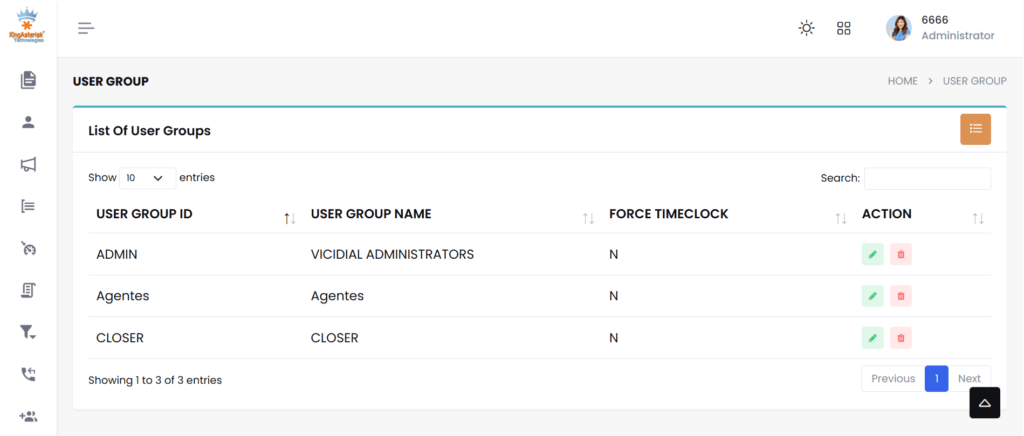
Go to Admin → User Groups and add a group for each team or department (e.g., SALES_OUTBOUND, SUPPORT_INBOUND). Set campaign access restrictions and report permissions at the group level, not per individual user. This scales cleanly as headcount grows.
Create individual user accounts
Navigate to Admin → Users → Add New User. Assign: username (alphanumeric, no spaces), full name, user group, and user level. Set a temporary password and force change on first login via the Pass Change field. For bulk provisioning, use the Admin → Bulk Account Add utility or the VICIdial API endpoint /vicidial/non_agent_api.php.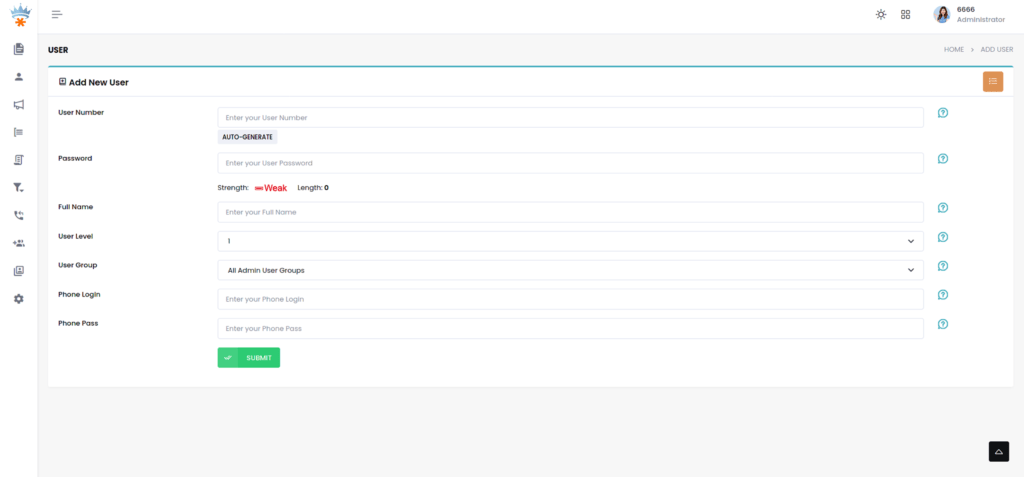
Create a phone extension for each agent seat
Go to Admin → Phones and add a phone record for each concurrent seat (not per user, seats are shared in hot-desk environments). Set the dialplan number, voicemail box, and server IP. Enable login campaign if you want agents to be auto-assigned to a campaign on extension login.
Assign phone extensions to users (or leave open for hot-desking)
In the user record, set the Phone Login field to the agent’s dedicated extension, or leave it blank to enable hot-desk login where any agent picks any available extension. For fixed-seat deployments, a one-to-one mapping between user and phone record is simpler to audit.
Configure agent options per user
Per-user overrides include: max_inbound_calls, manual_dial_filter, scheduled_callbacks permission, and closer_default_campaign. These override the user group defaults, use them sparingly to avoid configuration inconsistencies across your agent pool.
Test login with a non-admin account before go-live
Log out of the Vicidial admin account and log in as a level-1 agent. Verify you see only the assigned campaigns, that the phone registers, and that a test call routes correctly. This catches 90% of configuration errors before they affect live traffic.
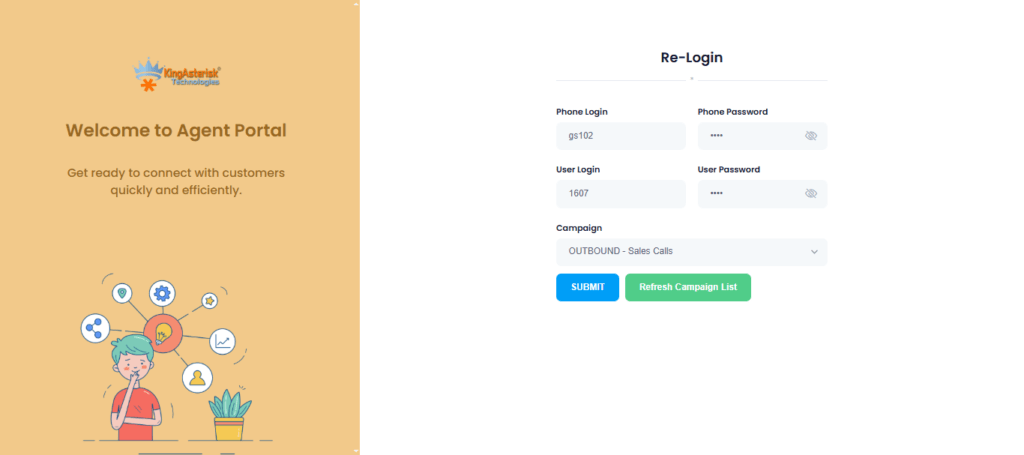
Manage Multiple Users Seamlessly on a Single VICIdial Server Without Data Overlap
Running multiple users on one system sounds complex, but with VICIdial, it’s surprisingly simple. You can organize each client using dedicated user groups, assign specific agents (like 10 for Client A and 20 for Client B), and connect them to their own campaigns, inbound flows, and reports.
Everything stays structured, clean, and fully separated. Agents only see what they are supposed to see, and users never interact with each other’s data. This setup works perfectly for BPOs and growing contact centers that want to scale without investing in multiple servers. One system, multiple cusers, zero confusion, that’s the real power of a well-configured VICIdial environment.
Assigning Users to Campaigns and Inbound Groups
In a multi-user environment, campaign-level access is the primary tool for partitioning your agent pool. VICIdial does not automatically expose all campaigns to all users, access is controlled through the user group’s campaign list.
Outbound campaigns
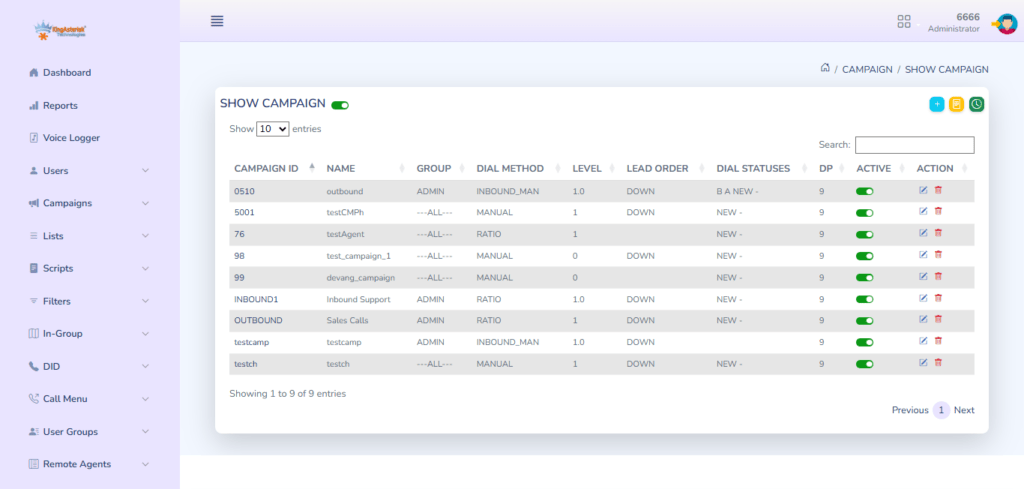
Navigate to Admin → Campaigns → [Campaign Name] → Allowed User Groups. Add the relevant user groups. Agents in those groups will see the campaign in their login dropdown. Agents outside those groups will not, even if they are on the same server.
Inbound groups (queues)
Inbound routing in VICIdial uses In-Groups (equivalent to queues in a standard ACD). Go to Admin → In-Groups and under the Allowed User Groups field, restrict queue visibility. An agent handling only outbound sales should never see, or accidentally log into, a technical support queue.
Blended agent configuration
For agents handling both inbound and outbound calls, enable Dial Method: INBOUND_MAN or use the Auto-Dial with inbound blend setting. Blended agents require slightly more Asterisk channel overhead, accounting for this in your server resource planning.
Server Tuning for Multi-User Concurrency
The most common production failure in a multi-user VICIdial setup is not a configuration error, it is a resource exhaustion event. When 40 agents log in simultaneously, each opening a SIP channel and a browser session, the server’s kernel and MySQL instance face significant concurrent demand.
Linux file descriptor limits
Each Asterisk channel consumes file descriptors. The default Linux limit of 1,024 per process is insufficient for any production contact center. Add the following to /etc/security/limits.conf:
asterisk soft nofile 65536
asterisk hard nofile 65536
Also set fs.file-max = 200000 in /etc/sysctl.conf and apply with sysctl -p.
Asterisk channel limits
In /etc/asterisk/asterisk.conf, set maxcalls to at least 1.5× your expected peak concurrent call count. For a 50-agent setup with blended traffic, a value of 200 provides adequate headroom.
MySQL InnoDB buffer pool
VICIdial is database-intensive, every call event, agent status change, and disposition writes to MySQL. Set innodb_buffer_pool_size to 50–70% of available RAM. On a 16 GB server, 8G is a reasonable starting point. Monitor slow query log output during peak hours and index accordingly.
Apache / web server concurrency
The VICIdial agent interface is a browser-based application served by Apache. Set MaxRequestWorkers (Apache 2.4) to accommodate your agent count plus administrative sessions. A value of 150 handles 80–100 simultaneous agent browsers without queue buildup.
Real-World Use Case: 50-Seat BPO on a Single Server
A business process outsourcing firm running three client campaigns, debt collection, appointment scheduling, and customer satisfaction surveys, approached KingAsterisk needing to consolidate from three separate VICIdial instances onto one server to reduce infrastructure overhead.
The solution used a single VICIdial server (16 GB RAM, 8-core processor, SSD storage) with the following structure:
- Three user groups matching the three client campaigns, each with isolated report visibility.
- 50 phone extension records configured for hot-desking, no agent was bound to a physical extension, reducing seat licensing complexity.
- Two level-7 manager accounts per client, giving team leads the ability to pull their own reports and monitor live calls without touching each other’s campaigns.
- One level-8 administrator at KingAsterisk with remote SSH access for server-level maintenance.
Peak concurrent call load reached 63 simultaneous channels (including auto-dialer lines). With the file descriptor tuning and InnoDB buffer settings described above, the server maintained sub-200ms agent screen refresh times throughout. Call recording storage was the only resource that required ongoing monitoring; at average call lengths, 50 agents generated approximately 80–100 GB of audio per week.
Frequently Asked Questions
How many users can run on a single VICIdial server❓
There is no hard-coded user limit in VICIdial itself. Practical capacity is constrained by server hardware, specifically RAM, CPU, and MySQL throughput. A well-tuned server with 16 GB RAM and 8 cores comfortably supports 50–80 concurrent agent sessions. Beyond that, a multi-server architecture with a separate database node is recommended for production stability.
Can different users have different permissions in VICIdial❓
Yes. VICIdial’s user level system (levels 1 through 9) and user group framework provide granular, layered permission control. You can restrict which campaigns a user sees, which reports they can access, whether they can perform manual dials, and whether they can view other agents’ call recordings, all independently configurable per user or user group.
Can I assign different agents to different users in VICIdial?❓
Yes, you can assign agents based on user groups or campaigns. For example: One group of agents can work for Client A. Another group can work for Client B. This keeps operations organized and secure.
Can I use different dialer settings for each client❓
Yes, each campaign can have its own dialer settings. For example: Client A can use predictive dialing. Client B can use manual dialing. This flexibility helps match different business needs.
How can I manage multiple users easily in VICIdial❓
You can manage multiple users using:
- User Groups
- Campaigns
- Access Permissions
- Reports Filtering
This structure keeps everything clean and scalable.