
Asterisk issues are one of the most common, and most operationally damaging, sources of downtime in modern contact center environments. When your open-source Asterisk telephony backbone starts misbehaving, the ripple effects are immediate: agents can’t connect calls, IVR flows break mid-customer-journey, and your SLA metrics collapse in real time. 

At KingAsterisk, we’ve been deploying and maintaining Asterisk-based contact center platforms for over 15 years, and we’ve seen these problems firsthand across operations of every size, from 10-seat inbound support desks to 500-agent outbound sales floors.

The difference between a 15-minute fix and a 4-hour outage almost always comes down to knowing exactly where to look. This guide doesn’t deal in generalities. Each section below names a specific failure mode, explains precisely why it happens, and gives you actionable steps to resolve it, whether you’re troubleshooting a live outage right now or hardening your system against the next one.
Issue #1 — SIP Registration Failures

What It Looks Like

Agents report that their softphones show “Registration Failed” or “401 Unauthorized.” Inbound routes stop receiving calls entirely. Your trunk provider’s portal shows the line as offline or unregistered. Sometimes this affects only certain extensions; other times the entire SIP trunk goes dark.

Why It Happens

SIP registration failures are among the most frequent Asterisk issues and typically stem from one of three root causes:

  • Incorrect credentials in sip.conf or pjsip.conf — passwords changed at the provider end but not updated locally, or a copy-paste error introduced a hidden character
  • Firewall blocking UDP port 5060 — especially common after a server migration, OS-level security update, or cloud security group change
  • NAT traversal misconfiguration — the externip and localnet parameters are missing or incorrect, causing Asterisk to send a private IP address in its SIP Contact header, which the provider cannot reach

How to Fix It

  1. Check peer registration status from the CLI: asterisk -rx “sip show peers” — look for peers showing UNREACHABLE or UNKNOWN status. For chan_pjsip: asterisk -rx “pjsip show endpoints”.

  2. Enable SIP debug logging in real time: asterisk -rx “sip set debug on” — watch for 403 Forbidden, 401 Unauthorized, or 404 Not Found responses from your provider.

  3. Verify firewall rules are not blocking port 5060: iptables -L -n | grep 5060 and ufw status verbose on Ubuntu systems.

  4. In sip.conf, confirm that externip= and localnet=192.168.x.x/255.255.255.0 are correctly set under [general].

  5. Reload the SIP channel driver without a full Asterisk restart: asterisk -rx “module reload chan_sip.so”, this applies credential and NAT changes immediately.

      Issue #2 — One-Way or No Audio (RTP Problems)

      What It Looks Like

      Calls connect successfully, the SIP handshake completes and the agent’s phone shows an active call, but one or both parties hear complete silence. The agent hears the customer but the customer hears nothing, or vice versa. Occasionally both sides are silent. This is one of the most frustrating Asterisk issues precisely because the call technically “works” at the signaling layer.

      Why It Happens

      Audio in Asterisk travels over RTP (Real-Time Protocol), which uses a completely separate port range, typically UDP 10000–20000, from SIP signaling on port 5060. One-way audio almost always points to a NAT or firewall problem at the media layer rather than the signaling layer:

      • RTP packets are being sent to a private IP address because nat=yes is not set for the SIP peer, and Asterisk is trusting the IP in the SDP body rather than the source IP of the packet
      • The RTP port range is blocked by a firewall while SIP port 5060 is open, a common misconfiguration when rules are set up quickly
      • A codec mismatch between Asterisk and the remote endpoint, one side is sending G.711 audio and the other is only prepared to decode G.729, so the media stream is received but not rendered

      How to Fix It

      1. Confirm that nat=force_rport,comedia is set under [general] in sip.conf for any NAT environment. For chan_pjsip, ensure direct_media=no for NATted endpoints.

      2. Open the full RTP port range: ensure UDP 10000–20000 is allowed both inbound and outbound on your host firewall and any upstream security groups.

      3. Check active codec negotiation mid-call: asterisk -rx “sip show channel “, look at the Codecs and Format fields.

      4. IControl codec priority explicitly in sip.conf: set disallow=all first, then allow=ulaw and allow=alaw in order of preference. Remove any ambiguous wildcard allowed entries.

      5. If your server runs on a cloud platform (AWS, DigitalOcean, Google Cloud, Azure), verify that the cloud security group or network ACL rules cover the full RTP range, not just port 5060.

      Issue #3 — Unexpected Call Drops

      What It Looks Like

      Calls that were connecting and progressing normally suddenly drop at the 30-second mark, the 90-second mark, or some other suspiciously consistent interval. The timing is too regular to be random. Agents are complaining. Customers are calling back frustrated. Call recordings end abruptly.

      Why It Happens

      Timing-based call drops are a classic symptom of SIP session timer expiry or missing re-INVITE handling, and they’re among the trickier Asterisk issues to diagnose because the problem is often rooted in how a stateful firewall is treating mid-call SIP traffic:

      • SIP session timers are set by your carrier to refresh the session at a defined interval; the re-INVITE packet used for this refresh is being dropped by your firewall, which treats it as a new out-of-state connection
      • rtptimeout and rtpholdtimeout values in sip.conf are configured too aggressively, terminating calls when Asterisk detects a gap in RTP traffic, this hits IVR hold scenarios particularly hard
      • Carrier-side BYE is being sent because the carrier’s session timer expires without receiving a re-INVITE response, often looping back to the one-way audio problem causing the carrier to abandon the session

      How to Fix It

      1. In sip.conf, set session-timers=refuse to reject session timer requests from the carrier if your provider supports sessions without timers, or session-timers=accept to defer the interval decision to them.

      2. Adjust RTP timeout values: rtptimeout=60 and rtpholdtimeout=300 for standard contact center use. Set rtptimeout=0 to disable RTP-based hangups entirely in environments with long IVR hold periods.

      3. Enable qualify=yes for all SIP peers to send OPTIONS keepalives every 60 seconds, this maintains NAT bindings and keeps stateful firewall sessions open.

      4. If using Linux’s netfilter, load the SIP conntrack helper: modprobe nf_conntrack_sip, this allows the firewall to track SIP dialogs properly and permit re-INVITEs.

      5. Consider switching from UDP to TCP for SIP signaling (tcpenable=yes in sip.conf) if your UDP packets are being dropped by intermediate stateful firewalls.

        Issue #4 — High Latency and Audio Jitter

        What It Looks Like

        Agents report that callers sound robotic, words cut in and out, or that there is a noticeable echo on the line. The problem worsens during peak calling hours and improves overnight. Call quality scores drop. CSAT surveys show audio quality complaints spiking. Supervisors can hear it on call recordings.

        Why It Happens

        Audio jitter and high latency in Asterisk deployments are usually infrastructure or configuration issues rather than core Asterisk bugs, but Asterisk configuration choices directly amplify or reduce the problem:

        • Codec transcoding overhead — if Asterisk is converting between G.729 and G.711 at high call volumes, the CPU load during peak hours causes audio buffer starvation, introducing gaps and jitter
        • Insufficient or shared server resources — Asterisk is CPU and I/O sensitive; running your PBX, database, web server, and dialer on a single physical host is a recipe for resource contention during peak campaigns
        • Incorrect jitter buffer configuration — Asterisk’s native jitter buffer is disabled by default; when enabled improperly, it introduces additional latency rather than smoothing out packet arrival variation

        How to Fix It

        1. Monitor CPU usage in real time during peak call hours: htop filtered to the asterisk process — sustained CPU above 70% during calls is a warning sign.

        2. Eliminate transcoding wherever possible: if your SIP trunk and agent endpoints both support G.711 ulaw, force allow=ulaw and disallow=all on both sides. Passthrough audio requires zero CPU for codec conversion.

        3. If a jitter buffer is genuinely needed (high-latency WAN links): set jbenable=yes, jbmaxsize=200, and jbimpl=fixed in sip.conf under [general] — avoid adaptive jitter buffer in contact center environments where latency consistency matters more than flexibility.

        4. Separate Asterisk from your database server — MySQL/MariaDB for VICIdial should run on a dedicated host or at minimum have I/O scheduling priority (ionice -c 1 -n 0 -p ).

        5. Run Asterisk with elevated CPU scheduling priority: nice -n -10 /usr/sbin/asterisk — or set OOMScoreAdjust=-100 in the systemd unit file to protect Asterisk from being killed under memory pressure.

          Issue #5 — Dialplan Errors Breaking IVR Flows

          What It Looks Like

          Callers reach your IVR menu but get dumped to a fast busy tone unexpectedly, hear silence after making a selection, or get trapped in an infinite loop. Your extensions.conf was working correctly until a recent configuration change touched it. Sometimes only specific menu paths are broken; the main greeting plays fine.

          Why It Happens

          IVR-related Asterisk issues almost always trace back to dialplan logic errors, missing context definitions, or silent failures in AGI scripts:

          • A called extension references a context name that doesn’t exist or contains a typo, Asterisk fails to find it and routes to the [default] context or hangs up
          • An AGI or FastAGI script fails silently (non-zero exit code, missing Python library, broken database connection) and the dialplan has no h extension error-handling branch to catch it
          • A Goto() or GotoIf() application targets a label or extension that was renamed or deleted during a configuration update
          • The [default] context is unintentionally catching calls it should never reach, masking the real missing-context error

          How to Fix It

          1. Inspect the loaded dialplan without touching a live call: asterisk -rx “dialplan show ” — if the output is empty, the context isn’t loaded or has a name mismatch.

          2. Enable verbose dialplan tracing on the CLI: asterisk -rx “core set verbose 5” — then run a test call. Watch exactly which extensions are matched and where execution diverges from expectation.

          3. Check AGI script health independently: run the script directly from the shell as the asterisk user — sudo -u asterisk /usr/share/asterisk/agi-bin/your_script.agi — and check its exit code with echo $?. Any non-zero value signals a failure Asterisk will silently route around.

          4. Audit Goto(), GotoIf(), and GoSub() targets after any dialplan edit — confirm every referenced extension, context, and label exists in the current loaded configuration.

          5. After every dialplan change, reload without restarting Asterisk: asterisk -rx “dialplan reload” — then immediately verify with dialplan show to confirm the new configuration is active.

          Issue #6 — VICIdial Agent Login and Session Problems

          What It Looks Like

          Agents are unable to log into VICIdial at shift start, receive “session expired” errors in the middle of active calls, or find themselves listed as logged in after they’ve clocked out. Campaign managers see incorrect real-time agent counts on the supervision screen. The predictive dialer calculates abandon rates incorrectly because it thinks more agents are available than actually are.

          Why It Happens

          VICIdial runs on top of Asterisk and introduces its own session management layer through the vicidial_live_agents MySQL table. Breakdowns here are compound problems, they can involve Asterisk, the database, the AMI connection, or all three simultaneously:

          • Stale session records remaining in vicidial_live_agents from a previous crash, server restart, or agent who closed their browser without logging out properly
          • Asterisk AMI connection instability — VICIdial communicates with Asterisk exclusively through the Asterisk Manager Interface; if this connection drops and doesn’t reconnect cleanly, agent state events stop flowing and VICIdial’s view of call state diverges from reality
          • MySQL max_connections exceeded during high-agent-count shifts, causing VICIdial’s PHP processes to fail silently on database writes

          How to Fix It

          1. Clear stale sessions that are preventing fresh logins: UPDATE vicidial_live_agents SET status=’DEAD’ WHERE last_update_time < NOW() - INTERVAL 10 MINUTE AND status NOT IN ('DEAD'); — run this during a shift transition, not during active calling.

          2. Check AMI connectivity health: grep “AMI” /var/log/asterisk/full | tail -50 — look for “Lost Connection” or “Authentication Failed” entries correlating with the time agents started reporting problems.

          3. In manager.conf, verify the VICIdial AMI user has complete permissions: read = all and write = all — a partially permissioned AMI user is one of the most common causes of intermittent VICIdial session desynchronisation.

          4. Increase MySQL’s connection limit to accommodate peak agent load: in /etc/mysql/my.cnf, set max_connections = (number_of_agents × 3) + 100 — restart MySQL during a maintenance window to apply.

          5. Restart VICIdial’s server-side processes cleanly when stale state has accumulated: /usr/share/astguiclient/ADMIN_restart_vicidial_servers.pl — this script handles process teardown and restart in the correct order.

          Issue #7 — Asterisk Process Crashes and Memory Leaks

          What It Looks Like

          Asterisk stops unexpectedly during active operations, sometimes in the middle of a campaign peak. If a watchdog process is configured, it auto-restarts Asterisk within seconds, but all calls in progress drop instantly. Over days or weeks, you notice memory usage climbing steadily until the server becomes sluggish and then unresponsive, requiring a manual restart to recover.

          Why It Happens

          Process stability Asterisk issues are less common in recent LTS versions but still surface in specific environments and configurations:

          • Module memory leaks: certain third-party modules and older builds of app_queue.so have documented leak patterns under sustained high call volume. The leak is slow enough to go unnoticed for days but eventually critical.
          • Core dump files filling the disk: when Asterisk crashes and core dumps are enabled, /tmp or /var fills up rapidly; subsequent Asterisk restarts then fail because the filesystem is full, turning a recoverable crash into a prolonged outage
          • Improper forced kills: using kill -9 on the Asterisk process instead of graceful shutdown corrupts in-memory state, increases the frequency of subsequent crashes, and can leave SIP sessions in a half-open state at the carrier

          How to Fix It

          1. Run Asterisk under systemd supervision with automatic restart: in /etc/systemd/system/asterisk.service, set Restart=on-failure and RestartSec=5; this provides sub-10-second recovery for most crash scenarios.

          2. Monitor RSS memory growth over time: watch -n 30 “ps -o pid,rss,vsz,comm -p \$(pgrep asterisk)“: if RSS grows continuously over hours without stabilising, a scheduled graceful reload every 24 hours during off-peak is a pragmatic interim measure.

          3. Control core dump behavior in /etc/asterisk/asterisk.conf: set dumpcore = no for production systems, or redirect to a controlled path with a size cap using systemd’s LimitCORE directive.

          4. Always stop Asterisk gracefully: asterisk -rx “core stop gracefully”: this command waits for all active calls to complete before exiting, preventing mid-call drops and carrier-side session corruption. Never use kill -9 unless the process is completely unresponsive.

          5. Stay current on patch releases: review Asterisk’s CHANGES and UPGRADE.txt for your major version branch: the majority of crash-inducing bugs in production environments have already been fixed in a point release.

          Step-by-Step: How KingAsterisk Diagnoses and Resolves Asterisk Issues

          When a contact center brings an active problem to our team, our senior engineers follow a structured diagnostic process that minimises downtime and avoids the “restart everything and hope” trap. Here is the exact approach we use:

          1. Establish live CLI access first: connect to the running Asterisk process: asterisk -rvvv (three to five vs for appropriate verbosity). Never rely solely on log files written hours ago for an active fault.
          2. Reproduce the fault in a controlled way: place a test call that triggers the issue while watching the CLI output in real time. A fault you can reproduce consistently is a fault you can fix.
          3. Isolate the layer: determine precisely whether the problem lives at the SIP signaling layer, the RTP media layer, the dialplan execution layer, or the application layer (VICIdial, AGI scripts, database connections).
          4. Anchor to the change timeline: review /var/log/asterisk/full and server change logs for the exact timestamp when the issue began. Correlate with any configuration edits, OS or kernel updates, network topology changes, or carrier notifications.
          5. Inspect the relevant configuration files: sip.conf or pjsip.conf, extensions.conf, queues.conf, manager.conf: for the specific feature area identified in Step 3.
          6. Test the fix in isolation before applying to production: if the environment allows it, replicate the call path on a test extension or staging system. If not, apply the smallest possible change and observe.
          7. Apply the targeted fix: make only the minimum necessary configuration change, then reload only the affected module (asterisk -rx “module reload chan_sip.so”) rather than a full service restart whenever possible.
          8. Monitor actively for 30–60 minutes: watch the system under normal production load after the fix is applied. A problem that appears resolved in testing can resurface under concurrent call volume.
          9. Set up an automated alert: if the fault had no existing monitoring, add a check in Nagios, Zabbix, or your monitoring tool of choice on the specific metric that failed. Don’t leave the next occurrence to chance discovery.
          10. Document root cause and resolution: record both the cause and fix in your internal runbook. Asterisk issues, especially those caused by carrier behaviour changes or OS interactions, have a pattern of recurring months later when team knowledge has shifted.

          Real-World Use Case: Outbound Campaign Recovery

          A mid-sized collections contact center with 120 VICIdial agents came to KingAsterisk after experiencing a 40% call drop rate that appeared exactly three days after a scheduled server OS upgrade. Agents were logging in, campaigns were running, and calls were connecting — but they were dropping consistently at the 32-second mark with no obvious pattern to which agents or campaigns were affected.

          Our diagnosis: the OS upgrade had reset the server’s iptables rule set to default, and the Linux conntrack module’s default configuration was treating SIP re-INVITE packets at 30 seconds as out-of-state connections and silently dropping them. The carrier’s session timer was set to 30 seconds, meaning every active call that hit that interval was being immediately terminated by the carrier when the re-INVITE went unanswered.

          The fix took under 20 minutes to implement: we loaded nf_conntrack_sip with proper configuration to enable SIP-aware connection tracking, adjusted session-timers=refuse in sip.conf for the affected trunk peer, and flushed the stale conntrack table entries. Call drops fell from 40% to under 0.5% within the first monitored hour. No Asterisk restart was required. The entire resolution happened during a live shift with zero agent disruption.

          This case illustrates the core principle behind how we approach every Asterisk issues engagement: the problem is almost never what it looks like on the surface, and the right diagnostic path gets you to a precise, minimal fix rather than a disruptive restart that buys hours of relief before the fault reappears.

          Frequently Asked Questions

          Enable real-time SIP and RTP debugging directly from the Asterisk CLI with zero service disruption. Run asterisk -rvvv to attach a console to the running process, then execute sip set debug on to begin capturing SIP negotiation output in real time. For RTP-level inspection, use rtp set debug on. Both debug modes are fully safe to enable on a production system and can be turned off with the corresponding off command once you have captured the data you need.

          Calls dropping at consistent intervals, commonly 30, 60, or 90 seconds, almost always indicate a SIP session timer problem. The SIP protocol allows either party to set a session expiry interval; when the re-INVITE used to refresh that session is blocked by a firewall or rejected by one endpoint, the other party sends a BYE and terminates the call. The fix typically involves either adjusting session-timers in sip.conf to refuse or accept, or configuring the Linux kernel’s SIP conntrack module to allow mid-call SIP re-INVITEs to pass through properly.

          Yes, significantly. VICIdial depends on Asterisk’s AMI (Asterisk Manager Interface) for every real-time agent event and call state update. If the AMI connection becomes unstable, due to authentication errors, network interruption, or excessive event volume overwhelming the socket,  VICIdial loses synchronisation with the actual call state. This manifests as agents appearing logged in when they have disconnected, calls not being credited correctly to campaigns, and the predictive dialer calculating abandon rates and dial ratios based on phantom agent availability. Stabilising the AMI connection is always the first remediation step before adjusting any campaign or dialer settings.

          Production contact centers should track Asterisk’s Long-Term Support releases, which receive security and bug fix updates for five years after release. Apply patch releases, for example, moving from 20.x.1 to 20.x.5, within a 30-day window after testing in a staging environment. Never apply them immediately to production, and never delay them indefinitely. Major version upgrades should be treated as a full migration project with a staging environment test, agent impact assessment, and a documented rollback plan ready before the maintenance window begins.

          Key Takeaways

          • The most disruptive Asterisk issues, including SIP failures, one-way audio, and call drops, have clear, proven fixes when diagnosed correctly.
          • Many problems stem from misconfigured NAT settings, codec mismatches, or inadequate server resources rather than Asterisk itself.
          • VICIdial deployments built on Asterisk require careful tuning of dialplan logic, database connections, and agent session management.
          • Proactive monitoring with tools like asterisk -rvvv and log analysis can catch issues before they escalate to full outages.
          • KingAsterisk’s engineering team has resolved these exact problems across hundreds of contact center deployments spanning 15+ years.

          Conclusion

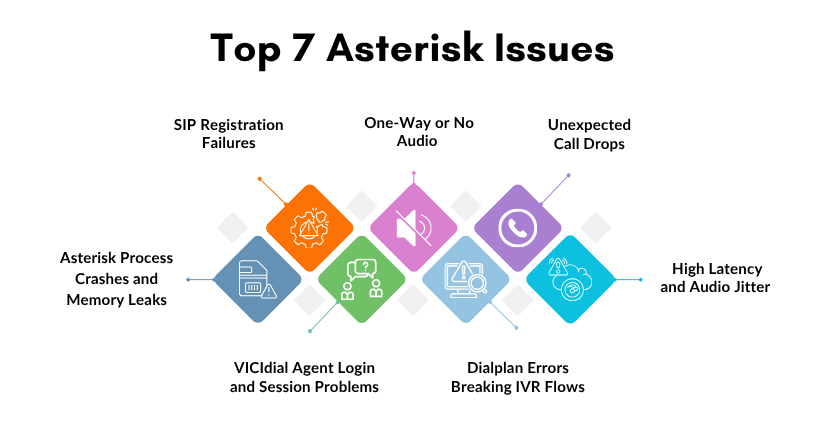
          Asterisk issues don’t have to mean hours of downtime, frustrated agents, and damaged customer relationships. The seven problems covered in this guide, SIP registration failures, one-way audio, call drops, audio jitter, dialplan errors, VICIdial session problems, and process crashes, each have clear diagnostic paths and proven, targeted fixes. The key is knowing which layer of the stack to examine, having the right CLI commands ready, and approaching each fault methodically rather than reactively.

          What separates a 15-minute resolution from a 4-hour outage is almost always experience,  knowing what a 32-second call drop pattern means before you’ve even opened a log file, or recognising a codec mismatch from a single line of SIP debug output. That depth of hands-on knowledge is exactly what KingAsterisk brings to every engagement.

          With over 15 years of specialised experience in Asterisk, VICIdial, IVR systems, and contact center telephony infrastructure, our engineering team has seen, and resolved, every Asterisk issue in this guide and hundreds more. Whether you’re managing an active outage right now or want to harden your system before the next failure strikes, we’re ready to help.

          Contact the KingAsterisk team to speak directly with an engineer who works with Asterisk every day.

          Authored by the KingAsterisk Senior Engineering Team, specialists in Asterisk, VICIdial, IVR, and contact center telephony infrastructure with 15+ years of hands-on deployment experience across inbound, outbound, and blended contact center operations.

          Write A Comment